Learn about how you can use Dub Analytics to better understand your audience.
On any given day, Dub Analytics tracks upwards of 10 million clicks and conversion events.With the sheer volume of data that’s tracked, it is important to be able to easily filter and create reports to help marketing teams make informed decisions.In this guide, we’ll walk you through how to use Dub Analytics to get the most out of your click events and engagement data.
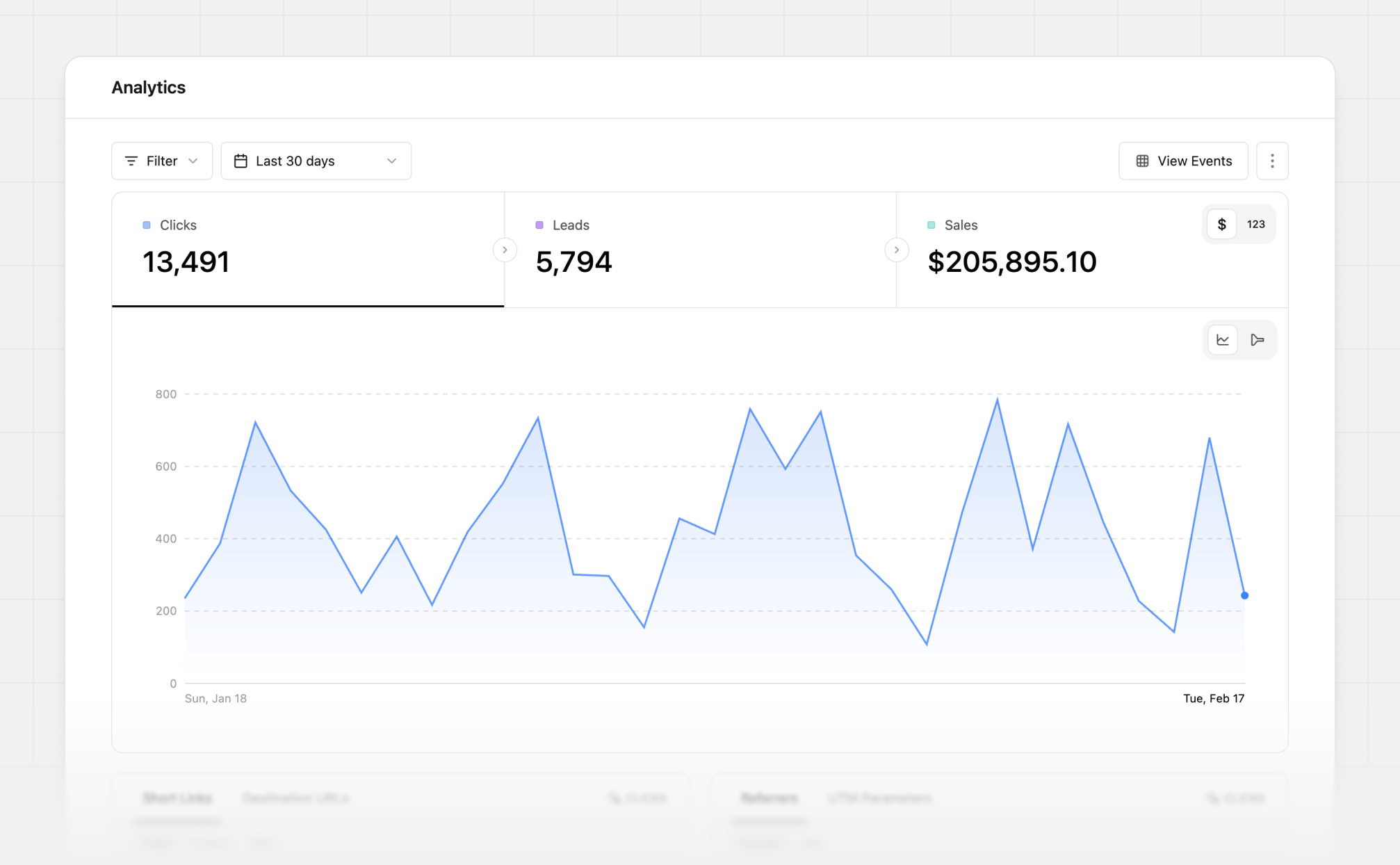
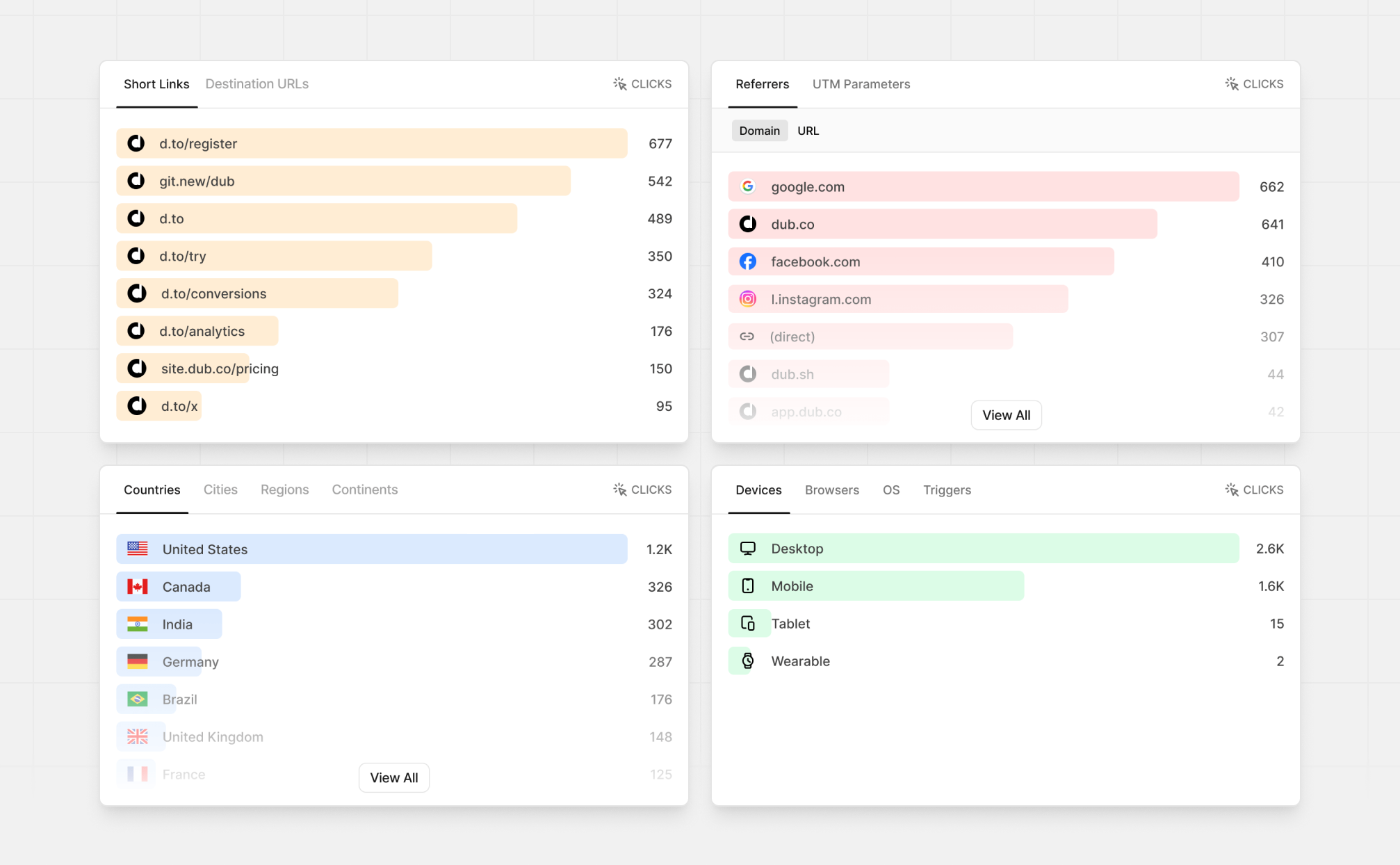
To give you some context before we dive in, here’s a live demo of Dub’s Analytics dashboard:
This public page was created using Dub’s shareable link feature. You can
create your own shareable link by following the steps in the Share your
analytics guide.
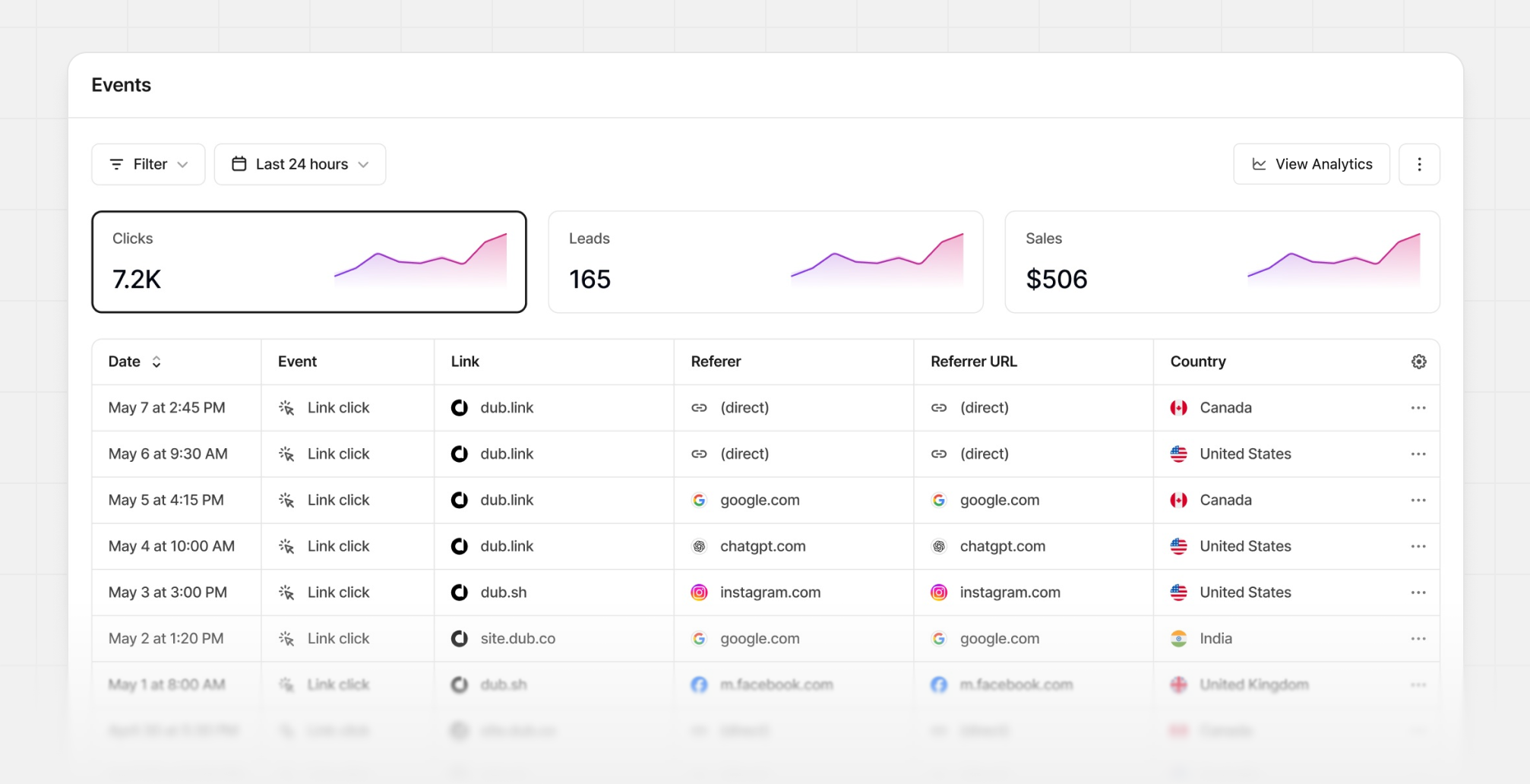
Dub also offers a Real-time Events Stream view that shows you the events that are happening in real-time. These events are sorted by the time they occurred, so you can see the most recent events first.
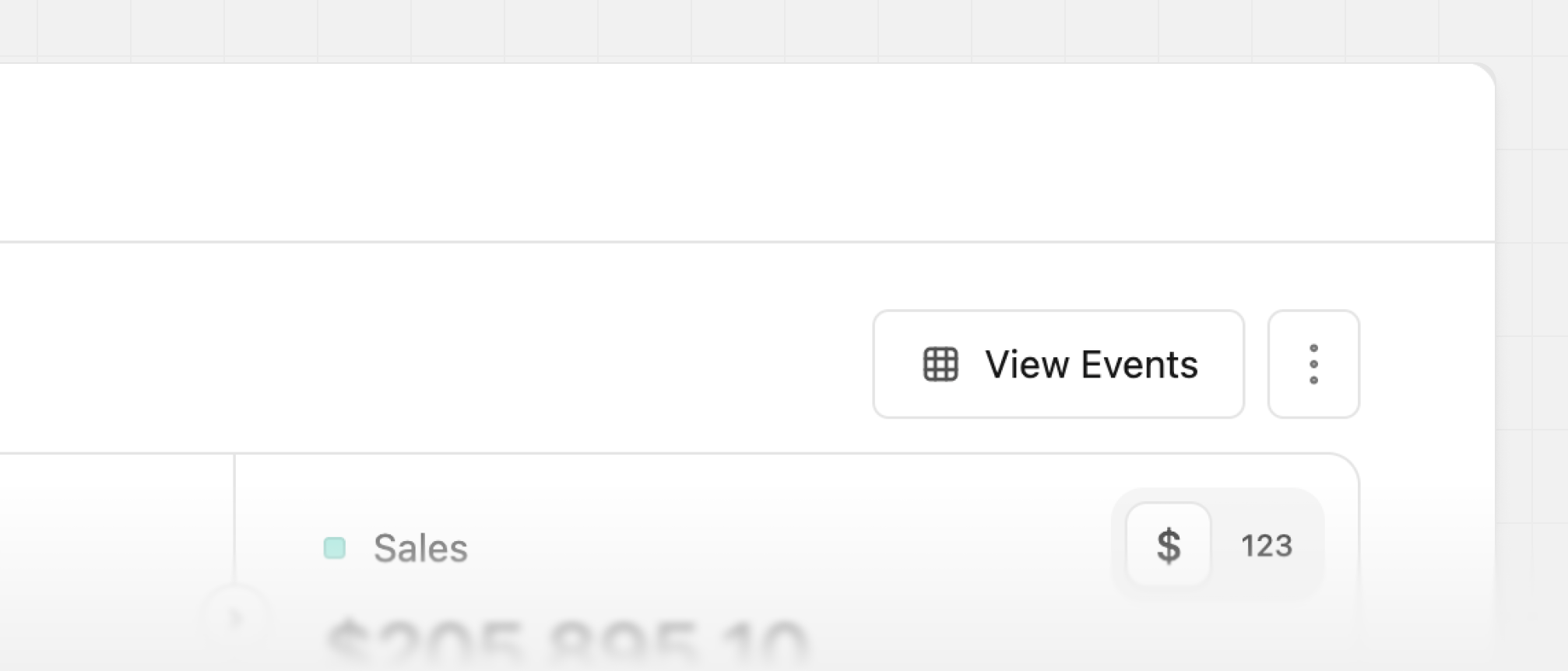
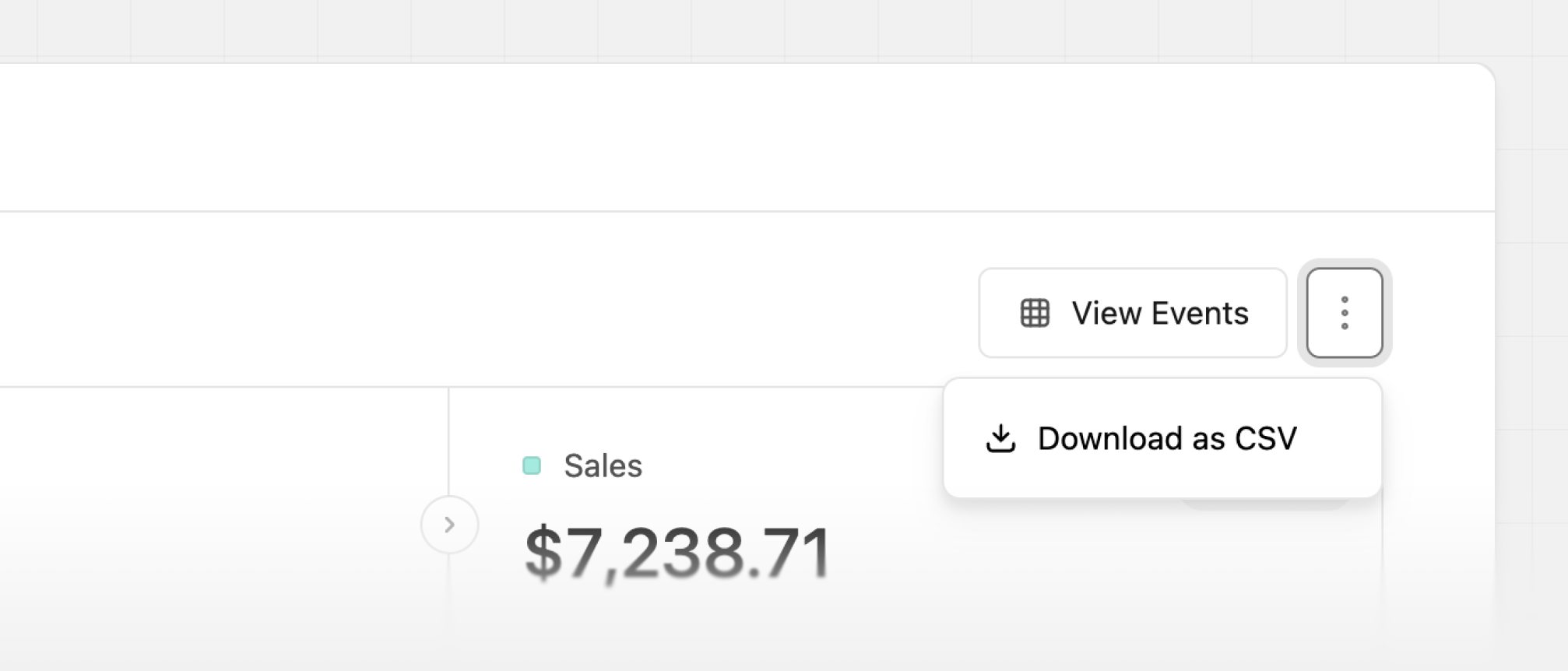
The real-time events stream lives in your workspace’s Events tab, but you can also access it via the View Events button in the Analytics tab:
When you click on the View Events button, the same filters you have
applied in the Analytics tab are applied to the Events tab as well.
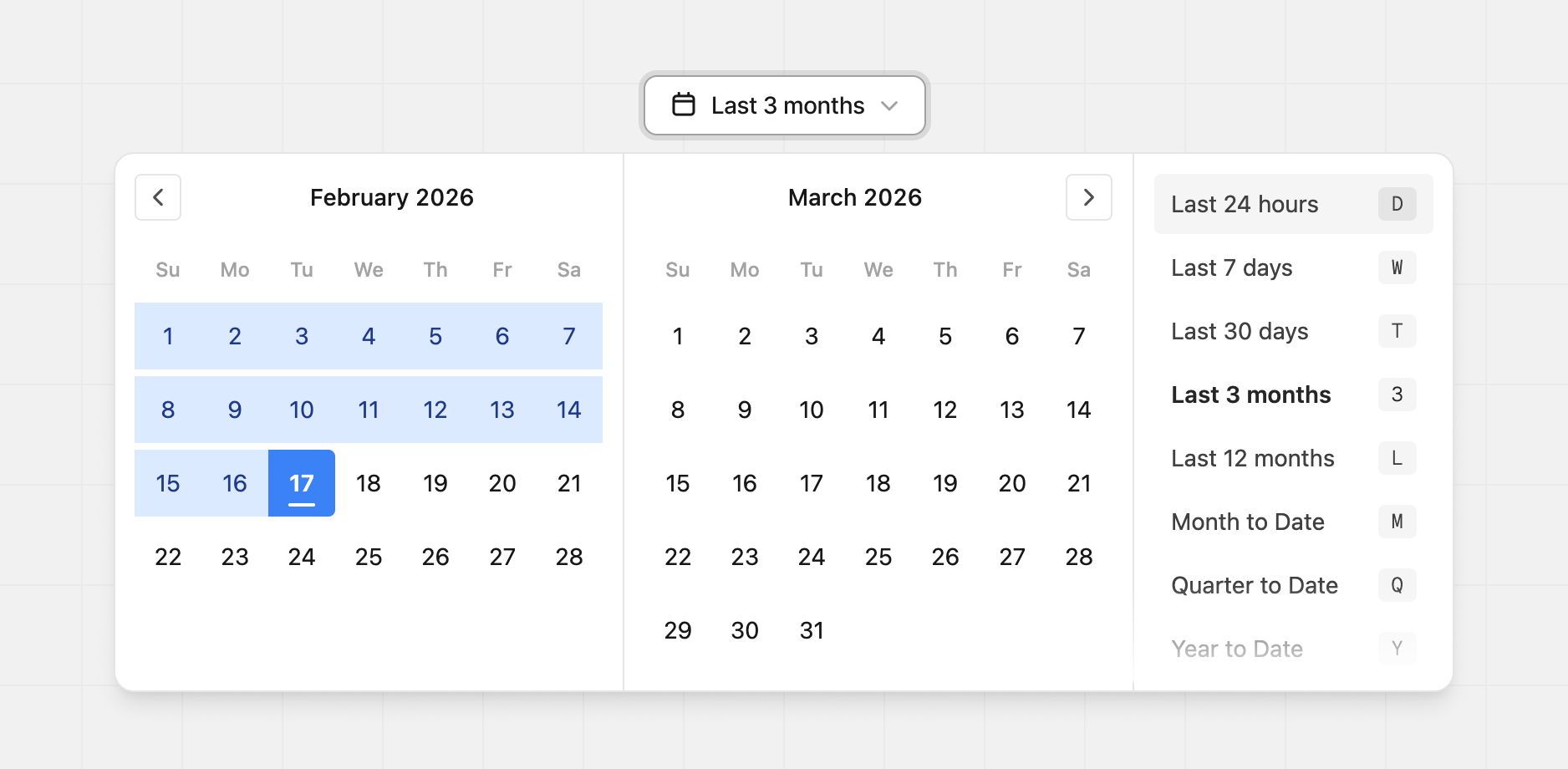
Dub Analytics comes with a powerful date range picker that allows you to select custom date ranges for your reports.This is especially useful when you want to compare data over different time periods, or when you want to focus on a specific time frame that is not covered by the preset date ranges.
Pro-tip: You can use keyboard shortcuts to toggle between different preset date ranges:
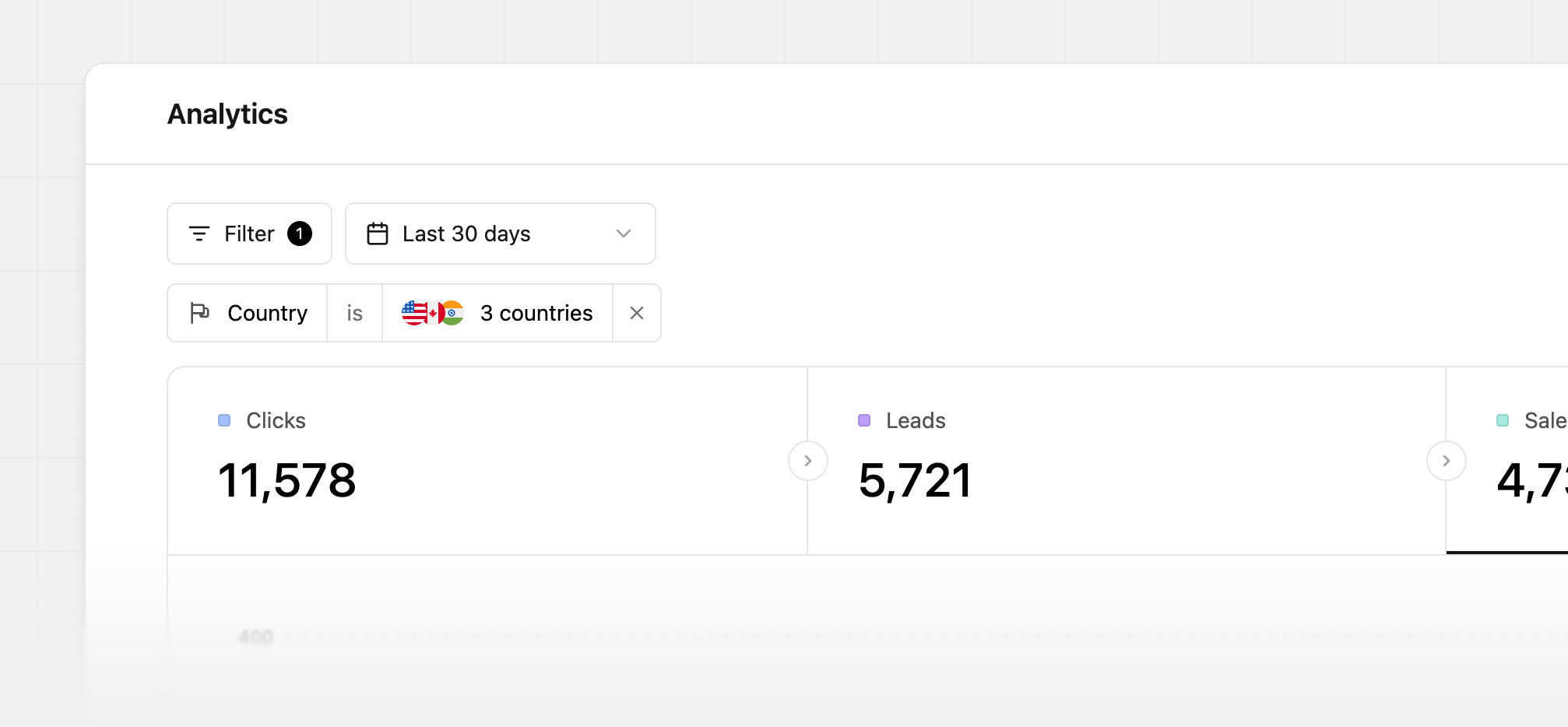
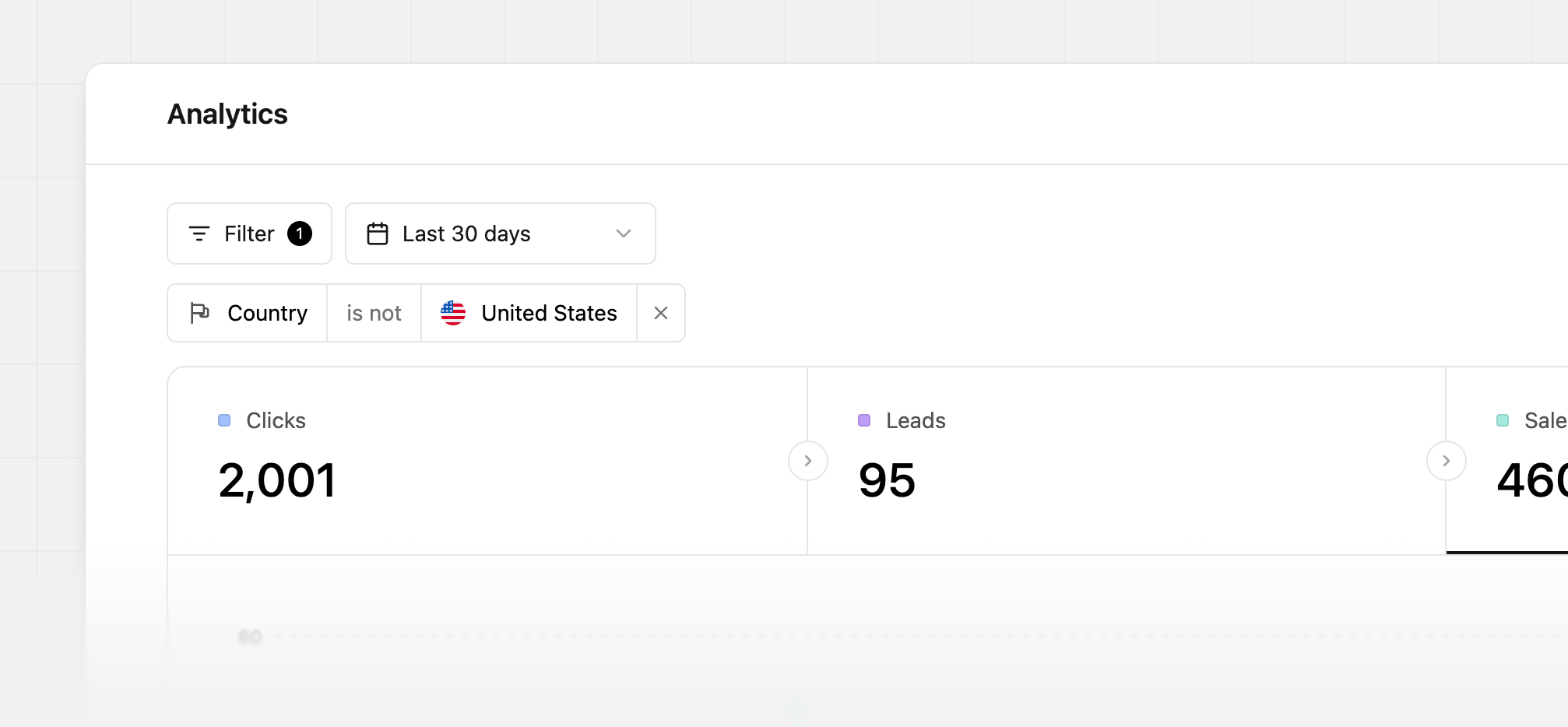
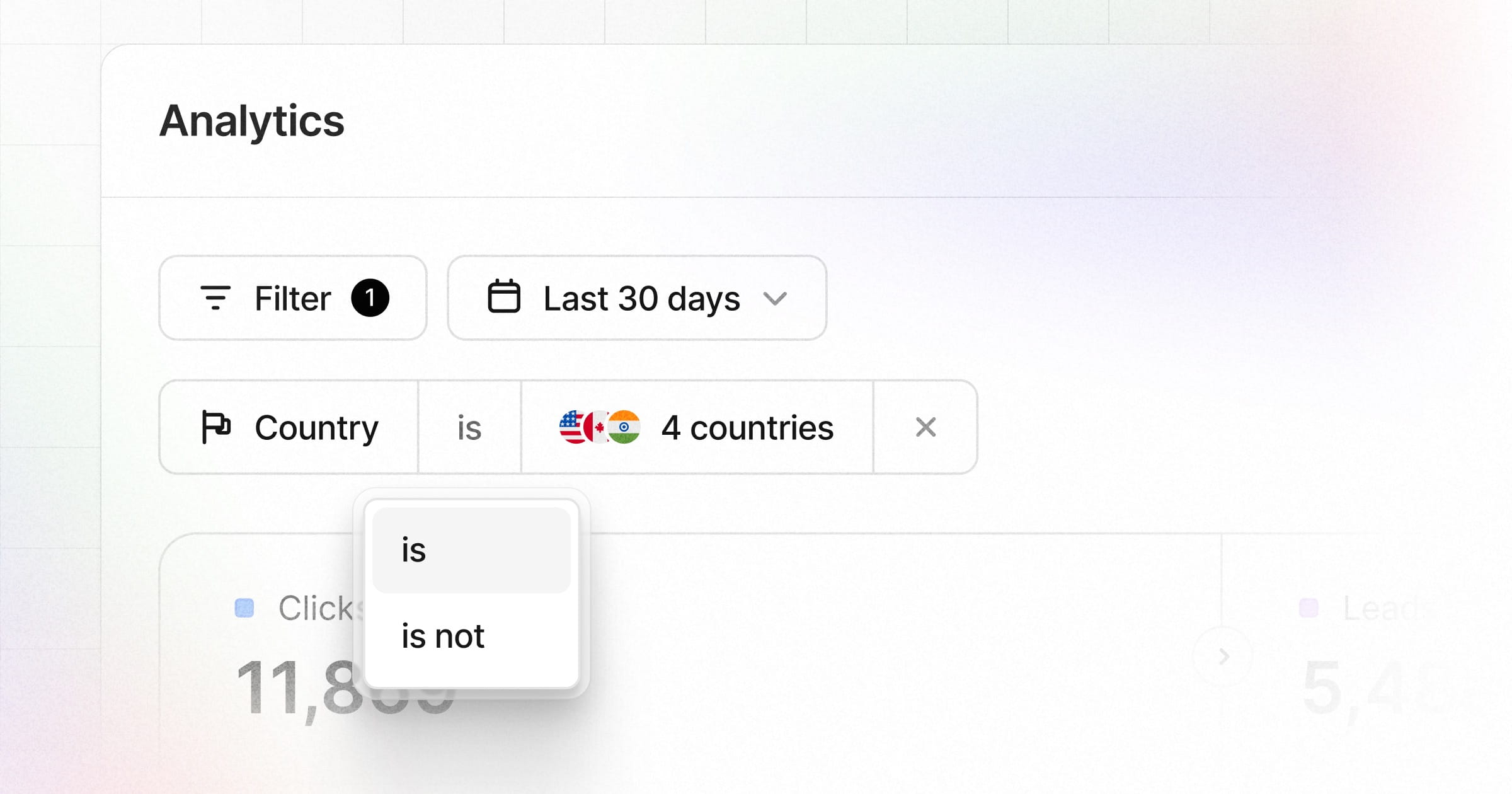
Additionally, with Dub Partners, you can also filter by the following:
Partner – Filter by individual partners to measure partner activity and ROI across different time ranges
Partner Group – Filter by partner group (e.g. “Influencers” vs “User Referrals” vs “Affiliates” vs “Publishers”) to understand the ROI on each of your partnership channels
Pro-tip: You can use the F keyboard shortcut to open up the filter bar.
You can also export your analytics data or events stream data to a CSV file at any time. This can be useful if you want to analyze the data in a business intelligence (BI) tool, share it with your team, or import it into a spreadsheet.