- Source:
YouTube,Newsletter,Agency, orCustomer referral - Status:
Needs follow-up,Contract sent, orHigh intent - Campaign:
Q2 launch,Black Friday, orWebinar cohort - Relationship:
VIP,Strategic, orCommunity
Adding tags to partners
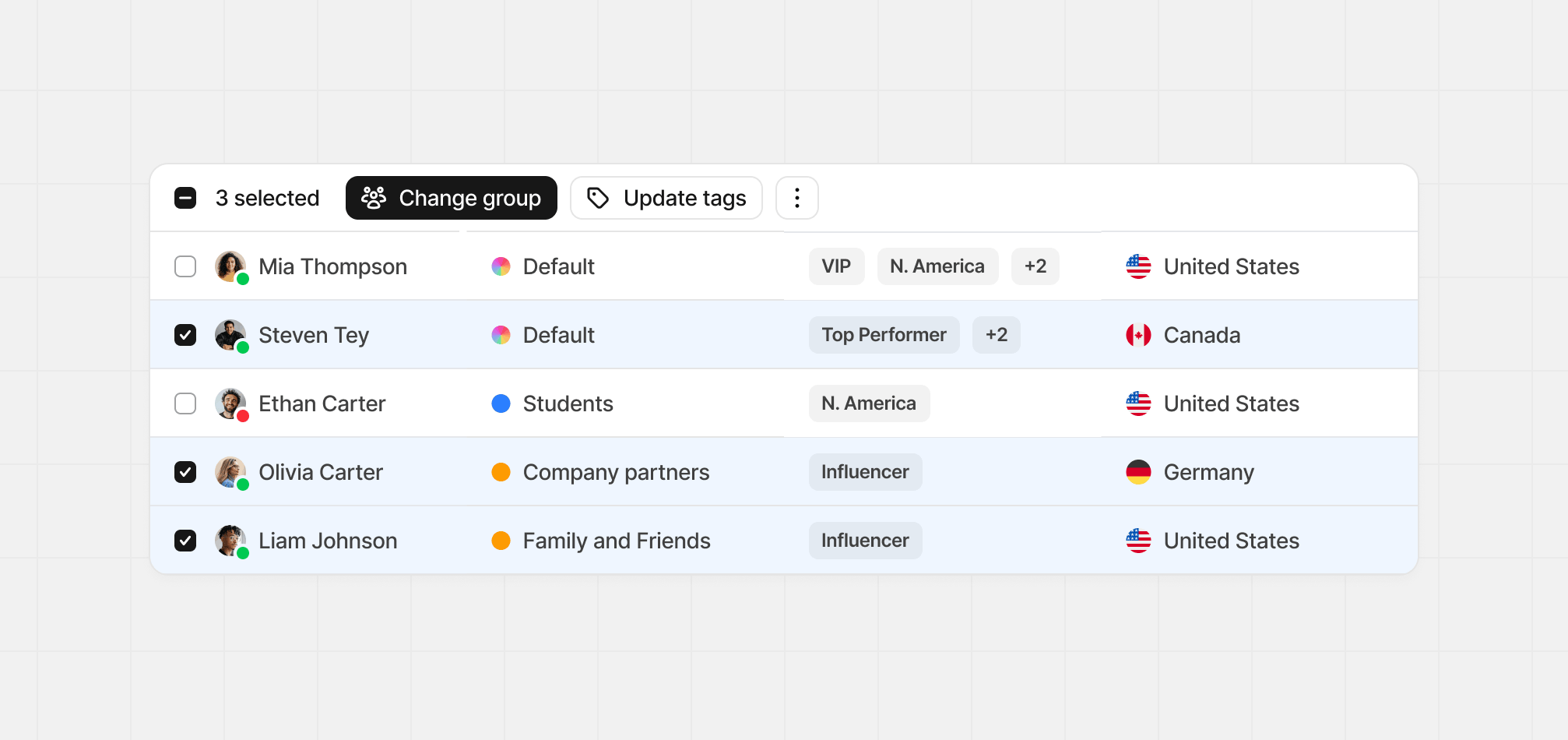
This can be done from either the partner table or the partner details view.Partner table
With the tag column enabled, click the tag icon button to add tags to a partner. This will open the modal view for all your created tags.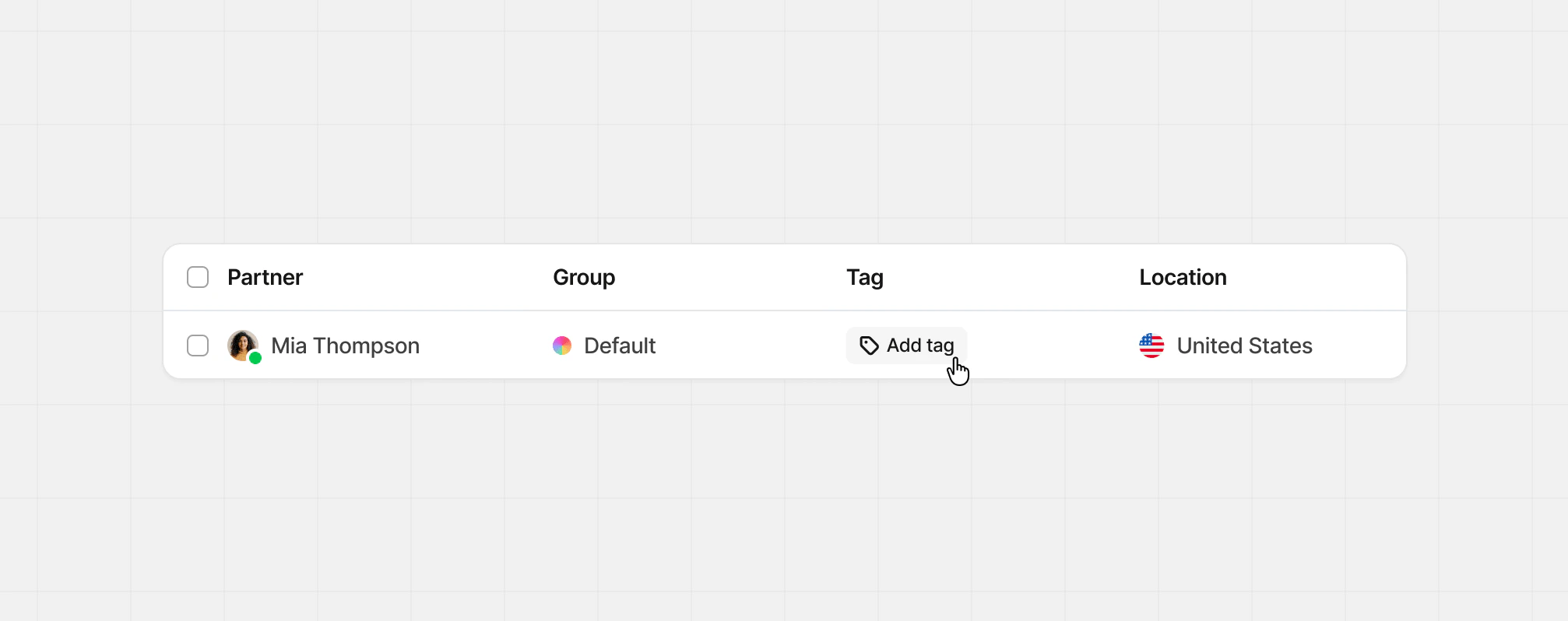
Partner details
In the partner details view, manage tags from the partner’s profile side panel by clicking the Add tag or the Manage button.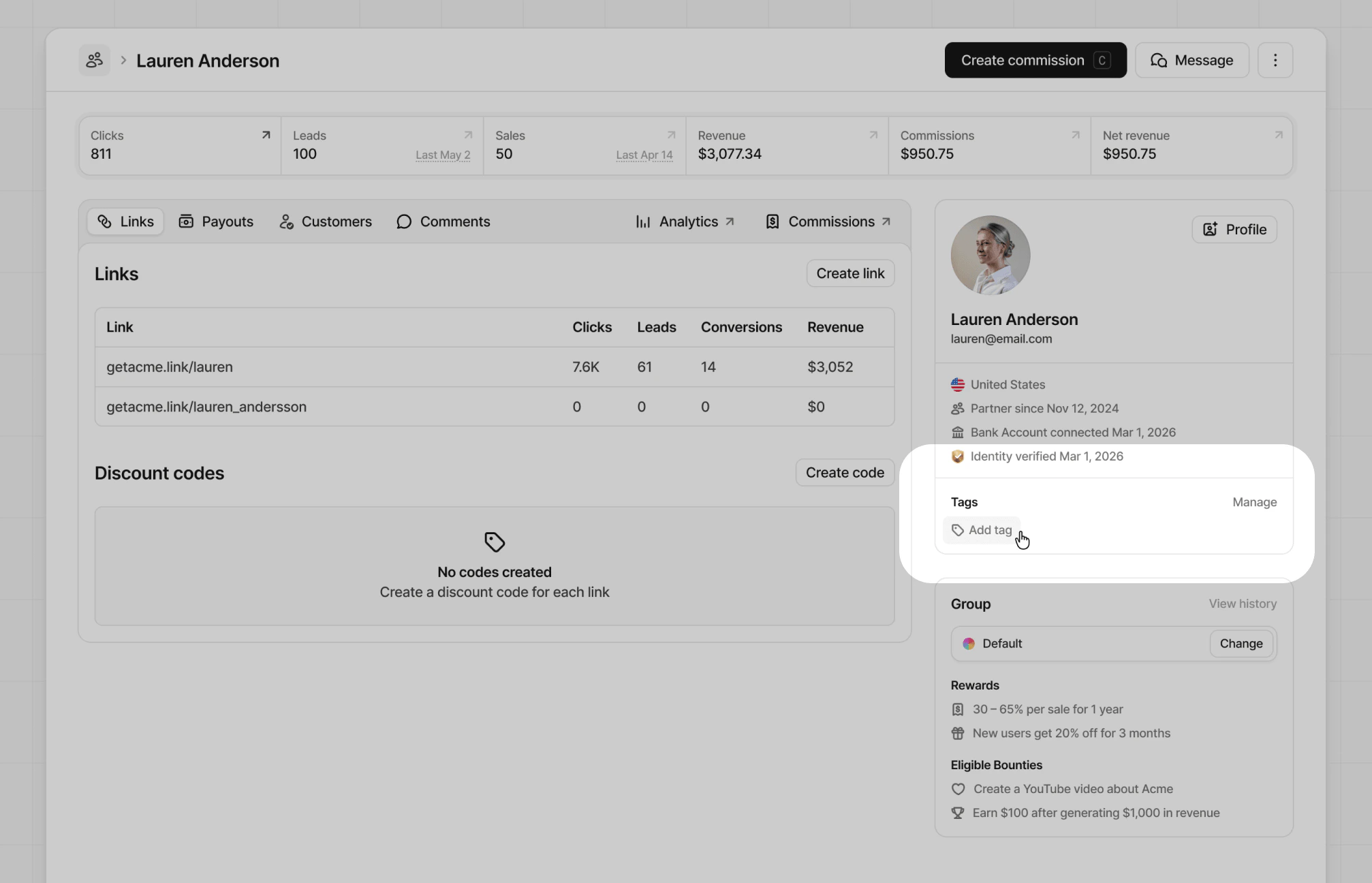
Tags modal
Both the partner table and partner details view will open the same tags modal, where you can manage all your tags in one place. Any changes you make here will update across the entire program. From here, you can select any number of existing tags to assign to your partners. Learn more about managing tags.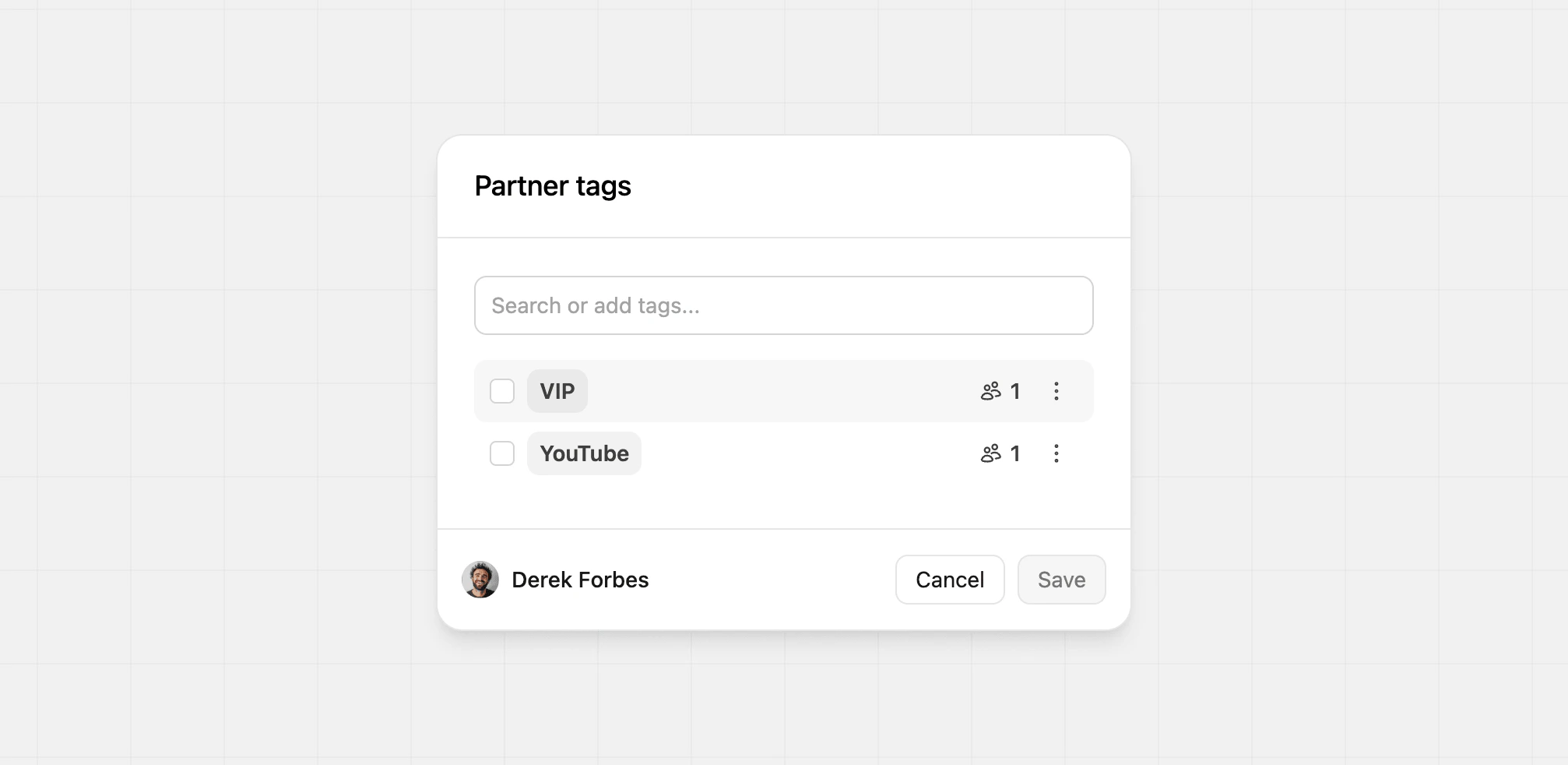
Managing tags
With the tags modal open, you’ll be able to see all the tags that you’ve created and the number of partners assigned. Here you can create new tags, search, update, and delete existing tags.Adding new tags
To add a new tag, click into the text field and type the tag you’d like to create. If one already exists, you’ll see the match below. If one doesn’t exist, click Create new tag to create one.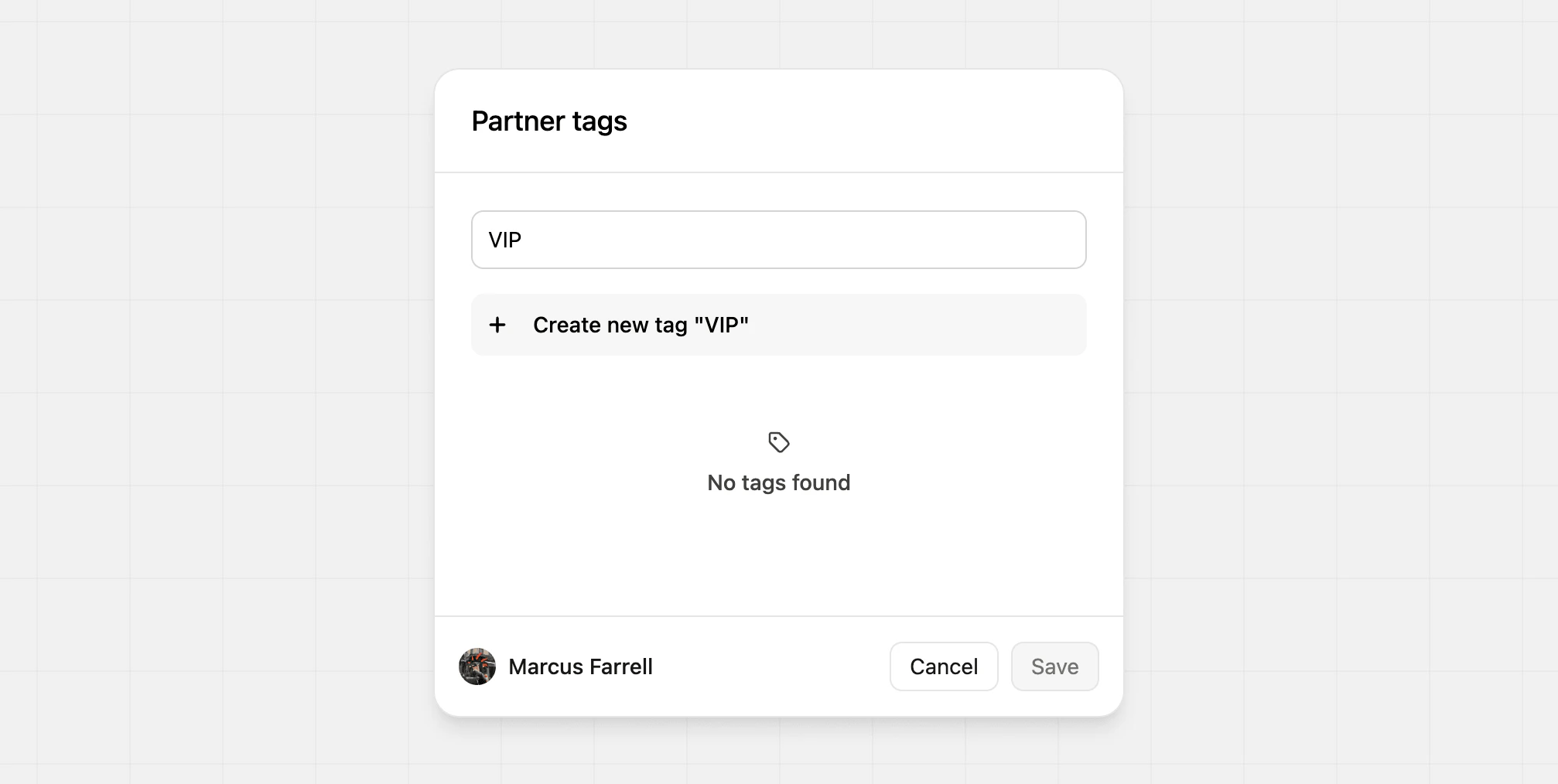
Tags have a 190 character limit
Updating tags
To update an existing tag, click the Edit option from the tag dropdown. This will open a text field where you can update the name of the tag. This will update the tag name for all partners assigned.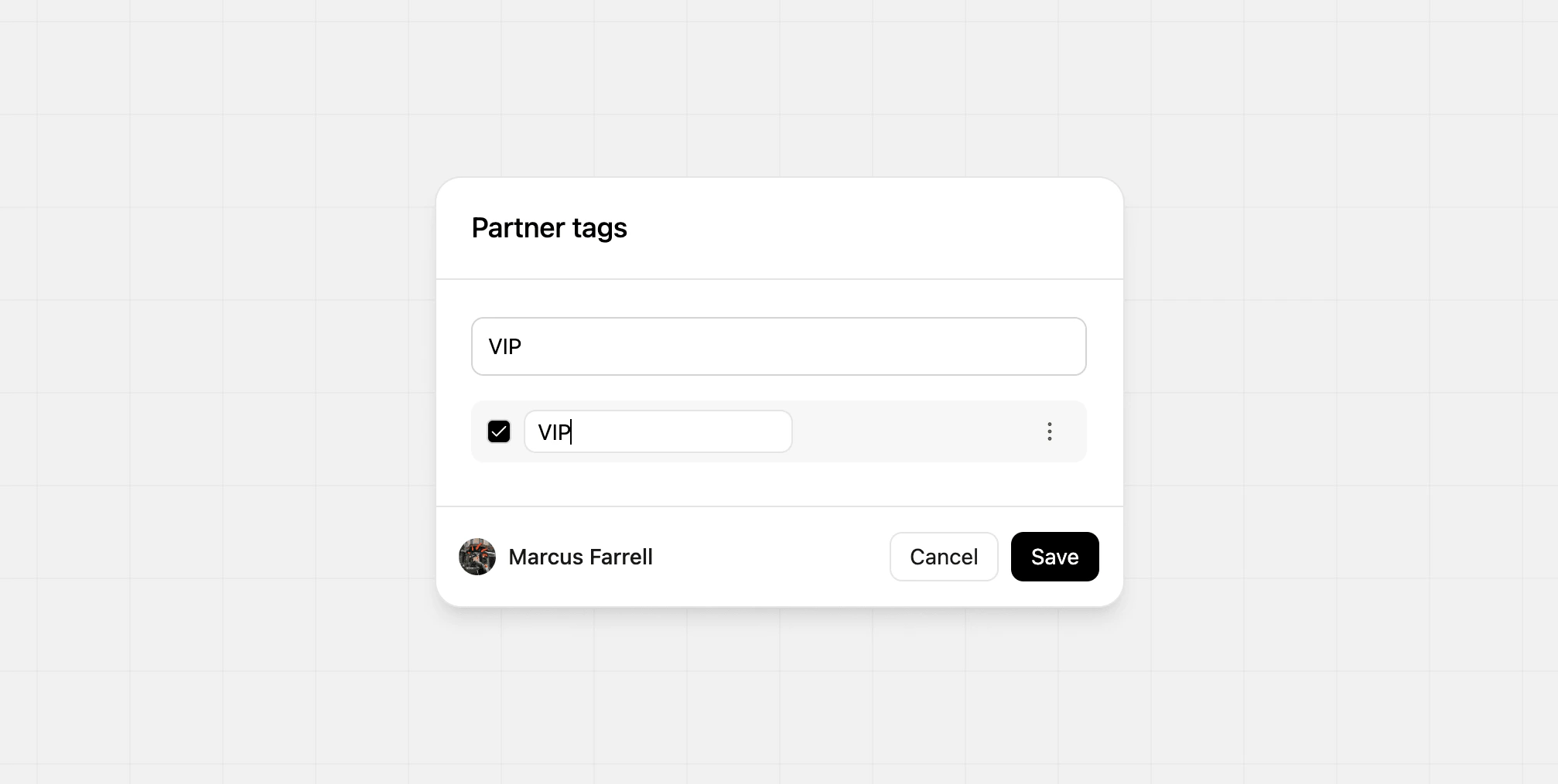
Searching tags
Using the text field, search for the tag you’re looking for. If there are any matches, you’ll see them below. This is especially helpful for programs with a large number of tags.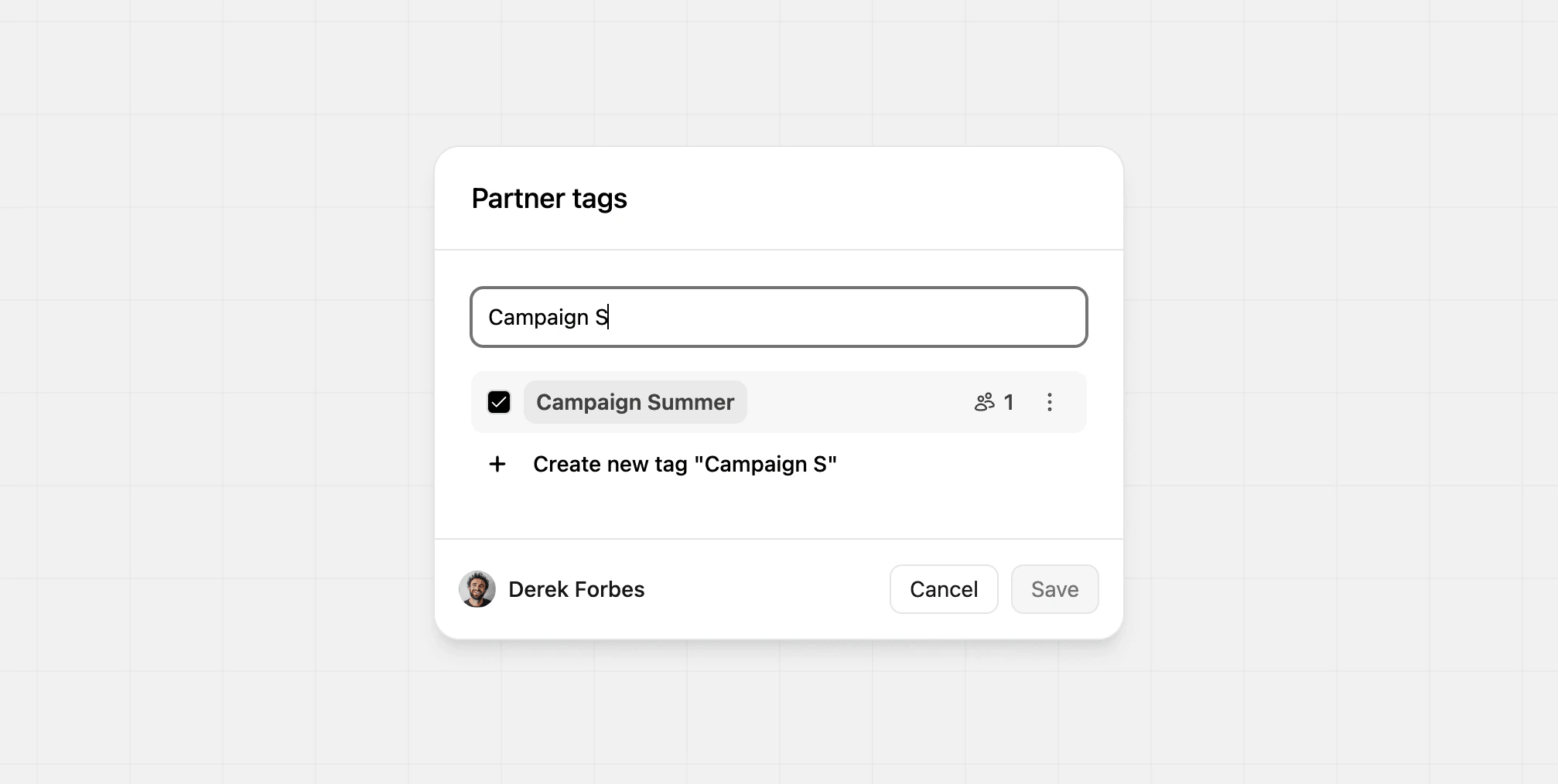
Deleting tags
To delete an existing tag, click the Delete option from the tag dropdown. This will remove the tag from all partners assigned, so be sure as this isn’t reversible.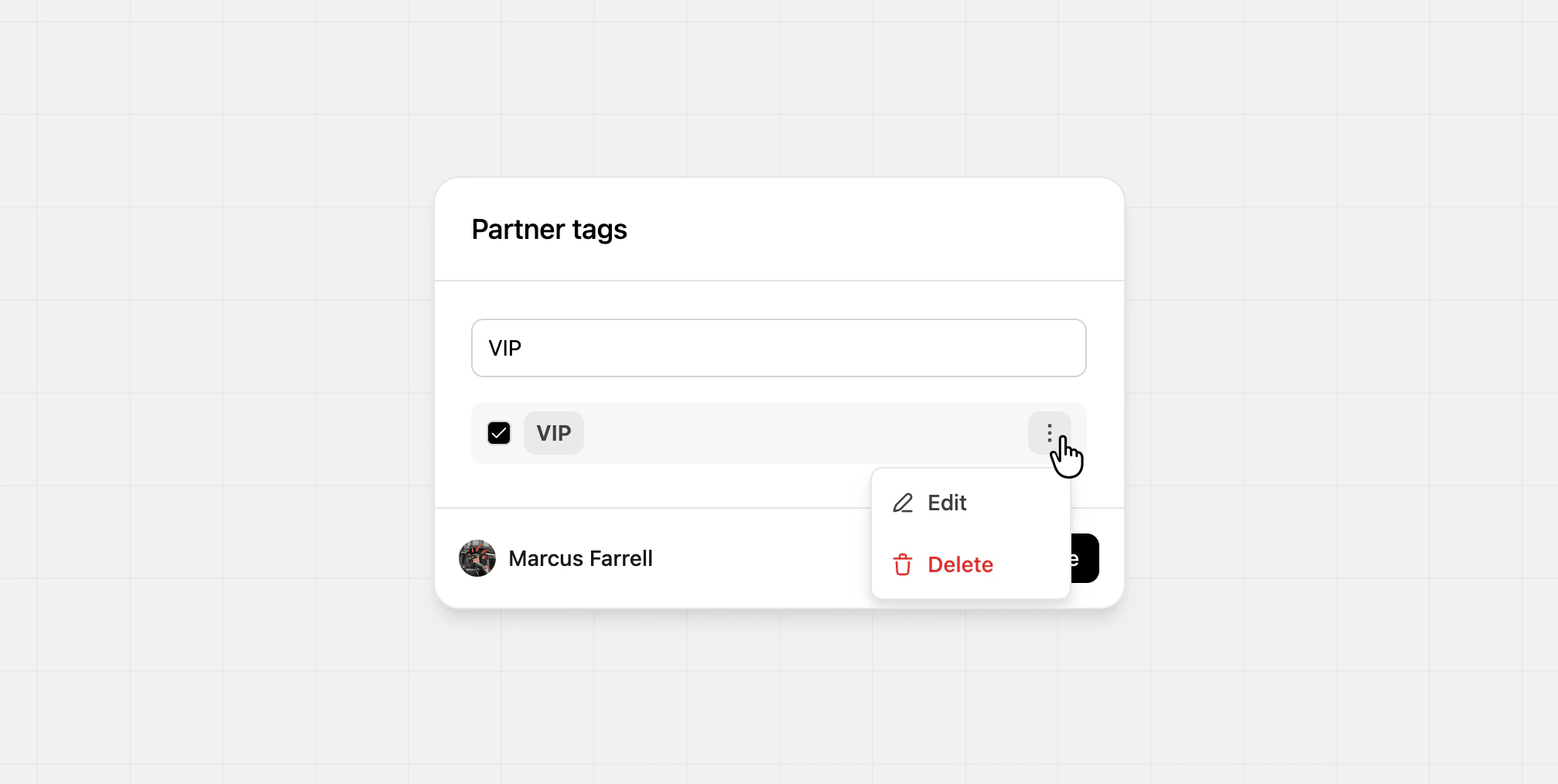
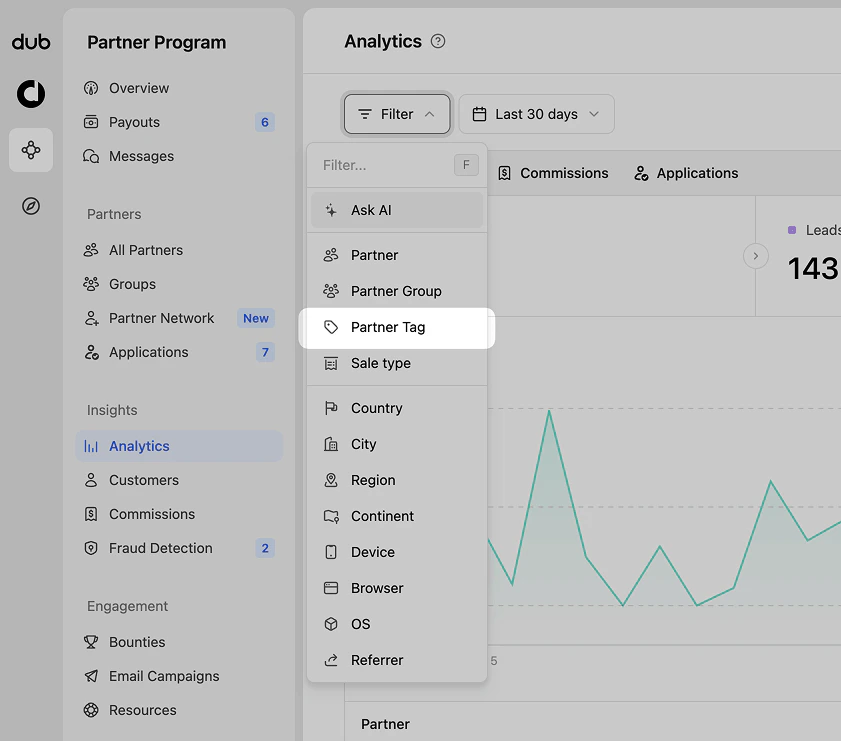
Filtering partners by tags
Partner tags can be used alongside other partner filters such as group, status, and location. This makes it easier to segment your partner table for follow-up, reporting, and other workflows.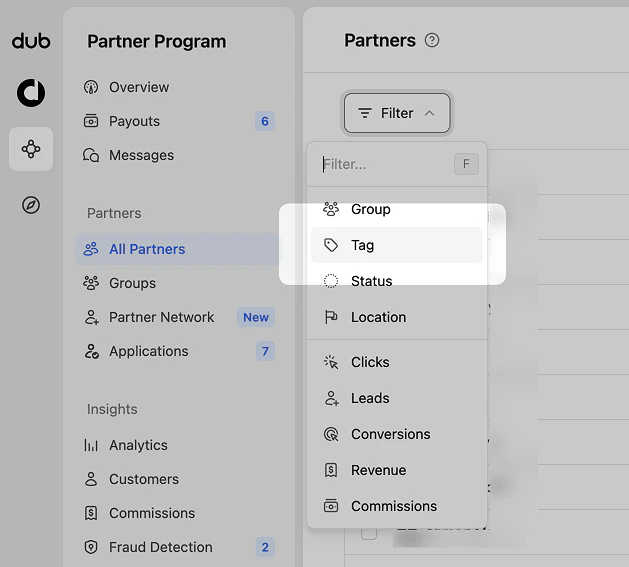
VIP who are also in a specific partner group, or partners tagged Needs follow-up after an outreach campaign.
You can also use the same filtering when viewing your program analytics and commission analytics.