Where to find your program commissions?
When viewing your Partner Program navigation, click on the Commissions page, under the Insights group: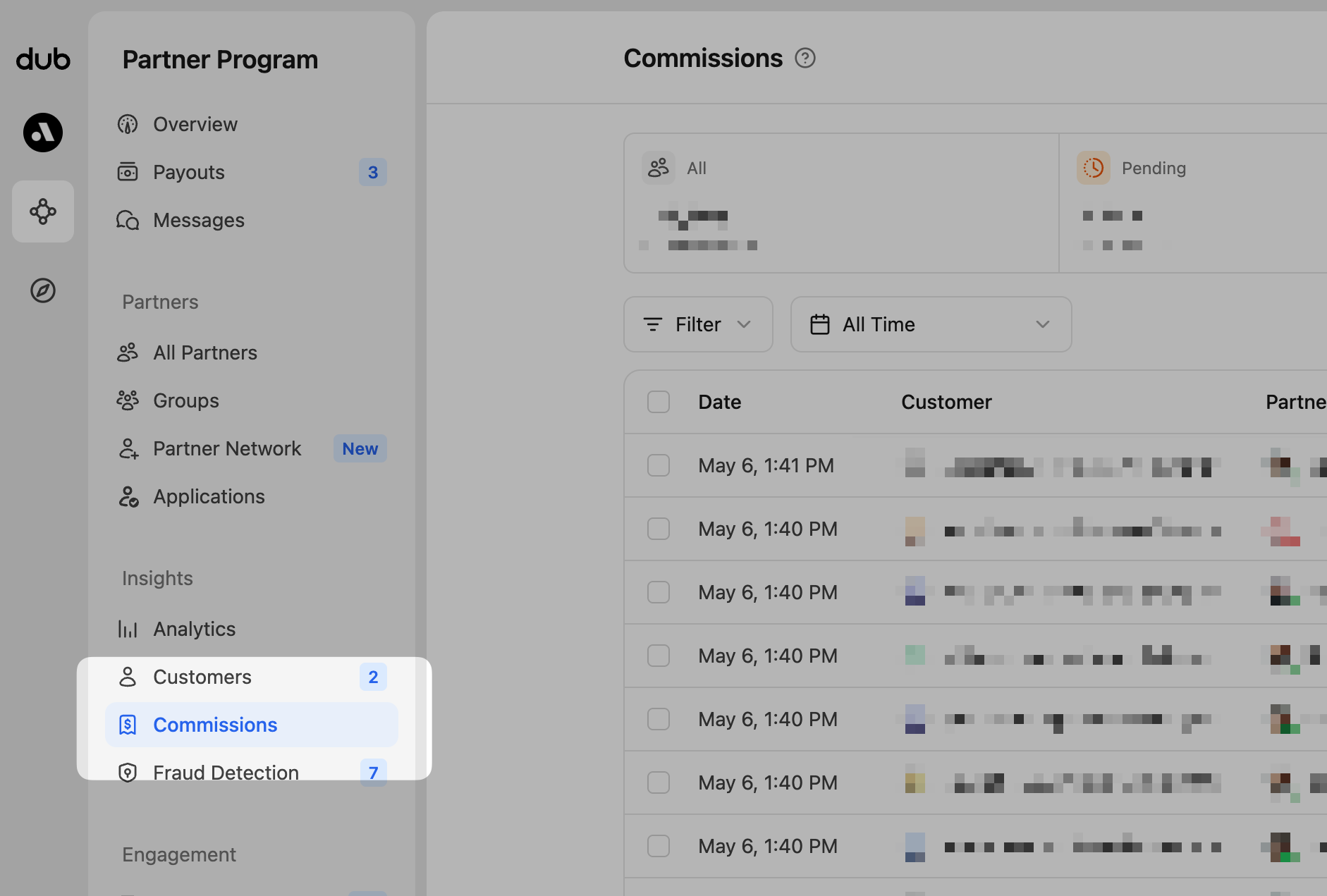
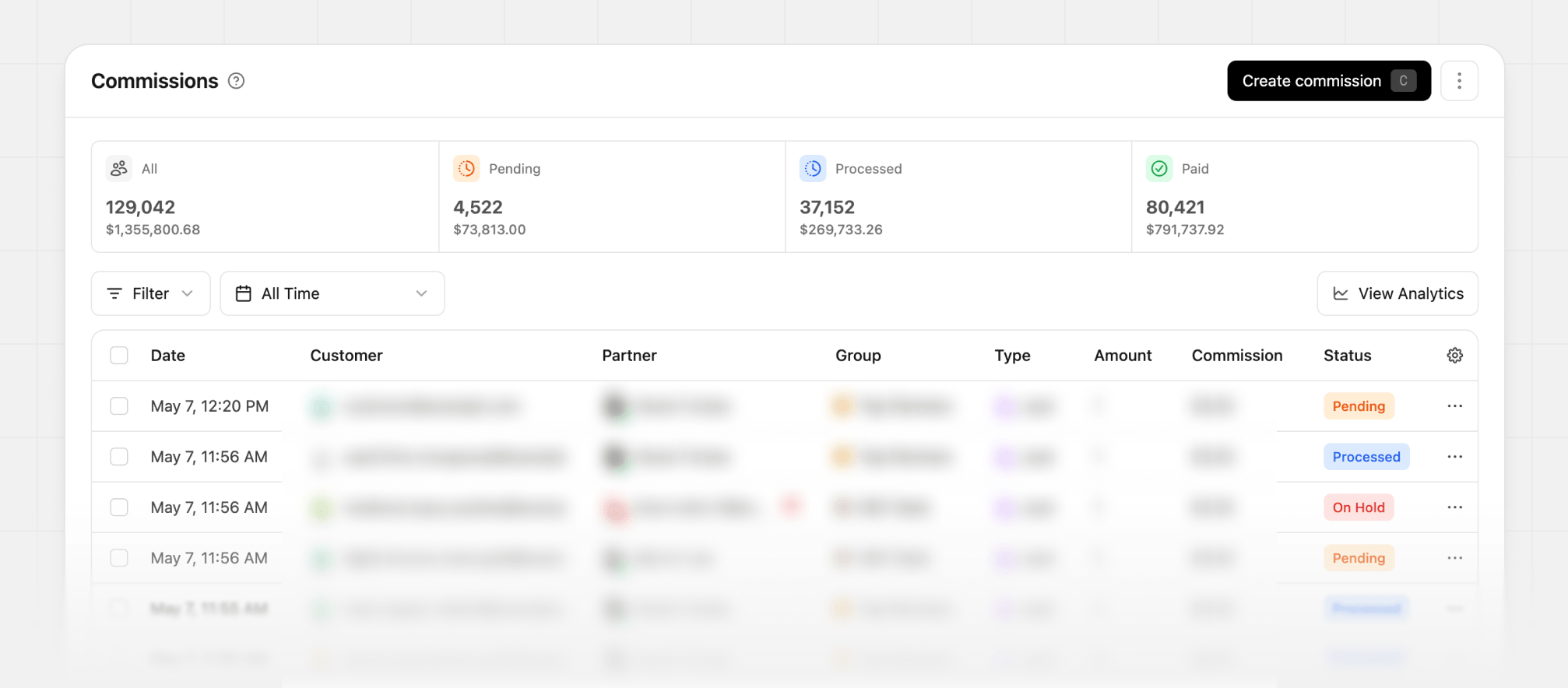
To analyze commission earnings over time, see Commission
analytics.
Commission statuses
When a commission is recorded on Dub, it goes through the following statuses:Pending: This is the initial status for a commission. Depending on your program’s holding period, commissions can stay in “pending” status anywhere from less than a day to 90 days.Processed: When a commission has been added to a payout (after any applicable holding period), its status will change from “pending” to “processed”.Paid: When the payout containing the commission has been paid, the commission will be updated to “paid” status.On Hold: When a commission is paused due to a pending risk event. On-hold commissions cannot be added to a payout until the risk event is resolved.
Refunded: If the sale for the commission was refunded. This is usually automatically detected via our Stripe integration, or can also be manually set via the dashboard or the API.Fraud: If a commission event was found to be fraudulent, you can mark them as “Fraud” via the dashboard or the API. This action cannot be undone.Canceled: If a commission event was canceled/voided (e.g. in cases of self-referrals where commissions are not eligible for payout), you can mark them as “Canceled” via the dashboard or the API. This action cannot be undone.Duplicate: If a commission event was found to be a duplicate, you can mark them as “Duplicate” via the dashboard or the API. This action cannot be undone.
Single commission view
Each commission has its own page that provides further details about the commission, associated payout, and activity. This can be helpful when you need more details about a commission, or you want to know when something changed.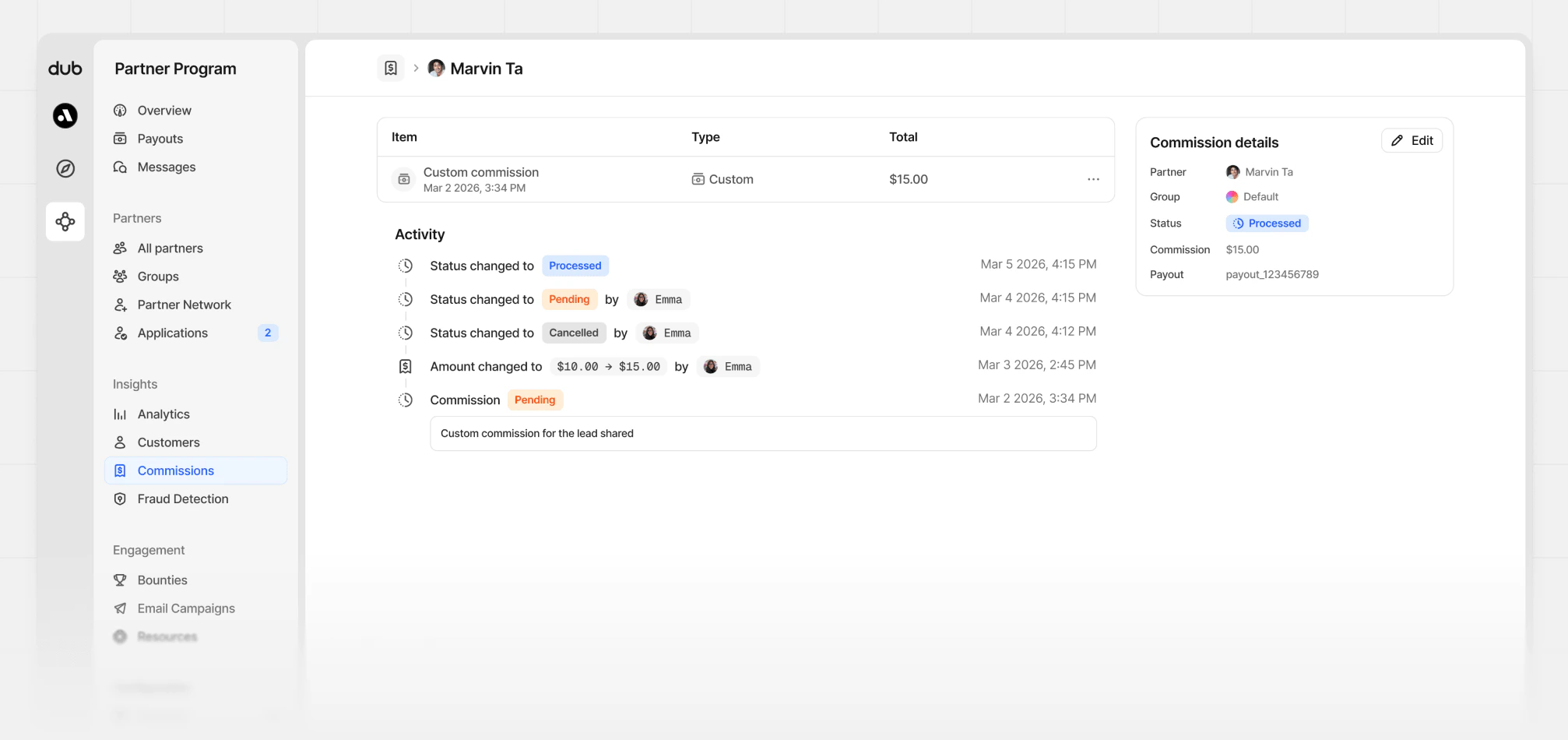
Editing commissions
You can change a commission’s status and edit the earnings amount for all unpaid commissions. This can be completed from one of two areas:1
Commissions table
From the Commissions table, click the 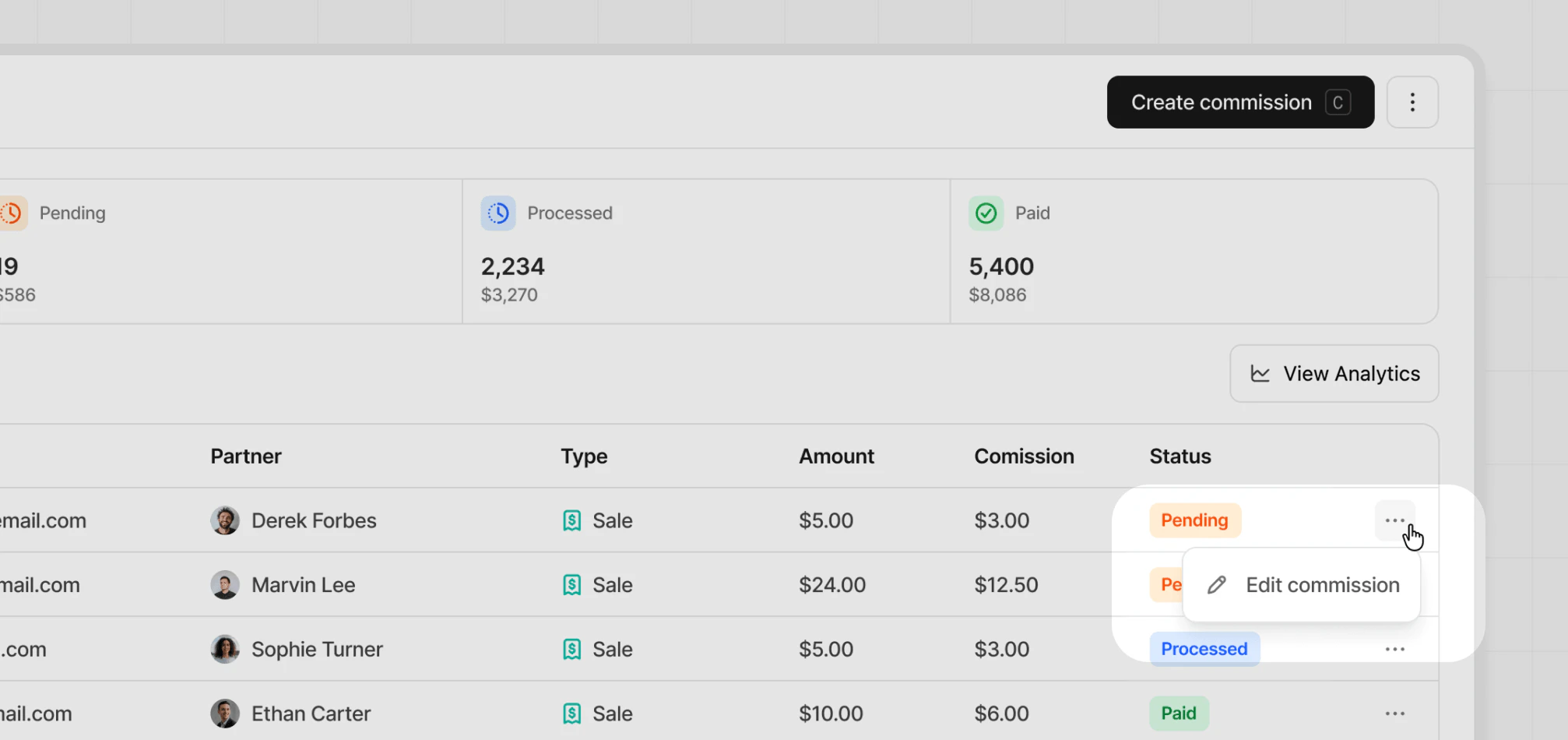
⋯ button and select Edit
commission.2
Single commission page
From the single commission
page, click the
Edit button in the top right.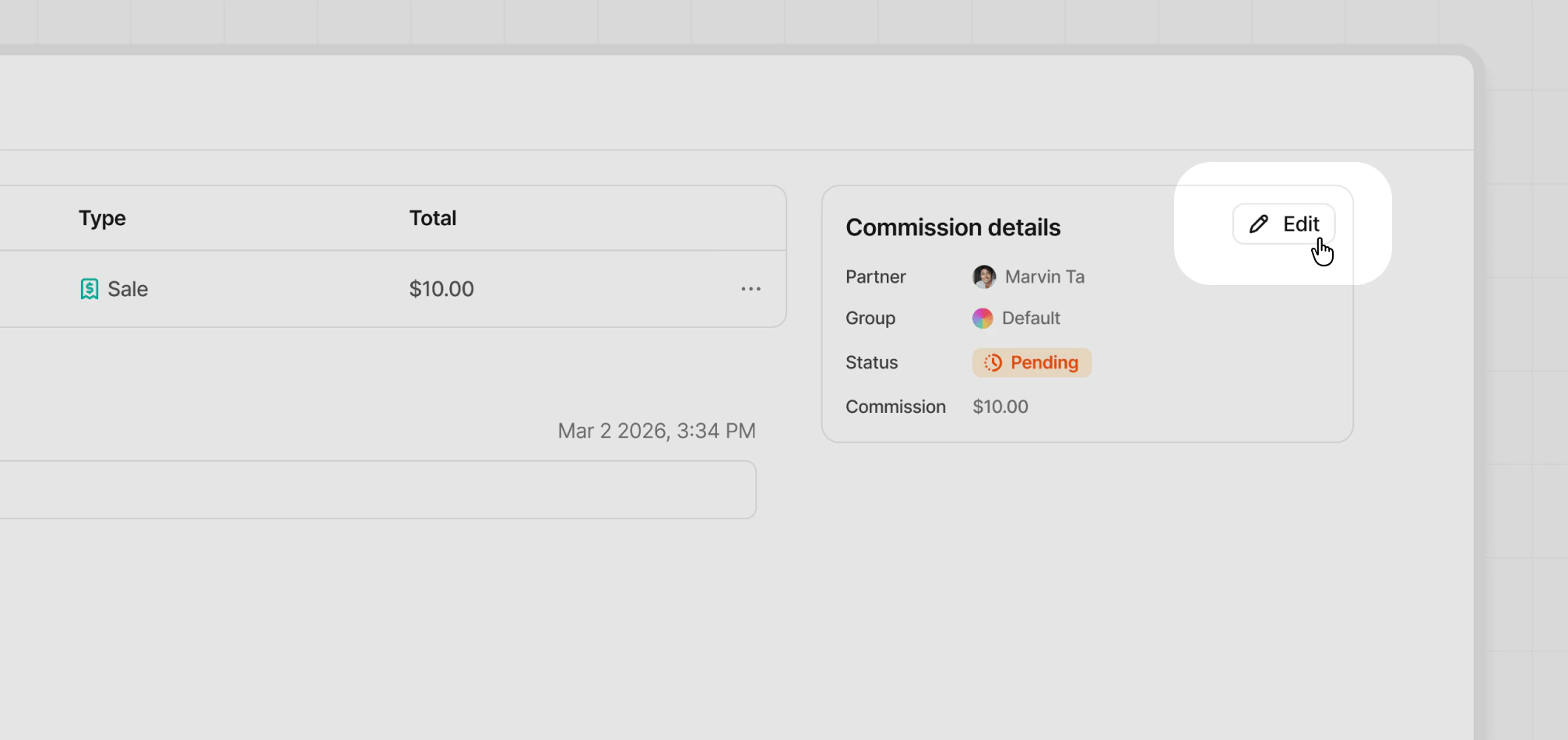
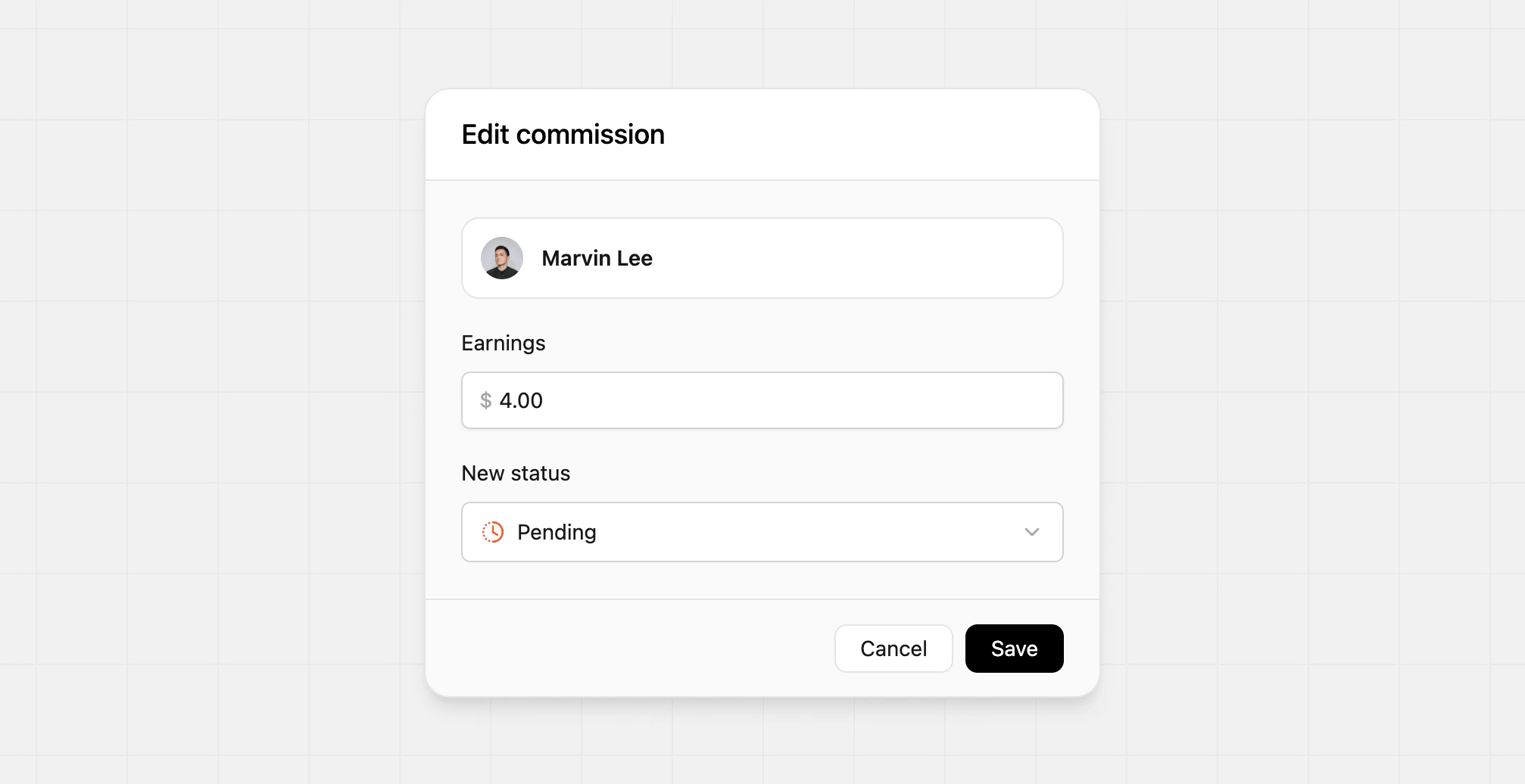
Canceled or Fraud, you’re also able to mark all previous commissions for this customer-partner pair as that status too. This will also prevent the partner from earning future commissions from this customer.
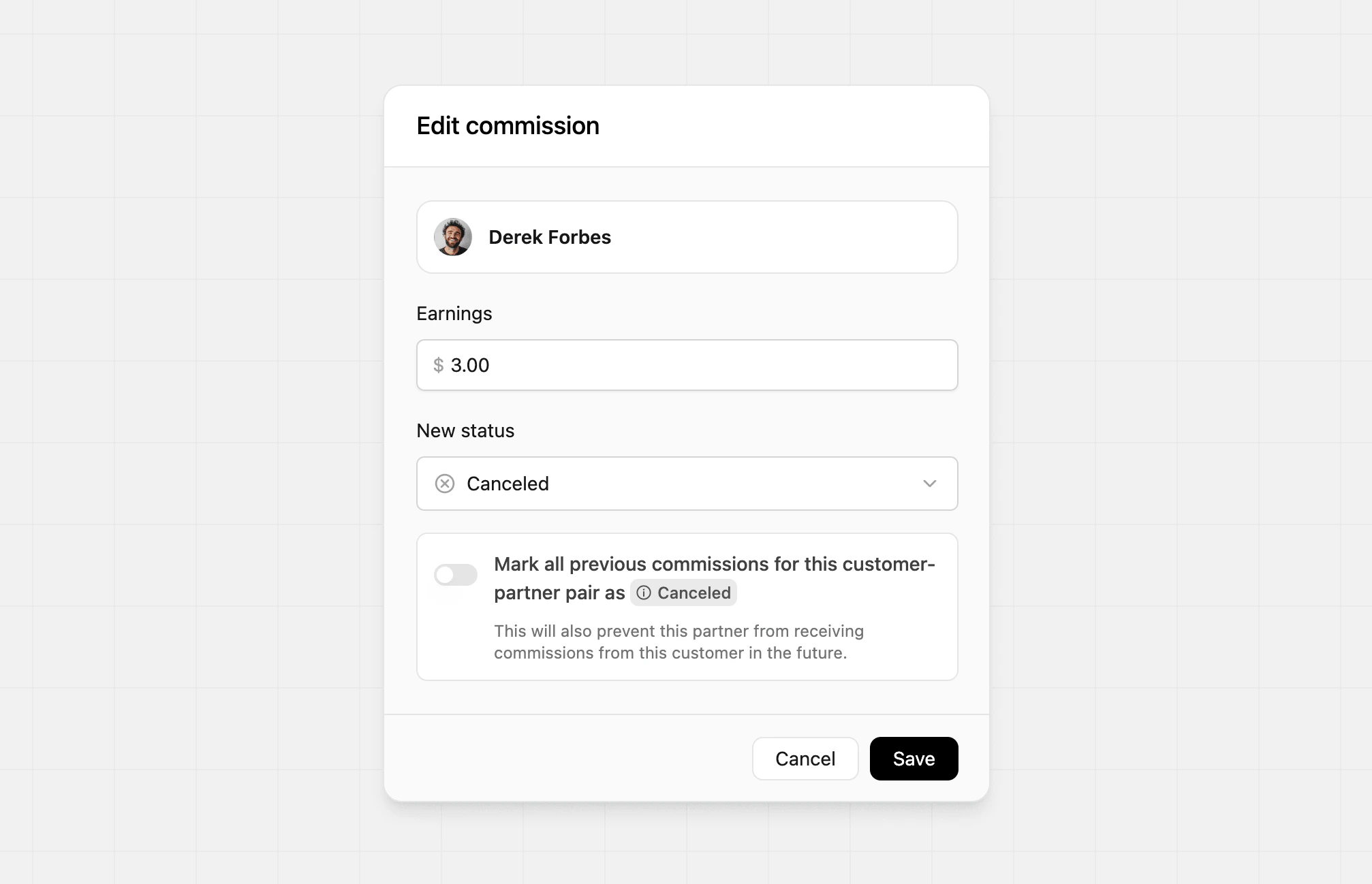
Earnings amount
You can only edit the earnings amount for custom commissions that haven’t been paid yet. If the earnings amount is changed, it will also appear in the activity log on the commissions page.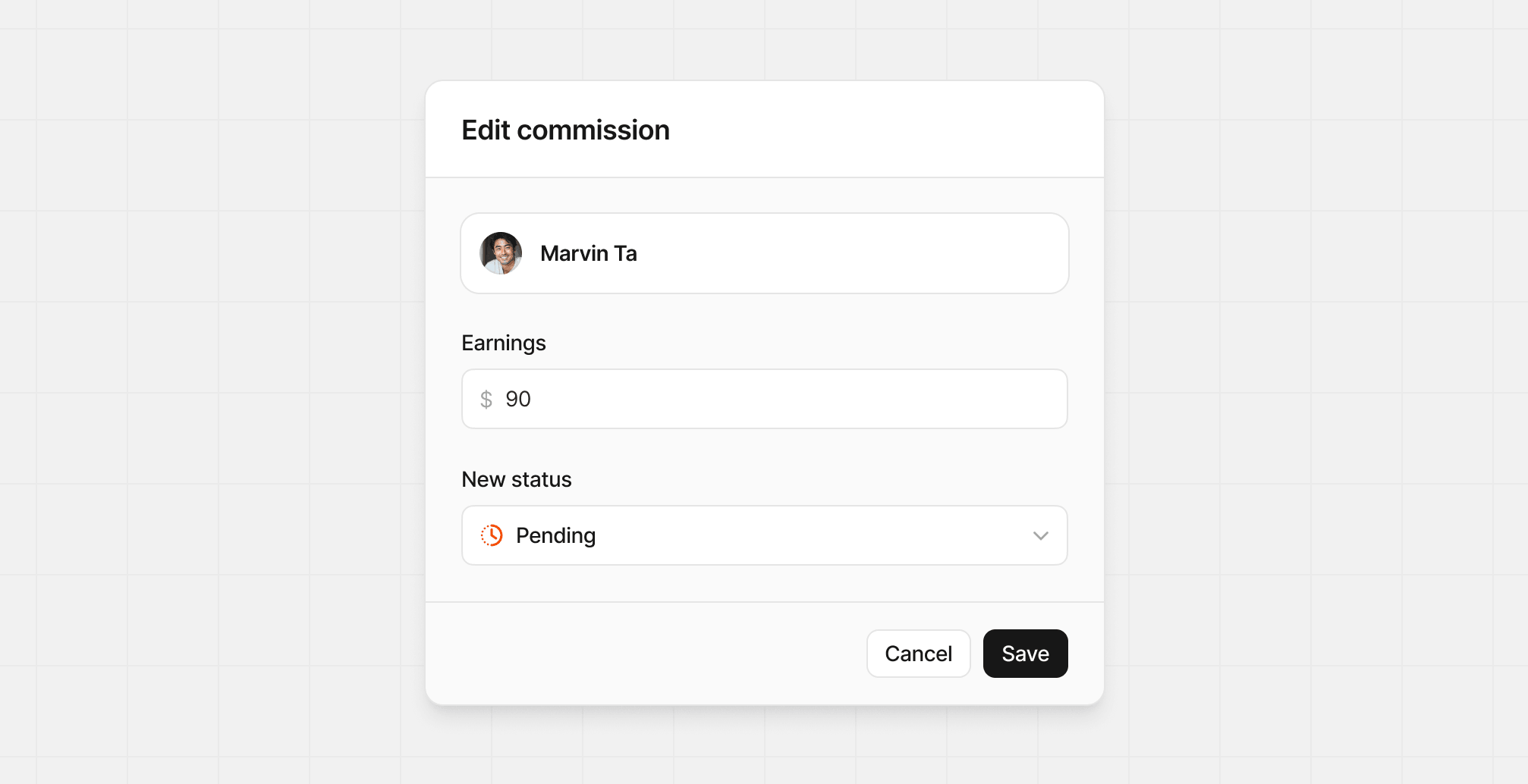
Bulk editing
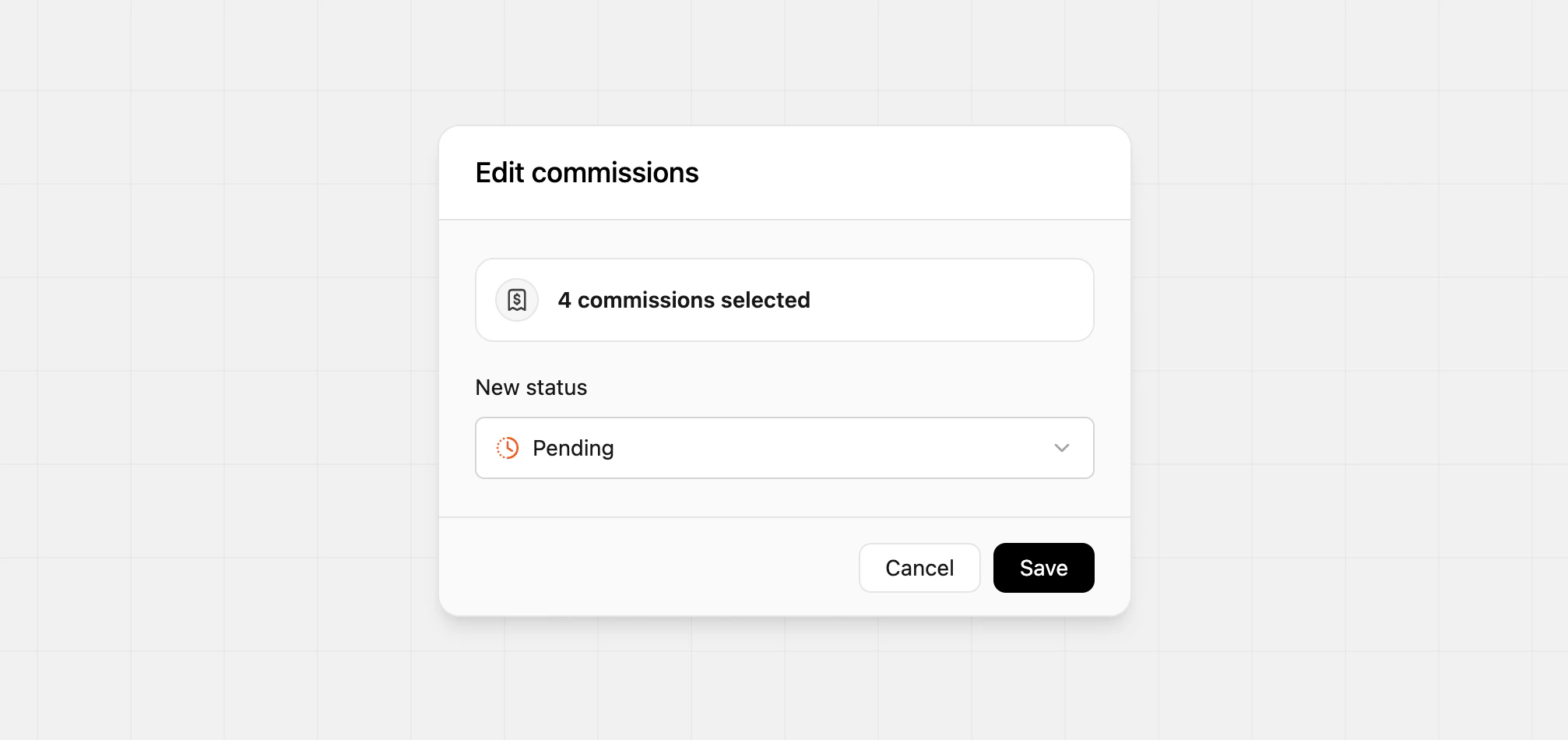
You can bulk edit the status of multiple commissions at once by clicking the checkboxes next to the commissions you want to edit, then click Edit commissions.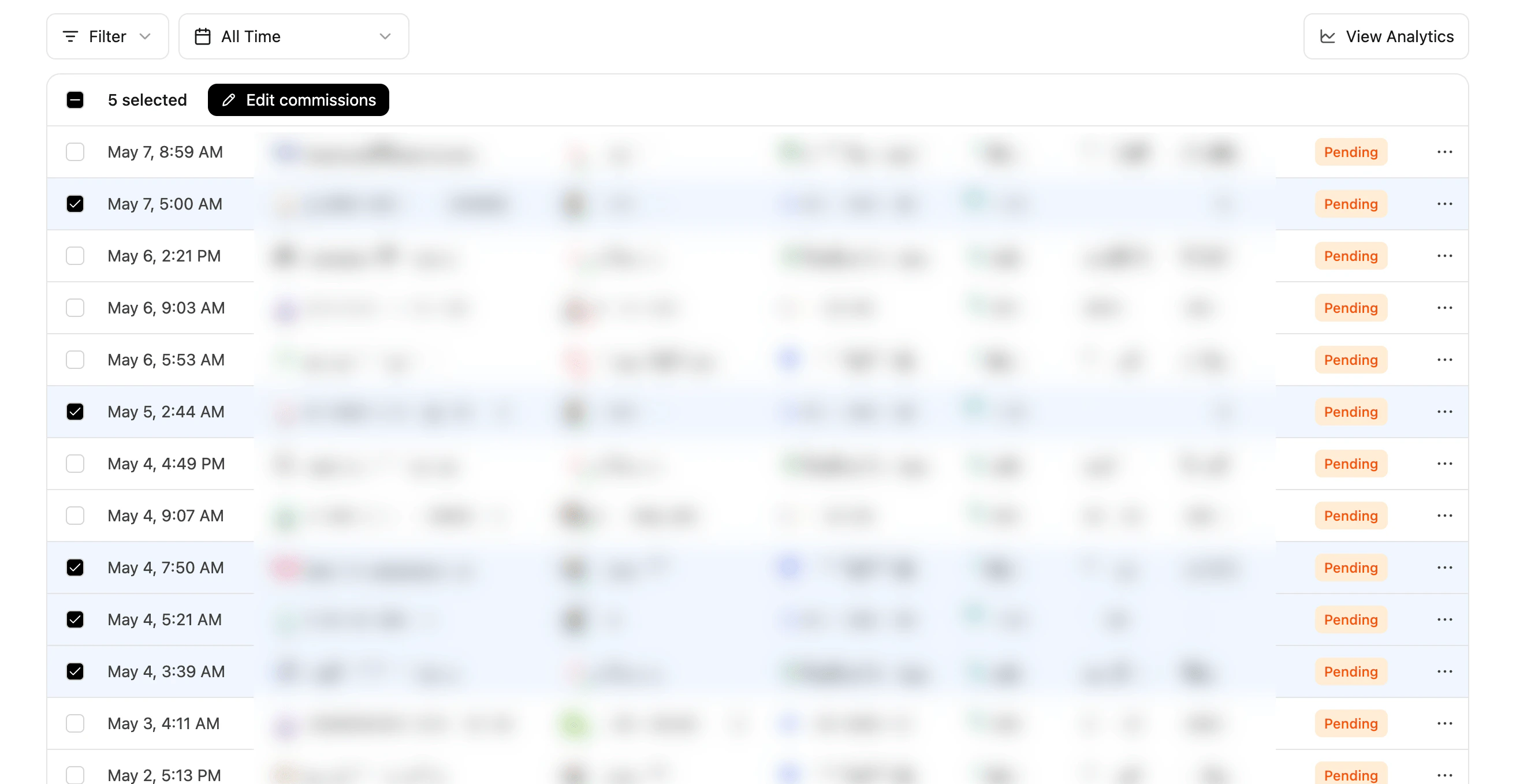
Creating manual commissions
Occasionally, you might need to create a one-off or recurring commission to account for a missed commission or other reasons. On Dub, you can easily create those commissions via the dashboard, and they will be included in the next payout for that partner. This can be accomplished by clicking Create commission from your Commissions page.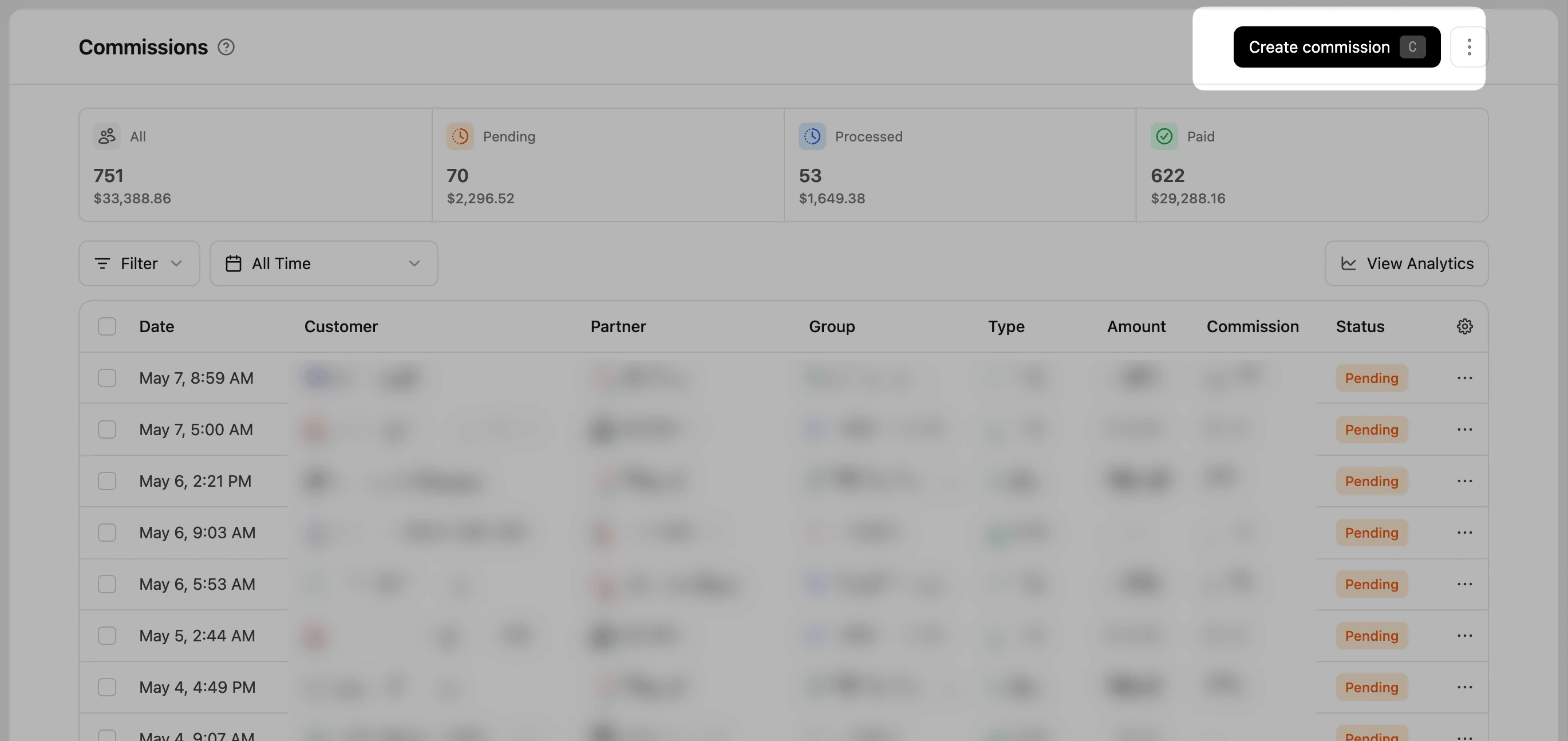
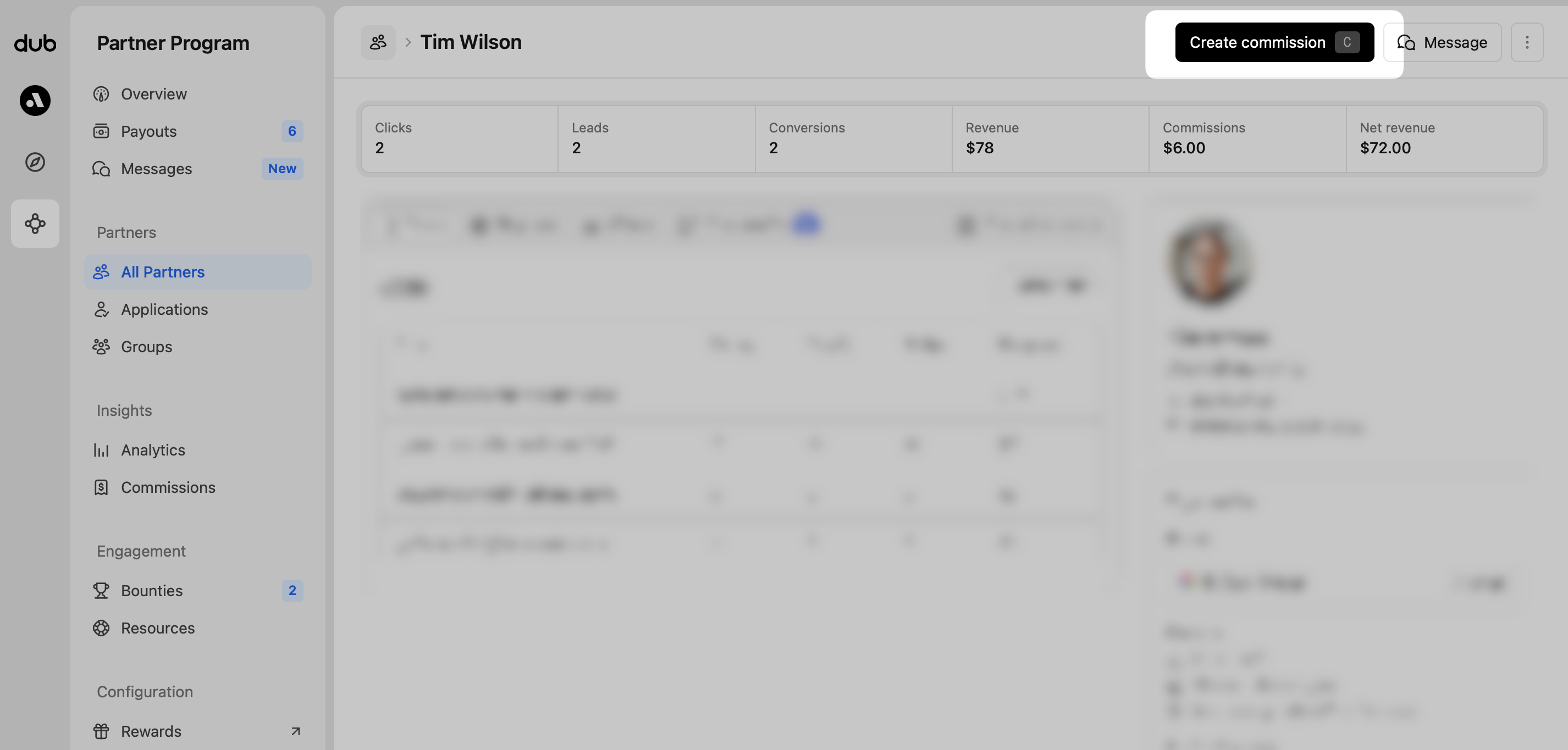
One-time commissions
Manual one-time commissions are often used when you want to send a thank-you or bonus, fix a missed commission due to a clerical or tracking error, or create a payout that isn’t tied to a customer, referral link, or transaction.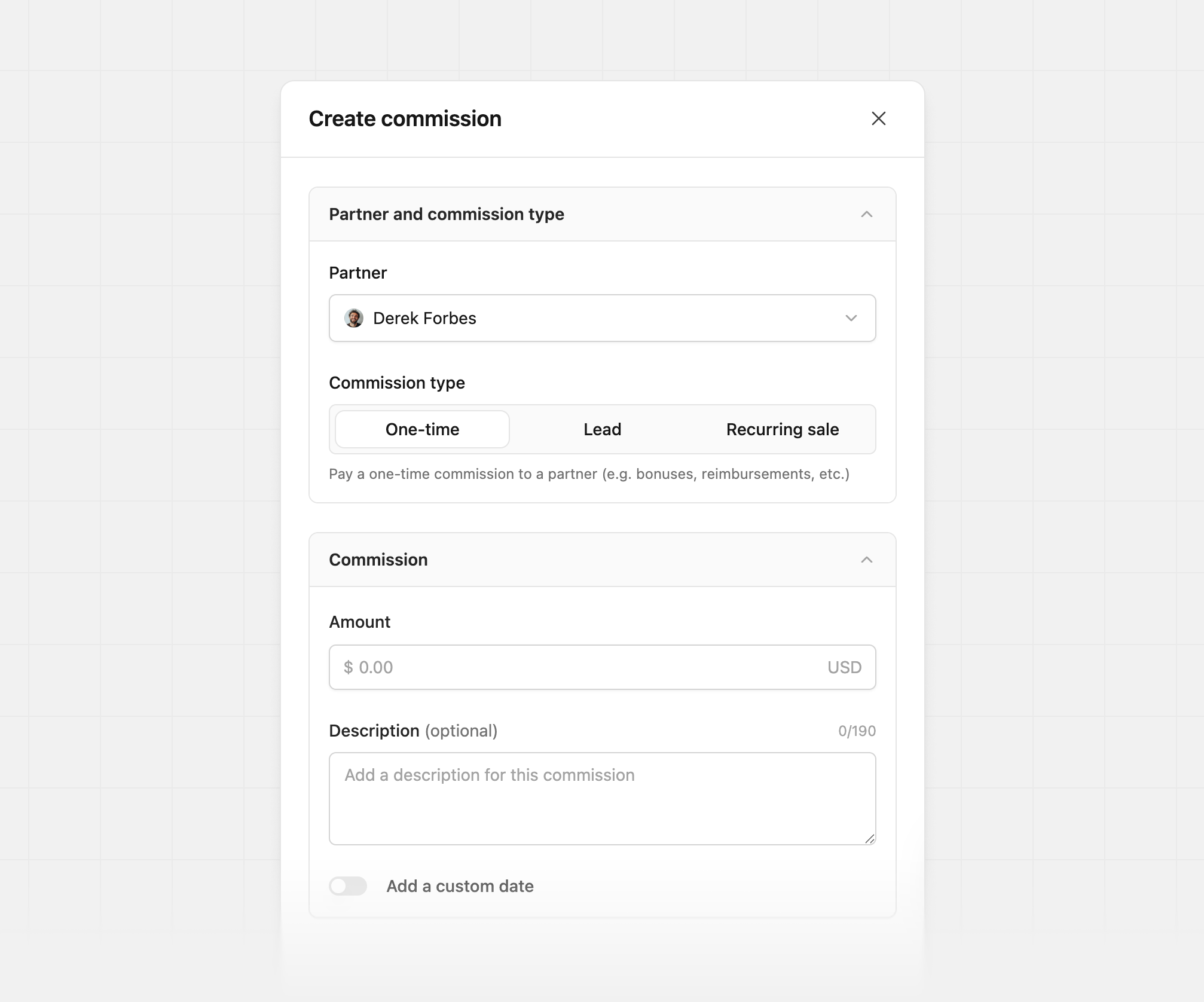
One-time commissions are recorded as
custom commissions, which are not
subject to your program’s payout holding
period. They become
eligible for payout immediately at the next payout cycle. The same applies to
bounty commissions and custom commissions
created via the API.Lead commission
Manual lead commissions are one-time and based on your reward settings, so the commission is automatically calculated. Use this for rewarding a partner for a qualified signup or referral. If your program doesn’t have a lead reward, this option won’t show.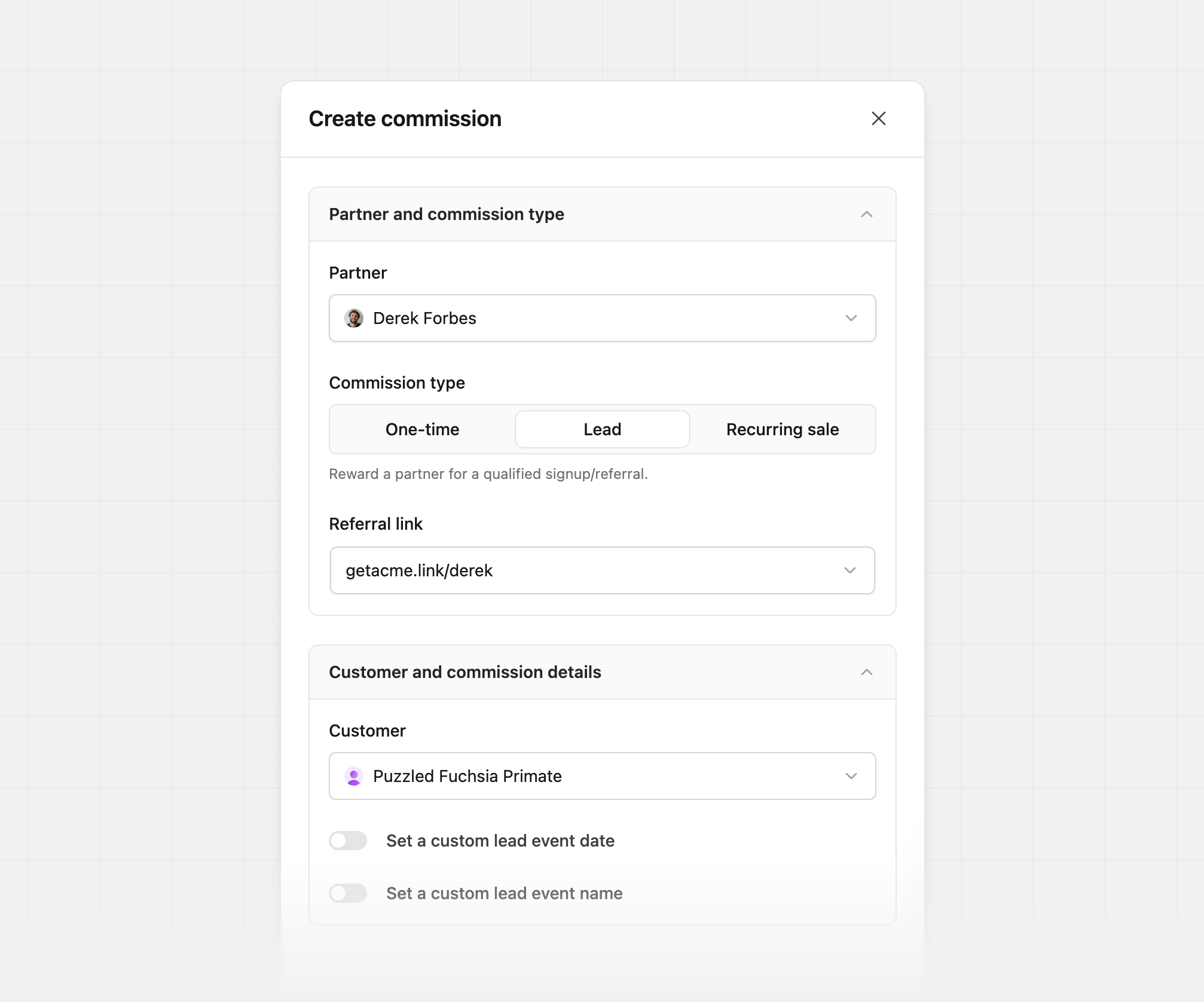
Recurring sale commission
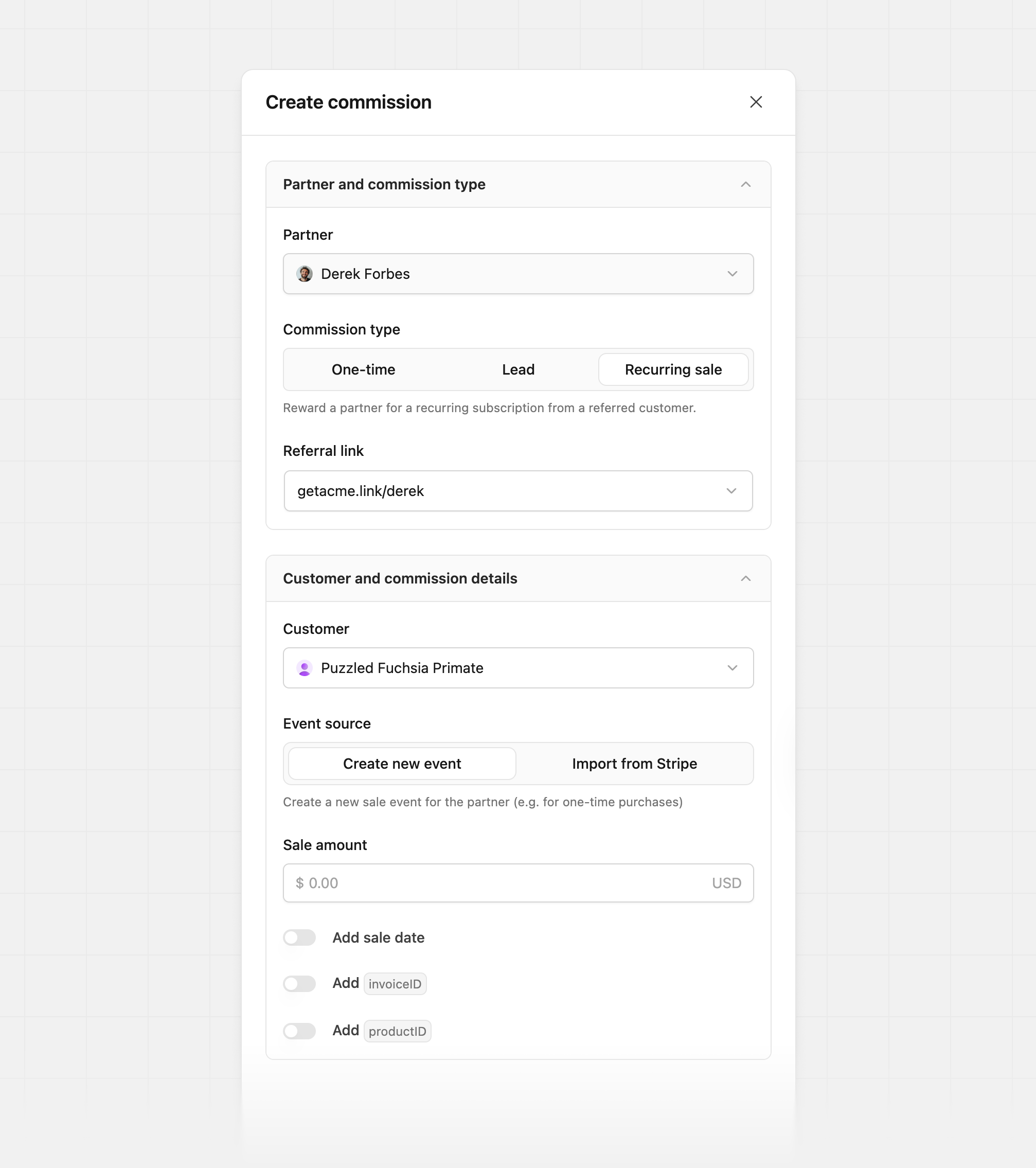
Manual sale commissions are recurring and based on your reward settings, so the partner commission is calculated automatically after entering the sale amount. Sale commissions also create asale event under your analytics, and updates your revenue statistics.
Creating a new customer
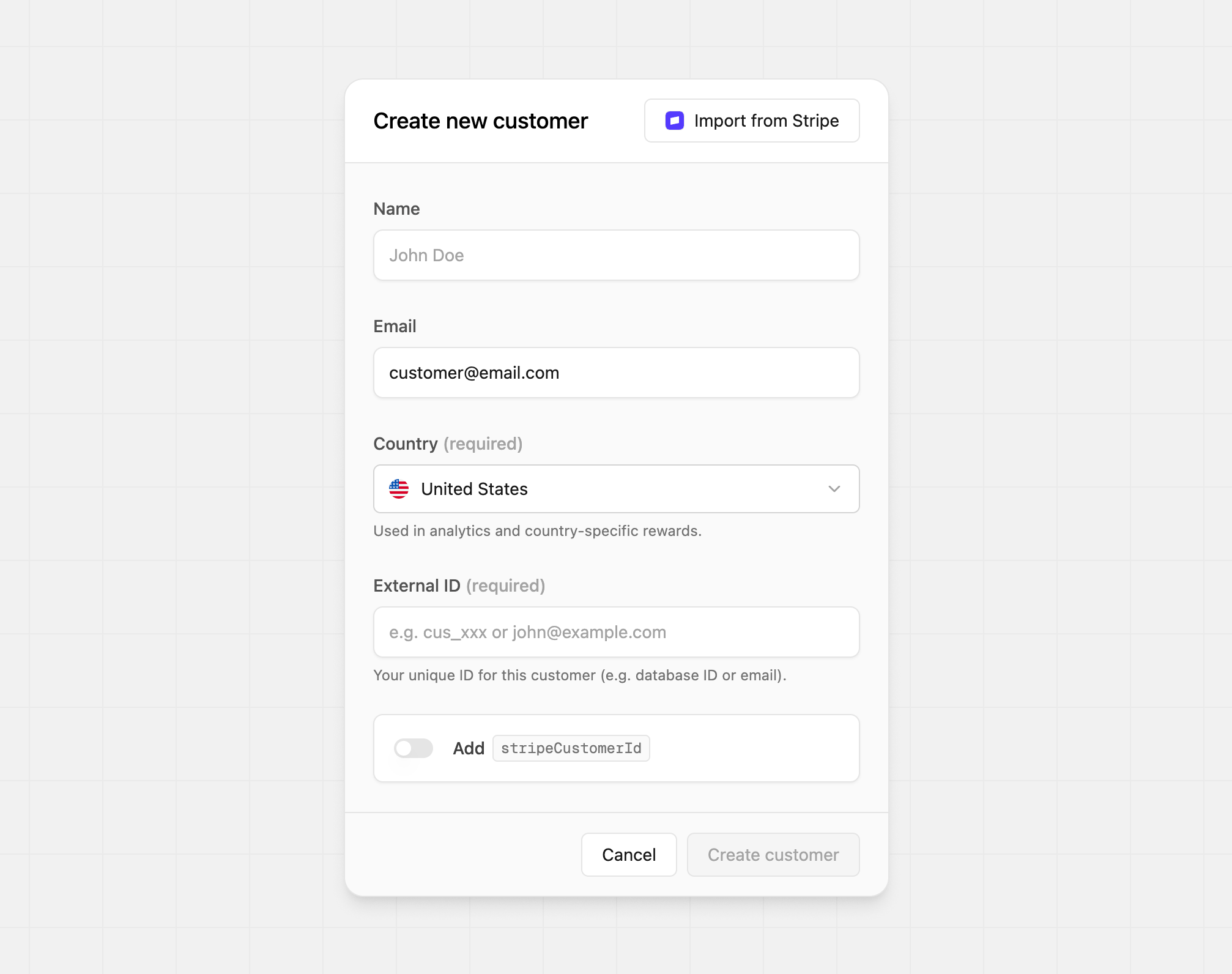
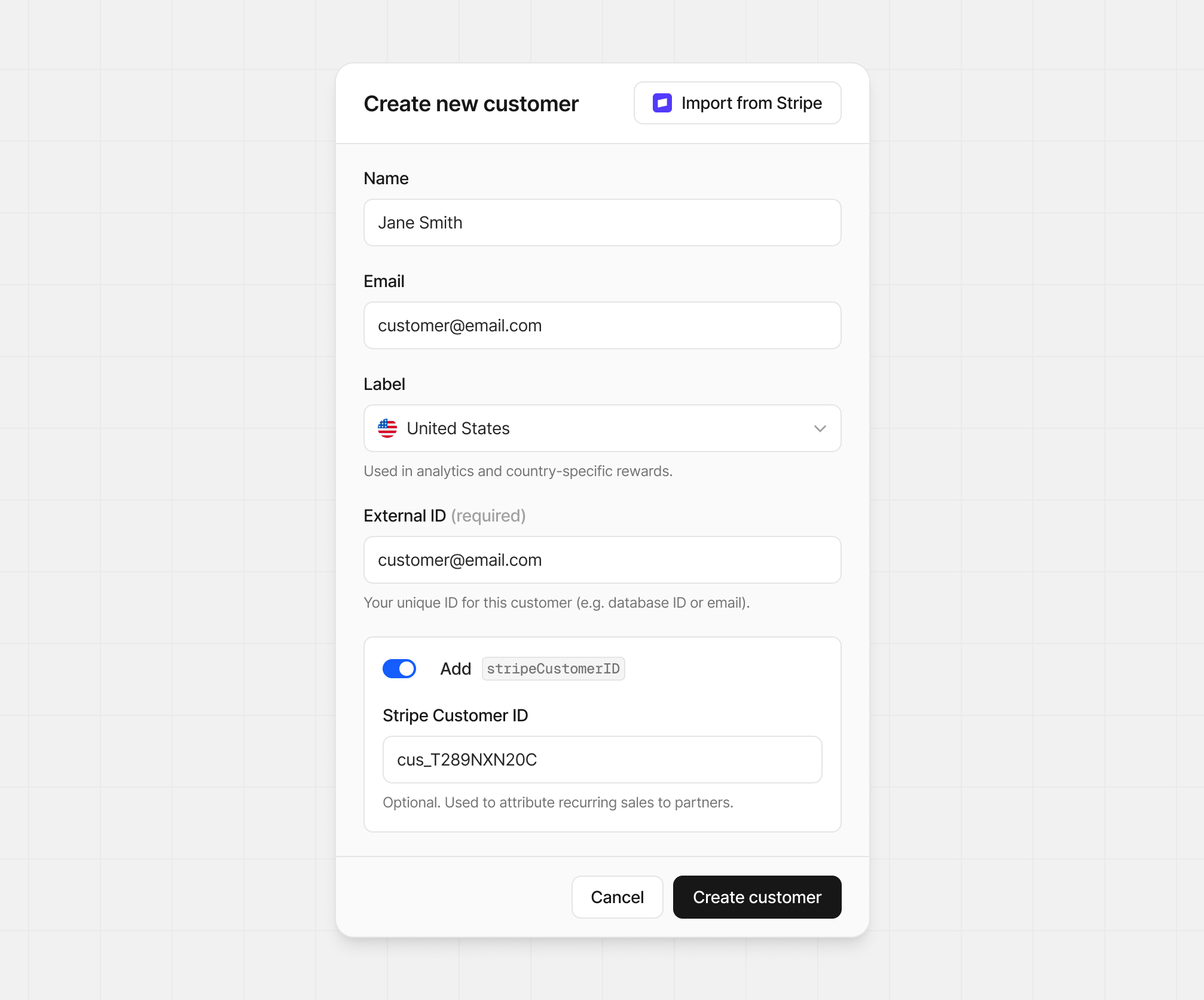
If the customer you need to associate the commission with doesn’t exist, you can create one in Dub to match your records. To do this, when searching for a customer in the customer field, click on Create new customer. This will open up a modal where you can add your customer’s details or import from Stripe.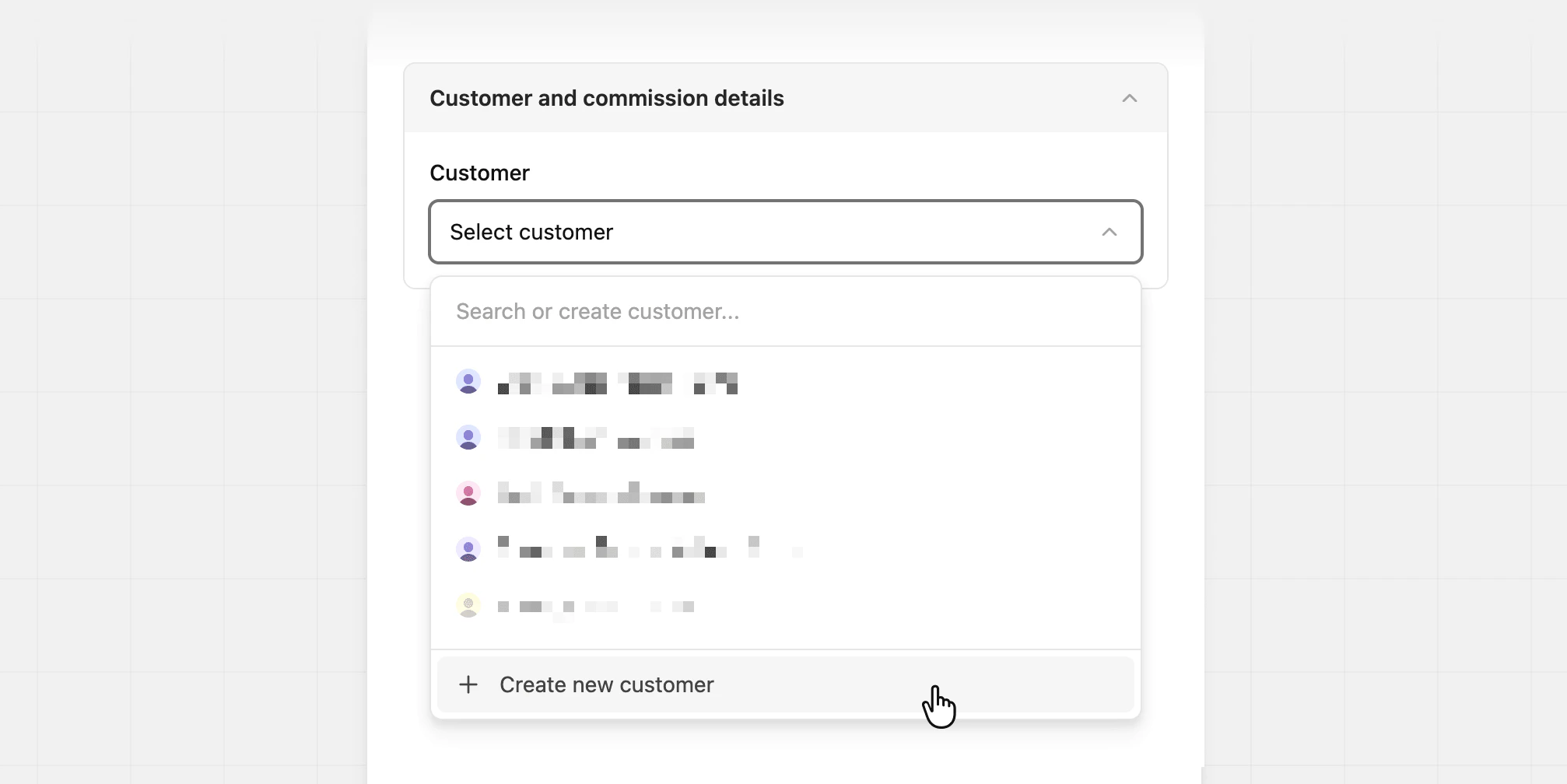
Importing customers from Stripe
If you’ve already connected to Stripe, you can import your customer by clicking on Import from Stripe. This will allow you to search existing Stripe customers by their email, and click to import their details into Dub.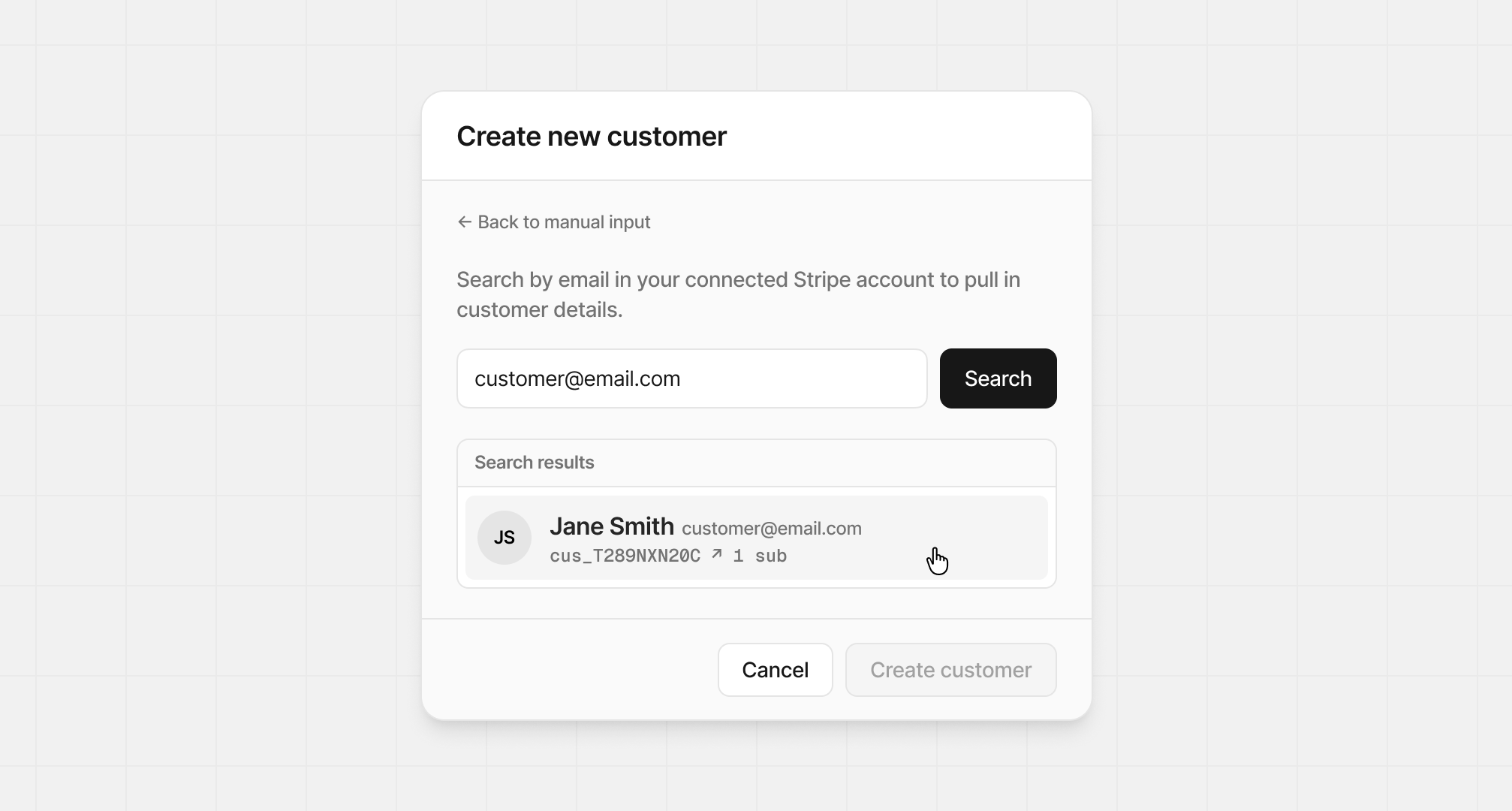
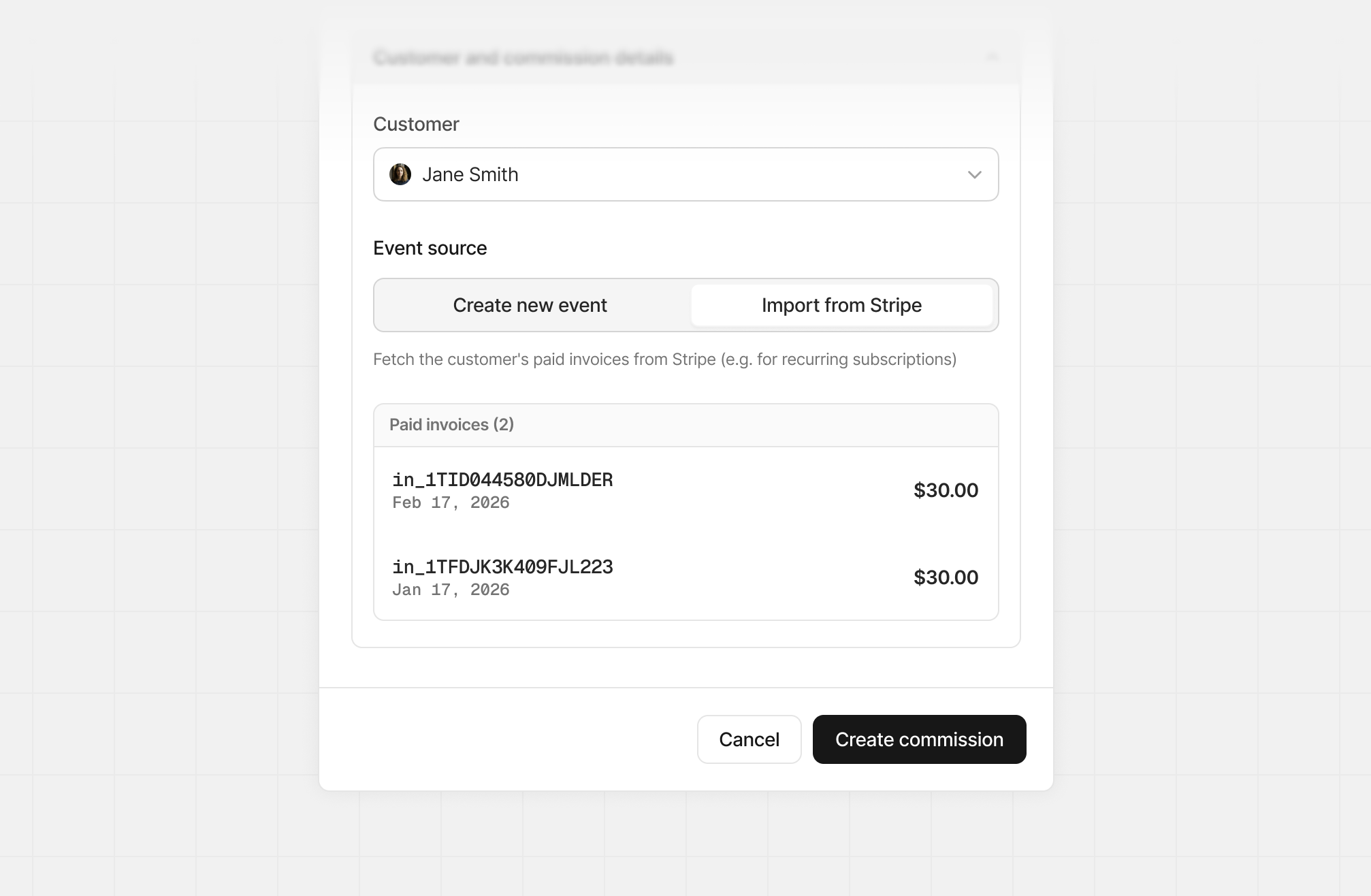
Importing commissions from Stripe invoices
During the commission creation flow, you can choose between the following options:- Create new events: Create a new sale event entirely.
- Import from Stripe: Create commissions from the customer’s existing Stripe invoice payment events
Creating a clawback
In the event an incorrect commission has been paid to a partner, you can create a clawback commission, which results in a negative commission for the partner and is subtracted from their next payout. To create a clawback, click the More button next to Create commissions, then Create clawback.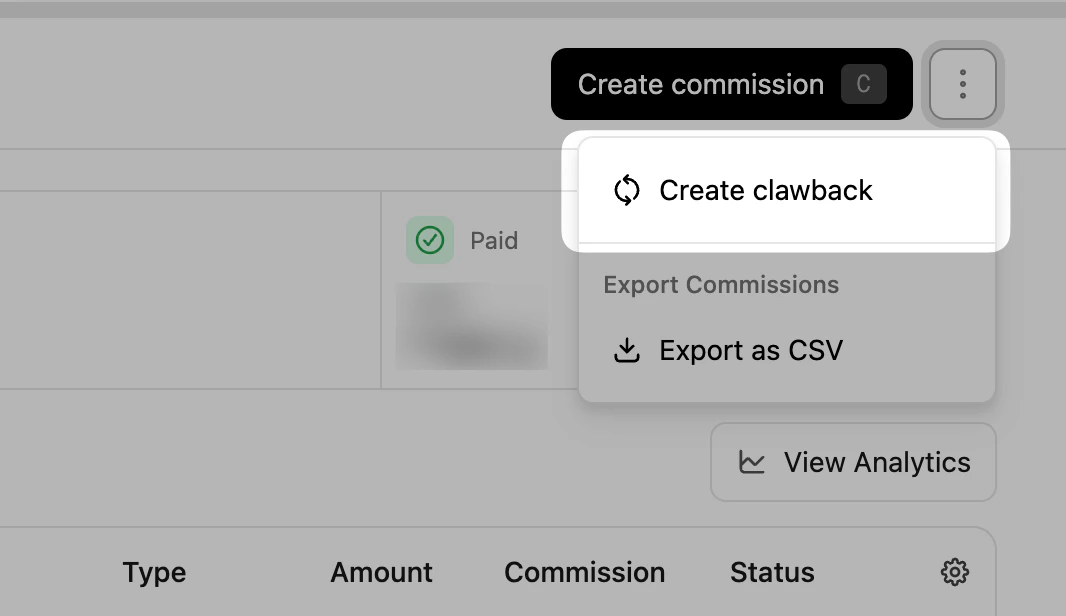
- Partner: The partner receiving the clawback
- Amount: The clawback amount
- Clawback reason: Order canceled, Fraud, Terms violation, Tracking error, Payment failed, Ineligible partner, Duplicate commission, Other


Exporting commissions
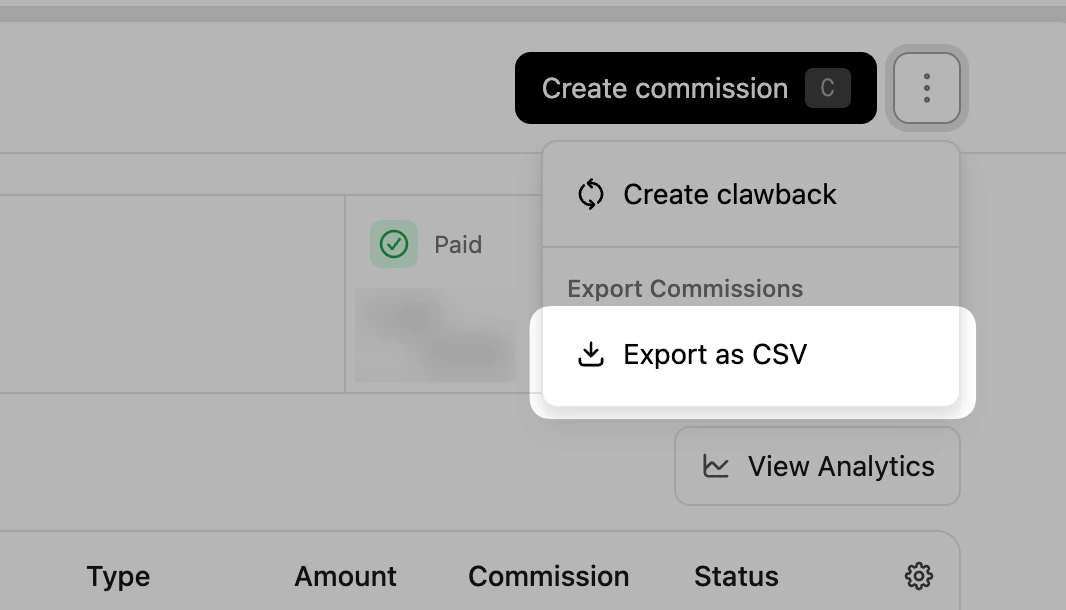
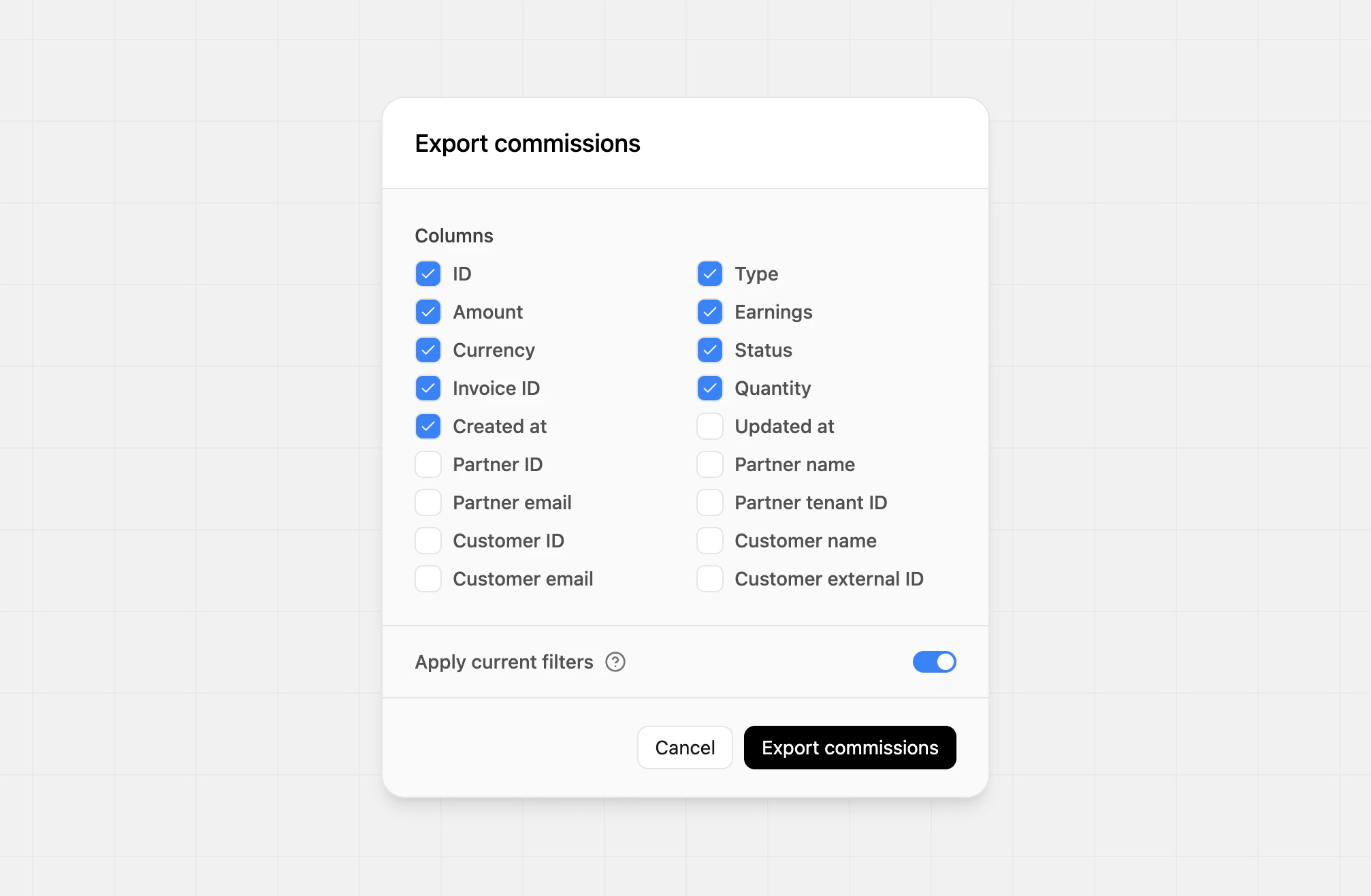
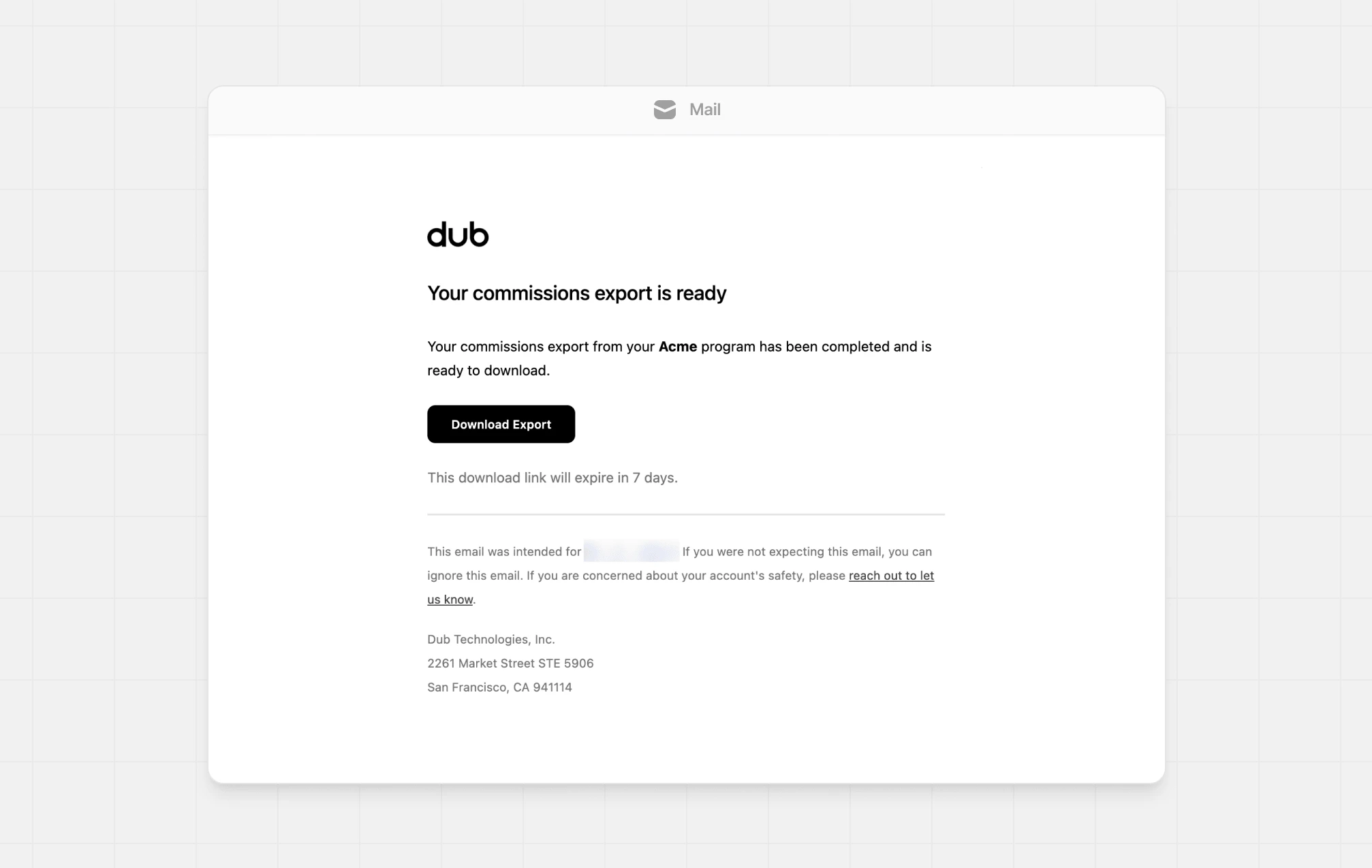
To export your commissions, click the more button next to Create commissions then Export as CSV.