

Creating rewards for submitted leads
To create or update lead rewards, go to your program’s partner groups, open the group you want to configure, and edit its rewards. This is where you create:- Lead rewards for leads that reach
Qualifiedstatus - Sale rewards for leads that reach
Closed wonstatus
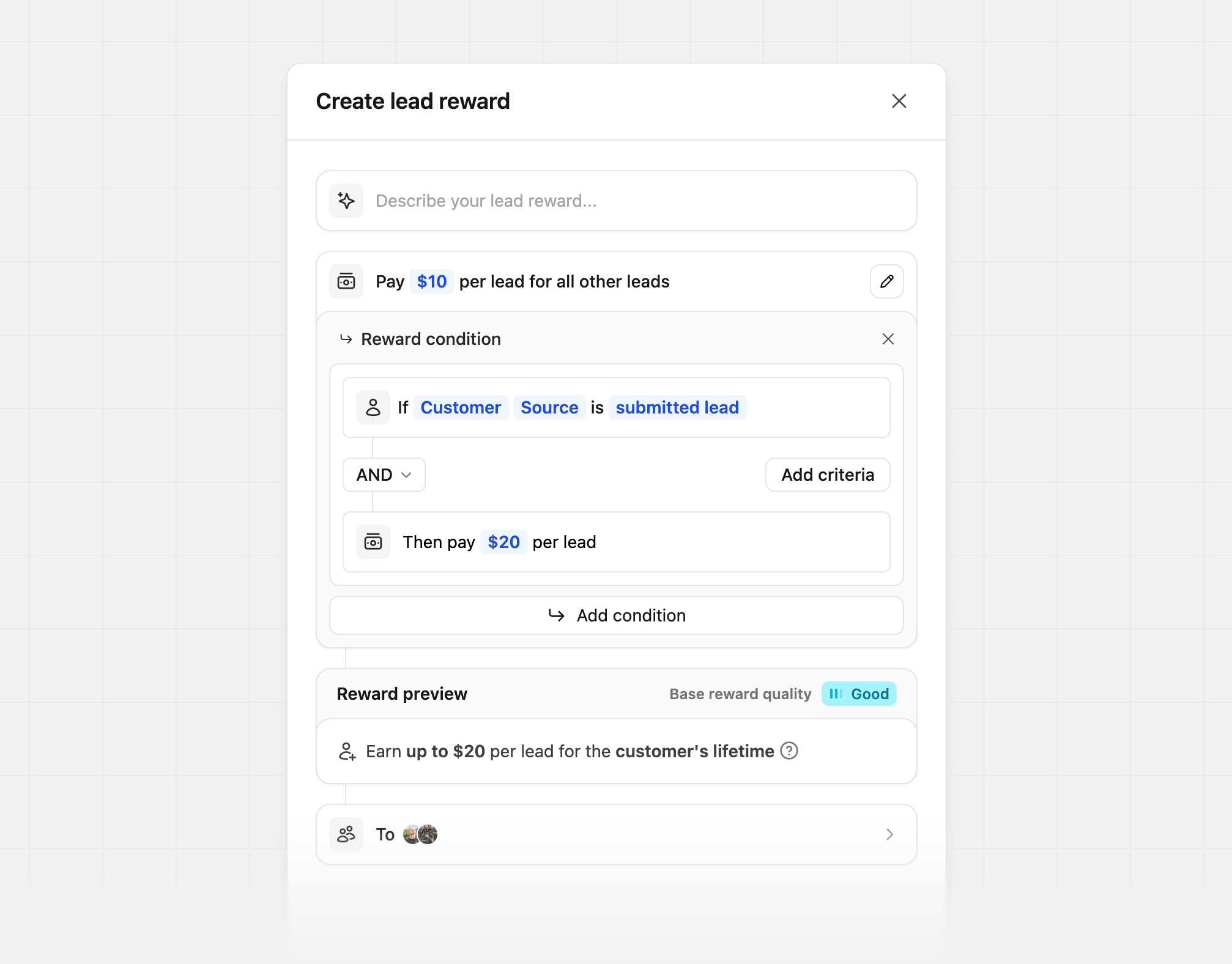
Lead reward
Open the lead reward editor, and add a condition to pay out when the customer source issubmitted lead. If this customer reaches Qualified, the partner then earns a reward.
Sale reward
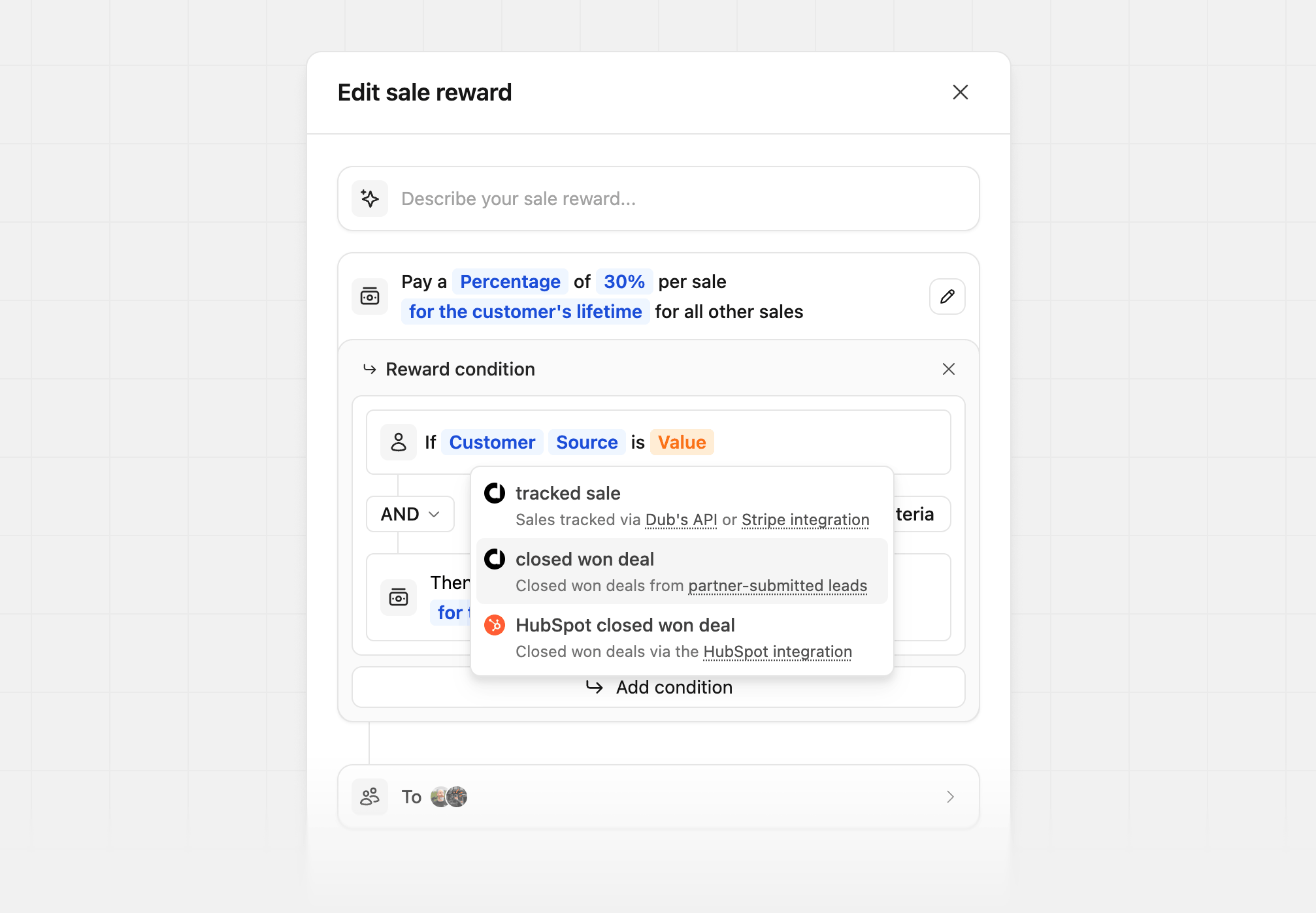
Open the sale reward editor, and add a condition onCustomer Source, and select the source that matches how your deals are closed:
closed won deal: Pay out when you mark a submitted lead as Closed won in Dub. This creates the customer and sale records, and the partner is rewarded. Use this if you manage the deal stage directly from the Submitted leads page.HubSpot closed won deal: Pay out when a deal reaches your closed won stage in HubSpot. Use this if you track your sales pipeline in HubSpot with the HubSpot integration.
tracked sale rewards, which apply to sales tracked via the API or the Stripe integration. Learn more about sale reward conditions.
Managing submitted leads
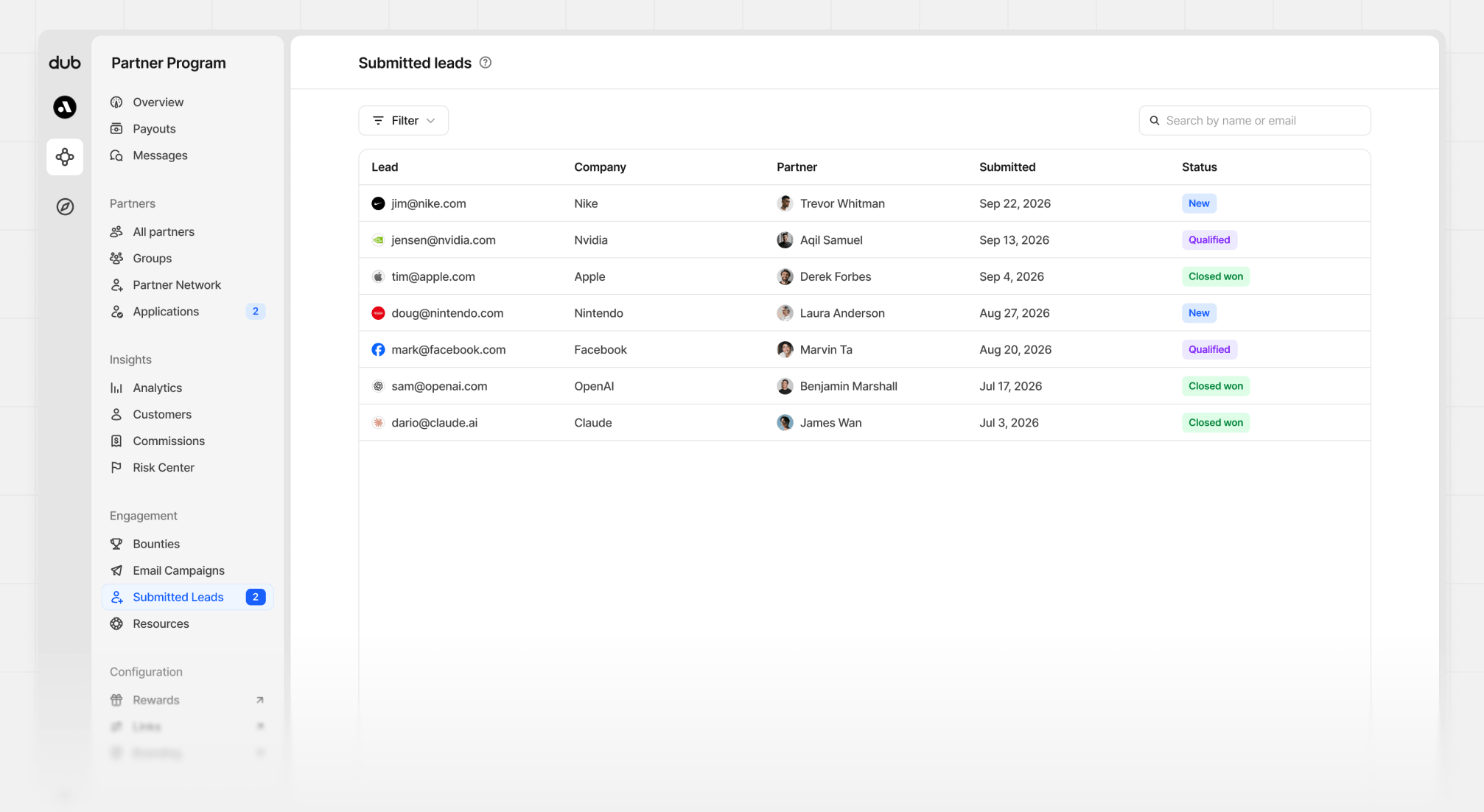
To view all submitted leads, go to Submitted Leads page in your Partner Program navigation.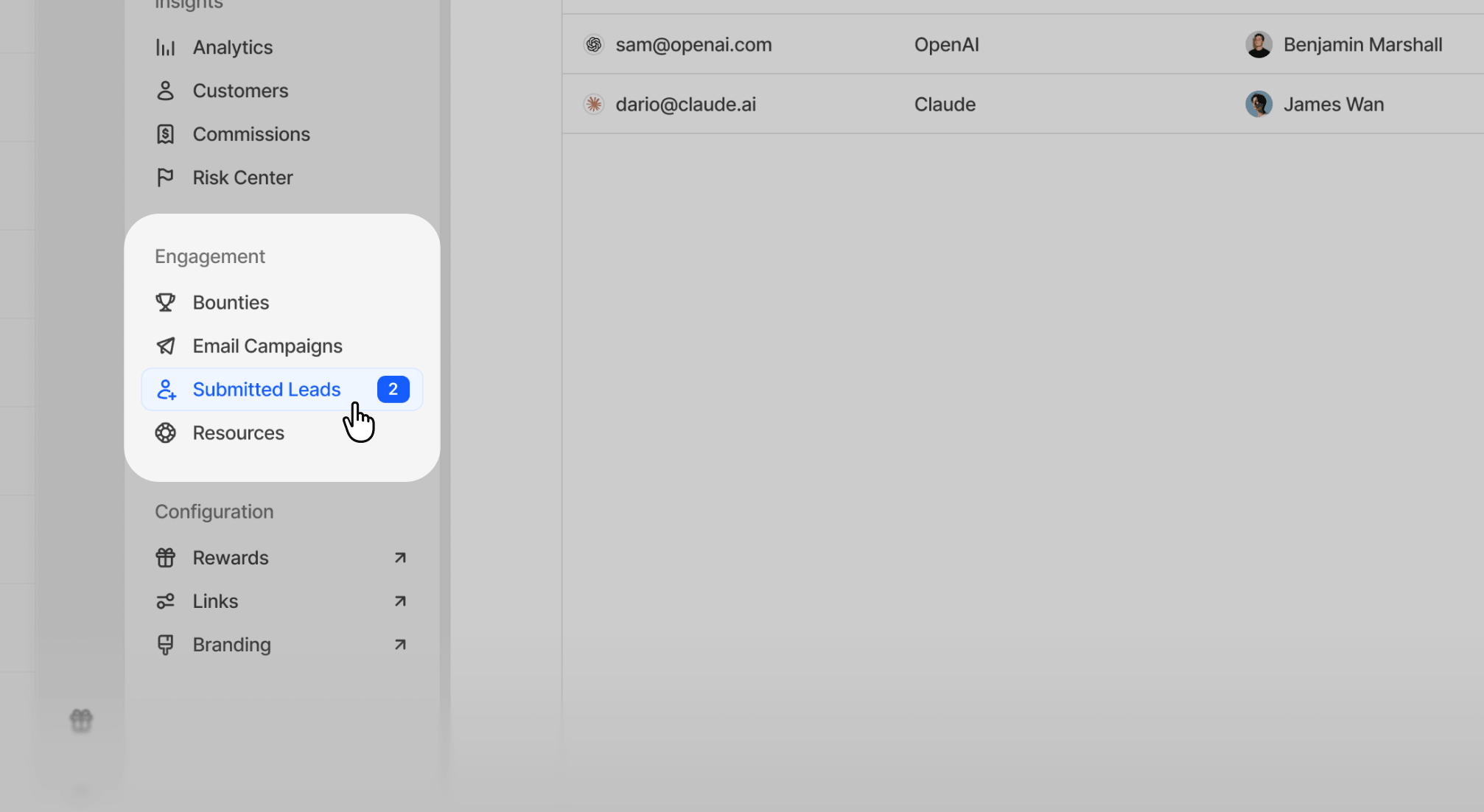
- Lead email
- Company
- Submitting partner
- Submitted date
- Current status
Reviewing submitted leads
When you click a lead row in the Submitted leads table, a drawer view opens with the full lead record.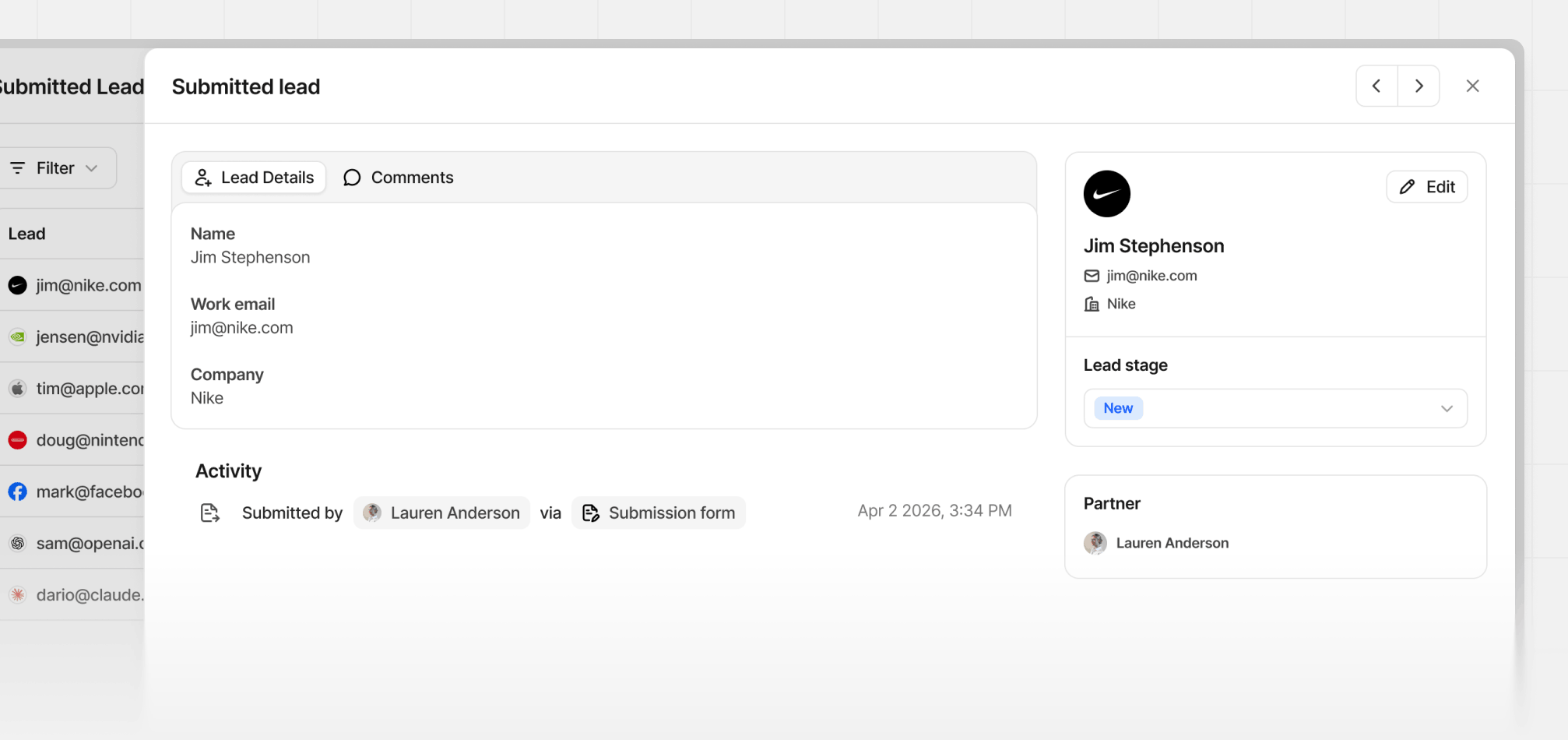
Commenting on submitted leads
Use comments to keep notes on a submitted lead and share updates with the partner who submitted it. In the lead drawer, click the Comments tab next to Lead Details.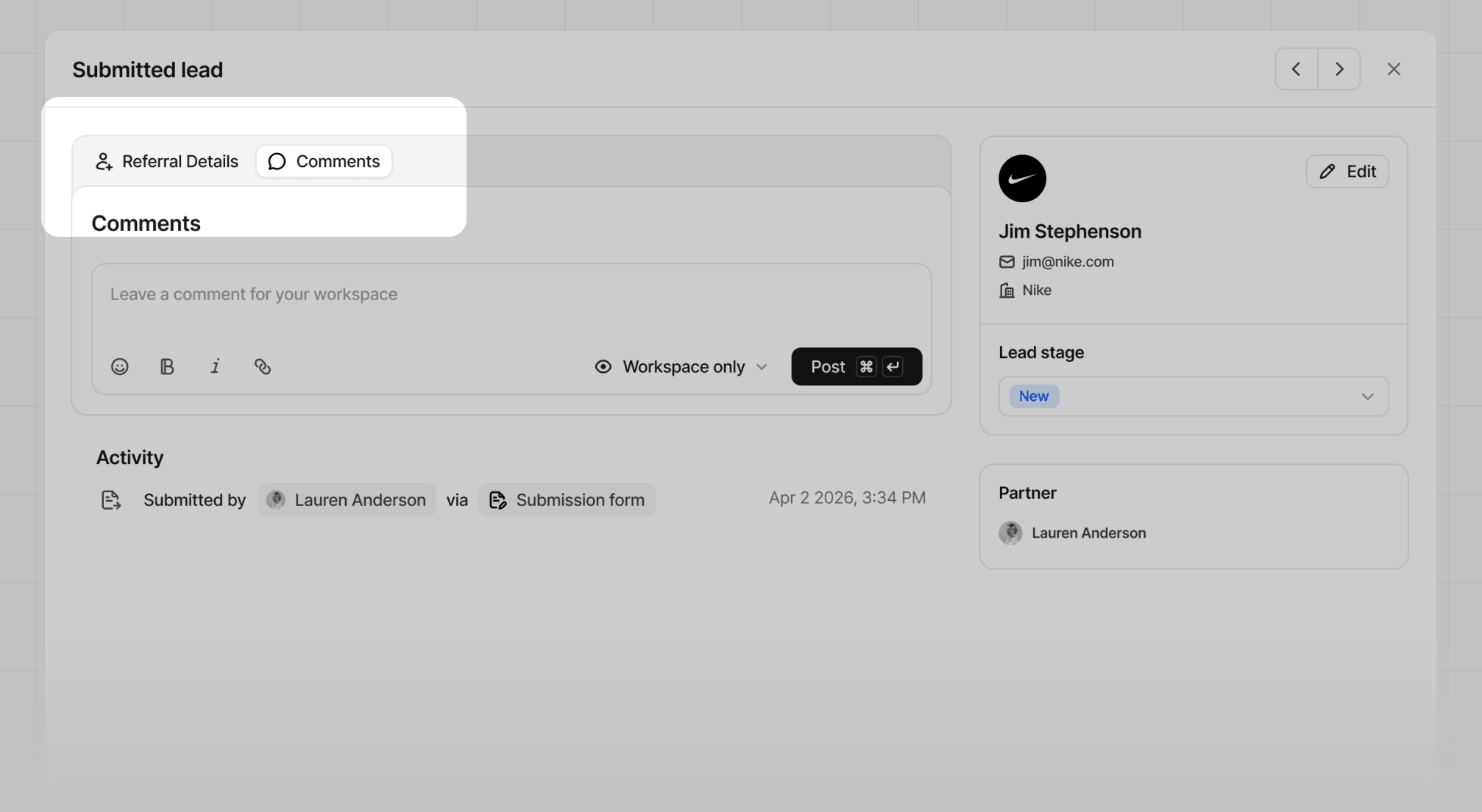
Choosing who can see a comment
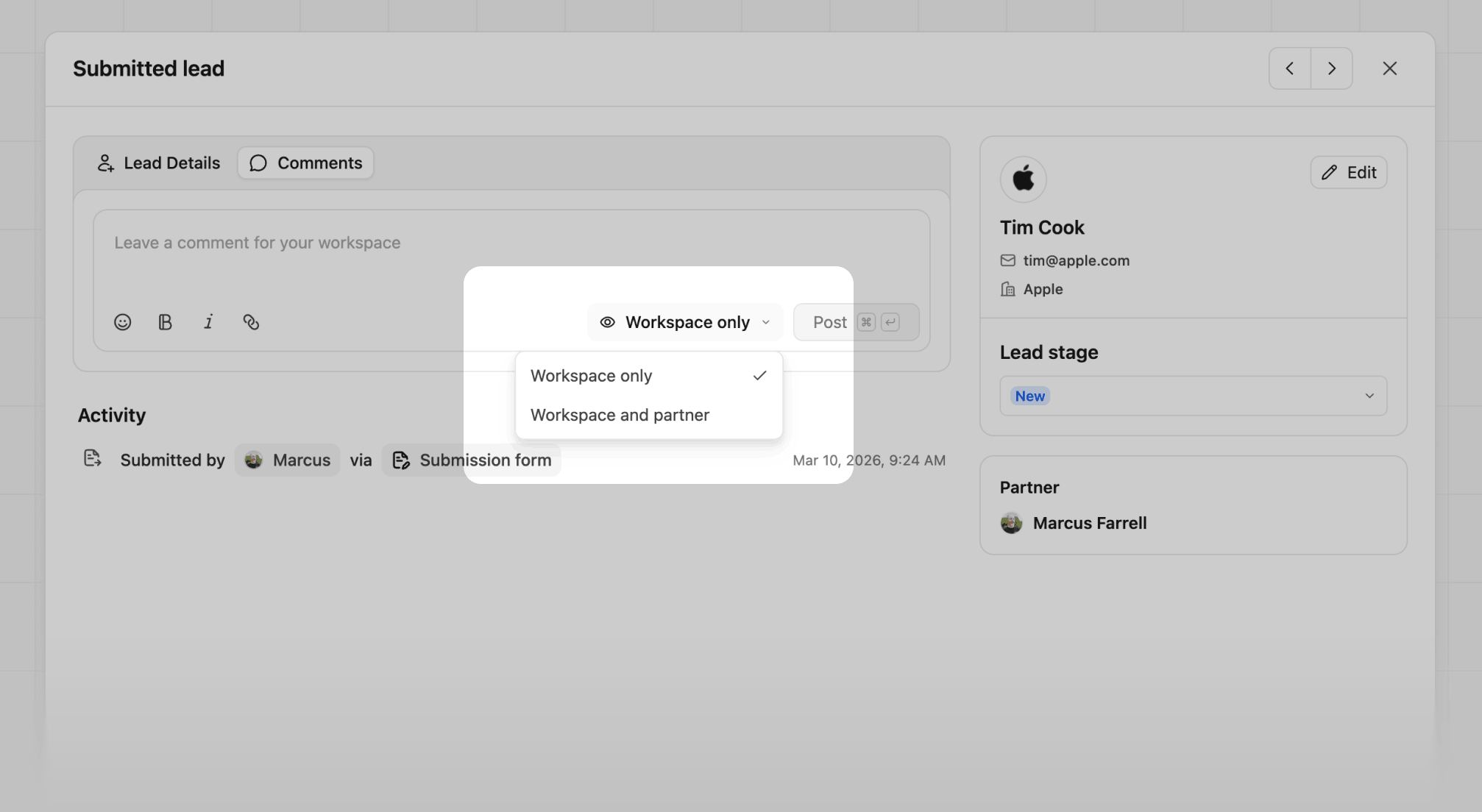
Before posting, use the visibility selector next to the Post button to choose who can see the comment:
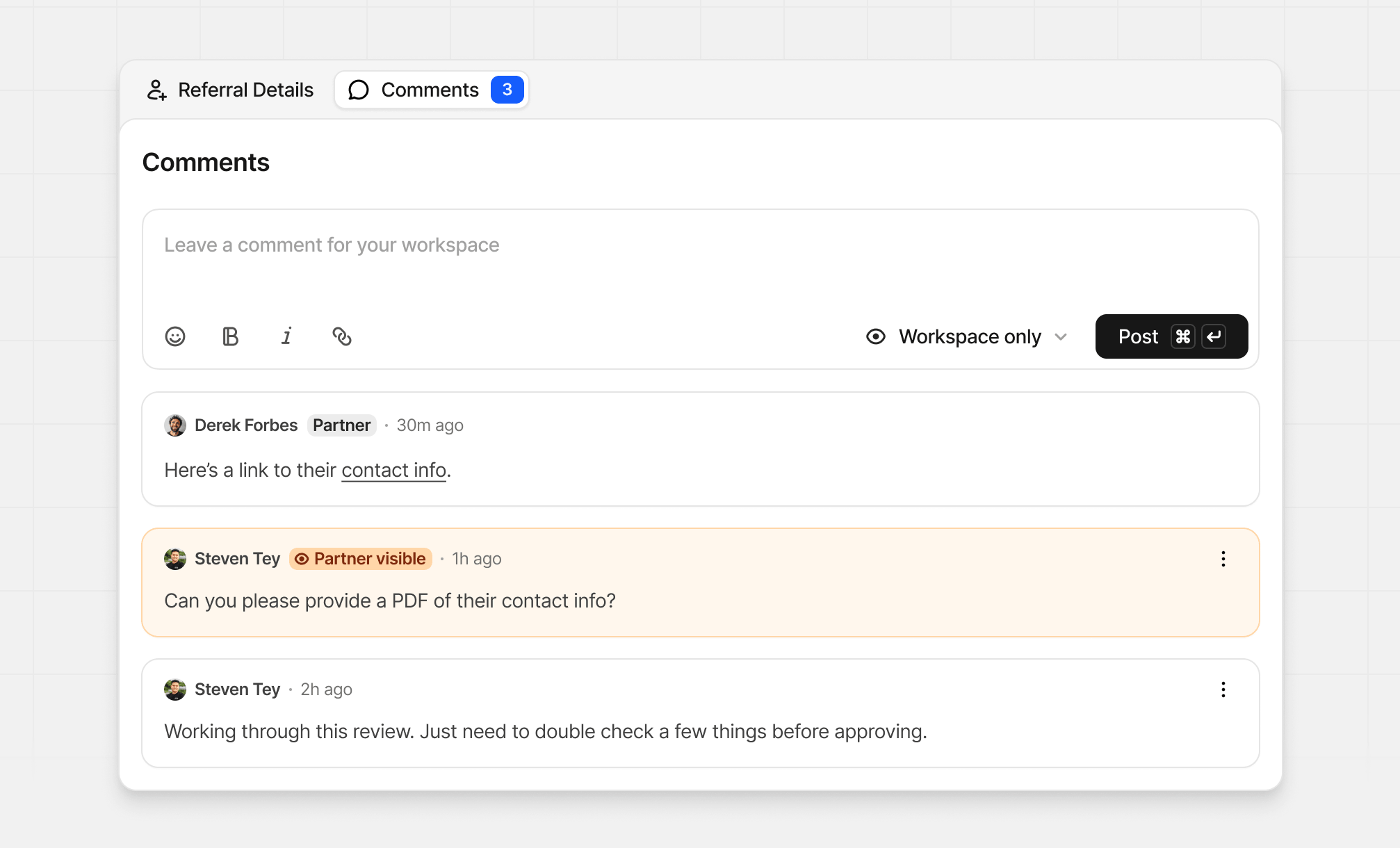
Comments default to Workspace only. When Workspace and partner is selected, the comment input turns orange, and the posted comment shows a Partner visible badge so it’s easy to tell apart from internal notes.
Submitted lead statuses
Submitted leads move through a simple pipeline inside Dub:- All submitted leads start in New
- Unqualified, Closed won, and Closed lost are final states
- You can move submitted leads forward or backward between Qualified, Meeting, and Negotiation
- A submitted lead must have an associated customer before it can be moved to Closed won
Updating lead statuses
If you select a new stage, Dub shows Save changes and Cancel actions at the bottom of the drawer before the update is finalized.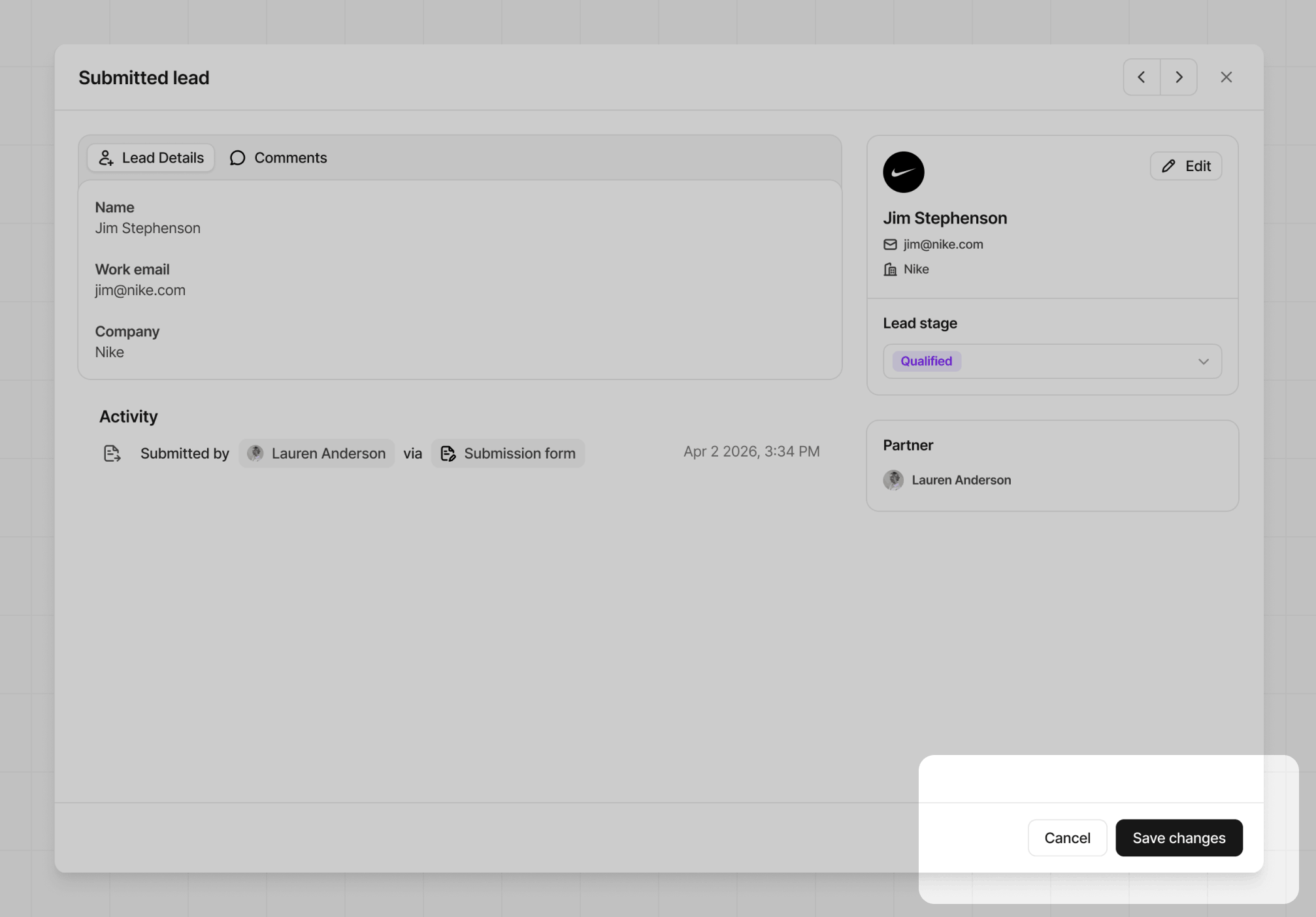
qualified and closed won statuses, additional information may be shown or required.
Qualified status
This change will also ask for an optional external ID.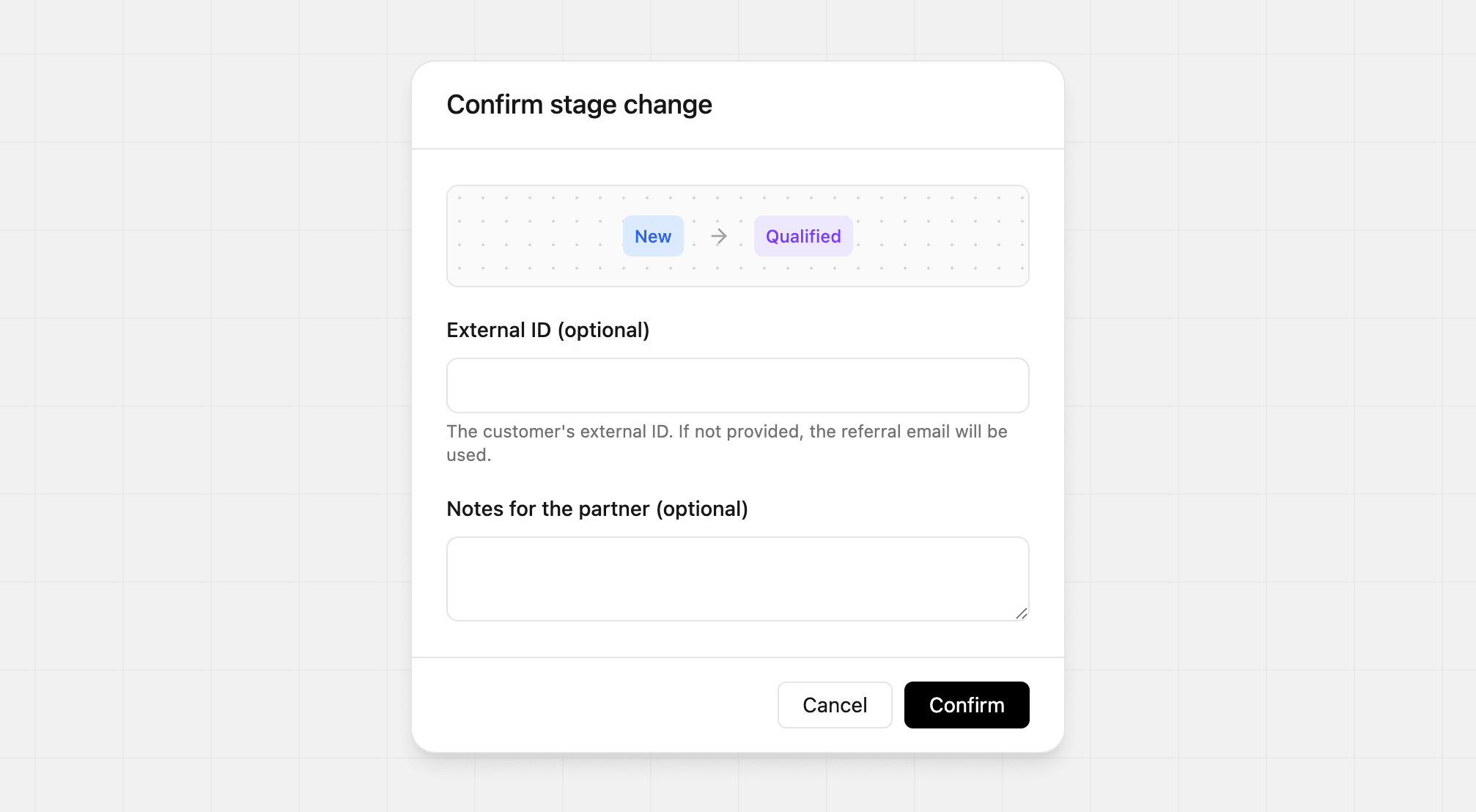
qualified, this creates a lead event.
Closed won status
This change will also ask for a required sale amount and optional Stripe customer ID.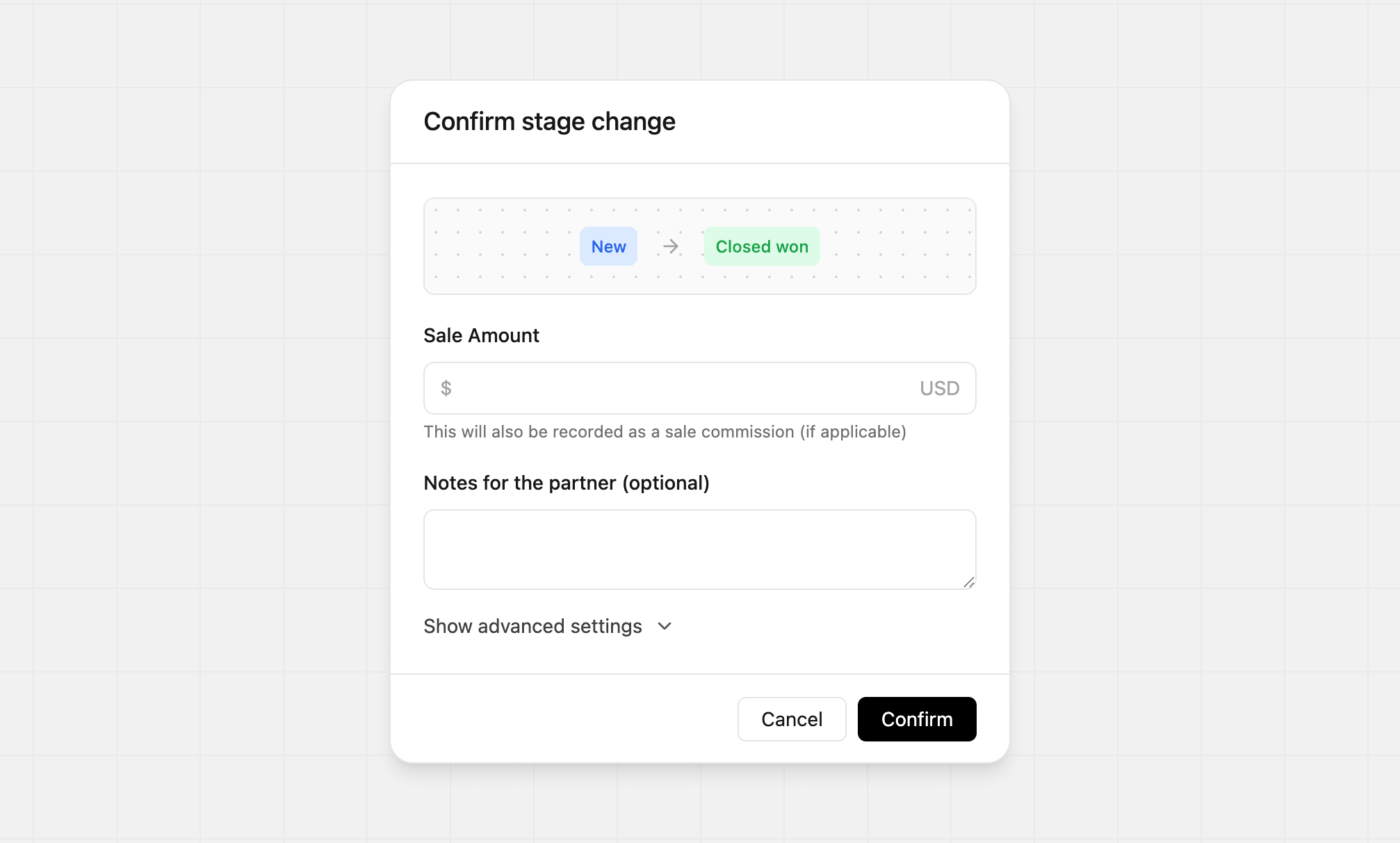
closed won, this creates a sale record.