Where to manage your team
To manage your partner team, select the Partner profile icon in the left sidebar, then navigate to the Members tab.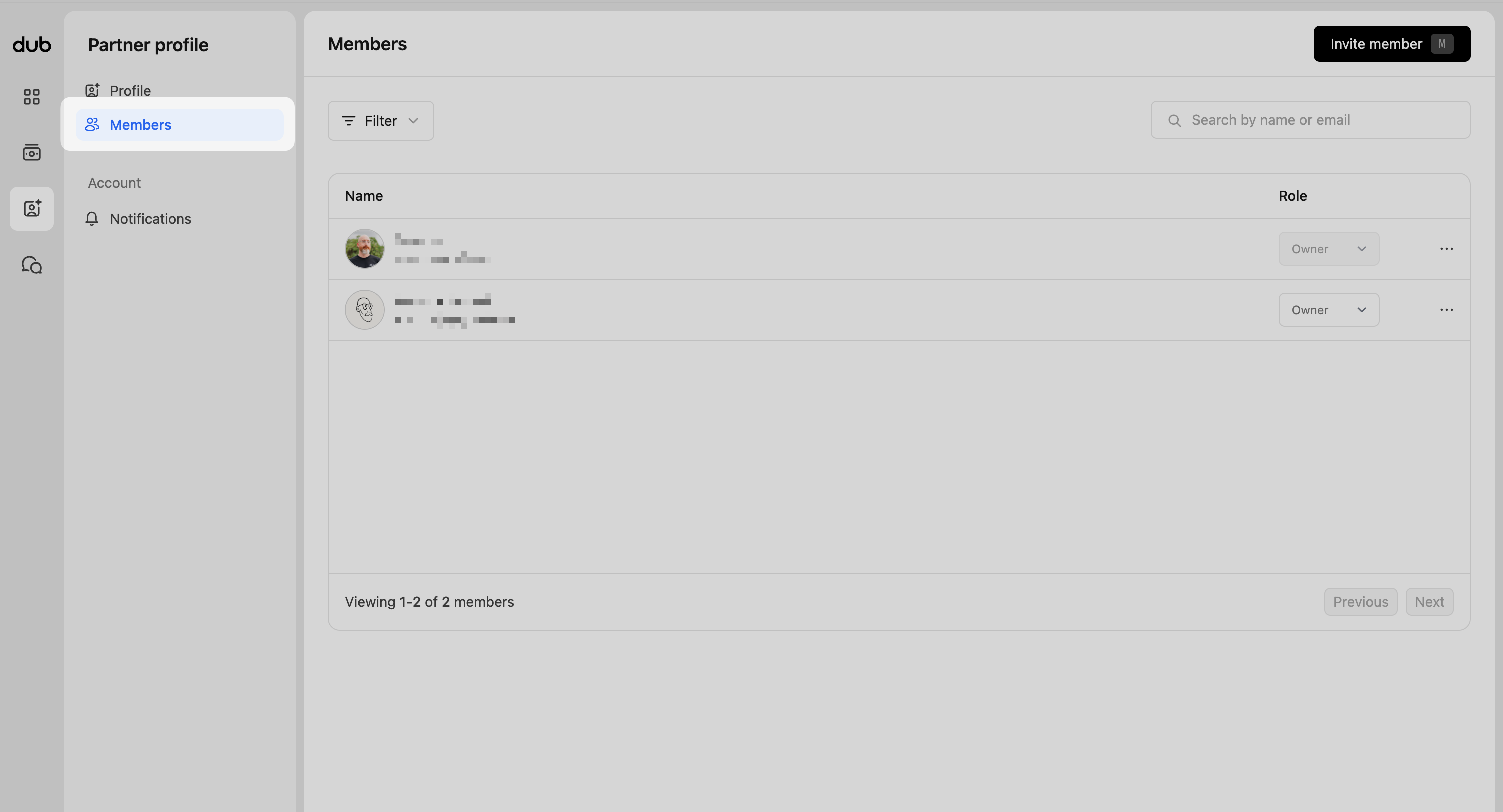
Roles and permissions
Partner team members support two role types: owner and member.Owner
The Owner has full control of the partner account. This includes:- Updating partner profile settings
- Managing team members (inviting and removing members)
- Managing payout details
Member
Members have standard access. They can view and manage partner activity across all programs, but cannot manage team members or payout details.Inviting a new member
To invite a new member to your partner team, click the Invite member button in the top right.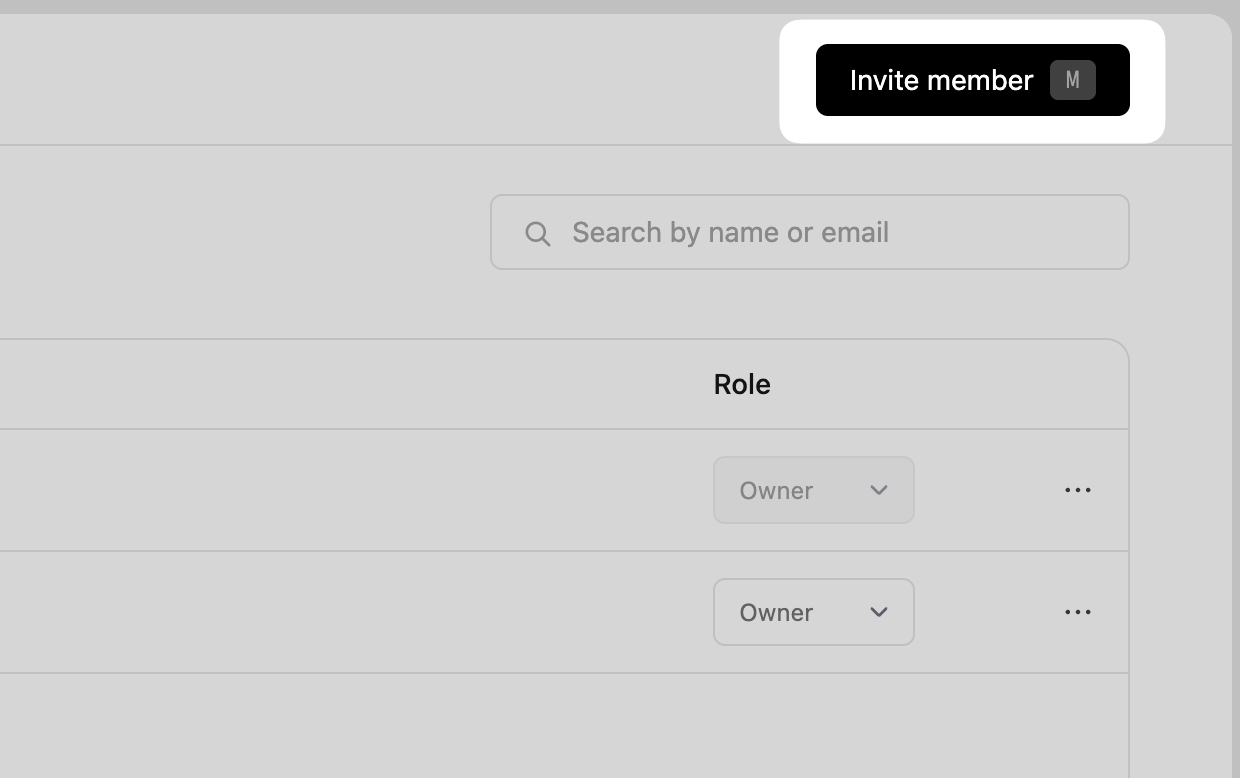
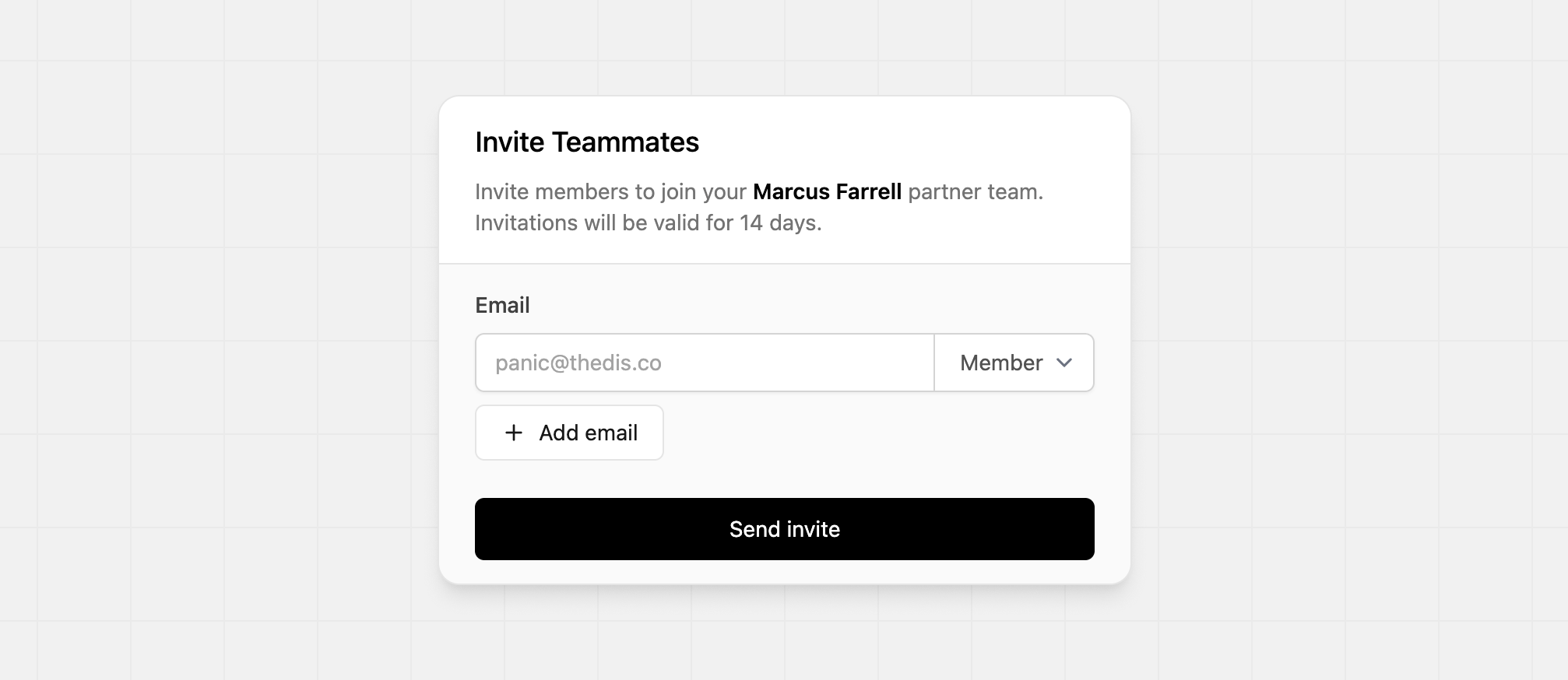
You can only invite up to 10 teammates per partner team.
Changing a role
Only Owner-roled members in a partner team can change another member’s role. To change a member’s role, click the role dropdown in the members table and select a new role.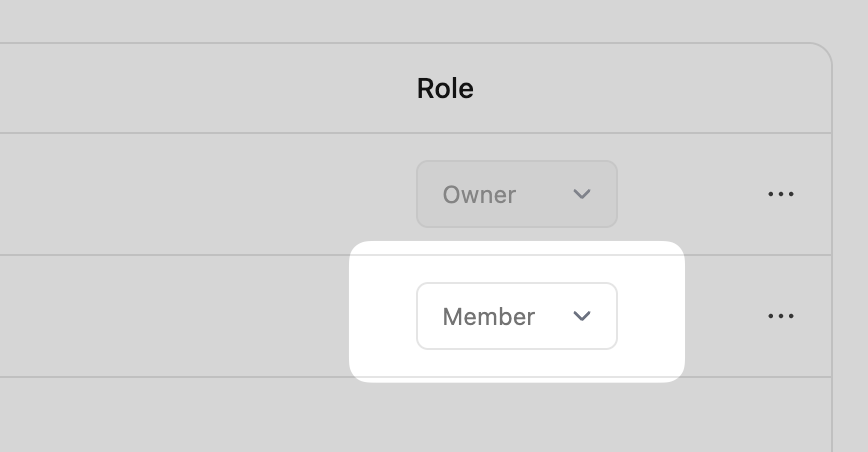
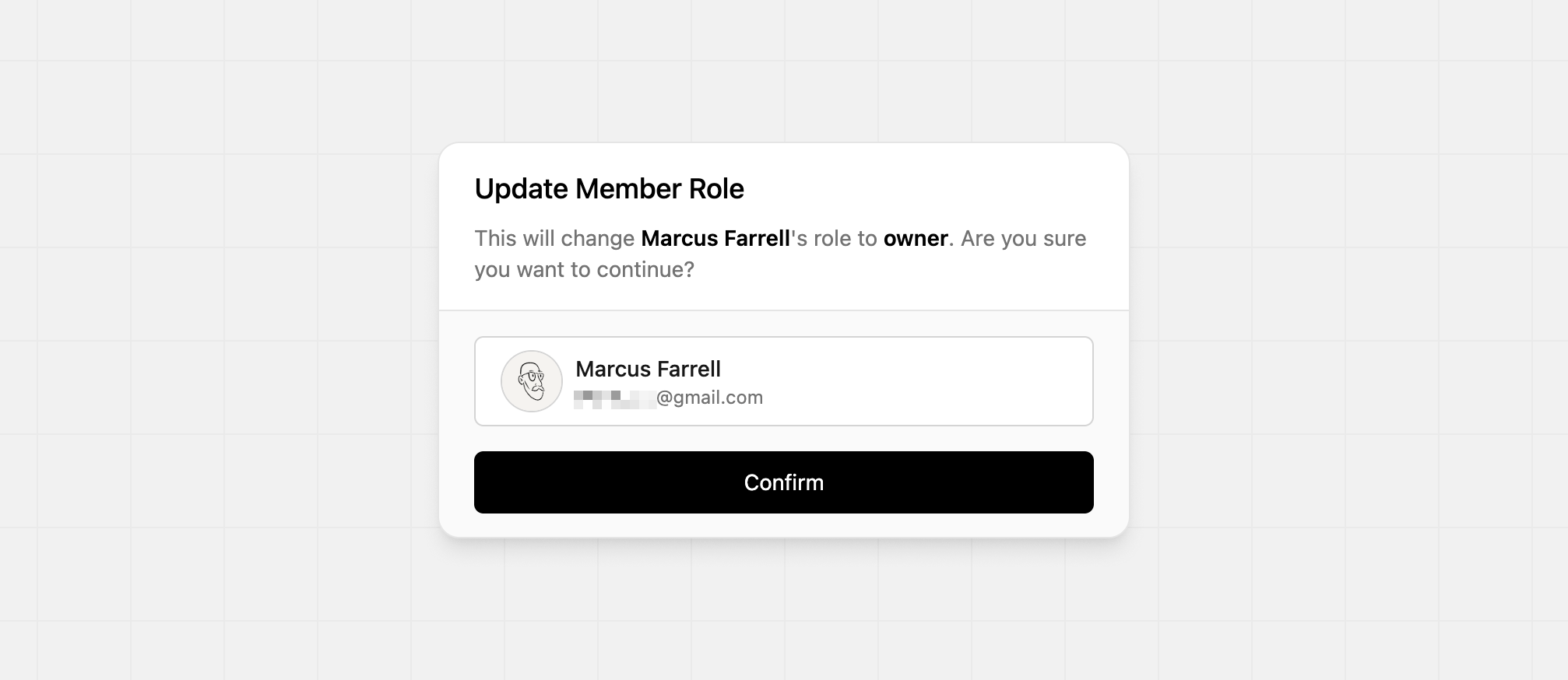
Removing a member
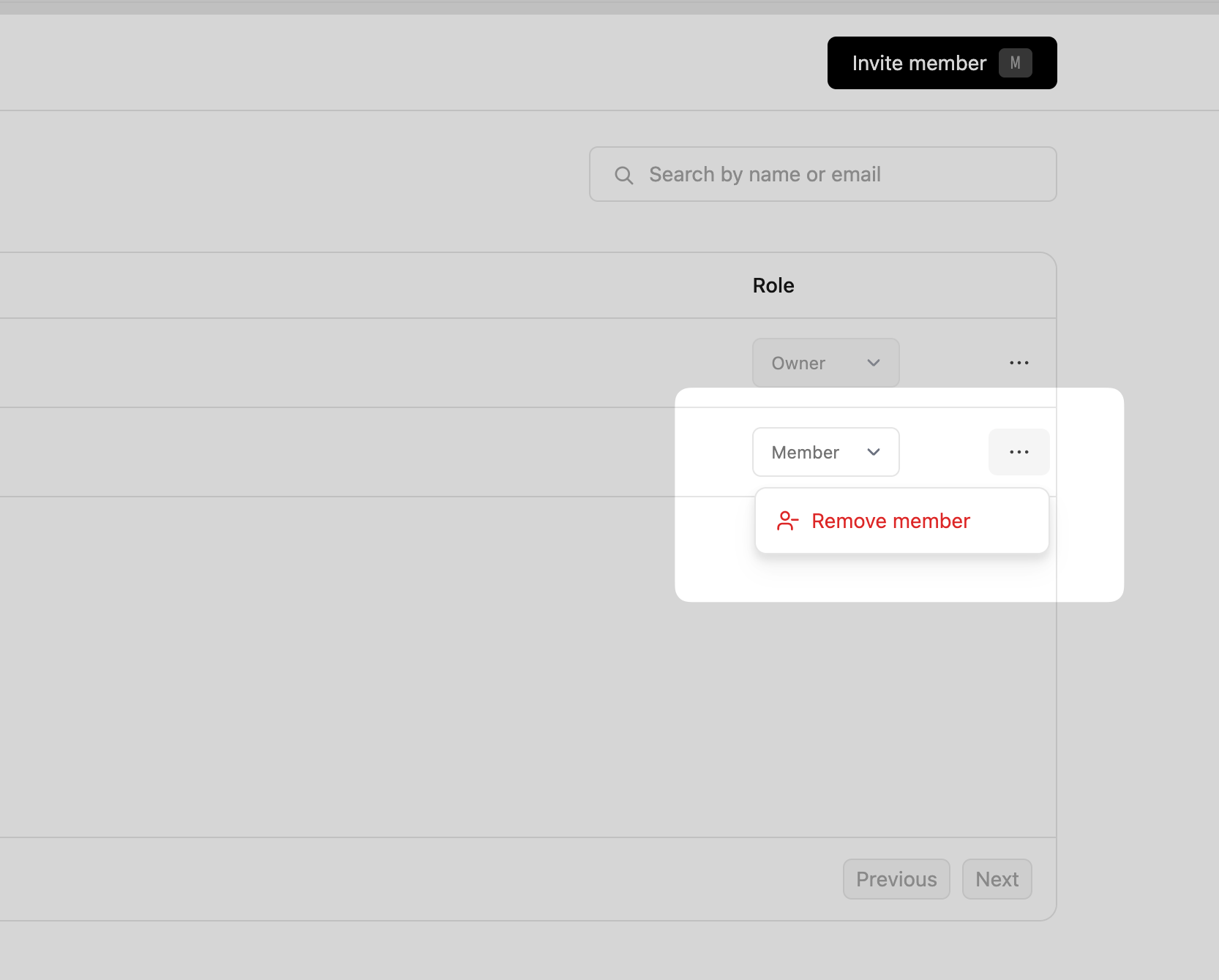
To remove a member from your team, click the⋯ dropdown and select Remove member.