

- Via email
- Via invite links
Sending an invite
To invite a teammate via email, first navigate to Members in your workspace settings.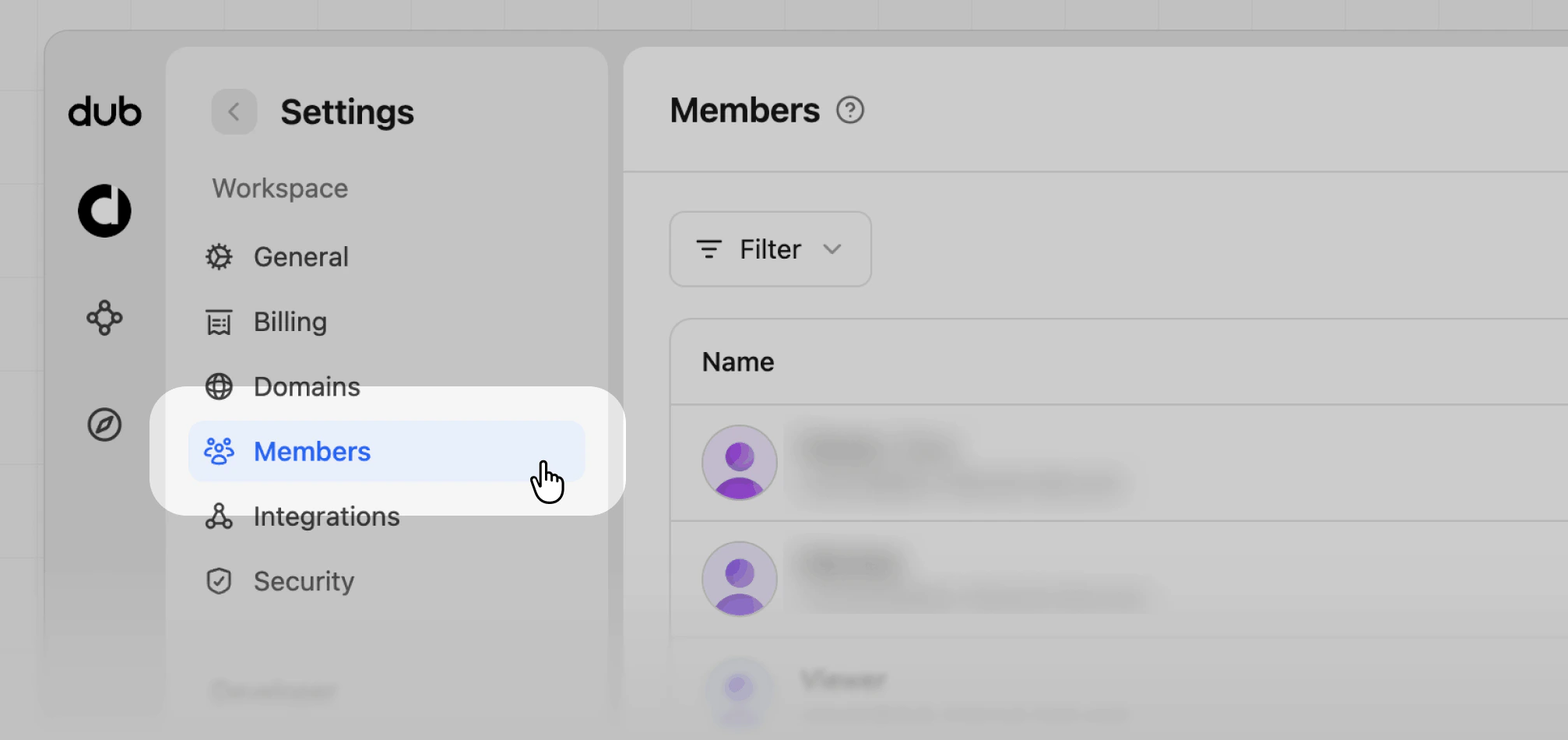
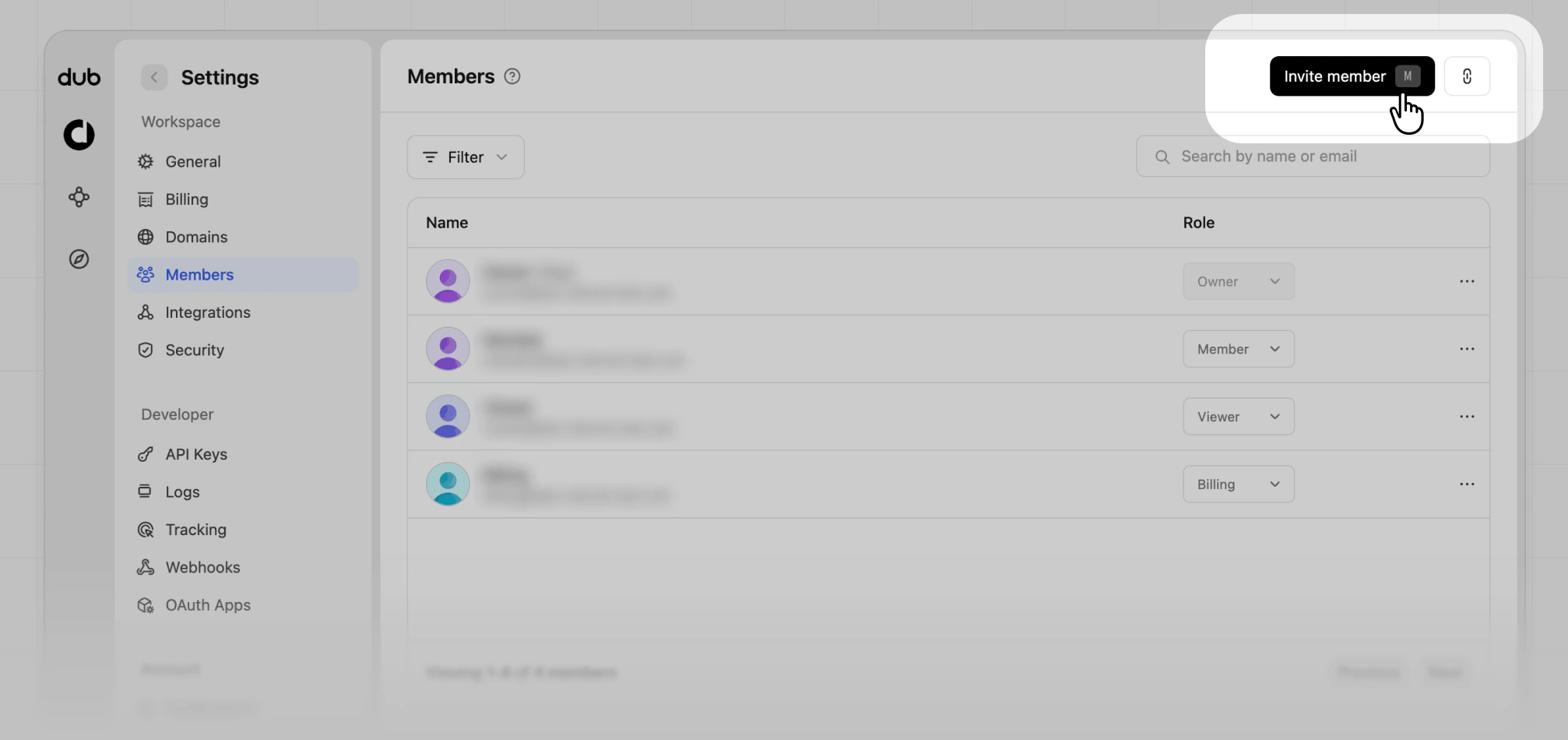
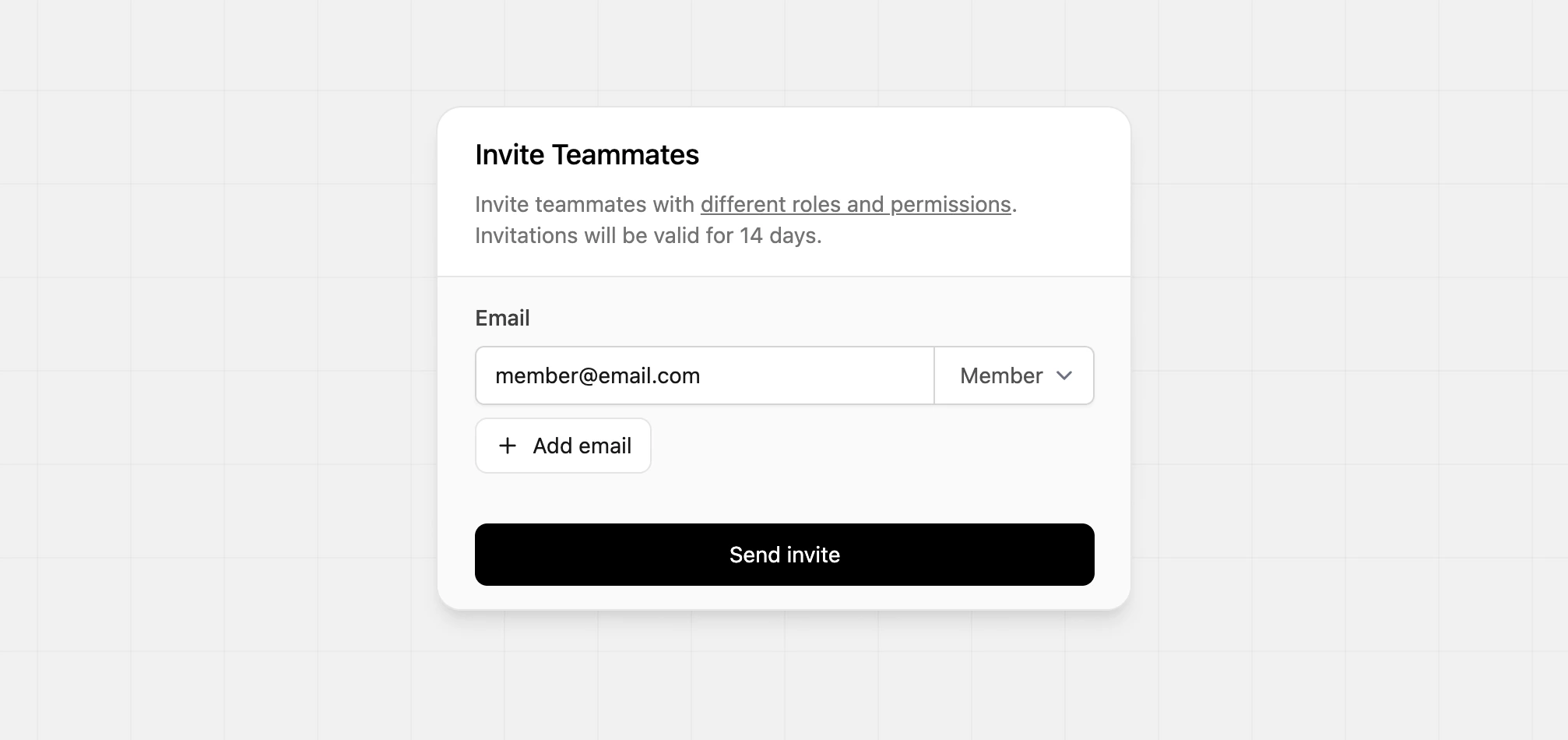
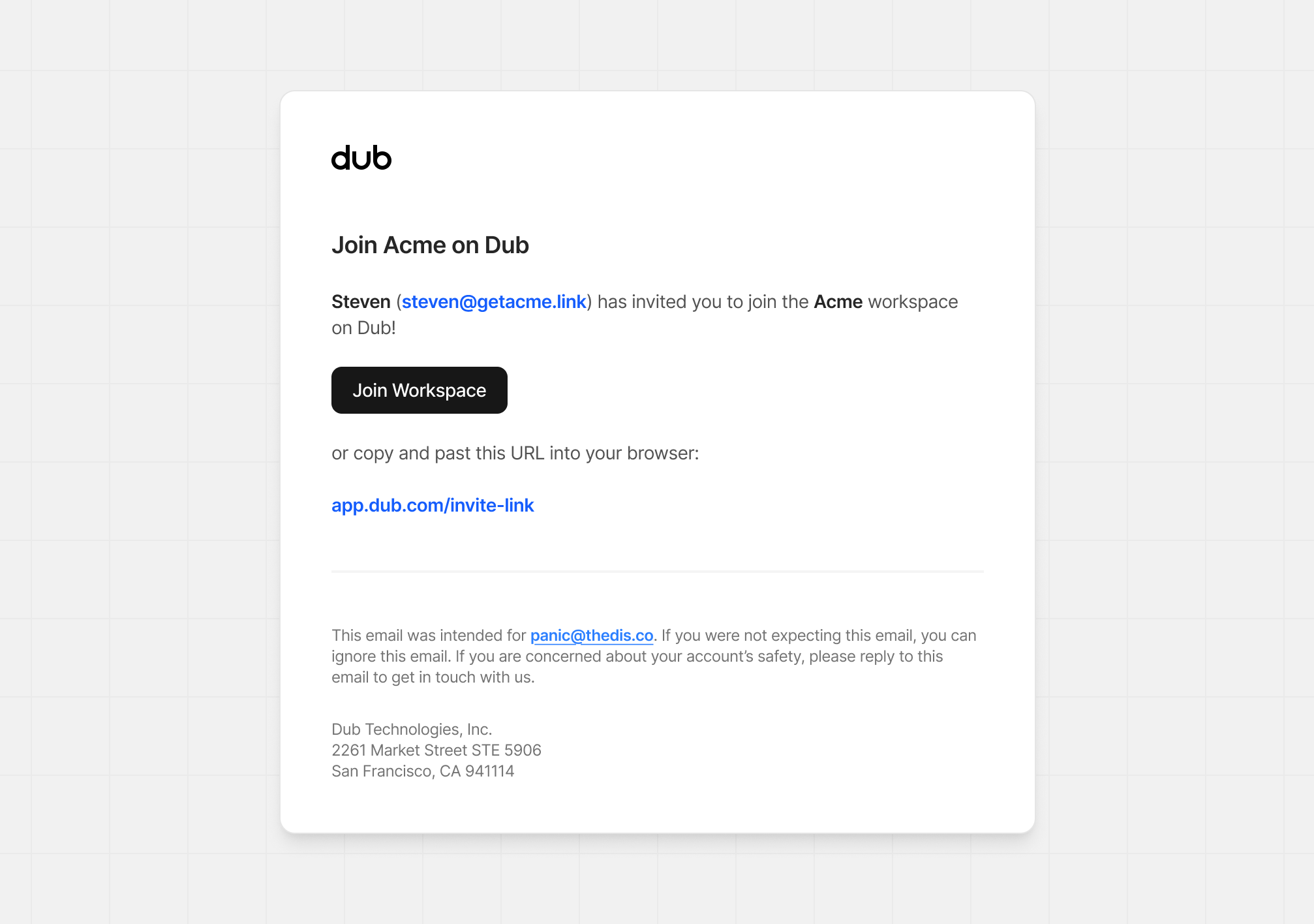
Invitations will be valid for 14 days – after which you will need to send a
new one.
Using invite links
You can also invite your teammates to join your workspace by sharing an invite link with them. First navigate to Members in your workspace settings. From here, click on the Link button in the top-right to open the Invite Link modal.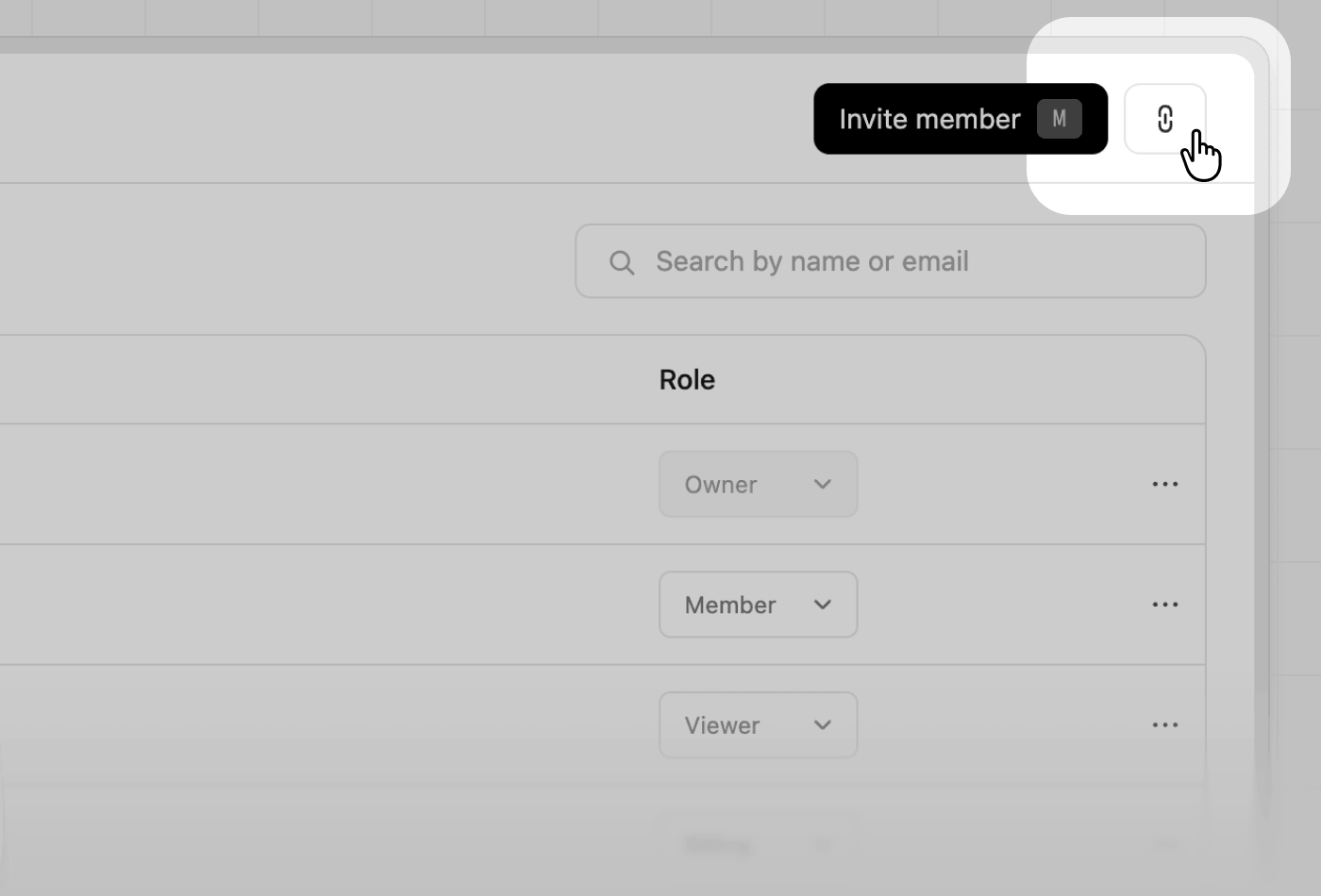
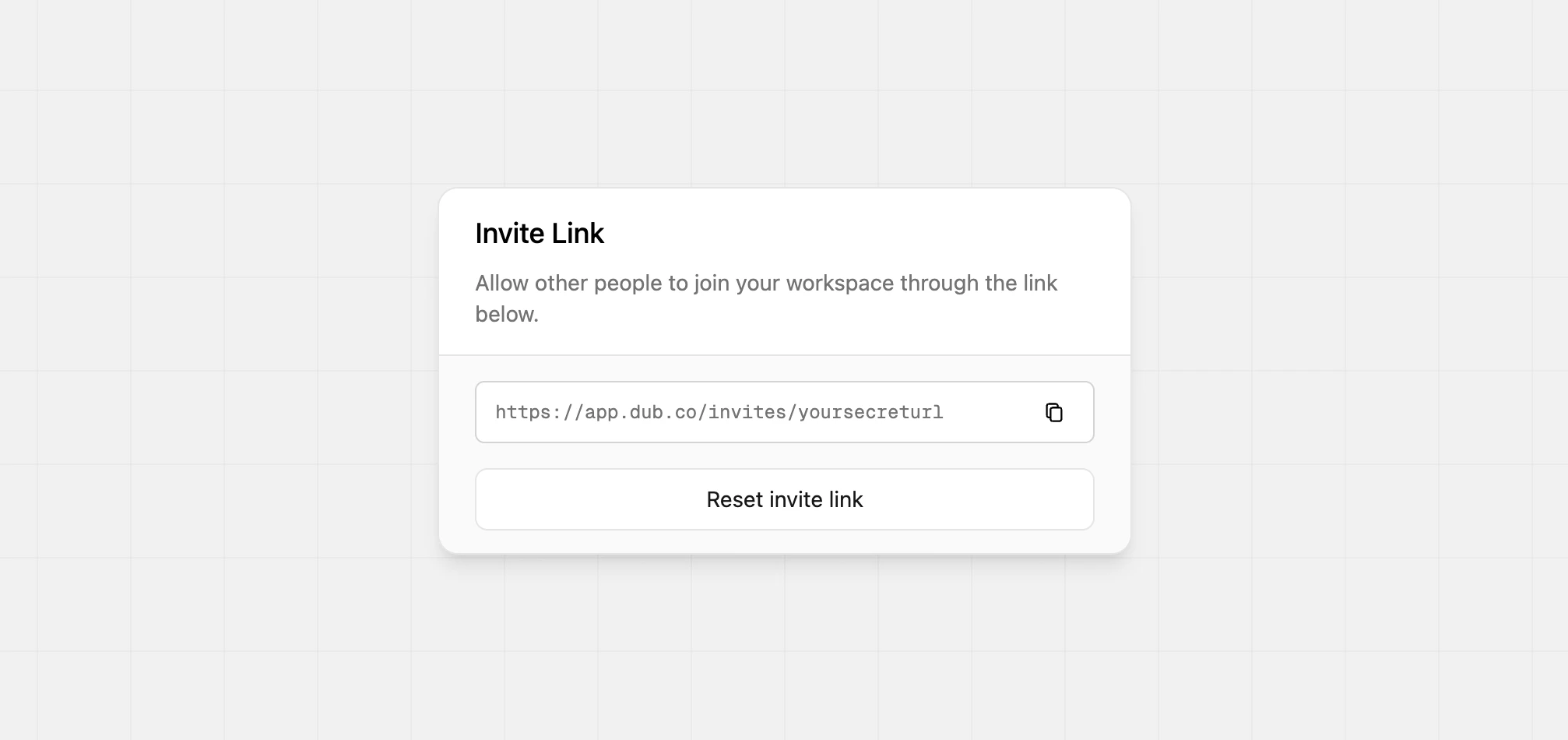
Example of an invite link
Revoking / resending an invite
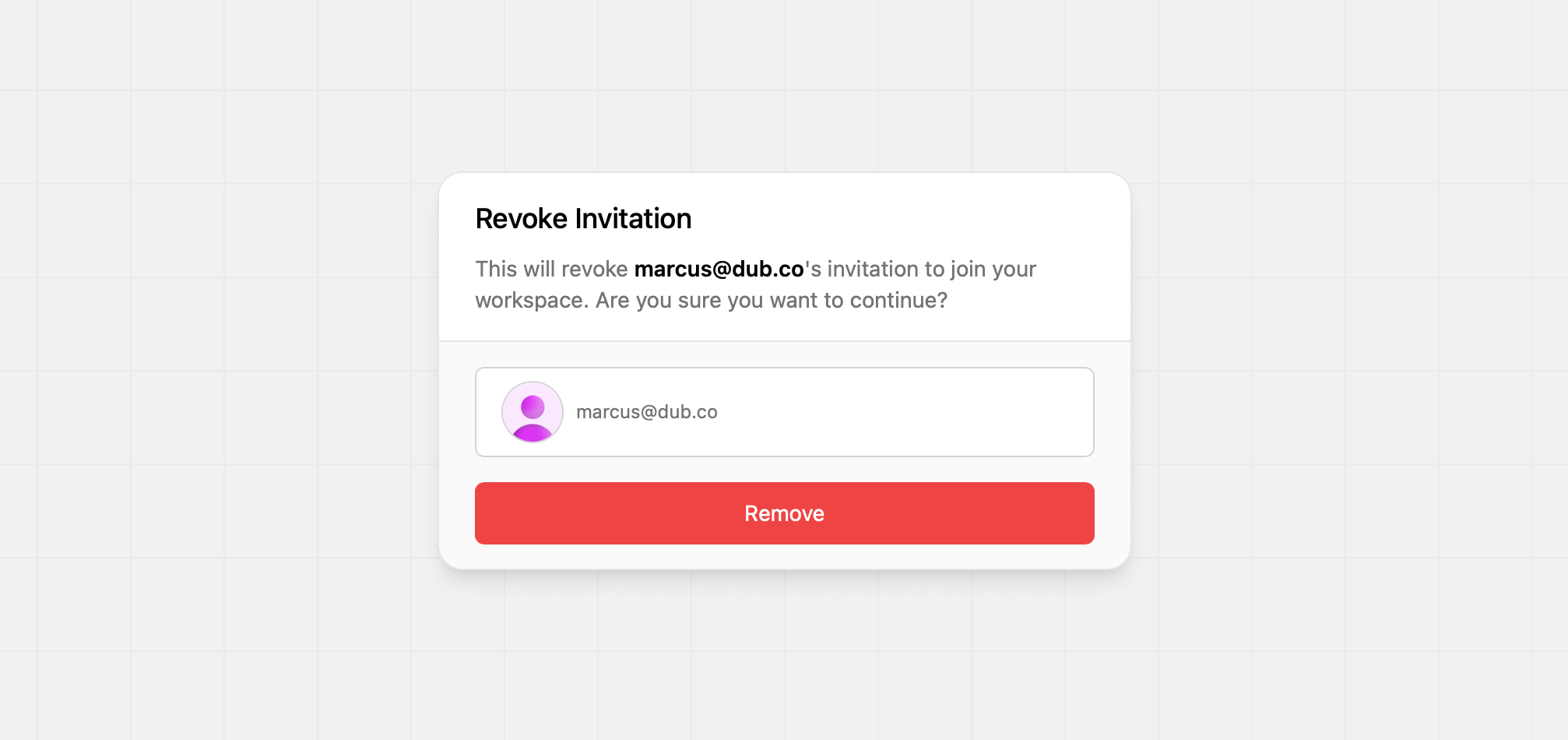
If you want to revoke/resend an invitation, you can do so by following these steps:- Navigate to your workspace’s Members Settings page.
- Click on the Invitations tab.
- Click on the
⋮button next to the invitation you want to revoke. - Click on the Remove button to open the Remove Invitation modal.
- Click on the Confirm remove button to confirm.
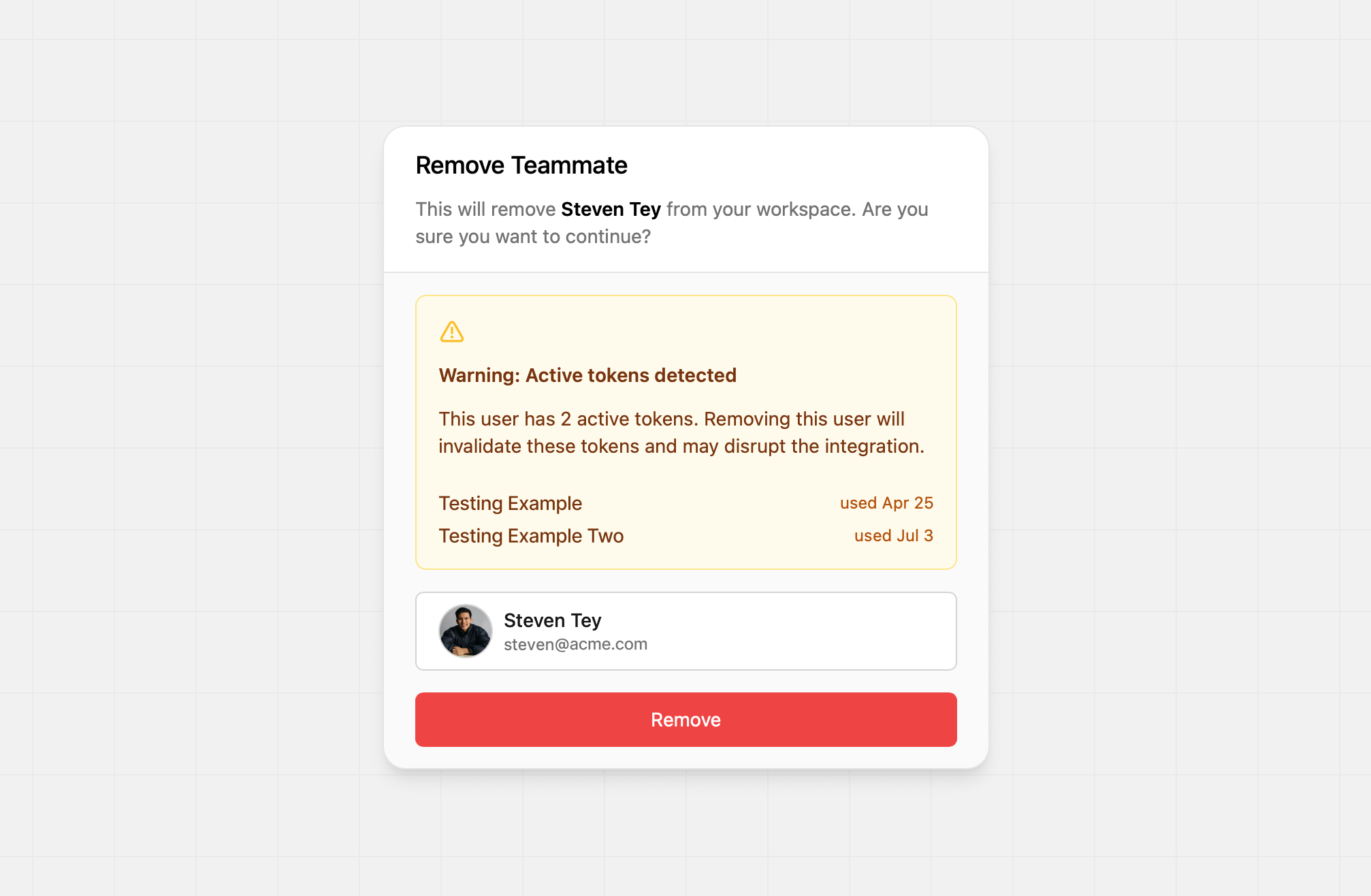
Removing a teammate
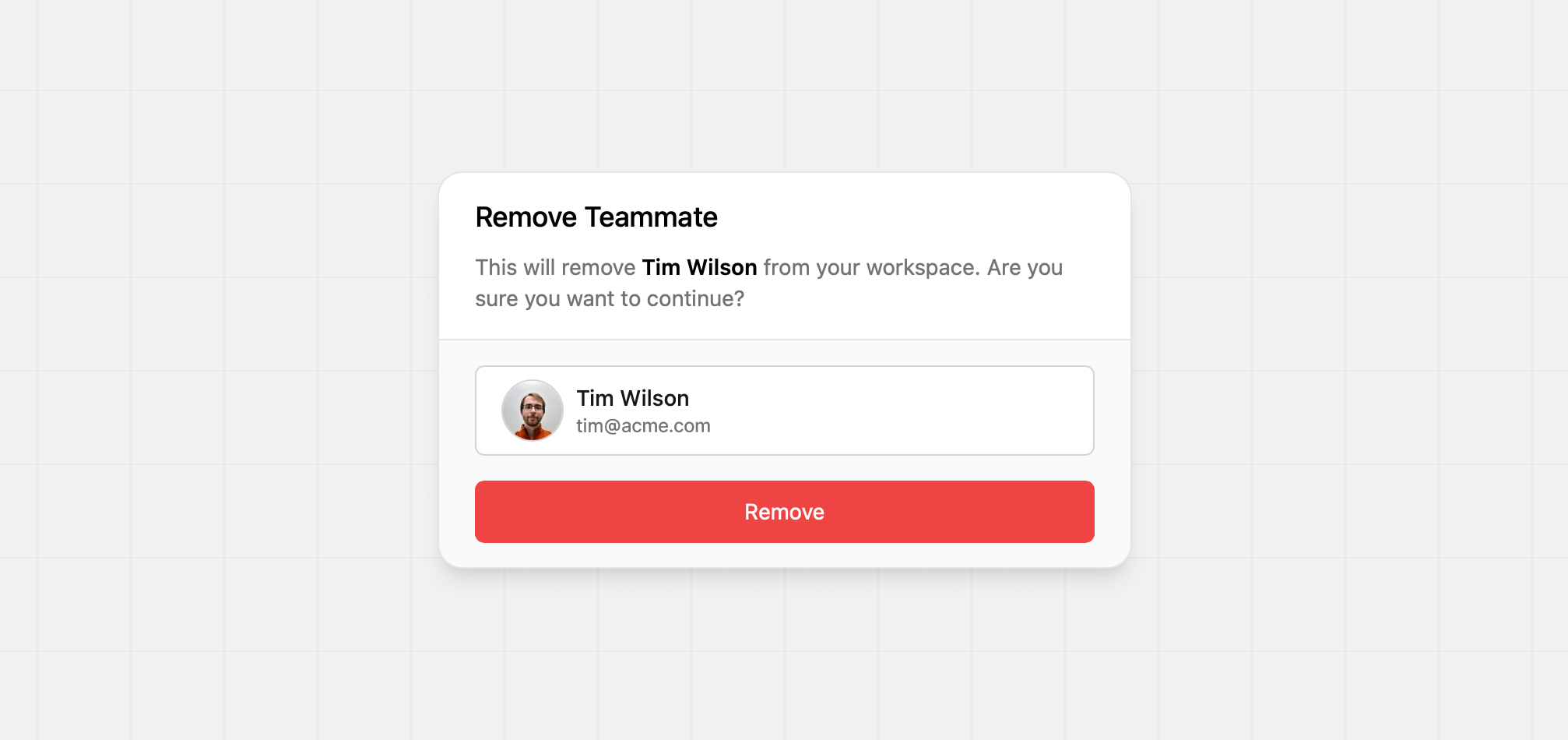
If a teammate no longer needs access to your workspace, you can remove them from your workspace.- Navigate to your workspace’s Members Settings page.
- Click on the
⋮button next to the teammate you want to remove. - Click on the Remove button to open the Remove Teammate modal.
- Click on the Confirm remove button to confirm.
How many teammates can I invite?
The number of teammates you can invite depends on your Dub plan:- Free plan: You cannot invite any teammates.
- Pro plan: You can invite up to 3 teammates.
- Business plan: You can invite up to 10 teammates.
- Advanced plan: You can invite up to 20 teammates.
- Enterprise plan: You can invite unlimited teammates.