

- Manage your sign-in methods, such as your password, Google, and GitHub.
- Set up multi-factor authentication to require a code from an authenticator app when you sign in.
- Review your active sessions and sign out of browsers you no longer use.
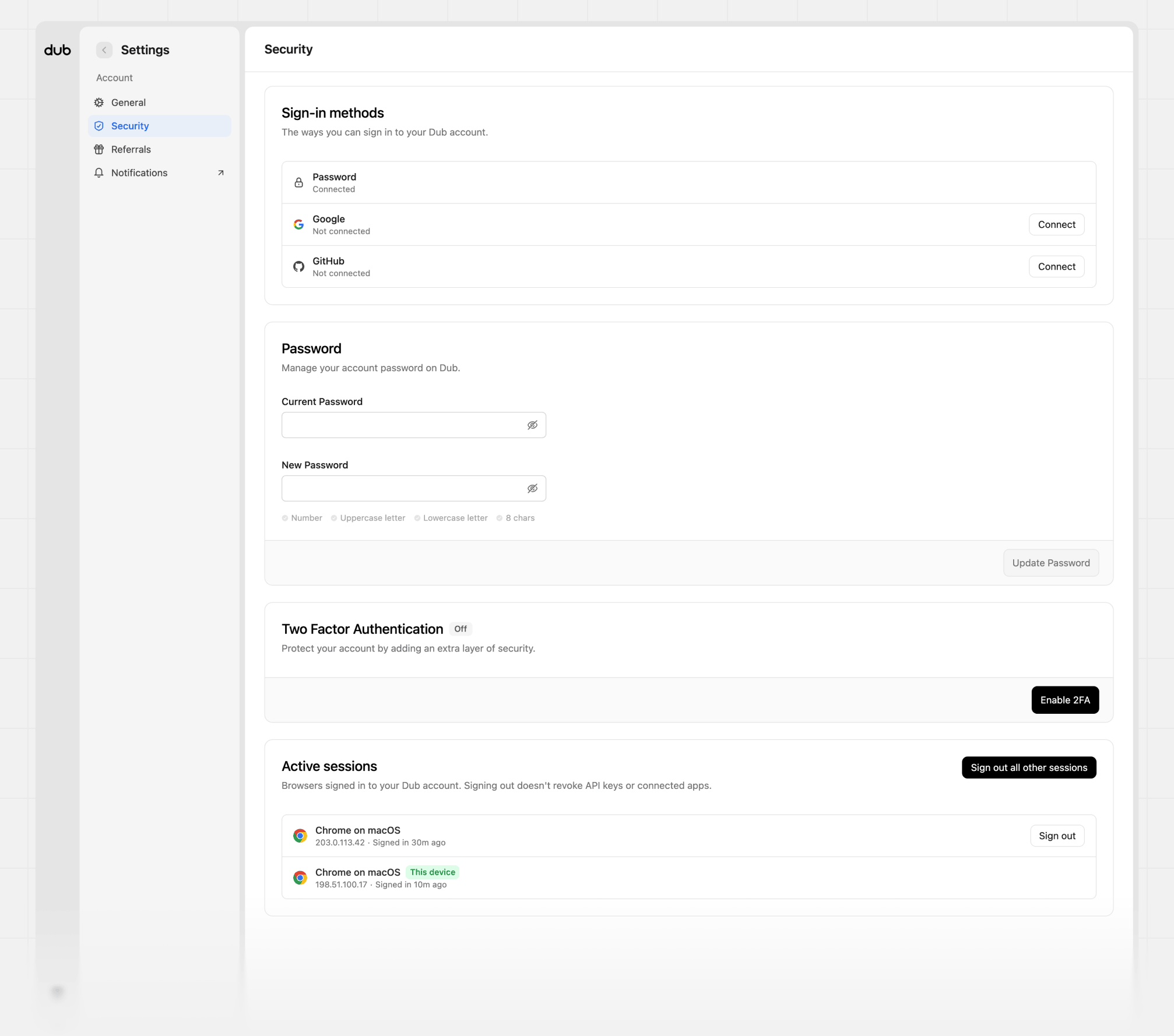
Sign-in methods
The Sign-in methods card lists the ways you can sign in to your Dub account, and whether each one is Connected or Not connected.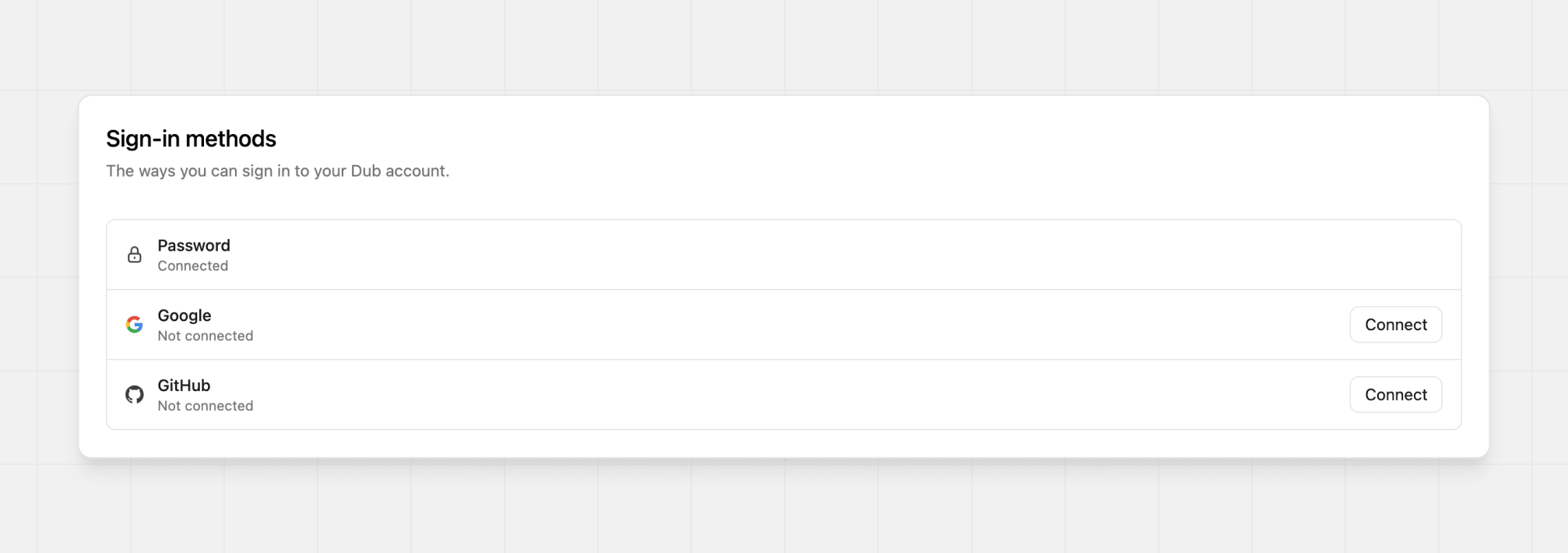
Connecting Google or GitHub
To add Google or GitHub as a sign-in method, click Connect next to it and sign in with that provider. The Google or GitHub account needs to use the same email address as your Dub account, and that email needs to be verified with the provider. An account that’s already connected to another Dub user can’t be connected.If your organization requires SAML SSO, you can’t
connect Google or GitHub.
Disconnecting Google or GitHub
To remove Google or GitHub as a sign-in method:- Click Disconnect next to it.
- Confirm by clicking Disconnect in the prompt.
Setting or changing your password
Use the Password card, below your sign-in methods: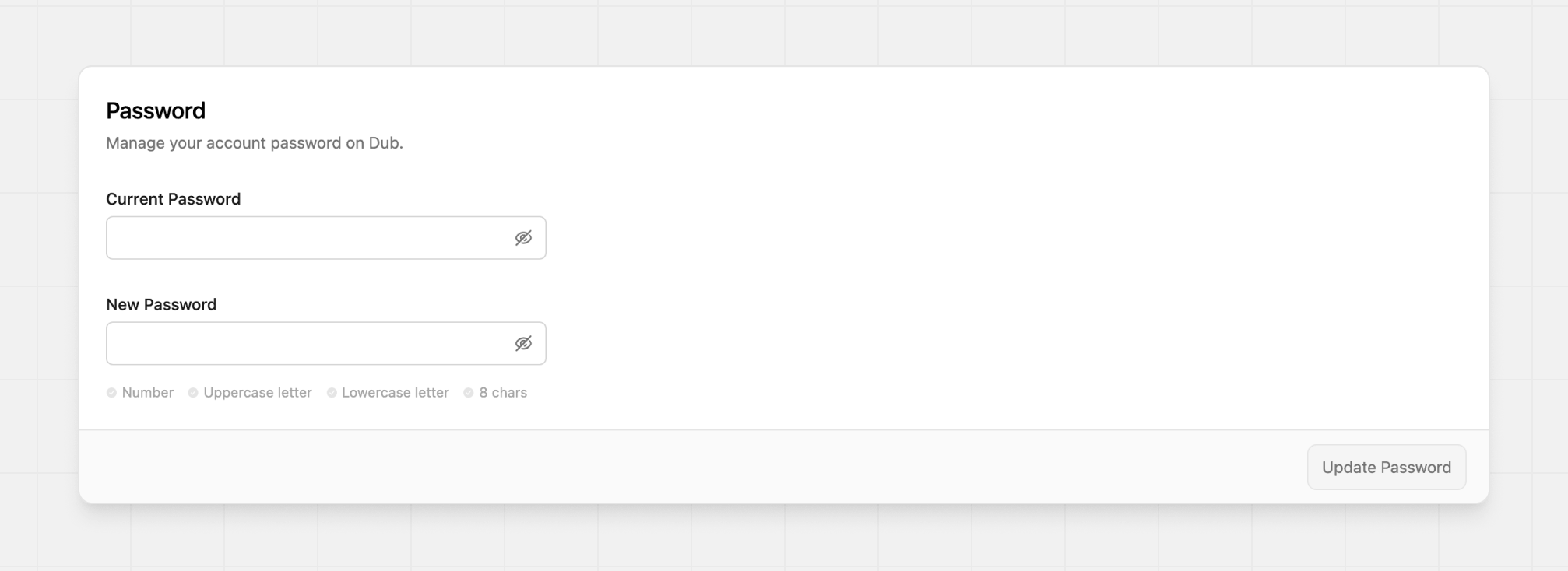
- If you don’t have a password yet, click Create account password. We’ll email you instructions to set one.
- If you already have a password, enter your current password and a new password, then click Update Password.
Multi-factor authentication
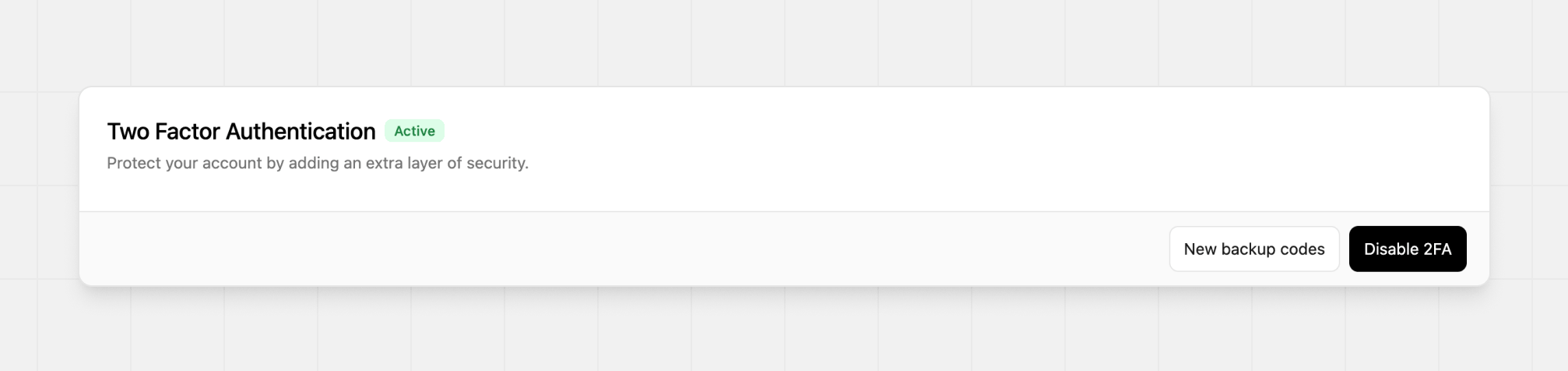
Multi-factor authentication (MFA) adds a second step when you sign in to Dub. After you sign in as usual, Dub asks for a 6-digit code from an authenticator app on your phone, so someone who only has your password or access to your email can’t get into your account. You’ll need an authenticator app, such as 1Password, Google Authenticator, or Authy.Enabling MFA
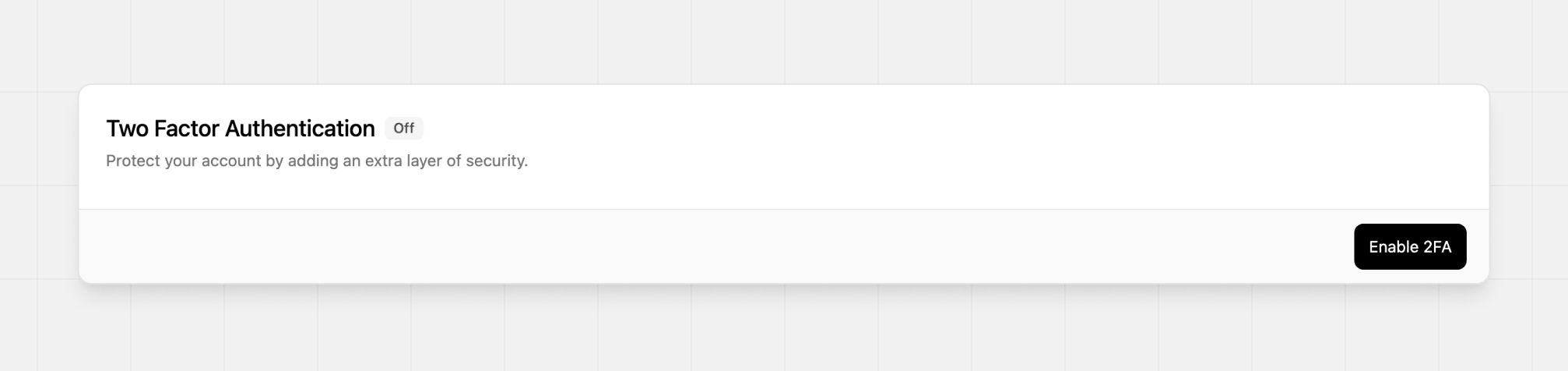
- In the Multi-Factor Authentication card, click Enable MFA.
- If your account has a password, enter your current password and click Continue.
- Scan the QR code with your authenticator app. If you can’t scan it, enter the key shown below the QR code instead.
- Enter the 6-digit code from your authenticator app and click Enable MFA.
- Save your backup codes, then click Done.
Signing in with MFA
Once MFA is enabled, Dub asks for a code every time you sign in with your password, a login link, Google, or GitHub.- Sign in as you normally would.
- Enter the 6-digit code from your authenticator app.
Generating new backup codes
If you’ve used most of your backup codes, or you think someone else has seen them, you can replace them:- In the Multi-Factor Authentication card, click New backup codes.
- If your account has a password, enter your current password. Then click Continue.
- Save your new backup codes, then click Done.
Disabling MFA
- In the Multi-Factor Authentication card, click Disable MFA.
- If your account has a password, enter your current password. Then click Continue.
What if I lose access to my authenticator app?
Sign in with one of your backup codes, then disable MFA and enable it again to connect your new device. If you don’t have your backup codes either, contact our support team. After confirming it’s you, we can reset MFA on your account. A reset turns off MFA and signs you out on every device, and you can enable MFA again from the Security tab.Checking which teammates have MFA enabled
The Members page in your workspace settings has an Enabled MFA column, which shows whether each teammate has turned on MFA for their Dub account.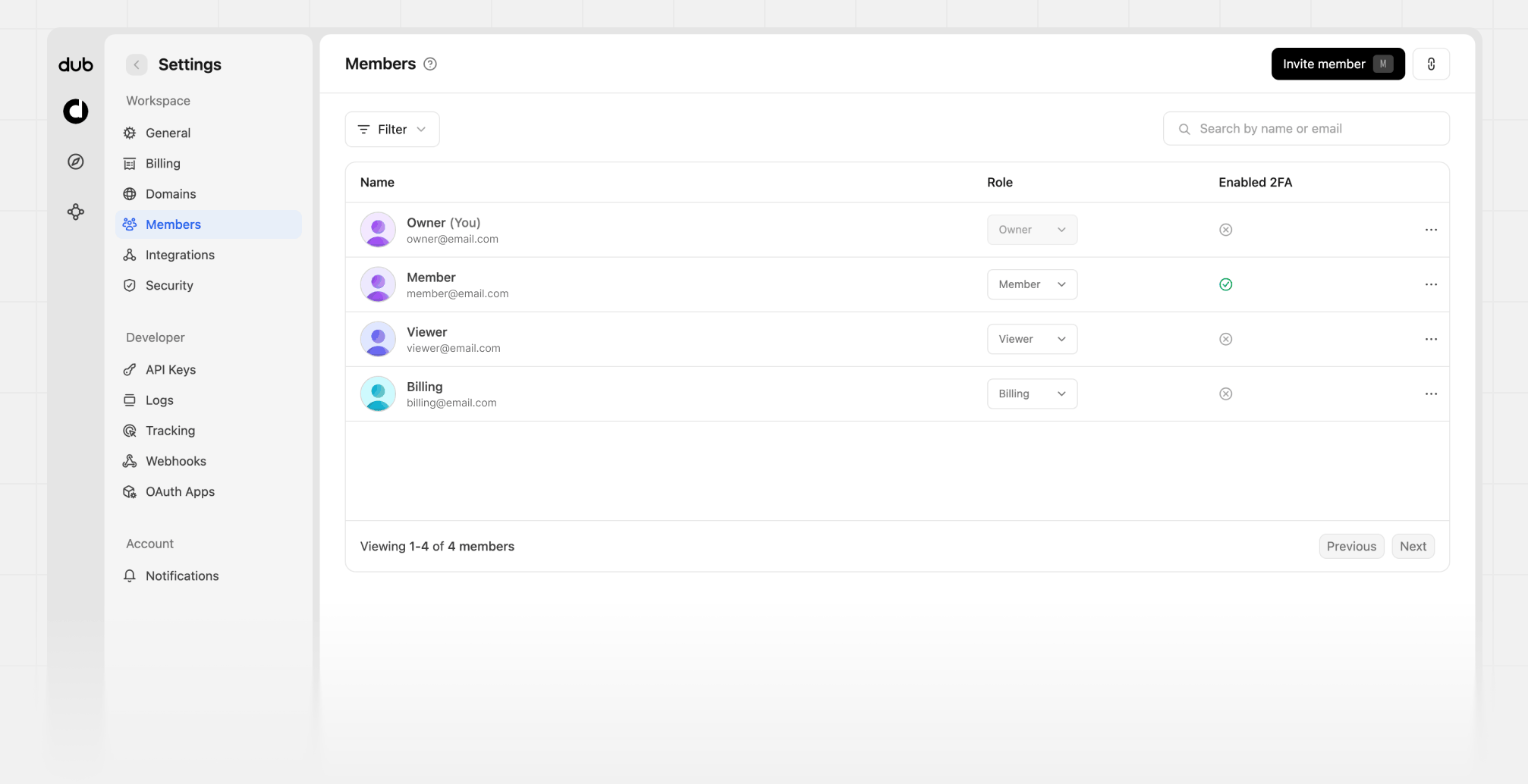
Active sessions
The Active sessions card shows every browser that is currently signed in to your Dub account. You can use it to check where your account is in use and to sign out of any session remotely, for example if you signed in on a shared computer or no longer have access to a device.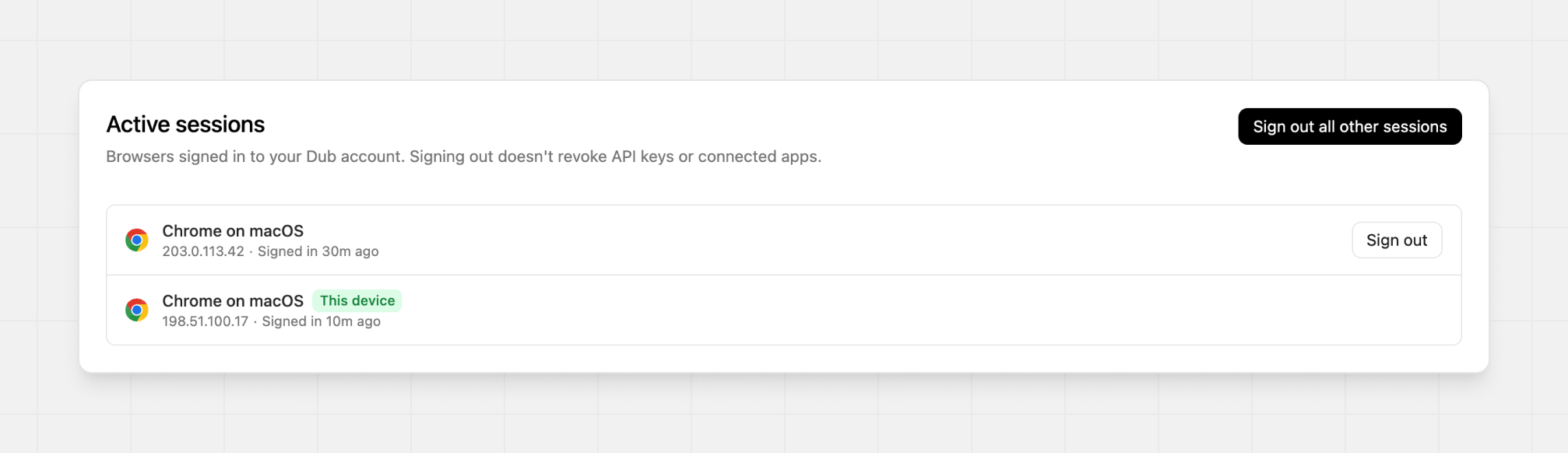
- Browser and operating system: for example, Chrome on macOS or Safari on iOS.
- IP address: the IP address the session signed in from.
- Sign-in time: how long ago the session signed in.
Signing out of a single session
To sign out of a specific browser, click Sign out next to that session. That browser will need to sign in again to access your Dub account.Signing out of all other sessions
To sign out everywhere except the browser you’re currently using:- Click Sign out all other sessions in the top right of the Active sessions card.
- Confirm the action in the prompt.