Documentation Index
Fetch the complete documentation index at: https://dub.co/llms.txt
Use this file to discover all available pages before exploring further.
What is an MCP Server?
MCP (Model Context Protocol) is an open standard for connecting AI applications to external tools and data. It gives your AI agent structured access to APIs so it can take actions on your behalf — like approving partner applications or updating commissions — using natural language.
What can the Dub MCP server do?
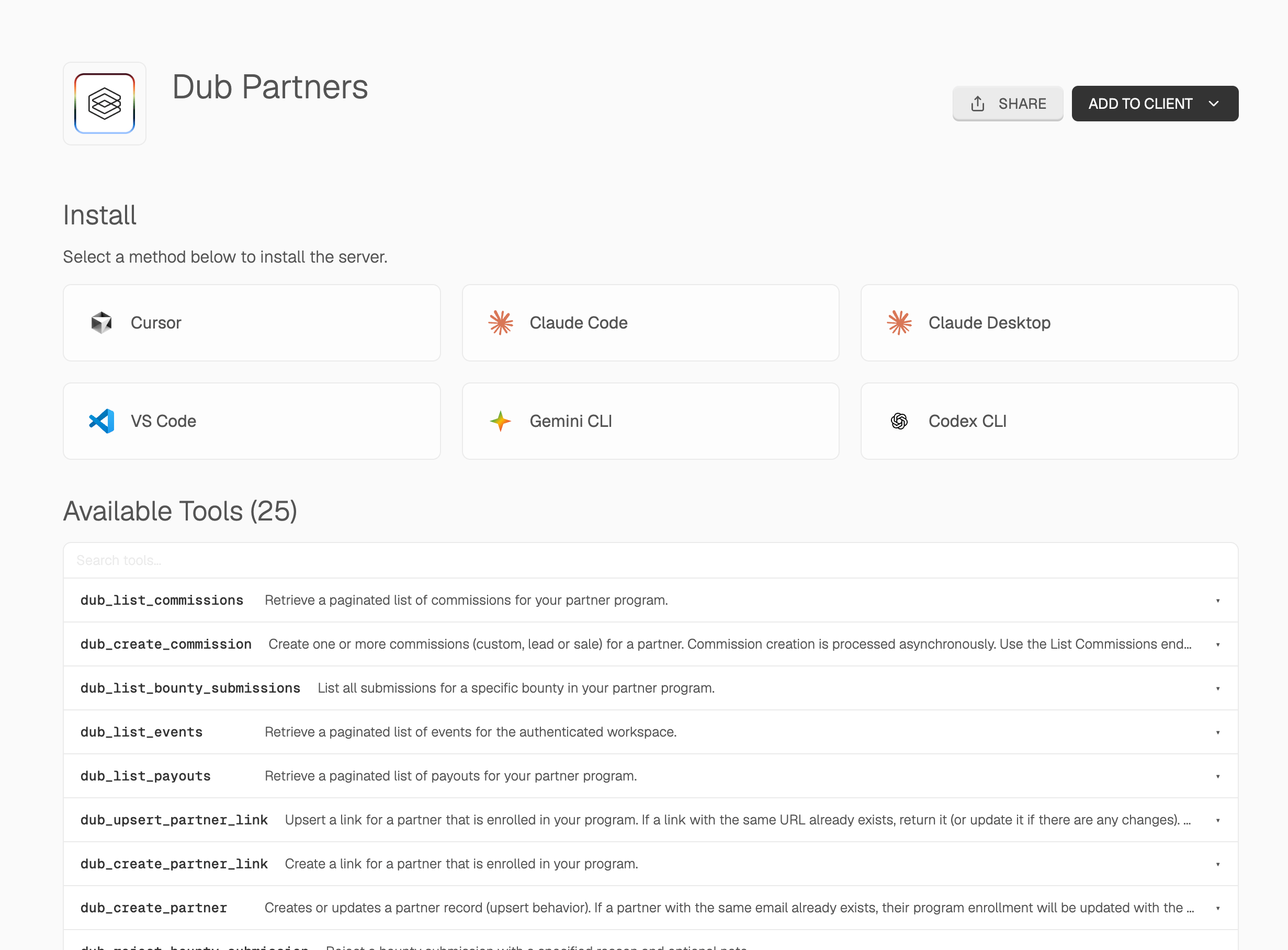
The Dub MCP server gives your AI agent native access to the full Dub platform through a single integration. You can manage your partner program, review applications, update commissions, and track attribution using natural language.
- Partners — Create or update partners, list all partners, deactivate, or ban partners from your program
- Partner links — Create and upsert links for enrolled partners
- Applications — List, approve, and reject pending partner applications
- Analytics — Retrieve analytics and list events for any partner, partner groups, or their specific links
- Customers — List, retrieve, update, and delete customers
- Tracking — Track lead, sale, and deep link open events
- Bounties — List, approve, and reject bounty submissions
- Commissions — List and update commissions (e.g. for refunds or fraud)
- Payouts — List payouts for your partner program
As an example, you could use this to triage partner applications, adjust commissions after a refund, or pull attribution analytics for a top partner — all from your AI client.
Prerequisites
The Dub MCP server is hosted remotely and connects to any supported MCP client via mcp-remote and npx. To use the MCP server, you’ll need to:
How to use the MCP Server
Dub’s MCP server runs over HTTP at https://mcp.dub.sh/mcp/dub-partners. Most clients connect through mcp-remote, which bridges stdio-based clients to the remote endpoint and forwards your API key in the Mcp-Dub-Token header.
Choose your MCP client below to get started. Replace dub_xxxxxx with your actual Dub API key.
MCP client integrations
Claude Code
Codex
Cursor
Claude Desktop
Copilot
Gemini CLI
OpenCode
Windsurf
Other clients
claude mcp add dub-partners \
--env MCP_DUB_TOKEN=dub_xxxxxx \
-- npx -y mcp-remote@0.1.25 https://mcp.dub.sh/mcp/dub-partners \
--header "Mcp-Dub-Token:\${MCP_DUB_TOKEN}"
codex mcp add dub-partners \
--env MCP_DUB_TOKEN=dub_xxxxxx \
-- npx -y mcp-remote@0.1.25 https://mcp.dub.sh/mcp/dub-partners \
--header "Mcp-Dub-Token:\${MCP_DUB_TOKEN}"
Open the command palette and choose Cursor Settings → MCP → Add new global MCP server.{
"mcpServers": {
"dub-partners": {
"command": "npx",
"args": [
"-y",
"mcp-remote@0.1.25",
"https://mcp.dub.sh/mcp/dub-partners",
"--header",
"Mcp-Dub-Token:${MCP_DUB_TOKEN}"
],
"env": {
"MCP_DUB_TOKEN": "dub_xxxxxx"
}
}
}
}
Open Claude Desktop settings → Developer tab → Edit Config and add the following:{
"mcpServers": {
"dub-partners": {
"command": "npx",
"args": [
"-y",
"mcp-remote@0.1.25",
"https://mcp.dub.sh/mcp/dub-partners",
"--header",
"Mcp-Dub-Token:${MCP_DUB_TOKEN}"
],
"env": {
"MCP_DUB_TOKEN": "dub_xxxxxx"
}
}
}
}
To use GitHub Copilot in VS Code, add the following to your settings.json:{
"mcp": {
"servers": {
"dub-partners": {
"command": "npx",
"args": [
"-y",
"mcp-remote@0.1.25",
"https://mcp.dub.sh/mcp/dub-partners",
"--header",
"Mcp-Dub-Token:${MCP_DUB_TOKEN}"
],
"env": {
"MCP_DUB_TOKEN": "dub_xxxxxx"
}
}
}
}
}
{
"mcpServers": {
"dub-partners": {
"command": "npx",
"args": [
"-y",
"mcp-remote@0.1.25",
"https://mcp.dub.sh/mcp/dub-partners",
"--header",
"Mcp-Dub-Token:${MCP_DUB_TOKEN}"
],
"env": {
"MCP_DUB_TOKEN": "dub_xxxxxx"
}
}
}
}
Add to your opencode.json config:{
"$schema": "https://opencode.ai/config.json",
"mcp": {
"dub-partners": {
"type": "local",
"command": [
"npx",
"-y",
"mcp-remote@0.1.25",
"https://mcp.dub.sh/mcp/dub-partners",
"--header",
"Mcp-Dub-Token:${MCP_DUB_TOKEN}"
],
"enabled": true,
"environment": {
"MCP_DUB_TOKEN": "dub_xxxxxx"
}
}
}
}
{
"mcpServers": {
"dub-partners": {
"command": "npx",
"args": [
"-y",
"mcp-remote@0.1.25",
"https://mcp.dub.sh/mcp/dub-partners",
"--header",
"Mcp-Dub-Token:${MCP_DUB_TOKEN}"
],
"env": {
"MCP_DUB_TOKEN": "dub_xxxxxx"
}
}
}
}
For any MCP client not listed above, use the raw configuration below:{
"command": "npx",
"args": [
"-y",
"mcp-remote@0.1.25",
"https://mcp.dub.sh/mcp/dub-partners",
"--header",
"Mcp-Dub-Token:${MCP_DUB_TOKEN}"
],
"env": {
"MCP_DUB_TOKEN": "dub_xxxxxx"
}
}
Native HTTP
Some MCP clients support connecting directly to a remote HTTP endpoint without mcp-remote. In that case, point your client at the Dub MCP URL and pass your API key in the Mcp-Dub-Token header.
Claude Code
Cursor
Other clients
claude mcp add dub-partners \
--transport http https://mcp.dub.sh/mcp/dub-partners \
--header "Mcp-Dub-Token: dub_xxxxxx"
Open the command palette and choose Cursor Settings → MCP → Add new global MCP server.{
"mcpServers": {
"dub-partners": {
"url": "https://mcp.dub.sh/mcp/dub-partners",
"headers": {
"Mcp-Dub-Token": "dub_xxxxxx"
}
}
}
}
Use your client’s remote MCP configuration with:
- URL:
https://mcp.dub.sh/mcp/dub-partners
- Header:
Mcp-Dub-Token: dub_xxxxxx
Environment variables
MCP_DUB_TOKEN: Your Dub API key (used by mcp-remote and referenced in client configs as ${MCP_DUB_TOKEN})
Store your API key in the env block or an environment variable rather than
hardcoding it in shared config files when possible.