> ## Documentation Index
> Fetch the complete documentation index at: https://dub.co/llms.txt
> Use this file to discover all available pages before exploring further.
# How do I add UTM parameters to a link?
> Learn more about why UTM parameters are important for marketing links and how to add them to your links using the Dub UTM Builder.
UTM (short for *Urchin Tracking Module*) parameters are great for marketing links because they provide detailed tracking and analytics. Here’s why:
* **Source Identification**: They specify the source of traffic (e.g., Facebook, Google), helping to identify which platforms are driving traffic.
* **Campaign Tracking**: They track specific marketing campaigns, allowing marketers to evaluate the effectiveness of each campaign.
* **Medium Differentiation**: They distinguish between different types of marketing mediums (e.g., email, social media, PPC).
* **Content Performance**: They track different content pieces within a campaign, providing insights on what content resonates best with the audience.
* **ROI Measurement**: They help in calculating the return on investment (ROI) for different marketing efforts.
Learn more about the best practices when it comes to UTM tracking with our
[Ultimate Guide to UTM Tracking](https://dub.co/blog/utm-guide).
## Dub's UTM Builder
To make it easier to add UTM parameters to your links, Dub provides a UTM builder that allows you to easily populate UTM parameters for your links. [Here's a live demo](https://dub.co/tools/utm-builder) that you can play around with.
Here are the UTM parameters that Dub supports:
| Parameter | Code | Description |
| ---------------- | -------------- | ---------------------------------------------------------- |
| **UTM Source** | `utm_source` | The source of your traffic (e.g. Facebook, Twitter, etc.). |
| **UTM Medium** | `utm_medium` | The medium of your traffic (e.g. social, email, etc.). |
| **UTM Campaign** | `utm_campaign` | The name of your campaign (e.g. summer2023) |
| **UTM Term** | `utm_term` | The term of your campaign (e.g. running+shoes) |
| **UTM Content** | `utm_content` | The content of your campaign (e.g. logo+link) |
| **Referral** | `ref` | The website that is sending traffic to your link. |
As you can see, we also support an increasingly common parameter `ref` – as popularized by sites like [Product Hunt](https://www.producthunt.com/) and [OSS Gallery](https://oss.gallery/).
## How to use the Dub UTM Builder
To use the Dub UTM builder, follow these steps:
First, [create a link](/help/article/how-to-create-link) using the [Dub link builder](/help/article/dub-link-builder).
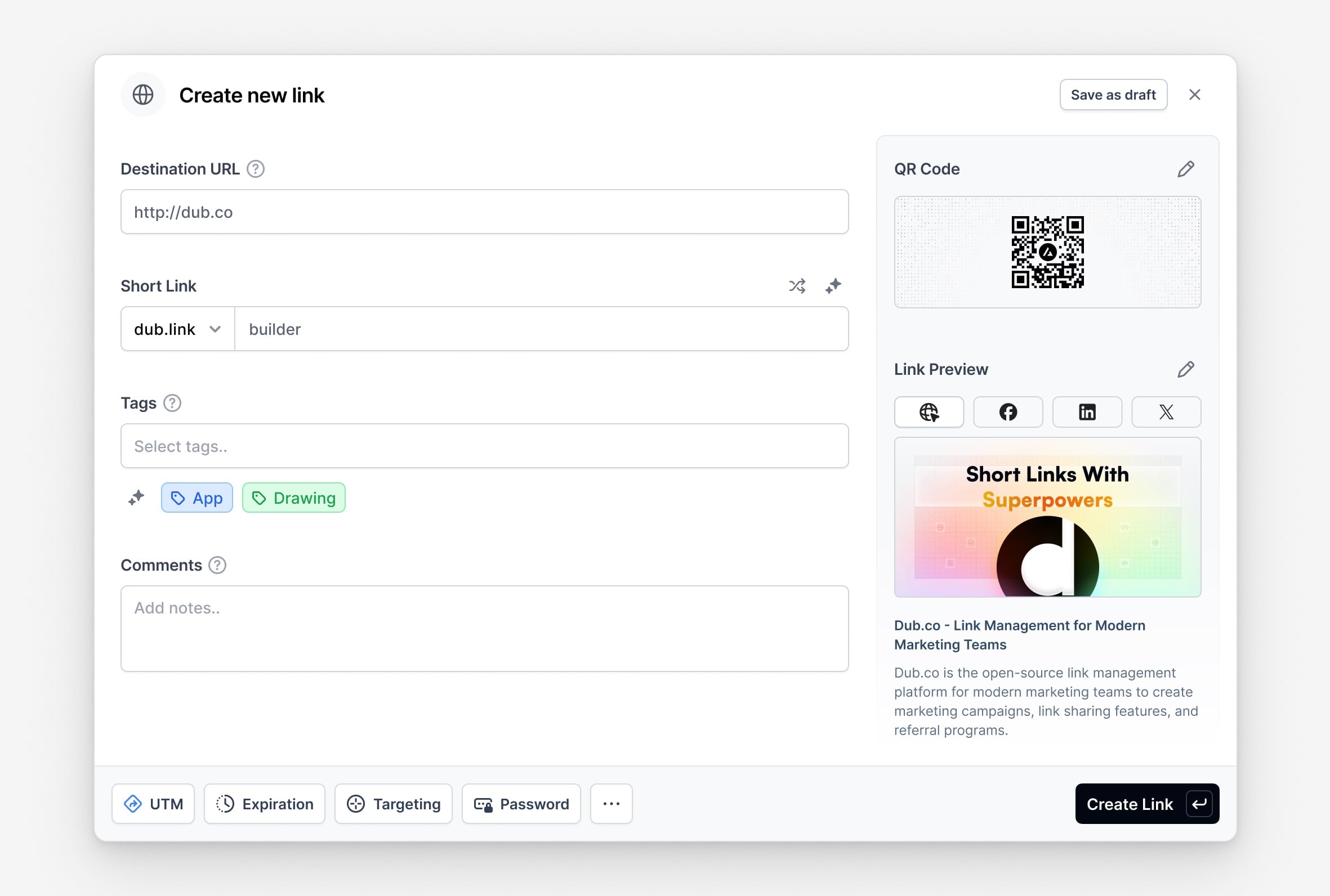 Click on the **UTM** button in the link builder. This will open the **UTM Builder** modal.
You can also quickly access the **UTM Builder** feature by using the keyboard shortcut `U` while in the link builder.
Click on the **UTM** button in the link builder. This will open the **UTM Builder** modal.
You can also quickly access the **UTM Builder** feature by using the keyboard shortcut `U` while in the link builder.
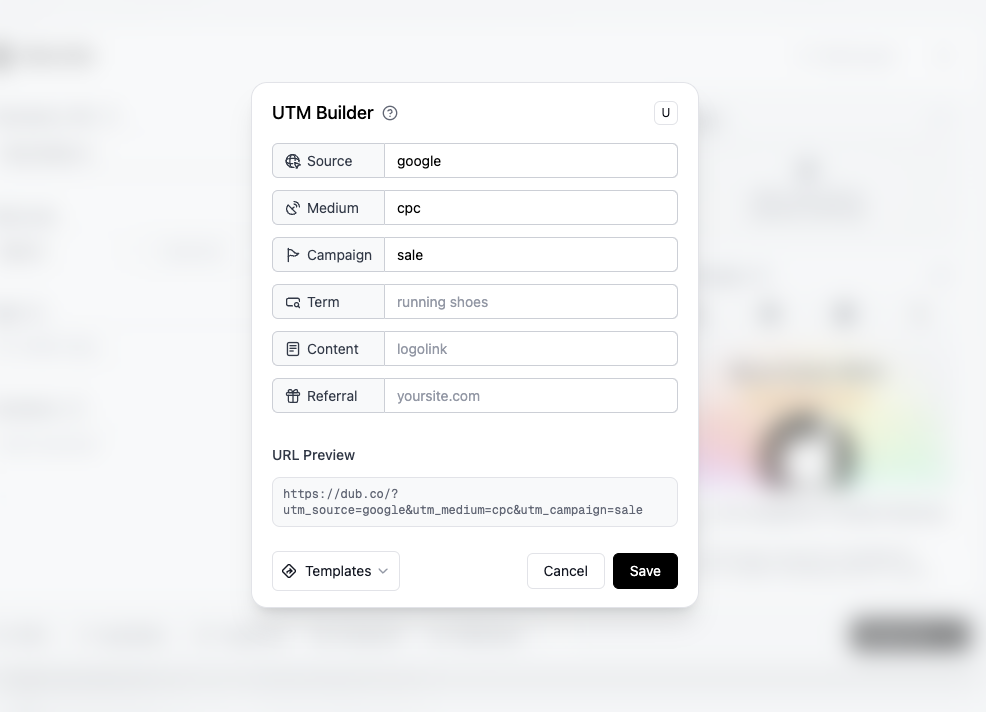 Here, you can populate the UTM parameters for your link. Some example values include:
* **UTM Source**: `twitter`
* **UTM Medium**: `social`
* **UTM Campaign**: `summer2023`
Click on the **Save** button to add the UTM parameters to your link.
Click the **Create link** button to generate the link with the UTM parameters.
Voila! You've got a link with UTM parameters.
## UTM Templates
Dub also supports the ability to [create UTM templates](/help/article/how-to-create-utm-templates) that you can reuse across your team, which leads to better campaign management & tracking accuracy.
Here, you can populate the UTM parameters for your link. Some example values include:
* **UTM Source**: `twitter`
* **UTM Medium**: `social`
* **UTM Campaign**: `summer2023`
Click on the **Save** button to add the UTM parameters to your link.
Click the **Create link** button to generate the link with the UTM parameters.
Voila! You've got a link with UTM parameters.
## UTM Templates
Dub also supports the ability to [create UTM templates](/help/article/how-to-create-utm-templates) that you can reuse across your team, which leads to better campaign management & tracking accuracy.
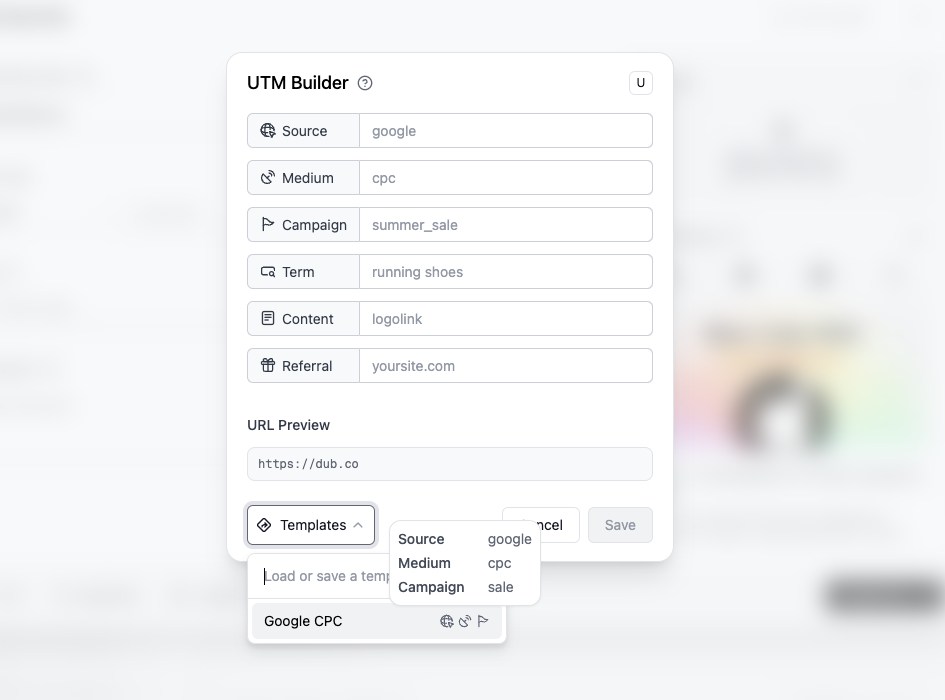 [Read the guide on how to create UTM templates](/help/article/how-to-create-utm-templates) or [try out the demo here](https://dub.co/tools/utm-builder).