> ## Documentation Index
> Fetch the complete documentation index at: https://dub.co/llms.txt
> Use this file to discover all available pages before exploring further.
# Managing submitted leads
> Learn how to review and manage submitted leads in Dub.
This feature is only available on [Business plans and
above](https://dub.co/pricing).
Submitted leads let partners manually submit prospective customers to your program, even when the lead did not come through a tracked partner link.
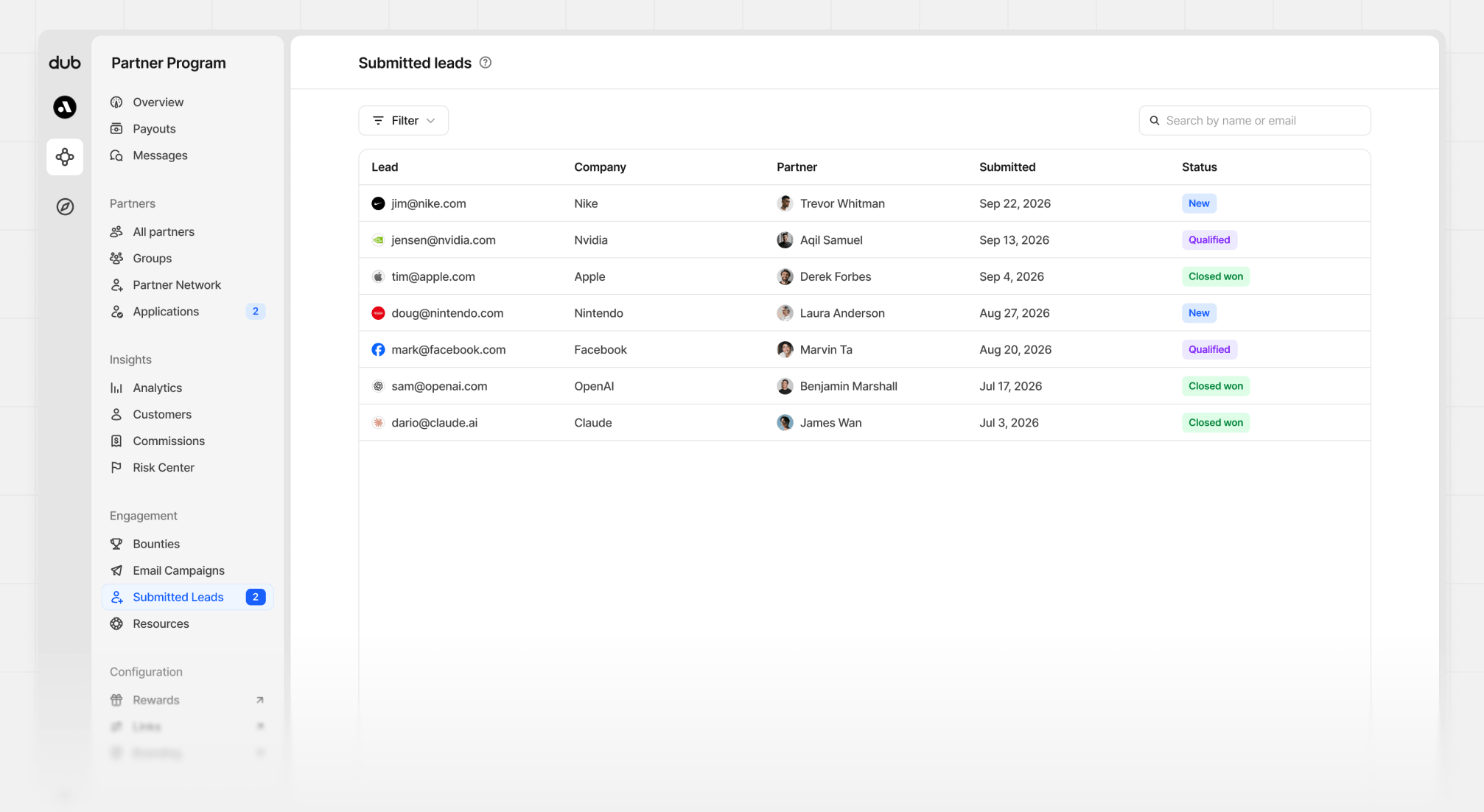 They are different from tracked leads since they are not created automatically by a partner link, but rather manually submitted by the partner.
They start as a "submitted lead" record, and only become an attributed lead or sale in Dub when you update their status. This makes submitted leads useful for sales-assisted workflows where partners introduce prospects before a tracked signup or purchase happens.
## Creating rewards for submitted leads
To create or update lead rewards, go to your program's [partner groups](/help/article/partner-groups), open the group you want to configure, and edit its rewards. This is where you create:
* **Lead rewards** for leads that reach `Qualified` status
* **Sale rewards** for leads that reach `Closed won` status
### Lead reward
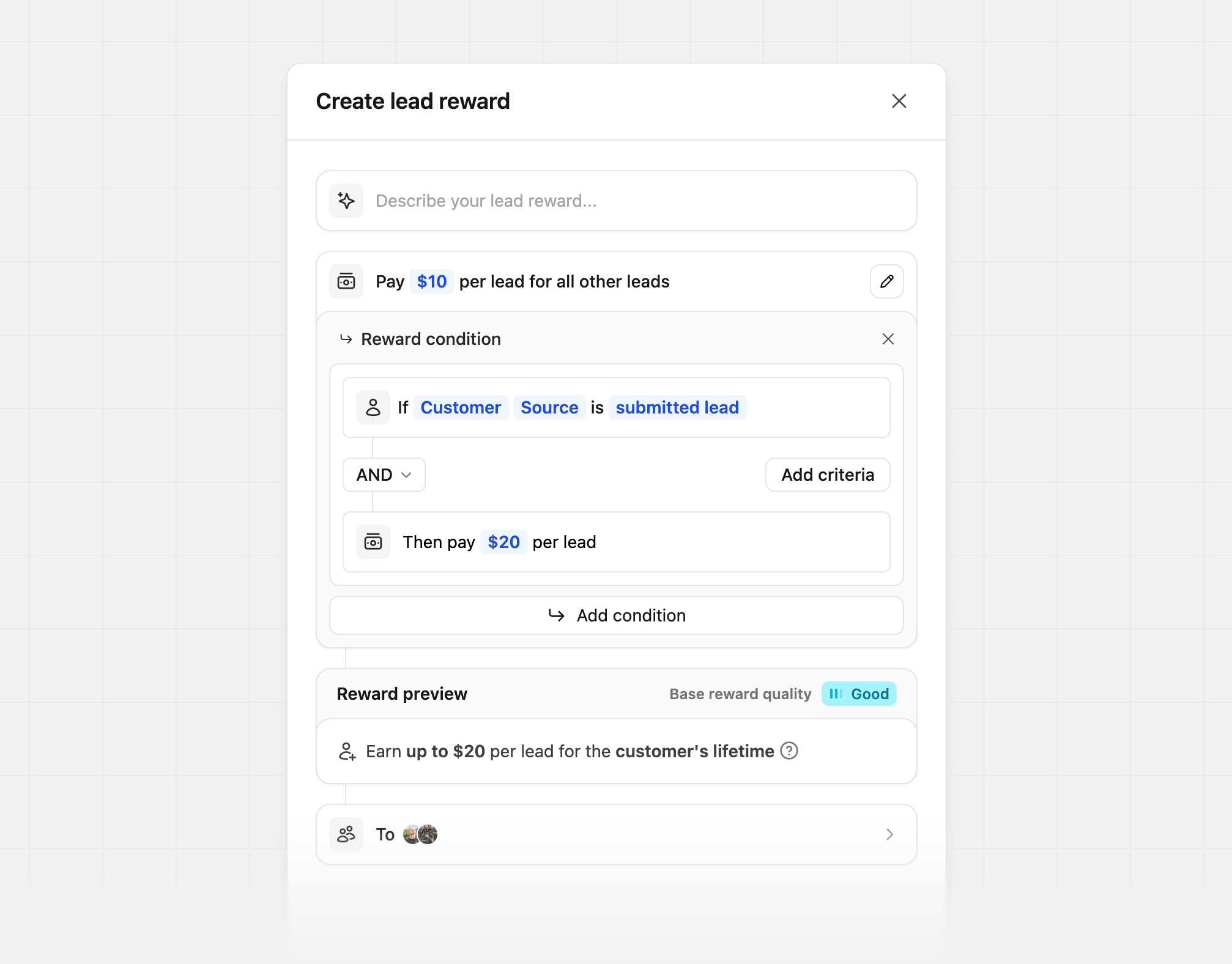
Open the lead reward editor, and add a condition to pay out when the customer source is `submitted lead`. If this customer reaches **Qualified**, the partner then earns a reward.
They are different from tracked leads since they are not created automatically by a partner link, but rather manually submitted by the partner.
They start as a "submitted lead" record, and only become an attributed lead or sale in Dub when you update their status. This makes submitted leads useful for sales-assisted workflows where partners introduce prospects before a tracked signup or purchase happens.
## Creating rewards for submitted leads
To create or update lead rewards, go to your program's [partner groups](/help/article/partner-groups), open the group you want to configure, and edit its rewards. This is where you create:
* **Lead rewards** for leads that reach `Qualified` status
* **Sale rewards** for leads that reach `Closed won` status
### Lead reward
Open the lead reward editor, and add a condition to pay out when the customer source is `submitted lead`. If this customer reaches **Qualified**, the partner then earns a reward.
 ### Sale reward
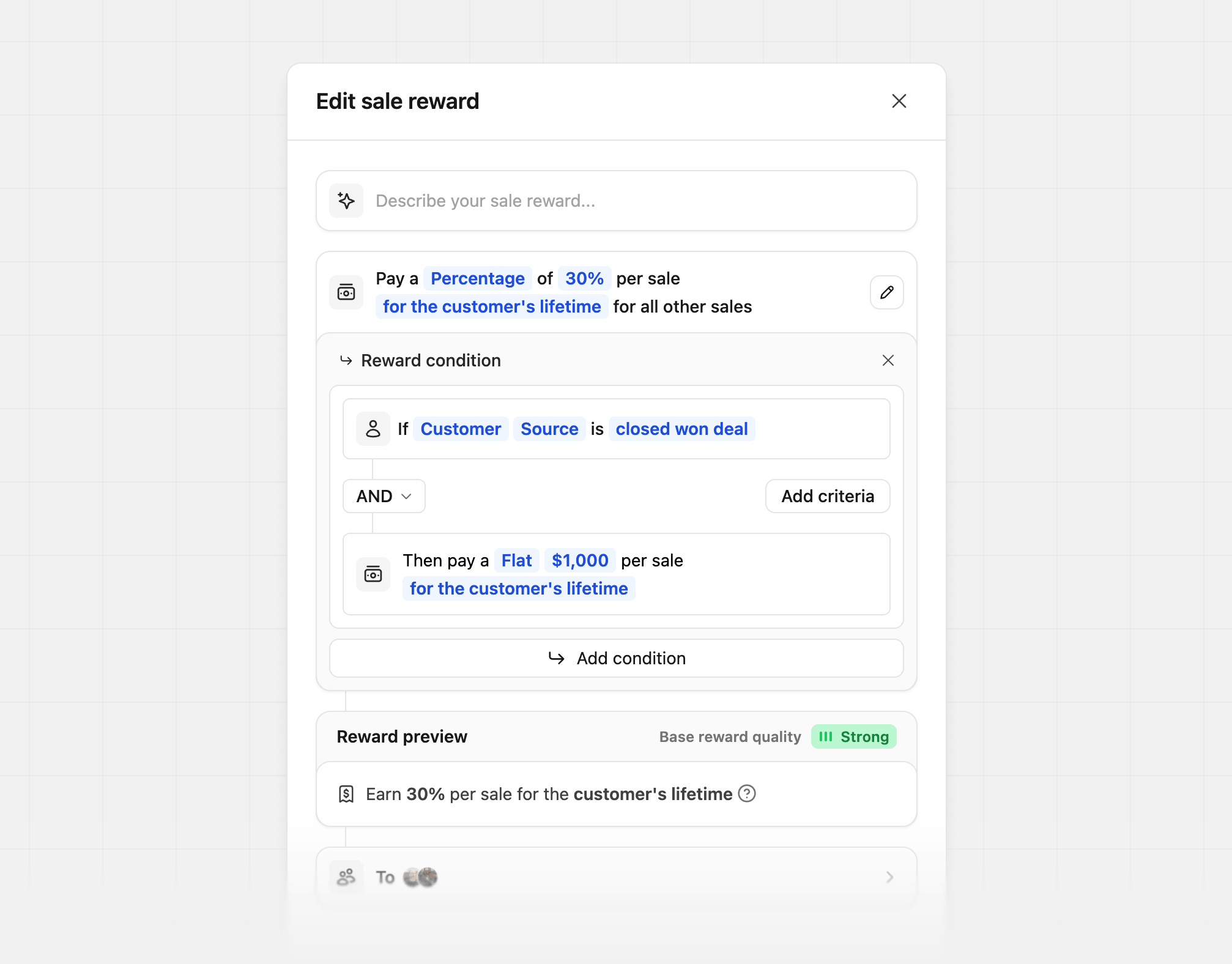
Open the sale reward editor, and add a condition to pay out when the customer source is `closed won deal`. This will create the customer record, and the partner will be rewarded.
### Sale reward
Open the sale reward editor, and add a condition to pay out when the customer source is `closed won deal`. This will create the customer record, and the partner will be rewarded.
 ## Managing submitted leads
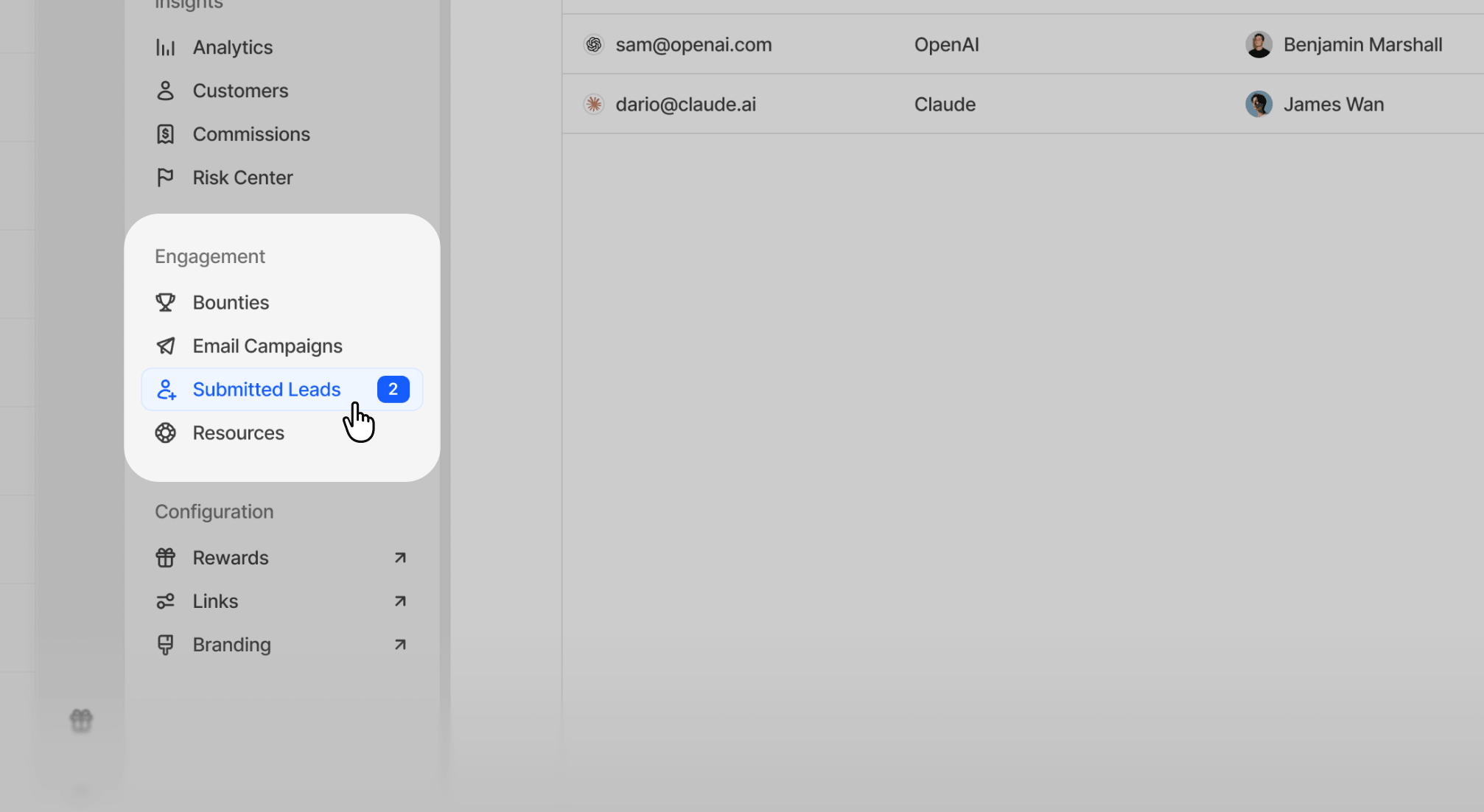
To view all submitted leads, go to **Submitted Leads** page in your Partner Program navigation.
## Managing submitted leads
To view all submitted leads, go to **Submitted Leads** page in your Partner Program navigation.
 This view will show all partner-submitted leads in one table, including:
* Lead email
* Company
* Submitting partner
* Submitted date
* [Current status](#lead-statuses)
Click any row to open the lead details panel and review the submission more closely.
If you want to review converted customers after a lead has been qualified or closed won, see [Customer insights](/help/article/customer-insights).
## Reviewing submitted leads
When you click a lead row in the **Submitted leads** table, a drawer view opens with the full lead record.
This view will show all partner-submitted leads in one table, including:
* Lead email
* Company
* Submitting partner
* Submitted date
* [Current status](#lead-statuses)
Click any row to open the lead details panel and review the submission more closely.
If you want to review converted customers after a lead has been qualified or closed won, see [Customer insights](/help/article/customer-insights).
## Reviewing submitted leads
When you click a lead row in the **Submitted leads** table, a drawer view opens with the full lead record.
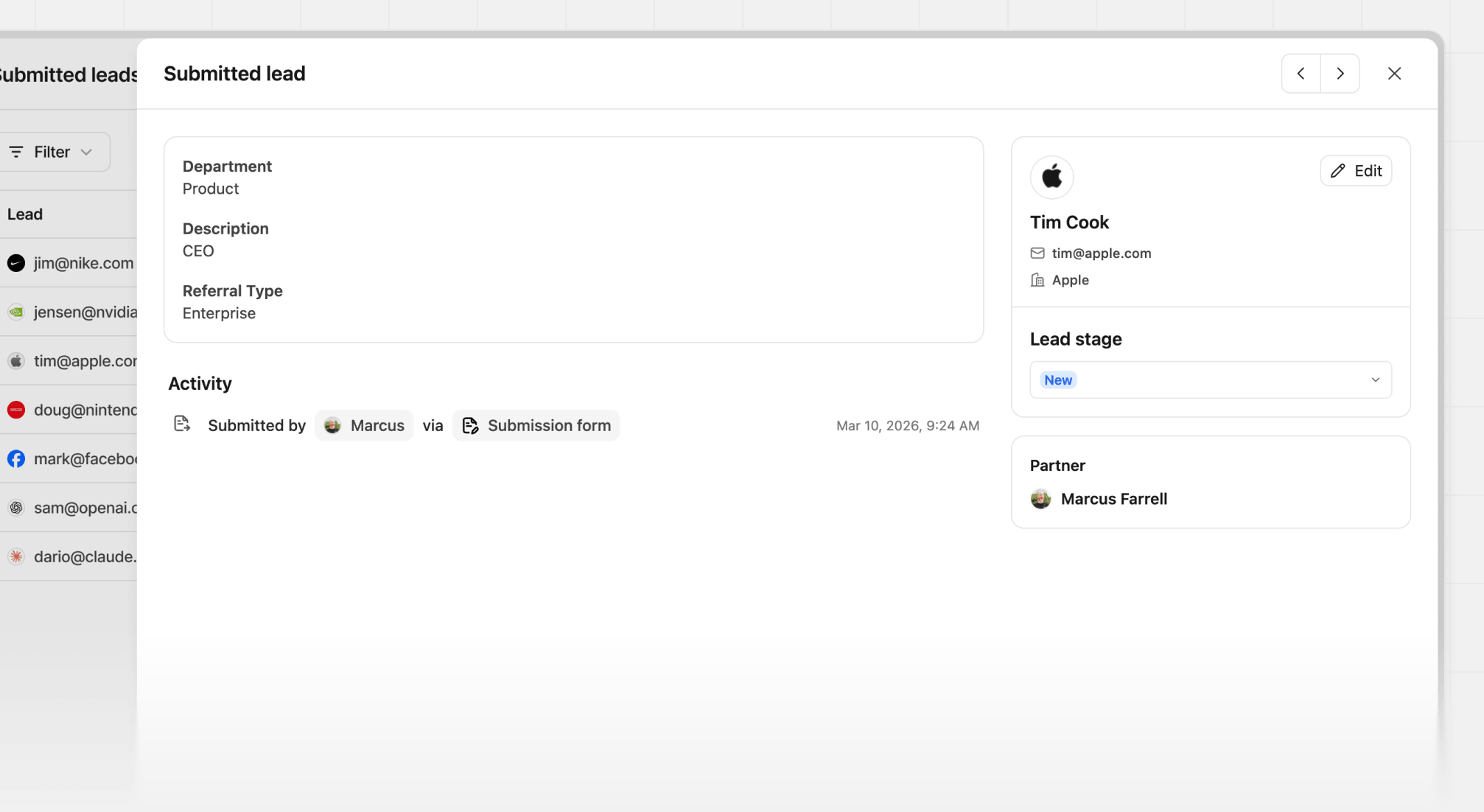 This drawer is designed for quickly reviewing the submission, updating the lead stage, and seeing the history of changes without leaving the table. You're also able to edit the lead details by clicking the **Edit** button on the lead details card.
## Changing statuses
If you select a new stage, Dub shows **Save changes** and **Cancel** actions at the bottom of the drawer before the update is finalized.
This drawer is designed for quickly reviewing the submission, updating the lead stage, and seeing the history of changes without leaving the table. You're also able to edit the lead details by clicking the **Edit** button on the lead details card.
## Changing statuses
If you select a new stage, Dub shows **Save changes** and **Cancel** actions at the bottom of the drawer before the update is finalized.
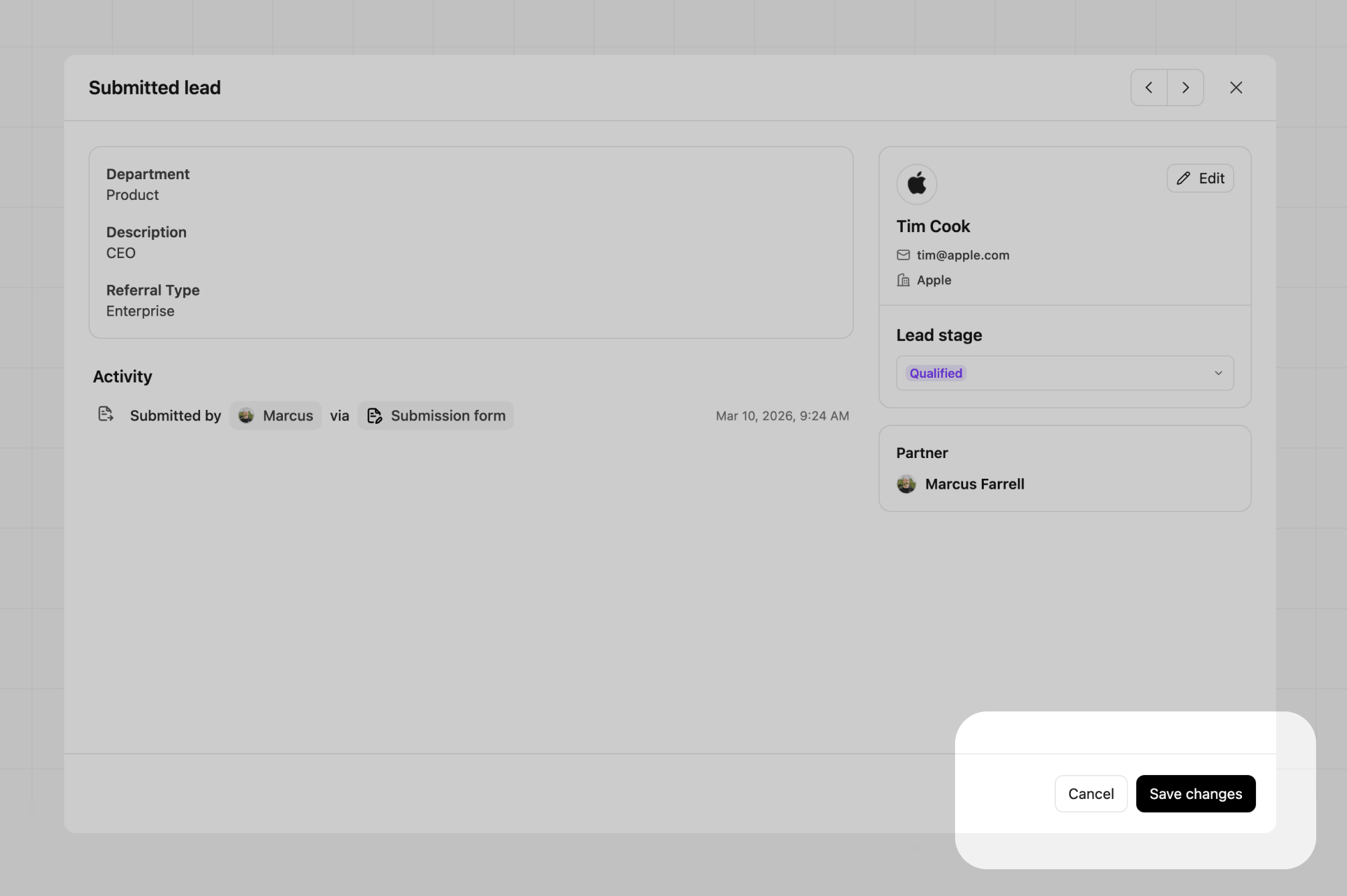 For all status change updates, the partner is notified and the status change is reflected in their dashboard. You can also include optional notes for the partner with the status update. For `qualified` and `closed won` statuses, additional information may be shown or required.
### Qualified status
This change will also ask for an optional external ID.
For all status change updates, the partner is notified and the status change is reflected in their dashboard. You can also include optional notes for the partner with the status update. For `qualified` and `closed won` statuses, additional information may be shown or required.
### Qualified status
This change will also ask for an optional external ID.
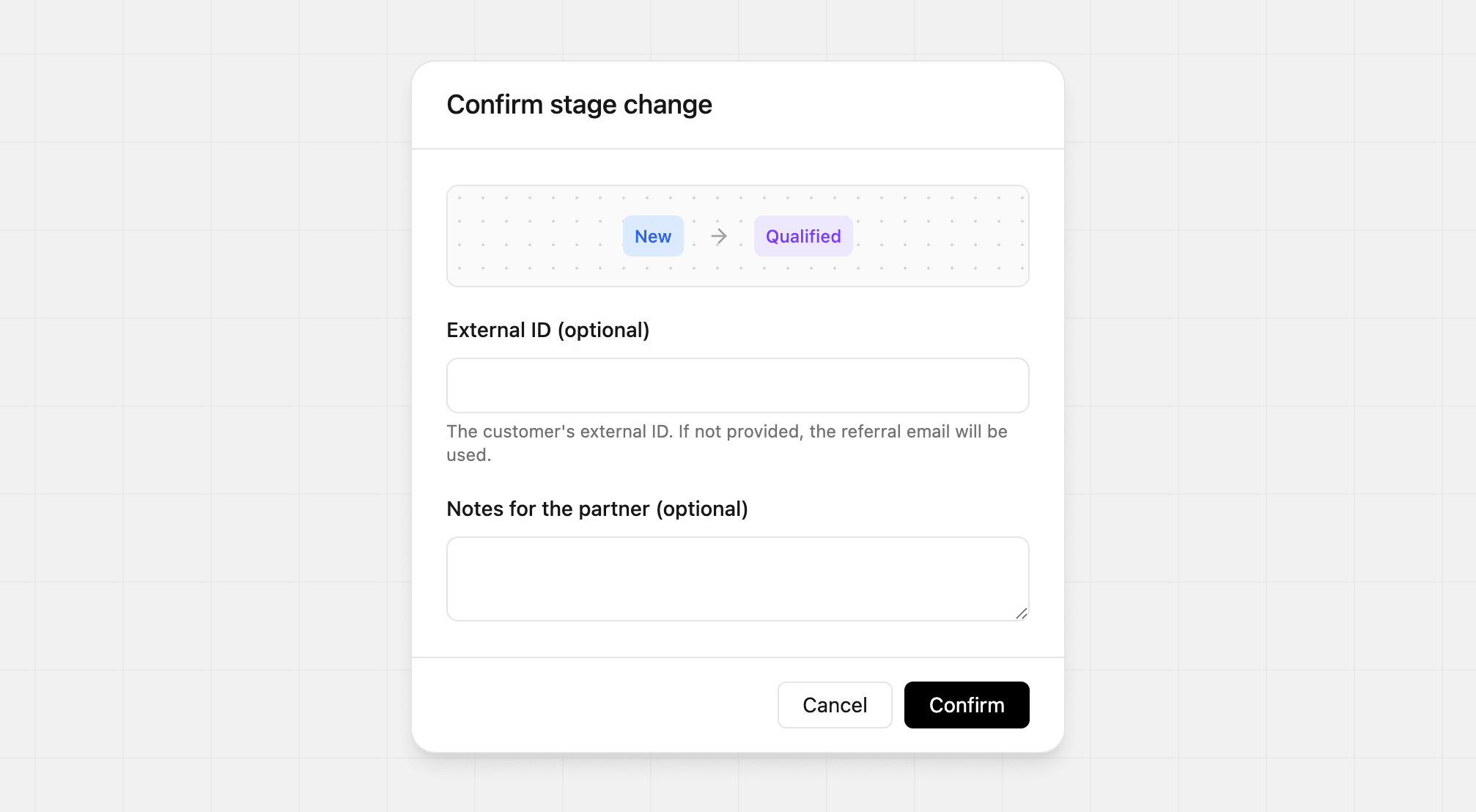 When changing to `qualified`, this creates a lead event.
### Closed won status
This change will also ask for a required sale amount and optional Stripe customer ID.
When changing to `qualified`, this creates a lead event.
### Closed won status
This change will also ask for a required sale amount and optional Stripe customer ID.
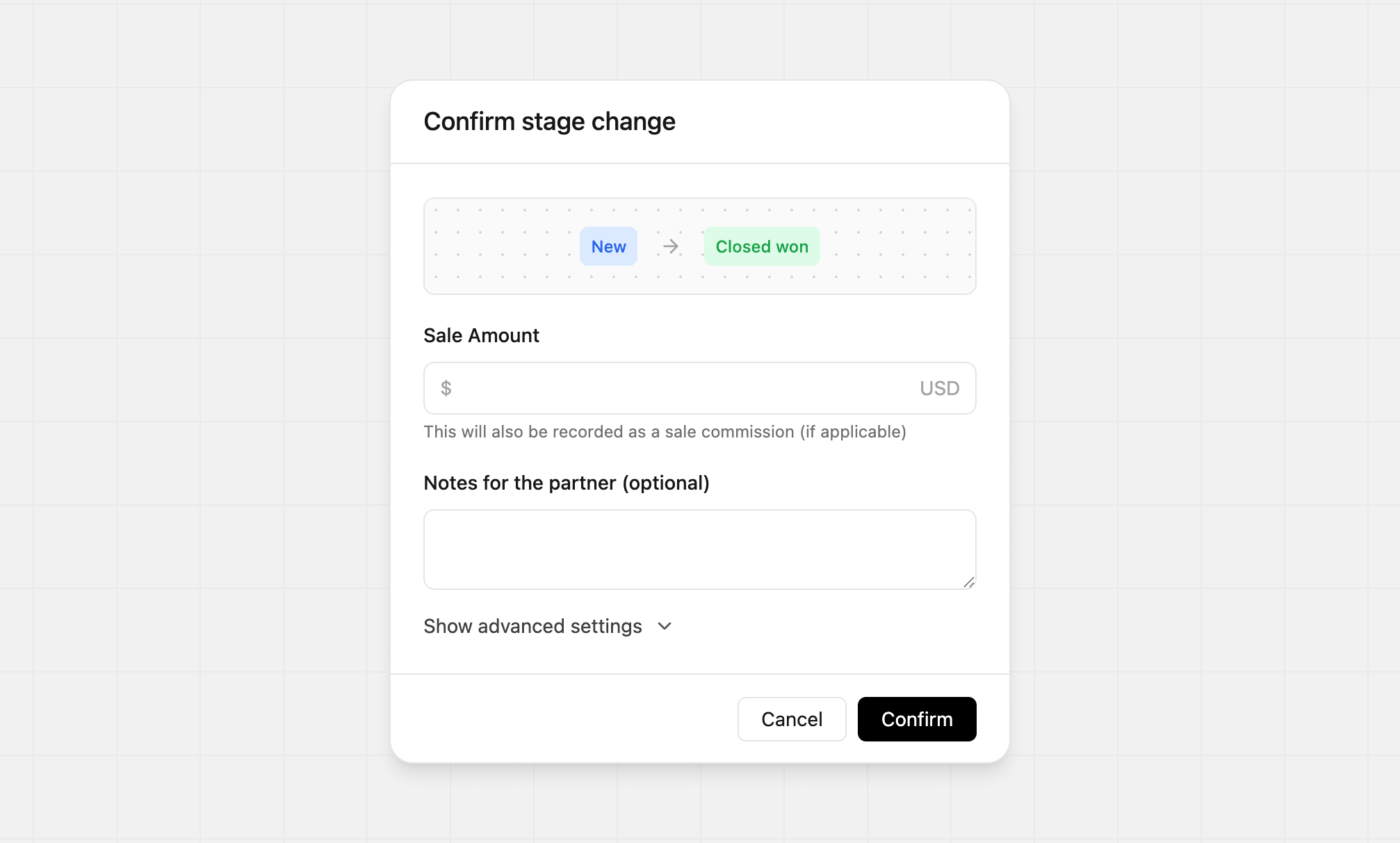 When changing to `closed won`, this creates a sale record.
## Lead statuses
Submitted leads move through a simple pipeline inside Dub:
| Status | What it means |
| --------------- | ------------------------------------------------------------------------------ |
| **New** | The lead was submitted and has not been reviewed yet. |
| **Qualified** | The lead is valid and worth pursuing. This also creates a lead event + reward. |
| **Meeting** | The lead prospect has progressed to a meeting stage. |
| **Negotiation** | The lead prospect is in an active deal cycle. |
| **Unqualified** | The lead is not a fit and will not move forward. |
| **Closed won** | The lead became a customer. This also creates a sale record. |
| **Closed lost** | The opportunity did not convert. |
### Status rules
* All submitted leads start in **New**
* **Unqualified**, **Closed won**, and **Closed lost** are final states
* You can move submitted leads forward or backward between **Qualified**, **Meeting**, and **Negotiation**
* A submitted lead must have an associated customer before it can be moved to **Closed won**
In practice, that means you should typically mark a submitted lead as **Qualified** before marking it as **Closed won**.
When changing to `closed won`, this creates a sale record.
## Lead statuses
Submitted leads move through a simple pipeline inside Dub:
| Status | What it means |
| --------------- | ------------------------------------------------------------------------------ |
| **New** | The lead was submitted and has not been reviewed yet. |
| **Qualified** | The lead is valid and worth pursuing. This also creates a lead event + reward. |
| **Meeting** | The lead prospect has progressed to a meeting stage. |
| **Negotiation** | The lead prospect is in an active deal cycle. |
| **Unqualified** | The lead is not a fit and will not move forward. |
| **Closed won** | The lead became a customer. This also creates a sale record. |
| **Closed lost** | The opportunity did not convert. |
### Status rules
* All submitted leads start in **New**
* **Unqualified**, **Closed won**, and **Closed lost** are final states
* You can move submitted leads forward or backward between **Qualified**, **Meeting**, and **Negotiation**
* A submitted lead must have an associated customer before it can be moved to **Closed won**
In practice, that means you should typically mark a submitted lead as **Qualified** before marking it as **Closed won**.