> ## Documentation Index
> Fetch the complete documentation index at: https://dub.co/llms.txt
> Use this file to discover all available pages before exploring further.
# Configuring brand and support resources for your partners
> Provide partners support, help docs, program terms of service, and brand assets in their dashboard.
This feature is only available on [Business plans and
above](https://dub.co/pricing/partners).
Set partners up for success by providing support, clear docs, program terms, and brand assets in the dashboard so they can launch faster, avoid mistakes, and represent your brand consistently to drive better performance.
## Where to find your program resources
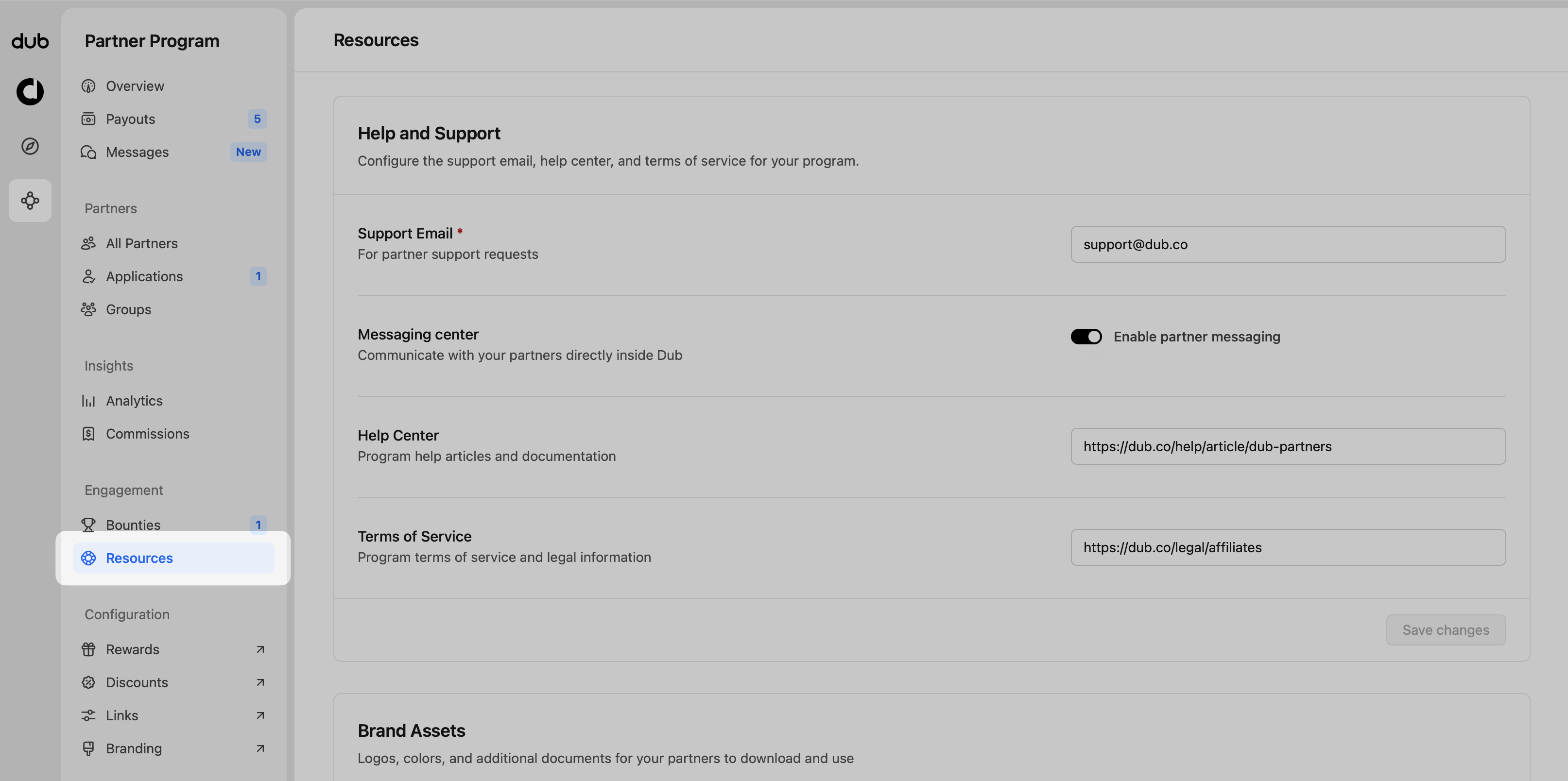
When viewing your Partner Program navigation, click on the **Resources** page under the **Engagement** group.
 ## Help and support fields
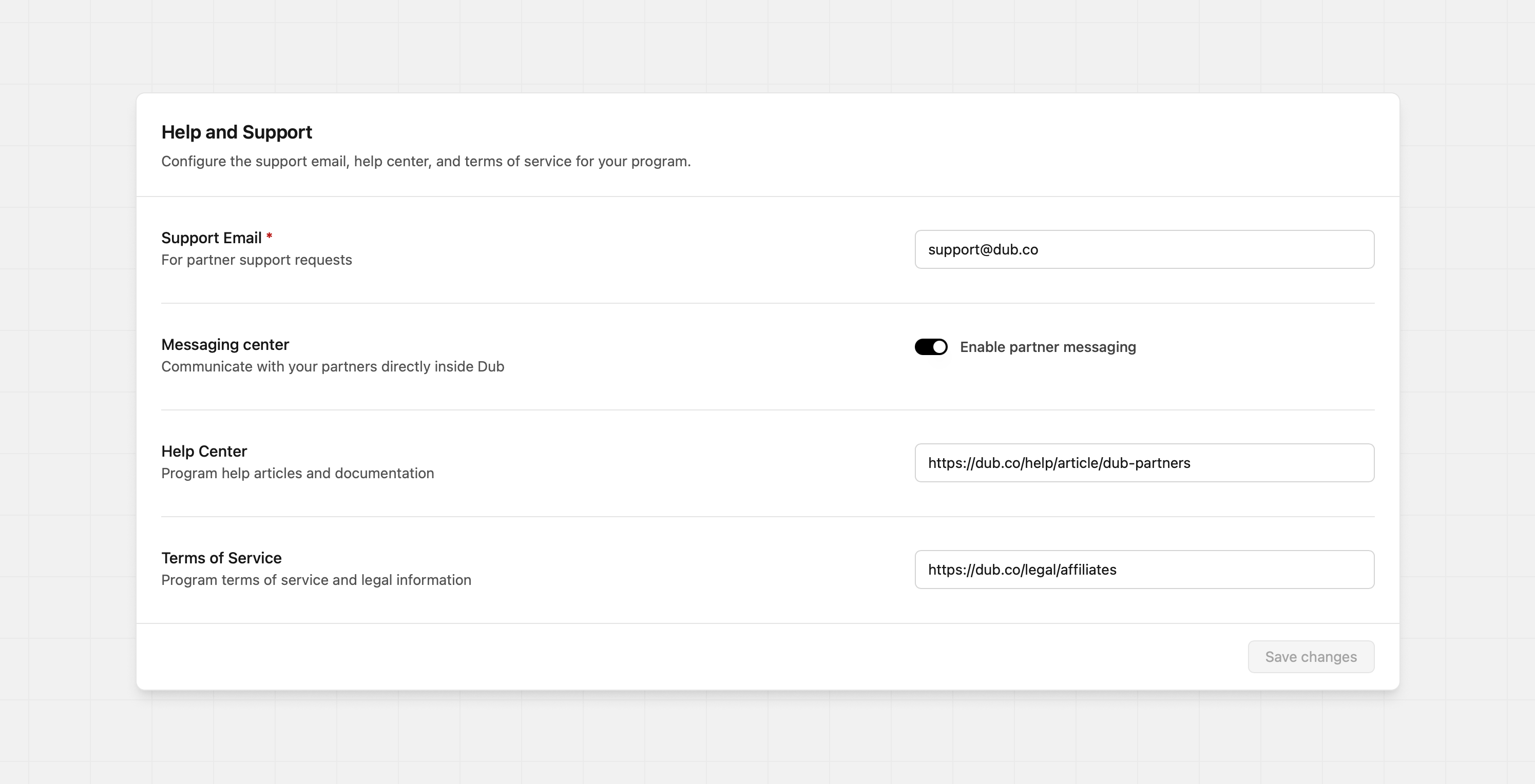
To give your partners the best experience, make sure all fields in your communication settings are filled out:
## Help and support fields
To give your partners the best experience, make sure all fields in your communication settings are filled out:
 ### Support Email
The email address your partners should use to contact you with questions or issues about your program. **This field is required.**
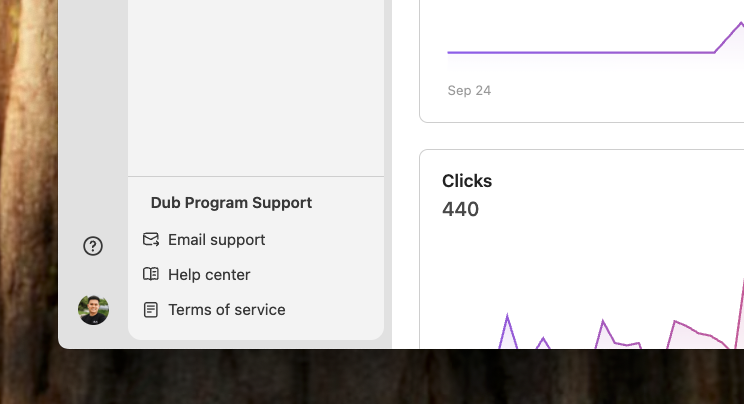
Your program's support email will be added to all email communications with your partners, and it will also be added to the program support resources section on the partner dashboard sidebar:
### Support Email
The email address your partners should use to contact you with questions or issues about your program. **This field is required.**
Your program's support email will be added to all email communications with your partners, and it will also be added to the program support resources section on the partner dashboard sidebar:
 ### Messaging center
This feature is only available on [Advanced plans and
above](https://dub.co/pricing/partners).
Enabling this allows you to directly [message your partners](/help/article/messaging-partners) in the Dub platform. This also allows partners to message you as well.
### Messaging center
This feature is only available on [Advanced plans and
above](https://dub.co/pricing/partners).
Enabling this allows you to directly [message your partners](/help/article/messaging-partners) in the Dub platform. This also allows partners to message you as well.
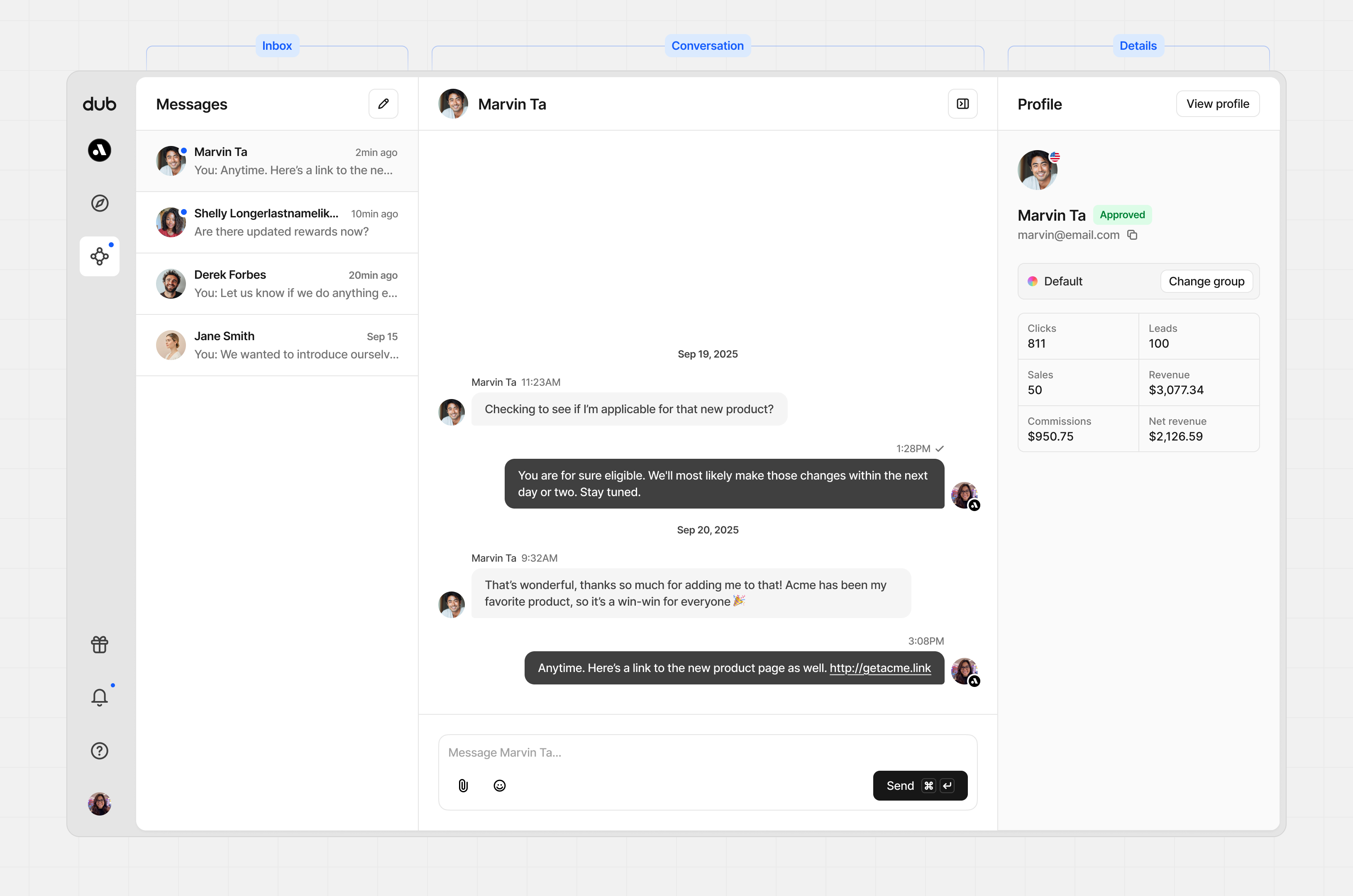 ### Help Center
Provide the link to any documentation or self-serve resources that can help your partners succeed.
This will also be added to the program support resources section on the partner dashboard sidebar:
### Terms of Service
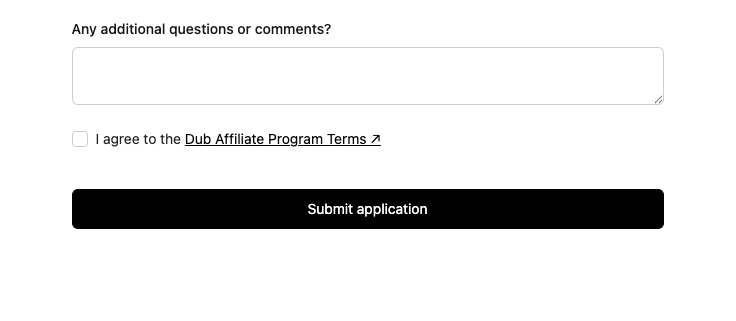
A link to your partner program's Terms of Service (usually separate from your regular platform ToS).
When configured, this will be added to your [program application form](/help/article/program-application-form) as a mandatory checkbox that partners have to accept before submitting their application:
### Help Center
Provide the link to any documentation or self-serve resources that can help your partners succeed.
This will also be added to the program support resources section on the partner dashboard sidebar:
### Terms of Service
A link to your partner program's Terms of Service (usually separate from your regular platform ToS).
When configured, this will be added to your [program application form](/help/article/program-application-form) as a mandatory checkbox that partners have to accept before submitting their application:
 ## Brand Assets
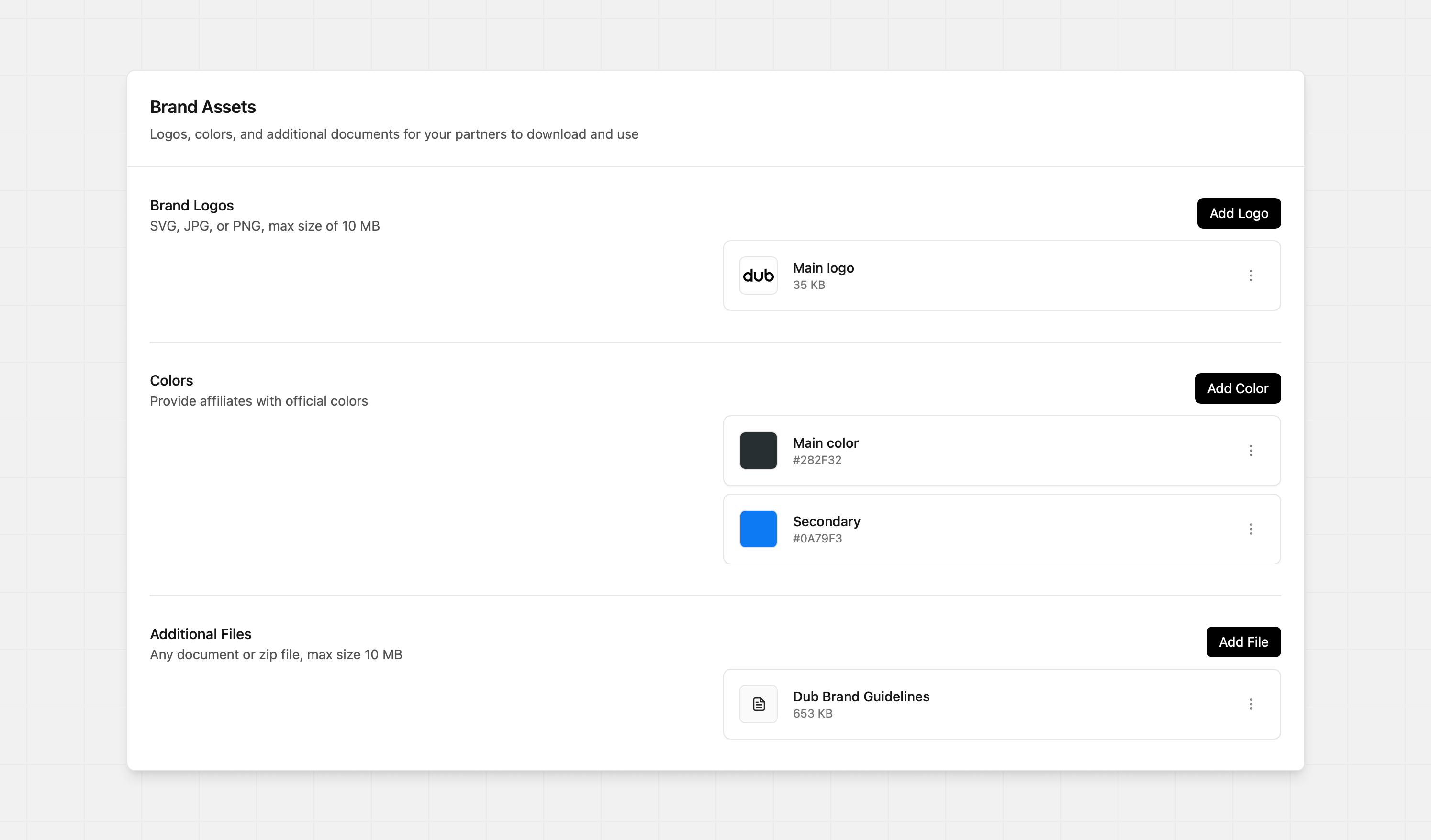
Add logo files, colors, or any other documents relating to your brand and the program. These will be available to all your partners from their partner dashboard.
## Brand Assets
Add logo files, colors, or any other documents relating to your brand and the program. These will be available to all your partners from their partner dashboard.
 ### Brand logos
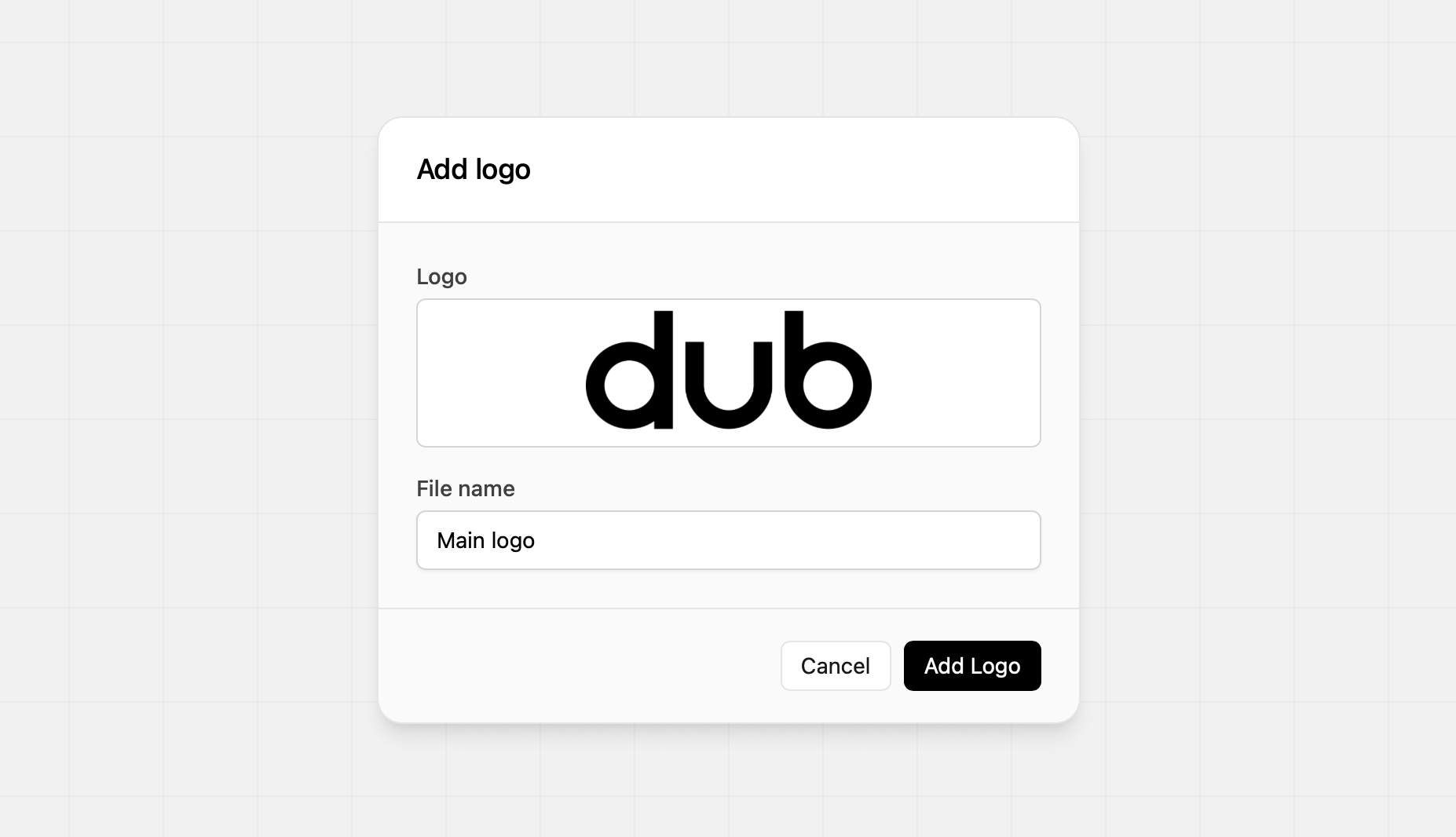
Provide the official brand logos so that your partners have the current versions. You can upload JPG, PNG, or SVG files.
### Brand logos
Provide the official brand logos so that your partners have the current versions. You can upload JPG, PNG, or SVG files.
 ### Colors
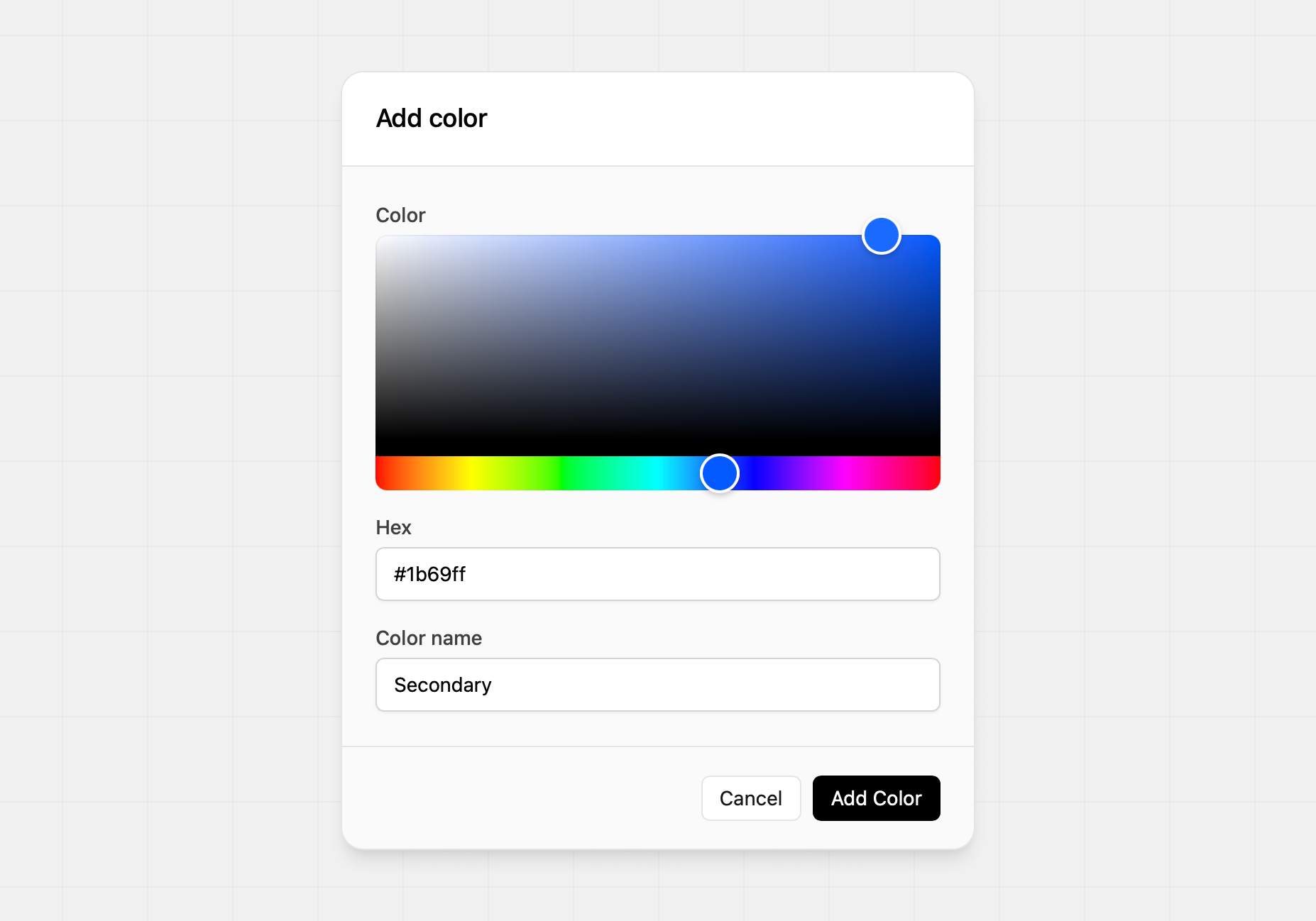
Provide your official brand colors. You can use the color picker, or you can enter the hex code to select the color.
### Colors
Provide your official brand colors. You can use the color picker, or you can enter the hex code to select the color.
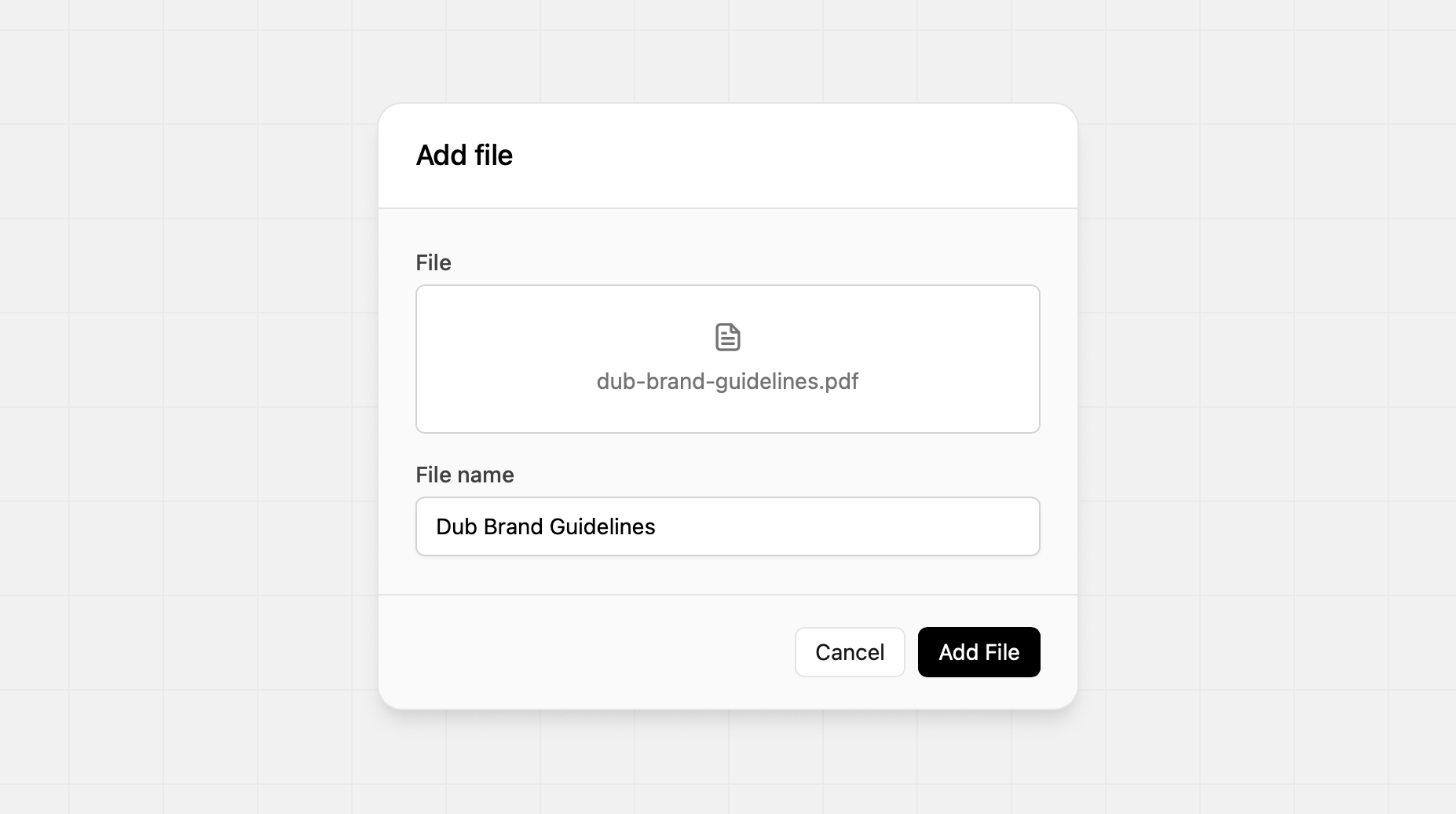
 ### Additional Files
Add any additional file to support your partners. Common additional files:
* Brand guidelines
* Terms of Service
* Marketing strategies
### Additional Files
Add any additional file to support your partners. Common additional files:
* Brand guidelines
* Terms of Service
* Marketing strategies