> ## Documentation Index
> Fetch the complete documentation index at: https://dub.co/llms.txt
> Use this file to discover all available pages before exploring further.

# Creating a landing page for your partner program

> Create an effective and compelling landing page to attract high-quality partners to join your program and promote your product.

export const ImageCarousel = ({images = [], imageClassName = "", autoplay = true}) => {
  const [currentIndex, setCurrentIndex] = useState(0);
  const [autoplayActive, setAutoplayActive] = useState(autoplay);
  useEffect(() => {
    if (!autoplayActive || images.length <= 1) return;
    const interval = setInterval(() => {
      setCurrentIndex(prev => prev === images.length - 1 ? 0 : prev + 1);
    }, 3000);
    return () => clearInterval(interval);
  }, [autoplayActive, images.length]);
  const disableAutoplay = () => setAutoplayActive(false);
  const goToPrev = () => {
    disableAutoplay();
    setCurrentIndex(prev => prev === 0 ? images.length - 1 : prev - 1);
  };
  const goToNext = () => {
    disableAutoplay();
    setCurrentIndex(prev => prev === images.length - 1 ? 0 : prev + 1);
  };
  const goToSlide = index => {
    disableAutoplay();
    setCurrentIndex(index);
  };
  if (!images.length) return null;
  return <div className="not-prose w-full" onClick={disableAutoplay}>
      <div className="relative overflow-hidden rounded-xl">
        {images.map((img, index) => <div key={index} className={`transition-opacity duration-300 ${index === currentIndex ? "block" : "hidden"}`}>
            <img src={img.src} alt={img.alt} className={`w-full rounded-xl object-cover p-1 ${imageClassName ? imageClassName : "aspect-[1200/630]"}`} />
          </div>)}
        <div className="absolute bottom-4 left-1/2 -translate-x-1/2 flex items-center justify-center">
          <div className="inline-flex items-center gap-2 px-4 py-2 rounded-full border border-zinc-200 dark:border-zinc-700 bg-white/95 dark:bg-zinc-900/95 shadow-sm backdrop-blur-sm">
            <button onClick={goToPrev} className="p-1 text-zinc-600 dark:text-zinc-400 hover:text-zinc-950 dark:hover:text-white transition-colors" aria-label="Previous slide">
              <svg width="18" height="18" viewBox="0 0 24 24" fill="none" stroke="currentColor" strokeWidth="2" strokeLinecap="round" strokeLinejoin="round">
                <path d="M15 18l-6-6 6-6" />
              </svg>
            </button>
            <div className="flex items-center gap-1.5">
              {images.map((_, index) => <button key={index} onClick={() => goToSlide(index)} className={`w-2 h-2 rounded-full transition-colors ${index === currentIndex ? "bg-zinc-950 dark:bg-white" : "bg-zinc-300 dark:bg-zinc-600 hover:bg-zinc-400 dark:hover:bg-zinc-500"}`} aria-label={`Go to slide ${index + 1}`} />)}
            </div>
            <button onClick={goToNext} className="p-1 text-zinc-600 dark:text-zinc-400 hover:text-zinc-950 dark:hover:text-white transition-colors" aria-label="Next slide">
              <svg width="18" height="18" viewBox="0 0 24 24" fill="none" stroke="currentColor" strokeWidth="2" strokeLinecap="round" strokeLinejoin="round">
                <path d="M9 18l6-6-6-6" />
              </svg>
            </button>
          </div>
        </div>
      </div>
    </div>;
};

export const ImageLink = ({src, alt, href, cta, className = ""}) => <div className="image-link-card group relative rounded-xl overflow-hidden border border-zinc-950/10 dark:border-white/10 not-prose">
    <style>{`
      @media (hover: hover) and (pointer: fine) {
        .image-link-card .image-link-card-btn:hover {
          --tw-drop-shadow: drop-shadow(0 8px 12px #222A350d) drop-shadow(0 32px 80px #2f30370f);
          filter: var(--tw-blur) var(--tw-brightness) var(--tw-contrast) var(--tw-grayscale) var(--tw-hue-rotate) var(--tw-invert) var(--tw-saturate) var(--tw-sepia) var(--tw-drop-shadow);
        }
      }
    `}</style>
    <a href={href} target="_blank" rel="noopener noreferrer" className="block">
      <img src={src} alt={alt} className={`w-full h-auto transition-all duration-300 group-hover:scale-105 ${className}`} />
      <div className="absolute inset-0 flex items-center justify-center bg-white/60 opacity-0 group-hover:opacity-100 transition-opacity duration-300" style={{
  "--tw-backdrop-blur": "blur(8px)",
  WebkitBackdropFilter: "var(--tw-backdrop-blur) var(--tw-backdrop-brightness) var(--tw-backdrop-contrast) var(--tw-backdrop-grayscale) var(--tw-backdrop-hue-rotate) var(--tw-backdrop-invert) var(--tw-backdrop-opacity) var(--tw-backdrop-saturate) var(--tw-backdrop-sepia)",
  backdropFilter: "var(--tw-backdrop-blur) var(--tw-backdrop-brightness) var(--tw-backdrop-contrast) var(--tw-backdrop-grayscale) var(--tw-backdrop-hue-rotate) var(--tw-backdrop-invert) var(--tw-backdrop-opacity) var(--tw-backdrop-saturate) var(--tw-backdrop-sepia)"
}}>
        <span className="image-link-card-btn inline-block rounded-full border border-gray-200 bg-white px-8 py-2 transition-shadow cursor-pointer font-medium text-sm text-zinc-950 dark:text-zinc-950">
          {cta}
        </span>
      </div>
    </a>
  </div>;

<Tip>
  This feature is only available on [Business plans and
  above](https://dub.co/pricing/partners).
</Tip>

On Dub, you can also create a branded landing page with details about your [partner program](/help/article/dub-partners):

<Frame>
  <video src="https://assets.dub.co/cms/dub-partners-branded-landing-pages.mp4" loop autoPlay muted playsInline />
</Frame>

## What is the program landing page?

The program landing page gives your applicants information about your program and the rewards offered. This also includes brand or marketing files, FAQ sections, and any other content you want to add that will help an applicant understand your program, what your product is, and why they should apply.

<ImageLink alt="Branded program application form" src="https://assets.dub.co/cms/program-application-form.png" href="https://partners.dub.co/dub" cta="View example ↗" />

<Tip>
  On Dub, you can create a custom landing page for each [partner
  group](/help/article/partner-groups) in your program. This is helpful for
  showcasing different information about your program tailored to different
  partner types – e.g. influencers vs affiliates vs resellers.

  By default, when you create a new partner group, it reuses the landing page
  details from your default partner group, but you can always edit them
  afterwards.
</Tip>

## Where to find the landing page builder?

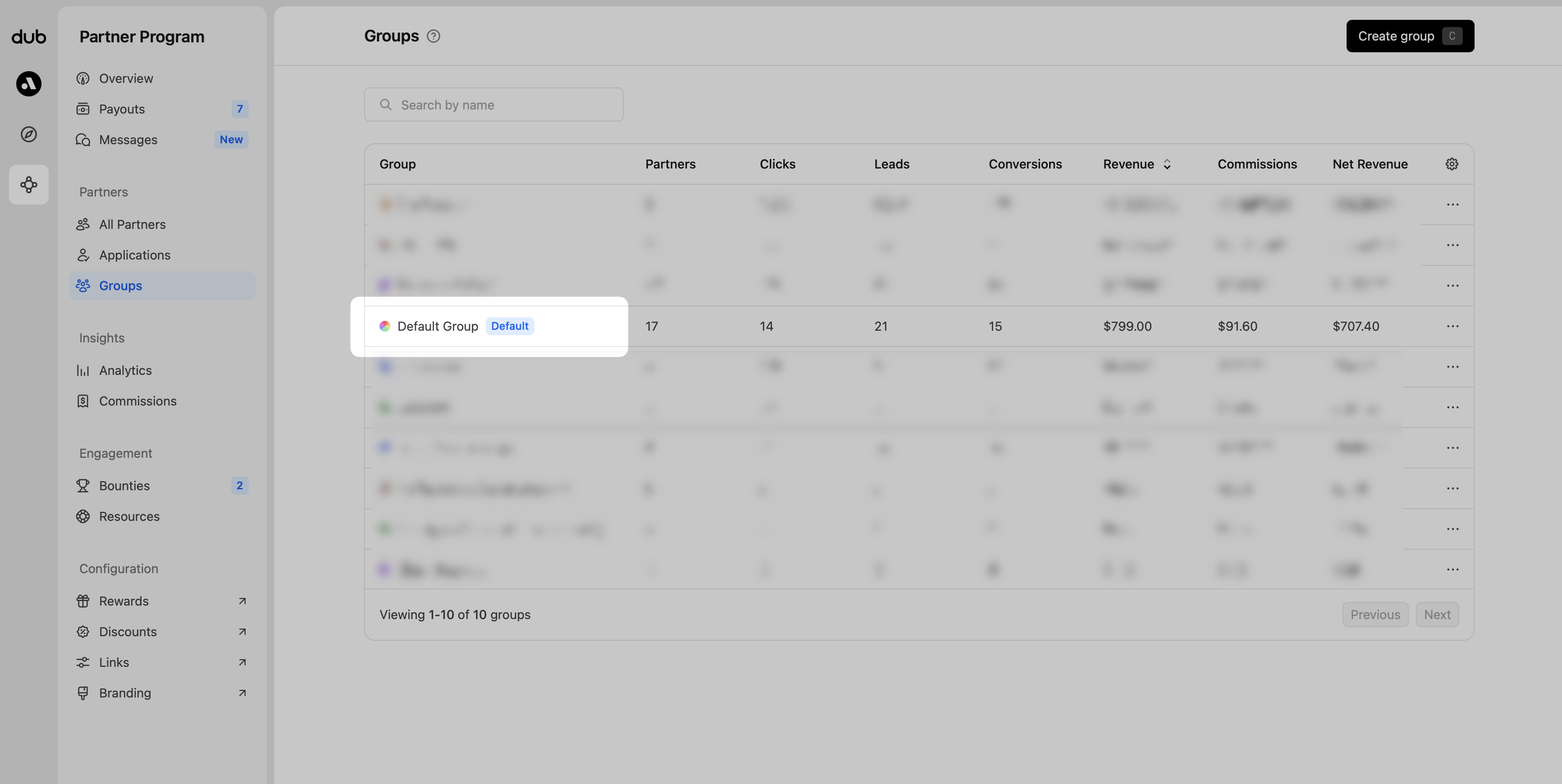
From your **Groups** page, open the group you want to customize the landing page for:

<Frame>
  <img src="https://assets.dub.co/cms/program-group-click.png" alt="Group selection" />
</Frame>

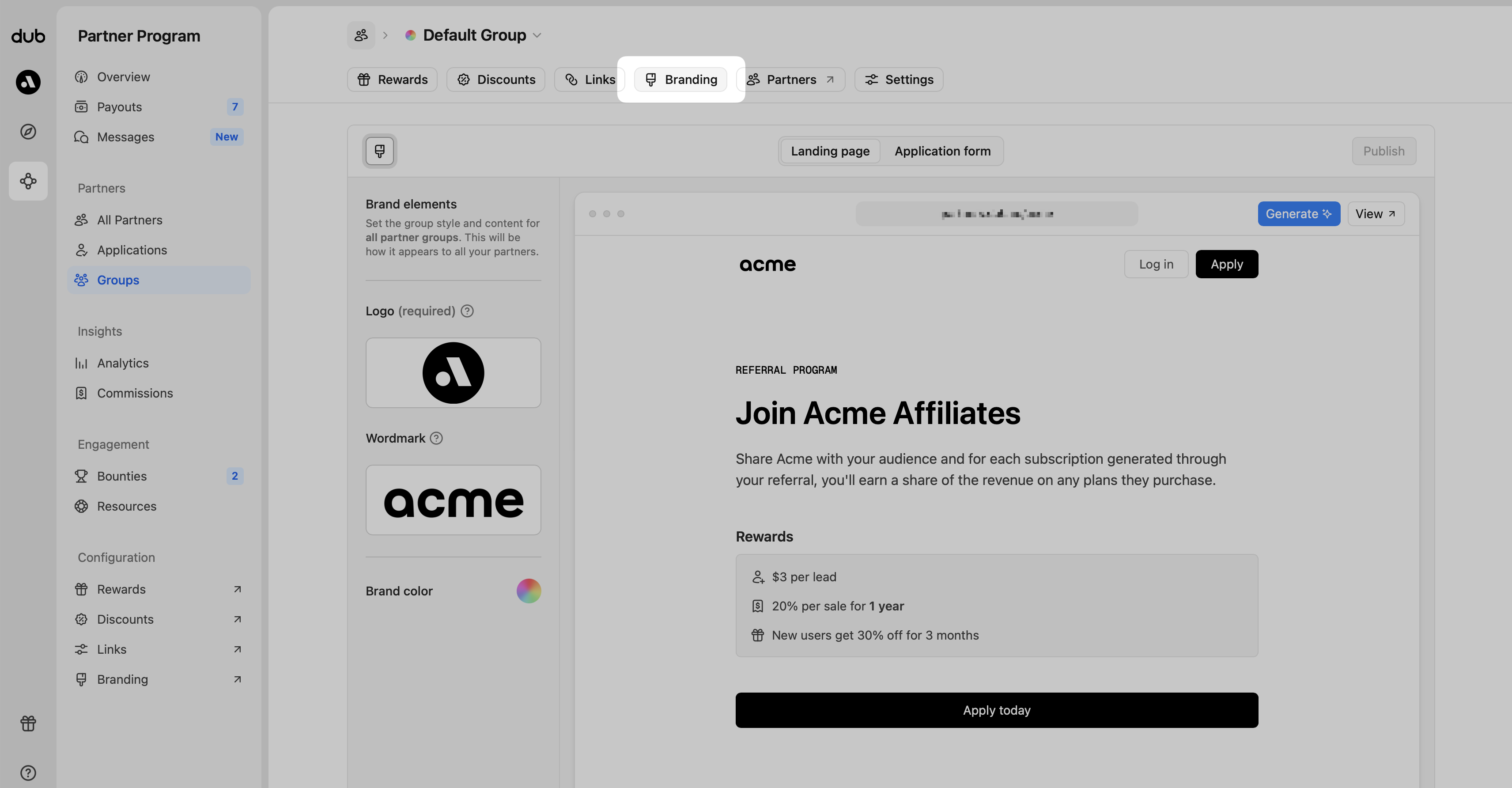
From the tab navigation, click **Branding,** then in the content panel, choose **Landing page** to open the editor.
<Frame>
  <img src="https://assets.dub.co/cms/program-branding-tab2.png" alt="Branding page within your dashboard" />
</Frame>

## Editing and adding content

As you hover over the landing page content in the builder, you'll notice that actions will show, allowing you to add, edit, delete, and reorder content blocks within the page.

<Frame>
  <img src="https://assets.dub.co/cms/lander-edit1.jpg" alt="Brand page within your dashboard" />
</Frame>

Content above the reward section can only be edited. This is to maintain content
consistency. Content below the **"Apply today"** button can be added, edited,
removed, and reordered. ## Content types Clicking on "Insert block" allows you
to select the content type you want to add.

<Frame>
  <img src="https://assets.dub.co/cms/lander-insertblock1.jpg" alt="Brand page within your dashboard" />
</Frame>

### Text

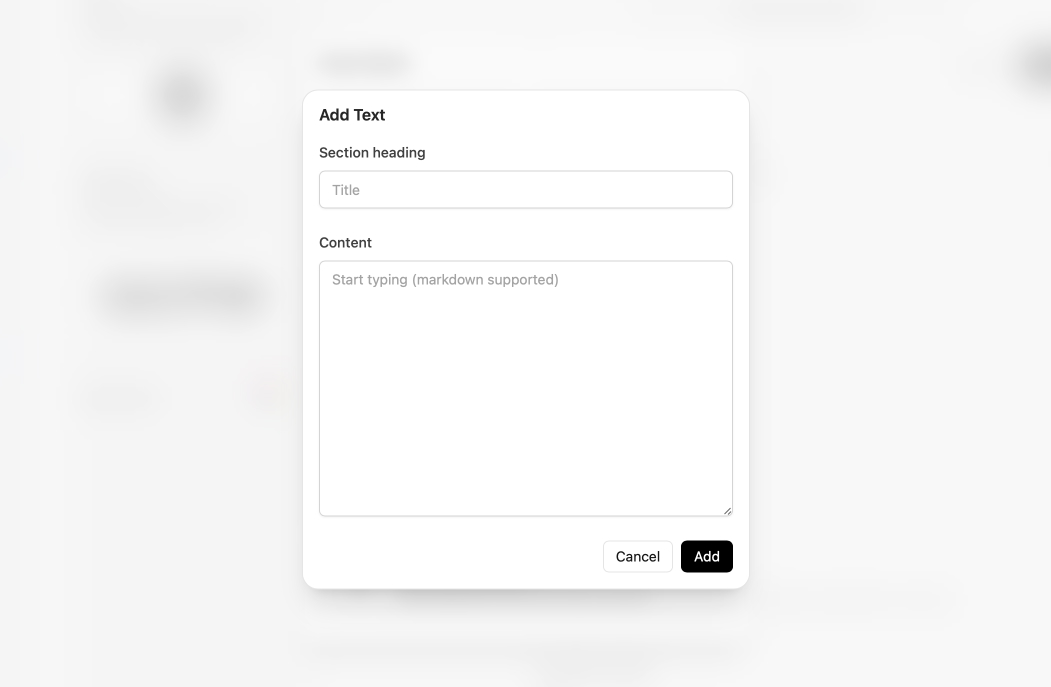
Best used for text and paragraph content. This section also uses markdown formatting when editing.
<Frame>
  <img src="https://assets.dub.co/cms/lander-insert-text.jpg" alt="Adding text content" />
</Frame>

### Image

For adding product screenshots and other complementary visuals to the program.

<Frame>
  <img src="https://assets.dub.co/cms/lander-insert-image.jpg" alt="Adding image content" />
</Frame>

### Files

For adding product screenshots and other complementary visuals to the program.

<Frame>
  <img src="https://assets.dub.co/cms/lander-insert-file.jpg" alt="Adding files" />
</Frame>

### Accordion

Best used for FAQ sections and other collapsible related content.
This section also uses markdown formatting when editing.

<Frame>
  <img src="https://assets.dub.co/cms/lander-insert-accordion.jpg" alt="Adding accordion content" />
</Frame>

### Earnings calculator

Give your partners a sense of how much they can earn, based on your default rewards.

<Frame>
  <img src="https://assets.dub.co/cms/lander-insert-calculator.jpg" alt="Adding earnings calculator" />
</Frame>

## Generating your landing page with AI

You can also use our AI landing page generator to quickly scaffold a landing page for your affiliate program.

Our AI will scrape your website, retrieve all relevant information, and craft a compelling landing page with your company's details, pricing information, features, and more.

To get started, simply click the "Generate" button and enter your website URL (it should already be prefilled from your program settings):

<Frame>
  <img src="https://assets.dub.co/cms/generate-lander-ai-button.png" alt="Generate lander AI button" />
</Frame>

Here's a quick demo of how it looks:

<Frame>
  <video src="https://assets.dub.co/cms/generate-lander-ai-demo.mp4" loop autoPlay muted playsInline />
</Frame>

<Warning>
  AI can make mistakes – make sure to review all generated content for accuracy
  and style before publishing your changes.
</Warning>

## Publishing your changes

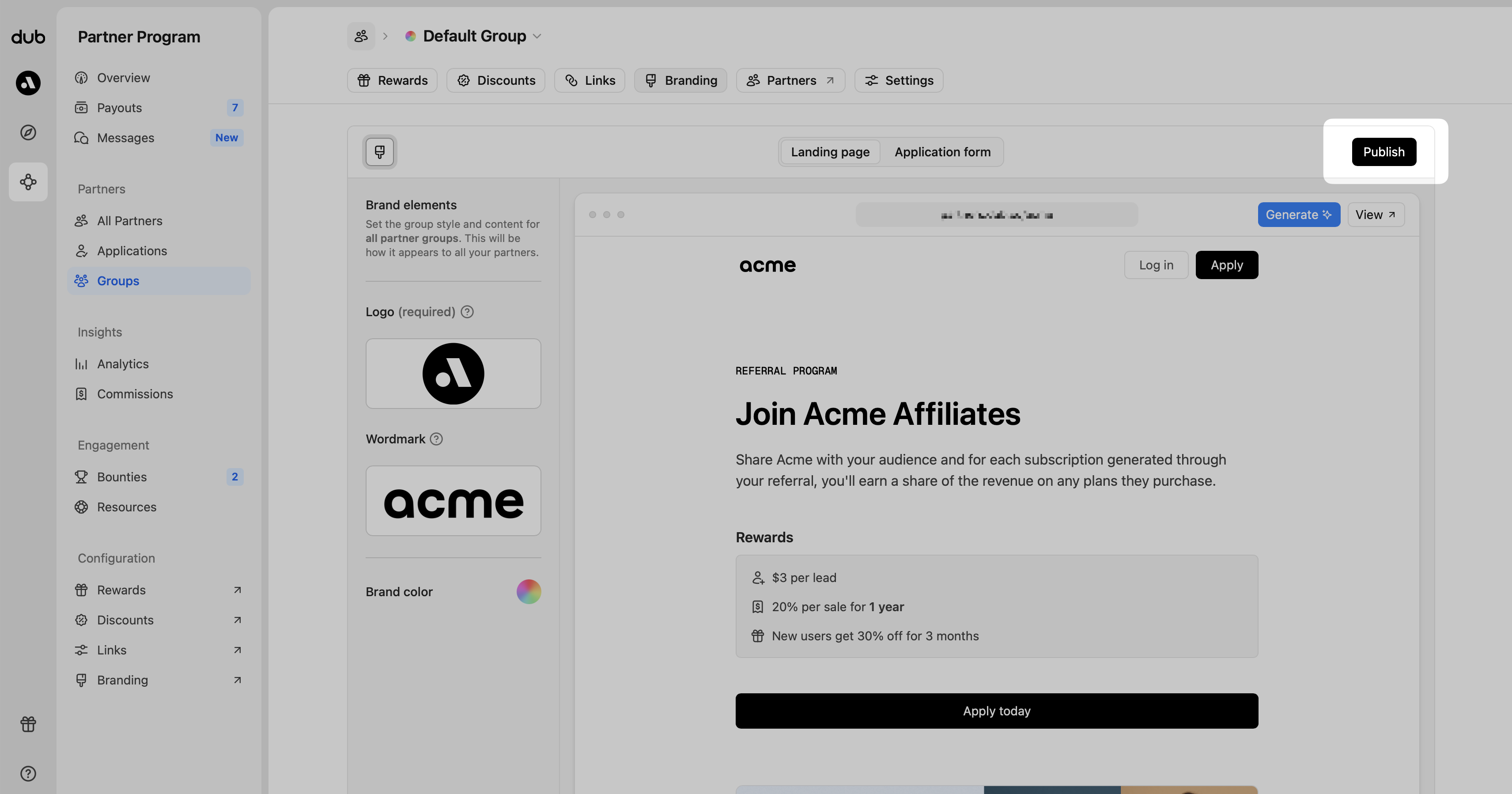
Once you're finished making your content changes, click the Publish button in the top right corner to make sure the changes go live.

<Frame>
  <img src="https://assets.dub.co/cms/lander-publish-2.png" alt="Publish button" />
</Frame>

## Landing page examples

Get inspired and check out some of these great examples that companies have already created:

<ImageCarousel
  images={[
{
  src: "https://assets.dub.co/cms/lander-wisprflow-1.png",
  alt: "Wispr Flow Program Lander",
},
{
  src: "https://assets.dub.co/cms/lander-tella.png",
  alt: "Tella Program Lander",
},
{
  src: "https://assets.dub.co/cms/lander-superlist-1.png",
  alt: "Superlist Program Lander",
},
]}
  imageClassName="aspect-[4/3]"
/>

## Markdown styles available

| Content         | Example                                              |
| --------------- | ---------------------------------------------------- |
| Headings        | `# H1` , `# H2` , `# H3`                             |
| Bold            | `**bold text**`                                      |
| Italic          | `*italicized text*`                                  |
| Blockquote      | `> blockquote`                                       |
| Horizontal rule | `---`                                                |
| Link            | `[title](https://www.example.com)`                   |
| Ordered list    | `1. First item` , `2. Second item` , `3. Third item` |
| Unordered list  | `- First item` , `- Second item` , `- Third item`    |