> ## Documentation Index
> Fetch the complete documentation index at: https://dub.co/llms.txt
> Use this file to discover all available pages before exploring further.
# Measuring program performance
> Track conversion rates, referral sources, UTM parameters, geolocation data and more to understand ROI and performance of your partner program.
This feature is only available on [Business plans and
above](https://dub.co/pricing/partners).
On any given day, Dub tracks upwards of **10 million events across clicks, [conversions](/help/article/dub-conversions), and [commissions](/help/article/partner-commissions).**
With the sheer volume of data that's tracked, it is important to be able to easily filter and create reports to help marketing teams make informed decisions.
In this guide, we'll walk you through how to use the program analytics tab get the most out of your partner program's events and engagement data.
## Where to find your program analytics?
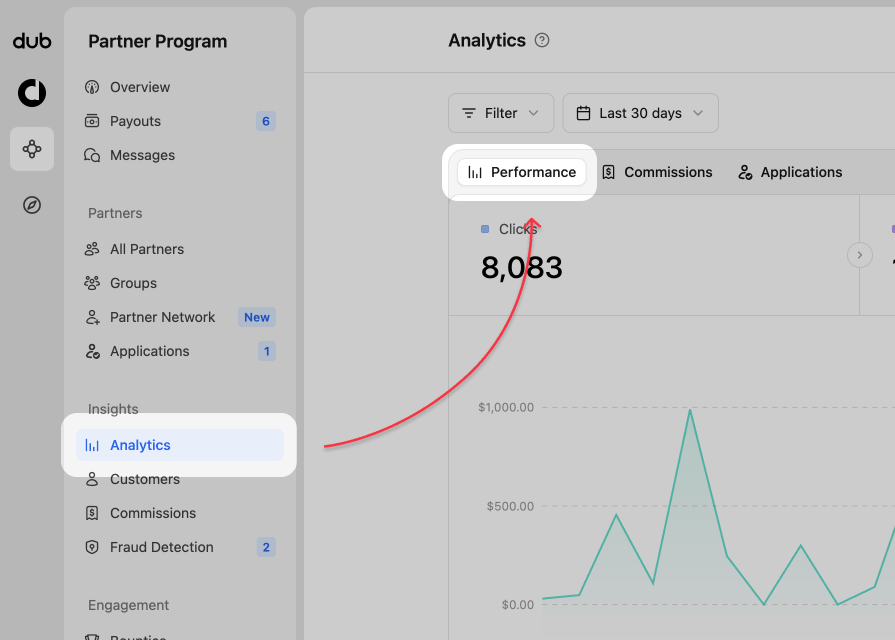
When viewing your Partner Program navigation, click on the **Analytics** page, in the **Insights** group:
 ## Program analytics views
Your program analytics dashboard consists of several views:
1. [Analytics chart](#1-analytics-chart)
2. [Partner data table](#2-partner-data-table)
3. [Aggregated data for different facets (top views)](#3-aggregated-data-for-different-facets-top-views)
### 1. Analytics chart
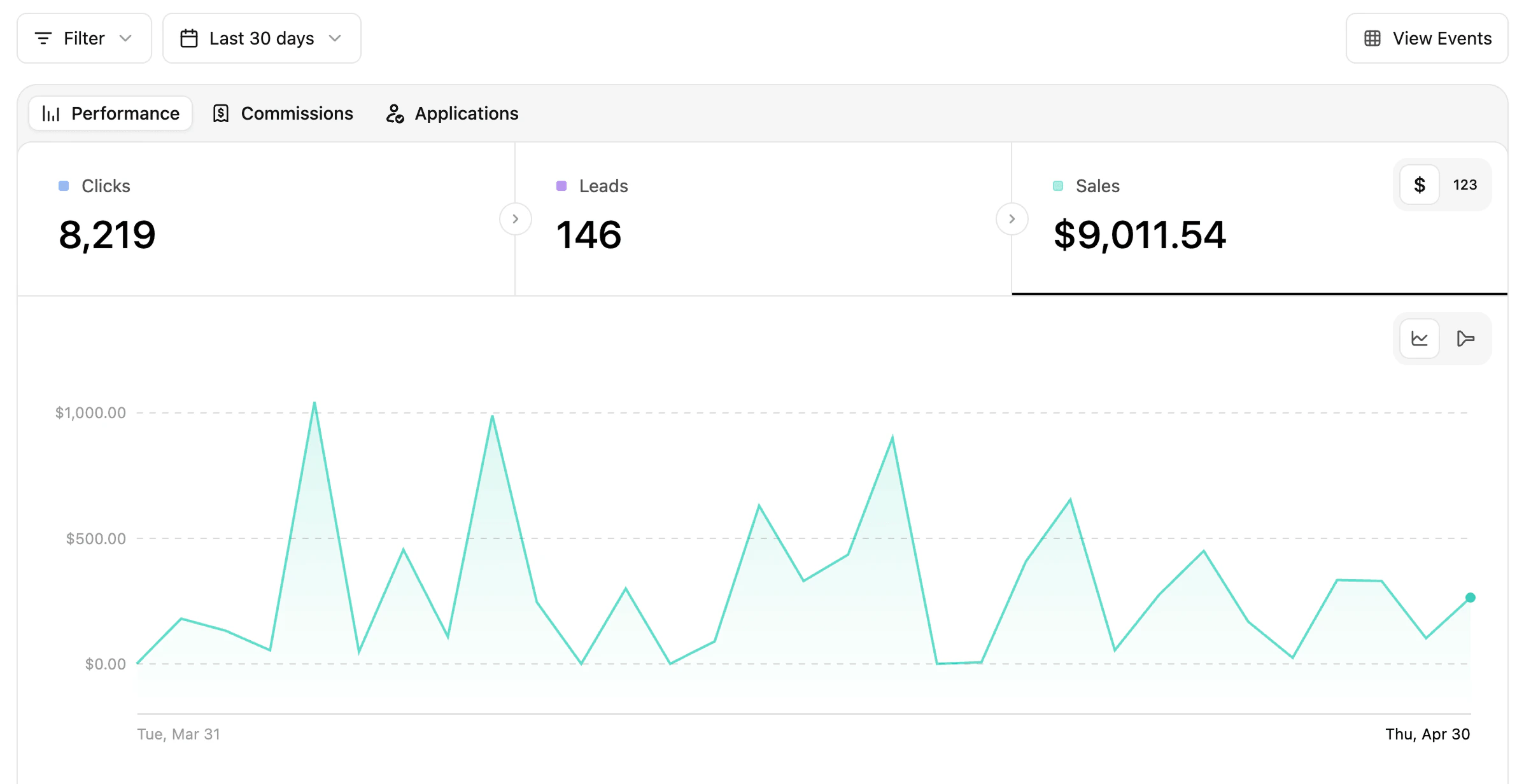
This is the default view and shows you the number of click events in a time-series chart over time. You can also select leads or sales to view their chart and data.
**Performance and Commissions data selector**
At the top of the analytics chart, you can switch between **Performance** and **Commissions**. Use **Performance** to analyze clicks, leads, sales, and conversion trends. Use **Commissions** to focus on commission earnings over time.
For a deeper look at commission-specific reporting, see [Commission analytics](/help/article/commission-analytics).
## Program analytics views
Your program analytics dashboard consists of several views:
1. [Analytics chart](#1-analytics-chart)
2. [Partner data table](#2-partner-data-table)
3. [Aggregated data for different facets (top views)](#3-aggregated-data-for-different-facets-top-views)
### 1. Analytics chart
This is the default view and shows you the number of click events in a time-series chart over time. You can also select leads or sales to view their chart and data.
**Performance and Commissions data selector**
At the top of the analytics chart, you can switch between **Performance** and **Commissions**. Use **Performance** to analyze clicks, leads, sales, and conversion trends. Use **Commissions** to focus on commission earnings over time.
For a deeper look at commission-specific reporting, see [Commission analytics](/help/article/commission-analytics).
 **Data toggle**
You can change the data displayed by clicking the `$ | 123` toggle in the top right of the data type section.
By default `$` is selected, as it related directly to your [reward types](/help/article/partner-rewards). Switching to `123` will change any monetary values to their specific reward count. If your program has other monetary rewards (clicks, leads, sales), their dollar amount will show as well.
**Data toggle**
You can change the data displayed by clicking the `$ | 123` toggle in the top right of the data type section.
By default `$` is selected, as it related directly to your [reward types](/help/article/partner-rewards). Switching to `123` will change any monetary values to their specific reward count. If your program has other monetary rewards (clicks, leads, sales), their dollar amount will show as well.
 **Chart toggle**
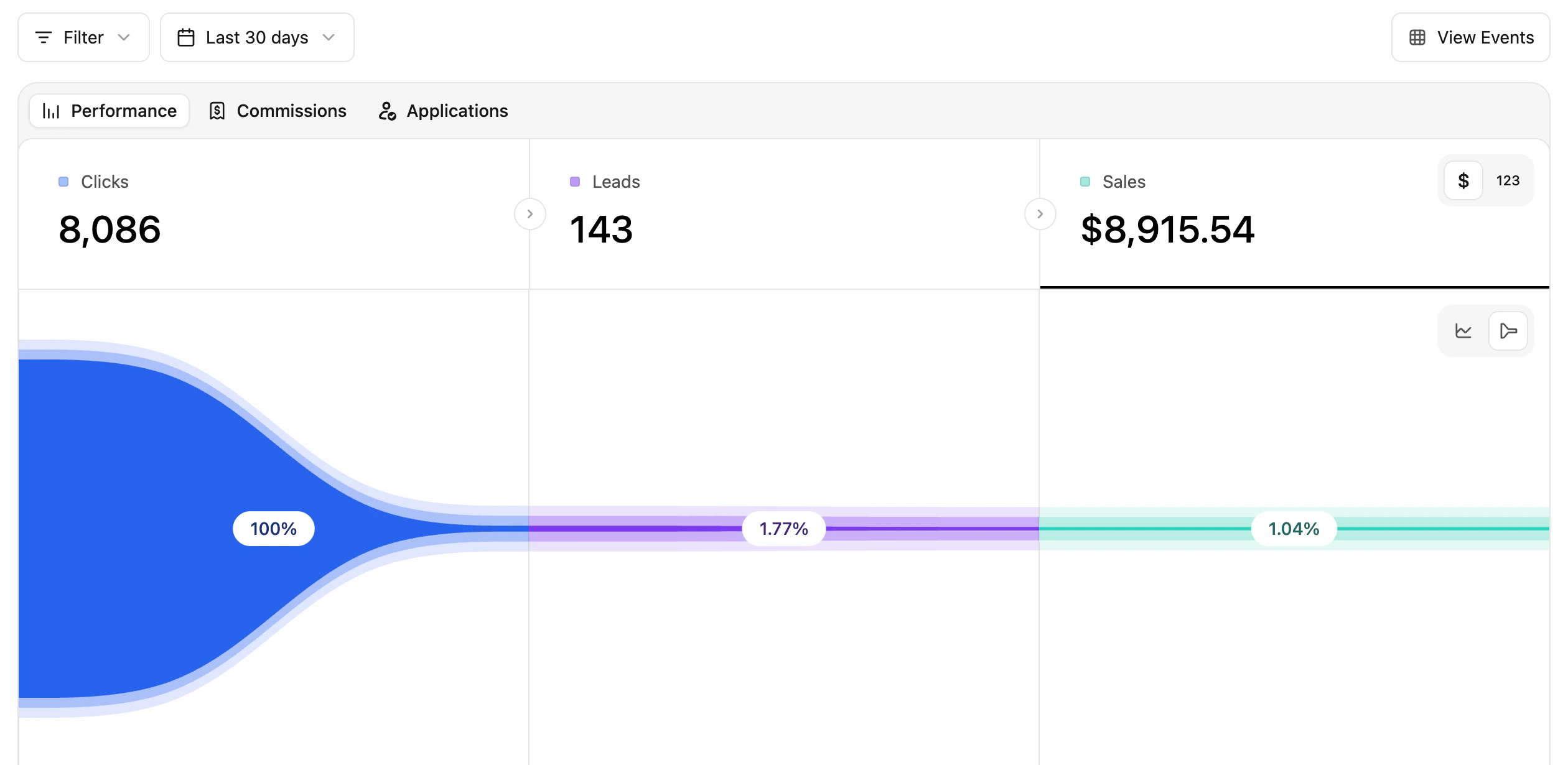
You can change the chart type displayed by clicking the `time-chart | conversion funnel` toggle in the top right of the chart area.
**Chart toggle**
You can change the chart type displayed by clicking the `time-chart | conversion funnel` toggle in the top right of the chart area.
 When the chart type is switched to **conversion funnel**, you can view the percentage of customers that complete each stage of the sale conversion. In this example, 0.58% of clicks have resulted in a customer making a purchase.
 ### 2. Partner data table
This table shows your partners performance for each of the data types from the time-series chart (clicks, leads, and sales). The matching data column is sorted by most-to-least, so you can quickly see who is the top performer for that category.
### 2. Partner data table
This table shows your partners performance for each of the data types from the time-series chart (clicks, leads, and sales). The matching data column is sorted by most-to-least, so you can quickly see who is the top performer for that category.
 ### 3. Aggregated data for different facets (top views)
These are more commonly known as the "Top Views" in Dub Analytics. These views show your top links, countries, cities, devices, and more.
### 3. Aggregated data for different facets (top views)
These are more commonly known as the "Top Views" in Dub Analytics. These views show your top links, countries, cities, devices, and more.
 Each section has their own tabs to select different data for you to explore your program data further. These are grouped by the following categories:
* **Links** - Short Links and Destination URLs
* **Referrals** - Referrers and UTM Parameters
* **Location** - Countries, Cities, Regions, and Continents
* **Tech** - Devices, Browser, OS, and Triggers
## Filtering your data
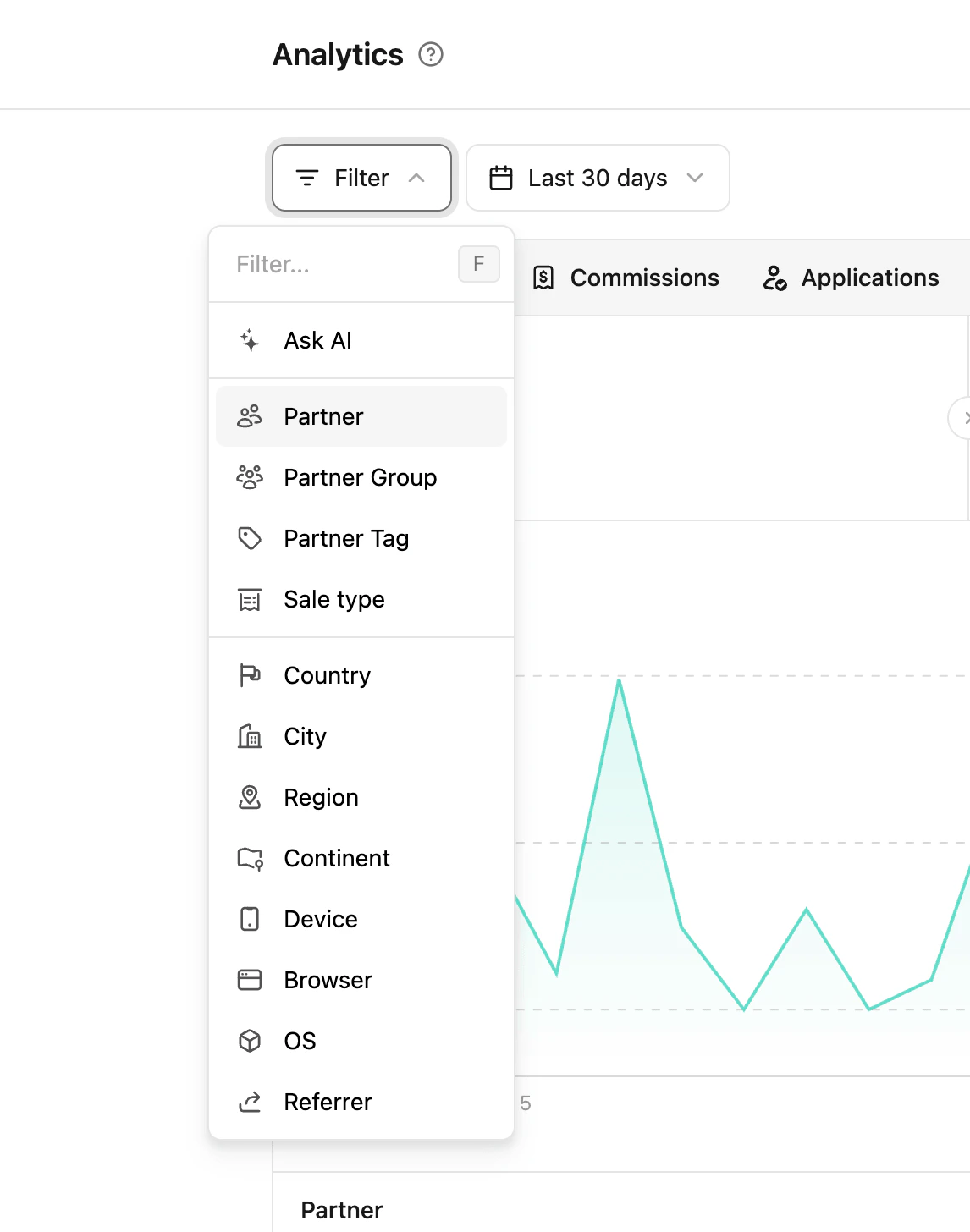
With all this data, it's important to be able to filter and make better decisions. You can click the **Filter** button in the top left will show you the options available.
Each section has their own tabs to select different data for you to explore your program data further. These are grouped by the following categories:
* **Links** - Short Links and Destination URLs
* **Referrals** - Referrers and UTM Parameters
* **Location** - Countries, Cities, Regions, and Continents
* **Tech** - Devices, Browser, OS, and Triggers
## Filtering your data
With all this data, it's important to be able to filter and make better decisions. You can click the **Filter** button in the top left will show you the options available.
 | Filter | Description |
| --------- | ---------------------------------------------------------------------------------------------------- |
| Ask AI | Use natural language to query your analytics - eg: "mobile chrome users US only", "UK android users" |
| Group | Select a specific [partner group](/help/article/partner-groups) |
| Tag | Select a specific [partner tag](/help/article/partner-tags) |
| Partner | Select a specific program partner |
| Country | Select a specific county |
| City | Select a specific city |
| Continent | Select a specific continent - N. America, Europe, etc |
| Device | Select a specific device - Desktop, Mobile, Tablet, etc |
| Browser | Select a specific browser - Chrome, Safari, Firefox, etc |
| OS | Select a specific operating system - Windows, Mac OS, etc |
| Referer | Select the specific website a visitor arrived from |
| Filter | Description |
| --------- | ---------------------------------------------------------------------------------------------------- |
| Ask AI | Use natural language to query your analytics - eg: "mobile chrome users US only", "UK android users" |
| Group | Select a specific [partner group](/help/article/partner-groups) |
| Tag | Select a specific [partner tag](/help/article/partner-tags) |
| Partner | Select a specific program partner |
| Country | Select a specific county |
| City | Select a specific city |
| Continent | Select a specific continent - N. America, Europe, etc |
| Device | Select a specific device - Desktop, Mobile, Tablet, etc |
| Browser | Select a specific browser - Chrome, Safari, Firefox, etc |
| OS | Select a specific operating system - Windows, Mac OS, etc |
| Referer | Select the specific website a visitor arrived from |