> ## Documentation Index
> Fetch the complete documentation index at: https://dub.co/llms.txt
> Use this file to discover all available pages before exploring further.
# Configuring SCIM Directory Sync with Okta
> For Dub Enterprise users, you can automatically provision and deprovision users from your Okta directory to Dub using SCIM Directory Sync.
This feature is only available on [Dub Enterprise](https://dub.co/enterprise).
For Dub Enterprise users, you can automatically provision and deprovision users from your Okta directory to Dub using [SCIM Directory Sync](https://developer.okta.com/docs/concepts/scim/).
## Step 1: Configure Directory Sync on Dub
In your workspace settings, click on **Security** in the **Workspace** group.
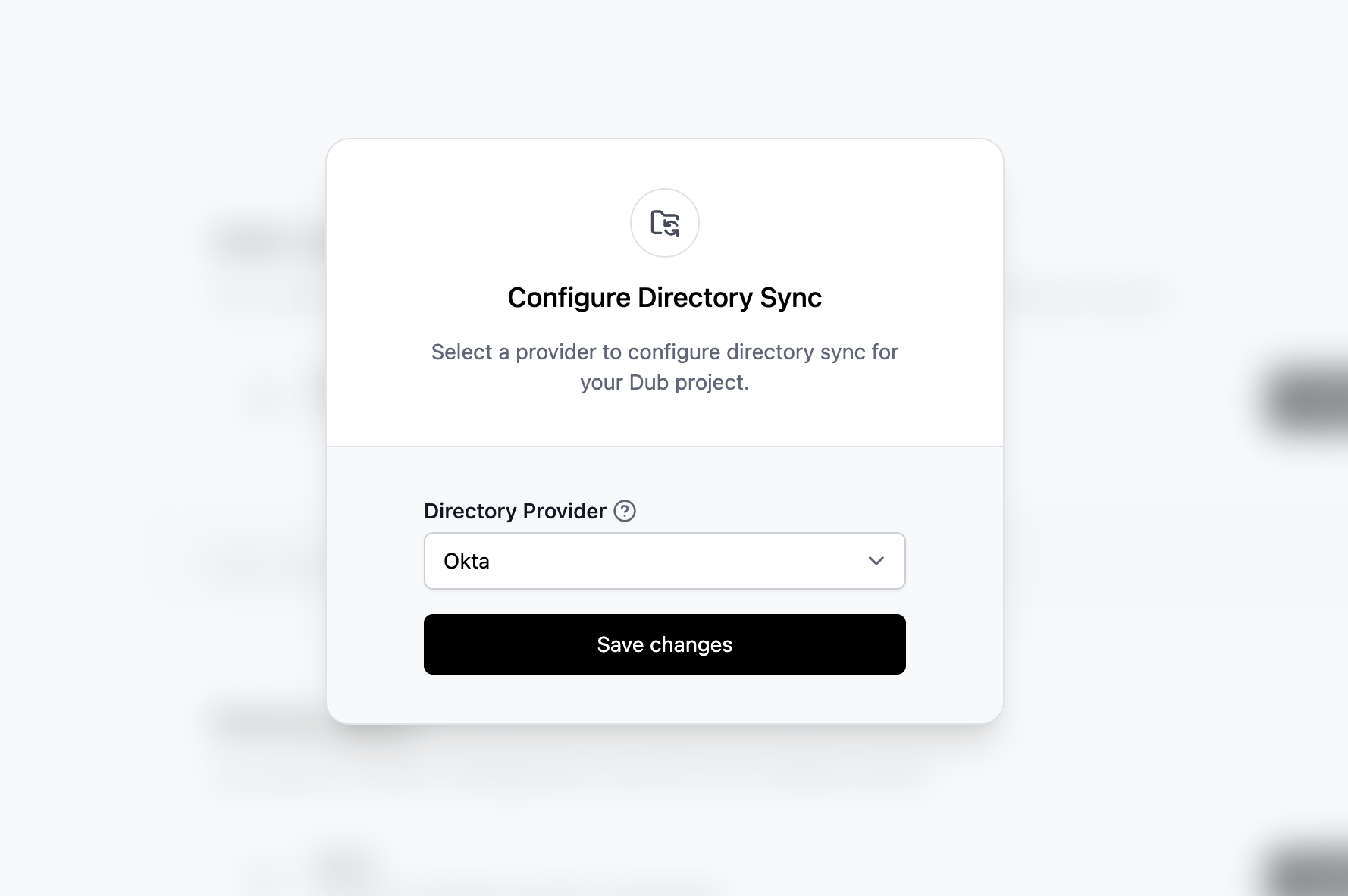
 Under the **Directory Sync** section, click on **Configure**. This will open up the Directory Sync modal:
1. Select **Okta** as the Directory Provider.
2. Click **Save changes**.
Under the **Directory Sync** section, click on **Configure**. This will open up the Directory Sync modal:
1. Select **Okta** as the Directory Provider.
2. Click **Save changes**.
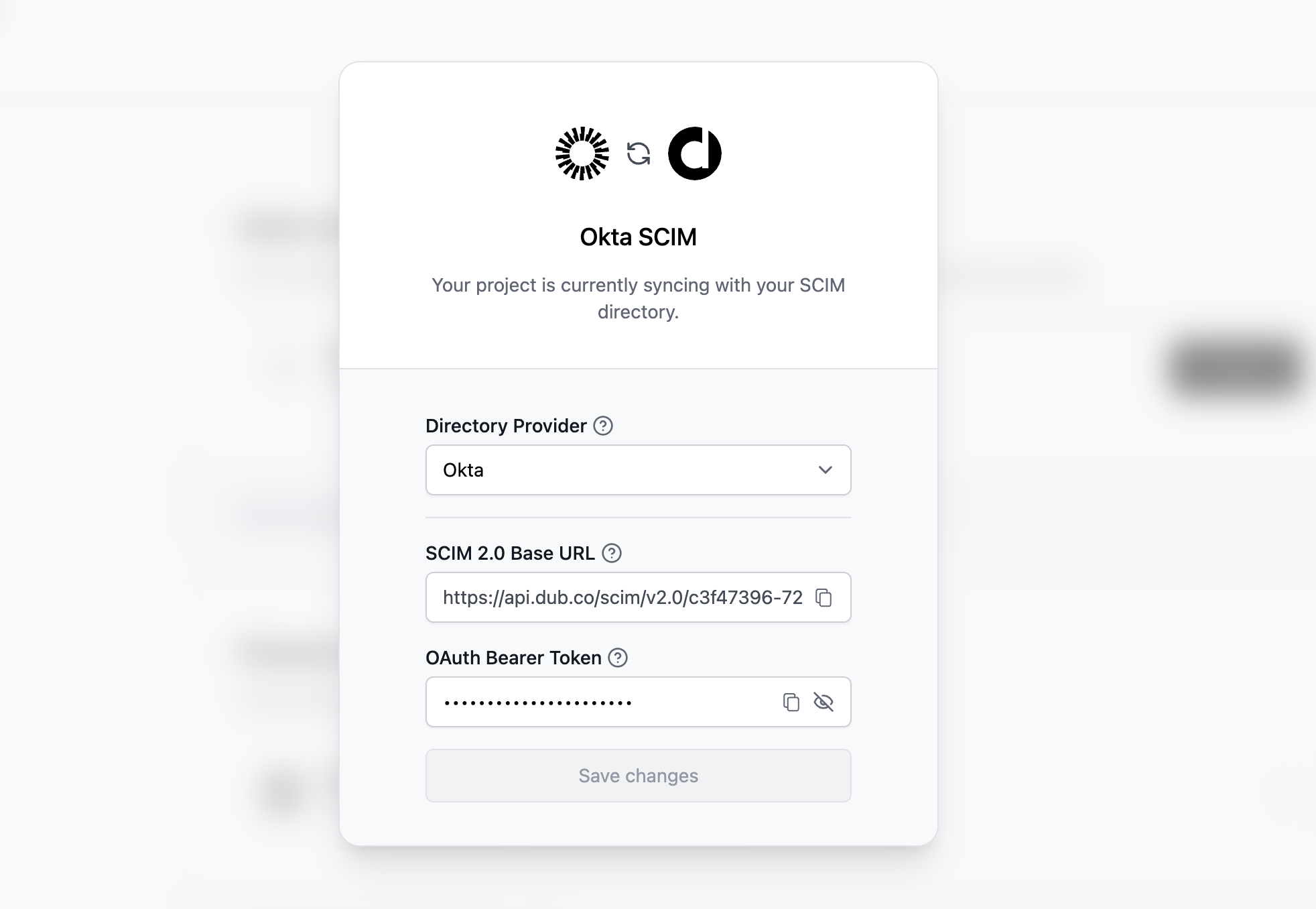
 This will generate a Directory Sync connection for your Dub workspace, and return 2 values, which will be needed in Step 2:
1. **SCIM 2.0 Base URL**
2. **OAuth Bearer Token**
This will generate a Directory Sync connection for your Dub workspace, and return 2 values, which will be needed in Step 2:
1. **SCIM 2.0 Base URL**
2. **OAuth Bearer Token**
 ## Step 2: Add Provisioning to SAML Application
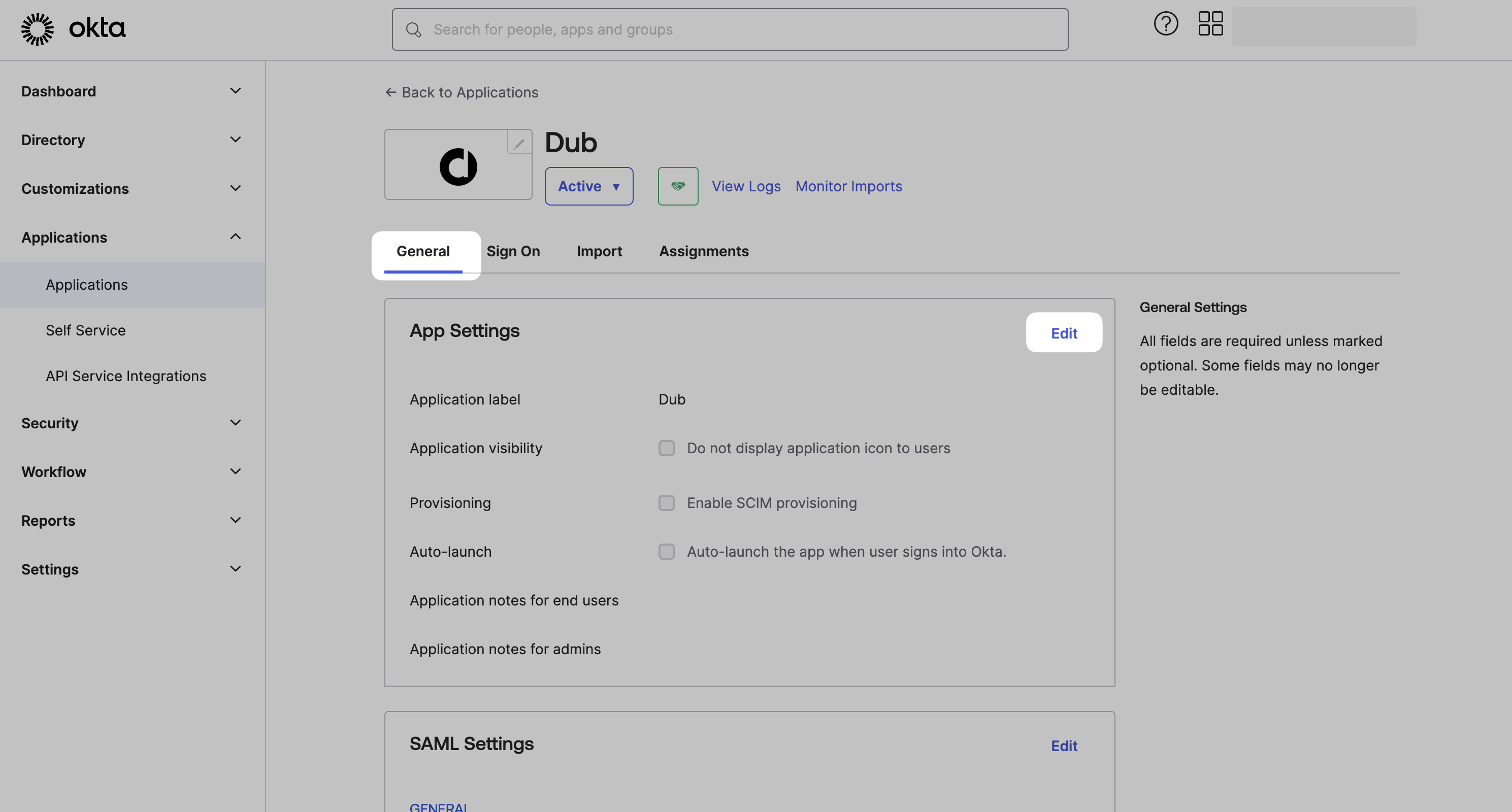
Go to the **General** tab of your existing Dub Okta SAML application that you want to enable SCIM provisioning for. Under **App Settings** click **Edit**.
## Step 2: Add Provisioning to SAML Application
Go to the **General** tab of your existing Dub Okta SAML application that you want to enable SCIM provisioning for. Under **App Settings** click **Edit**.
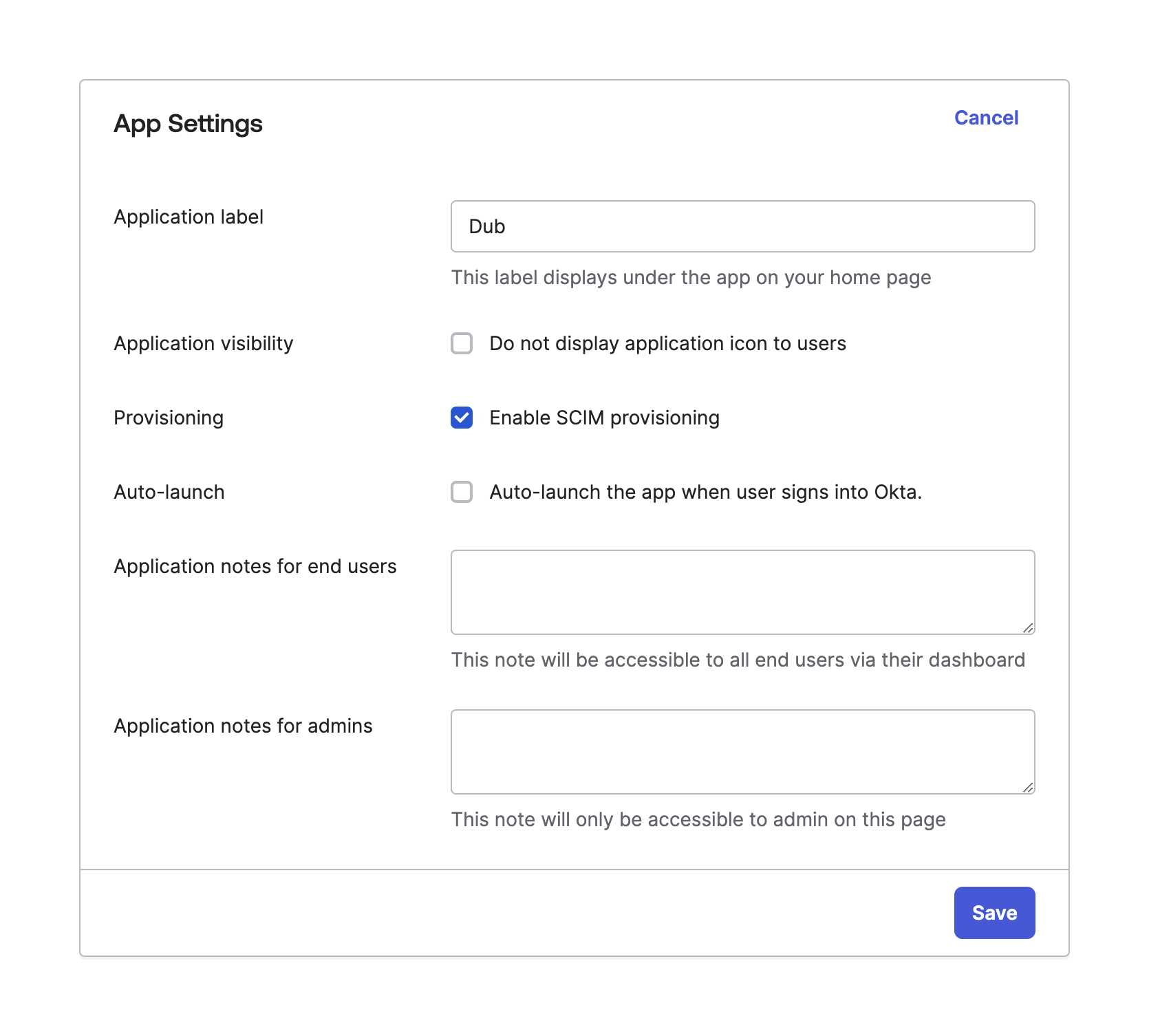
 Select the "Enable SCIM provisioning" option and click **Save**.
 You should now see a **Provisioning** tab. Select it and click **Edit**.
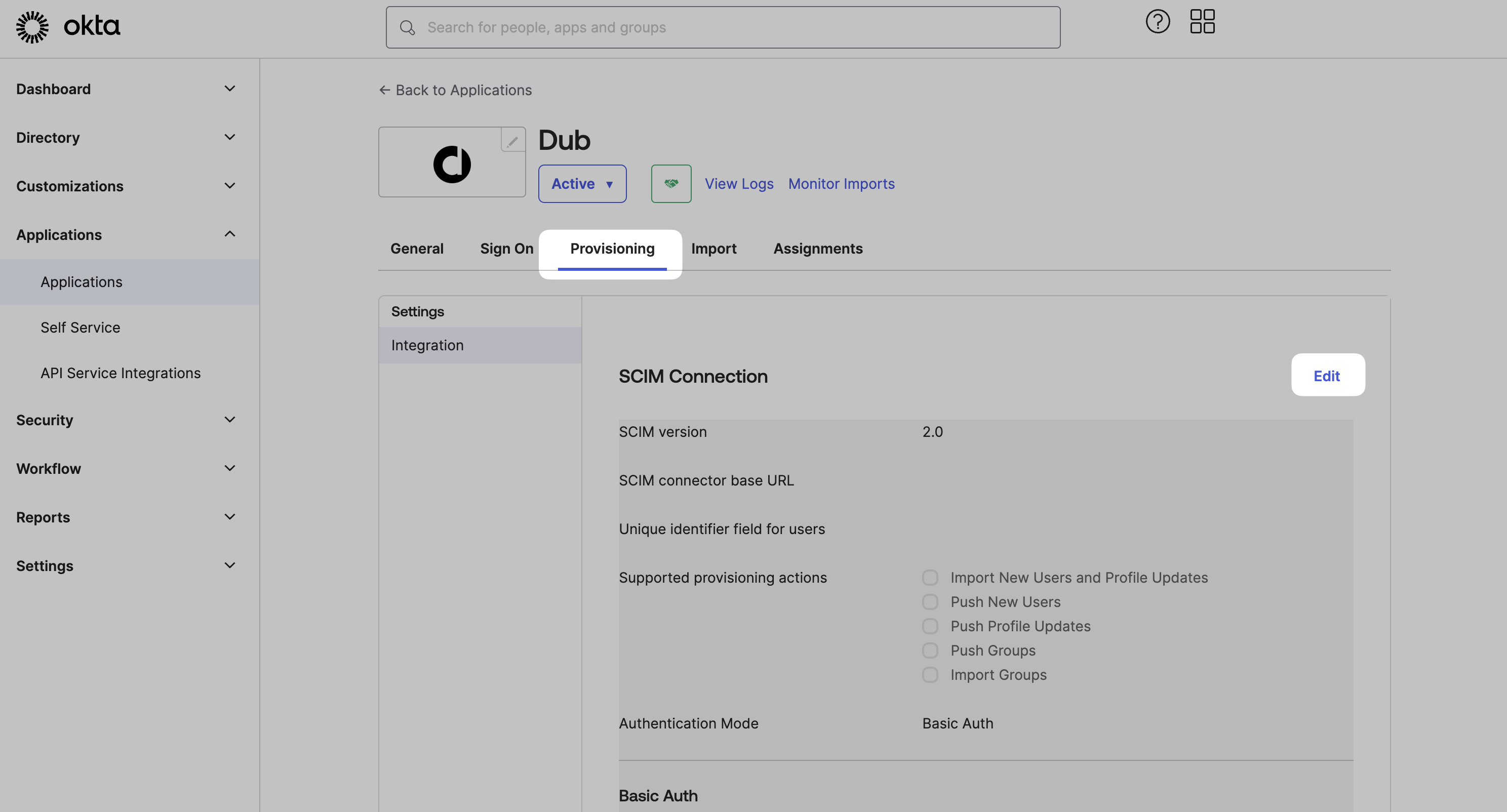 1. Under the **SCIM connector base URL** field, enter the **SCIM 2.0 Base URL** value from Step 1.
2. Under **Unique identifier field for users**, enter `userName`.
```text title="Copy this unique identifier" theme={null}
userName
```
3. Under **Supported provisioning actions**, select the following options:
* Push New Users
* Push Profile Updates
* Push groups
4. Under **Authentication Mode**, select **HTTP Header**.
5. Copy & paste the **OAuth Bearer Token** value from Step 1 into the **Authorization** field.
1. Under the **SCIM connector base URL** field, enter the **SCIM 2.0 Base URL** value from Step 1.
2. Under **Unique identifier field for users**, enter `userName`.
```text title="Copy this unique identifier" theme={null}
userName
```
3. Under **Supported provisioning actions**, select the following options:
* Push New Users
* Push Profile Updates
* Push groups
4. Under **Authentication Mode**, select **HTTP Header**.
5. Copy & paste the **OAuth Bearer Token** value from Step 1 into the **Authorization** field.
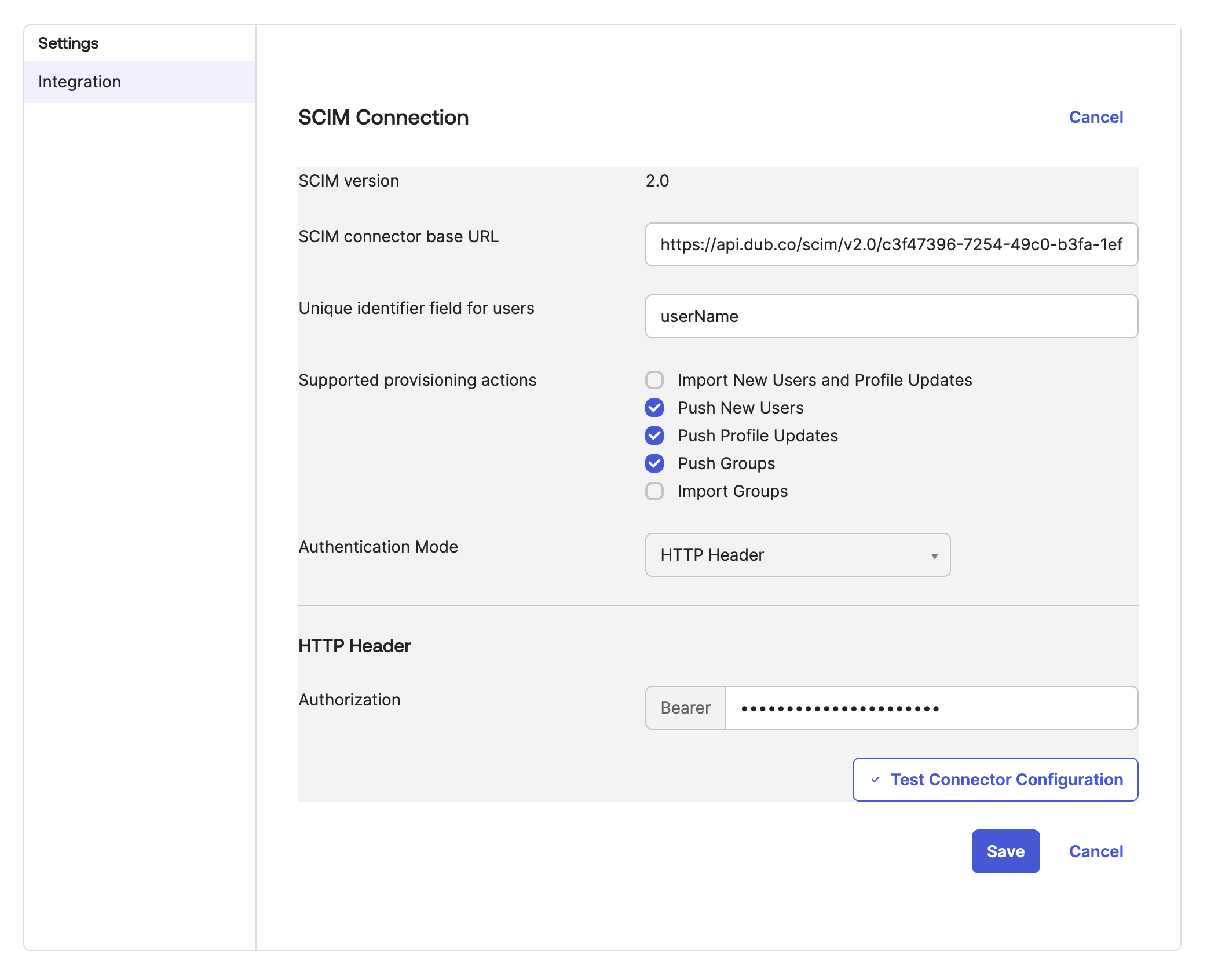 Click "Test Connector Configuration" to verify that the connection is working, and then click "Save".
## Step 3: Configure Provisioning Actions
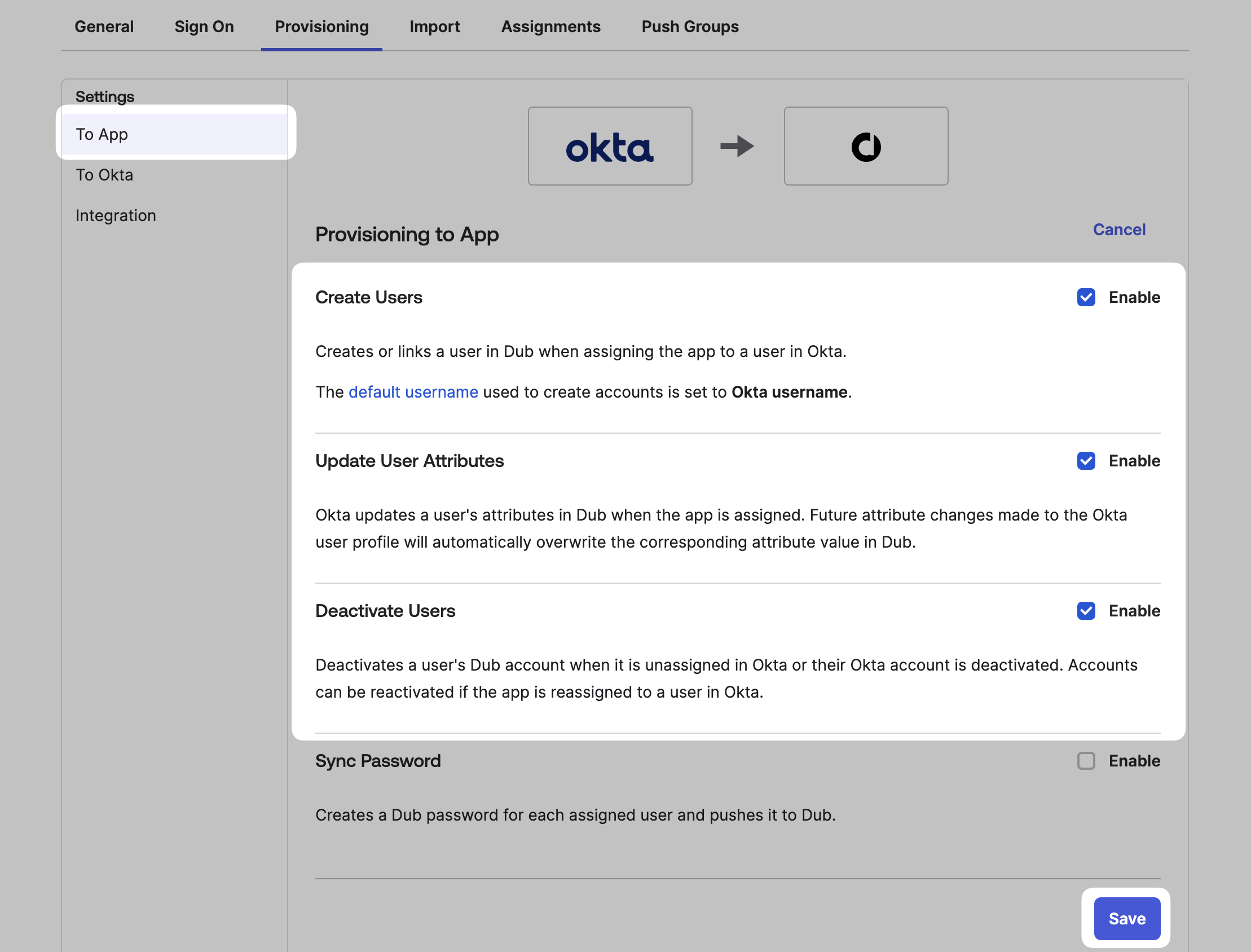
Under the **To App** section, click **Edit**.
Check the following options, and click **Save**:
* Create Users
* Update User Attributes
* Deactivate Users
Click "Test Connector Configuration" to verify that the connection is working, and then click "Save".
## Step 3: Configure Provisioning Actions
Under the **To App** section, click **Edit**.
Check the following options, and click **Save**:
* Create Users
* Update User Attributes
* Deactivate Users
 ## Step 4: Assign Users
Once you've configured Directory sync, you can assign users to Dub directly within Okta.
Click on the **Assignments** tab, and click **Assign**. You can choose to assign users individually, or assign them in bulk by group.
## Step 4: Assign Users
Once you've configured Directory sync, you can assign users to Dub directly within Okta.
Click on the **Assignments** tab, and click **Assign**. You can choose to assign users individually, or assign them in bulk by group.
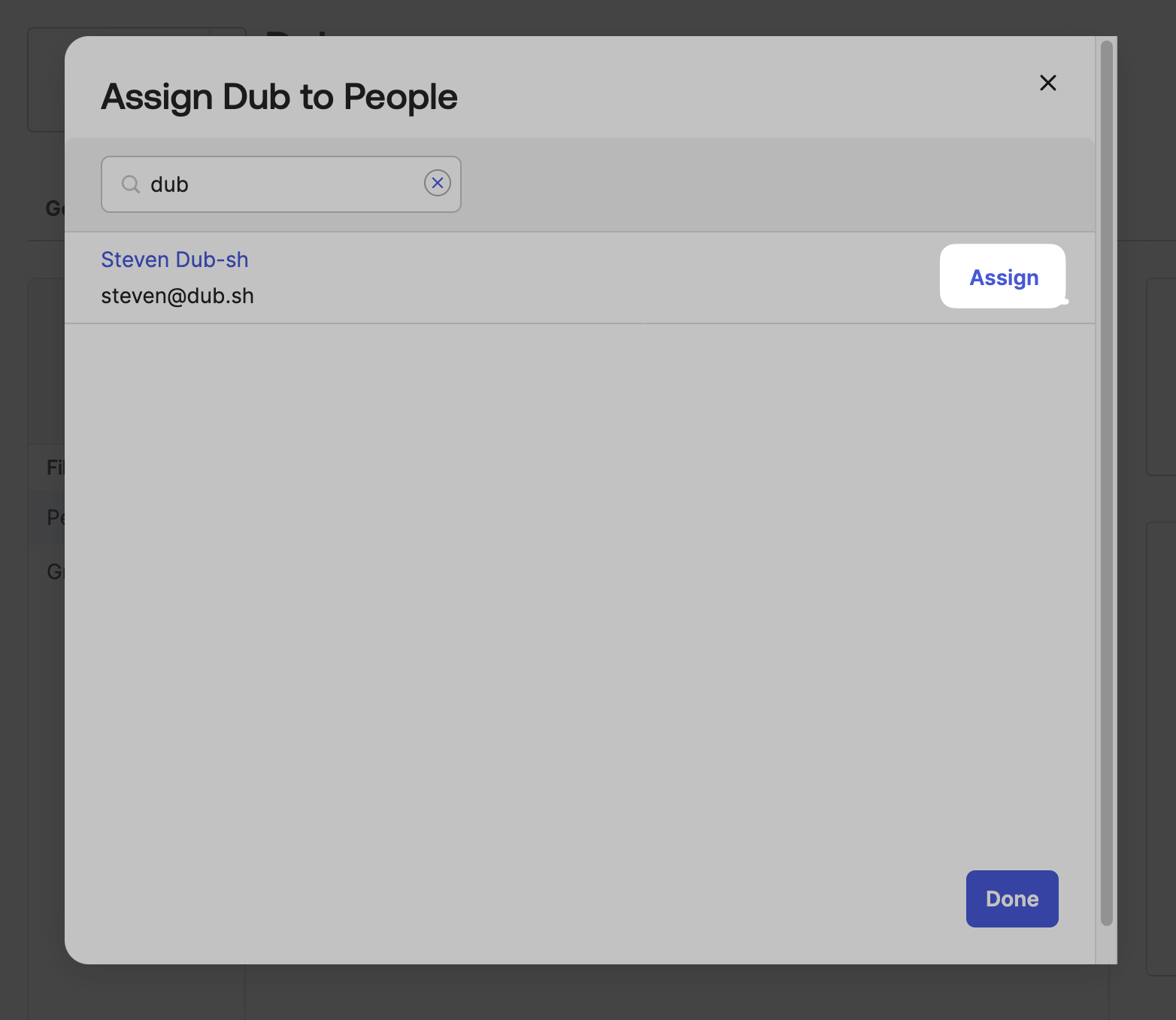
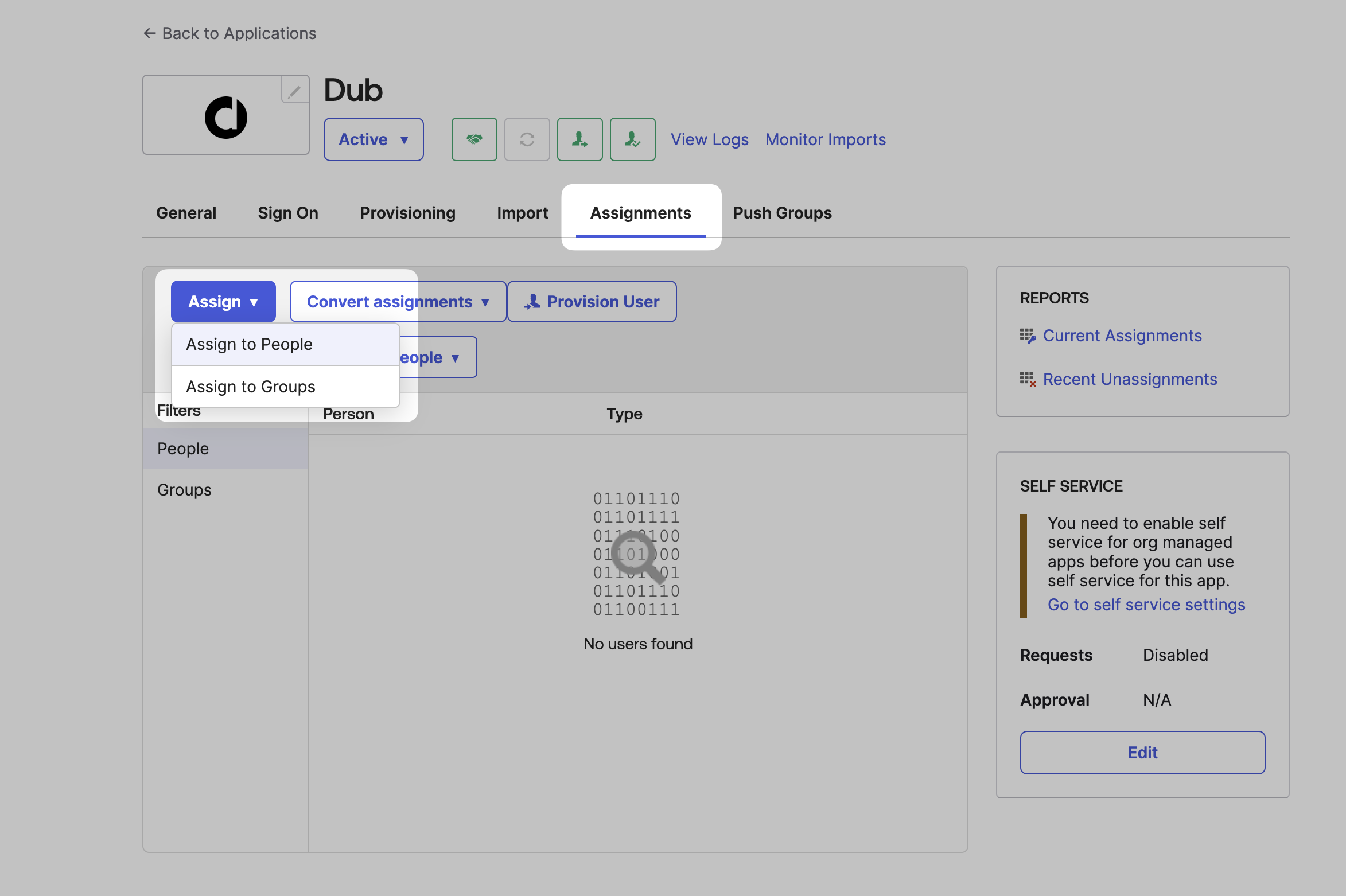 Select the users or groups you want to assign and click **Assign**.
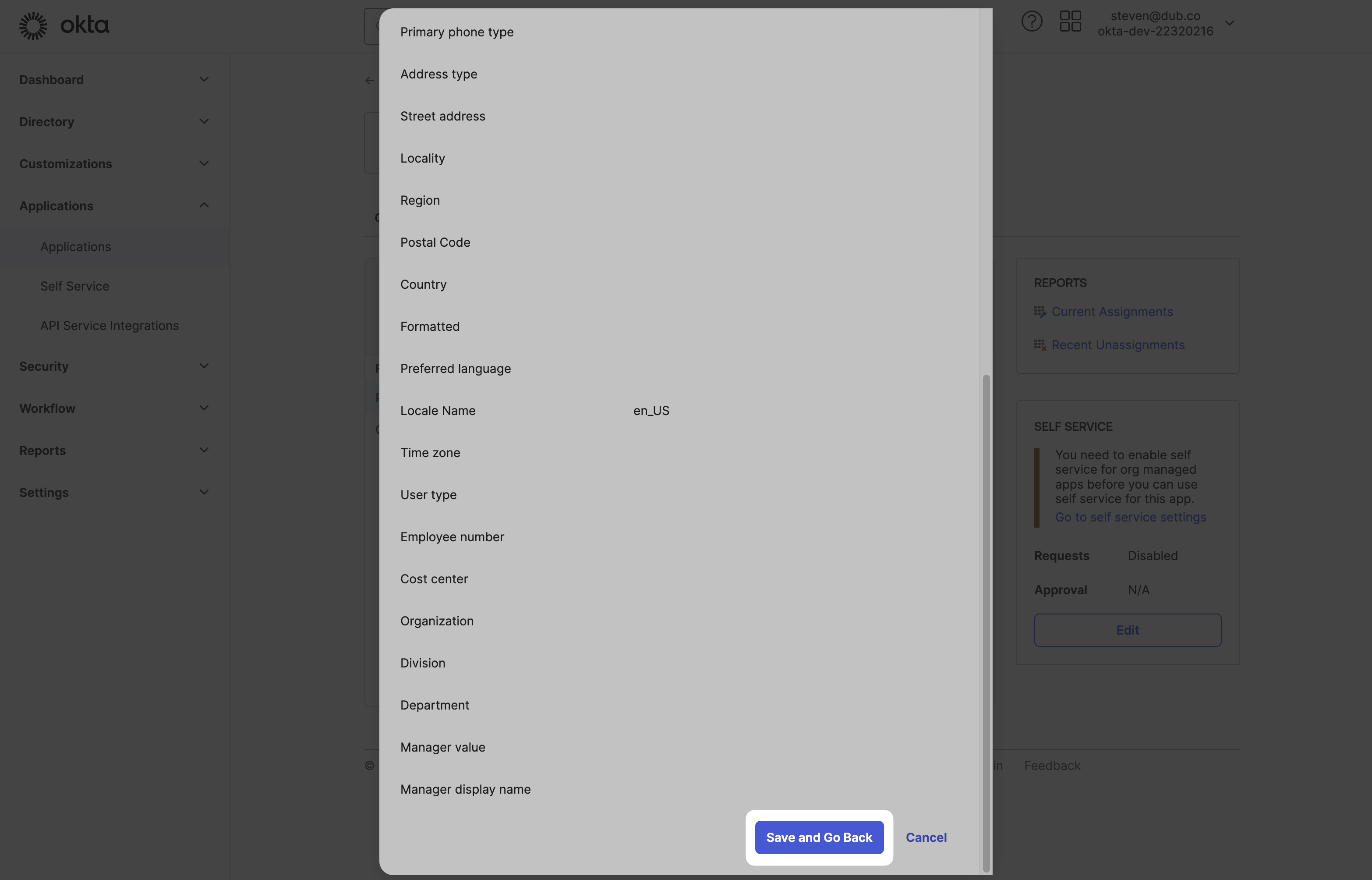
 In the next screen, scroll to the bottom and click **Save and Go Back**.
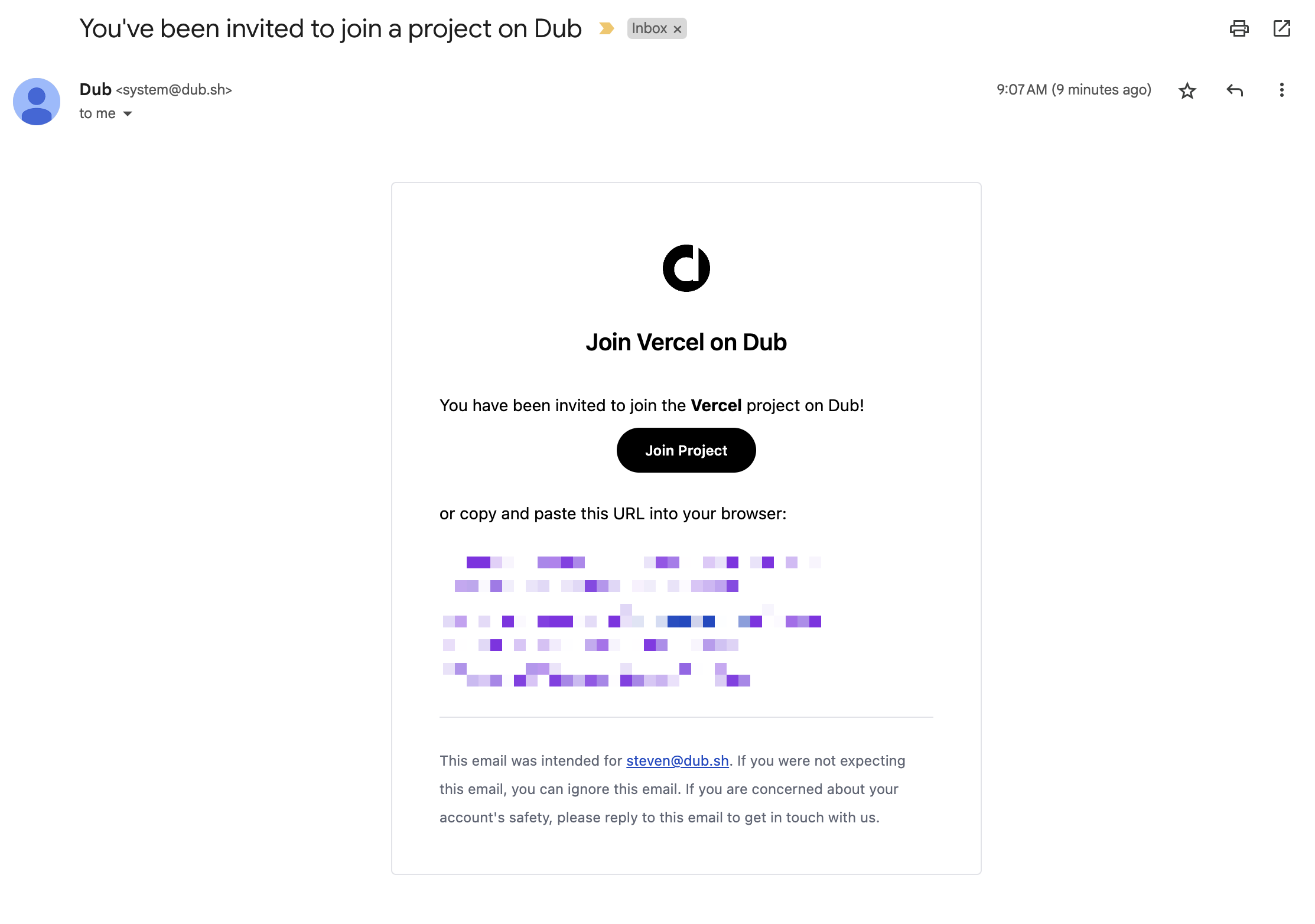
 Your assigned users should now receive an invitation email to join your Dub workspace.
 They will also be able to sign in to Dub using Okta SSO.