> ## Documentation Index
> Fetch the complete documentation index at: https://dub.co/llms.txt
> Use this file to discover all available pages before exploring further.
# Messaging your partners
> Learn how to use the messaging center to communicate with your partners in real time, with email notifications & read statuses built in.
export const VideoPlayer = ({src, aspectRatio = "16/9", thumbnail, title, youtubeHref, className = ""}) => {
const [playing, setPlaying] = useState(false);
if (playing) {
return
;
}
return ;
};
This feature is only available on [Advanced plans and
above](https://dub.co/pricing/partners).
On Dub, you can use the Messaging Center to communicate directly with the partners in your program. Partners get notified via email and can respond to your messages in real-time.
## Messages location
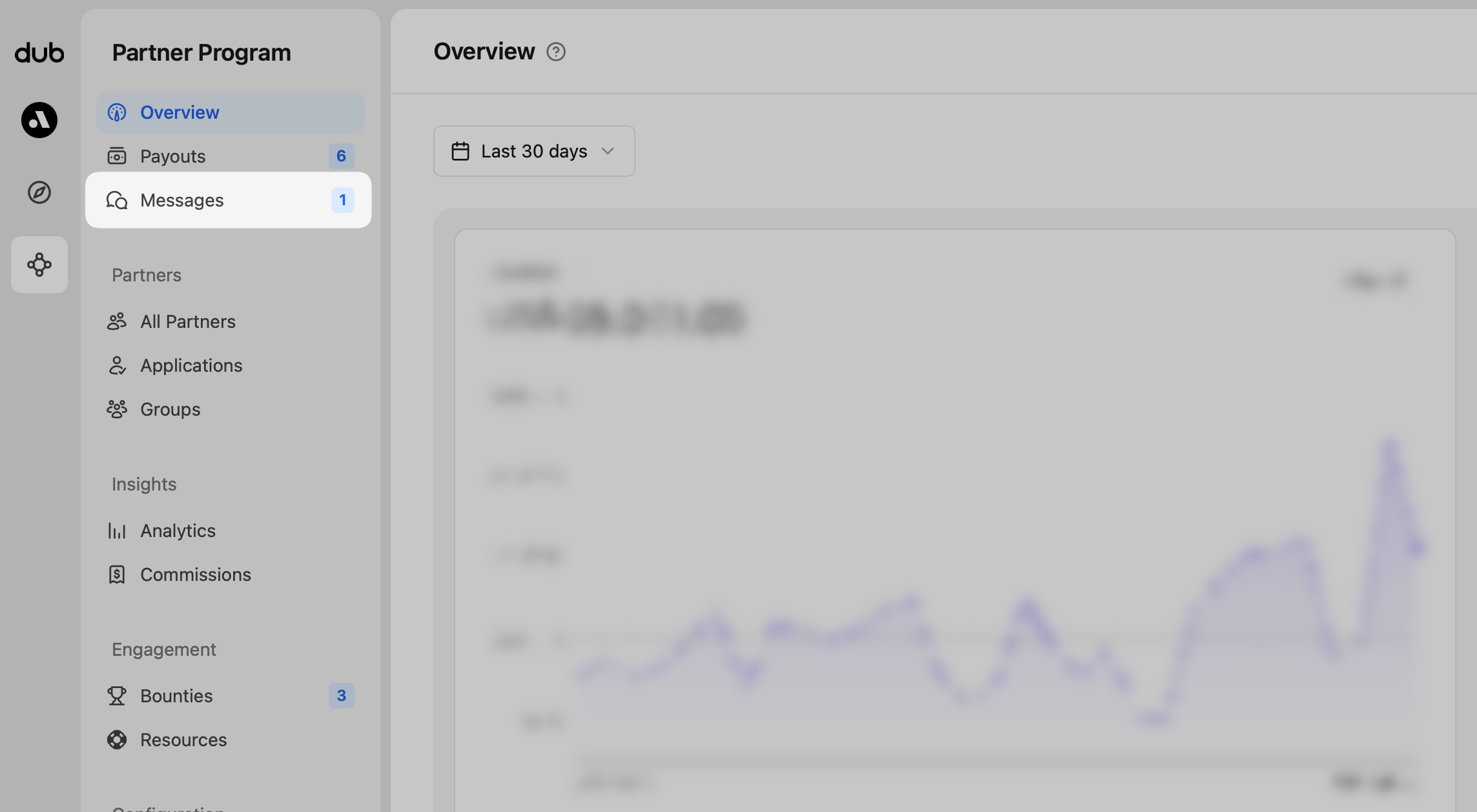
In your program navigation, click **Messages** to see your inbox and compose new messages.
## Messages overview
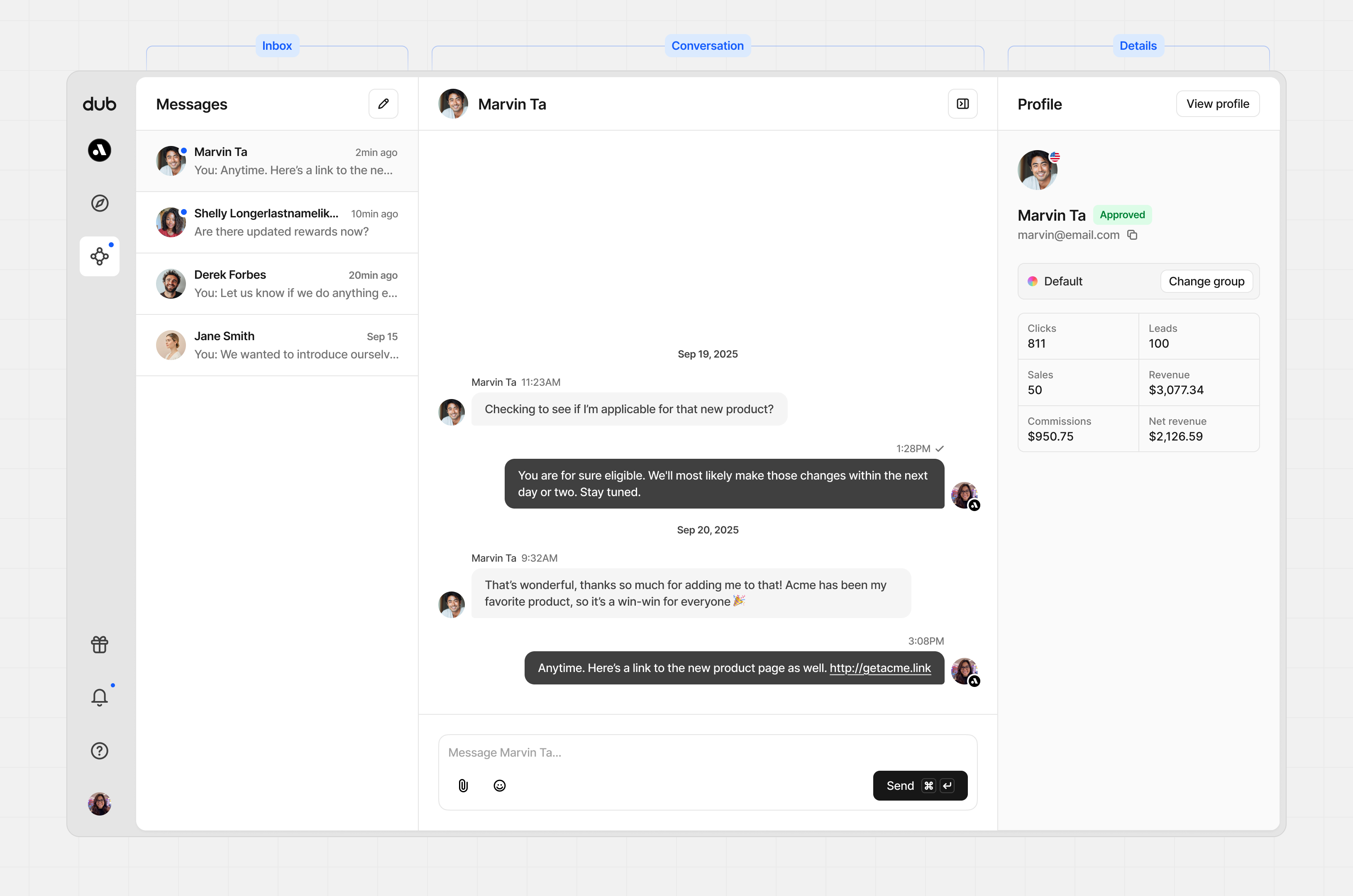
The messaging center has three panels:
| Panel | Content |
| ------------ | ----------------------------------------------- |
| Inbox | All your conversations in one place. |
| Conversation | The full thread with your selected partner. |
| Details | Key info and performance stats for the partner. |
### Inbox panel
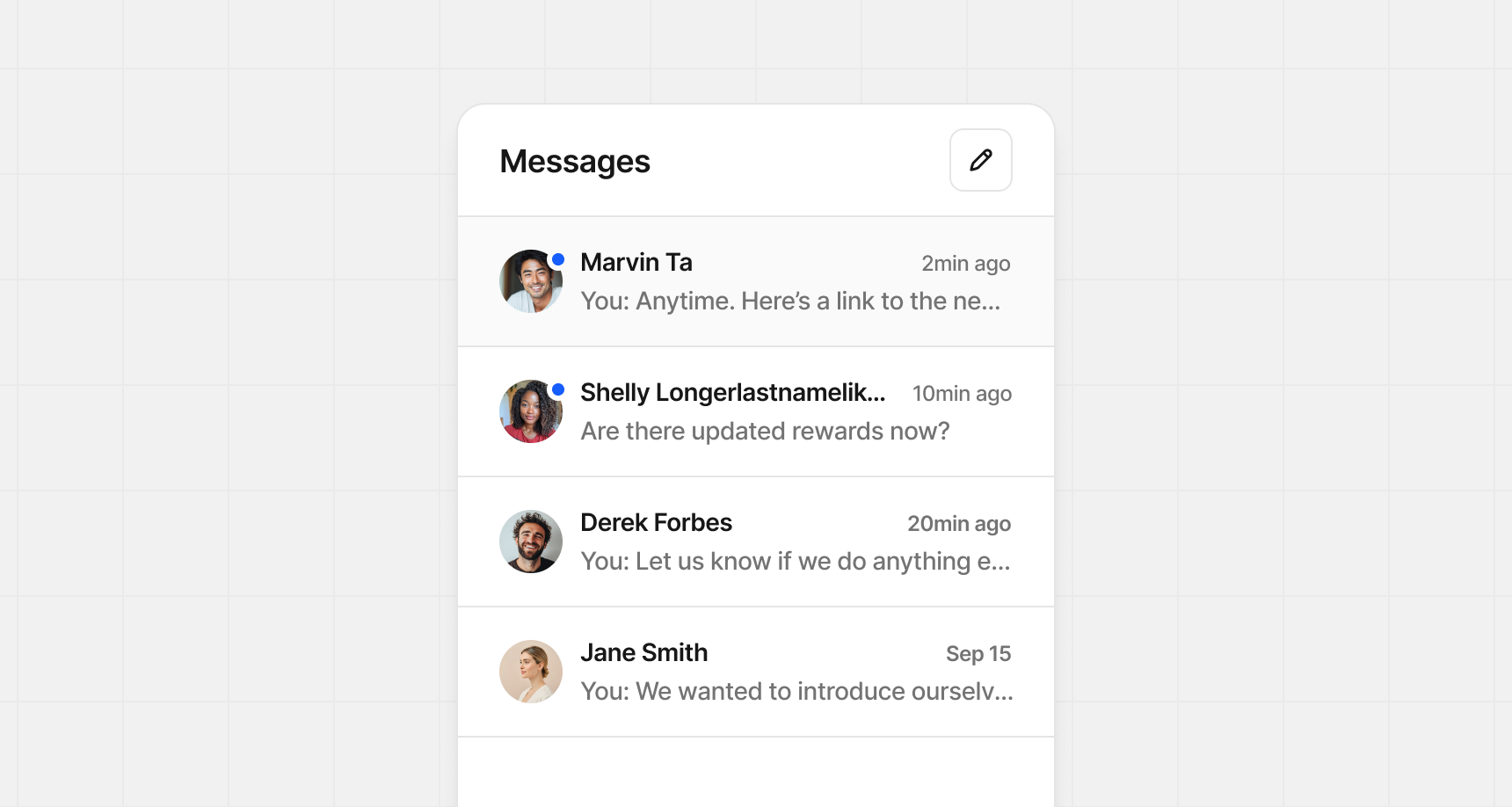
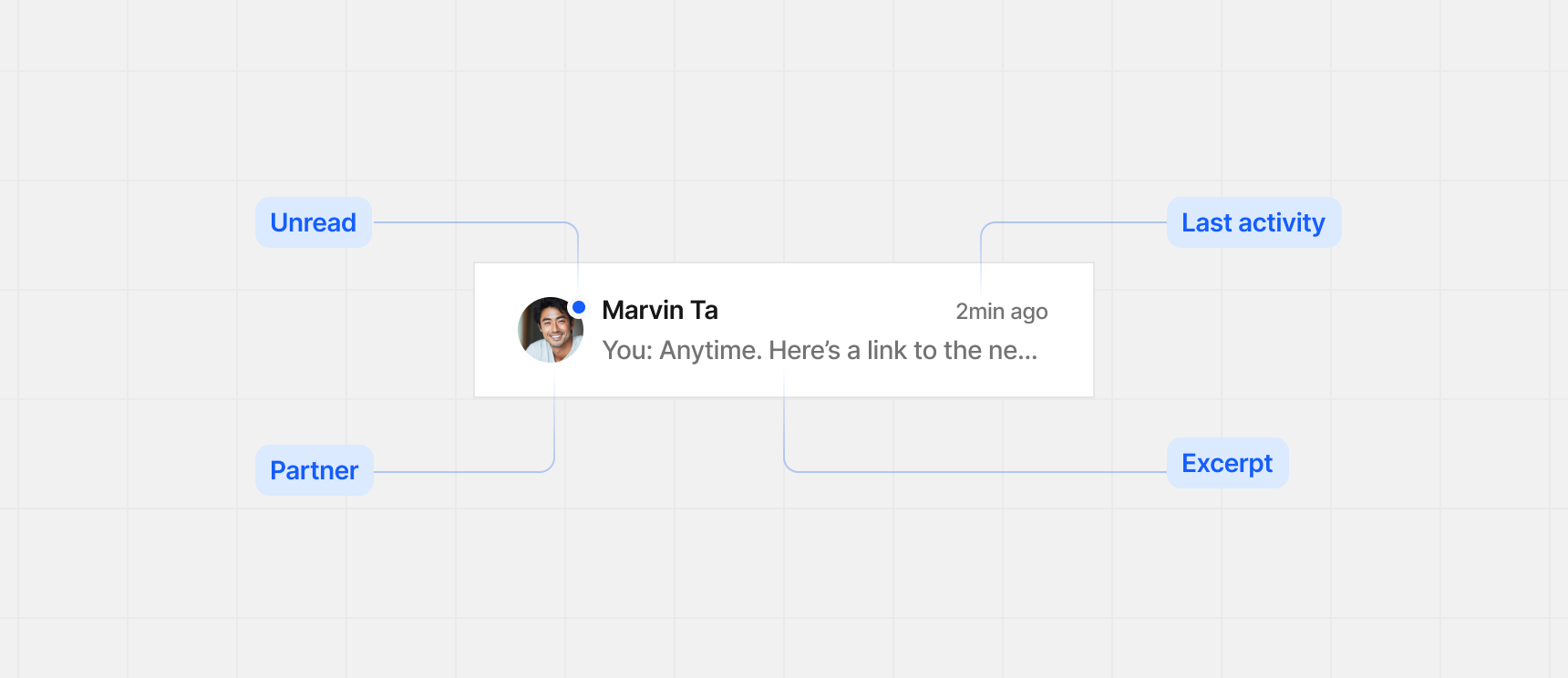
Your Inbox lists every conversation with your partners. Select one to pick up where you left off, or click the **Pencil** button in the top right to compose something new.
Each conversation row shows:
* **Unread indicator** – shows if you’ve read the message
* **Partner** – partner’s name and profile image
* **Last activity** – most recent message from you or the partner
* **Excerpt** – short preview of the latest message
### Conversation panel
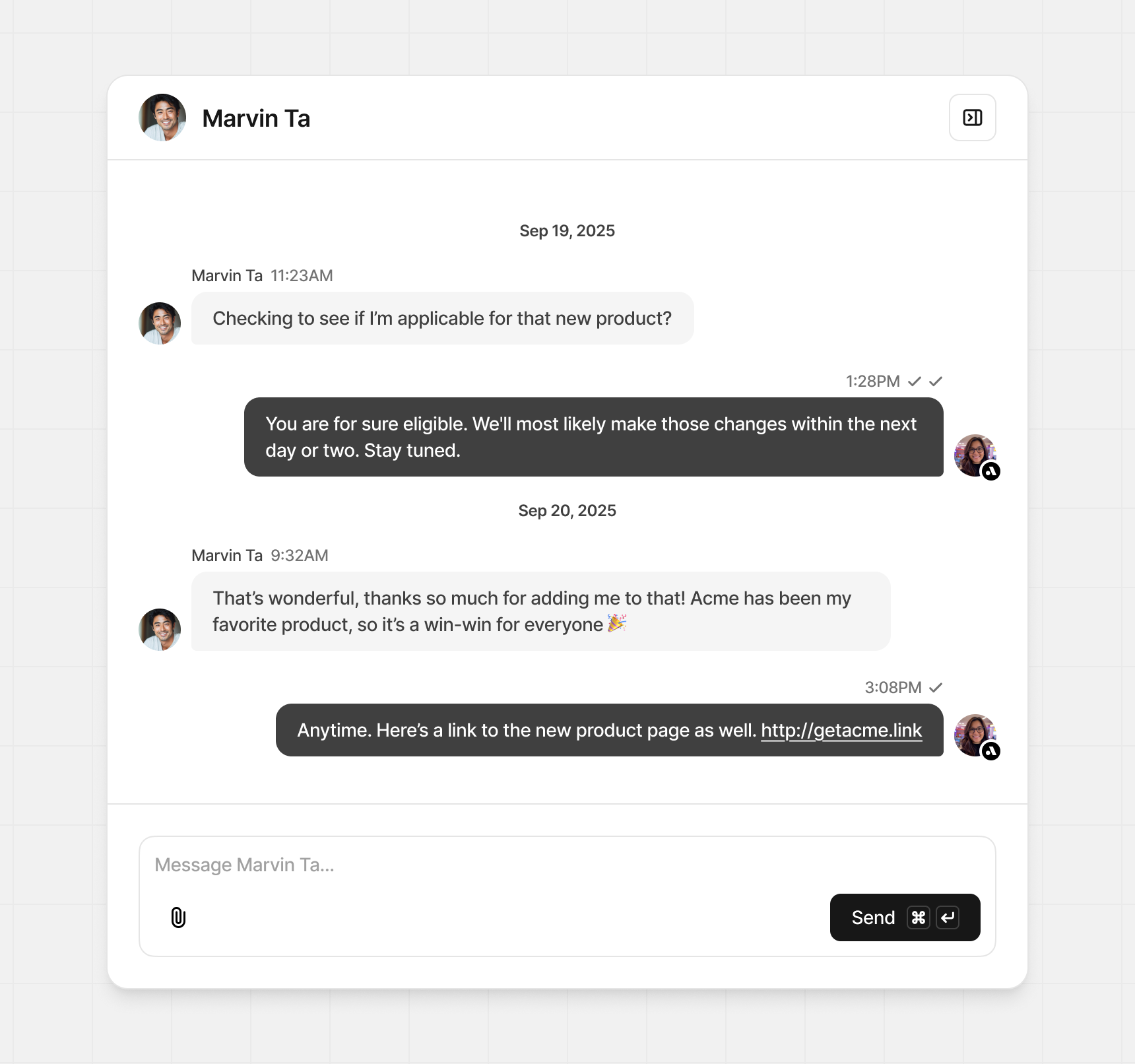
In the Conversation panel, you’ll see the full thread with your partner. Workspace members can reply too, with their profile images shown beside each message.
### Message status
Each message sent has a check mark next to the send time:
* **Single check mark** – delivered
* **Double check marks** – delivered and read
(either in email or in the app)
### Details panel
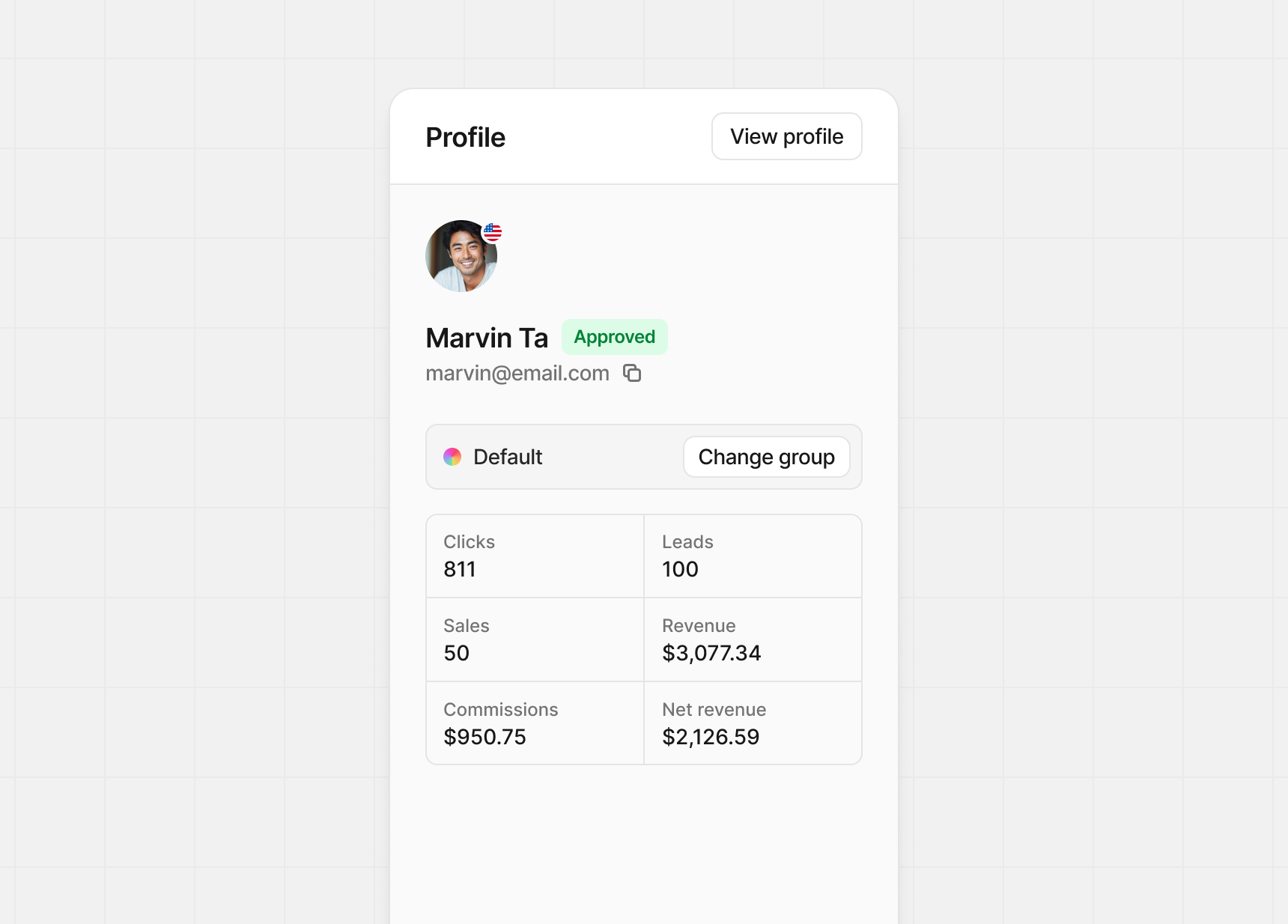
The details panel is collapsible and shows partner information and performance stats. You can also change their program group here.
## Disabling messaging
If you prefer to handle support outside Dub, you can disable partner messaging.
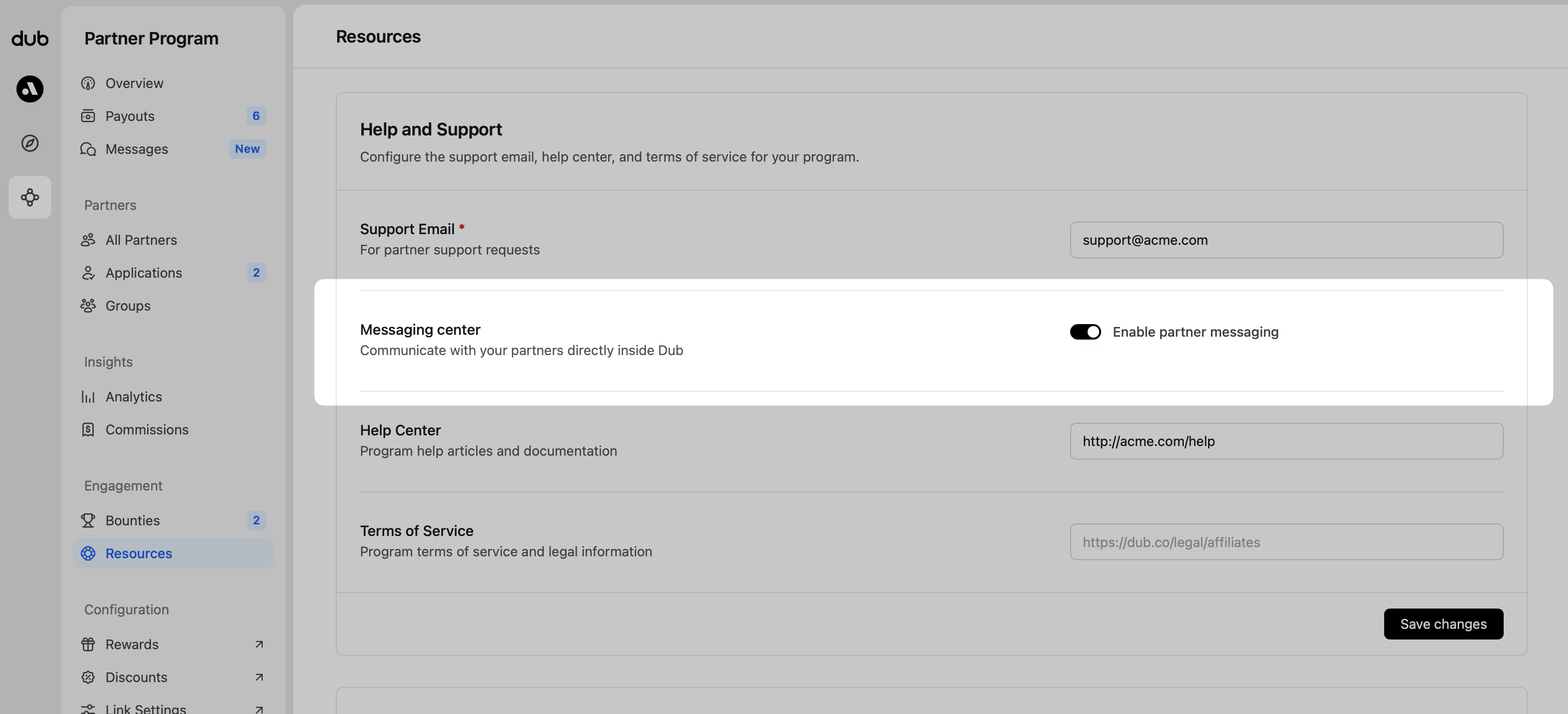
To disable messaging, head to your program **Resources** and in the **Help and Support** section, click the switch to off to disable partner messaging.
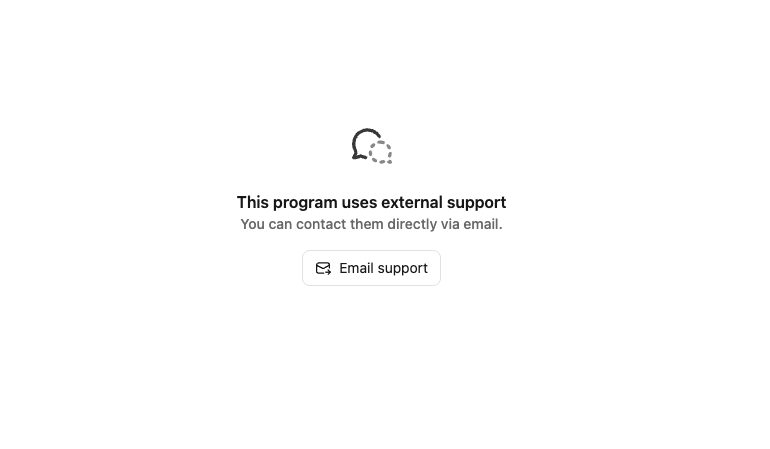
When messaging is disabled, partners who try to message you will see your support email address instead:
 ## Messages overview
The messaging center has three panels:
## Messages overview
The messaging center has three panels:
 | Panel | Content |
| ------------ | ----------------------------------------------- |
| Inbox | All your conversations in one place. |
| Conversation | The full thread with your selected partner. |
| Details | Key info and performance stats for the partner. |
### Inbox panel
Your Inbox lists every conversation with your partners. Select one to pick up where you left off, or click the **Pencil** button in the top right to compose something new.
| Panel | Content |
| ------------ | ----------------------------------------------- |
| Inbox | All your conversations in one place. |
| Conversation | The full thread with your selected partner. |
| Details | Key info and performance stats for the partner. |
### Inbox panel
Your Inbox lists every conversation with your partners. Select one to pick up where you left off, or click the **Pencil** button in the top right to compose something new.
 Each conversation row shows:
* **Unread indicator** – shows if you’ve read the message
* **Partner** – partner’s name and profile image
* **Last activity** – most recent message from you or the partner
* **Excerpt** – short preview of the latest message
Each conversation row shows:
* **Unread indicator** – shows if you’ve read the message
* **Partner** – partner’s name and profile image
* **Last activity** – most recent message from you or the partner
* **Excerpt** – short preview of the latest message
 ### Conversation panel
In the Conversation panel, you’ll see the full thread with your partner. Workspace members can reply too, with their profile images shown beside each message.
### Conversation panel
In the Conversation panel, you’ll see the full thread with your partner. Workspace members can reply too, with their profile images shown beside each message.
 ### Message status
Each message sent has a check mark next to the send time:
* **Single check mark** – delivered
* **Double check marks** – delivered and read
(either in email or in the app)
### Details panel
The details panel is collapsible and shows partner information and performance stats. You can also change their program group here.
### Message status
Each message sent has a check mark next to the send time:
* **Single check mark** – delivered
* **Double check marks** – delivered and read
(either in email or in the app)
### Details panel
The details panel is collapsible and shows partner information and performance stats. You can also change their program group here.
 ## Disabling messaging
If you prefer to handle support outside Dub, you can disable partner messaging.
To disable messaging, head to your program **Resources** and in the **Help and Support** section, click the switch to off to disable partner messaging.
## Disabling messaging
If you prefer to handle support outside Dub, you can disable partner messaging.
To disable messaging, head to your program **Resources** and in the **Help and Support** section, click the switch to off to disable partner messaging.
 When messaging is disabled, partners who try to message you will see your support email address instead: