> ## Documentation Index
> Fetch the complete documentation index at: https://dub.co/llms.txt
> Use this file to discover all available pages before exploring further.
# Merging your partner accounts
> Learn how to merge one of your partner accounts with another, to keep things organized and better managed.
Merging your accounts is a permanent action and cannot be undone once it's complete.
## Reasons to merge accounts
There are some reasons why you want to merge your partner accounts on Dub:
* **Consolidate accounts:** You were enrolled in 2 affiliate programs on Dub under different emails.
* **Simplify management**: You want to be able to manage your payouts, programs, and reporting all from one place.
* **Stay compliant**: For compliance reasons, having multiple partner accounts on Dub is strictly prohibited [as per our terms](https://dub.co/legal/partners). We recommend merging your partner accounts to stay compliant.
## What merges?
All of the following merge with this action:
* [](/help/article/commissions-payouts#payout-statuses)[Enrolled programs](/help/article/navigating-partner-program)
* [Referral links](/help/article/navigating-partner-program#links)
* [Analytics](/help/article/navigating-partner-program#analytics) (clicks, leads, and sales data)
* [Commissions](/help/article/commissions-payouts#commission-statuses)
* [Payouts](/help/article/commissions-payouts#payout-statuses)
## What doesn't merge?
* [Profile info](/help/article/partner-profile)
* [Website and social accounts](/help/article/partner-profile#website-and-socials)
* [Connected payout methods](/help/article/receiving-payouts)
* Duplicate bounty submissions (the ones on the source account will be deleted)
## Where to find the merge option
From your **Partner info** page, click **Merge accounts** in the top right, next to **Save changes**.
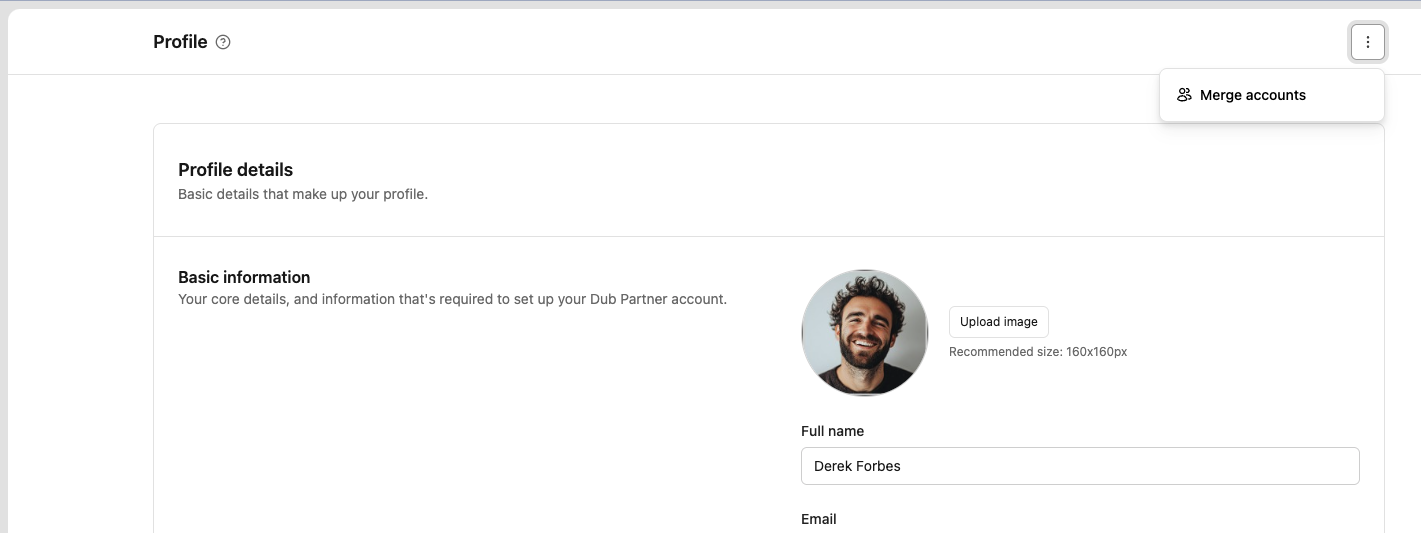 Clicking this will open a dialog window that has 3 steps to merging your account.
## Steps to merge
Enter the email addresses of the accounts you'd like to merge. You'll need to have access to both email accounts to verify them.
Clicking this will open a dialog window that has 3 steps to merging your account.
## Steps to merge
Enter the email addresses of the accounts you'd like to merge. You'll need to have access to both email accounts to verify them.
 There are two fields to complete:
* **Source account** - the email address of the account you want to merge into the `target account`
* **Target account** - the email address of the account you want the `source account` to merge into
Once these have been added, click **Send codes** to continue the verification process.
We'll send an email to each address with a OTP (one-time password) that will be input on this step.
The emails will look like this:
There are two fields to complete:
* **Source account** - the email address of the account you want to merge into the `target account`
* **Target account** - the email address of the account you want the `source account` to merge into
Once these have been added, click **Send codes** to continue the verification process.
We'll send an email to each address with a OTP (one-time password) that will be input on this step.
The emails will look like this:
 Enter the OTP for each email address into their required field, and click
**Verify accounts** to confirm the codes.
Enter the OTP for each email address into their required field, and click
**Verify accounts** to confirm the codes.
 This is the final step to confirm the accounts are correct and that you still want to merge. At this point, you're still able to cancel the merge, and nothing will change.
If everything looks good, click **Merge accounts**, and the merge will be completed instantly.
This is the final step to confirm the accounts are correct and that you still want to merge. At this point, you're still able to cancel the merge, and nothing will change.
If everything looks good, click **Merge accounts**, and the merge will be completed instantly.
 After the merge is complete, an email will be sent to both accounts confirming the merger.