> ## Documentation Index
> Fetch the complete documentation index at: https://dub.co/llms.txt
> Use this file to discover all available pages before exploring further.
# Inviting your partner team
> Learn how to invite team members, assign roles, and manage access to your partner profile on Dub.
On Dub, Partner teams let you share access to your [Dub partner profile](/help/article/partner-profile) with the people you work with. This is useful for creators, agencies, or anyone who wants more than one person managing partner activity.
## Where to manage your team
To manage your partner team, select the **Partner profile** icon in the left sidebar, then navigate to the **Members** tab.
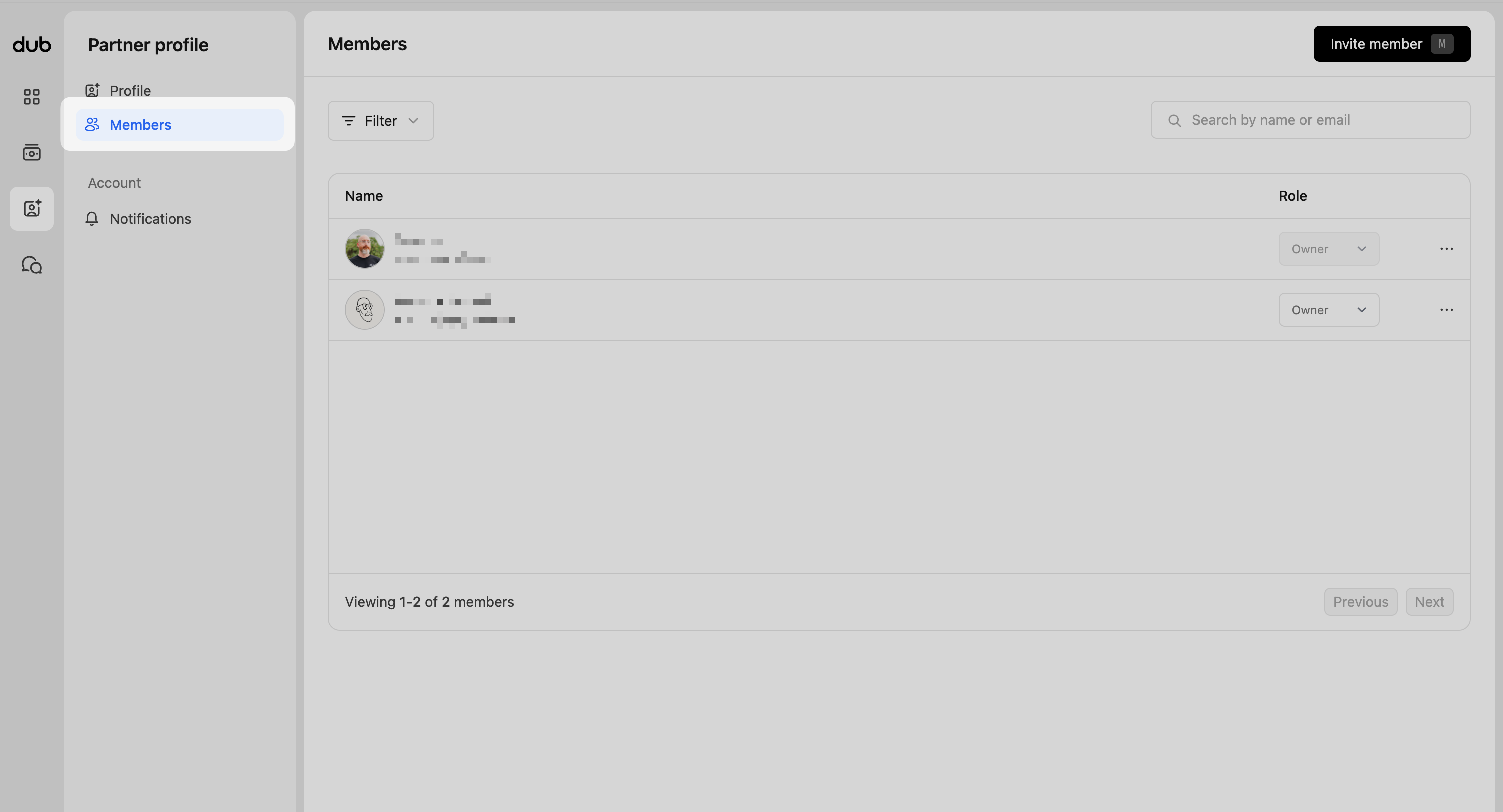 This view lists everyone with access, including their email and assigned role.
## Roles and permissions
Partner team members support two role types: owner and member.
### Owner
The Owner has full control of the partner account. This includes:
* [Updating partner profile settings](/help/article/partner-profile)
* Managing team members (inviting and removing members)
* [Managing payout details](/help/article/receiving-payouts)
### Member
Members have standard access. They can view and manage partner activity across all programs, but cannot manage team members or payout details.
## Inviting a new member
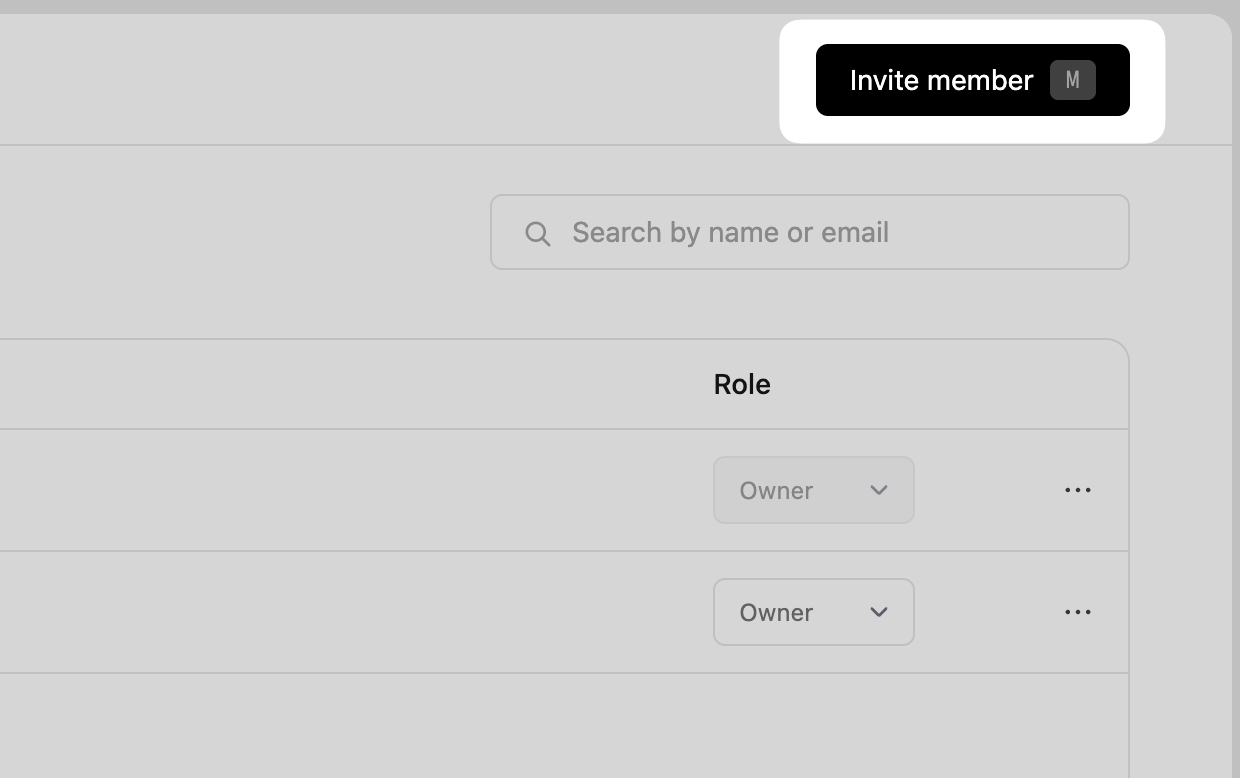
To invite a new member to your partner team, click the **Invite member** button in the top right.
This view lists everyone with access, including their email and assigned role.
## Roles and permissions
Partner team members support two role types: owner and member.
### Owner
The Owner has full control of the partner account. This includes:
* [Updating partner profile settings](/help/article/partner-profile)
* Managing team members (inviting and removing members)
* [Managing payout details](/help/article/receiving-payouts)
### Member
Members have standard access. They can view and manage partner activity across all programs, but cannot manage team members or payout details.
## Inviting a new member
To invite a new member to your partner team, click the **Invite member** button in the top right.
 Enter the member's email address, and select their role. You can invite more than one member at a time, and they'll each receive their own invite email to accept membership.
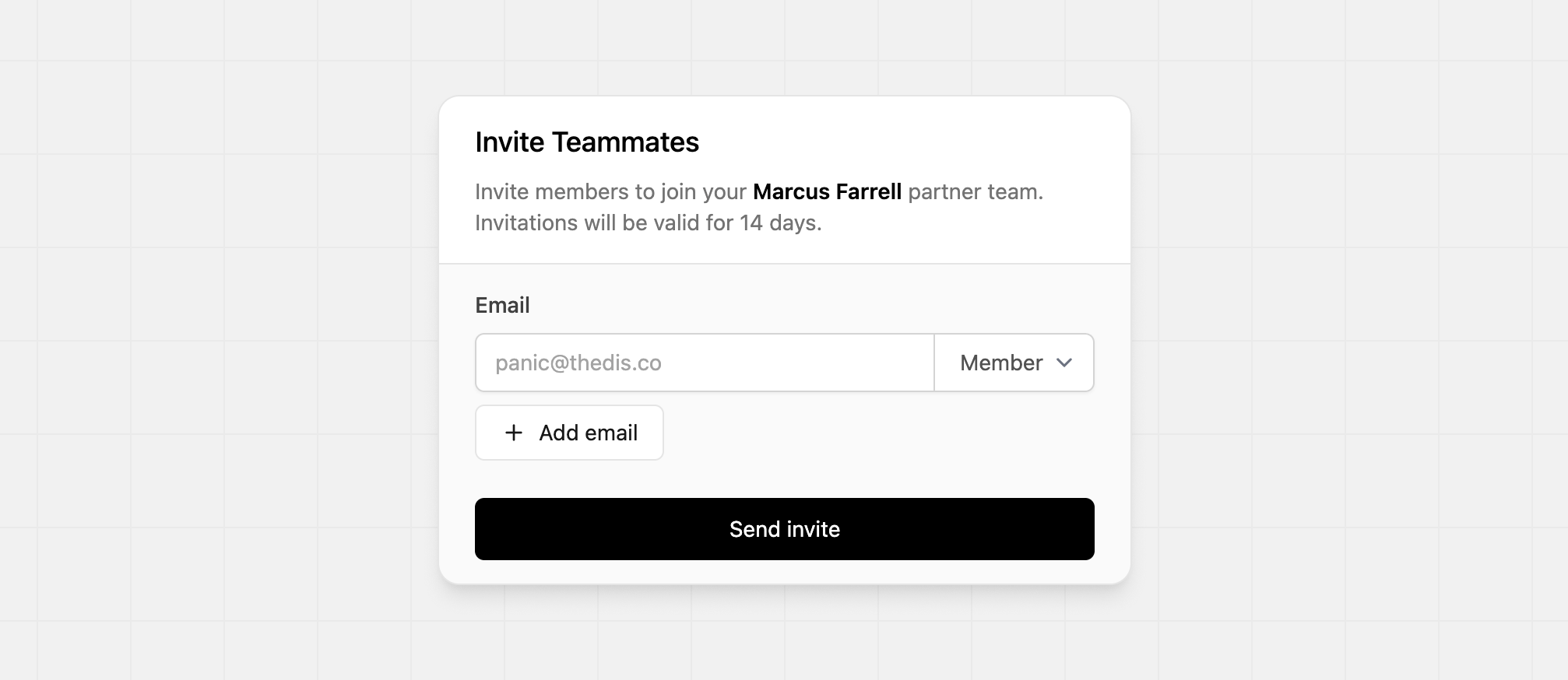 You can only invite up to 10 teammates per partner team.
## Changing a role
Only Owner-roled members in a partner team can change another member’s role. To change a member's role, click the role dropdown in the members table and select a new role.
You can only invite up to 10 teammates per partner team.
## Changing a role
Only Owner-roled members in a partner team can change another member’s role. To change a member's role, click the role dropdown in the members table and select a new role.
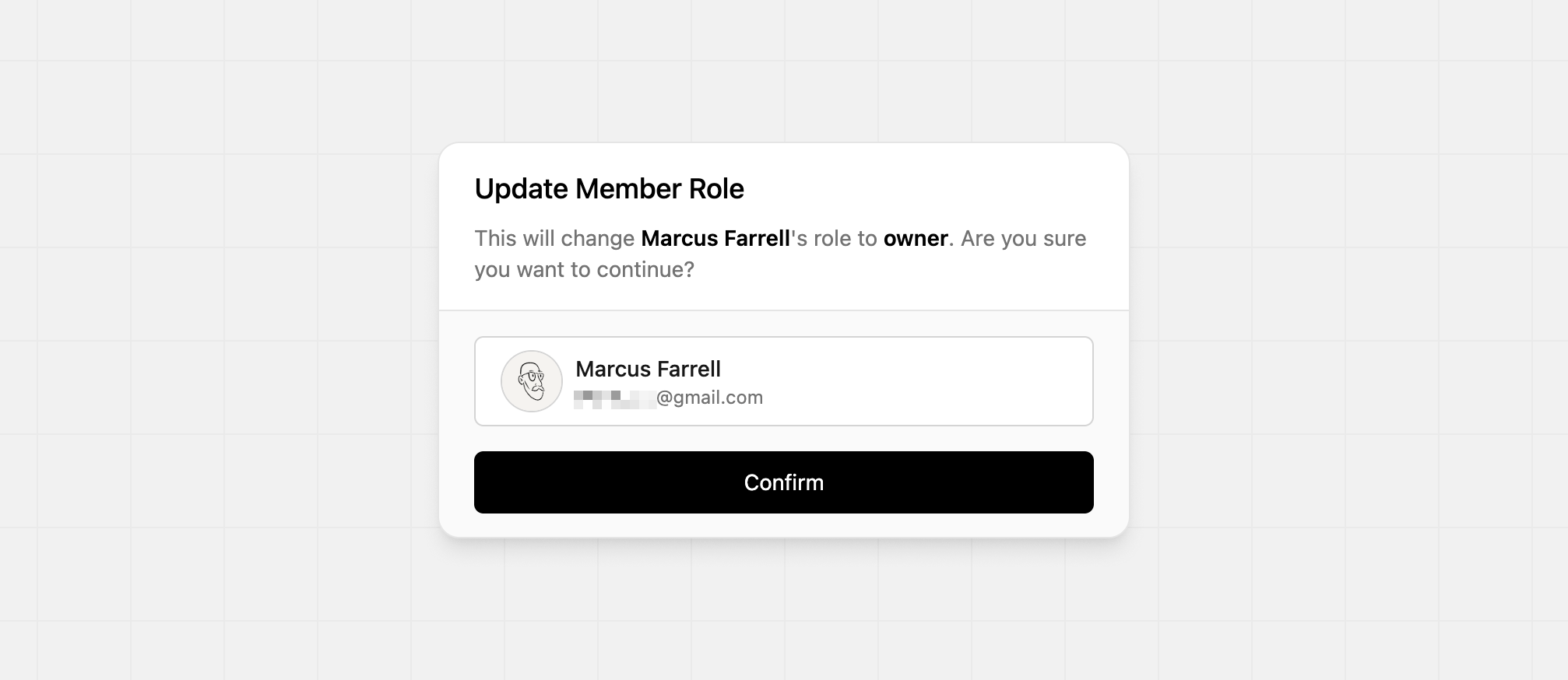
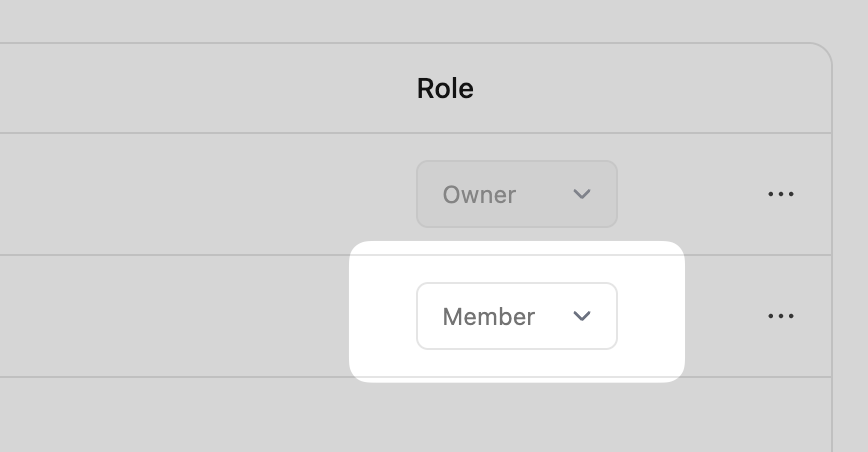 This will open the confirmation modal, where you can confirm the update:
 ## Removing a member
To remove a member from your team, click the `⋯` dropdown and select **Remove member**.
## Removing a member
To remove a member from your team, click the `⋯` dropdown and select **Remove member**.
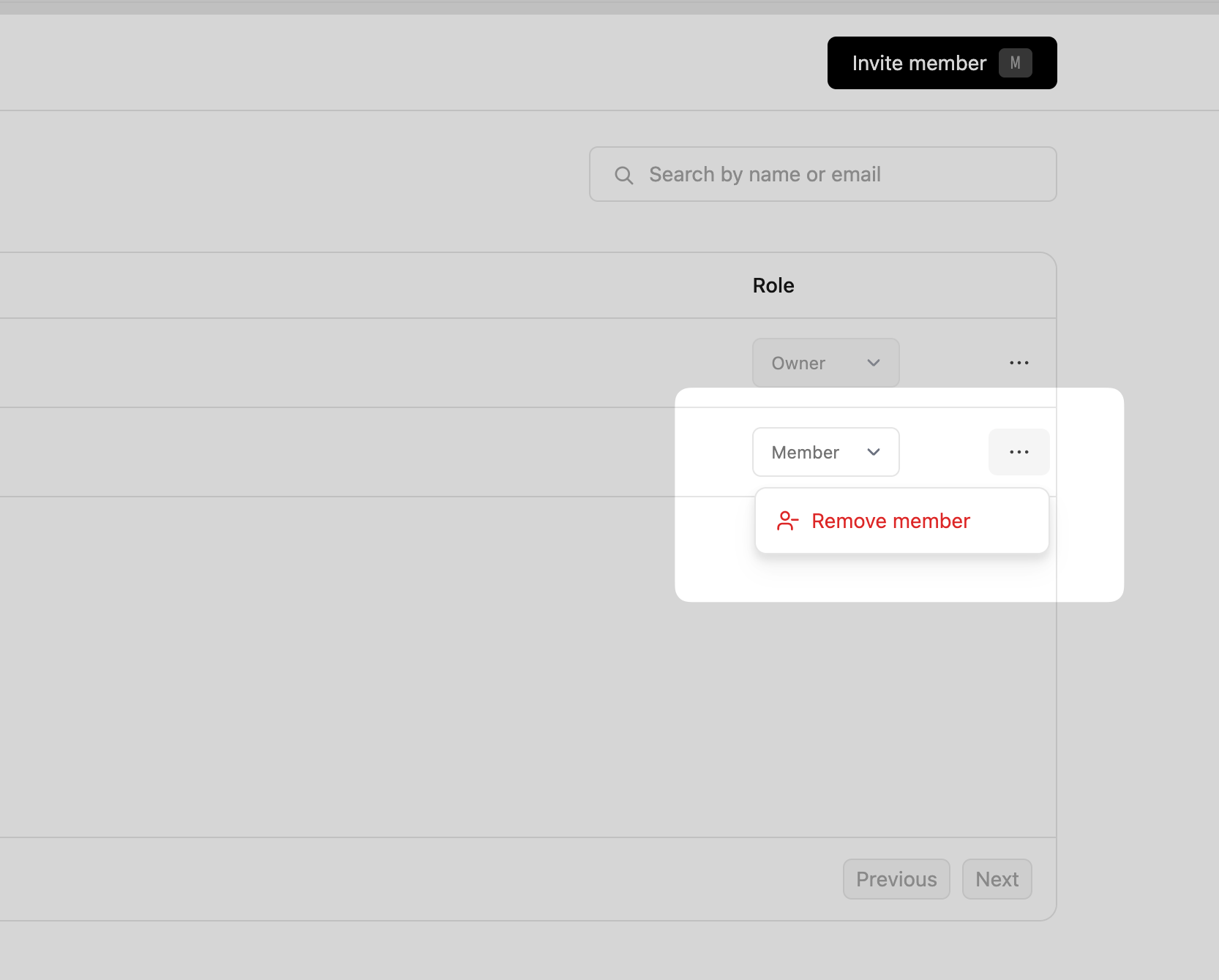 This deletes the team member, and the person can no longer sign in to your partner profile.