> ## Documentation Index
> Fetch the complete documentation index at: https://dub.co/llms.txt
> Use this file to discover all available pages before exploring further.
# How to use Dub to shorten links on a subpath
> Learn how to configure Dub to handle redirects on a subpath of an existing domain.
With Dub, you can easily set up redirects on a subpath of an existing domain.
This is useful if you are already using the domain for your website/app and only want to use Dub for a specific subpath.
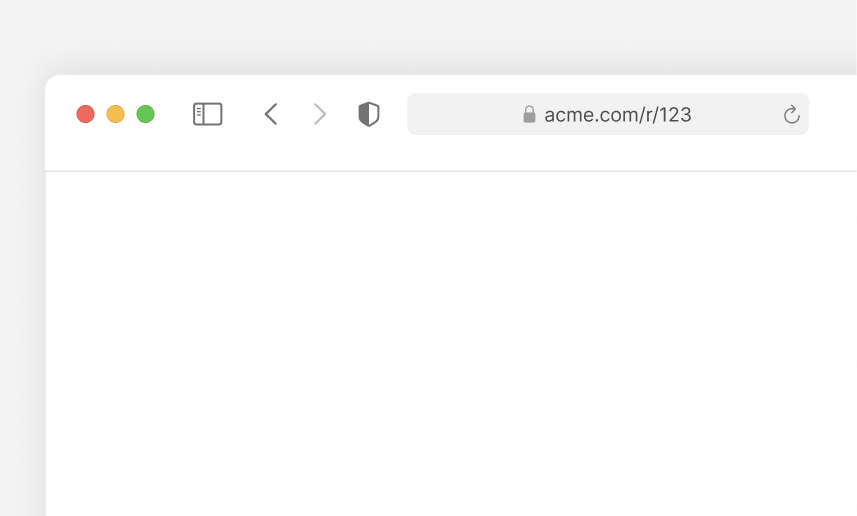
For example, if you have a website at `acme.com` and want to add link-sharing features under `acme.com/r/` (e.g. `acme.com/r/123`), you can use Dub to handle the redirects for this subpath without affecting the rest of your website.
## Step 1: Add a subdomain to Dub
First, you need to add a subdomain of your existing domain to Dub.
For example, if your domain is `acme.com`, you can add a subdomain like `r.acme.com`.
You can follow [these steps](/help/article/how-to-add-custom-domain#step-2b-adding-a-subdomain) to add a subdomain to Dub.
## Step 2: Configure rewrites/redirects
Once you've added the subdomain, you can use rewrites or redirects to mask the subdomain and handle the redirects on the subpath.
 There are a few ways to configure this, depending on your application framework/hosting provider.
## Using Next.js
If you are using [Next.js](https://nextjs.org/), you can use the [`rewrites` property](https://nextjs.org/docs/app/api-reference/next-config-js/rewrites) in your `next.config.js` file to configure subpath redirects.
```javascript title="next.config.js" theme={null}
module.exports = {
async rewrites() {
return [
{
source: "/r/:path*",
destination: "https://r.acme.com/:path*",
},
];
},
};
```
## Using Nuxt
If you are using [Nuxt](https://nuxt.com/), you can use Nuxt's [server route](https://nuxt.com/docs/guide/directory-structure/server#server-routes) feature to configure subpath redirects.
First, create a new catch-all route in the respective subpath: `server/routes/r/[...slug].ts`
Then, in the route, add the following code:
```javascript title="server/routes/r/[...slug].ts" theme={null}
export default defineEventHandler(async (event) => {
const dubPath = getRouterParam(event, "slug");
await sendRedirect(event, `https://r.acme.com/${dubPath}`, 301); // use whatever status code you need
});
```
## Using Vercel
If you're using [Vercel](https://vercel.com/), you can use the [`rewrites` property](https://vercel.com/docs/edge-network/rewrites) in your `vercel.json` file to configure subpath redirects.
```json title="vercel.json" theme={null}
{
"rewrites": [
{
"source": "/r/:path*",
"destination": "https://r.acme.com/:path*"
}
]
}
```
## Using Netlify
If you're using [Netlify](https://www.netlify.com/), you can use the `redirects` property in your `_redirects` file to configure subpath redirects.
```plaintext title="_redirects" theme={null}
/r/* https://r.acme.com/:splat 200
```
## Using Cloudflare
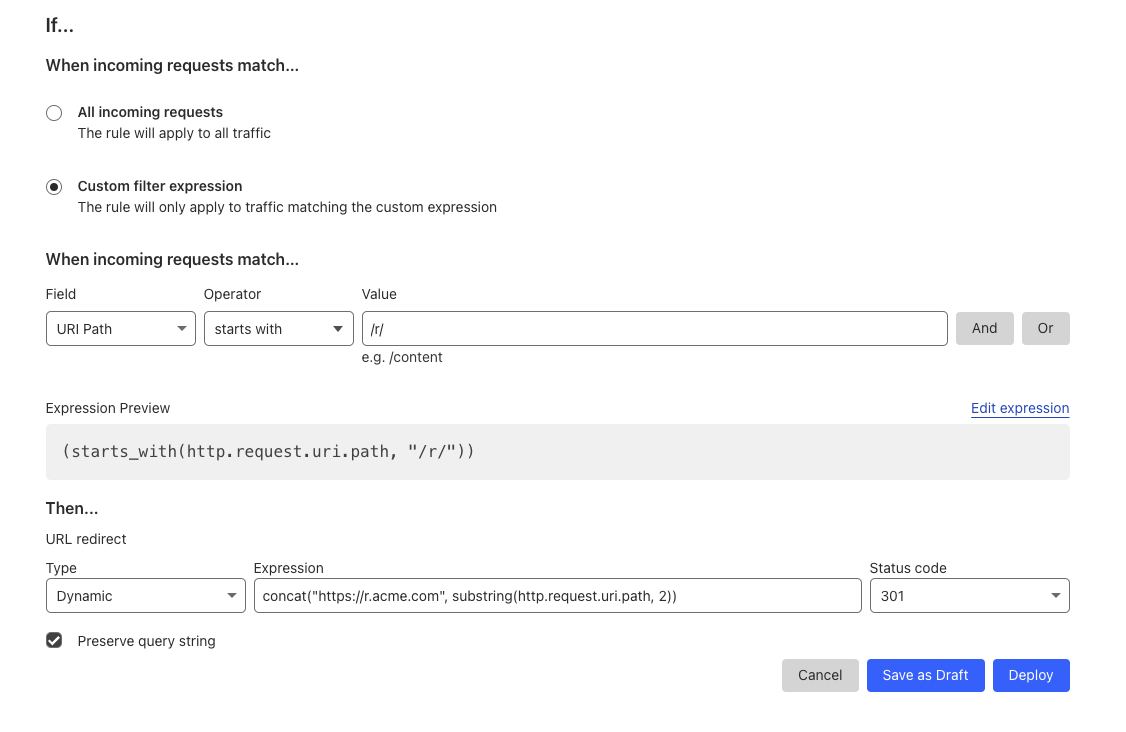
If you're using [Cloudflare](https://www.cloudflare.com/), you can use the [**Redirect Rules** feature](https://developers.cloudflare.com/rules/url-forwarding/single-redirects/create-dashboard/) to configure subpath redirects.
1. Go to your Cloudflare dashboard for your website and click on **Rules > Redirect Rules**.
2. Click on **Create Rule**.
3. Give your rule a name, e.g. "Redirect subpath".
4. Under **When incoming requests match**:
* Select **Custom filter expression**
* Field: **URI Path**
* Operator: **starts with**
* Value: `/r/`
5. Under **Then**:
* Type: **Dynamic**
* Expression: `concat("https://r.acme.com/", substring(http.request.uri.path, 3))`
* Status code: `301`
* Preserve query string: ✔️
6. Click on **Deploy**.
The number in the `substring` function in the **Expression** field should be
equal to the number of characters in the subpath. In our case, the subpath is
`/r/` which has 3 characters, so we use `substring(http.request.uri.path, 3)`.
Here's an example of how the rule should look like:
There are a few ways to configure this, depending on your application framework/hosting provider.
## Using Next.js
If you are using [Next.js](https://nextjs.org/), you can use the [`rewrites` property](https://nextjs.org/docs/app/api-reference/next-config-js/rewrites) in your `next.config.js` file to configure subpath redirects.
```javascript title="next.config.js" theme={null}
module.exports = {
async rewrites() {
return [
{
source: "/r/:path*",
destination: "https://r.acme.com/:path*",
},
];
},
};
```
## Using Nuxt
If you are using [Nuxt](https://nuxt.com/), you can use Nuxt's [server route](https://nuxt.com/docs/guide/directory-structure/server#server-routes) feature to configure subpath redirects.
First, create a new catch-all route in the respective subpath: `server/routes/r/[...slug].ts`
Then, in the route, add the following code:
```javascript title="server/routes/r/[...slug].ts" theme={null}
export default defineEventHandler(async (event) => {
const dubPath = getRouterParam(event, "slug");
await sendRedirect(event, `https://r.acme.com/${dubPath}`, 301); // use whatever status code you need
});
```
## Using Vercel
If you're using [Vercel](https://vercel.com/), you can use the [`rewrites` property](https://vercel.com/docs/edge-network/rewrites) in your `vercel.json` file to configure subpath redirects.
```json title="vercel.json" theme={null}
{
"rewrites": [
{
"source": "/r/:path*",
"destination": "https://r.acme.com/:path*"
}
]
}
```
## Using Netlify
If you're using [Netlify](https://www.netlify.com/), you can use the `redirects` property in your `_redirects` file to configure subpath redirects.
```plaintext title="_redirects" theme={null}
/r/* https://r.acme.com/:splat 200
```
## Using Cloudflare
If you're using [Cloudflare](https://www.cloudflare.com/), you can use the [**Redirect Rules** feature](https://developers.cloudflare.com/rules/url-forwarding/single-redirects/create-dashboard/) to configure subpath redirects.
1. Go to your Cloudflare dashboard for your website and click on **Rules > Redirect Rules**.
2. Click on **Create Rule**.
3. Give your rule a name, e.g. "Redirect subpath".
4. Under **When incoming requests match**:
* Select **Custom filter expression**
* Field: **URI Path**
* Operator: **starts with**
* Value: `/r/`
5. Under **Then**:
* Type: **Dynamic**
* Expression: `concat("https://r.acme.com/", substring(http.request.uri.path, 3))`
* Status code: `301`
* Preserve query string: ✔️
6. Click on **Deploy**.
The number in the `substring` function in the **Expression** field should be
equal to the number of characters in the subpath. In our case, the subpath is
`/r/` which has 3 characters, so we use `substring(http.request.uri.path, 3)`.
Here's an example of how the rule should look like:
 ## Using Webflow
If you're using [Webflow](https://webflow.com/), you can use the [**Wildcard redirects** feature](https://university.webflow.com/lesson/set-301-redirects-to-maintain-seo-ranking#wildcard-redirect-examples) to configure subpath redirects.
1. Go to **Site settings** > **Publishing tab** > **301 redirects**
2. Add a new redirect with the following settings:
* **Old path**: `/r/(.*)`
* **Redirect to page**: `https://r.acme.com/%1`
3. Click on **Save**.
## Using Squarespace
If you're using [Squarespace](https://squarespace.com/), you can use the [**URL Mappings** feature](https://support.squarespace.com/hc/en-us/articles/205815308-URL-mappings#toc-redirect-multiple-blog-posts--events--or-products) to configure subpath redirects.
1. Open the [Developer tools panel](https://account.squarespace.com/project-picker?client_id=helpcenter\&redirect_url=%2Fsettings%2Fdeveloper-tools).
2. Click **URL mappings**.
3. Click into the text field and add the following redirect:
```plaintext theme={null}
/r/[slug] -> https://r.acme.com/[name] 301
```
4. Click **Save**.
## Using Webflow
If you're using [Webflow](https://webflow.com/), you can use the [**Wildcard redirects** feature](https://university.webflow.com/lesson/set-301-redirects-to-maintain-seo-ranking#wildcard-redirect-examples) to configure subpath redirects.
1. Go to **Site settings** > **Publishing tab** > **301 redirects**
2. Add a new redirect with the following settings:
* **Old path**: `/r/(.*)`
* **Redirect to page**: `https://r.acme.com/%1`
3. Click on **Save**.
## Using Squarespace
If you're using [Squarespace](https://squarespace.com/), you can use the [**URL Mappings** feature](https://support.squarespace.com/hc/en-us/articles/205815308-URL-mappings#toc-redirect-multiple-blog-posts--events--or-products) to configure subpath redirects.
1. Open the [Developer tools panel](https://account.squarespace.com/project-picker?client_id=helpcenter\&redirect_url=%2Fsettings%2Fdeveloper-tools).
2. Click **URL mappings**.
3. Click into the text field and add the following redirect:
```plaintext theme={null}
/r/[slug] -> https://r.acme.com/[name] 301
```
4. Click **Save**.