> ## Documentation Index
> Fetch the complete documentation index at: https://dub.co/llms.txt
> Use this file to discover all available pages before exploring further.
# How to invite teammates on Dub
> Learn how to invite teammates to your Dub workspace and start collaborating with your team.
This feature is only available on [Pro plans and
above](https://dub.co/pricing).
On Dub, you can easily invite your teammates to join your Dub workspace. This is useful if you want to collaborate with your team on your short links.
To start inviting your teammates, you first need to [create a workspace](/help/article/what-is-a-workspace#how-to-create-a-workspace) on Dub.
Once you have created a workspace, you have two different ways to invite your teammates:
* Via [email](#sending-an-invite)
* Via [invite links](#using-invite-links)
## Sending an invite
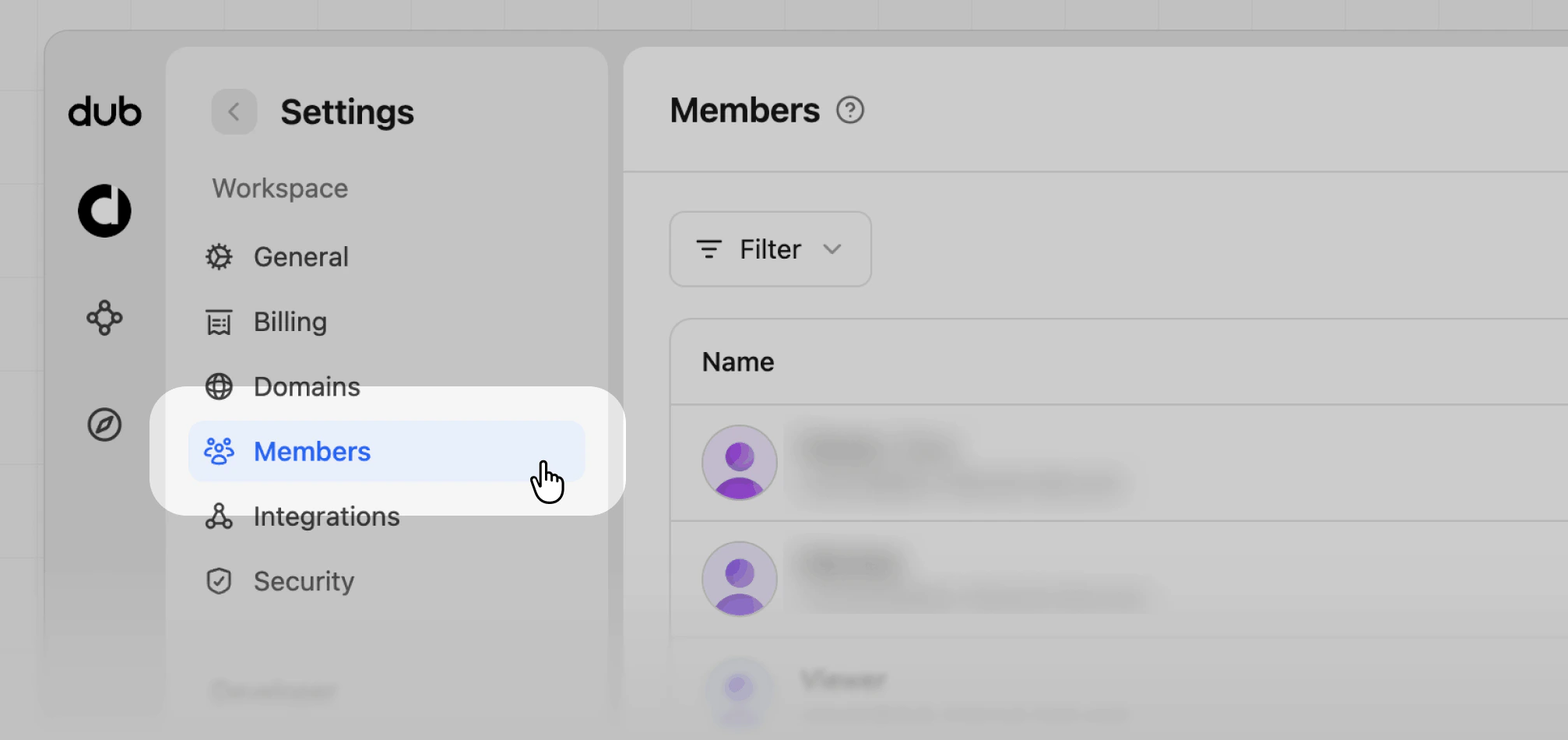
To invite a teammate via email, first navigate to **Members** in your workspace settings.
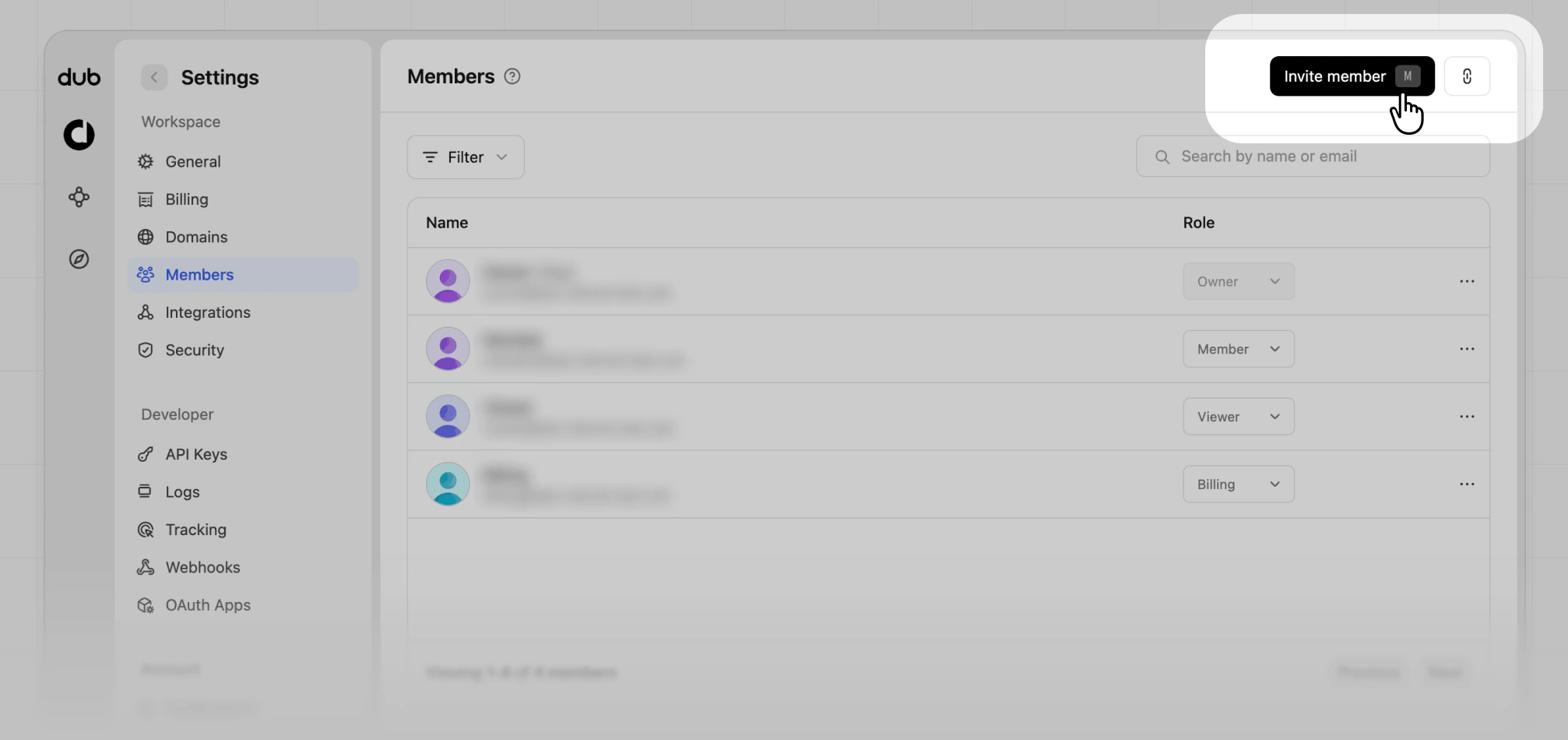
 Click on the **Invite member** button to open the Invite Teammate modal.
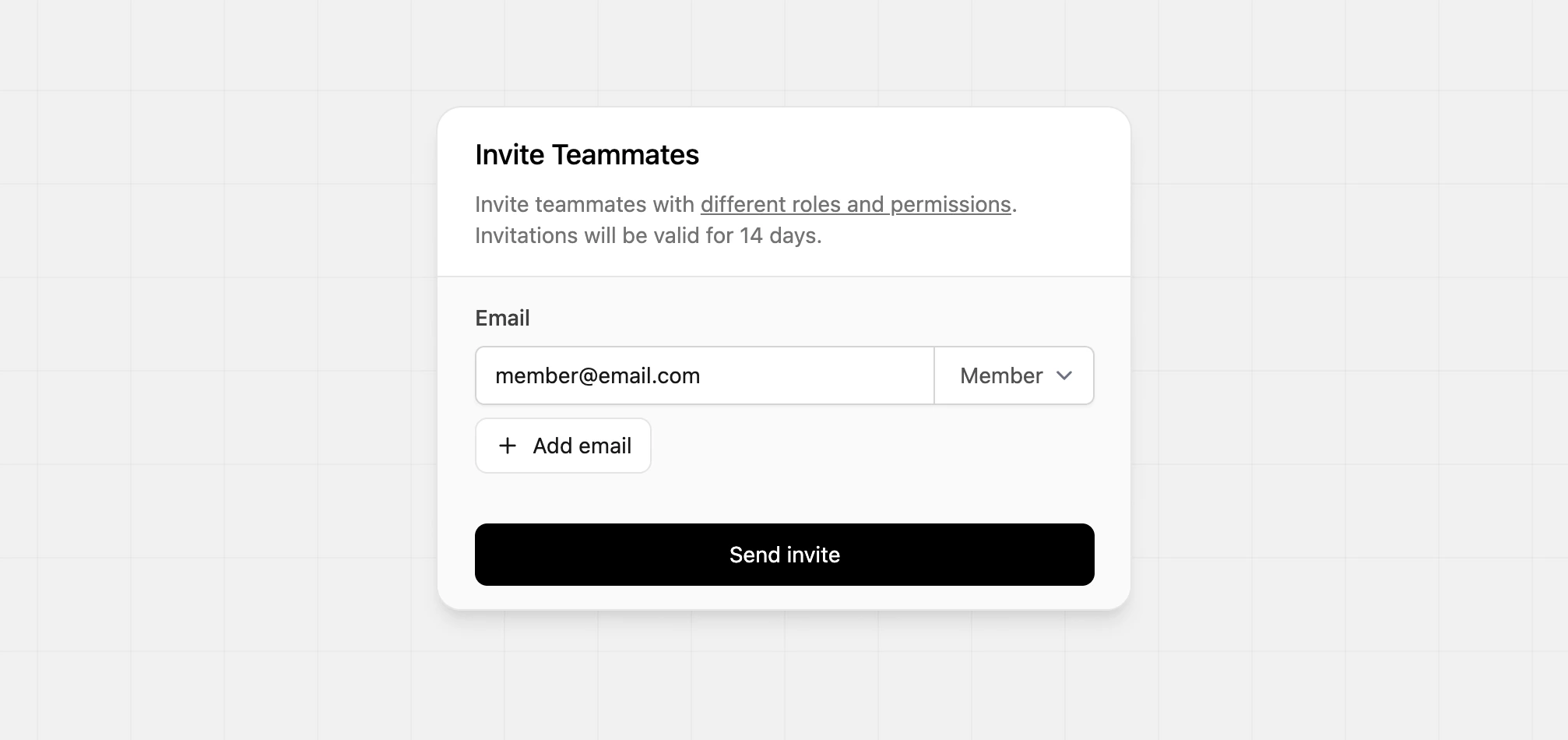
 Enter your teammate's email address and [assign them a role](/help/article/workspace-roles).
You can also click on the **Add email** button to invite multiple teammates at once. Then, click on the **Send invite** button to send the invitations to your teammates.
Enter your teammate's email address and [assign them a role](/help/article/workspace-roles).
You can also click on the **Add email** button to invite multiple teammates at once. Then, click on the **Send invite** button to send the invitations to your teammates.
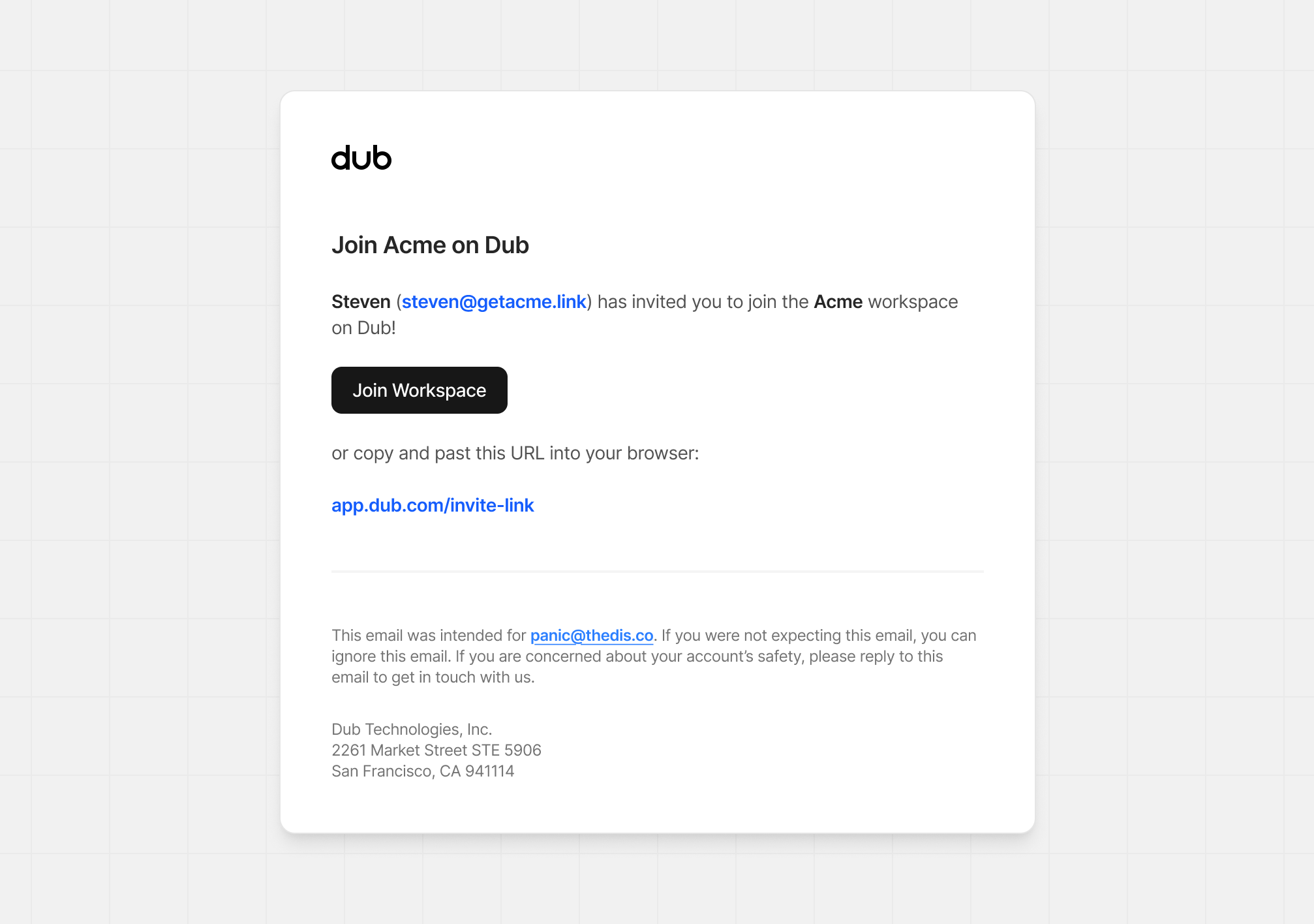
 Your teammates will receive an invitation to join your Dub workspace via email:
 Invitations will be valid for 14 days – after which you will need to send a
new one.
## Using invite links
You can also invite your teammates to join your workspace by sharing an invite link with them.
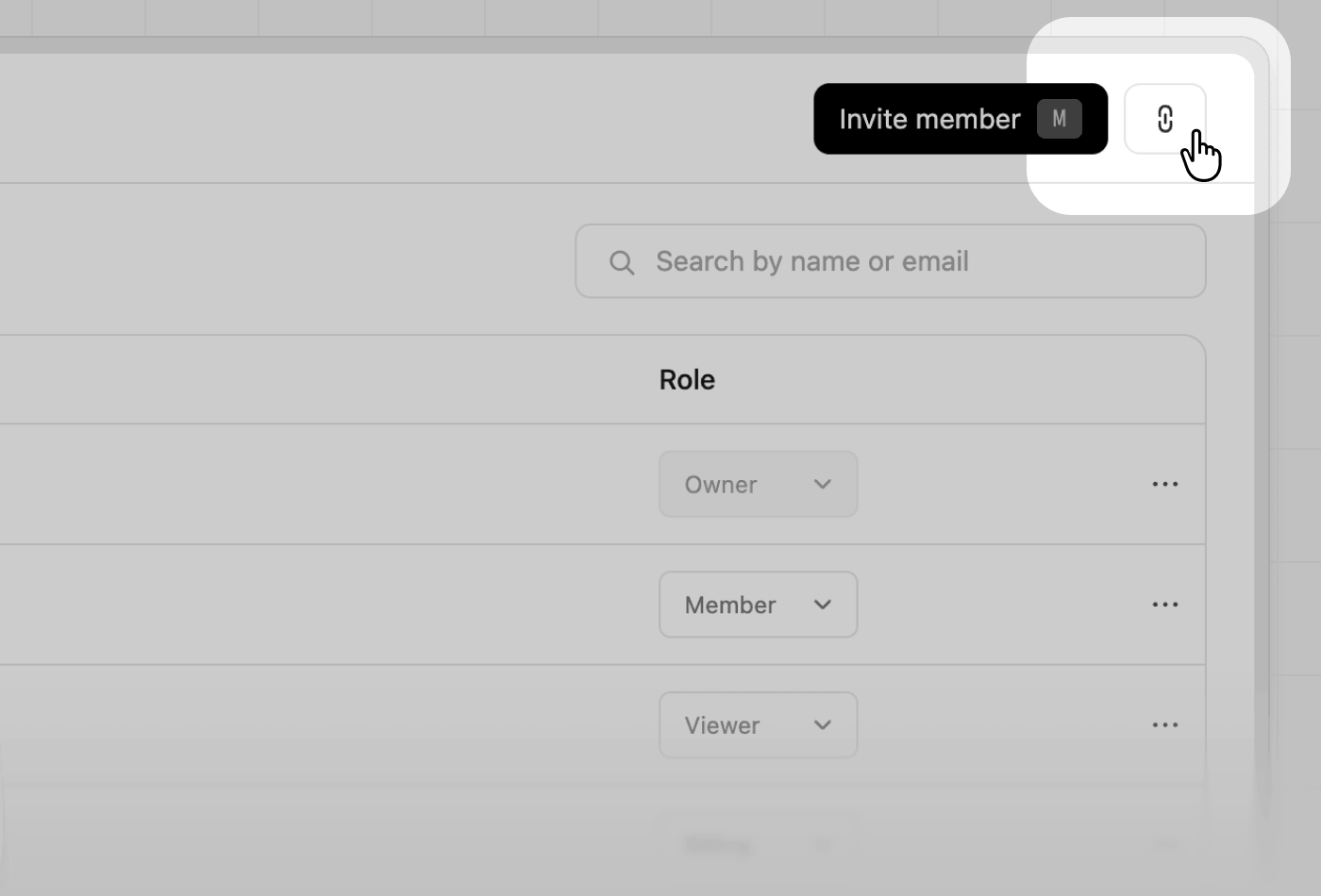
First navigate to **Members** in your workspace settings. From here, click on the **Link** button in the top-right to open the Invite Link modal.
Invitations will be valid for 14 days – after which you will need to send a
new one.
## Using invite links
You can also invite your teammates to join your workspace by sharing an invite link with them.
First navigate to **Members** in your workspace settings. From here, click on the **Link** button in the top-right to open the Invite Link modal.
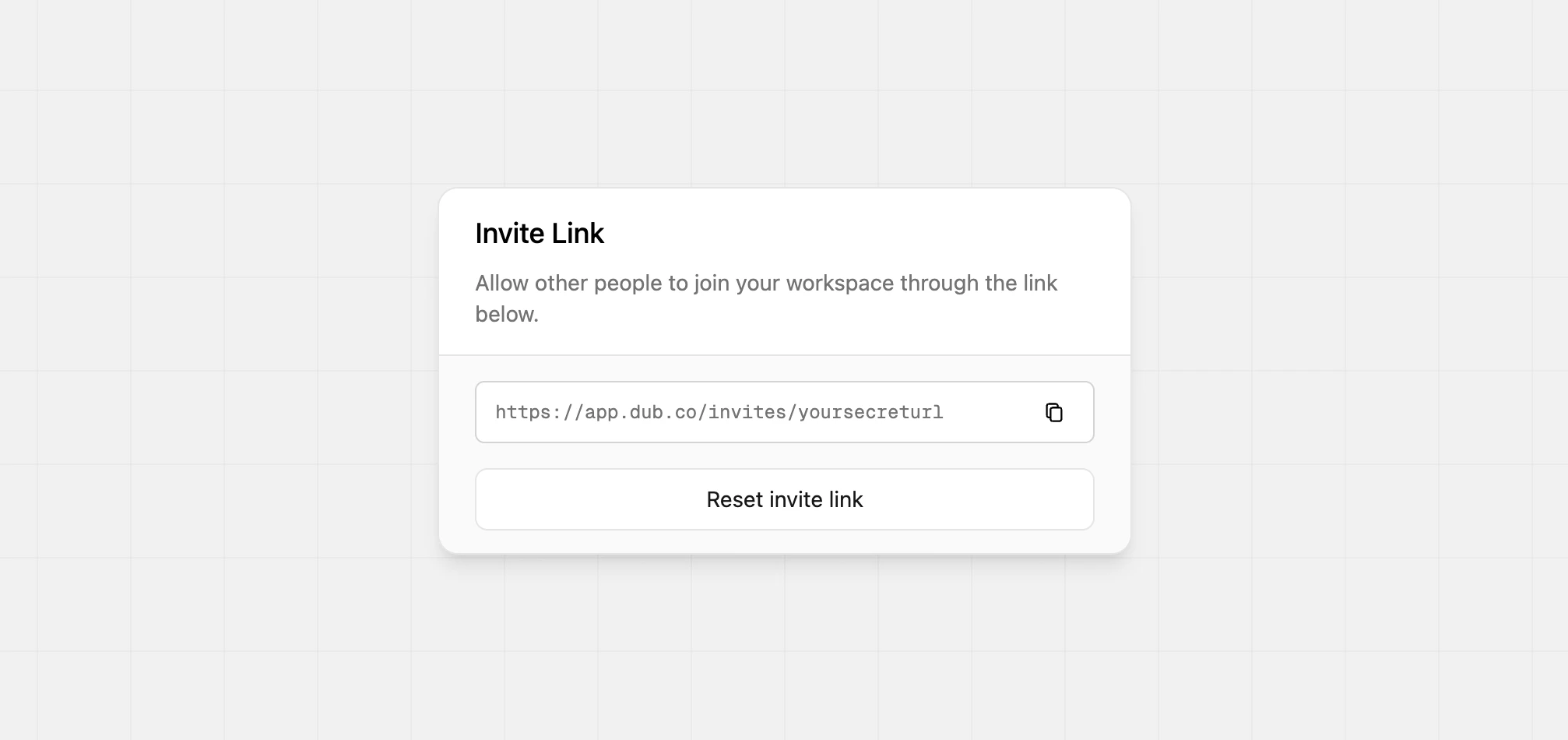
 Click on the **Copy** button to copy the invite link to your clipboard.
 ```text title="Example of an invite link" theme={null}
https://app.dub.co/invites/xxxxxx
```
You can then share the invite link with your teammates via email, chat, or any other communication tool.
## Revoking / resending an invite
If you want to revoke/resend an invitation, you can do so by following these steps:
1. Navigate to your workspace's Members Settings page.
2. Click on the **Invitations** tab.
3. Click on the `⋮` button next to the invitation you want to revoke.
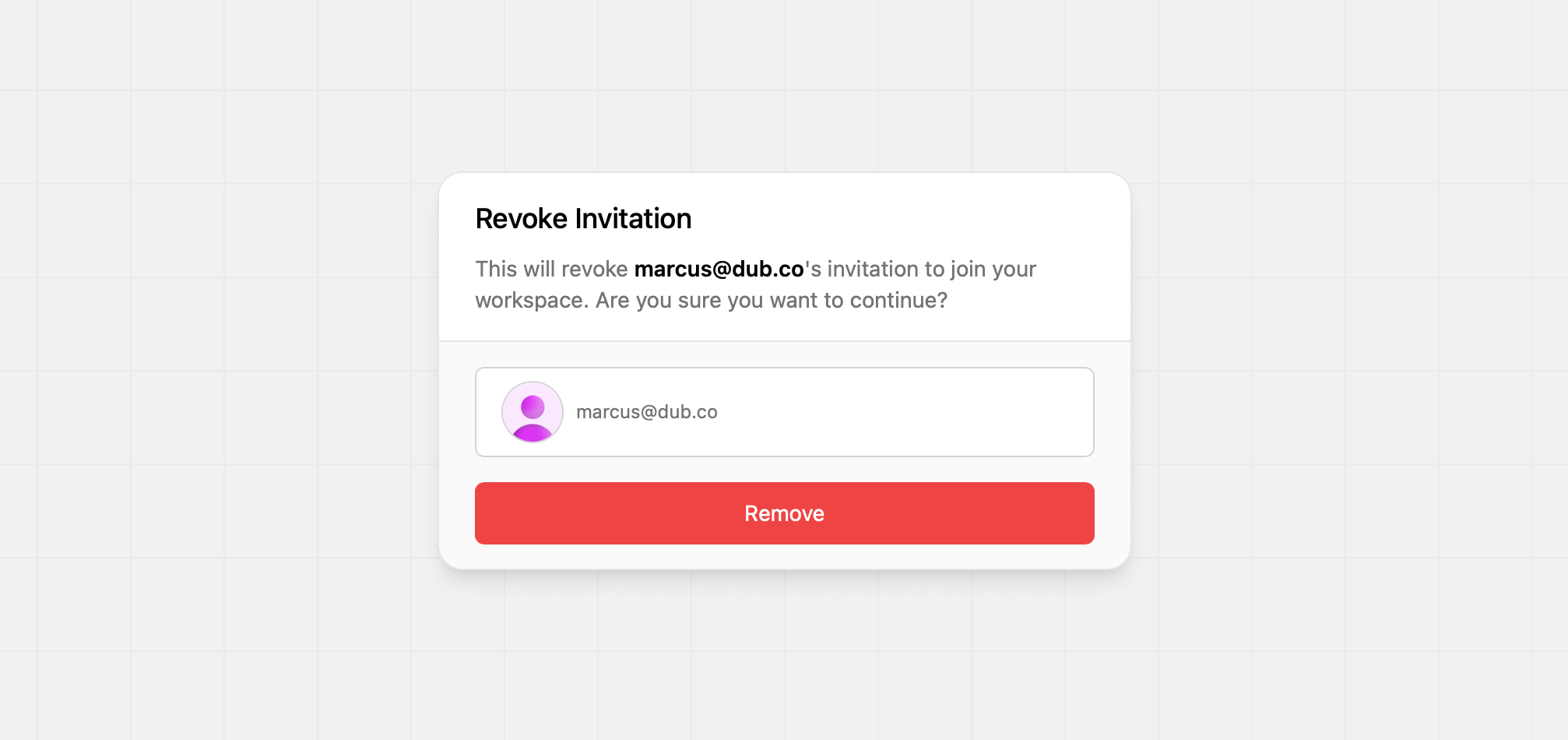
4. Click on the **Remove** button to open the Remove Invitation modal.
5. Click on the **Confirm remove** button to confirm.
```text title="Example of an invite link" theme={null}
https://app.dub.co/invites/xxxxxx
```
You can then share the invite link with your teammates via email, chat, or any other communication tool.
## Revoking / resending an invite
If you want to revoke/resend an invitation, you can do so by following these steps:
1. Navigate to your workspace's Members Settings page.
2. Click on the **Invitations** tab.
3. Click on the `⋮` button next to the invitation you want to revoke.
4. Click on the **Remove** button to open the Remove Invitation modal.
5. Click on the **Confirm remove** button to confirm.
 ## Removing a teammate
If a teammate no longer needs access to your workspace, you can remove them from your workspace.
1. Navigate to your workspace's Members Settings page.
2. Click on the `⋮` button next to the teammate you want to remove.
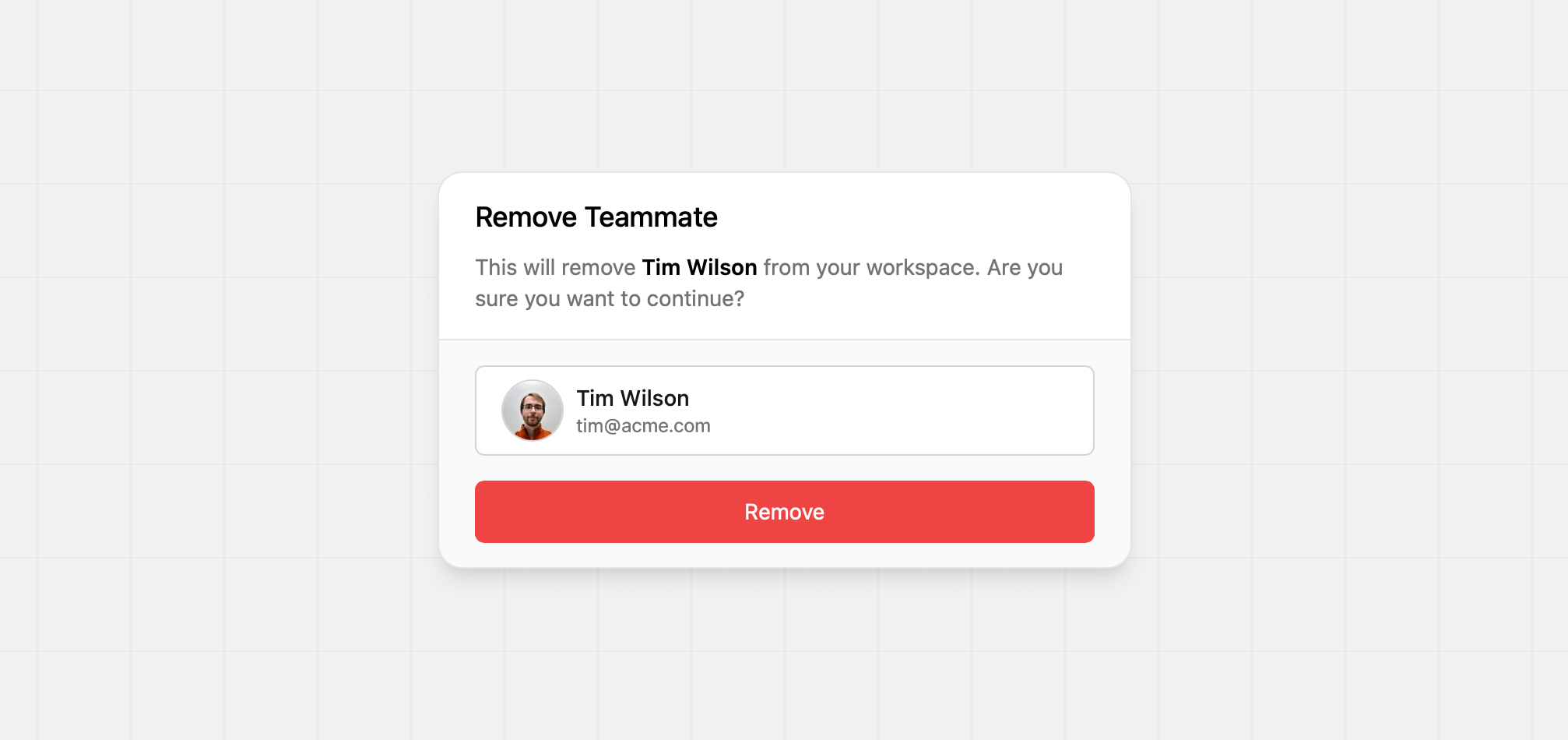
3. Click on the **Remove** button to open the Remove Teammate modal.
4. Click on the **Confirm remove** button to confirm.
## Removing a teammate
If a teammate no longer needs access to your workspace, you can remove them from your workspace.
1. Navigate to your workspace's Members Settings page.
2. Click on the `⋮` button next to the teammate you want to remove.
3. Click on the **Remove** button to open the Remove Teammate modal.
4. Click on the **Confirm remove** button to confirm.
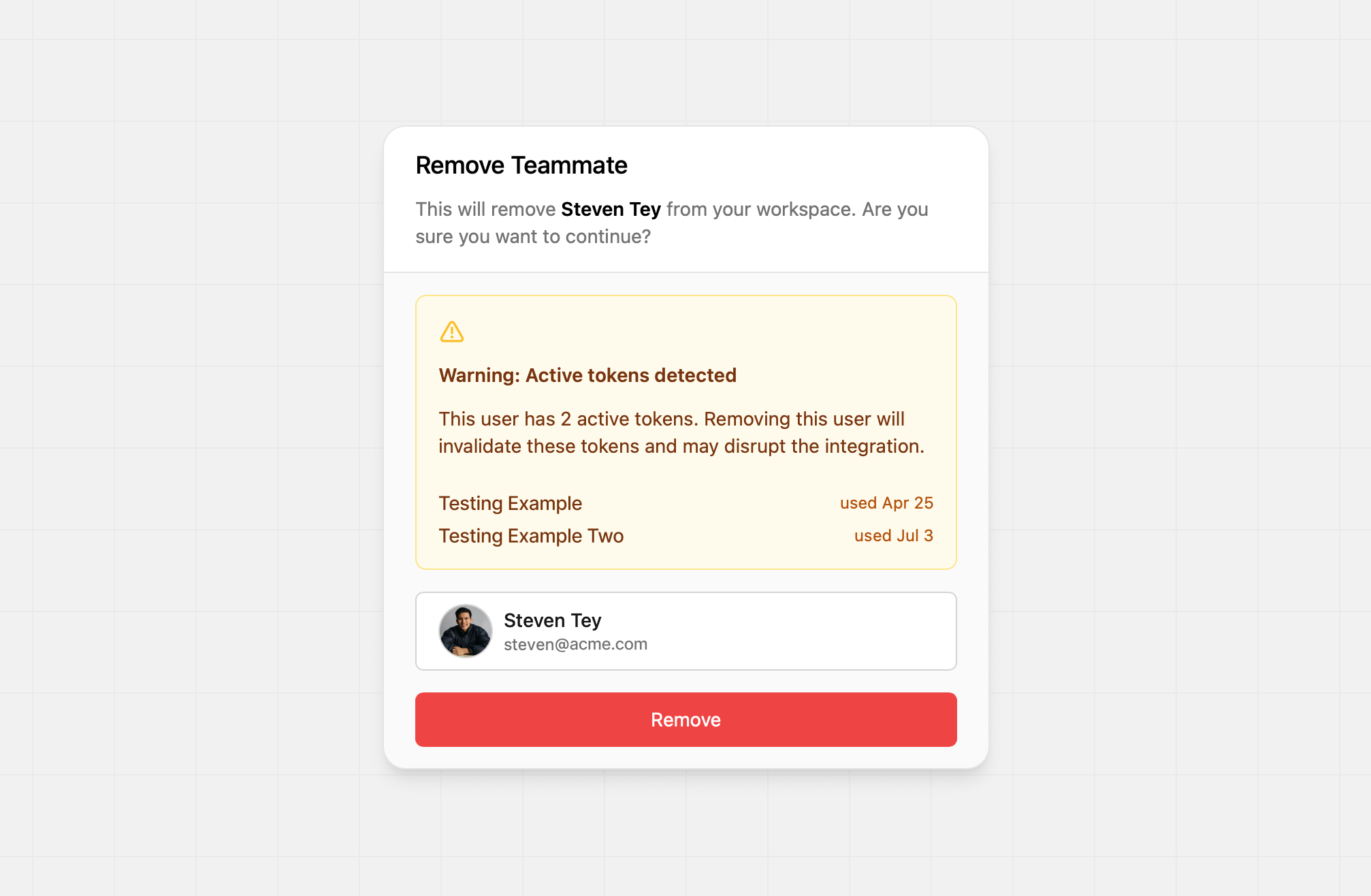
 In some cases, a user might also be associated with [created API
keys](/docs/api-reference/tokens), so you'll see a slightly different "remove
modal", showing the keys this user is associated with. If you delete a user,
their corresponding API keys will be deleted as well.
In some cases, a user might also be associated with [created API
keys](/docs/api-reference/tokens), so you'll see a slightly different "remove
modal", showing the keys this user is associated with. If you delete a user,
their corresponding API keys will be deleted as well.
 ## How many teammates can I invite?
The number of teammates you can invite depends on your Dub plan:
* **Free plan**: You cannot invite any teammates.
* **Pro plan**: You can invite up to 3 teammates.
* **Business plan**: You can invite up to 10 teammates.
* **Advanced plan:** You can invite up to 20 teammates.
* **Enterprise plan**: You can invite unlimited teammates.
For a complete comparison of features, [view all our plans available](https://dub.co/pricing).
## How many teammates can I invite?
The number of teammates you can invite depends on your Dub plan:
* **Free plan**: You cannot invite any teammates.
* **Pro plan**: You can invite up to 3 teammates.
* **Business plan**: You can invite up to 10 teammates.
* **Advanced plan:** You can invite up to 20 teammates.
* **Enterprise plan**: You can invite unlimited teammates.
For a complete comparison of features, [view all our plans available](https://dub.co/pricing).