> ## Documentation Index
> Fetch the complete documentation index at: https://dub.co/llms.txt
> Use this file to discover all available pages before exploring further.
# How to export link analytics data from Dub
> Learn more about how to export link analytics data from Dub
Analytics can be powerful in understanding how your audience is interacting with your content and to make data-driven decisions.
For Dub, it's always been a top priority to provide [world-class analytics](/help/article/dub-analytics) to everyone.
 To get more out of your analytics, you can export your analytics data to a CSV file. This can be useful if you want to analyze the data in a business intelligence (BI) tool, share it with your team, or import it into a spreadsheet.
## Exporting link analytics data
To export data from your link analytics, follow these steps:
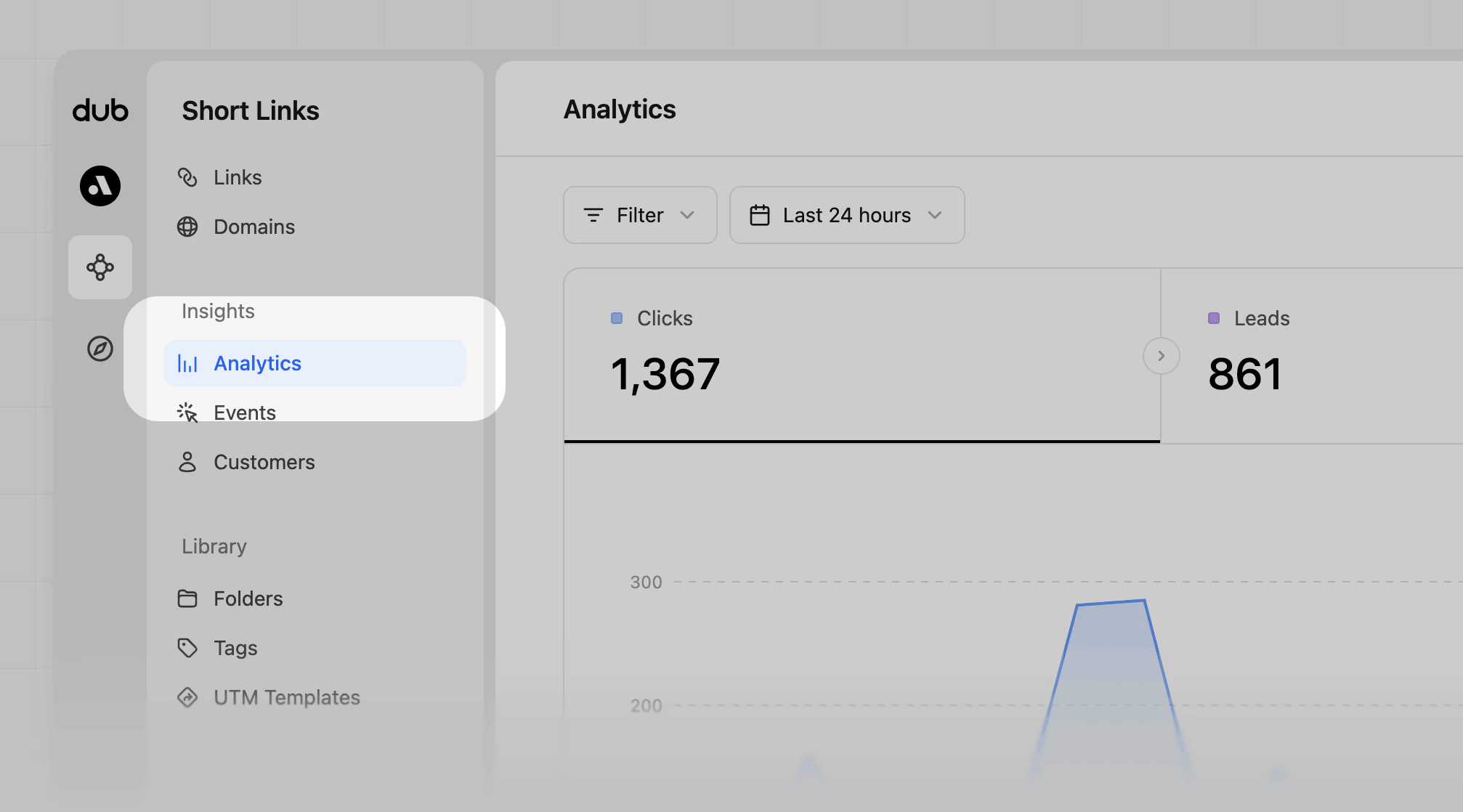
Go to your [Dub dashboard](https://d.to/register), and click **Analytics** from the **Insights** group of the workspace you want to export data from.
To get more out of your analytics, you can export your analytics data to a CSV file. This can be useful if you want to analyze the data in a business intelligence (BI) tool, share it with your team, or import it into a spreadsheet.
## Exporting link analytics data
To export data from your link analytics, follow these steps:
Go to your [Dub dashboard](https://d.to/register), and click **Analytics** from the **Insights** group of the workspace you want to export data from.
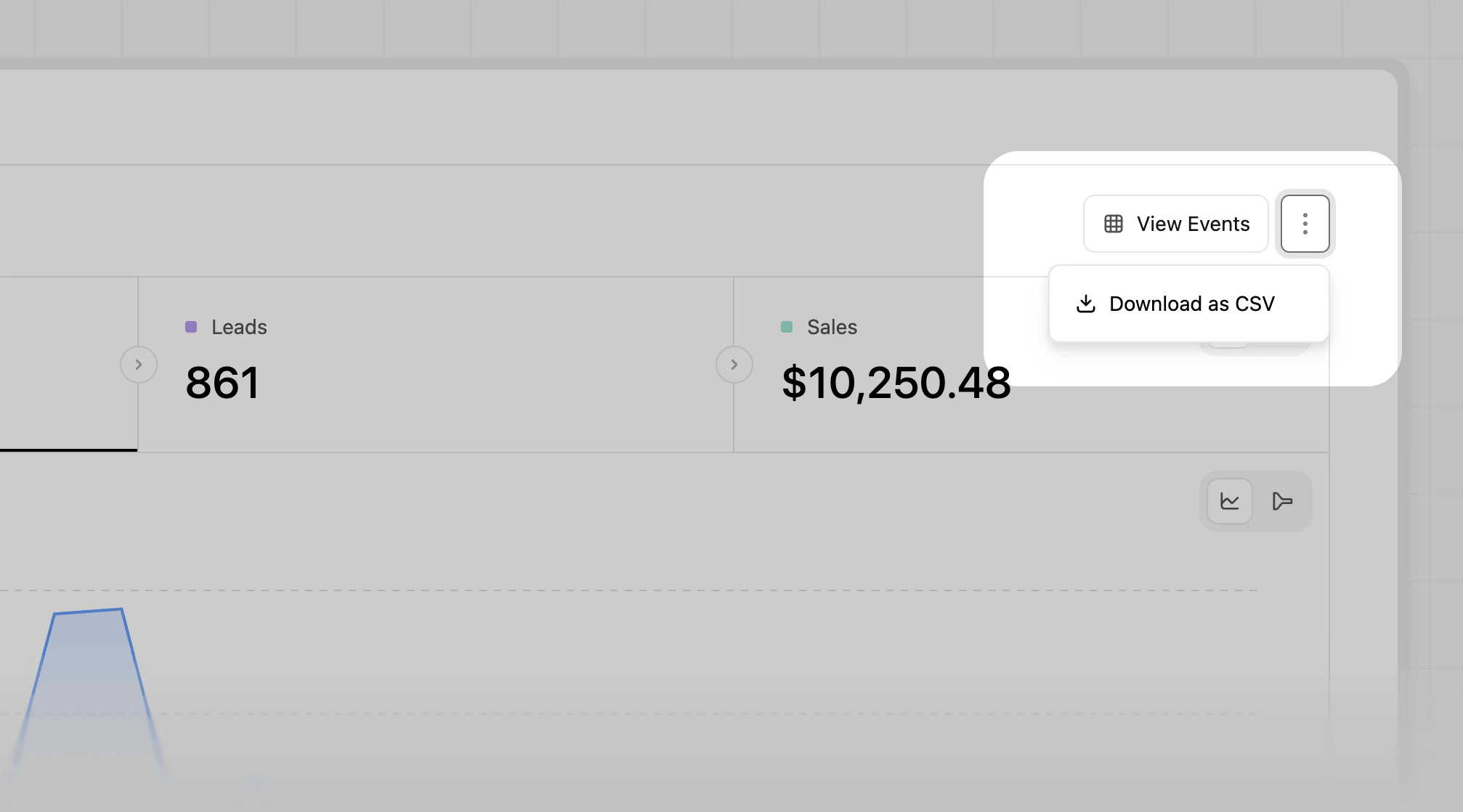
 Click on the `⋮` button in the top right corner to open up the more options dropdown menu
Click on the **Download as CSV** option.
Click on the `⋮` button in the top right corner to open up the more options dropdown menu
Click on the **Download as CSV** option.
 After a few seconds, the zip file will be downloaded to your computer. It contains a CSV file for every analytics type you already know from
the dashboard (e.g. `countries.csv`, `devices.csv`, etc…).
After a few seconds, the zip file will be downloaded to your computer. It contains a CSV file for every analytics type you already know from
the dashboard (e.g. `countries.csv`, `devices.csv`, etc…).
