> ## Documentation Index
> Fetch the complete documentation index at: https://dub.co/llms.txt
> Use this file to discover all available pages before exploring further.
# How to create a short link on Dub?
> Learn how to create your first short link on Dub and start tracking your links.
Dub's link builder comes with powerful features like [UTM builder](/help/article/utm-builder), [device targeting](/help/article/device-targeting), [password protection](/help/article/password-protected-links), [expiration dates](/help/article/link-expiration), and more.
Dub is also the only link management platform that lets you [customize the social media cards](/help/article/custom-link-previews) for your links, so you can have full control over how your links look when shared on social media.
In this article, we will take a look at how you can leverage these features to create your first short link on Dub.
## Step 1: Open the Dub link builder
There are 3 ways to open the [Dub link builder](/help/article/dub-link-builder) to create a short link:
1. **Slowest**: Click on the "Create link" button on the dashboard.
2. **Faster**: Use the keyboard shortcut `c` to open the link builder.
3. **Fastest**: Just paste in a valid URL into the dashboard. This will automatically open the link builder and pre-fill the URL field.
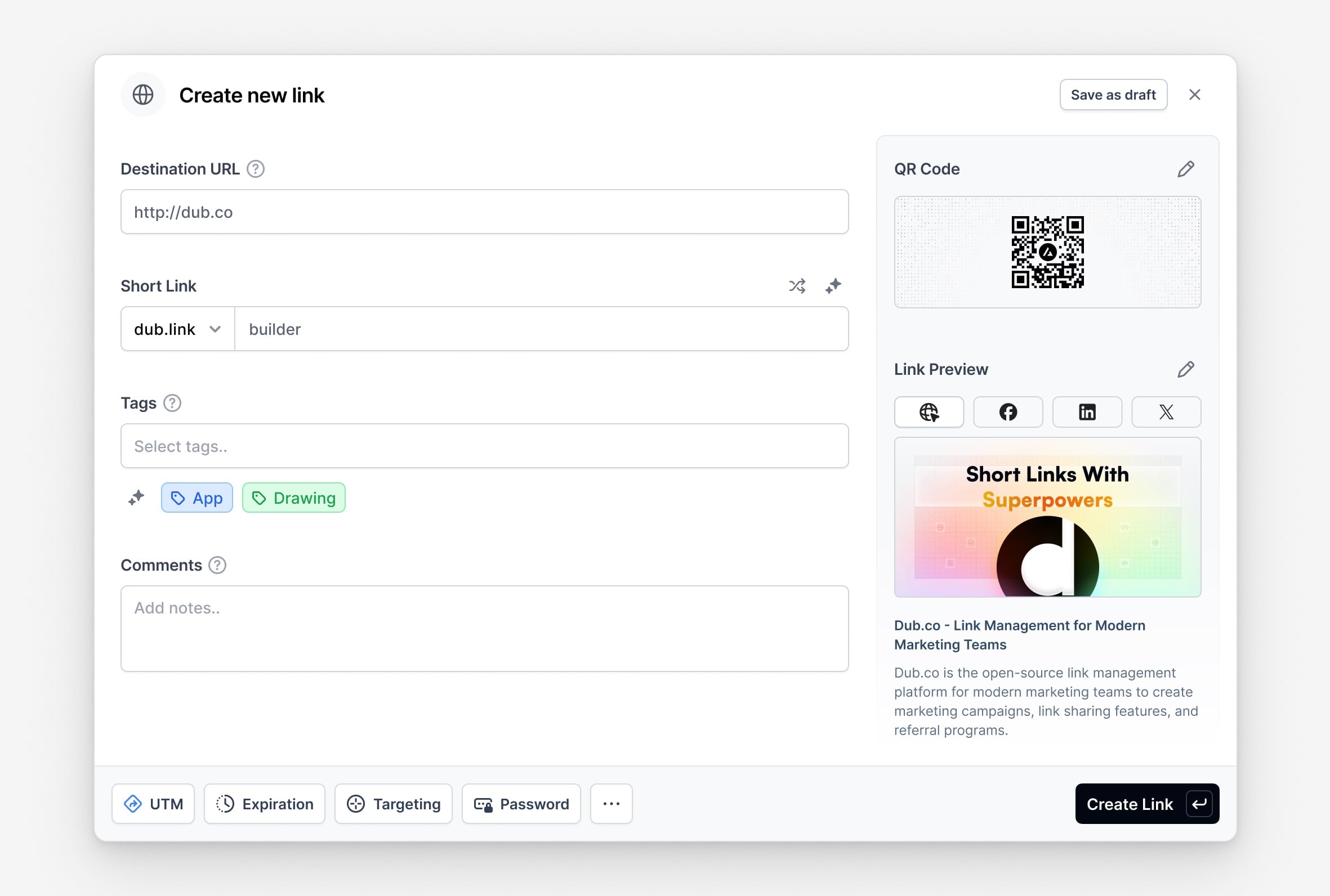 As you can see, the link builder also gives you a preview of your short link on social media platforms like X (formerly Twitter), Facebook, and LinkedIn.
## Step 2: Enter your destination URL
Enter your destination URL in the "Destination URL" field. You can enter the URL with or without the `https://` protocol – behind the scenes, Dub will automatically make sure it's formatted correctly.
## Step 3: Set a short link slug (optional)
Under the **Short Link** field, you can either:
1. Enter your own short link slug
2. Generate a random short link slug
3. [Generate a short link slug with AI](https://dub.co/blog/introducing-dub-ai)
This step is optional. If you don't enter a short link slug, Dub will generate
one for you.
## Step 4: Customize your link previews (recommended)
You can also [set custom link previews](/help/article/custom-link-previews) for your short link to control how your links look when shared on social media platforms like X (formerly Twitter), LinkedIn, Slack, Telegram, iMessage, and more.
As you can see, the link builder also gives you a preview of your short link on social media platforms like X (formerly Twitter), Facebook, and LinkedIn.
## Step 2: Enter your destination URL
Enter your destination URL in the "Destination URL" field. You can enter the URL with or without the `https://` protocol – behind the scenes, Dub will automatically make sure it's formatted correctly.
## Step 3: Set a short link slug (optional)
Under the **Short Link** field, you can either:
1. Enter your own short link slug
2. Generate a random short link slug
3. [Generate a short link slug with AI](https://dub.co/blog/introducing-dub-ai)
This step is optional. If you don't enter a short link slug, Dub will generate
one for you.
## Step 4: Customize your link previews (recommended)
You can also [set custom link previews](/help/article/custom-link-previews) for your short link to control how your links look when shared on social media platforms like X (formerly Twitter), LinkedIn, Slack, Telegram, iMessage, and more.
 You can also use AI to generate custom link previews for your links. [Learn more](/help/article/custom-link-previews).
## Step 5: Add tags to your short link (optional)
Optionally, you can add tags to your short link to help organize your links and make them easier to find.
You can also use AI to generate custom link previews for your links. [Learn more](/help/article/custom-link-previews).
## Step 5: Add tags to your short link (optional)
Optionally, you can add tags to your short link to help organize your links and make them easier to find.
 You can also [filter your analytics by tags](/help/article/filter-analytics-by-tags), which allows you to create powerful campaign-specific reports for your links.
That's it! You've just created your first short link on Dub.
## Advanced link features
Additionally, Dub also offers a variety of advanced link features that you can use to enhance your short links:
1. **UTM Builder**: Add UTM parameters to your links. [Learn more](/help/article/utm-builder).
2. **Link Cloaking**: Mask your destination URL with your short link. [Learn more](/help/article/link-cloaking).
3. **Password Protection**: Protect your links with a password. [Learn more](/help/article/password-protected-links).
4. **Expiration Date**: Set an expiration date for your links. [Learn more](/help/article/link-expiration).
5. **Device Targeting**: Set a custom destination URL for iOS and Android devices. [Learn more](/help/article/device-targeting).
6. **Geo Targeting**: Redirect your users to different links based on their location. [Learn more](/help/article/geo-targeting).
7. **Search Engine Indexing**: Control how your links are indexed by search engines. [Learn more](/help/article/how-noindex-works).
8. **Comments**: Add comments to your links – for you and your team. [Learn more](/help/article/link-comments).
## Can I edit the destination URL of my link after it's created?
Yes, you can edit the destination URL of your link after it's created. To do so, click on the `⋮` button next to the link in the links list and select "Edit link".
You can also [filter your analytics by tags](/help/article/filter-analytics-by-tags), which allows you to create powerful campaign-specific reports for your links.
That's it! You've just created your first short link on Dub.
## Advanced link features
Additionally, Dub also offers a variety of advanced link features that you can use to enhance your short links:
1. **UTM Builder**: Add UTM parameters to your links. [Learn more](/help/article/utm-builder).
2. **Link Cloaking**: Mask your destination URL with your short link. [Learn more](/help/article/link-cloaking).
3. **Password Protection**: Protect your links with a password. [Learn more](/help/article/password-protected-links).
4. **Expiration Date**: Set an expiration date for your links. [Learn more](/help/article/link-expiration).
5. **Device Targeting**: Set a custom destination URL for iOS and Android devices. [Learn more](/help/article/device-targeting).
6. **Geo Targeting**: Redirect your users to different links based on their location. [Learn more](/help/article/geo-targeting).
7. **Search Engine Indexing**: Control how your links are indexed by search engines. [Learn more](/help/article/how-noindex-works).
8. **Comments**: Add comments to your links – for you and your team. [Learn more](/help/article/link-comments).
## Can I edit the destination URL of my link after it's created?
Yes, you can edit the destination URL of your link after it's created. To do so, click on the `⋮` button next to the link in the links list and select "Edit link".
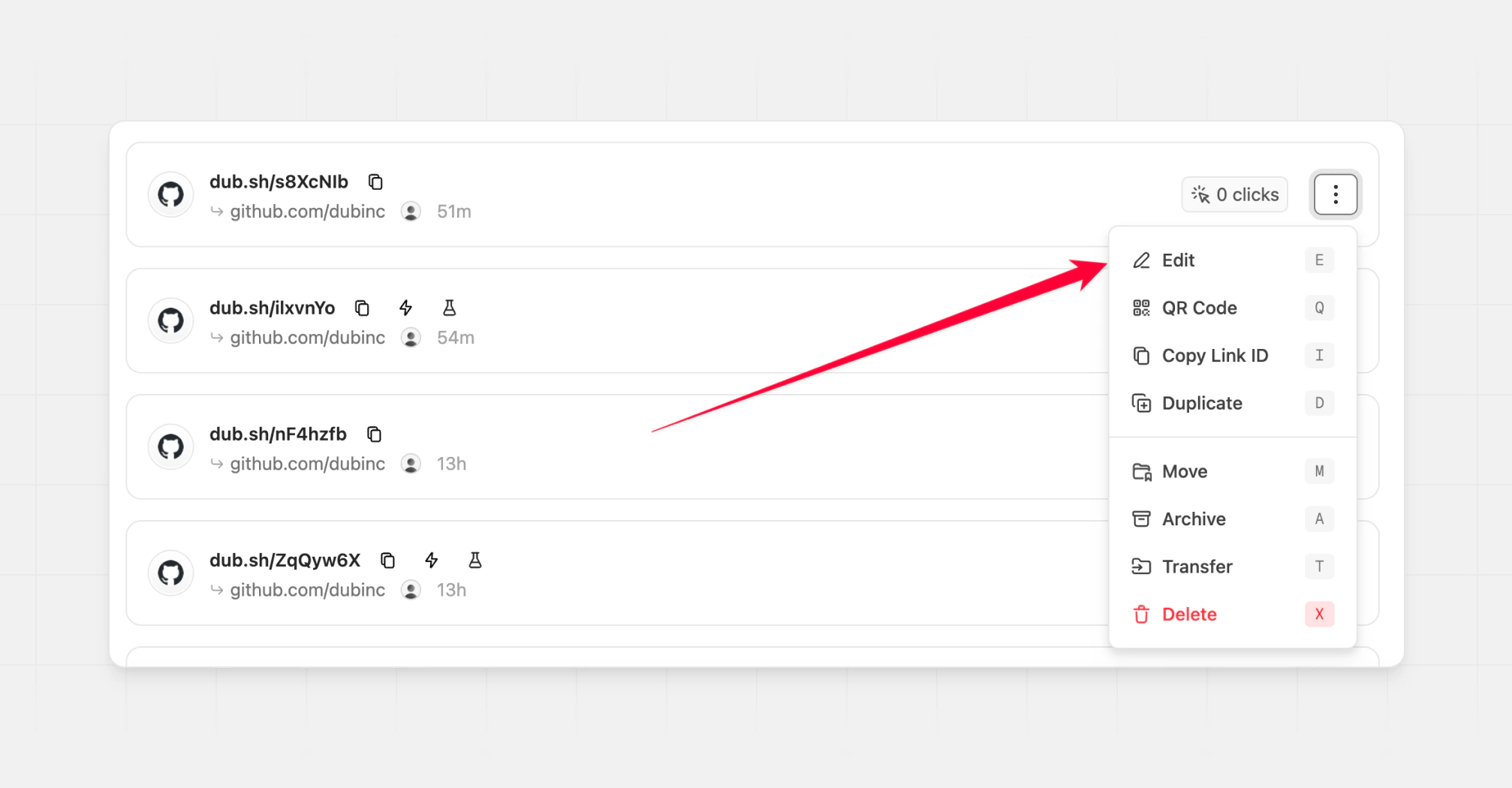 This will open the [individual link settings page](https://dub.co/changelog/link-pages), where you can edit the destination URL and save the changes.
Unlike other link platforms like [Bitly](https://dub.co/compare/bitly) where you need to [pay a whopping \$1](https://support.bitly.com/hc/en-us/articles/14354987499661-How-do-I-purchase-more-links-or-redirects) every time you want to update the destination URL of a short link, you can edit the destination URL of your link on Dub for free – for as many times as you want.
This will open the [individual link settings page](https://dub.co/changelog/link-pages), where you can edit the destination URL and save the changes.
Unlike other link platforms like [Bitly](https://dub.co/compare/bitly) where you need to [pay a whopping \$1](https://support.bitly.com/hc/en-us/articles/14354987499661-How-do-I-purchase-more-links-or-redirects) every time you want to update the destination URL of a short link, you can edit the destination URL of your link on Dub for free – for as many times as you want.