> ## Documentation Index
> Fetch the complete documentation index at: https://dub.co/llms.txt
> Use this file to discover all available pages before exploring further.
# How to add a custom domain to Dub
> Learn how to add a custom domain to your Dub workspace for free - no credit card required.
Whenever you're creating a short link for marketing purposes, it is [important to use a custom domain](https://dub.co/blog/custom-domains) for better brand recognition and click-through rates.
At Dub, we have one of the most generous custom domain limits in the industry – you can add up to 3 custom domains to your workspace for free, and even more with our [paid plans](https://dub.co/pricing).
* [**Pro plan**](https://dub.co/pricing): 10 domains
* [**Business plan**](https://dub.co/pricing): 100 domains
* [**Advanced plan**](https://dub.co/pricing): 250 domains
* [**Enterprise plan**](https://dub.co/enterprise): Unlimited domains
In this guide, we will learn how to add a custom domain to your Dub workspace.
Not sure which custom domain to use? Check out our guide on [choosing a custom
domain](/help/article/choosing-a-custom-domain) for some tips.
## Complimentary .link custom domain
If you're on a paid plan on Dub ([Pro plan](https://dub.co/pricing) and above), you can claim a [complimentary .link custom domain](/help/article/free-dot-link-domain) and use it as your short link domain – no DNS setup needed.
 Read our guide on [how to claim your free .link domain on Dub](/help/article/free-dot-link-domain).
## Step 1: Add a custom domain
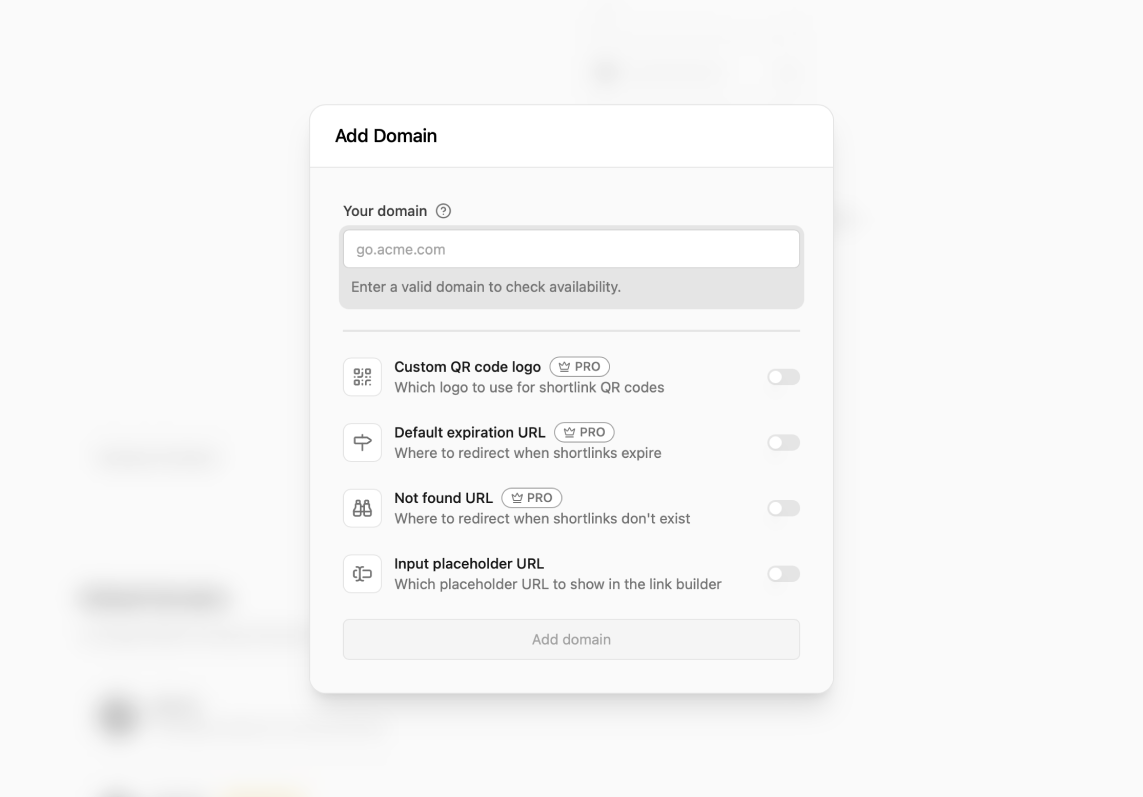
Once you have a custom domain, you can add it to your Dub workspace by following these steps:
1. Navigate to your workspace's Domains page – you can do that by clicking on the **Domains** link in the menu bar at the top of your workspace dashboard.
2. Click on the **Add Domain** button.
3. Enter the domain you want to use and click **Add domain**.
Read our guide on [how to claim your free .link domain on Dub](/help/article/free-dot-link-domain).
## Step 1: Add a custom domain
Once you have a custom domain, you can add it to your Dub workspace by following these steps:
1. Navigate to your workspace's Domains page – you can do that by clicking on the **Domains** link in the menu bar at the top of your workspace dashboard.
2. Click on the **Add Domain** button.
3. Enter the domain you want to use and click **Add domain**.
 ## Step 2: Configure your domain
After adding your domain, you'll be presented with a DNS record that you'll need to add to your domain's DNS settings.
## Step 2: Configure your domain
After adding your domain, you'll be presented with a DNS record that you'll need to add to your domain's DNS settings.
 ## Step 2a: Adding an apex domain
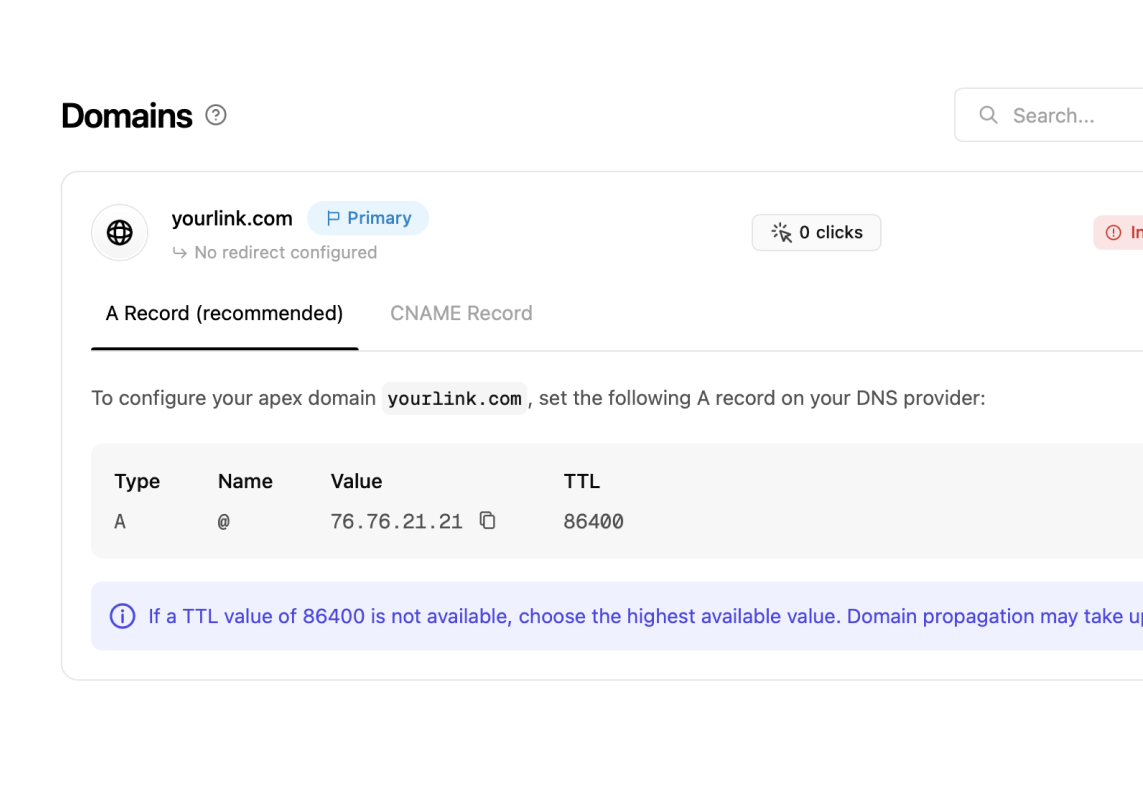
If you're adding an apex domain (e.g. `example.com`), you'll need to add an `A` record with the following values:
* **Name**: `@` (or leave it blank)
* **Value**: `76.76.21.21`
* **TTL**: `86400` (or the highest value possible)
## Step 2b: Adding a subdomain
If you're adding a subdomain (e.g. `go.example.com`), you'll need to add a `CNAME` record with the following values:
* **Name**: `go` (or whatever subdomain you want to use)
* **Value**: `cname.dub.co`
* **TTL**: `86400` (or the highest value possible)
Note that we do not support using `www.` as a subdomain, since the `www.` subdomain will always redirect to the apex domain instead.
We recommend using the following variations for your subdomains:
* `go.example.com`
* `try.example.com`
* `links.example.com`
* `l.example.com`
If you're using Cloudflare as your DNS provider, you might need to configure
some extra steps for it to work properly. Please refer to our guide on [using
Cloudflare domains with Dub](/help/article/using-cloudflare-domains) for more
information.
## Step 3 (optional): Verify domain ownership
This step is only applicable if you are adding a domain that is currently
being used on [Vercel](https://vercel.com/).
Since we use Vercel as the DNS provider for Dub, you'll need to verify that you own the domain before you can add it to your Dub workspace.
## Step 2a: Adding an apex domain
If you're adding an apex domain (e.g. `example.com`), you'll need to add an `A` record with the following values:
* **Name**: `@` (or leave it blank)
* **Value**: `76.76.21.21`
* **TTL**: `86400` (or the highest value possible)
## Step 2b: Adding a subdomain
If you're adding a subdomain (e.g. `go.example.com`), you'll need to add a `CNAME` record with the following values:
* **Name**: `go` (or whatever subdomain you want to use)
* **Value**: `cname.dub.co`
* **TTL**: `86400` (or the highest value possible)
Note that we do not support using `www.` as a subdomain, since the `www.` subdomain will always redirect to the apex domain instead.
We recommend using the following variations for your subdomains:
* `go.example.com`
* `try.example.com`
* `links.example.com`
* `l.example.com`
If you're using Cloudflare as your DNS provider, you might need to configure
some extra steps for it to work properly. Please refer to our guide on [using
Cloudflare domains with Dub](/help/article/using-cloudflare-domains) for more
information.
## Step 3 (optional): Verify domain ownership
This step is only applicable if you are adding a domain that is currently
being used on [Vercel](https://vercel.com/).
Since we use Vercel as the DNS provider for Dub, you'll need to verify that you own the domain before you can add it to your Dub workspace.
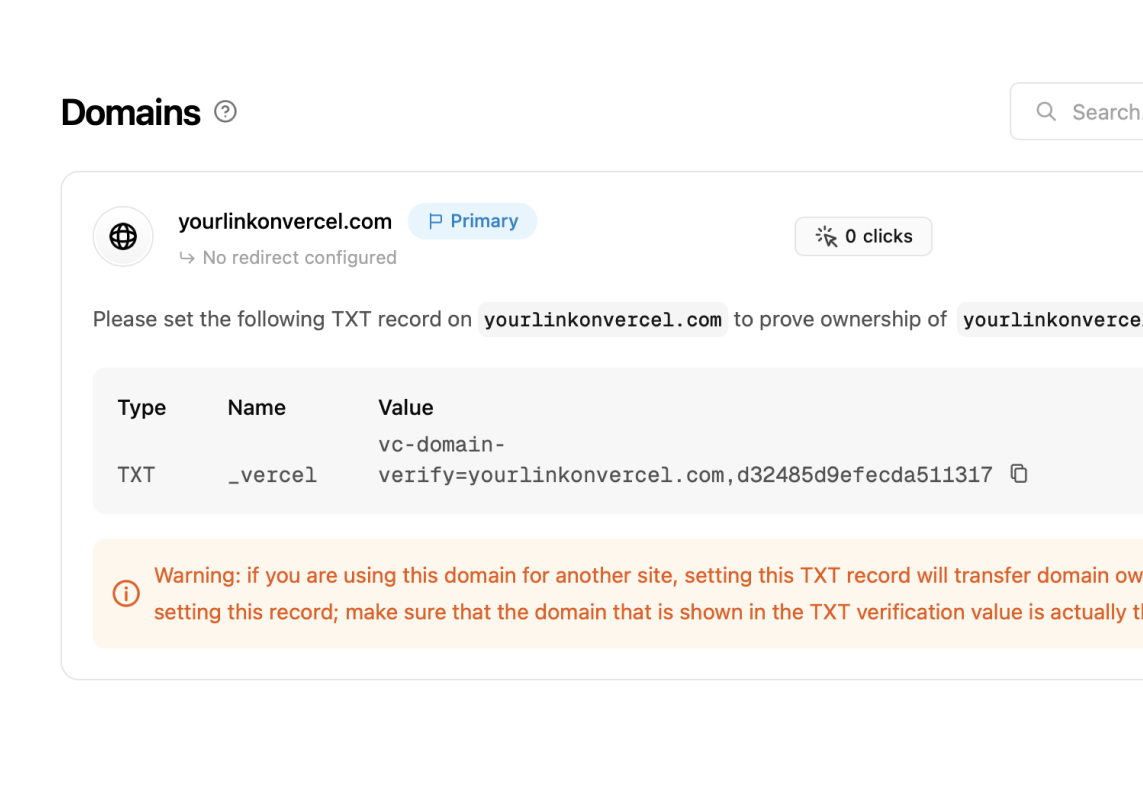 To do that, you'll need to add a TXT record with the following values:
* **Name**: `_vercel`
* **Value**: `vc-domain-verify=go.yourdomain.com...` (the value will be provided to you on the Dub dashboard)
Warning: If you are using this domain for another site, setting this TXT
record will transfer domain ownership away from that site and break it. Please
exercise caution when setting this record.
<>
For example: Make sure that the domain that is shown in the TXT verification
value (e.g. `go.yourdomain.com`) is actually the domain you want to use as a
custom domain on Dub – and ***not your production site***.
## How long do I have to wait for my domain to work?
Domain configuration can take anywhere between 1 to 24 hours to complete. If your domain still doesn't work after 24 hours, please [reach out to us](https://dub.co/contact/support) and we'll be happy to help you out.
To do that, you'll need to add a TXT record with the following values:
* **Name**: `_vercel`
* **Value**: `vc-domain-verify=go.yourdomain.com...` (the value will be provided to you on the Dub dashboard)
Warning: If you are using this domain for another site, setting this TXT
record will transfer domain ownership away from that site and break it. Please
exercise caution when setting this record.
<>
For example: Make sure that the domain that is shown in the TXT verification
value (e.g. `go.yourdomain.com`) is actually the domain you want to use as a
custom domain on Dub – and ***not your production site***.
## How long do I have to wait for my domain to work?
Domain configuration can take anywhere between 1 to 24 hours to complete. If your domain still doesn't work after 24 hours, please [reach out to us](https://dub.co/contact/support) and we'll be happy to help you out.