> ## Documentation Index
> Fetch the complete documentation index at: https://dub.co/llms.txt
> Use this file to discover all available pages before exploring further.
# Folders role-based access control (RBAC)
> Learn how to set role-based access control for your folders to limit access to links for select teammates.
This feature is only available on [Business plans and
above](https://dub.co/pricing).
With folders, you can limit access to your links using fine-grained role-based access controls (RBAC).
E.g. if you have marketing teams from different departments within your Dub workspace, you can create folders for each team with role-based access controls to ensure members can only see the links that they should have access to.
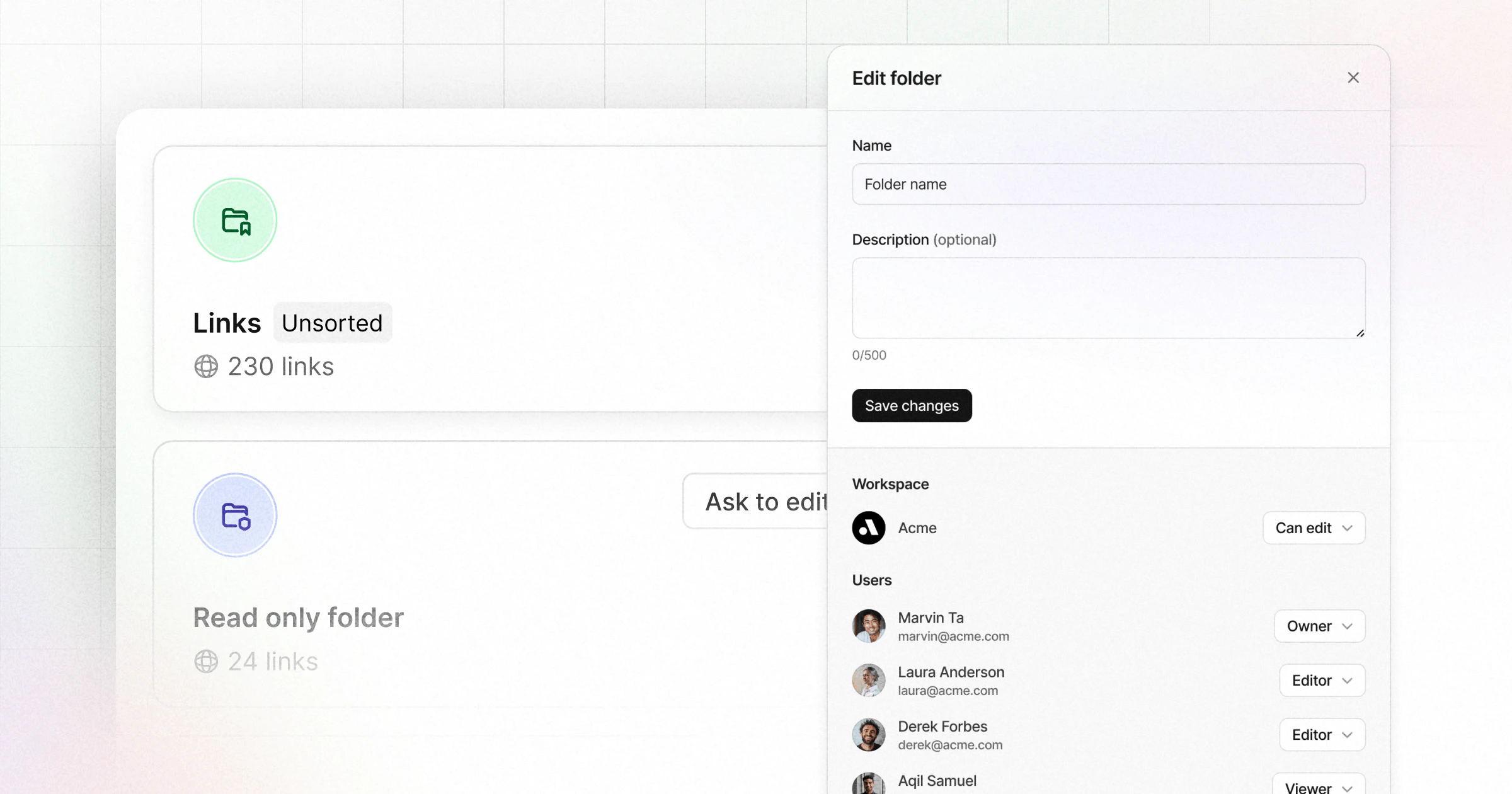 In this guide, we will learn how to set role-based access control for your folders to limit access to links for select teammates.
## What is role-based access control (RBAC)?
Role-based access control (RBAC) is a security approach that restricts access to resources based on the roles of individual users. Think of it like a modern office building where different employees have access to different floors based on their job roles.
In Dub's link folders, RBAC lets you control who can access specific folders and what they can do with the links inside them. For example, marketing team members might only have access to the "Marketing Campaigns" folder, while team leads have full access to all folders.
This granular control ensures that sensitive links remain secure while still allowing teams to collaborate effectively within their designated areas.
## Workspace-level permissions
When you create a folder, you can decide what the workspace-level permissions are for the folder. Workspace owners have access and full permissions to every created folder.
In this guide, we will learn how to set role-based access control for your folders to limit access to links for select teammates.
## What is role-based access control (RBAC)?
Role-based access control (RBAC) is a security approach that restricts access to resources based on the roles of individual users. Think of it like a modern office building where different employees have access to different floors based on their job roles.
In Dub's link folders, RBAC lets you control who can access specific folders and what they can do with the links inside them. For example, marketing team members might only have access to the "Marketing Campaigns" folder, while team leads have full access to all folders.
This granular control ensures that sensitive links remain secure while still allowing teams to collaborate effectively within their designated areas.
## Workspace-level permissions
When you create a folder, you can decide what the workspace-level permissions are for the folder. Workspace owners have access and full permissions to every created folder.
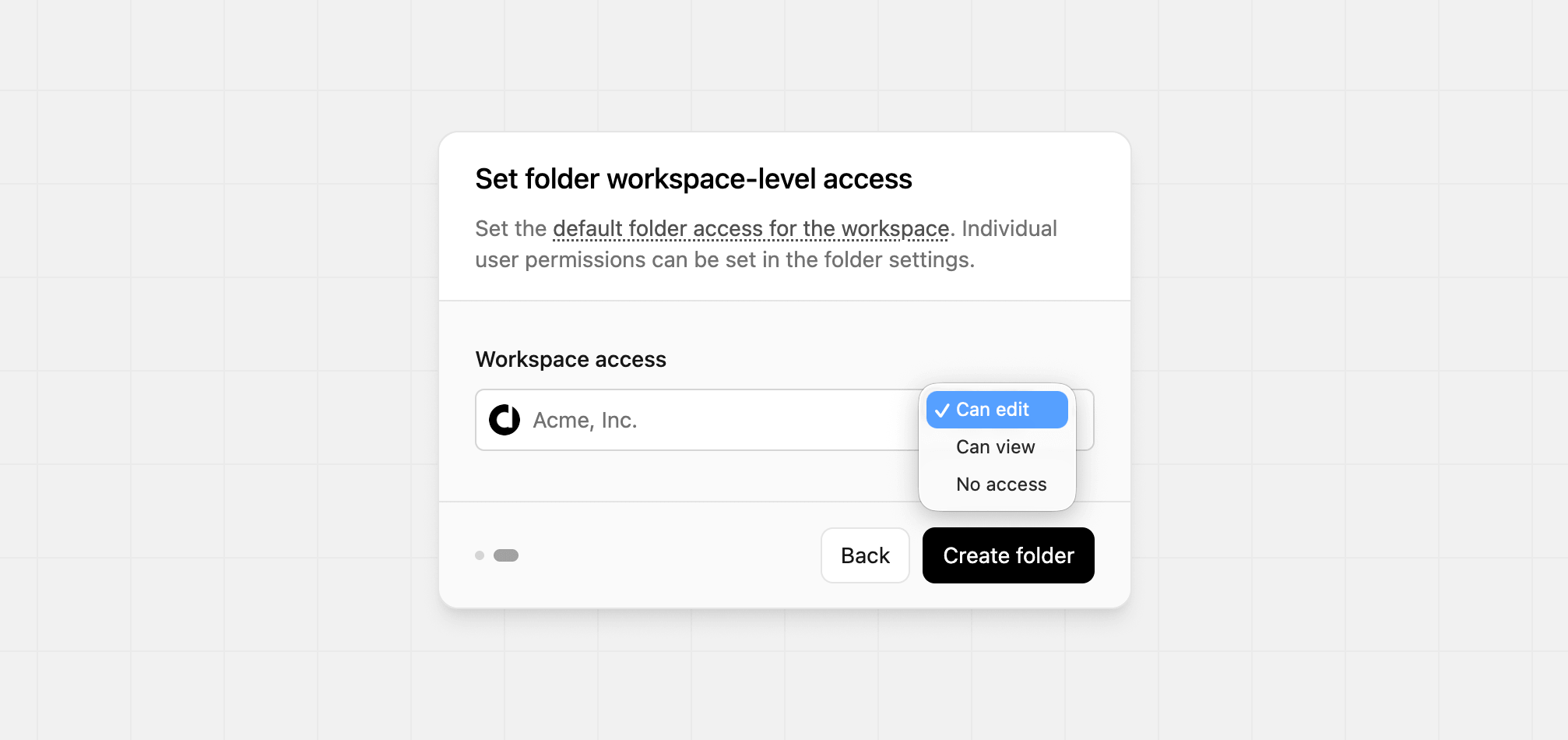 There are 3 options for the workspace-level permissions:
1. **Can edit** (default): Anyone in the workspace can access the folder and its links.
2. **Can view** (view-only): Workspace members can view the folder and its links, but not edit them.
3. **No access** (private folder): Only members added to the folder and workspace owners have access (via [folder-level permissions](#folder-level-permissions)).
If you're on the [Pro plan](https://dub.co/pricing), you can only create
folders with the default **"Can edit"** settings. Only [Business
plan](https://dub.co/pricing) and above users can create folders with the
**"Can view"** or **"No access"** settings.
## Folder-level permissions
You can also set folder-level permissions for each folder. This lets you set exactly which members can access the folder and what they can do with the links inside it.
To set folder-level permissions, open the `⋮` dropdown next to the folder in your links dashboard and select the "Members" option:
There are 3 options for the workspace-level permissions:
1. **Can edit** (default): Anyone in the workspace can access the folder and its links.
2. **Can view** (view-only): Workspace members can view the folder and its links, but not edit them.
3. **No access** (private folder): Only members added to the folder and workspace owners have access (via [folder-level permissions](#folder-level-permissions)).
If you're on the [Pro plan](https://dub.co/pricing), you can only create
folders with the default **"Can edit"** settings. Only [Business
plan](https://dub.co/pricing) and above users can create folders with the
**"Can view"** or **"No access"** settings.
## Folder-level permissions
You can also set folder-level permissions for each folder. This lets you set exactly which members can access the folder and what they can do with the links inside it.
To set folder-level permissions, open the `⋮` dropdown next to the folder in your links dashboard and select the "Members" option:
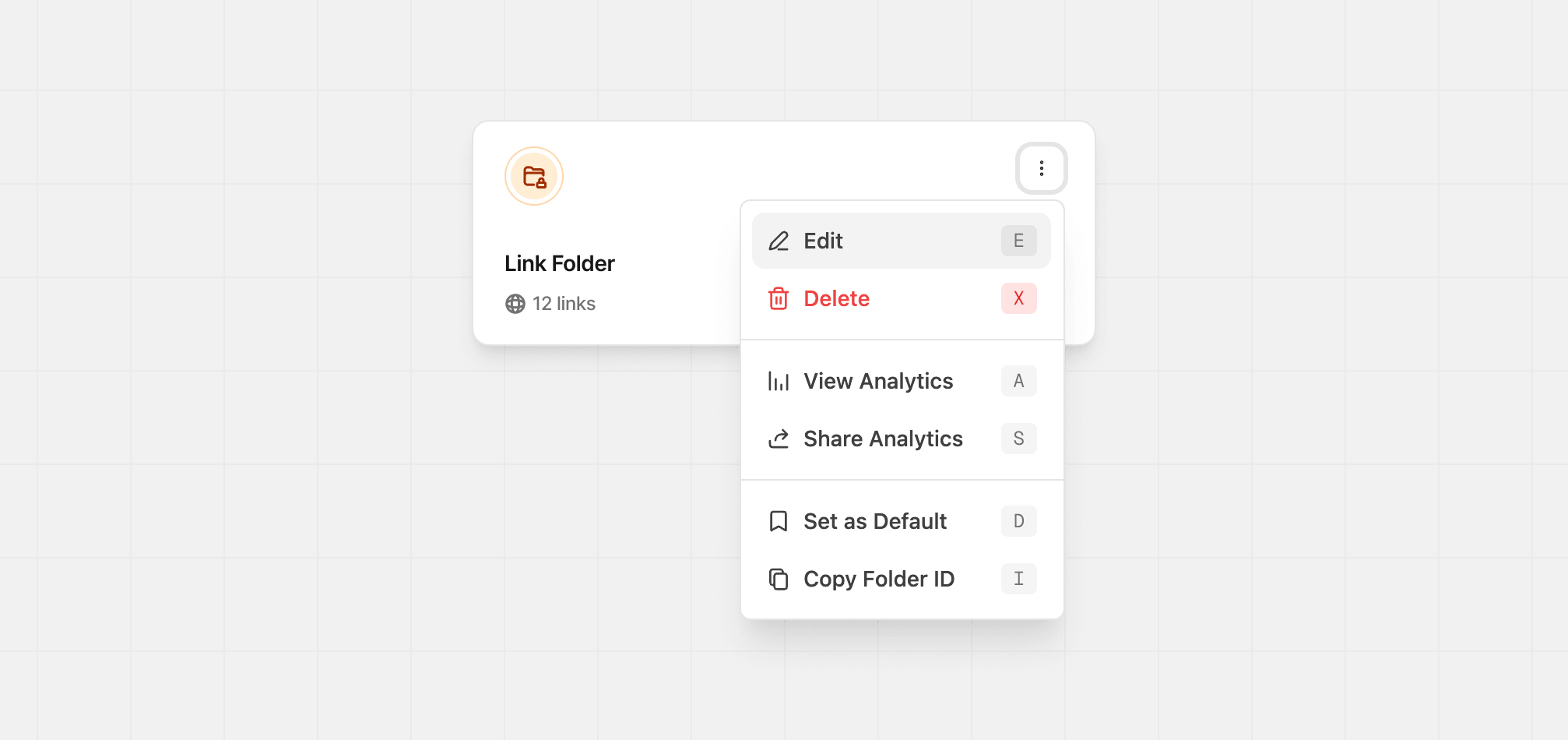 This will open up the member access control panel, where you can set different roles to different users:
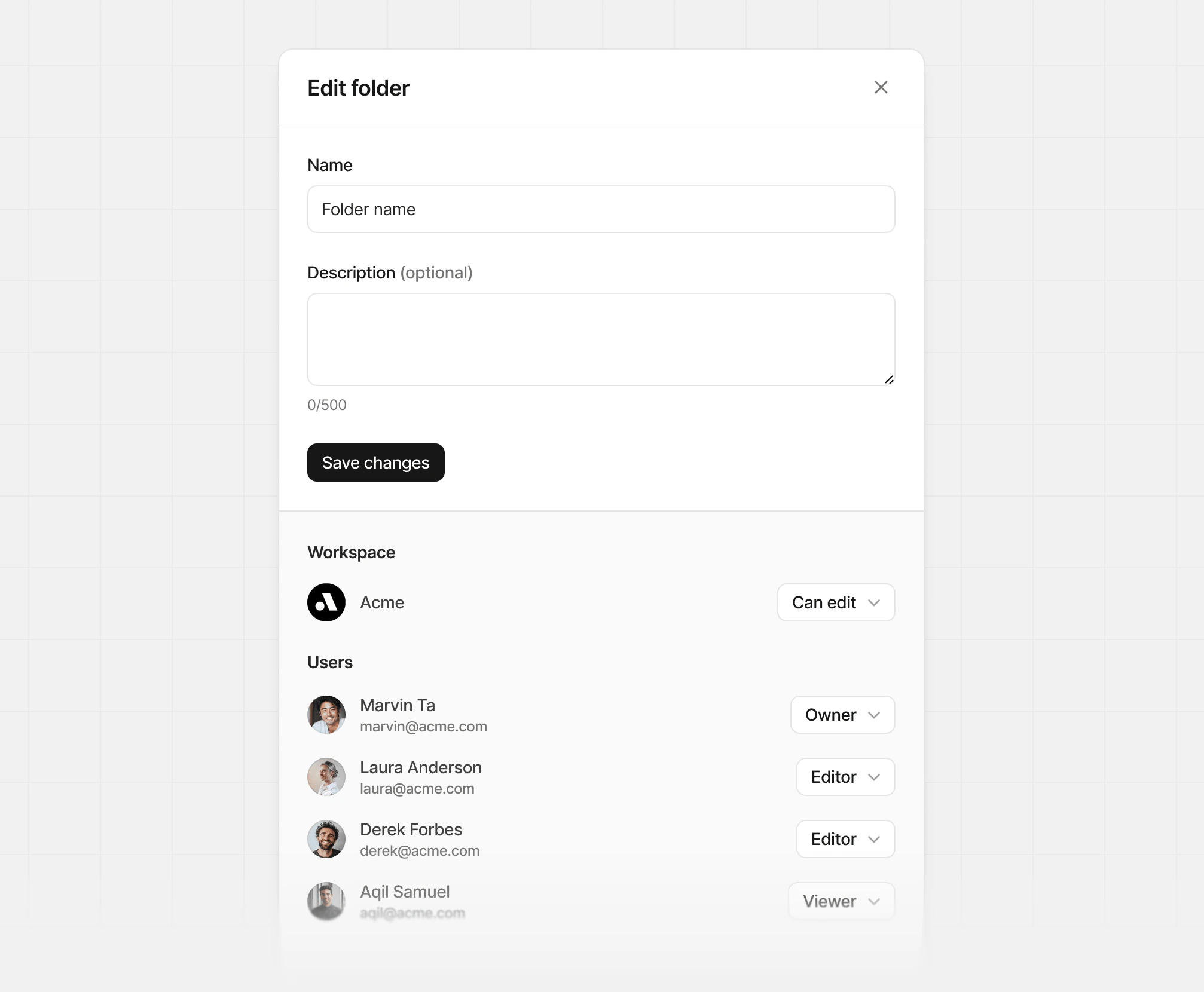 | Role | Description |
| ------------- | ----------------------------------------------------------------------------------------------------------------------------- |
| **Owner** | Has full access to the folder and its links.
| Role | Description |
| ------------- | ----------------------------------------------------------------------------------------------------------------------------- |
| **Owner** | Has full access to the folder and its links.
Can also invite other members to the folder / manage their access levels. |
| **Editor** | Can edit the folder and its links. |
| **Viewer** | Can view the folder and its links. |
| **No access** | Cannot view the folder and its links. |
If you are using [machine users](/docs/api-reference/tokens#machine-users) for
your API/integrations, remember to assign them the correct folder permissions
as well – they function the same way as regular users and would require the
correct permissions to be able to perform actions within a folder.
## Requesting access to a folder
If you only have read access to a folder, you can request edit access by clicking on the **"Ask to edit"** button:
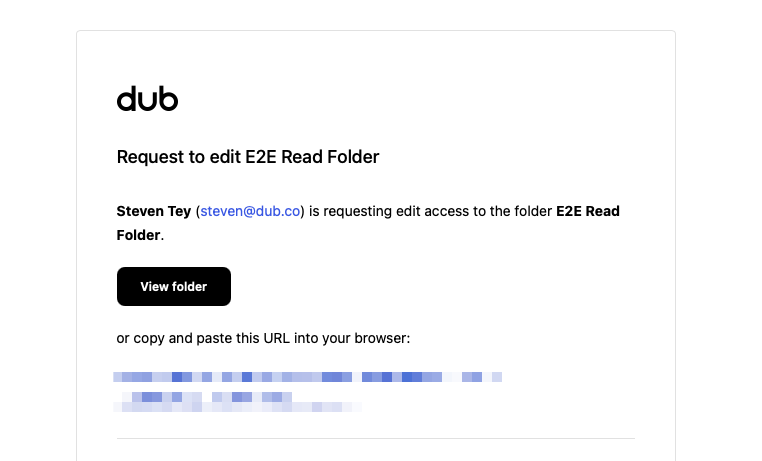
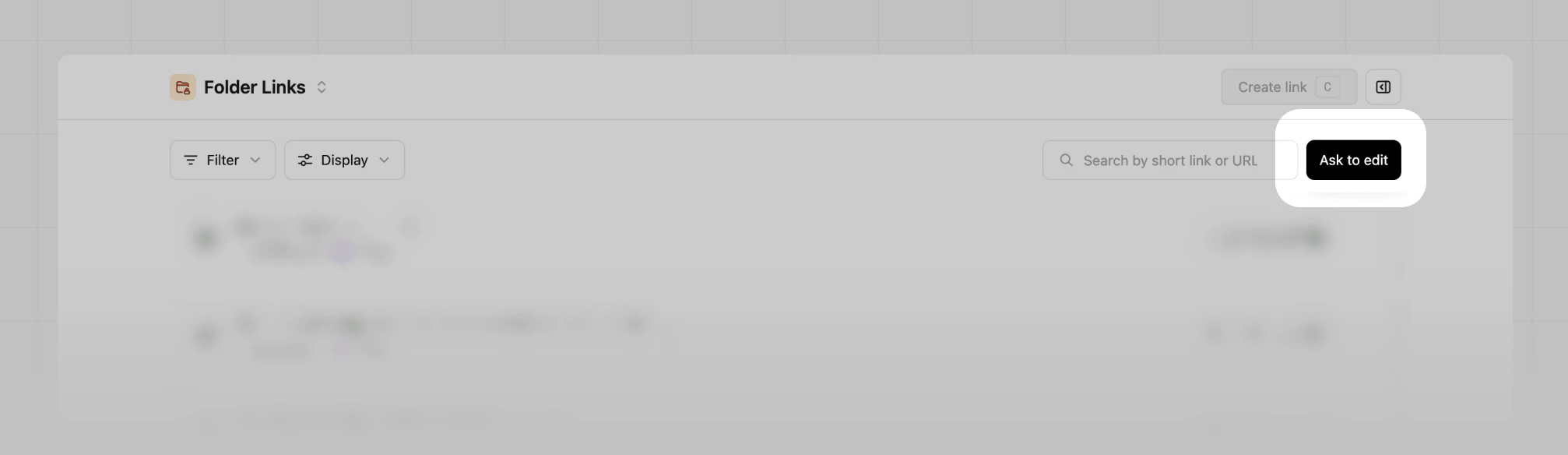 This will send an email to the folder admin, who can then grant edit/owner access to you to manage the folder and its links: