> ## Documentation Index
> Fetch the complete documentation index at: https://dub.co/llms.txt
> Use this file to discover all available pages before exploring further.
# Filtering and visualizing your analytics by UTM parameters
> Learn how to create powerful campaign-specific reports for your links by filtering your analytics by their respective UTM tags.
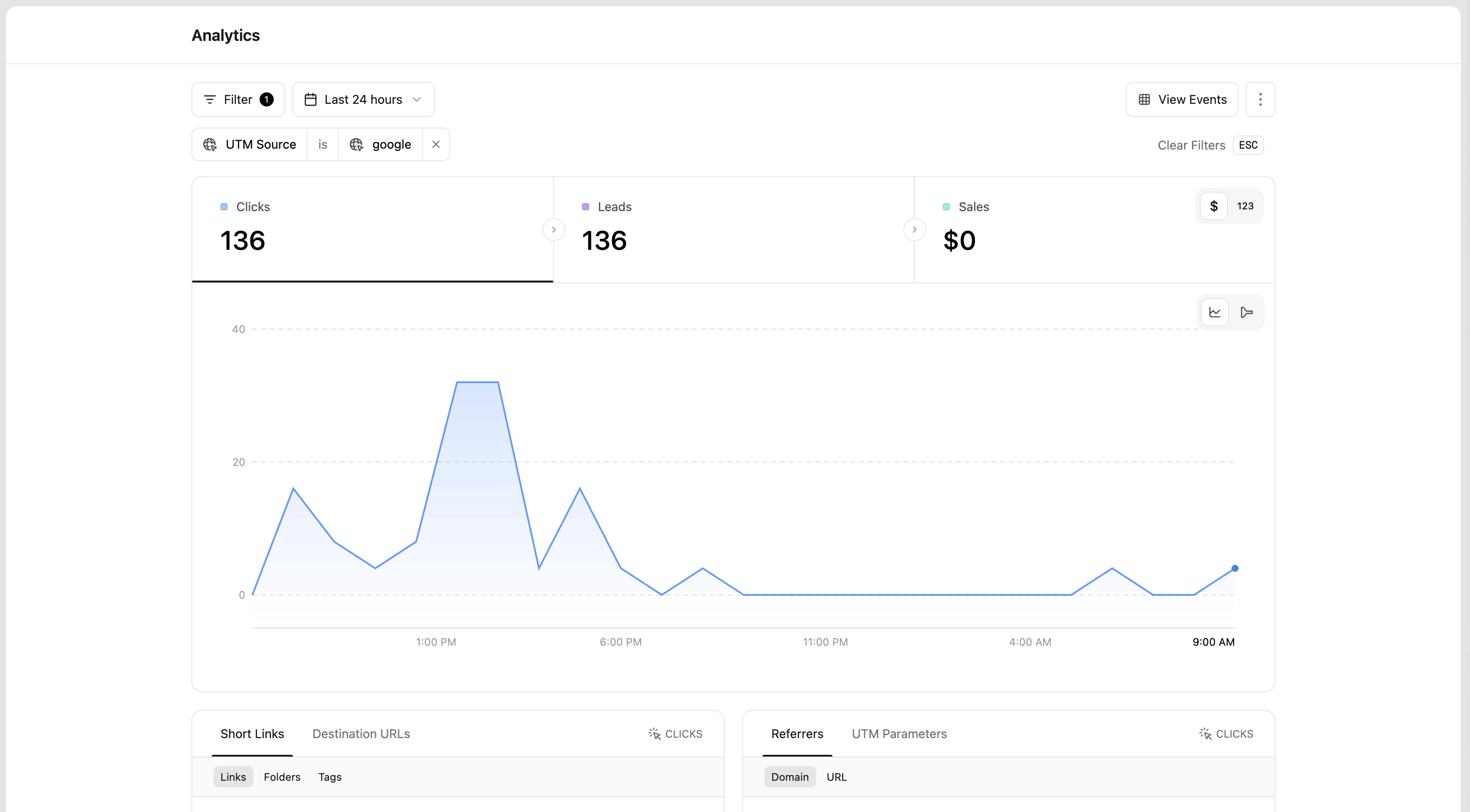
On Dub, you can filter your analytics by [UTM parameters](/help/article/utm-builder). This allows you to create powerful campaign-specific reports for your links.
For example, you're leveraging our [UTM templates feature](/help/article/how-to-create-utm-templates) to create standardized UTM parameters for your team to use in their marketing campaigns, you'd want a way to see how each of these UTMs are performing in your Analytics tab.
With our **UTM Parameters** tab, you can easily see how each of your UTM parameters are performing in real time.
 You can also filter your analytics by a specific UTM parameter that you'd like to create a custom report for:
In the [Analytics tab](https://app.dub.co/analytics) of your Dub workspace, click on the **Filter** button to open the filter dropdown:
You can also filter your analytics by a specific UTM parameter that you'd like to create a custom report for:
In the [Analytics tab](https://app.dub.co/analytics) of your Dub workspace, click on the **Filter** button to open the filter dropdown:
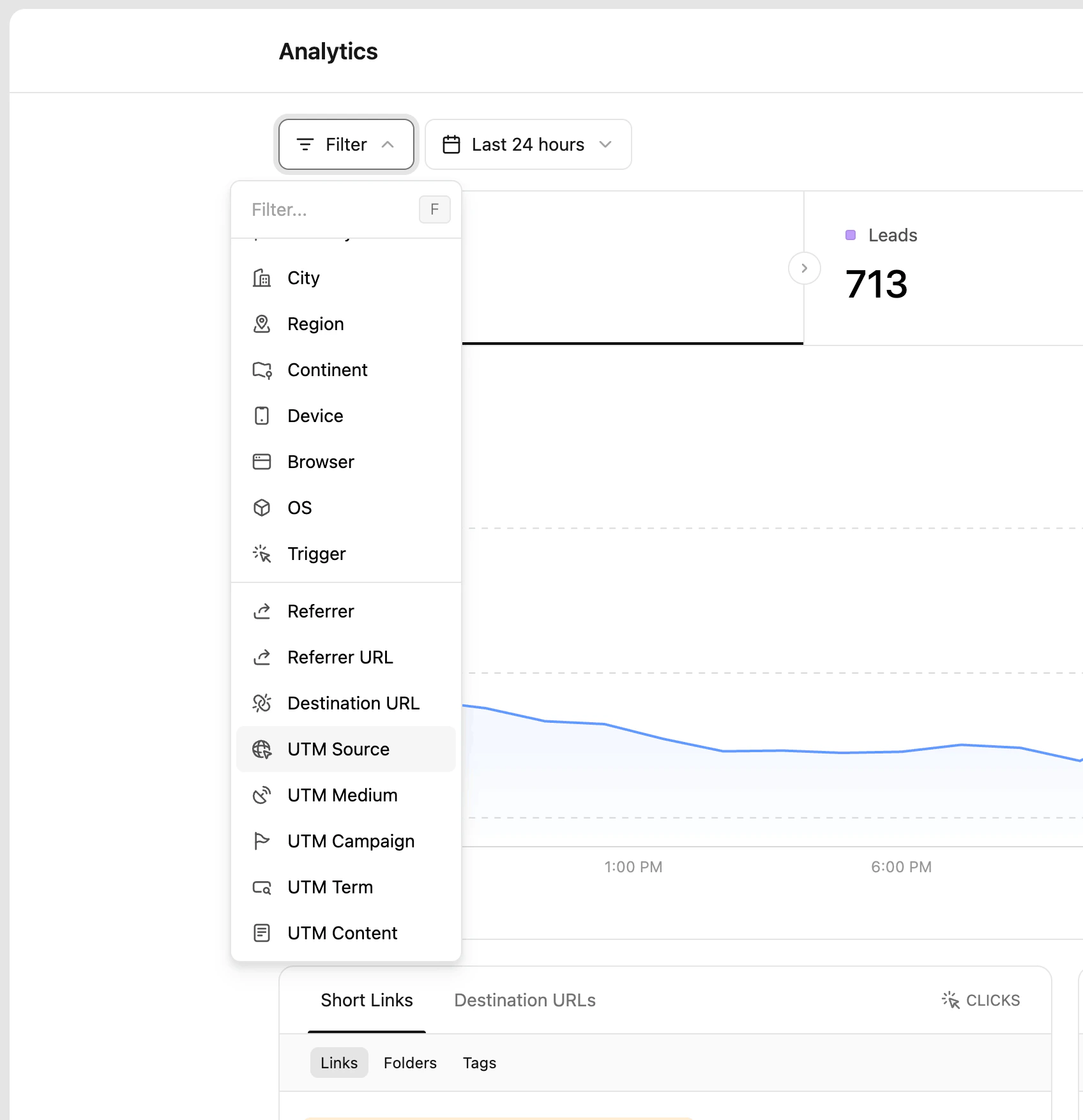 You can also use the `F` keyboard shortcut to quickly open the filter dropdown.
Select the **UTM Source** option in the dropdown to open the tags filter:
You can also use the `F` keyboard shortcut to quickly open the filter dropdown.
Select the **UTM Source** option in the dropdown to open the tags filter:
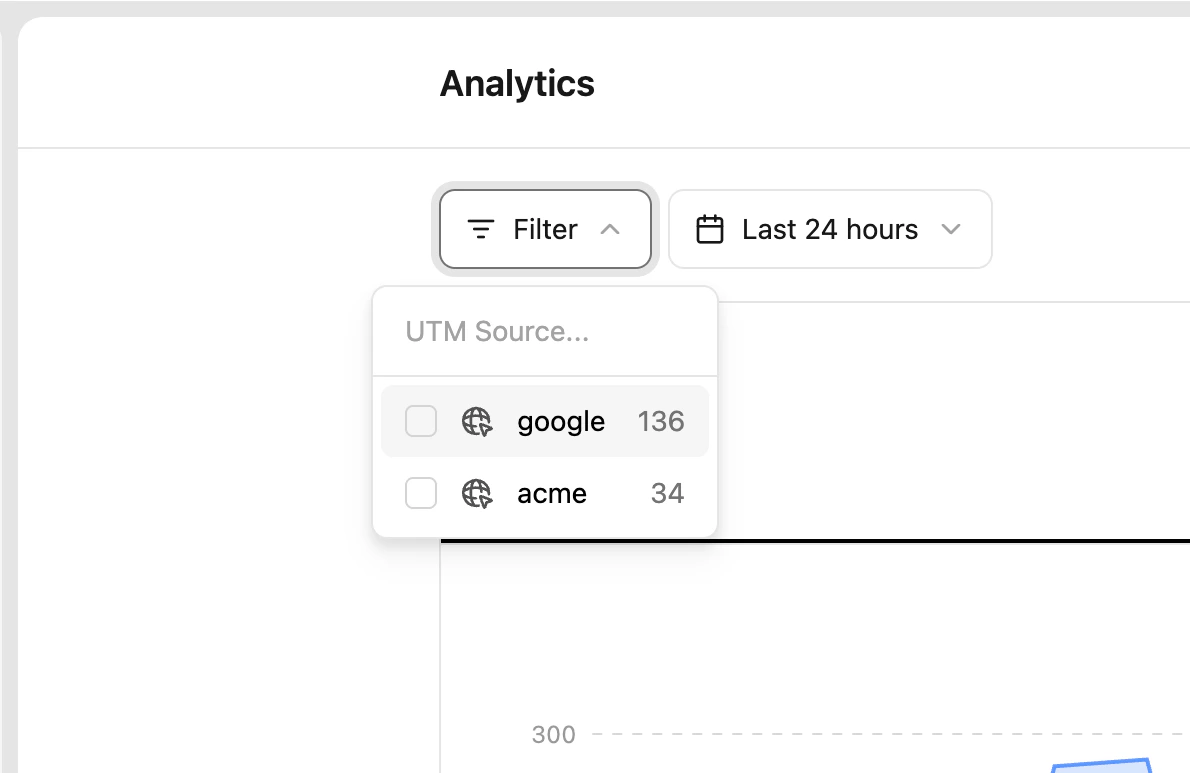 If you're looking to filter by other UTM parameters, you can select them accordingly in the main filter dropdown.
Finally, click on the UTM source you want to filter by:
If you're looking to filter by other UTM parameters, you can select them accordingly in the main filter dropdown.
Finally, click on the UTM source you want to filter by: