> ## Documentation Index
> Fetch the complete documentation index at: https://dub.co/llms.txt
> Use this file to discover all available pages before exploring further.
# Communicating with your programs
> Learn about using the messaging center to stay connected with your programs, view conversations, and send messages.
On Dub, you can use the built-in Messaging Center to communicate directly with the programs you're enrolled in.
This is helpful for discussing any questions about your rewards structure, [commissions](/help/article/commissions-payouts), and [partner payouts](/help/article/receiving-payouts).
## Where can I find my messages?
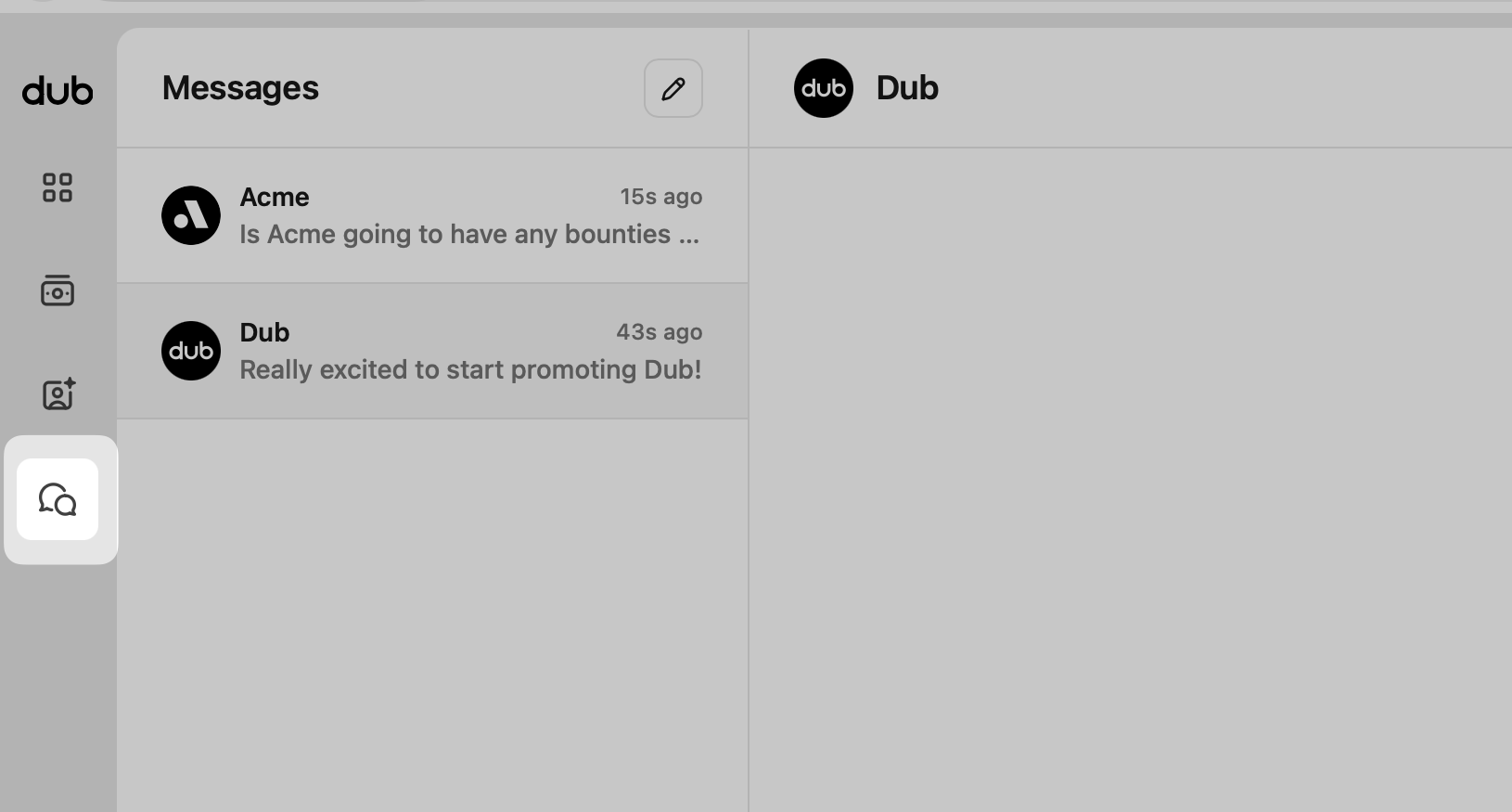
In your main navigation, click the **Messages** icon to see your inbox and compose new messages.
 ## Messages overview
The messaging center has three panels:
## Messages overview
The messaging center has three panels:
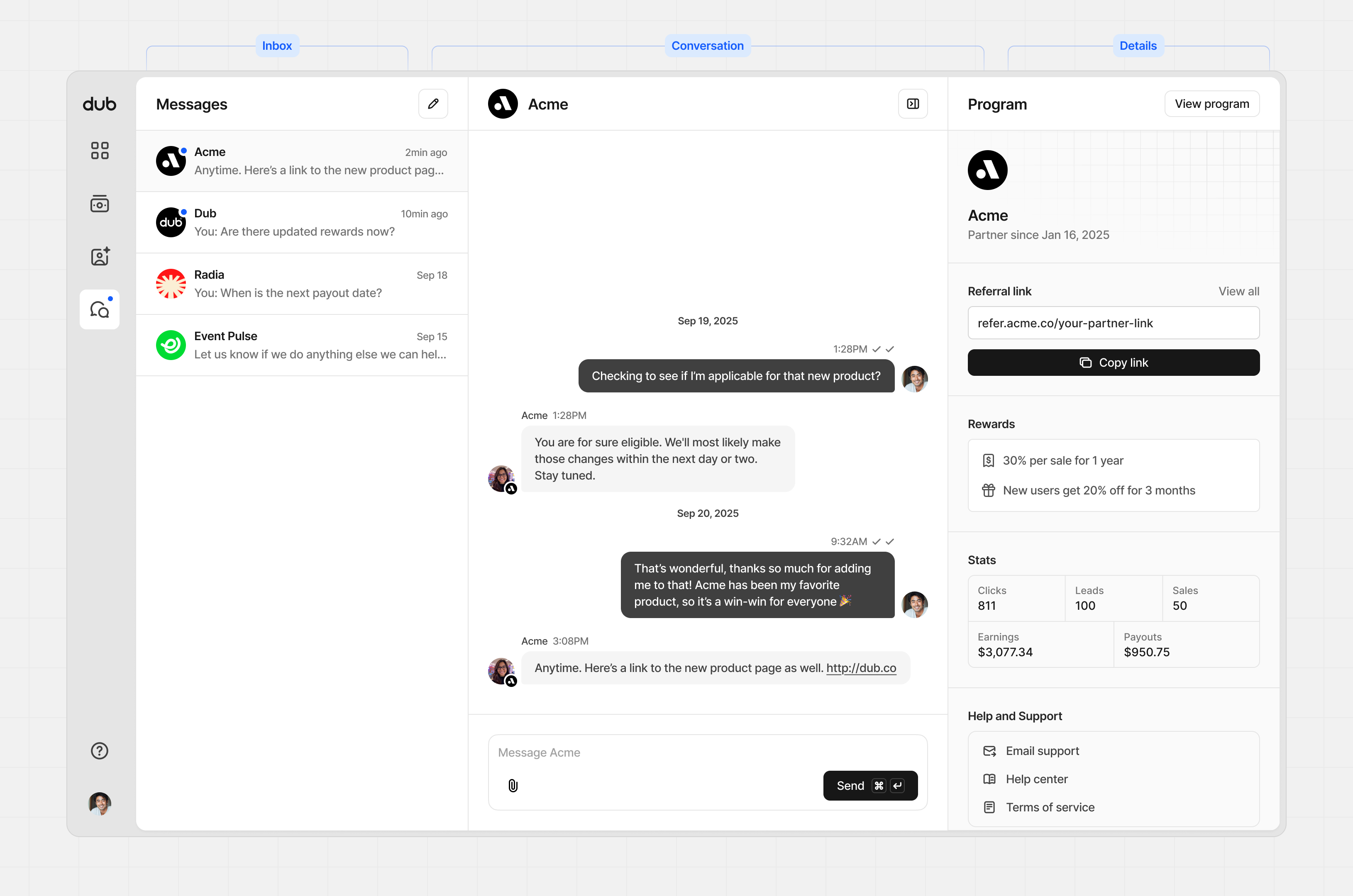 | Panel | Content |
| ------------ | ----------------------------------------------- |
| Inbox | All your conversations in one place. |
| Conversation | The full thread with your selected program. |
| Details | Key info and performance stats for the program. |
### Inbox panel
Your Inbox lists every conversation with the programs you're enrolled in. Select one to pick up where you left off, or click the **Pencil** button in the top right to compose something new.
| Panel | Content |
| ------------ | ----------------------------------------------- |
| Inbox | All your conversations in one place. |
| Conversation | The full thread with your selected program. |
| Details | Key info and performance stats for the program. |
### Inbox panel
Your Inbox lists every conversation with the programs you're enrolled in. Select one to pick up where you left off, or click the **Pencil** button in the top right to compose something new.
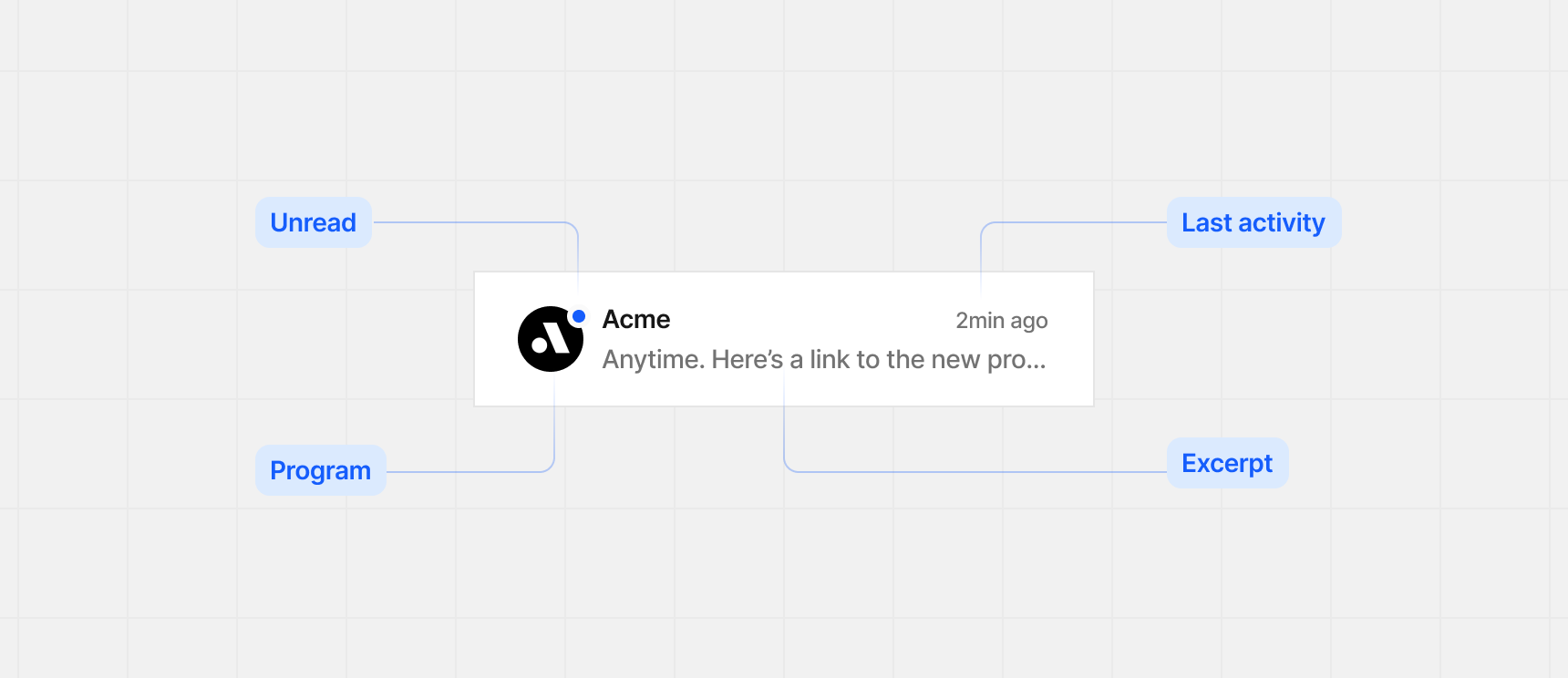
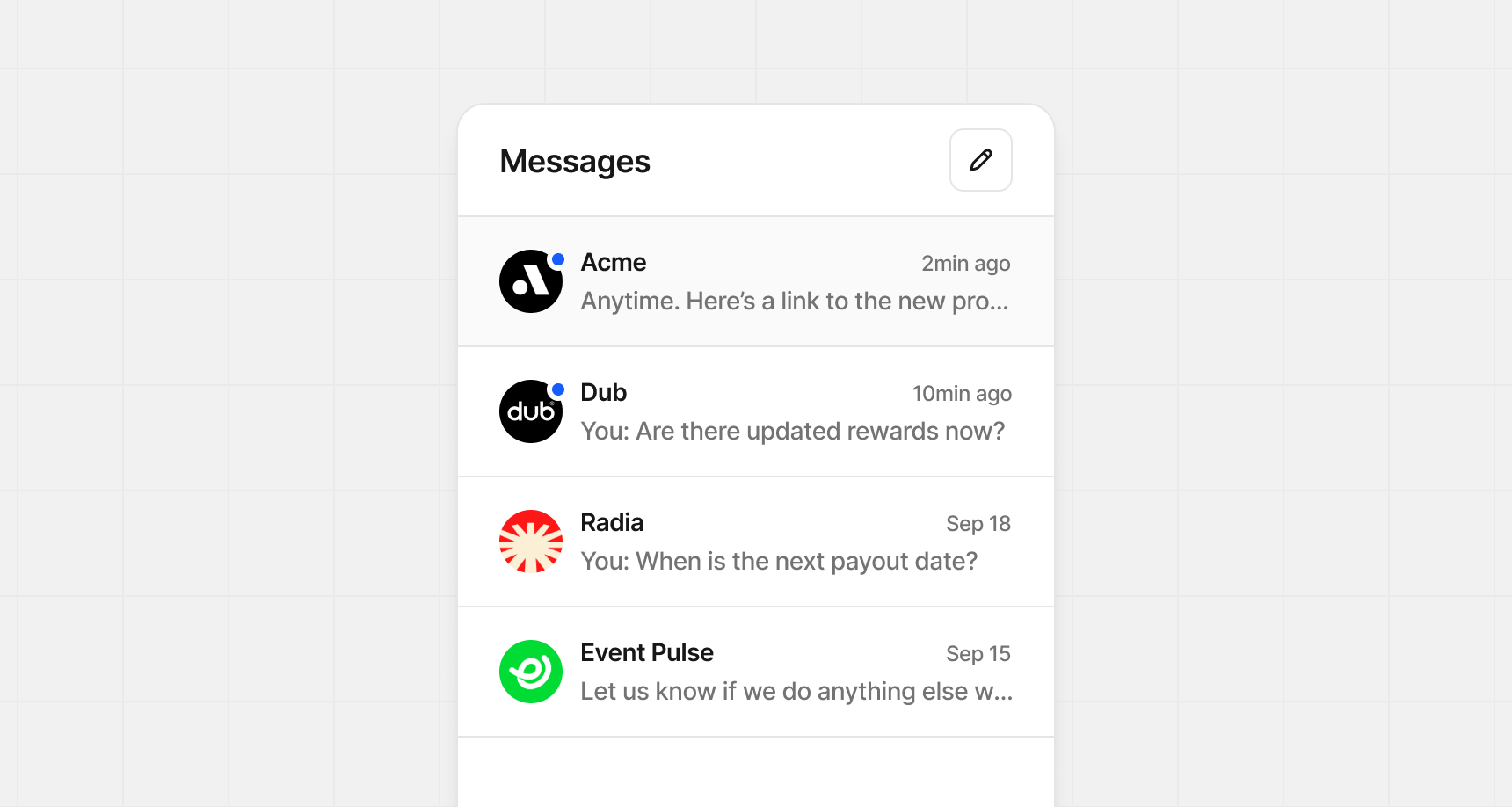 Each conversation row shows:
* **Unread indicator** – shows if you’ve read the message
* **Program** – program's name and program image
* **Last activity** – most recent message from you or the program
* **Excerpt** – short preview of the latest message
Each conversation row shows:
* **Unread indicator** – shows if you’ve read the message
* **Program** – program's name and program image
* **Last activity** – most recent message from you or the program
* **Excerpt** – short preview of the latest message
 ### Conversation panel
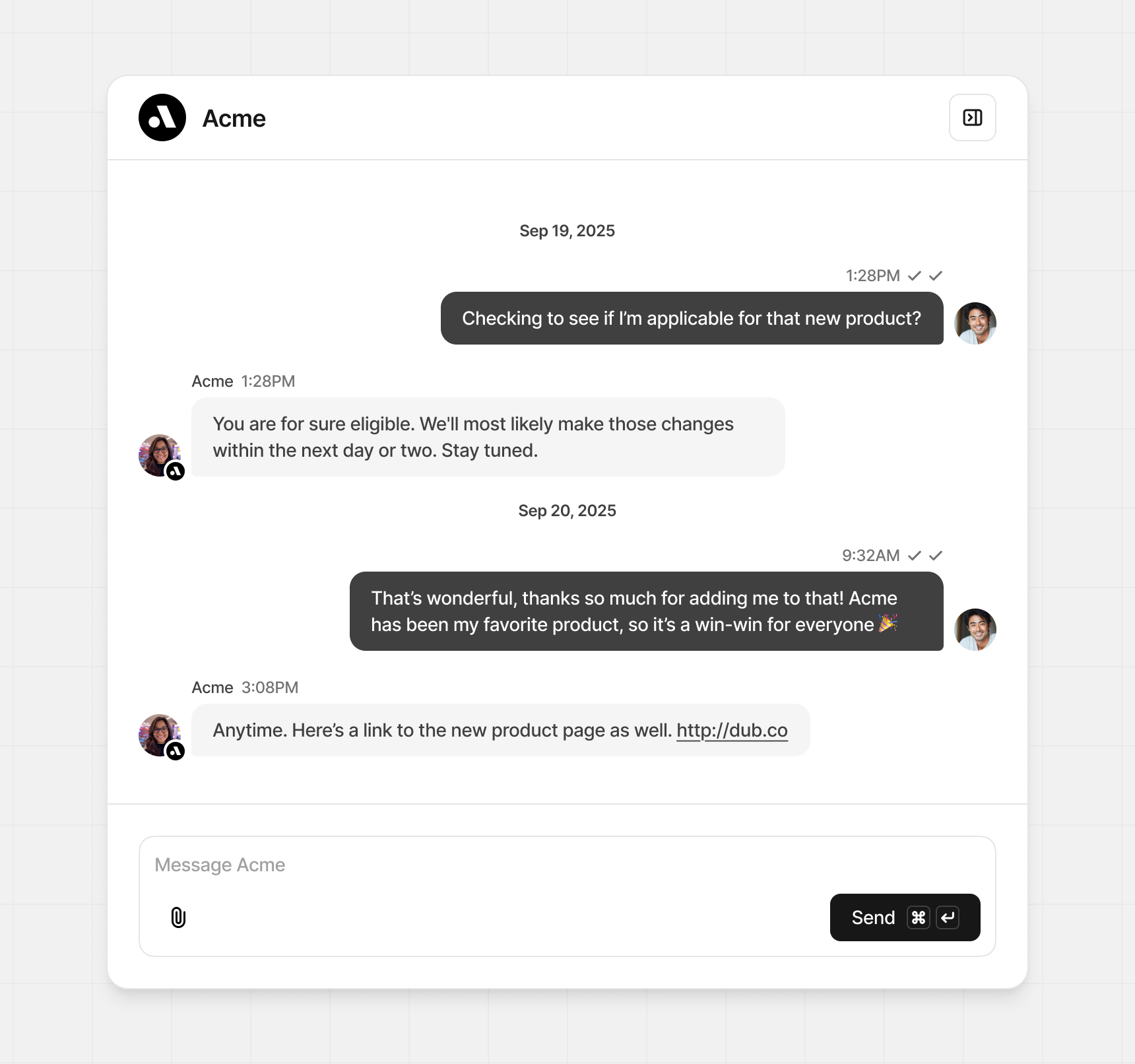
In the Conversation panel, you’ll see the full thread with your partner. Workspace members can reply too, with their profile images shown beside each message.
### Conversation panel
In the Conversation panel, you’ll see the full thread with your partner. Workspace members can reply too, with their profile images shown beside each message.
 **Message status**
Each message sent has a check mark next to the send time:
* **Single check mark** – delivered
* **Double check marks** – delivered and read (either in email or in the app)
### Details panel
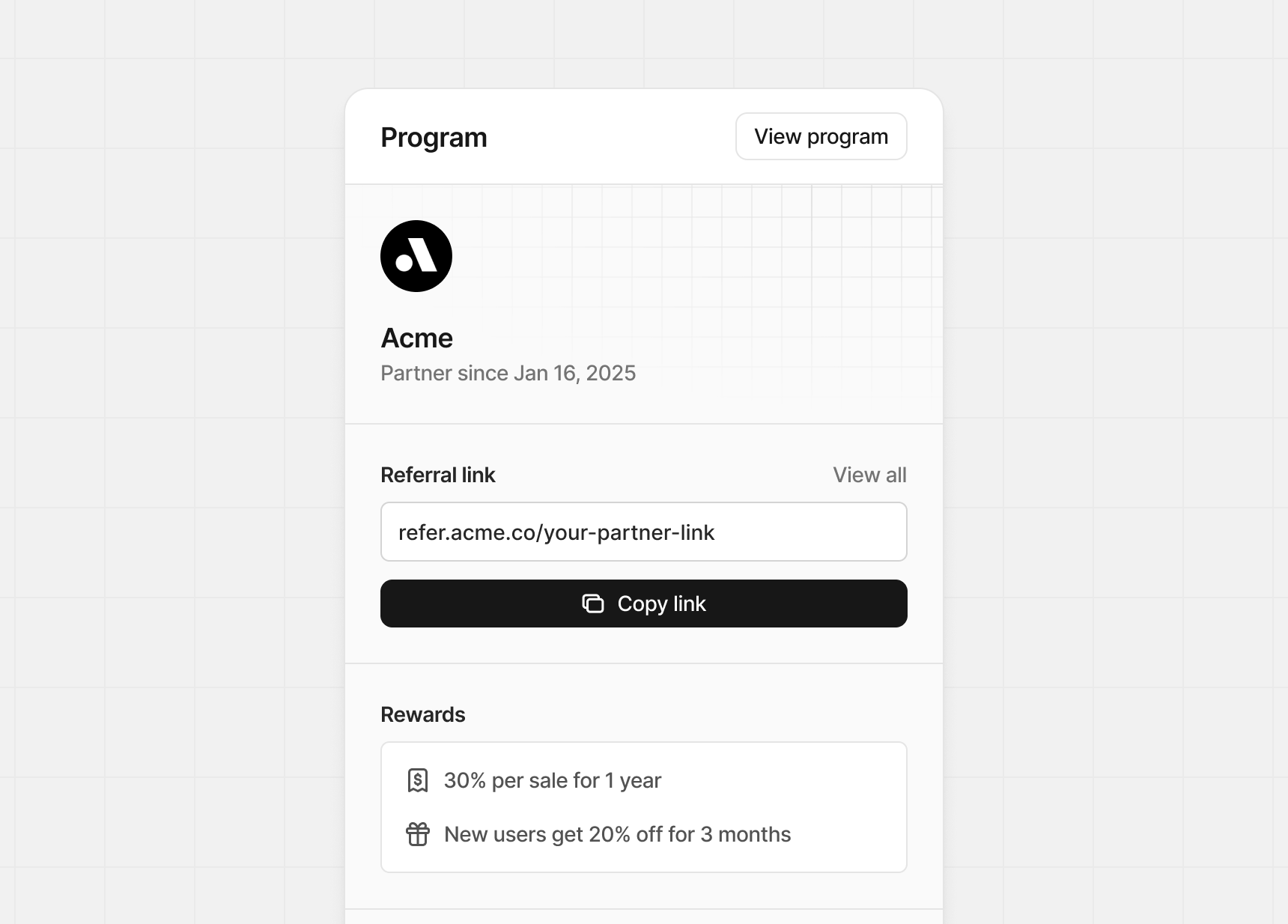
The details panel is collapsible and shows the program's information, your performance stats, referral link, and eligible rewards/bounties.
**Message status**
Each message sent has a check mark next to the send time:
* **Single check mark** – delivered
* **Double check marks** – delivered and read (either in email or in the app)
### Details panel
The details panel is collapsible and shows the program's information, your performance stats, referral link, and eligible rewards/bounties.
 ## Messaging programs
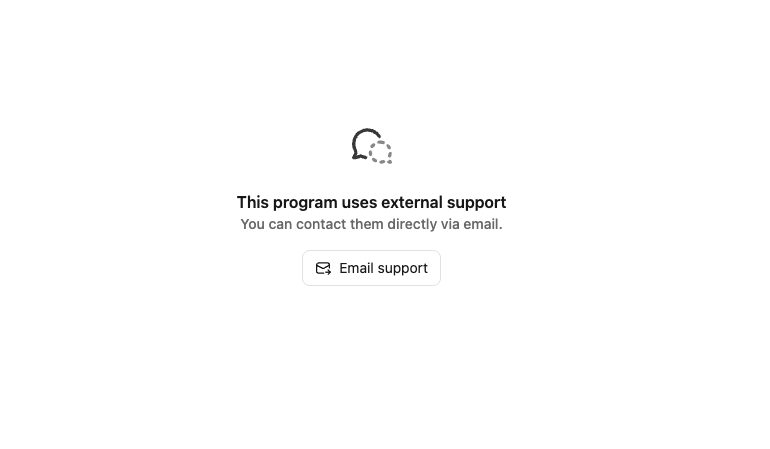
You can message any program you are enrolled in as long as they have enabled the Messaging Center. If messaging is not enabled, the program’s support email address will appear instead:
## Messaging programs
You can message any program you are enrolled in as long as they have enabled the Messaging Center. If messaging is not enabled, the program’s support email address will appear instead: