> ## Documentation Index
> Fetch the complete documentation index at: https://dub.co/llms.txt
> Use this file to discover all available pages before exploring further.
# Configuring SCIM Directory Sync with Azure AD
> For Dub Enterprise users, you can automatically provision and deprovision users from Azure AD to Dub using SCIM Directory Sync.
This feature is only available on [Dub Enterprise](https://dub.co/enterprise).
For Dub Enterprise users, you can automatically provision and deprovision users from your Azure Active Directory (AD) to Dub using [SCIM Directory Sync](https://learn.microsoft.com/en-us/azure/active-directory/architecture/sync-scim).
## Step 1: Configure Directory Sync on Dub
In your workspace dashboard on Dub, click on the **Settings** tab in the menu bar at the top. Then, click on the **Security** tab in the sidebar.
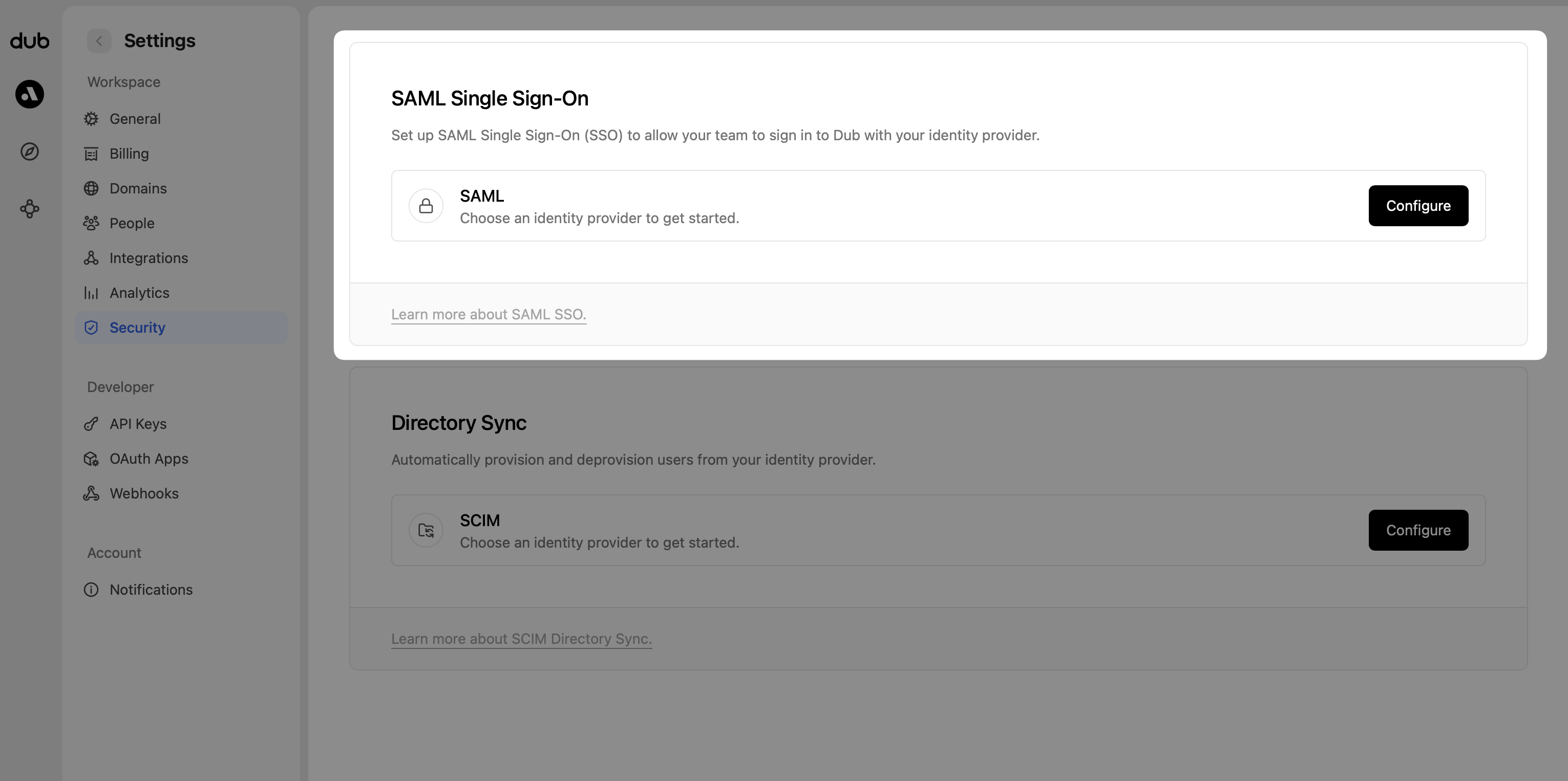 Under the **Directory Sync** section, click on **Configure**. This will open up the Directory Sync modal:
1. Select **Azure AD** as the Directory Provider.
2. Click **Save changes**.
Under the **Directory Sync** section, click on **Configure**. This will open up the Directory Sync modal:
1. Select **Azure AD** as the Directory Provider.
2. Click **Save changes**.
 This will generate a Directory Sync connection for your Dub workspace, and return 2 values, which will be needed in Step 2:
1. **Tenant URL**
2. **Secret Token**
This will generate a Directory Sync connection for your Dub workspace, and return 2 values, which will be needed in Step 2:
1. **Tenant URL**
2. **Secret Token**
 ## Step 2: Add Provisioning to SAML Application
Click on the **Provisioning** tab of your existing Dub Okta SAML application that you want to enable SCIM provisioning for.
## Step 2: Add Provisioning to SAML Application
Click on the **Provisioning** tab of your existing Dub Okta SAML application that you want to enable SCIM provisioning for.
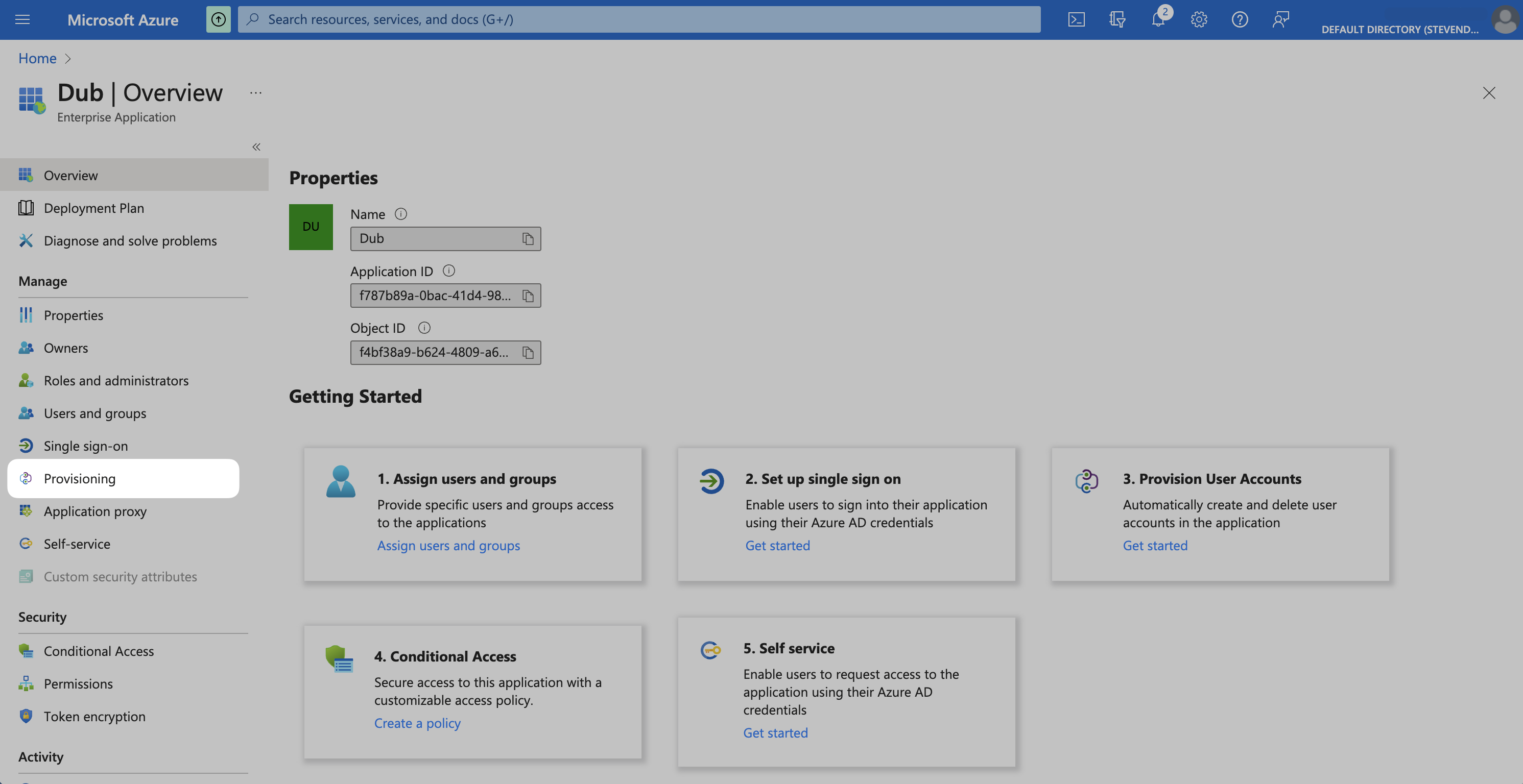 In the Provisioning tab, click on **Get started**.
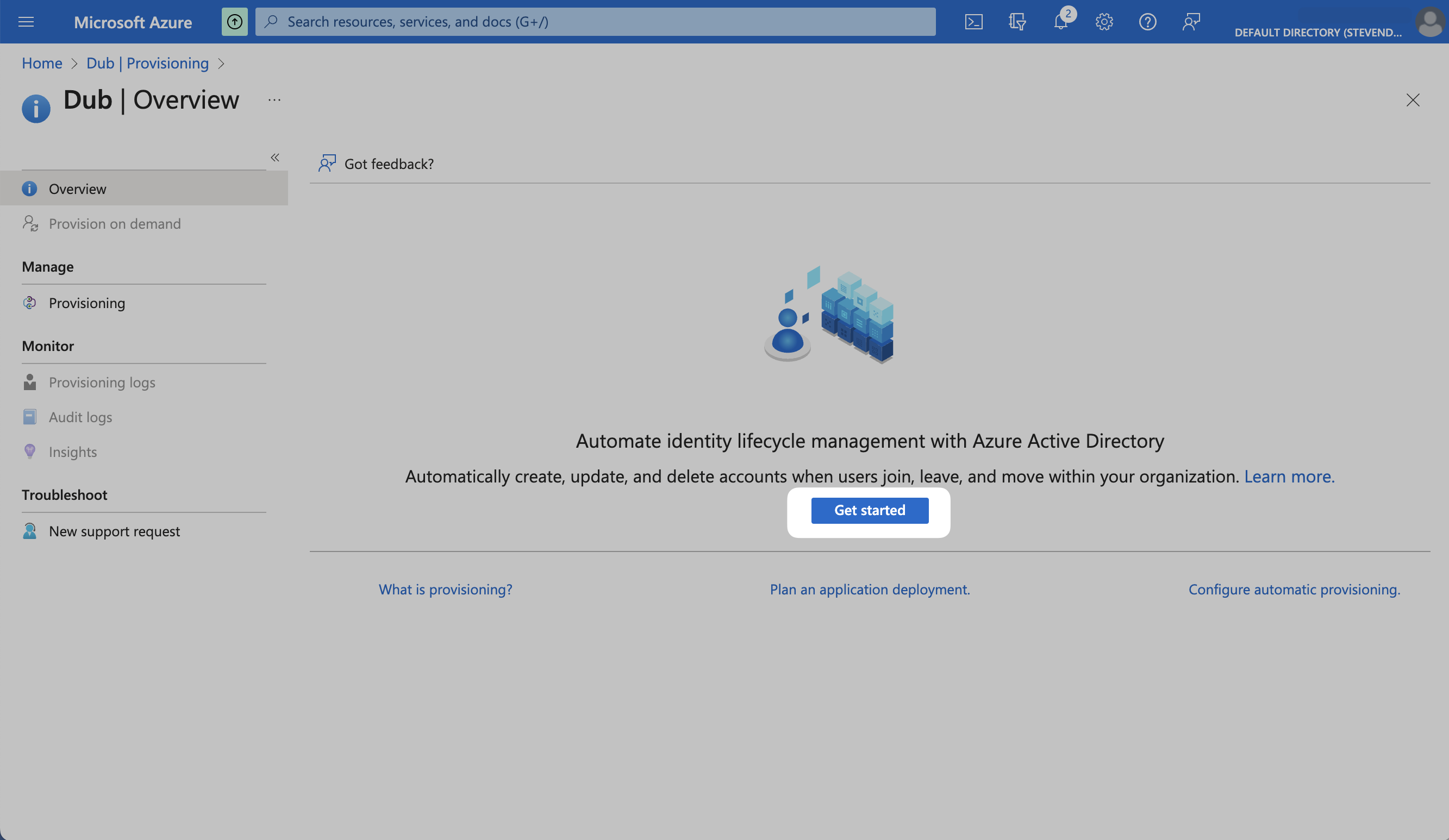 Select **Automatic** from the **Provisioning Mode** dropdown. Under the **Admin Credentials** section, enter the values that you obtained from Step 1:
1. **Tenant URL**
2. **Secret Token**
Select **Automatic** from the **Provisioning Mode** dropdown. Under the **Admin Credentials** section, enter the values that you obtained from Step 1:
1. **Tenant URL**
2. **Secret Token**
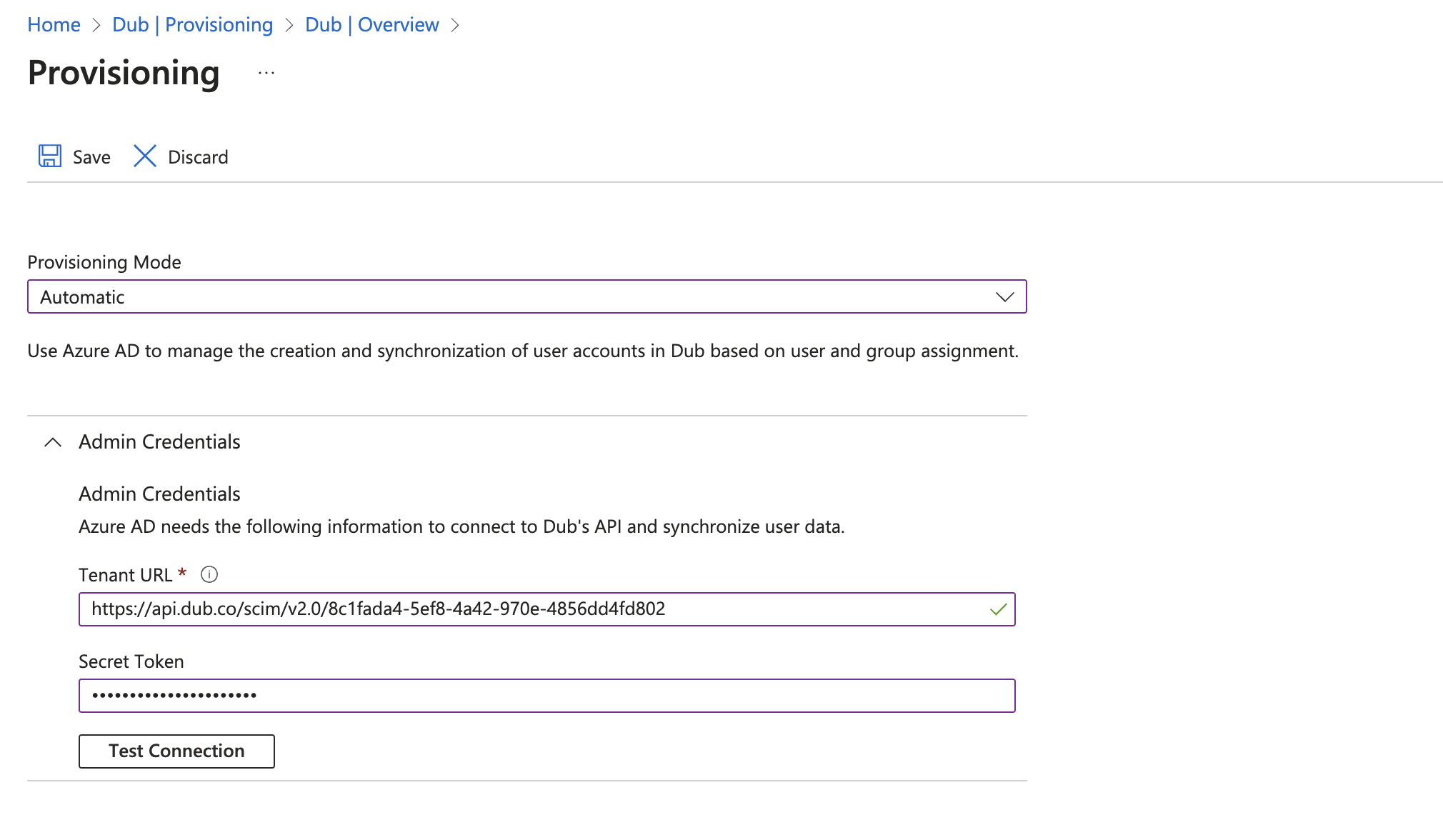 Click on **Test Connection** to test the connection to see if the credentials are correct, then click **Save** to save the credentials.
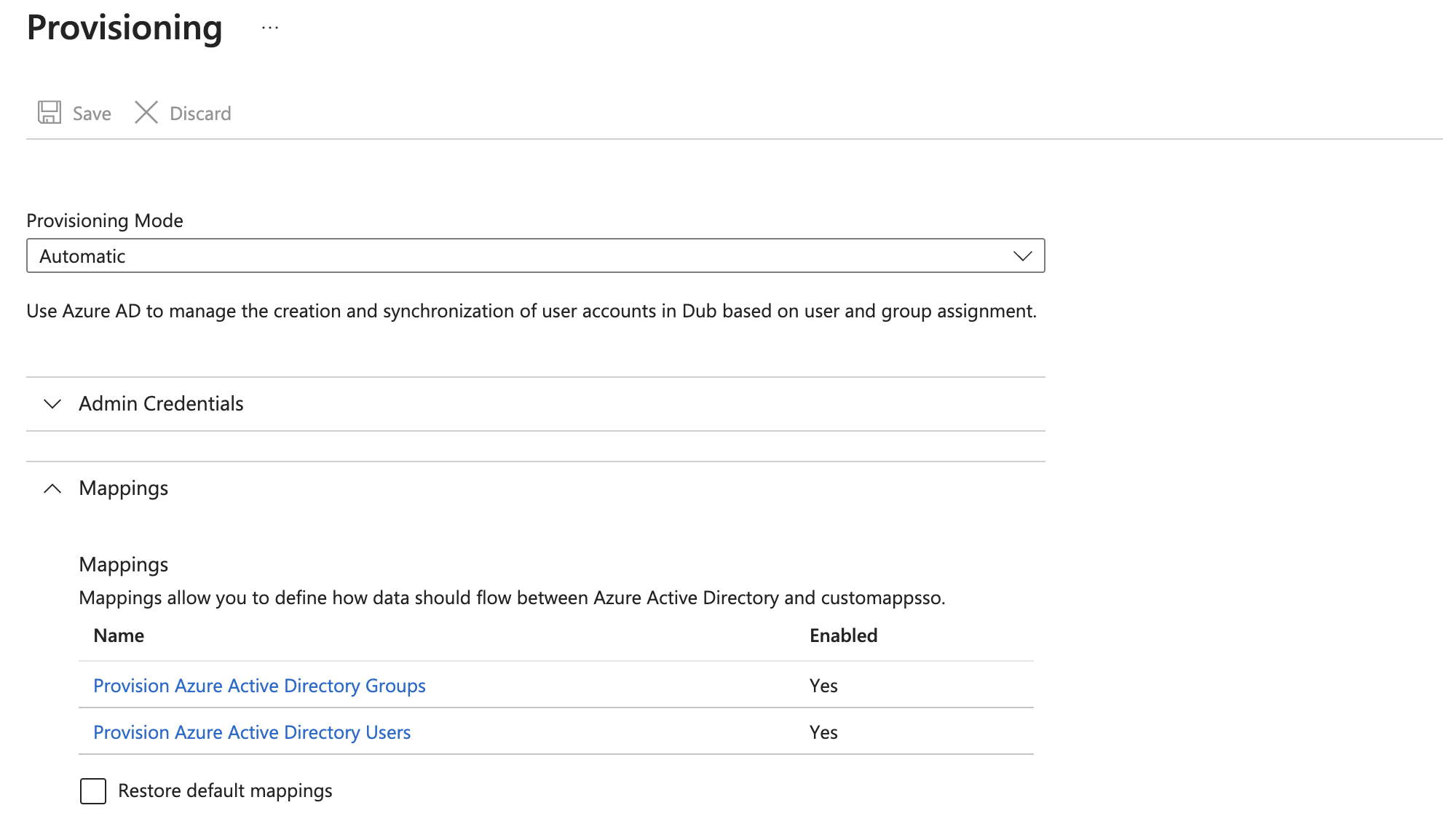
Expand the **Mappings** section and ensure group and user attribute mappings are enabled for your app. The default mapping should work.
Click on **Test Connection** to test the connection to see if the credentials are correct, then click **Save** to save the credentials.
Expand the **Mappings** section and ensure group and user attribute mappings are enabled for your app. The default mapping should work.
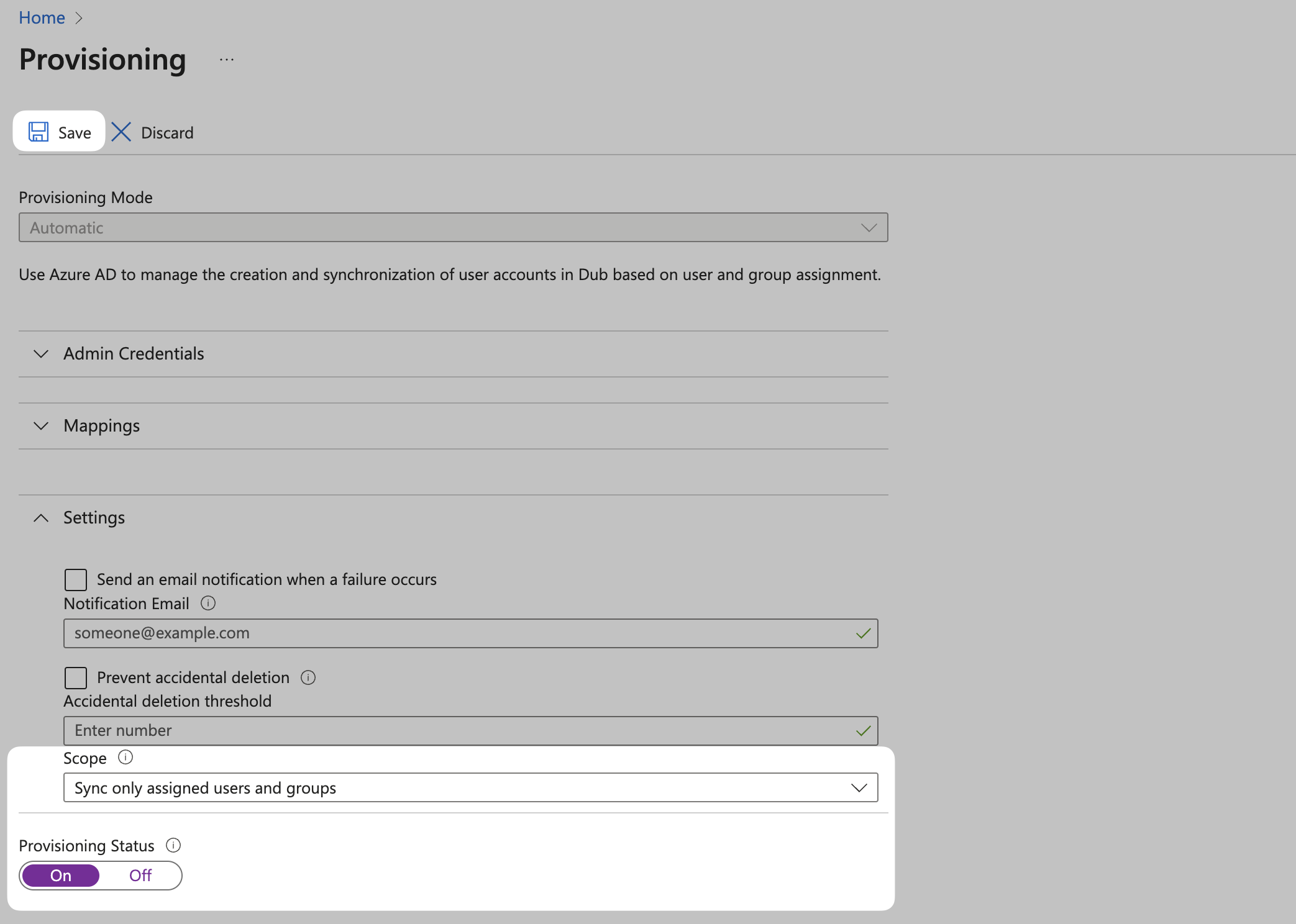
 Expand the **Settings** section and make the following changes:
* Select **Sync only assigned users and groups** from the **Scope** dropdown.
* Confirm the **Provisioning Status** is set to **On**.
Click **Save** to save the changes.
Expand the **Settings** section and make the following changes:
* Select **Sync only assigned users and groups** from the **Scope** dropdown.
* Confirm the **Provisioning Status** is set to **On**.
Click **Save** to save the changes.
 Congratulations! You've successfully configured SCIM provisioning for your Dub workspace.
## Step 3: Assign Users
Once you've configured Directory sync, you can assign users to Dub directly within Azure AD.
From your application, click the **Users and groups** from the left navigation menu and click **Add user/group**.
Congratulations! You've successfully configured SCIM provisioning for your Dub workspace.
## Step 3: Assign Users
Once you've configured Directory sync, you can assign users to Dub directly within Azure AD.
From your application, click the **Users and groups** from the left navigation menu and click **Add user/group**.
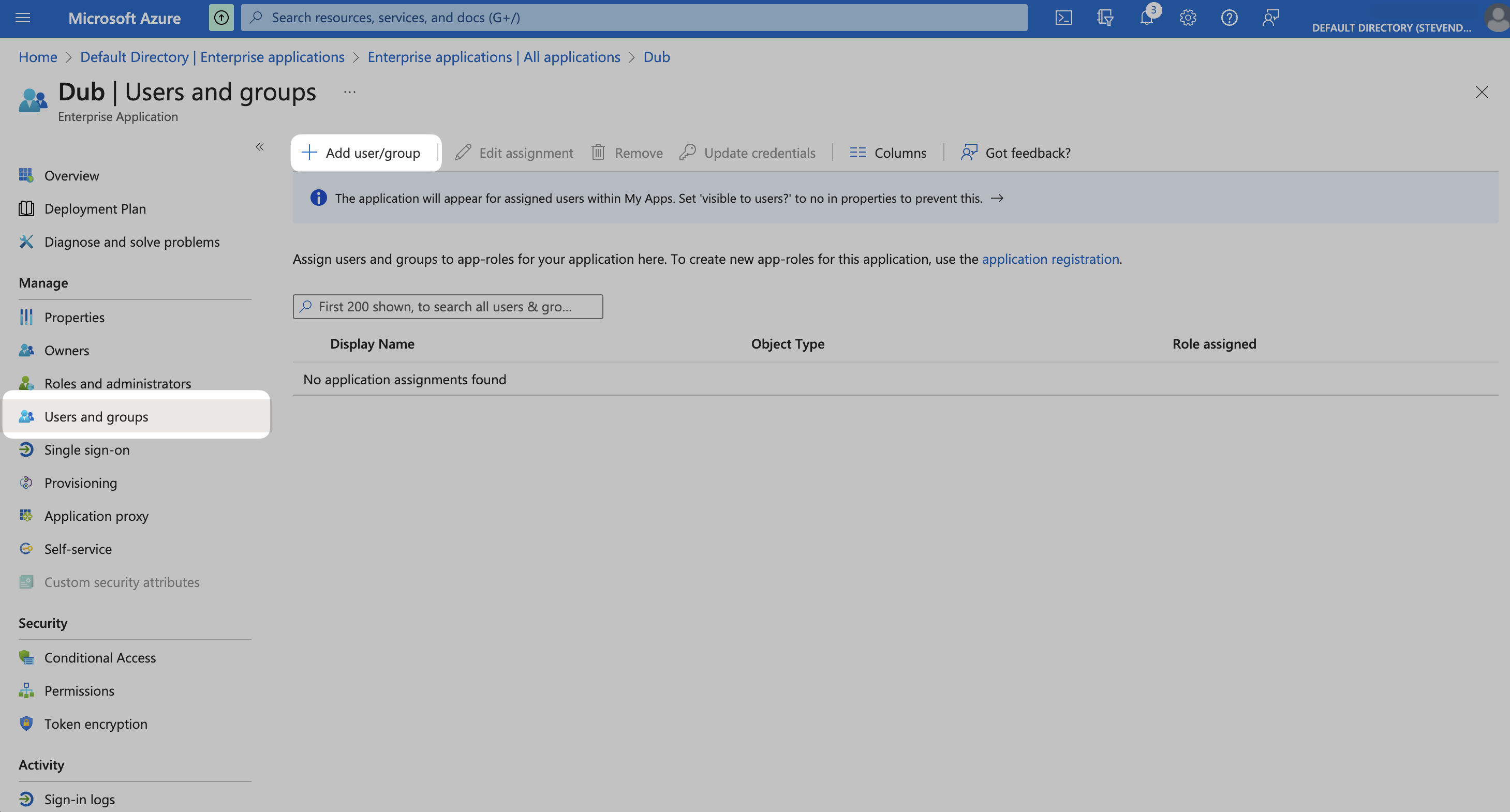 Click on **None Selected** under **Users**.
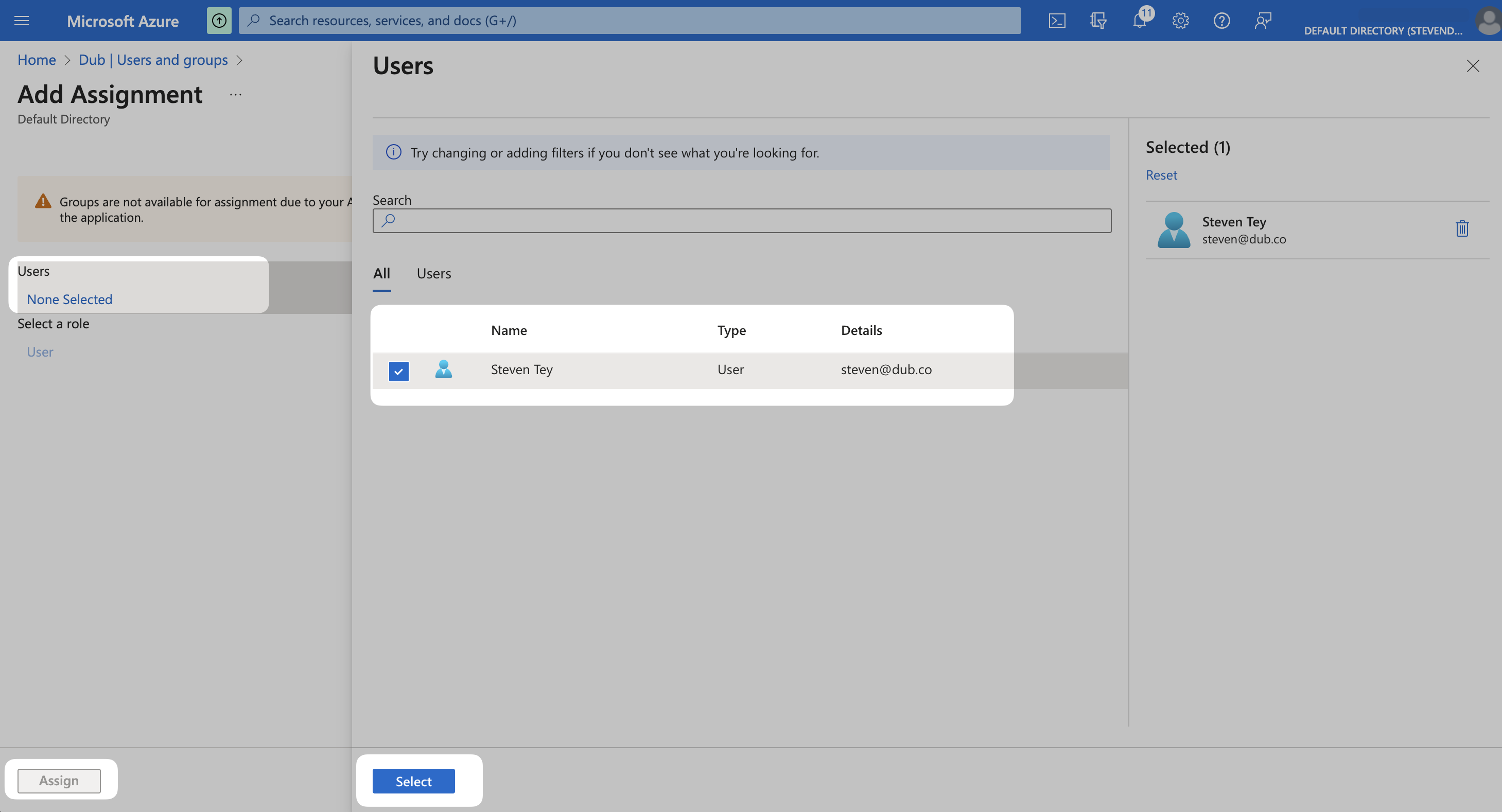
From the right side of the screen, select the users you want to assign to the app and click the **Select** button. Thenm click **Assign** to those users to your app.
Click on **None Selected** under **Users**.
From the right side of the screen, select the users you want to assign to the app and click the **Select** button. Thenm click **Assign** to those users to your app.
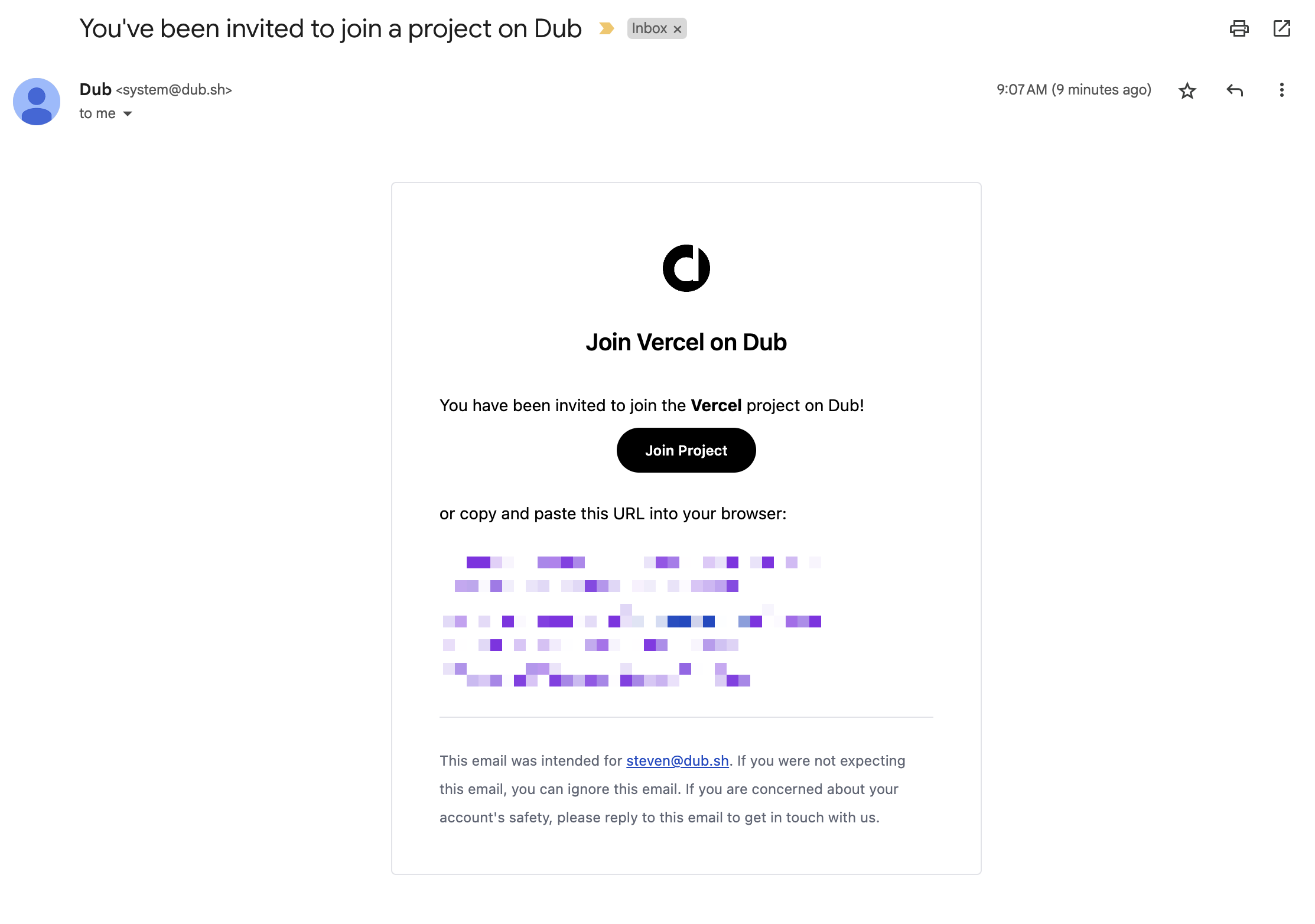
 Your assigned users should now receive an invitation email to join your Dub workspace.
 Azure AD SCIM provisioning can take [anywhere between 20-40 minutes to
sync](https://learn.microsoft.com/en-us/azure/databricks/administration-guide/users-groups/scim/aad#provisioning-tips).
This means that it may take up to 40 minutes for your users to receive the
invitation email and be able to join your Dub workspace.
They will also be able to sign in to Dub using Azure AD SSO
Azure AD SCIM provisioning can take [anywhere between 20-40 minutes to
sync](https://learn.microsoft.com/en-us/azure/databricks/administration-guide/users-groups/scim/aad#provisioning-tips).
This means that it may take up to 40 minutes for your users to receive the
invitation email and be able to join your Dub workspace.
They will also be able to sign in to Dub using Azure AD SSO