> ## Documentation Index
> Fetch the complete documentation index at: https://dub.co/llms.txt
> Use this file to discover all available pages before exploring further.
# Configuring SAML SSO with Azure AD
> For Dub Enterprise users, you can securely manage your team's access to Dub using Azure AD SAML SSO.
This feature is only available on [Dub Enterprise](https://dub.co/enterprise).
For Dub Enterprise users, you can securely manage your team's access to Dub using [Azure AD SAML SSO](https://learn.microsoft.com/en-us/azure/active-directory/architecture/auth-saml).
## Step 1: Create or Select SAML Application
In your [Azure Admin console](https://portal.azure.com/), select **Azure Active Directory** (or search for it in the search bar).
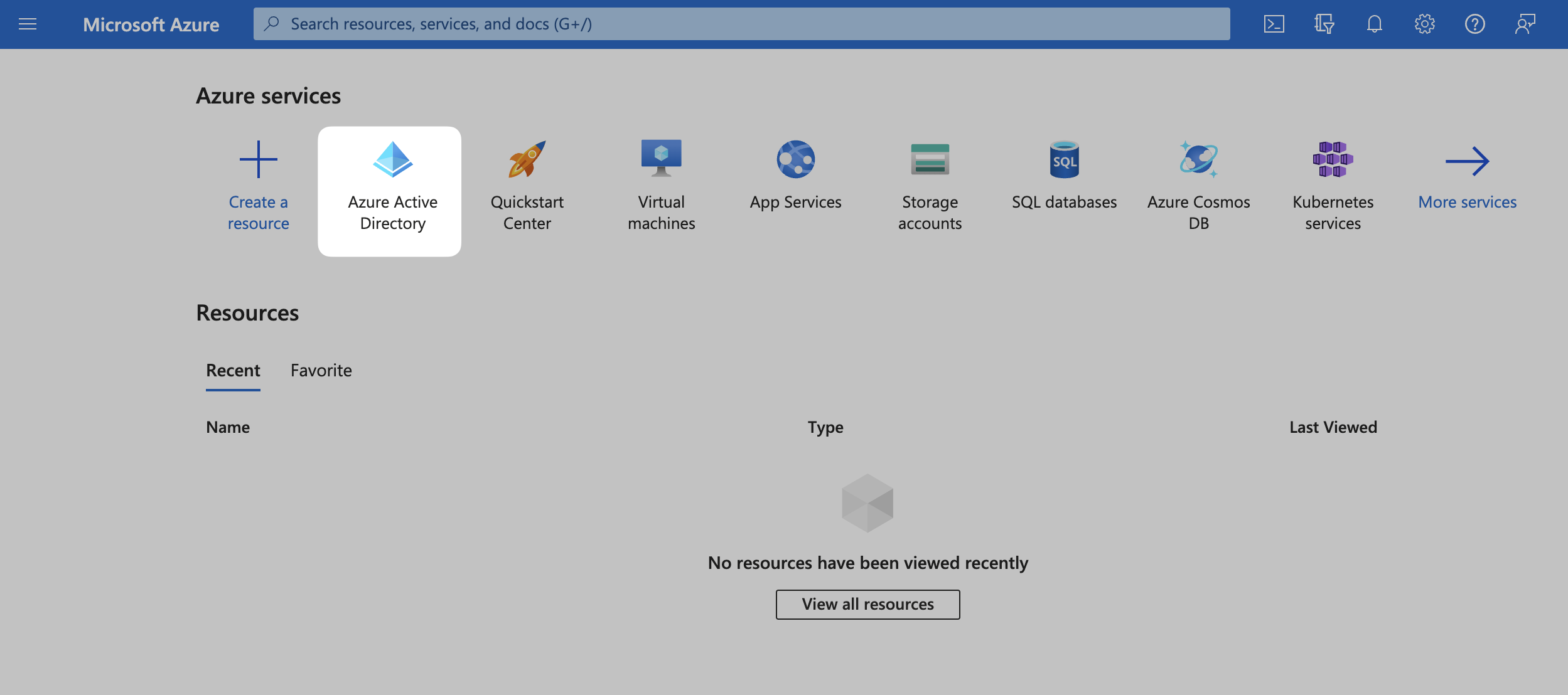 Then, click on **Enterprise applications** from the left sidebar.
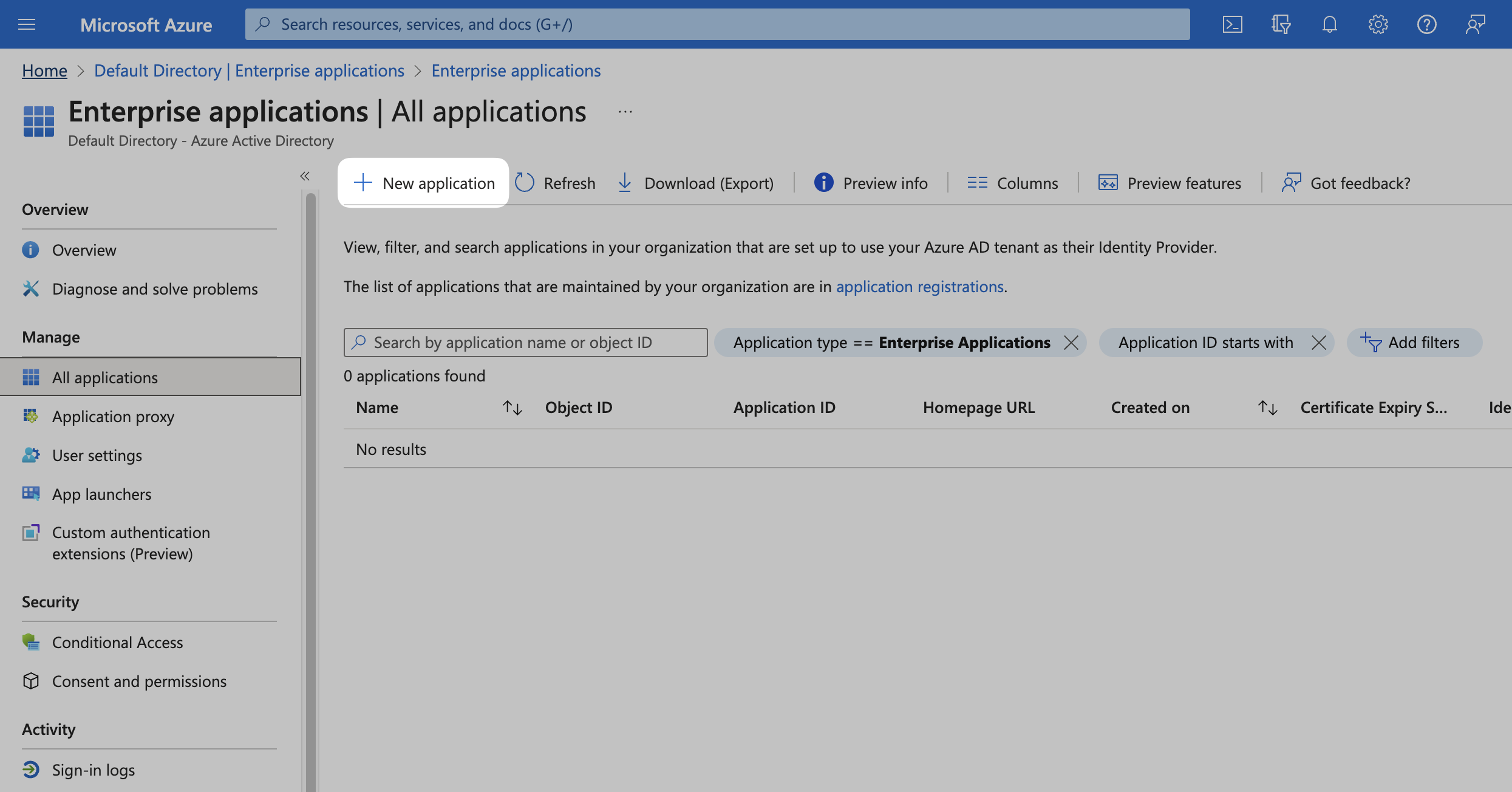
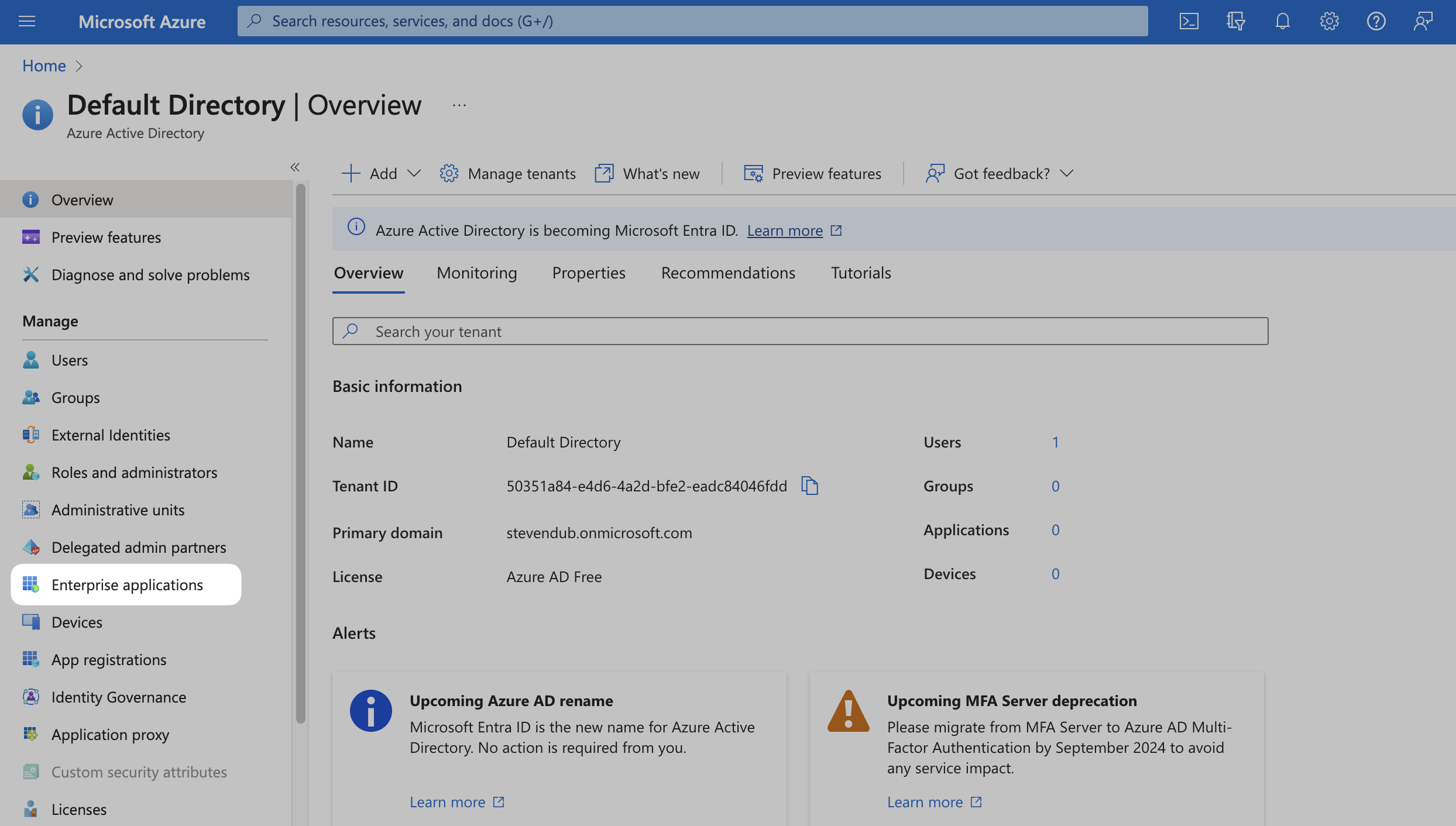 If you already have an existing Azure AD SAML application, select it from the list and move on to [Step 2](#step-2-configure-saml-applicaation).
If not, click on **New application** at the top.
If you already have an existing Azure AD SAML application, select it from the list and move on to [Step 2](#step-2-configure-saml-applicaation).
If not, click on **New application** at the top.
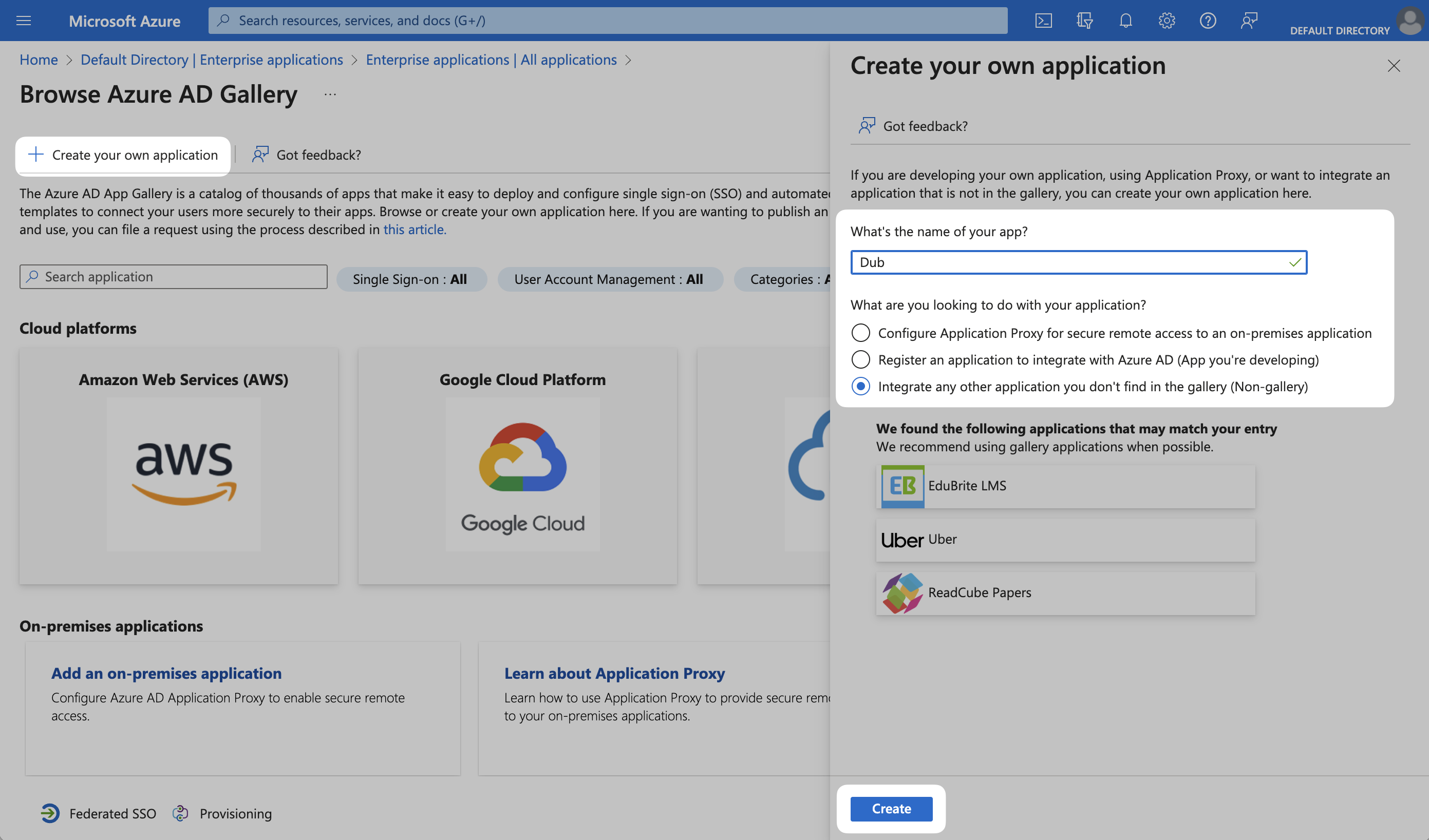
 In the next screen, click on **Create your own application**. Give your application a **Name** (e.g. "Dub") and click **Create**.
 ## Step 2: Configure SAML Application
Under the **Manage** section in the left sidebar, select **Single sign-on**. Then, click on **SAML**.
## Step 2: Configure SAML Application
Under the **Manage** section in the left sidebar, select **Single sign-on**. Then, click on **SAML**.
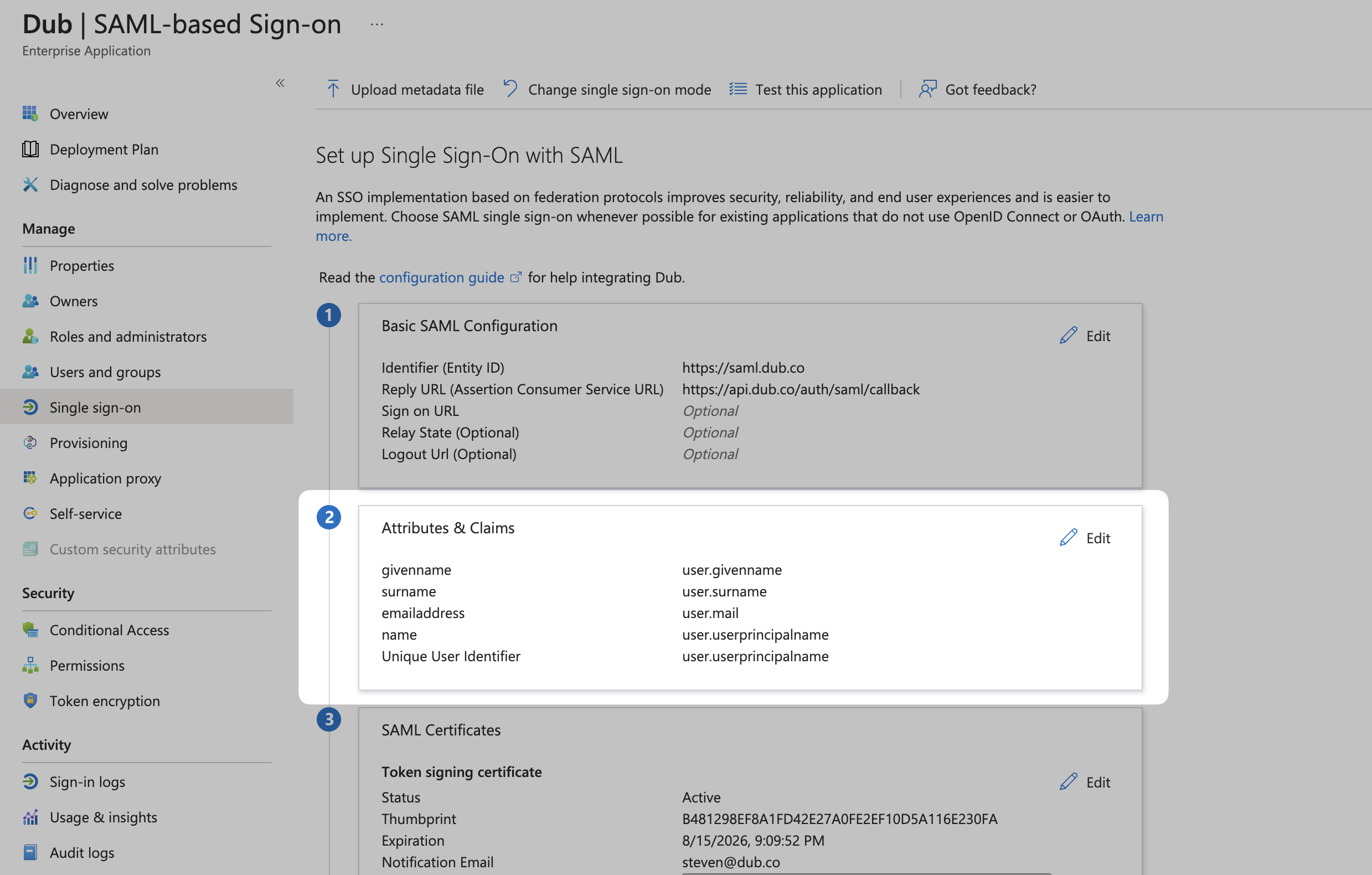
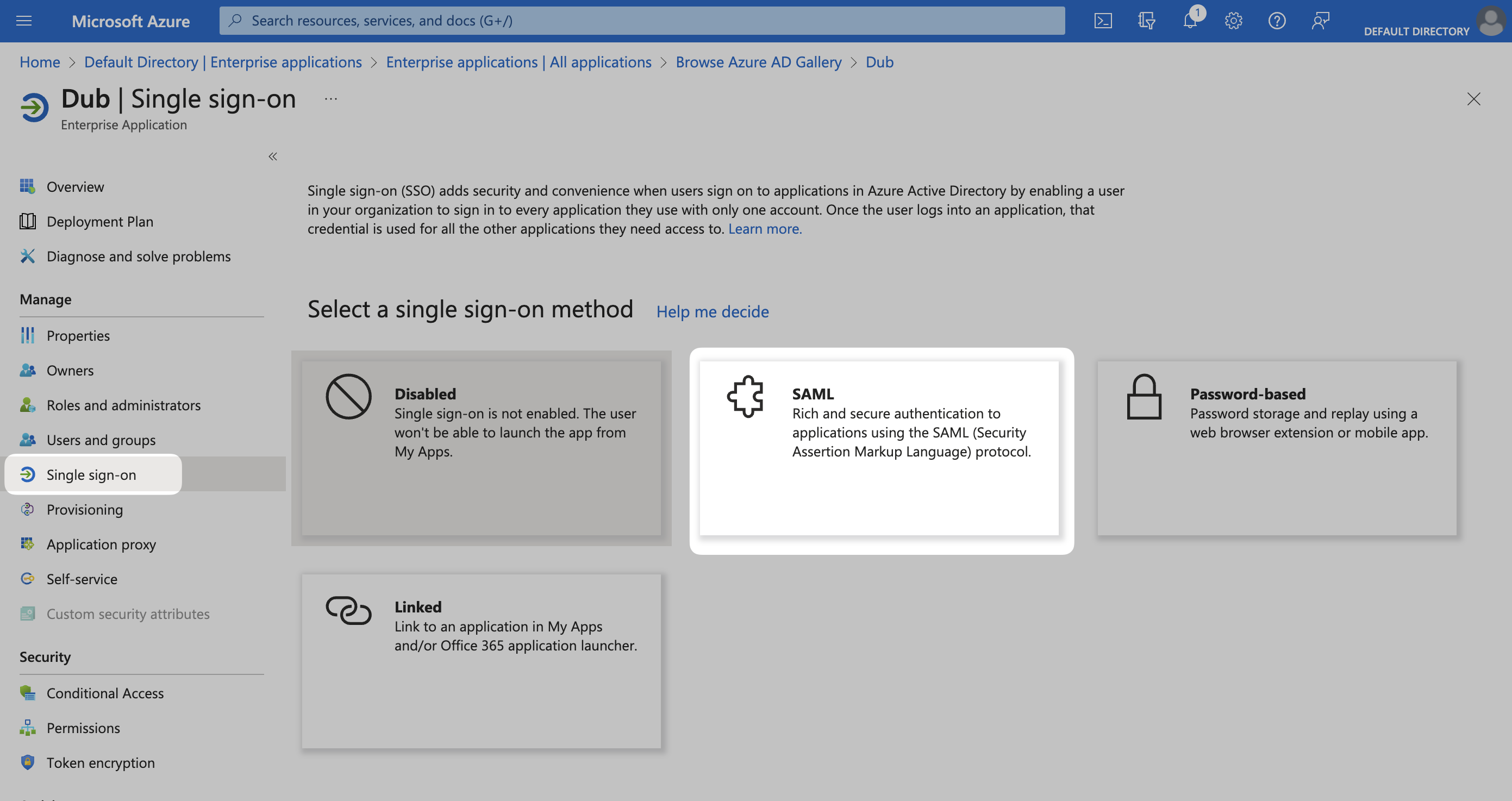 Under the **Basic SAML Configuration** section, click on **Edit**.
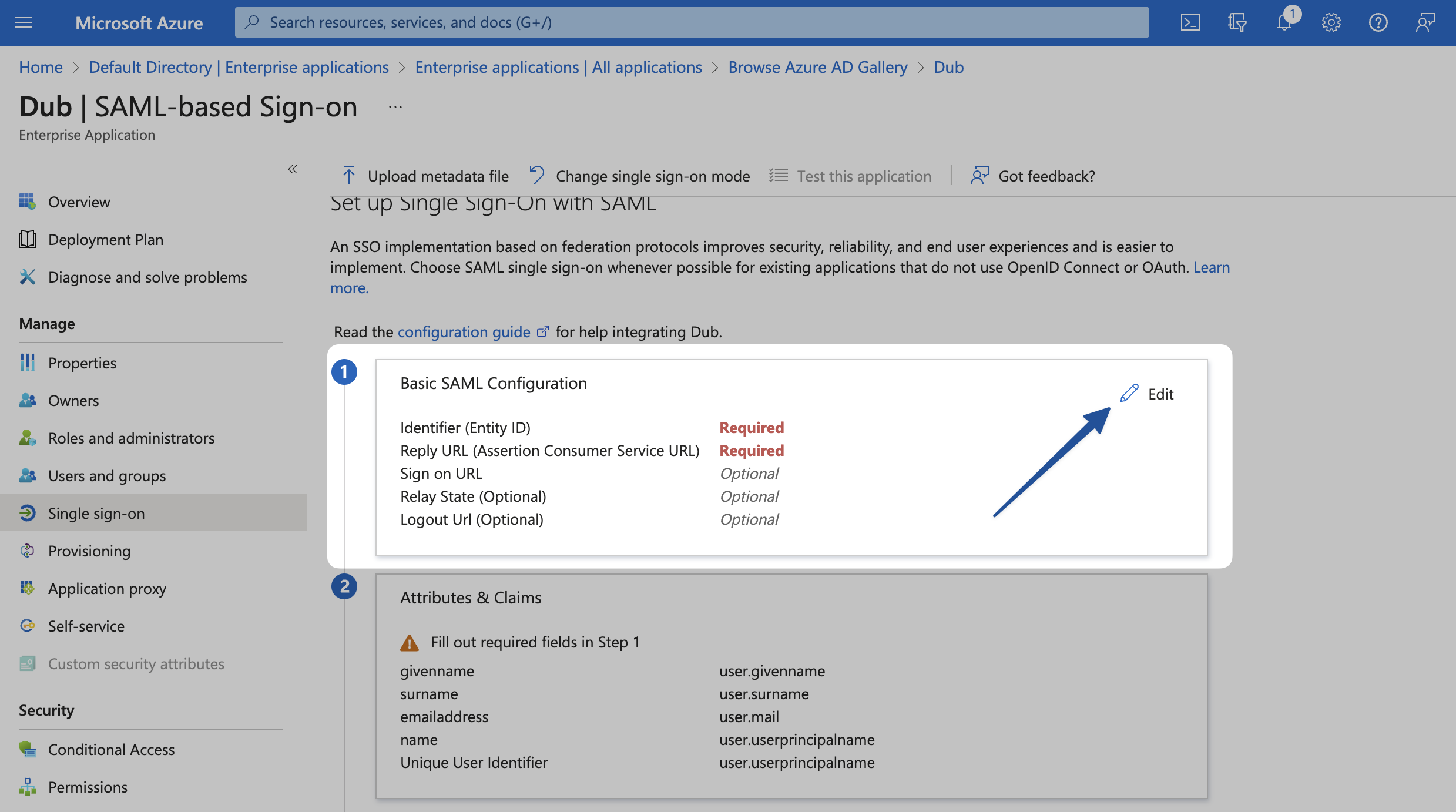 This will open up a sheet overlay. Under **Basic SAML Configuration**, enter the following values:
```text title="Identifier (Entity ID)" theme={null}
https://saml.dub.co
```
```text title="Reply URL (Assertion Consumer Service URL)" theme={null}
https://api.dub.co/auth/saml/callback
```
This will open up a sheet overlay. Under **Basic SAML Configuration**, enter the following values:
```text title="Identifier (Entity ID)" theme={null}
https://saml.dub.co
```
```text title="Reply URL (Assertion Consumer Service URL)" theme={null}
https://api.dub.co/auth/saml/callback
```
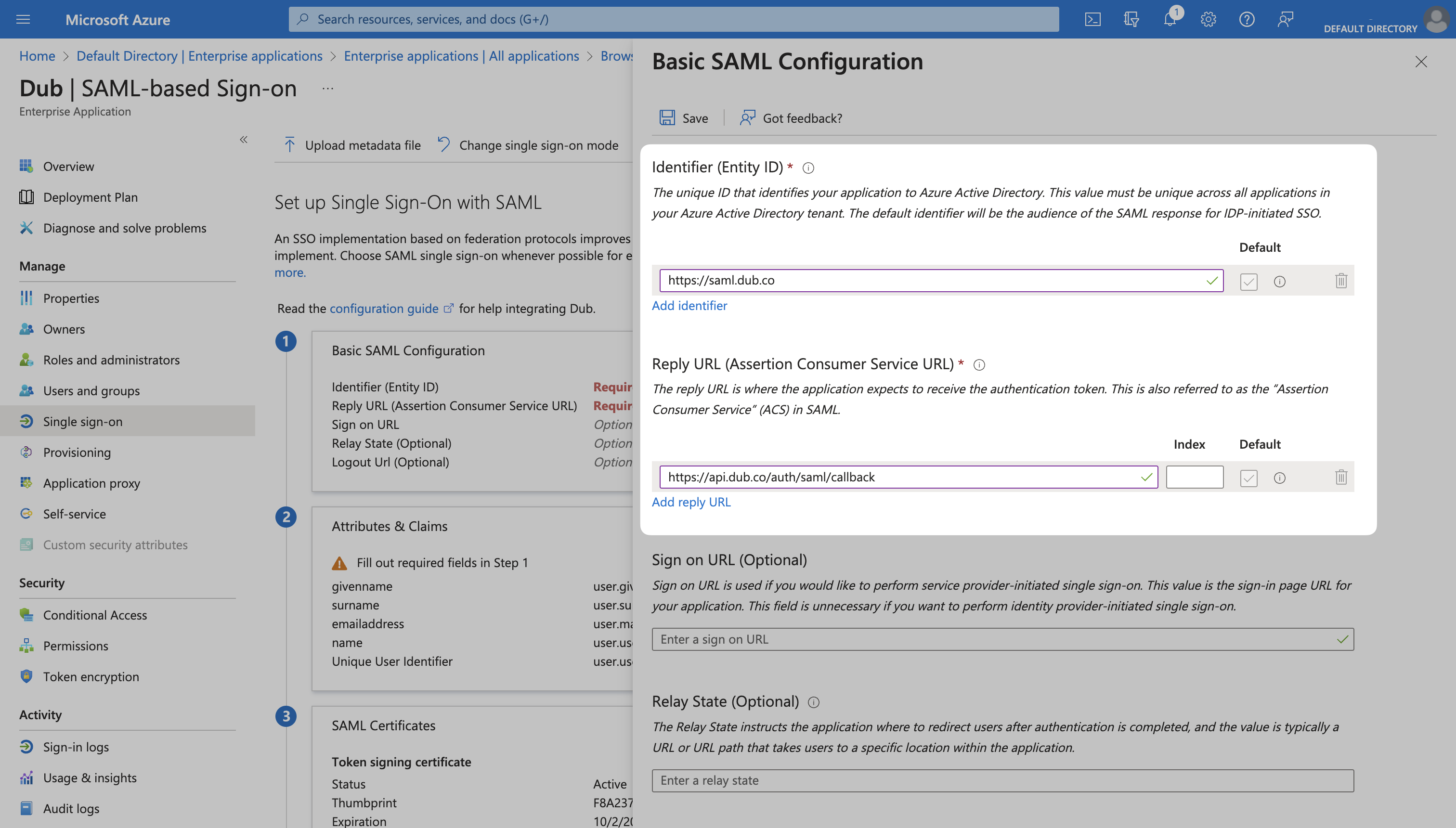 Click **Save** in the menu bar to save your changes.
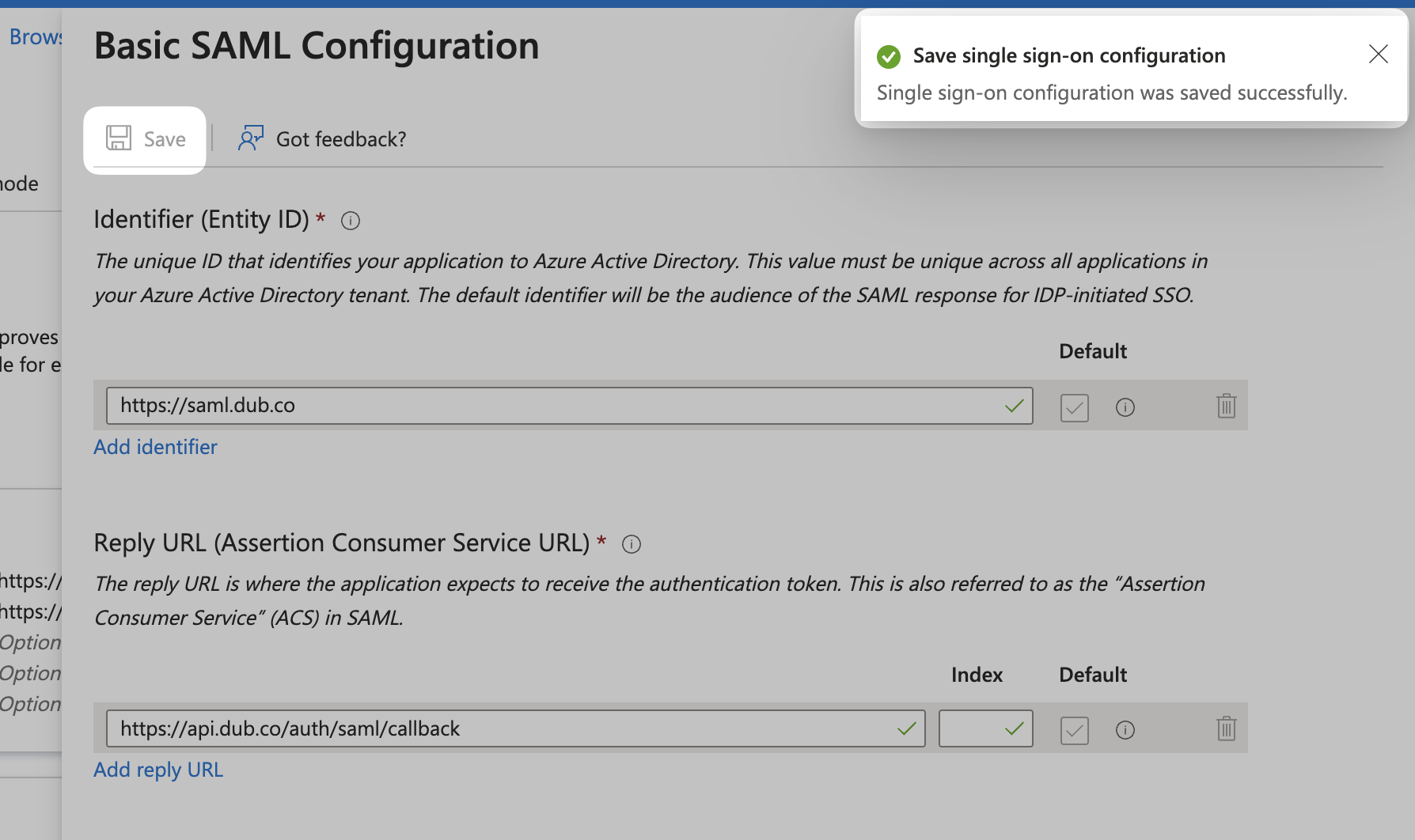 ## Step 3: Attribute Mapping
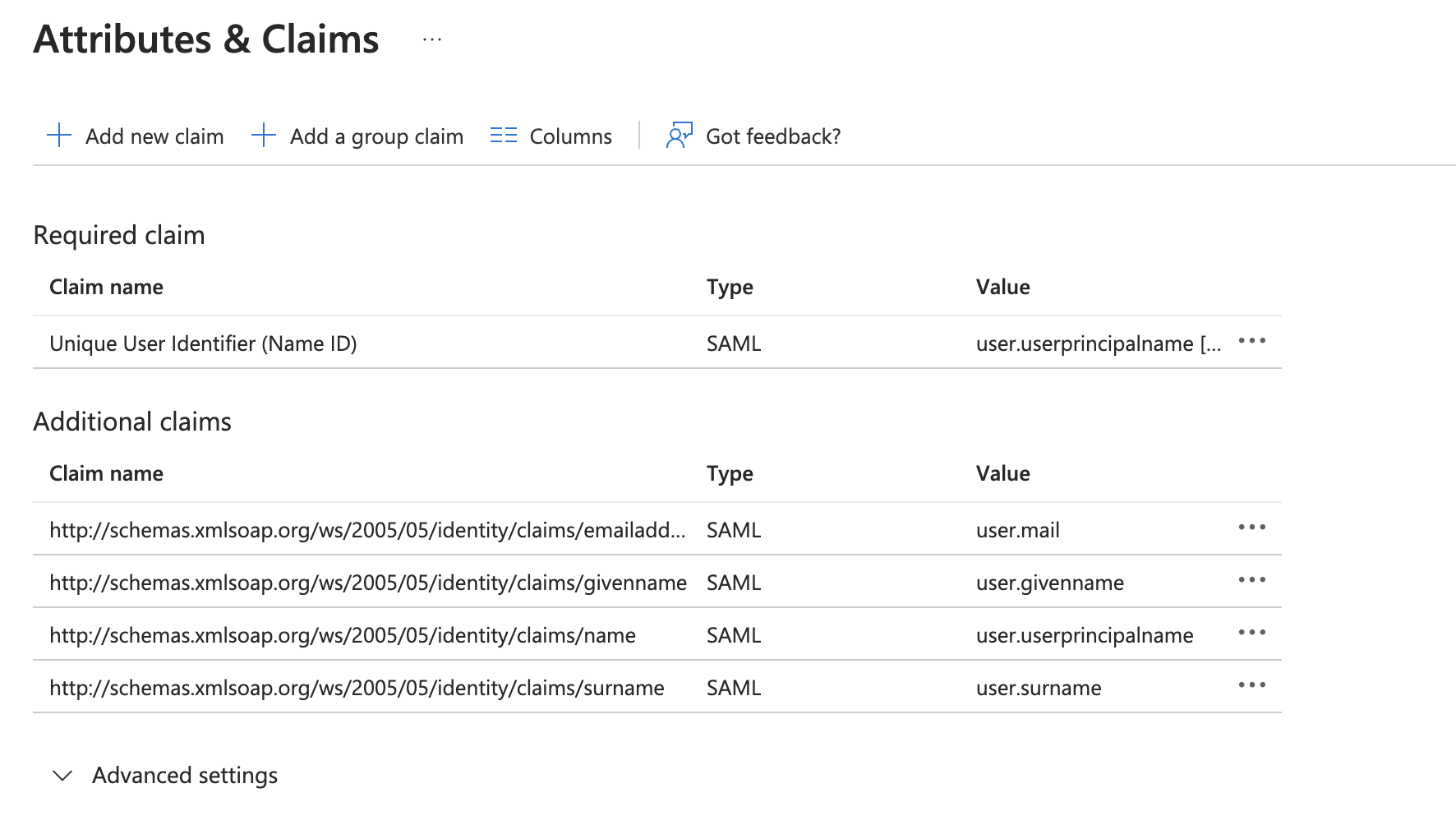
Click **Edit** on the **Attributes & Claims** section.
## Step 3: Attribute Mapping
Click **Edit** on the **Attributes & Claims** section.
 Under **Additional claims**, make sure the following entries are present:
| Name | Value |
| ---------------------------------------------------------------------------------------------------------------------------------------- | ---------------------- |
| [http://schemas.xmlsoap.org/ws/2005/05/identity/claims/emailaddress](http://schemas.xmlsoap.org/ws/2005/05/identity/claims/emailaddress) | user.mail |
| [http://schemas.xmlsoap.org/ws/2005/05/identity/claims/givenname](http://schemas.xmlsoap.org/ws/2005/05/identity/claims/givenname) | user.givenname |
| [http://schemas.xmlsoap.org/ws/2005/05/identity/claims/name](http://schemas.xmlsoap.org/ws/2005/05/identity/claims/name) | user.userprincipalname |
| [http://schemas.xmlsoap.org/ws/2005/05/identity/claims/surname](http://schemas.xmlsoap.org/ws/2005/05/identity/claims/surname) | user.surname |
Under **Additional claims**, make sure the following entries are present:
| Name | Value |
| ---------------------------------------------------------------------------------------------------------------------------------------- | ---------------------- |
| [http://schemas.xmlsoap.org/ws/2005/05/identity/claims/emailaddress](http://schemas.xmlsoap.org/ws/2005/05/identity/claims/emailaddress) | user.mail |
| [http://schemas.xmlsoap.org/ws/2005/05/identity/claims/givenname](http://schemas.xmlsoap.org/ws/2005/05/identity/claims/givenname) | user.givenname |
| [http://schemas.xmlsoap.org/ws/2005/05/identity/claims/name](http://schemas.xmlsoap.org/ws/2005/05/identity/claims/name) | user.userprincipalname |
| [http://schemas.xmlsoap.org/ws/2005/05/identity/claims/surname](http://schemas.xmlsoap.org/ws/2005/05/identity/claims/surname) | user.surname |
 Once that's done, click on the `X` button in the top right corner to go back to the main settings page (or click the back button in your browser).
## Step 4: Copy the Metadata URL
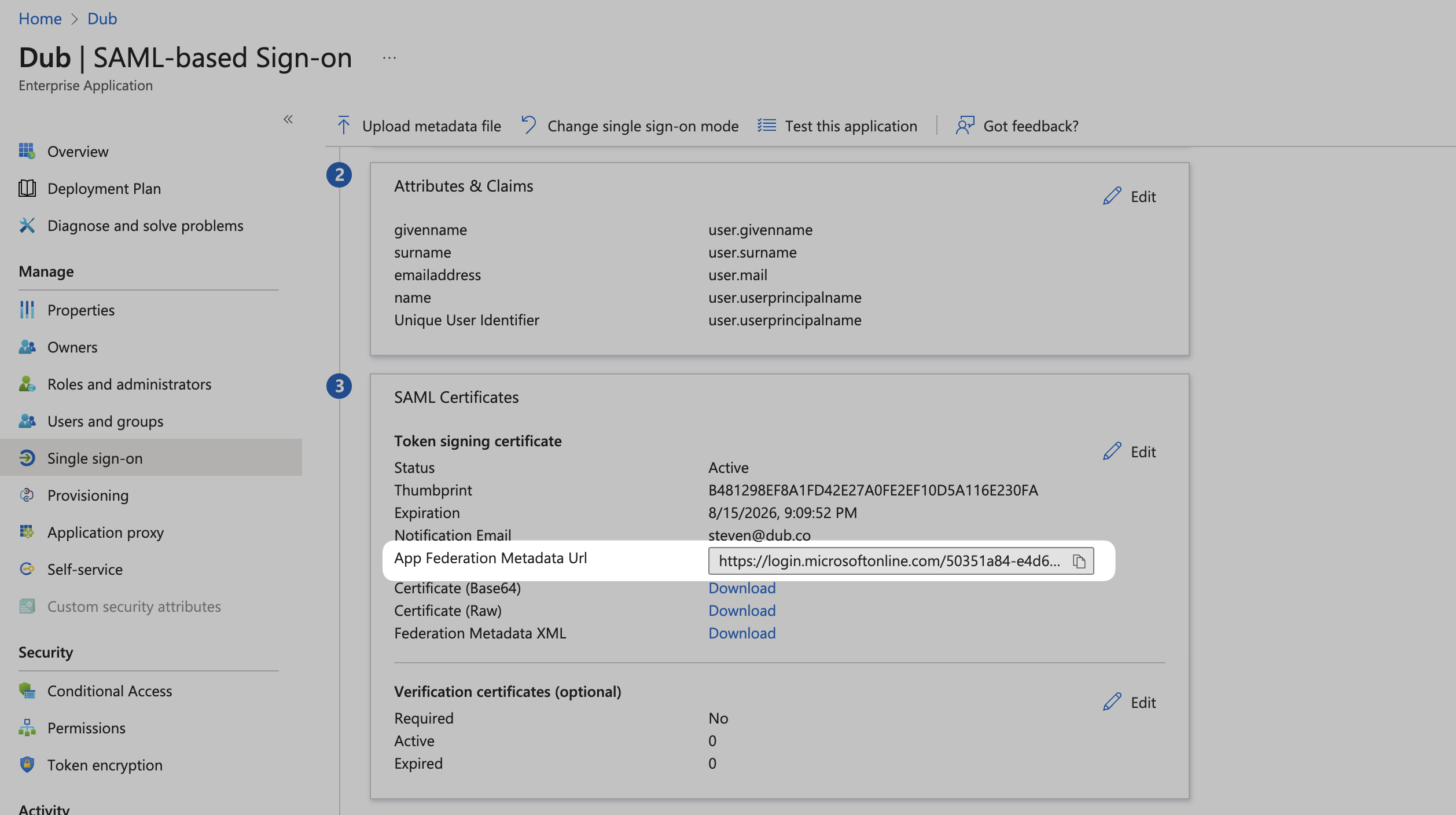
Scroll down to the 3rd section on the page, **SAML Certificates**. Copy the **App Federation Metadata Url** value and return to the Dub dashboard.
Once that's done, click on the `X` button in the top right corner to go back to the main settings page (or click the back button in your browser).
## Step 4: Copy the Metadata URL
Scroll down to the 3rd section on the page, **SAML Certificates**. Copy the **App Federation Metadata Url** value and return to the Dub dashboard.
 ## Step 5: Configure SAML SSO on Dub
In your workspace settings, click on **Security** in the **Workspace** group.
## Step 5: Configure SAML SSO on Dub
In your workspace settings, click on **Security** in the **Workspace** group.
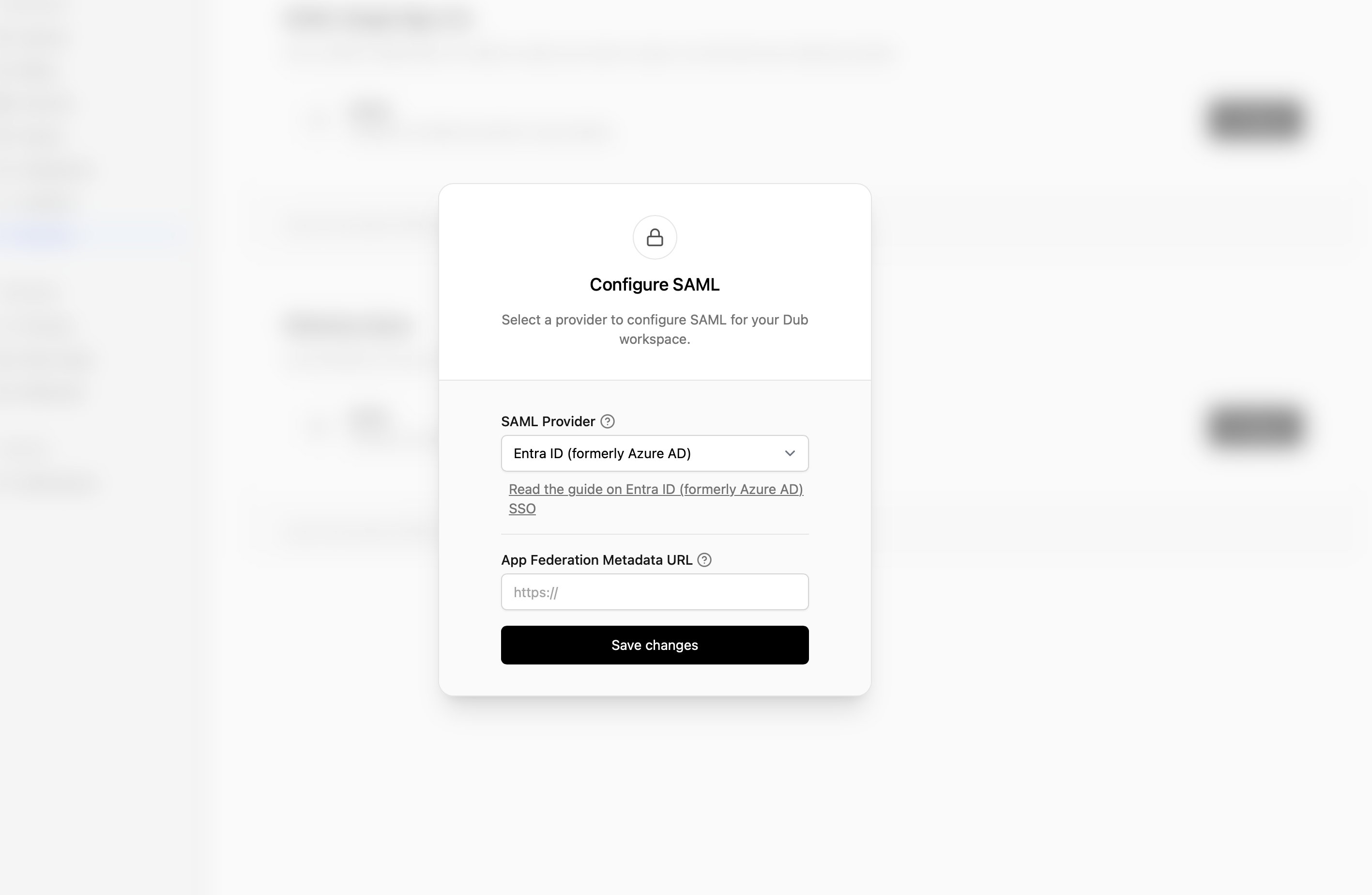
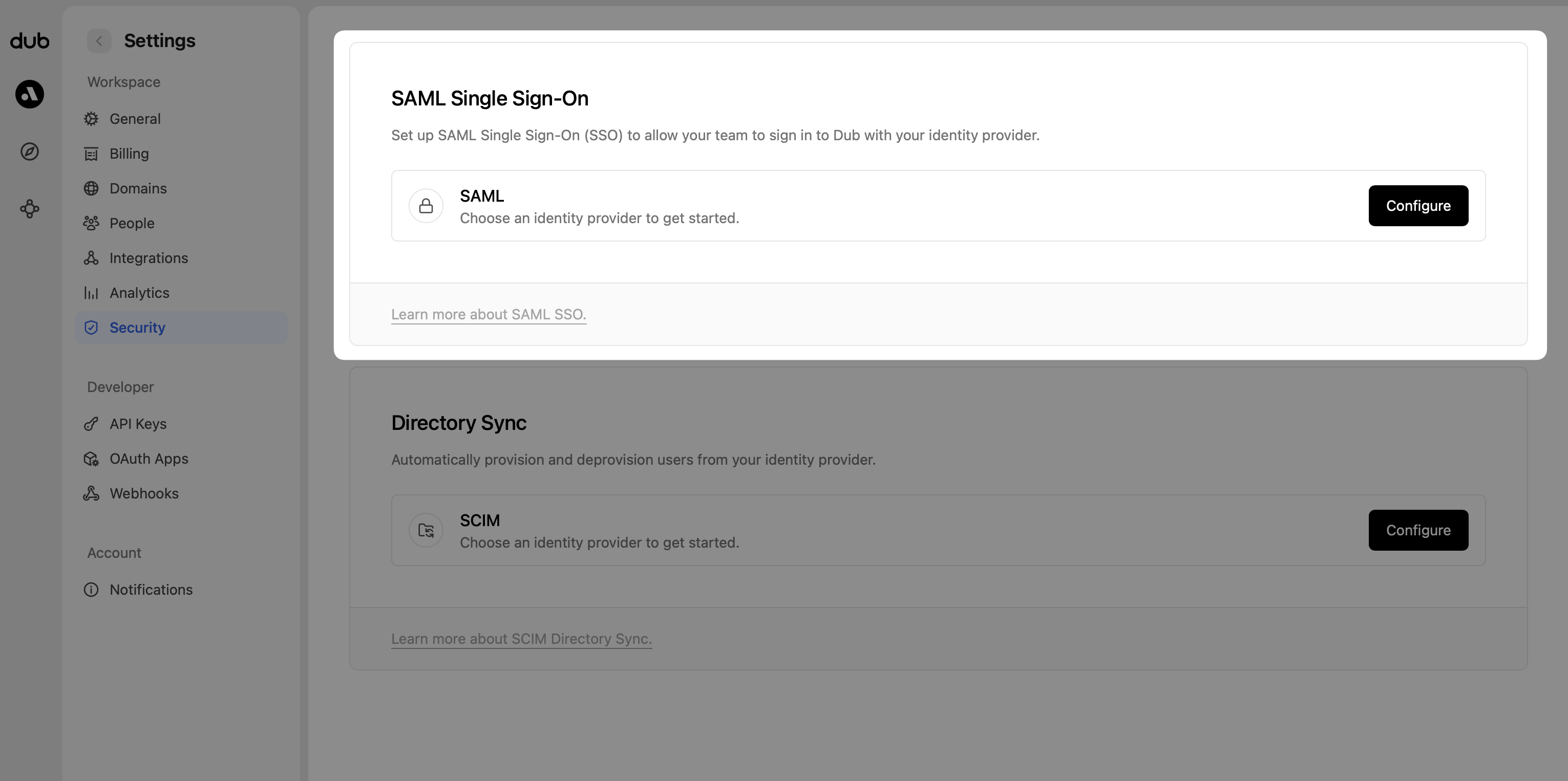 Under the **SAML Single Sign-On** section, click on **Configure**. This will open up the SAML SSO modal:
1. Select **Azure AD** as the SAML provider.
2. Enter the **App Federation Metadata Url** value that you copied from Step 4.
3. Click **Save changes**.
Under the **SAML Single Sign-On** section, click on **Configure**. This will open up the SAML SSO modal:
1. Select **Azure AD** as the SAML provider.
2. Enter the **App Federation Metadata Url** value that you copied from Step 4.
3. Click **Save changes**.
 ## Step 6: Assign Users
We highly recommend configuring [SCIM Directory
Sync](/help/article/azure-scim) before assigning users & groups to your
workspace. This will ensure that your users are automatically added to your
workspace when they sign in for the first time, as well as automatically
removed when they are deactivated in Azure.
Once you've configured SAML SSO, you can start assigning users & groups to your workspace.
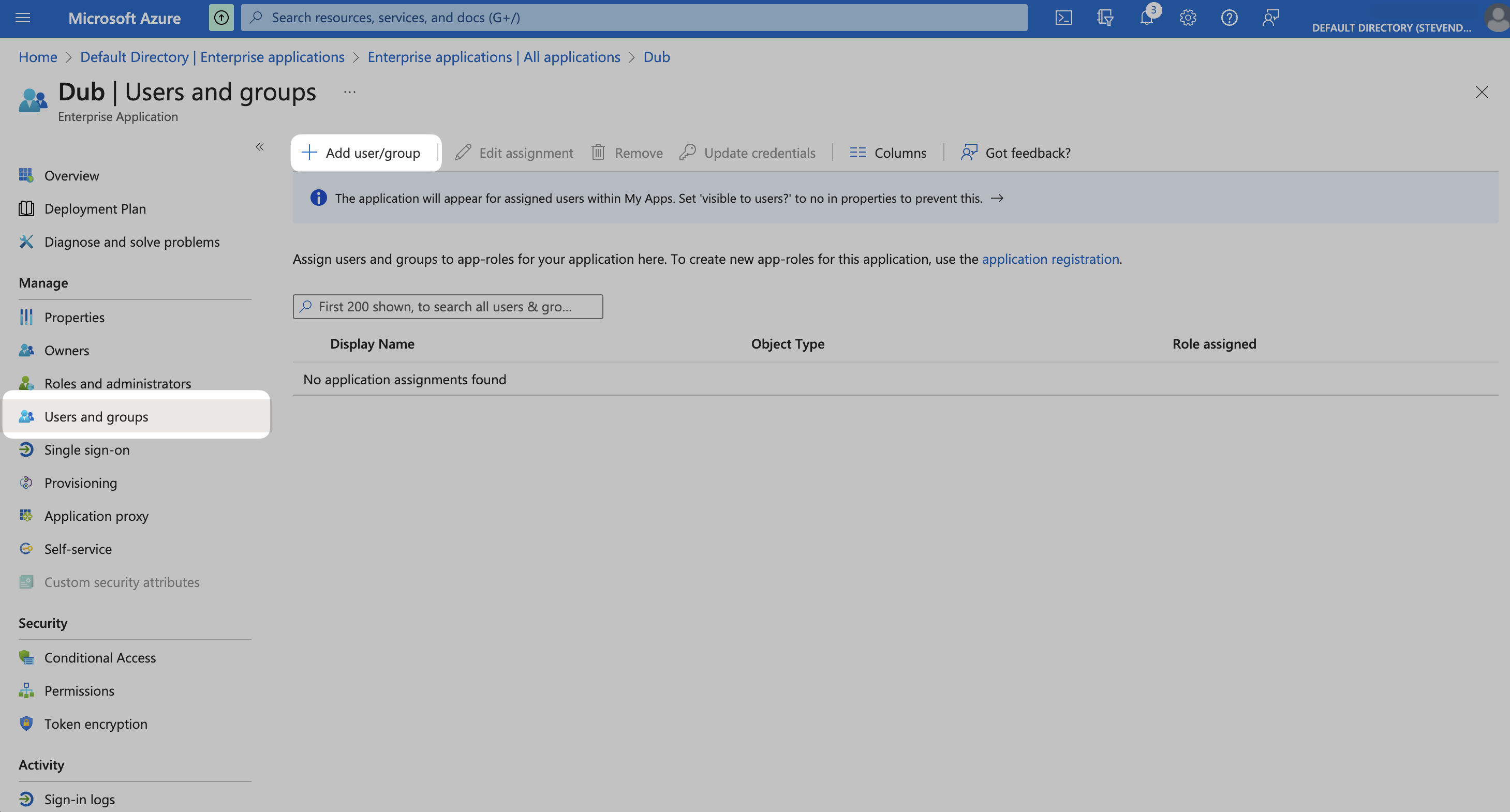
From your application, click the **Users and groups** from the left navigation menu and click **Add user/group**.
## Step 6: Assign Users
We highly recommend configuring [SCIM Directory
Sync](/help/article/azure-scim) before assigning users & groups to your
workspace. This will ensure that your users are automatically added to your
workspace when they sign in for the first time, as well as automatically
removed when they are deactivated in Azure.
Once you've configured SAML SSO, you can start assigning users & groups to your workspace.
From your application, click the **Users and groups** from the left navigation menu and click **Add user/group**.
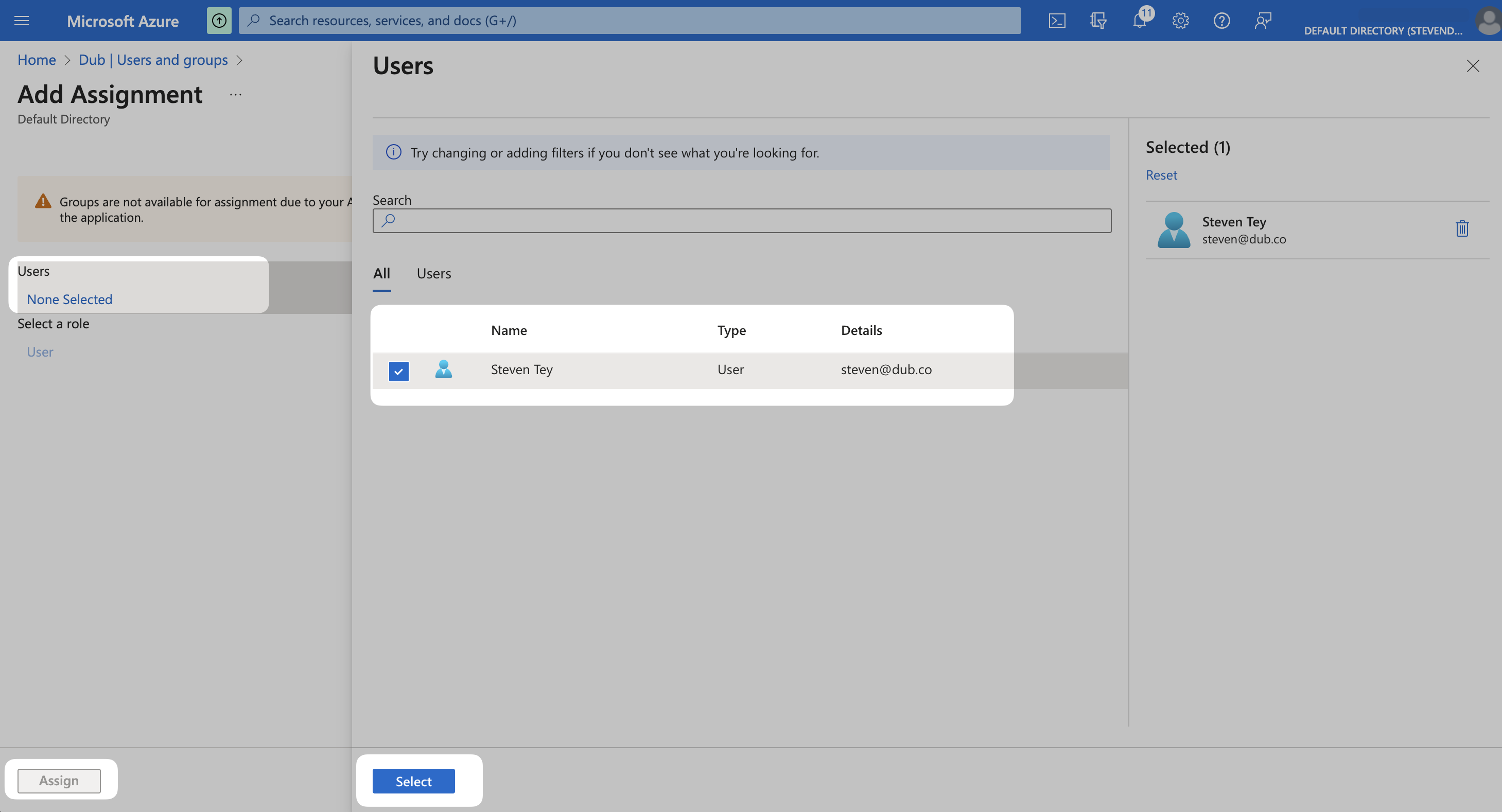
 Click on **None Selected** under **Users**.
From the right side of the screen, select the users you want to assign to the app and click the **Select** button. Thenm click **Assign** to those users to your app.
Click on **None Selected** under **Users**.
From the right side of the screen, select the users you want to assign to the app and click the **Select** button. Thenm click **Assign** to those users to your app.
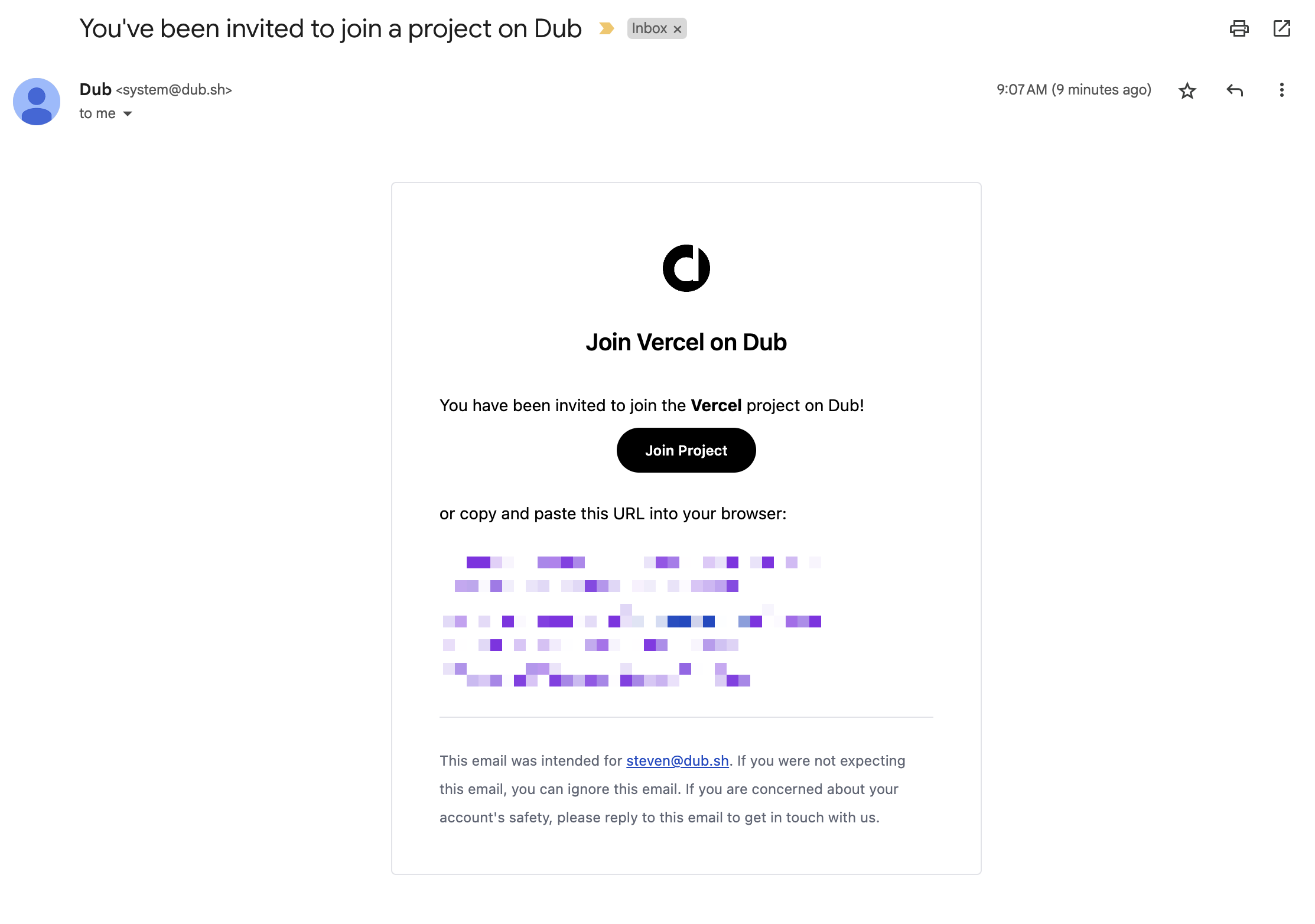
 Your assigned users should now receive an invitation email to join your Dub workspace.
 Azure AD SCIM provisioning can take [anywhere between 20-40 minutes to
sync](https://learn.microsoft.com/en-us/azure/databricks/administration-guide/users-groups/scim/aad#provisioning-tips).
This means that it may take up to 40 minutes for your users to receive the
invitation email and be able to join your Dub workspace.
They will also be able to sign in to Dub using Azure AD SSO.
Azure AD SCIM provisioning can take [anywhere between 20-40 minutes to
sync](https://learn.microsoft.com/en-us/azure/databricks/administration-guide/users-groups/scim/aad#provisioning-tips).
This means that it may take up to 40 minutes for your users to receive the
invitation email and be able to join your Dub workspace.
They will also be able to sign in to Dub using Azure AD SSO.