> ## Documentation Index
> Fetch the complete documentation index at: https://dub.co/llms.txt
> Use this file to discover all available pages before exploring further.
# How to run A/B tests with Dub Links?
> Run A/B tests to compare different short-link variations and identify what drives the highest conversions.
A/B testing is only available on Business plans and higher. [View all pricing
plans](https://dub.co/pricing).
## What is A/B testing?
A/B testing is a method of comparing two or more variations of a destination URL to see which performs better. It works by randomly redirecting users who click the same short link to different target URLs, then measuring which version gets better results based on metrics.
If you combine A/B testing with [device targeting](/help/article/device-targeting) or [geo targeting](/help/article/geo-targeting) on the same link, the targeting rules are evaluated in this order:
1. **Device targeting** (iOS/Android) – checked first
2. **Geo targeting** – checked next
3. **A/B testing** – applied last
A/B testing only applies to traffic that isn't already redirected by a device or geo targeting rule.
## Where to find A/B testing?
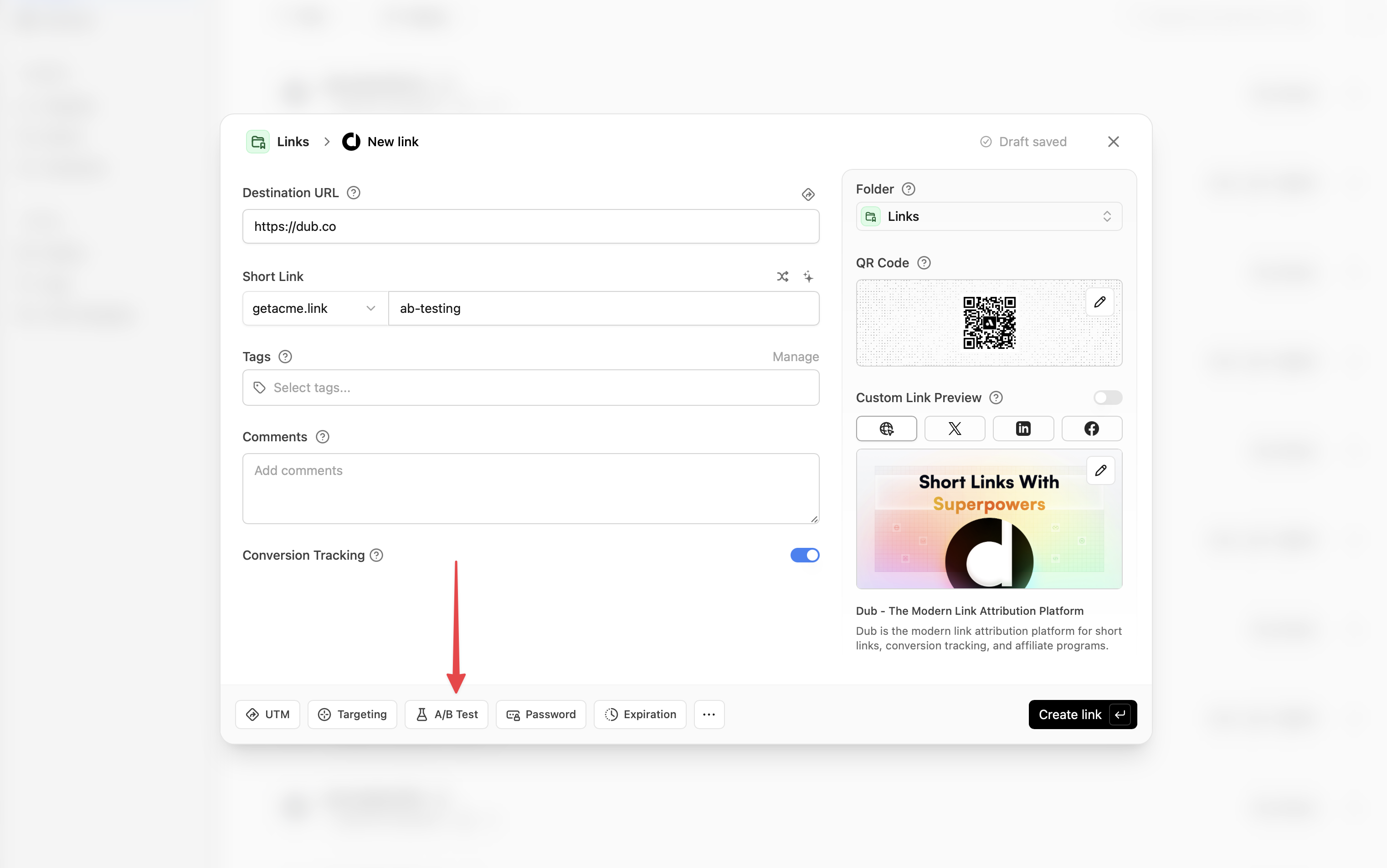
When the link builder is open, you'll find the **A/B test** button in the bottom action row. Click to open the dialogue.
 ## A/B testing builder
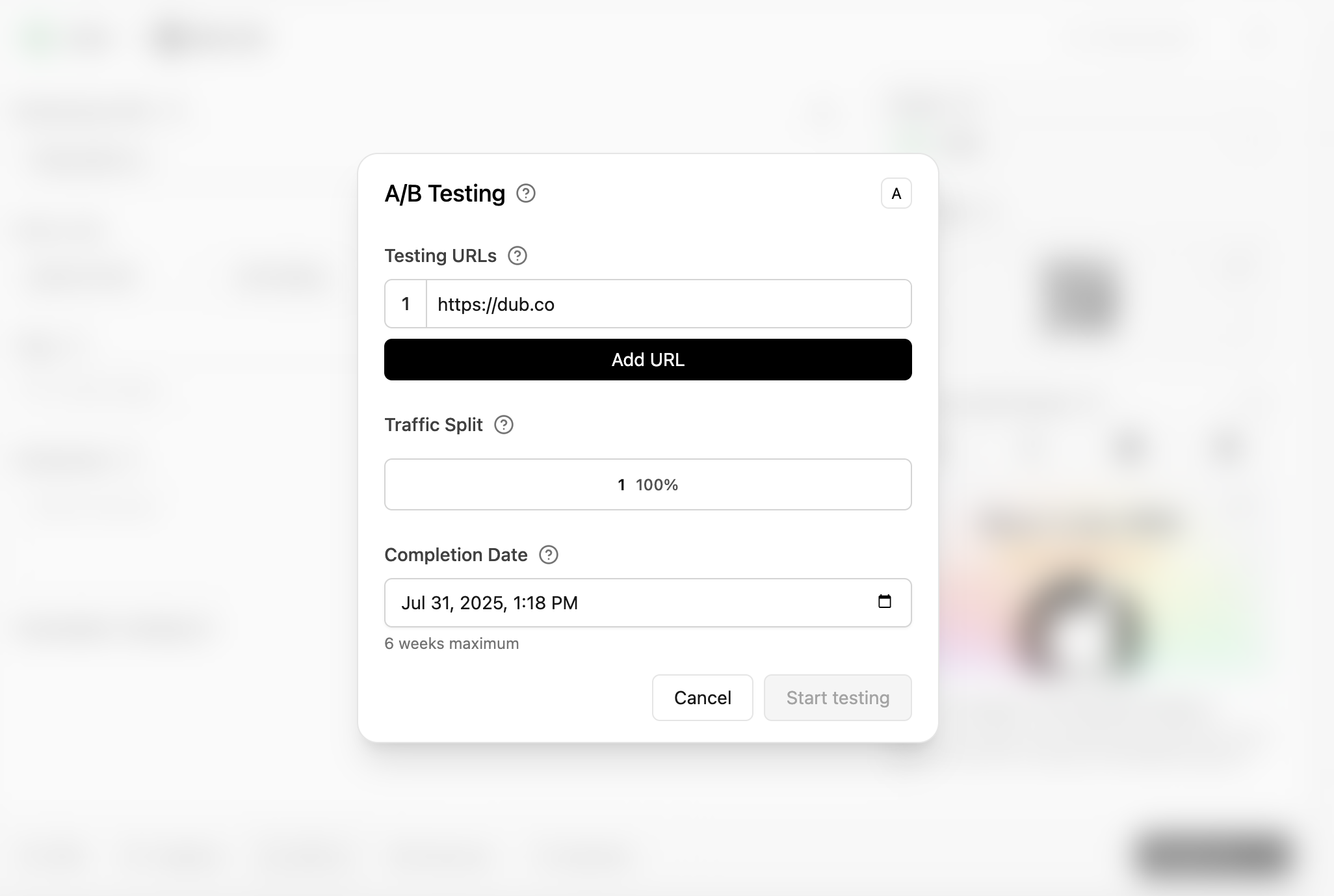
With the builder open, you are able to add additional destination URLs, set the traffic percentage, and set the completion date. A minimum of 2 URLs is required to create the test.
## A/B testing builder
With the builder open, you are able to add additional destination URLs, set the traffic percentage, and set the completion date. A minimum of 2 URLs is required to create the test.
 ### Testing URLs
You can enter a maximum of 4 additional testing URLs that you'd like to send your traffic to.
### Testing URLs
You can enter a maximum of 4 additional testing URLs that you'd like to send your traffic to.
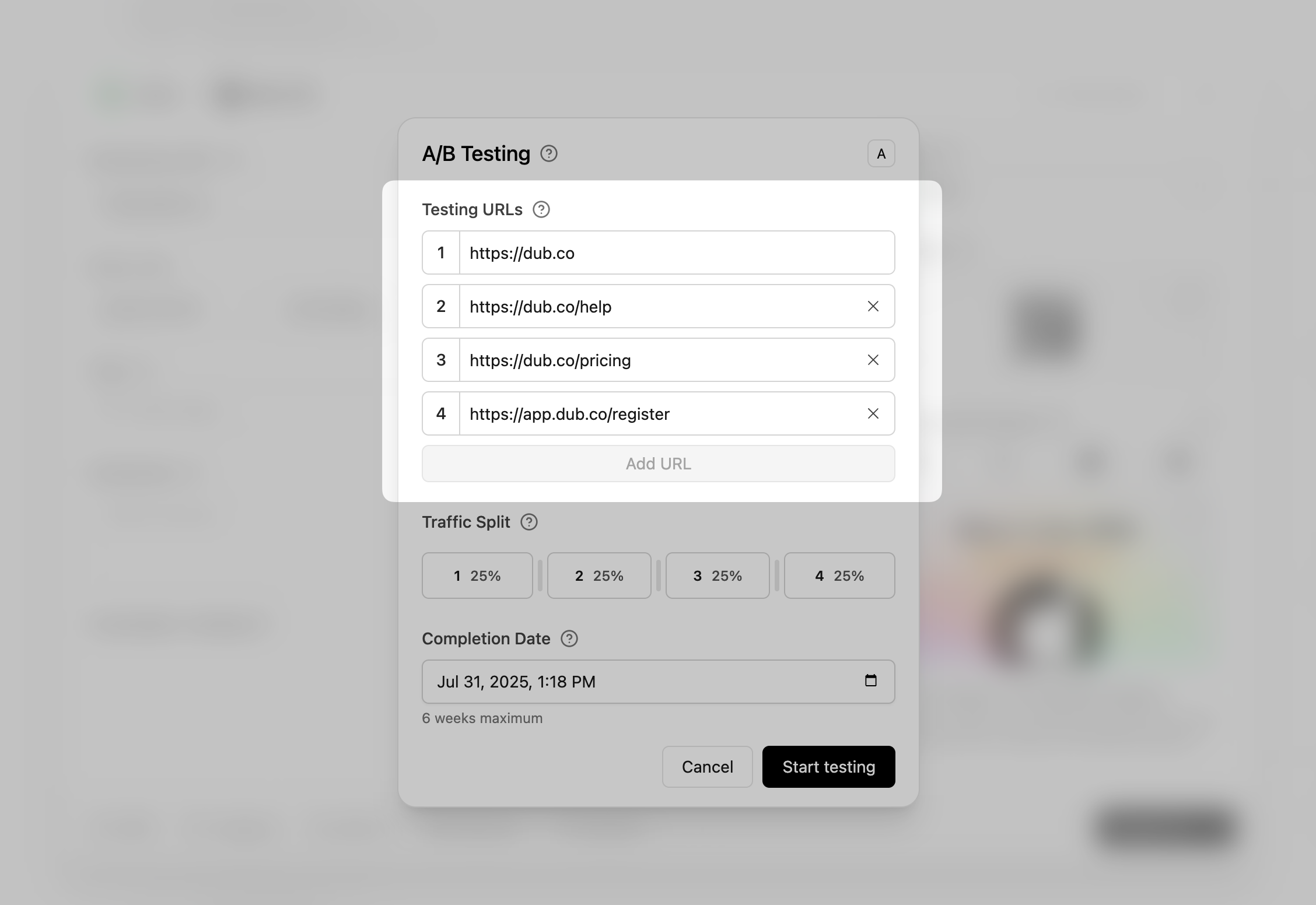 If you need to remove any URLs you've added, click the **`X`** icon to the right of each input to remove it.
### Traffic split
By default, the traffic is split evenly between each of the URLs, but this can be changed depending on your preference.
If you need to remove any URLs you've added, click the **`X`** icon to the right of each input to remove it.
### Traffic split
By default, the traffic is split evenly between each of the URLs, but this can be changed depending on your preference.
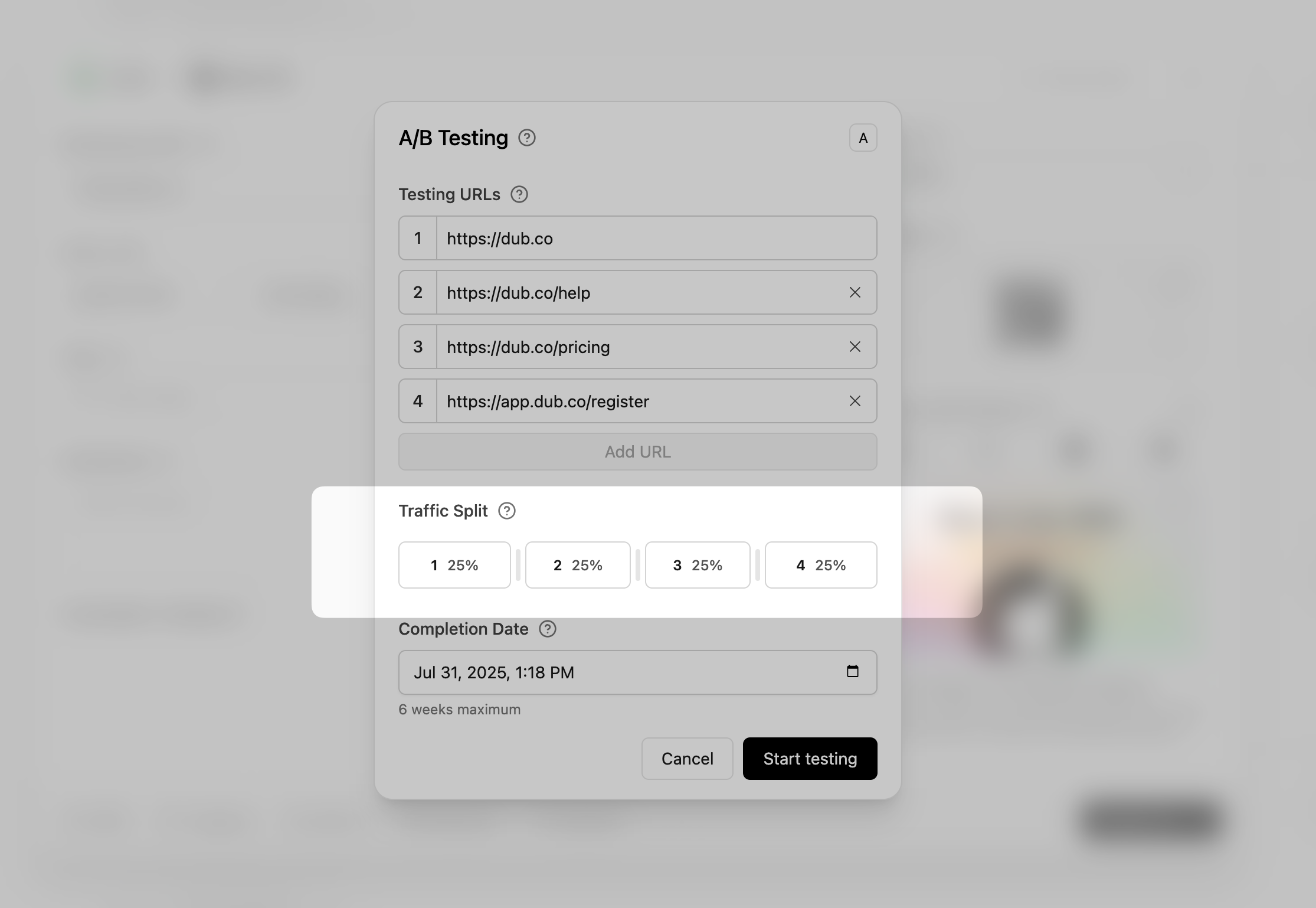 Click and drag the dividers between each group to adjust the traffic to each
destination URL. The minimum percentage you can set traffic to is 10%. ###
Completion Date By default, A/B tests will be set to run for 2 weeks, as that is
enough time to collect performance data to make a decision
Click and drag the dividers between each group to adjust the traffic to each
destination URL. The minimum percentage you can set traffic to is 10%. ###
Completion Date By default, A/B tests will be set to run for 2 weeks, as that is
enough time to collect performance data to make a decision
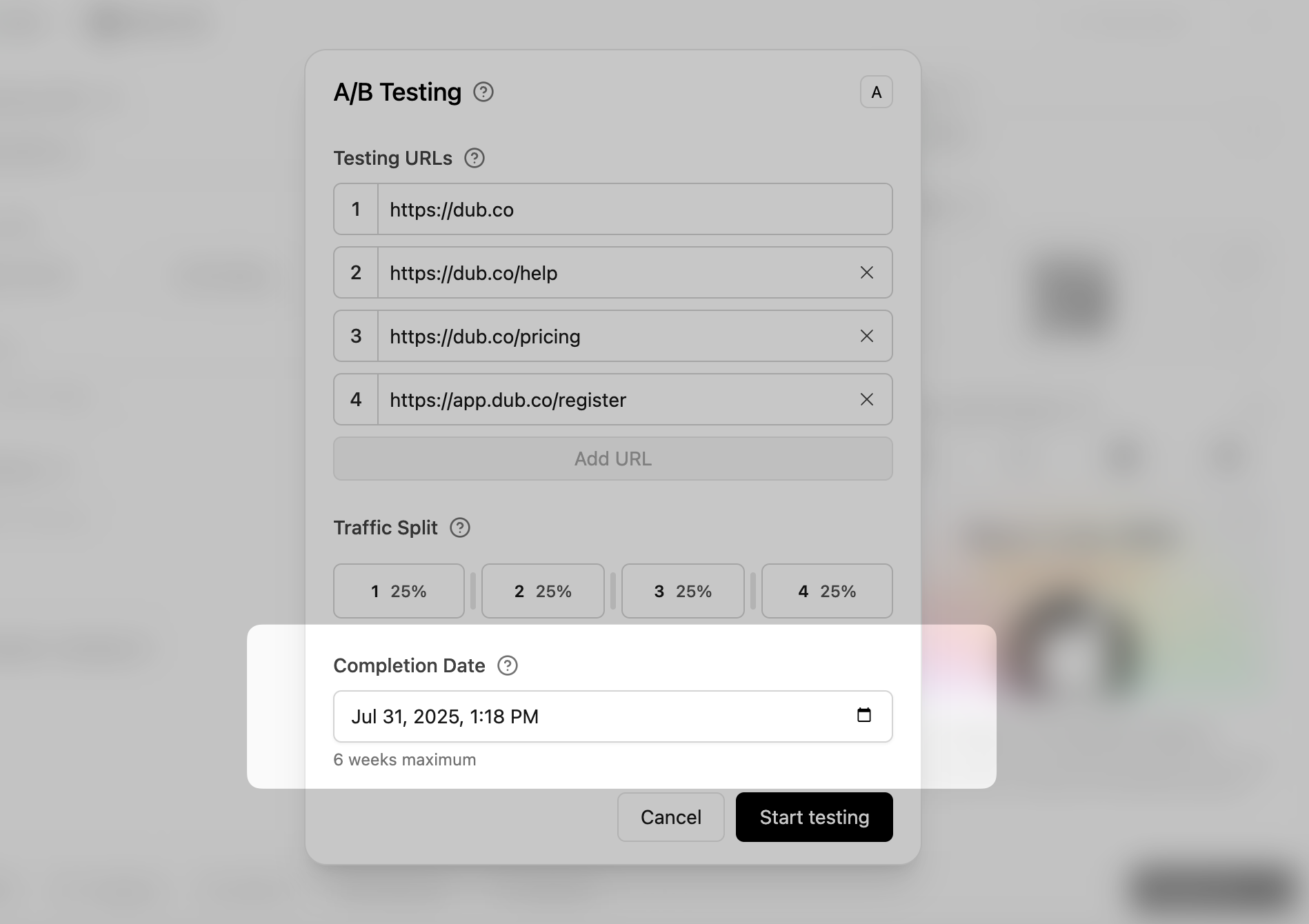 You can run a test for a shorter period, but that's not recommended because in
most cases, you won't collect enough data to make a decision. The longest you
can run a test for is 6 weeks.
## Active A/B tests
While an A/B test is active, a `flask` icon is shown on each link. You can see this while viewing all your links.
You can run a test for a shorter period, but that's not recommended because in
most cases, you won't collect enough data to make a decision. The longest you
can run a test for is 6 weeks.
## Active A/B tests
While an A/B test is active, a `flask` icon is shown on each link. You can see this while viewing all your links.
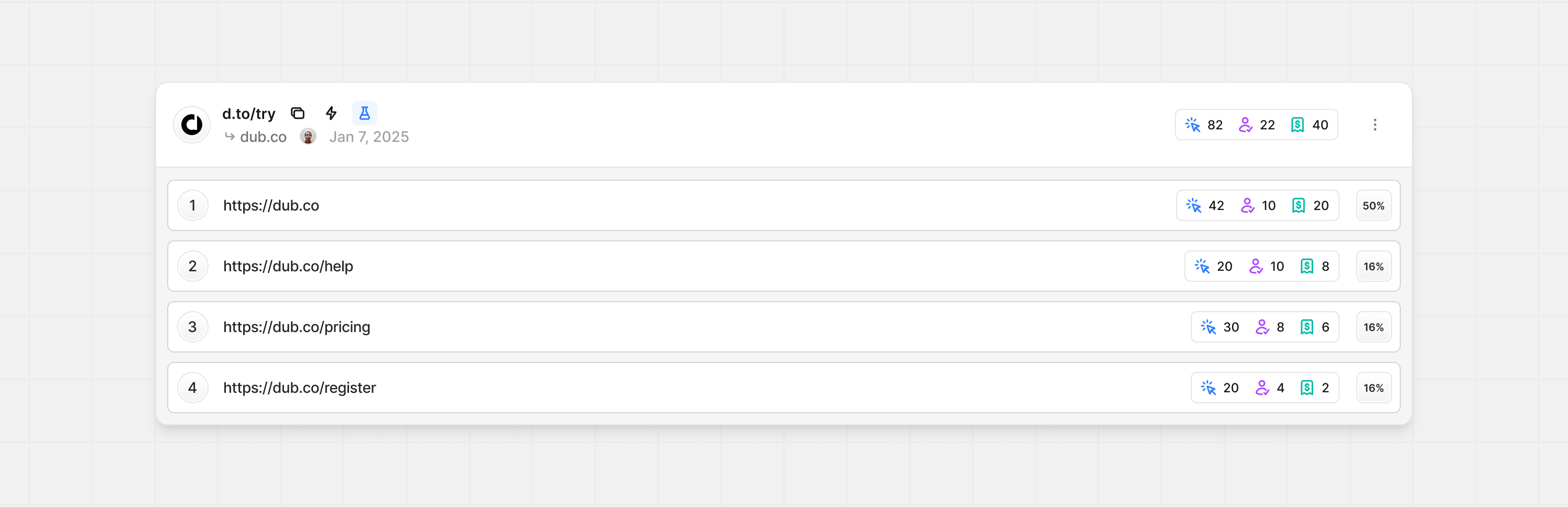
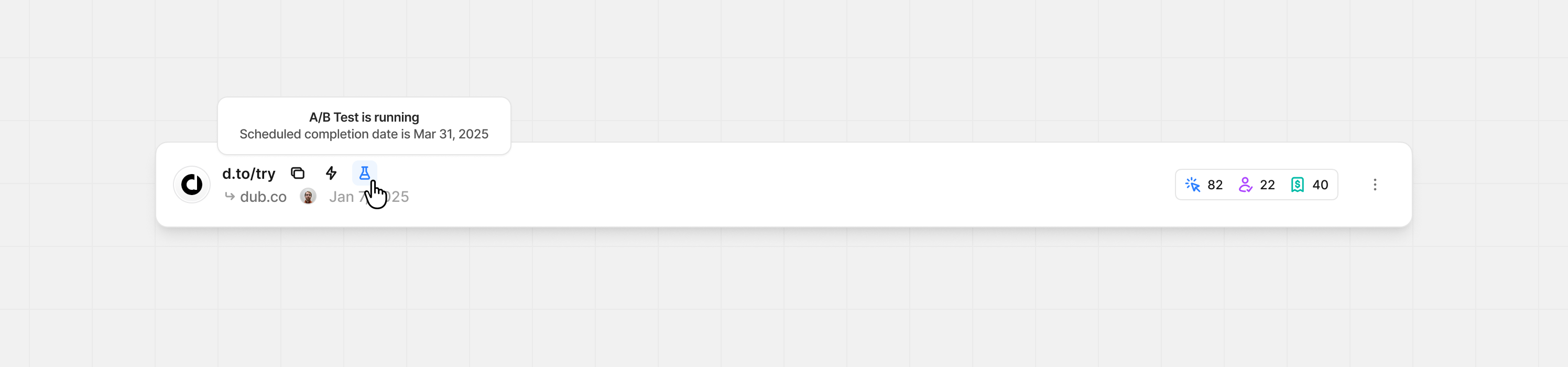 You can click this icon to expand the current link view to show all the
destination URLs you've entered for testing. This will show you the traffic
percentage you've set and the click, lead, and sale performance.
You can click this icon to expand the current link view to show all the
destination URLs you've entered for testing. This will show you the traffic
percentage you've set and the click, lead, and sale performance.
 ## Completing A/B tests
There are two ways A/B tests can be completed. They can either be manually ended early or the scheduled completion date passes.
By default, your A/B test will complete when the scheduled date passes. Here's how the new destination URL is selected:
1. Select the link with the highest amount of conversions
2. If conversions are tied, select the link with the highest conversion rate (conversions ÷ clicks)
3. If still tied, select the link with the highest clicks
`OR - If no conversions are recorded or tracked`
1. Select the link with the highest number of leads
2. If leads are tied, select the link with the highest lead rate (leads ÷ clicks)
3. If still tied, select the link with the highest clicks
To end your test before the scheduled date, open your A/B settings and click **End A/B test** in the bottom left of the modal.
## Completing A/B tests
There are two ways A/B tests can be completed. They can either be manually ended early or the scheduled completion date passes.
By default, your A/B test will complete when the scheduled date passes. Here's how the new destination URL is selected:
1. Select the link with the highest amount of conversions
2. If conversions are tied, select the link with the highest conversion rate (conversions ÷ clicks)
3. If still tied, select the link with the highest clicks
`OR - If no conversions are recorded or tracked`
1. Select the link with the highest number of leads
2. If leads are tied, select the link with the highest lead rate (leads ÷ clicks)
3. If still tied, select the link with the highest clicks
To end your test before the scheduled date, open your A/B settings and click **End A/B test** in the bottom left of the modal.
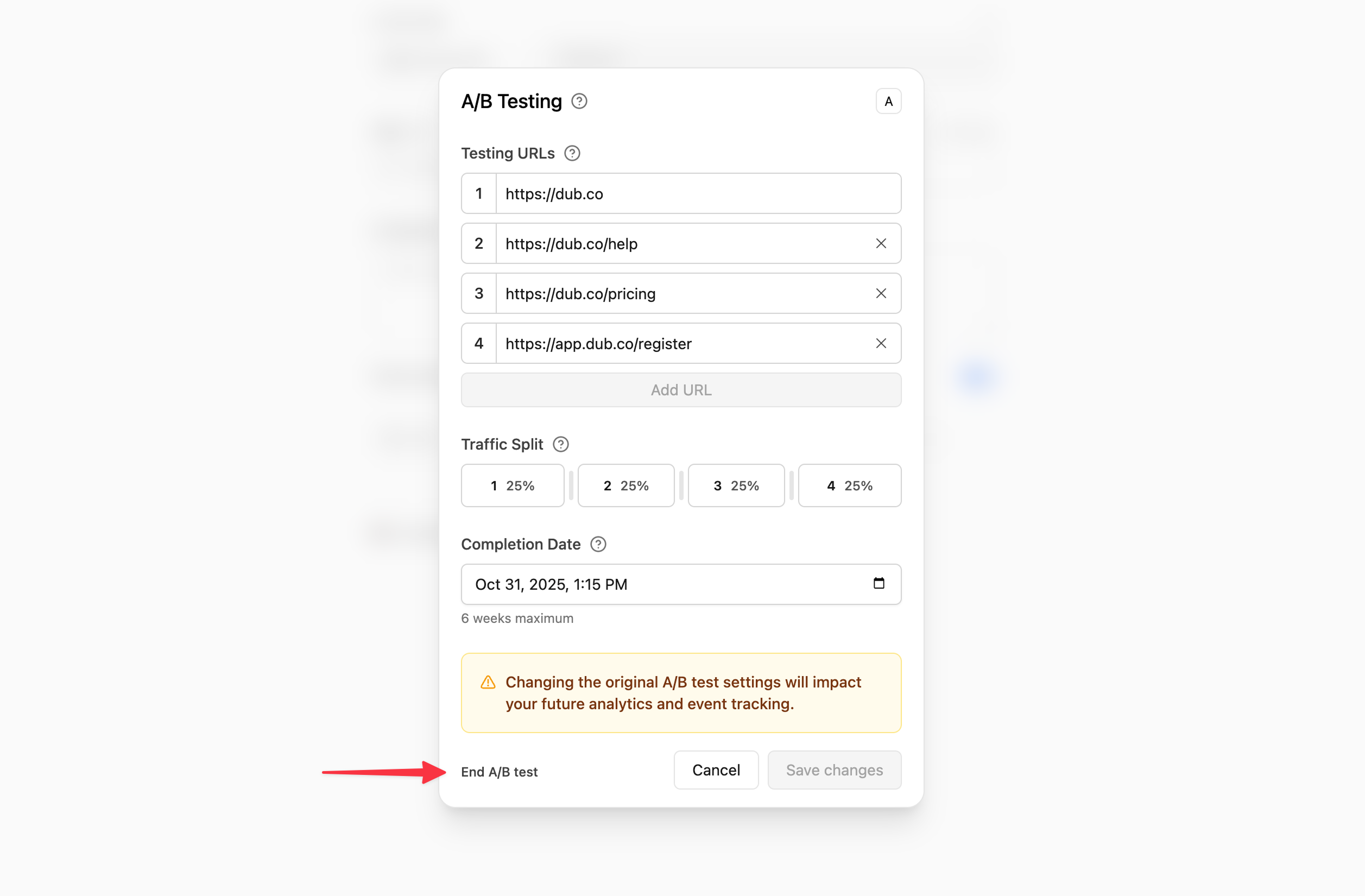 From here, you'll select the new destination URL for your short link.
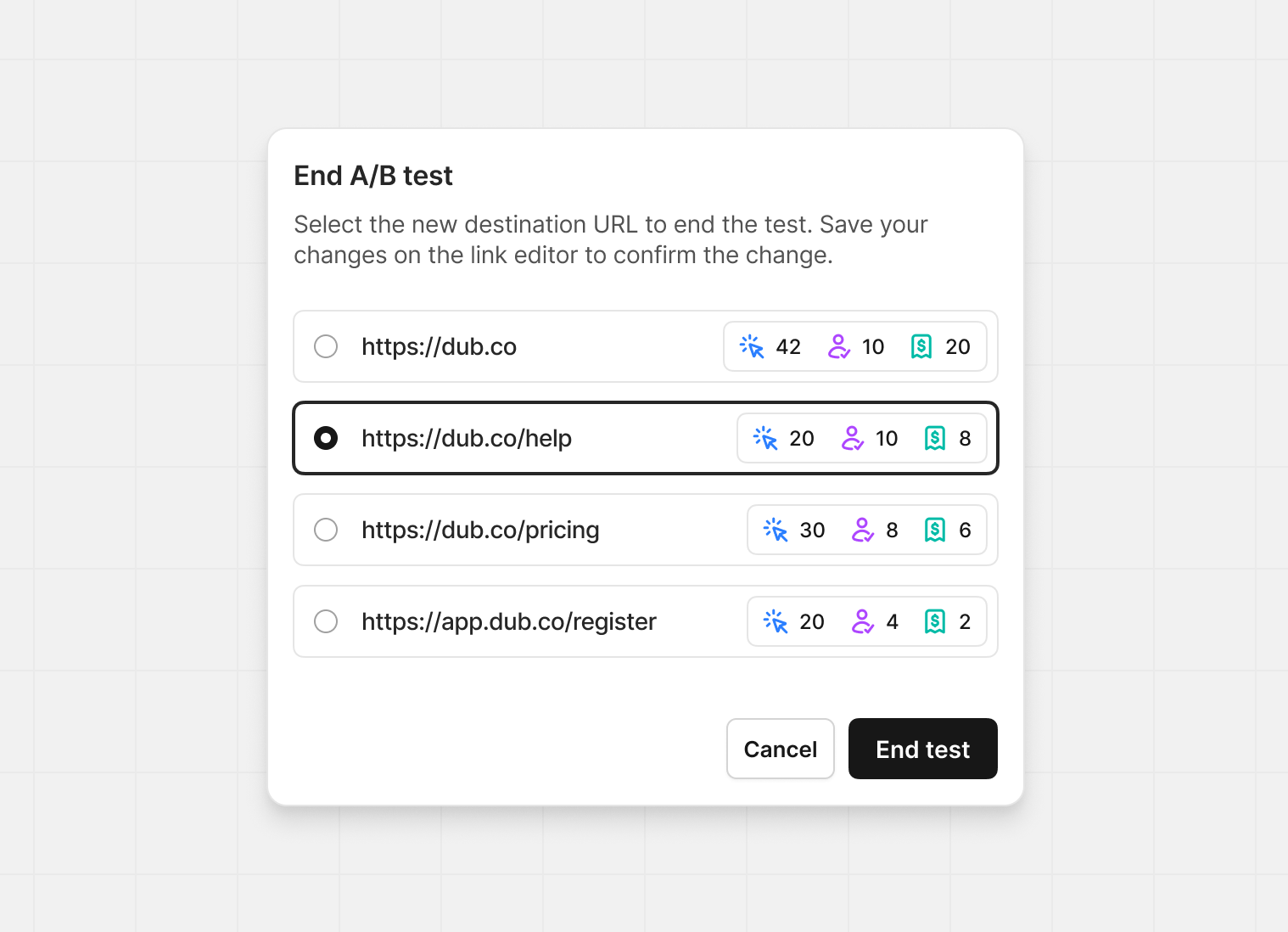 After clicking **End test**, make sure to save your link changes in the next
screen to confirm the changes.
After clicking **End test**, make sure to save your link changes in the next
screen to confirm the changes.