> ## Documentation Index
> Fetch the complete documentation index at: https://dub.co/llms.txt
> Use this file to discover all available pages before exploring further.
# Introduction
> Use webhooks to get real-time notifications on events happening across your Dub workspace.
Webhooks allows you to listen to real-time events happening across your Dub workspace. With webhooks, you can build custom integrations with Dub, such as:
* Triggering a Zap on [Zapier](https://dub.co/integrations/zapier) when a new link is created in Dub
* Sending click events in real-time to [Segment](https://dub.co/integrations/segment) for further processing
* Get a [Slack](https://dub.co/integrations/slack) notification when someone clicks on your pitch deck link
* Building gamified referral programs – e.g. increment usage credits for the referrer when a [new signup](/docs/conversions/leads) happens
The following endpoints do not trigger webhook events: [Bulk create
links](/docs/api-reference/links/bulk-create), [Bulk update
links](/docs/api-reference/links/bulk-update), [Bulk delete
links](/docs/api-reference/links/bulk-delete).
In this guide, we'll show you how to configure webhooks for your Dub workspace and a list of available events you can listen to.
## Creating a webhook
To create a webhook for your Dub workspace, you'll need to follow these steps:
Navigate to the [**Webhooks** settings page](https://app.dub.co/webhooks) in your Dub workspace.
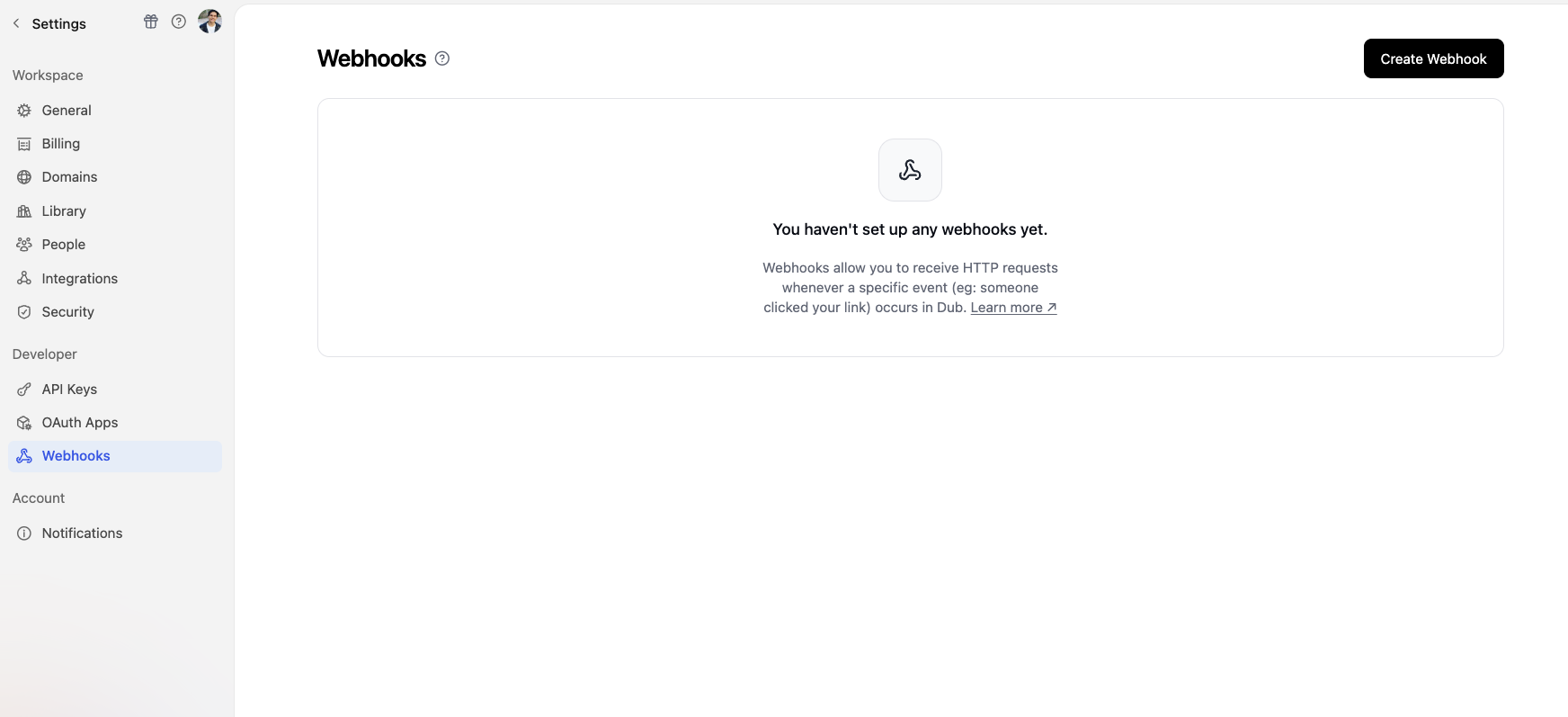 Click on **Create Webhook** to create a new webhook.
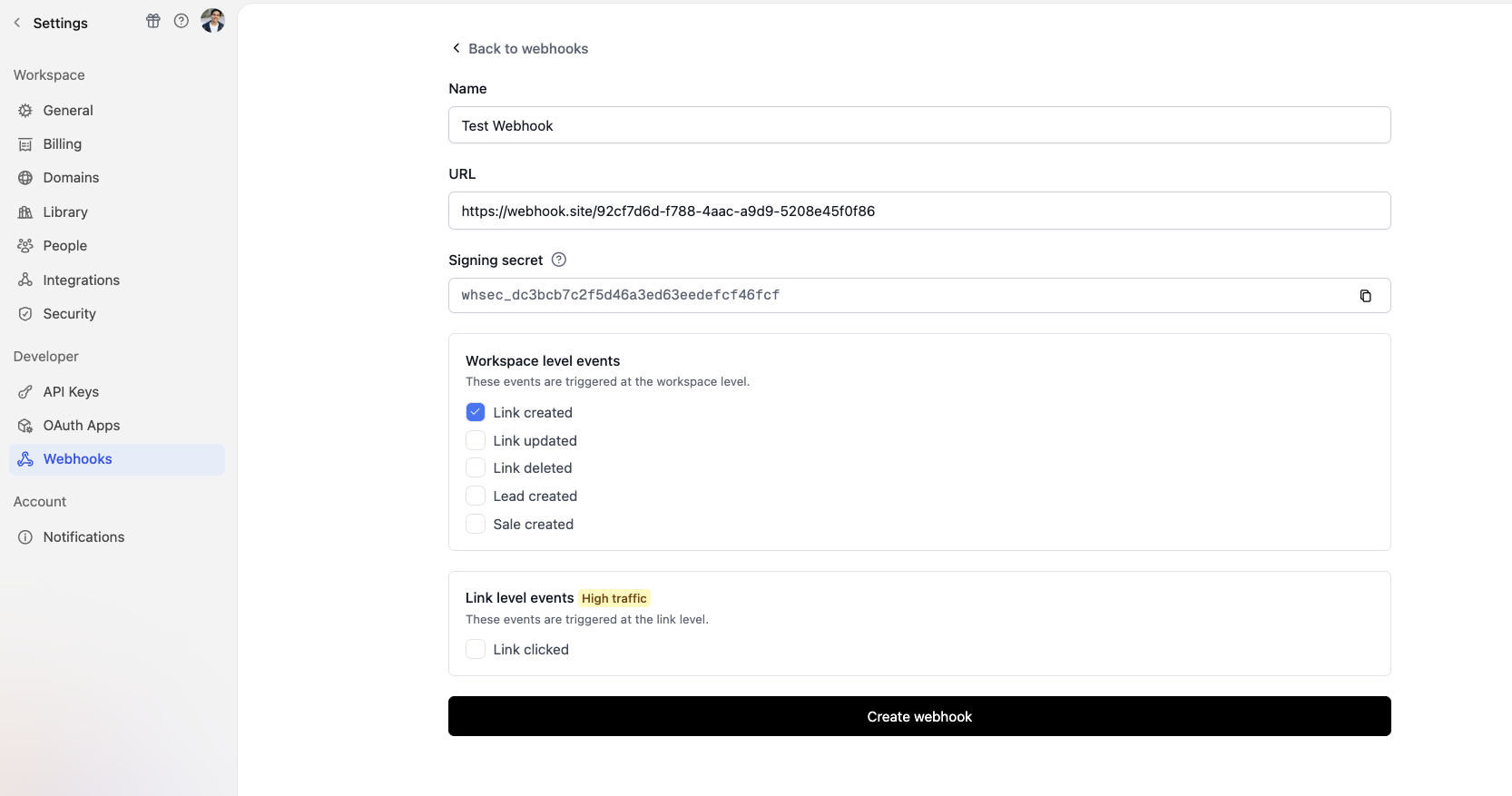 Fill in the required fields in the webhook creation form:
1. **Name**: Give your webhook a name that helps you identify it.
2. **URL**: Enter the URL of the endpoint where you want to send the webhook. We recommend using [webhook.site](https://webhook.site/) to test your webhook.
3. **Signing secret**: This is an auto-generated secret key that you can use to verify the authenticity of the webhook in your application. Learn more about [verifying webhook requests](/docs/webhooks/verify-webhook-requests).
4. **Events**: Select the events you want to listen to. You can select multiple events. Refer to the [Event Types](/docs/webhooks/event-types) section to see the list of available events.
Finally, click on **Create webhook** to create the webhook.
## Viewing webhook event logs
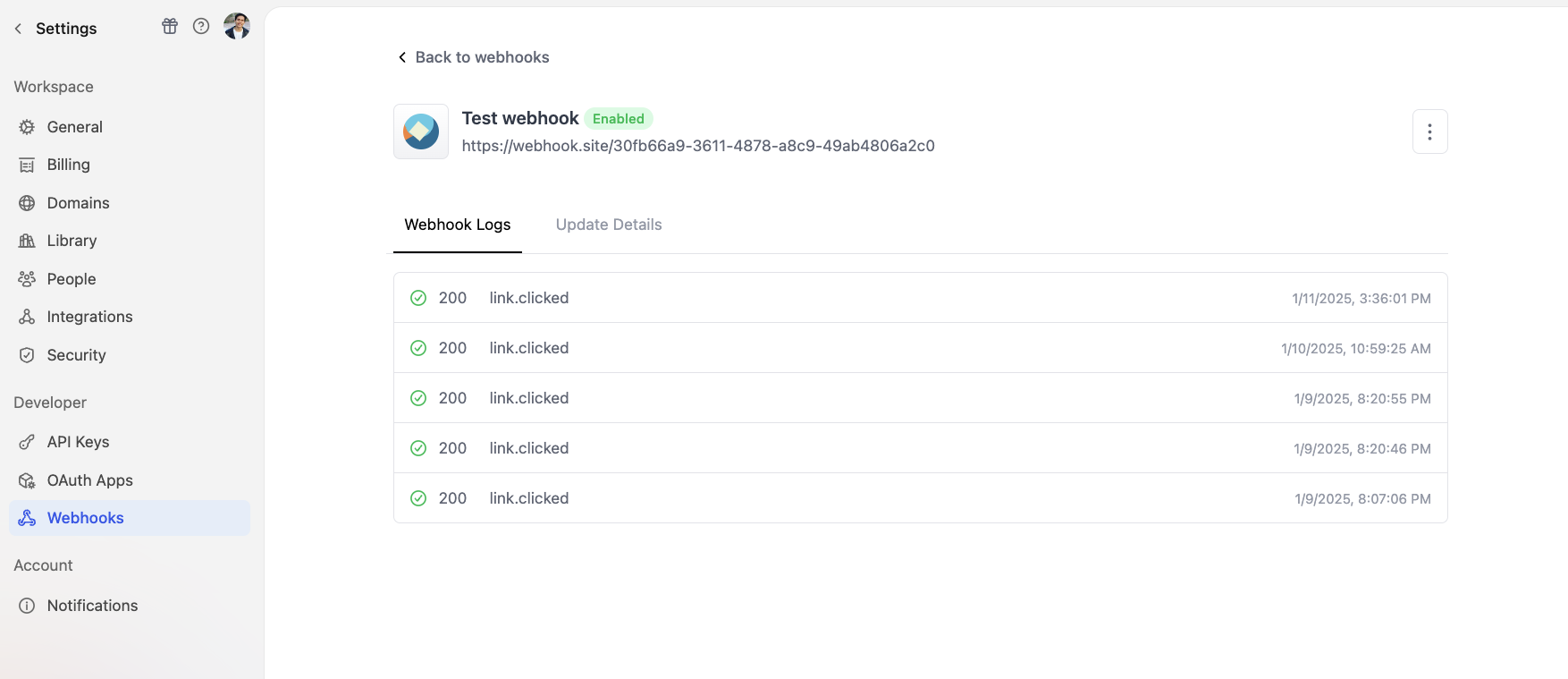
We also provide you with a webhook event logs page where you can view all the webhook events that have been sent to your webhook endpoint in real-time.
To view the webhook event logs, select the webhook from the [**Webhooks** settings page](https://app.dub.co/webhooks) and click on the **Webhook Logs** tab.
Here, you'll see a list of all the webhook events that have been sent to your webhook endpoint:
Fill in the required fields in the webhook creation form:
1. **Name**: Give your webhook a name that helps you identify it.
2. **URL**: Enter the URL of the endpoint where you want to send the webhook. We recommend using [webhook.site](https://webhook.site/) to test your webhook.
3. **Signing secret**: This is an auto-generated secret key that you can use to verify the authenticity of the webhook in your application. Learn more about [verifying webhook requests](/docs/webhooks/verify-webhook-requests).
4. **Events**: Select the events you want to listen to. You can select multiple events. Refer to the [Event Types](/docs/webhooks/event-types) section to see the list of available events.
Finally, click on **Create webhook** to create the webhook.
## Viewing webhook event logs
We also provide you with a webhook event logs page where you can view all the webhook events that have been sent to your webhook endpoint in real-time.
To view the webhook event logs, select the webhook from the [**Webhooks** settings page](https://app.dub.co/webhooks) and click on the **Webhook Logs** tab.
Here, you'll see a list of all the webhook events that have been sent to your webhook endpoint:
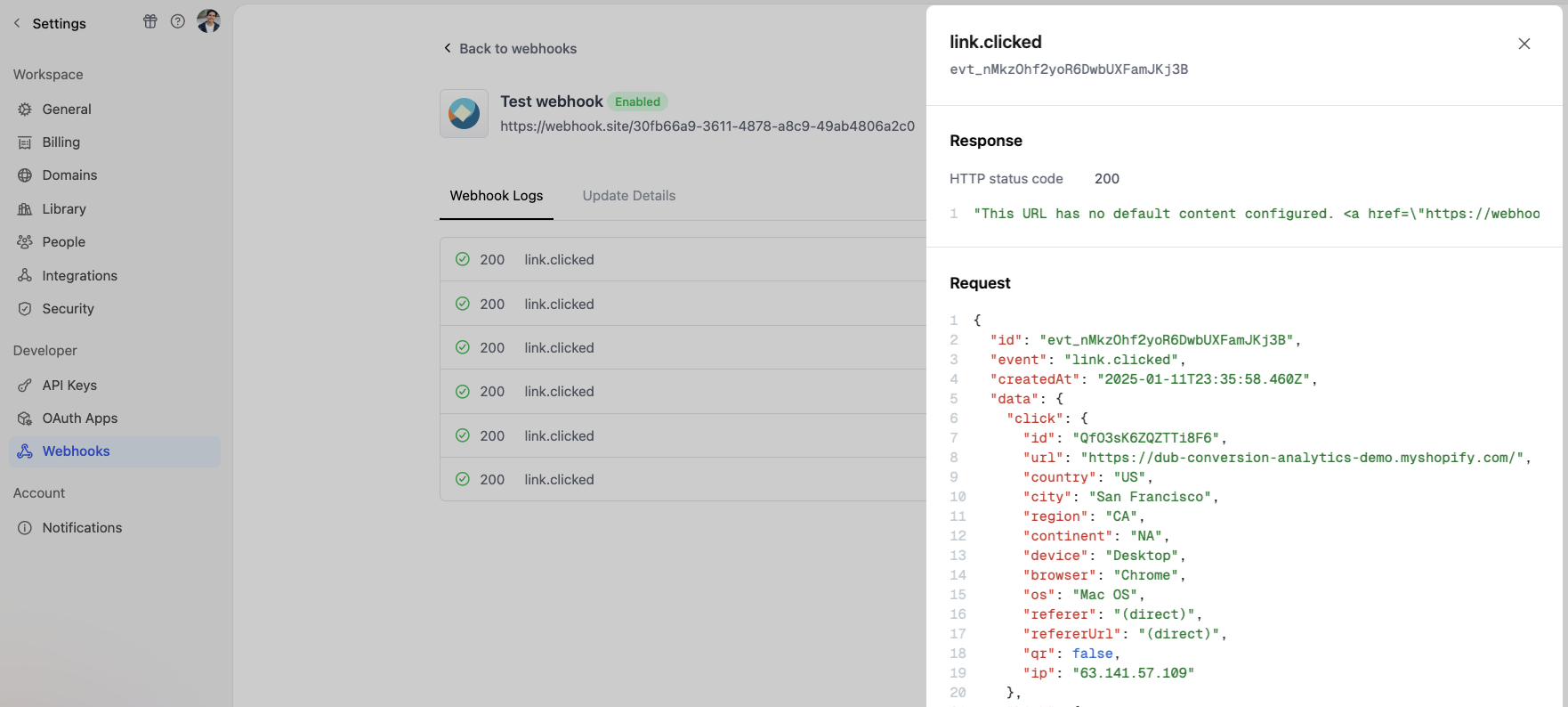
 You can also select on a specific event, which will open up a sheet with more details about the event:
 ## Sending test events
You can send test events to your webhook URL to ensure that it's working correctly. To do this:
Navigate to the [**Webhooks** settings page](https://app.dub.co/webhooks) and select the webhook you want to test.
Click on the **Update Details** tab to open the webhook details page.
Select the `⋮` icon on the top right of the page, and click on **Send test event**.
## Sending test events
You can send test events to your webhook URL to ensure that it's working correctly. To do this:
Navigate to the [**Webhooks** settings page](https://app.dub.co/webhooks) and select the webhook you want to test.
Click on the **Update Details** tab to open the webhook details page.
Select the `⋮` icon on the top right of the page, and click on **Send test event**.
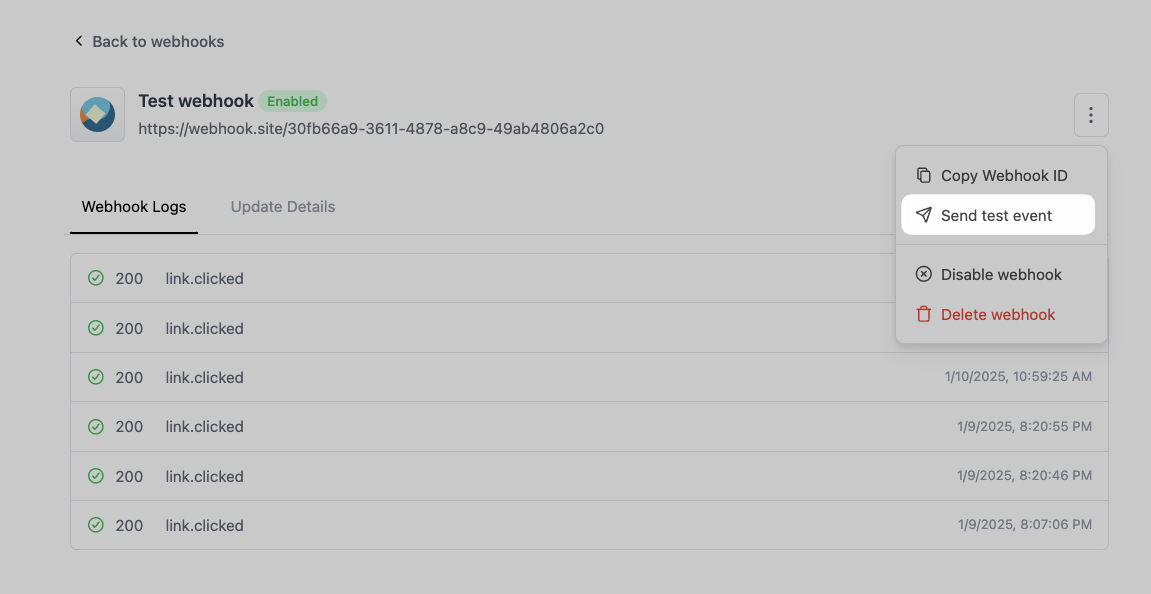 This will open up a modal where you can select the event you want to send.
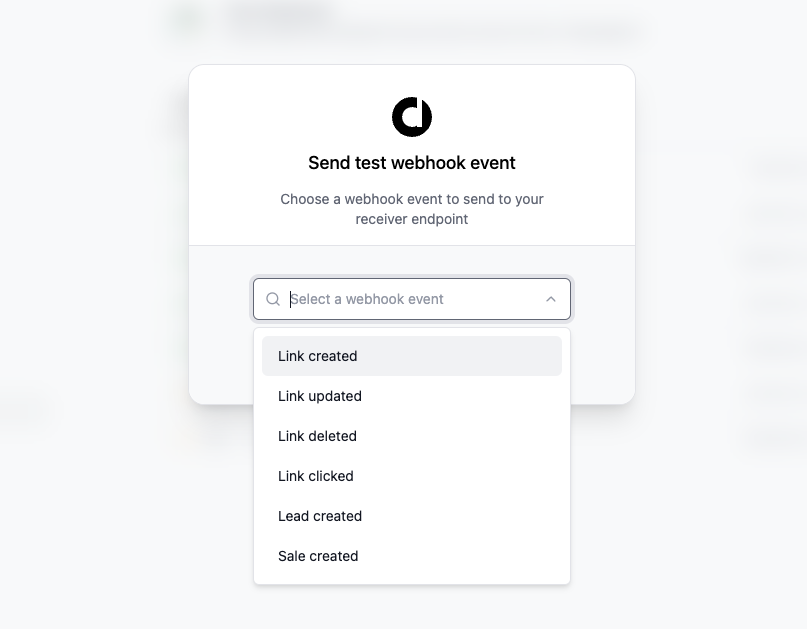 Select the event you want to send, and click on **Send test webhook**.
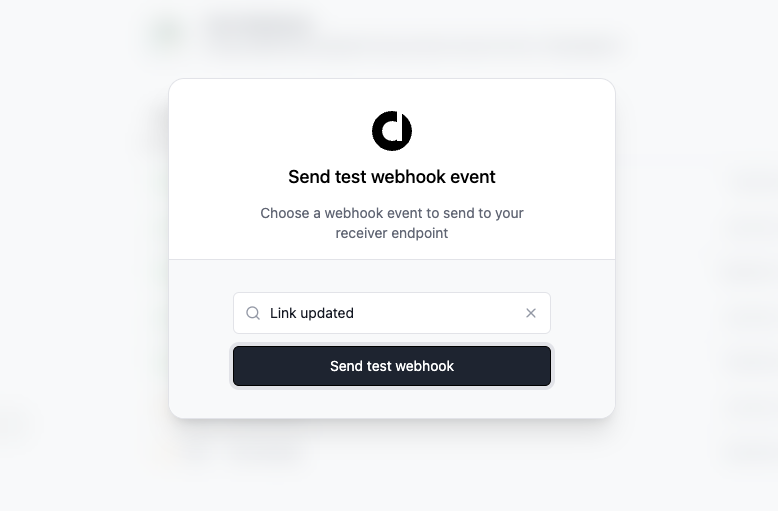 You'll see a success message and receive the webhook event in the webhook endpoint you specified.
## Retry Behaviour
If your webhook endpoint does not respond with a success status code (2XX), we retry the request to ensure every message will be delivered. You can see all the retry attempts in your webhook event logs.
Webhooks are retried until they are successfully delivered – with an exponential backoff to avoid overwhelming your webhook endpoint (also known as the "[thundering herd problem](https://en.wikipedia.org/wiki/Thundering_herd_problem)"). The delay is capped at 24 hours from the 5th retry attempt onwards.
| Retry attempt | Delay |
| ------------- | -------- |
| 1st | 12s |
| 2nd | 2m 28s |
| 3rd | 30m 8s |
| 4th | 6h 7m 6s |
| 5th | 24h |
| 6th | 24h |
| ... | ... |
### Temporary Disablement
If a webhook endpoint consistently fails, it will be automatically disabled after a series of failed attempts.
Notifications will be sent to the Workspace owners at the following intervals:
* After 5, 10, and 15 consecutive failed attempts.
* On the 20th consecutive failed attempt, the **webhook will be disabled**.
This mechanism ensures that non-responsive endpoints do not continue to receive retry attempts indefinitely, maintaining system efficiency and preventing unnecessary load on both the sender and receiver.
You can re-enable a disabled webhook by clicking on the **Enable webhook** button in the webhook details page.
You'll see a success message and receive the webhook event in the webhook endpoint you specified.
## Retry Behaviour
If your webhook endpoint does not respond with a success status code (2XX), we retry the request to ensure every message will be delivered. You can see all the retry attempts in your webhook event logs.
Webhooks are retried until they are successfully delivered – with an exponential backoff to avoid overwhelming your webhook endpoint (also known as the "[thundering herd problem](https://en.wikipedia.org/wiki/Thundering_herd_problem)"). The delay is capped at 24 hours from the 5th retry attempt onwards.
| Retry attempt | Delay |
| ------------- | -------- |
| 1st | 12s |
| 2nd | 2m 28s |
| 3rd | 30m 8s |
| 4th | 6h 7m 6s |
| 5th | 24h |
| 6th | 24h |
| ... | ... |
### Temporary Disablement
If a webhook endpoint consistently fails, it will be automatically disabled after a series of failed attempts.
Notifications will be sent to the Workspace owners at the following intervals:
* After 5, 10, and 15 consecutive failed attempts.
* On the 20th consecutive failed attempt, the **webhook will be disabled**.
This mechanism ensures that non-responsive endpoints do not continue to receive retry attempts indefinitely, maintaining system efficiency and preventing unnecessary load on both the sender and receiver.
You can re-enable a disabled webhook by clicking on the **Enable webhook** button in the webhook details page.