> ## Documentation Index
> Fetch the complete documentation index at: https://dub.co/llms.txt
> Use this file to discover all available pages before exploring further.
# Testing your implementation
> Learn how to test conversion tracking, partner attribution, commission, and payouts without affecting your live workspace.
A staging workspace lets you test links, conversion events, integrations, and partner payouts without changing your live analytics or using real money.
## Staging, sandbox, and production
Dub workspaces run in one of three environments:
* **Staging:** Automatically paired with your production workspace. Use it to test a partner program.
* **Sandbox:** An independent workspace, not paired with production. Sandbox workspaces are not created automatically. [Contact us](https://dub.co/contact/support) if you require one.
* **Production:** Processes real events and payouts.
### Eligibility
Staging workspaces are available on [Business plans and above](https://dub.co/pricing), and only when the workspace has a partner program.
Dub creates a `staging workspace` when you upgrade to a Business plan (or higher) with a partner program, or when you create a partner program on one of those plans.
Free and Pro workspaces, and workspaces without a partner program aren't eligible.
## Switch to your staging workspace
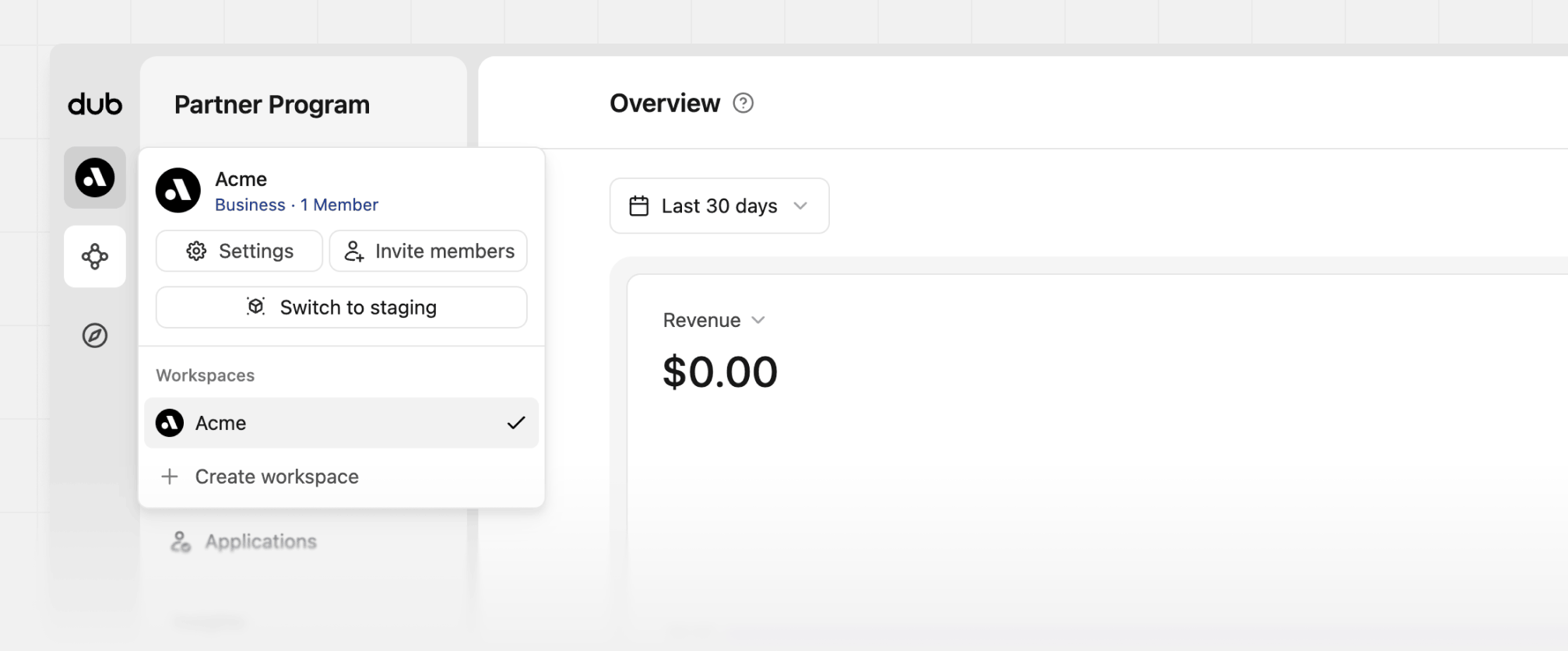
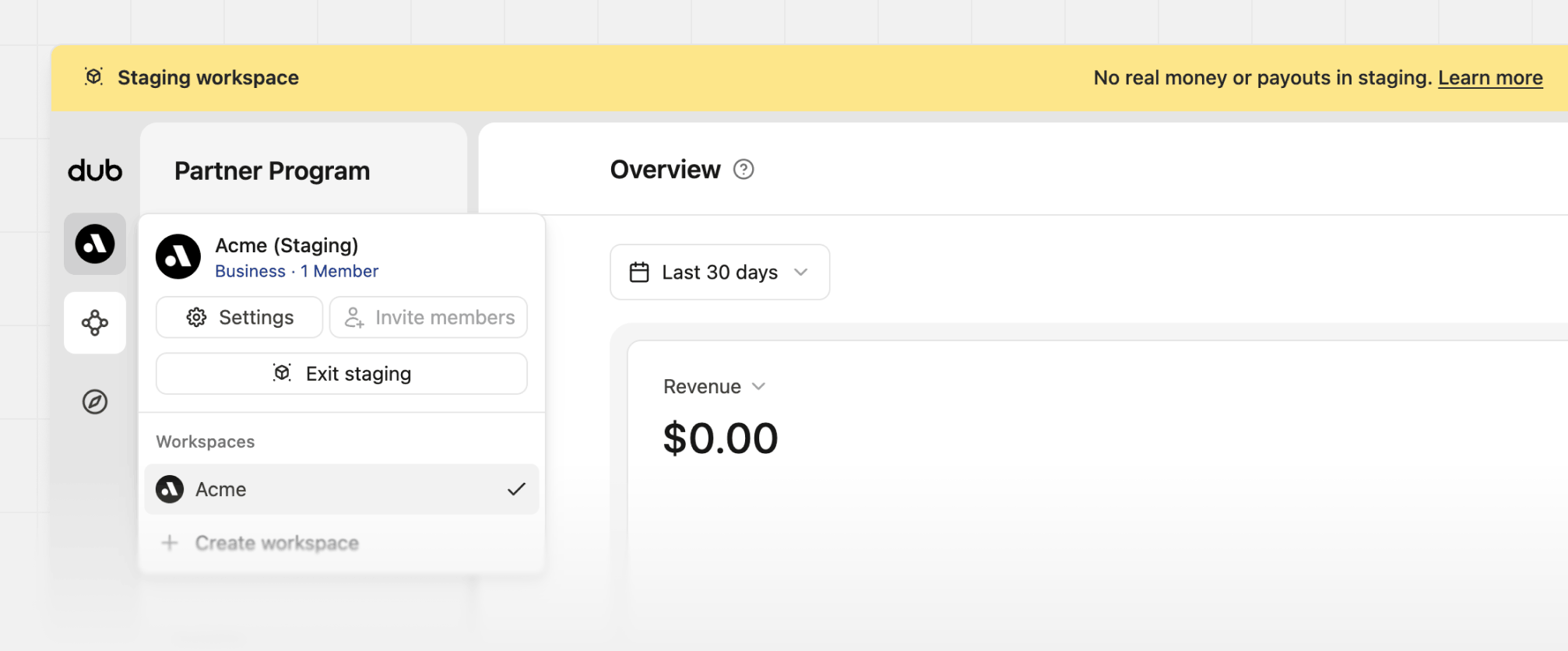
Open your workspace menu in the top left corner and click **Switch to staging**. To go back to your production workspace, click **Exit staging** in the banner or the workspace menu.
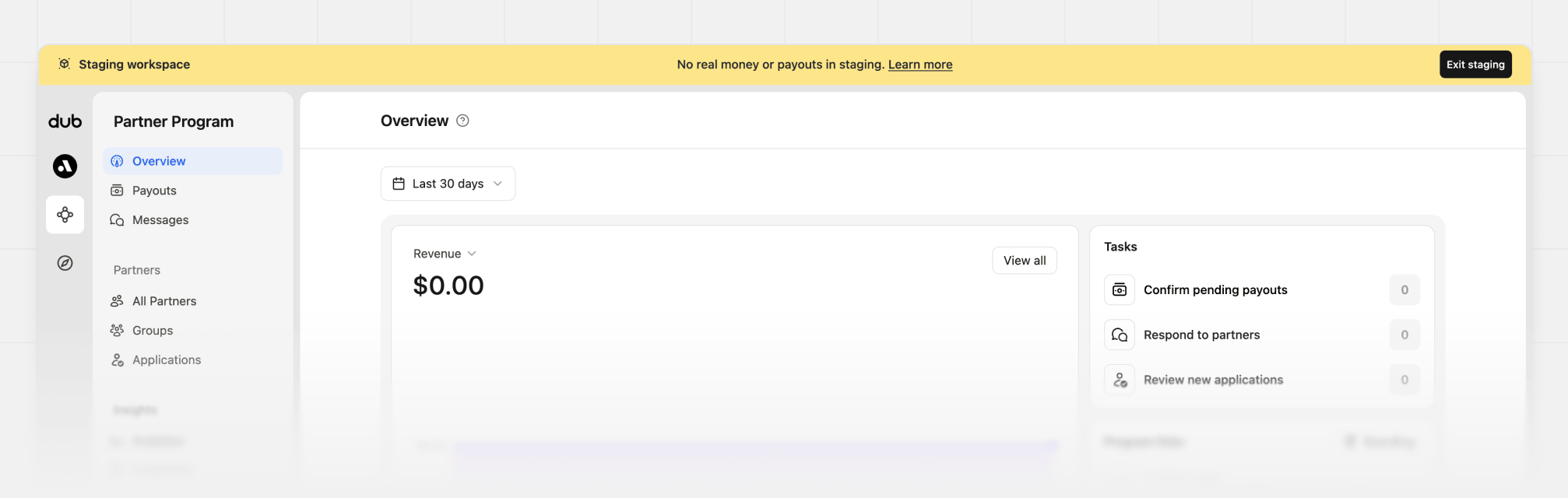
 While you're in staging, a banner at the top of the dashboard reminds you that no real money or payouts are involved.
 Your staging workspace is set up with:
* **Name:**`{Your workspace name} (Staging)`
* **Slug:**`{your-workspace-slug}-staging`
* **Short link domain:**`{your-workspace-slug}.staging.dub.link`
* A copy of your partner program, including its destination URL, branding, application form, landing page, and default group settings
## What syncs
Production and staging stay paired, but only workspace settings and members are copied across. *Test data stays in staging*.
| Data | In your staging workspace |
| - | - |
| Workspace name, slug, and logo | Synced from production. The staging name is `{Your workspace name} (Staging)` and the slug ends in `-staging`. |
| Plan and billing period | Synced from production. Billing stays on the production workspace. |
| Members and roles | Invitations, role changes, and removals are managed in production and synced here. API-only machine users are not copied. |
| Links | Separate from production. |
| Partners | Separate from production. |
| Customers | Separate from production. |
| Conversion events | Separate from production. |
| Rewards | Separate until you [copy them to live](#copy-rewards-and-discounts-to-live). |
| Discounts | Separate until you [copy them to live](#copy-rewards-and-discounts-to-live). |
API keys, publishable keys, webhooks, and integration connections are also
separate.
## Limitations and restrictions
### Payments and integrations
* Payouts are simulated and never go through Stripe, PayPal, or Tremendous.
* You can connect a Stripe account in `test mode` or a [Stripe sandbox](https://docs.stripe.com/sandboxes). Live mode is rejected.
### Workspace administration
* You can't set `staging` as your default workspace.
* Your workspace name, slug, and logo [sync from production](#what-syncs).
* Invitations, invite links, pending invites, roles, and removals are managed in production only.
* Deleting your production workspace also deletes its staging workspace.
### Billing and usage
* You can only change your plan or payment methods on `Production`.
* Staging uses trial usage limits instead of your plan's limits, and staging usage isn't billed.
### Data synchronization and notifications
* Rewards and discounts stay in staging until you [copy them to live](#copy-rewards-and-discounts-to-live).
* No usage or application reminders are sent from staging activity.
* Your staging program landing page shows the staging banner and is excluded from search results.
## Get your staging credentials
While in your staging workspace, go to **Settings** > [**API Keys**](https://app.dub.co/settings/tokens) and create a new key.
API keys created in staging start with `dub_test_`. Production API keys start with `dub_`. Use that prefix to tell them apart before you deploy. Sandbox API keys use the same `dub_test_` prefix.
Publishable keys use a separate format. They start with `dub_pk_` in staging and in production. The prefix is the same in both workspaces, so keep each key in its own environment variable.
Go to your staging workspace's [Tracking settings page](https://app.dub.co/settings/tracking) and copy the [publishable key](/docs/api-reference/authentication#publishable-keys). You'll need it for the [Dub Analytics script](/docs/sdks/client-side/introduction) and the [mobile SDKs](/docs/sdks/client-side-mobile/introduction).
Use the staging API key and publishable key in your test or staging environment. Events tracked with these keys only show up in your staging workspace.
## Testing use cases
Here are the most common flows to test in your staging workspace before going live.
### Track clicks, leads, and sales
Set up conversion tracking with your staging keys using [server-side tracking](/docs/quickstart/server), [client-side tracking](/docs/quickstart/client), or the mobile SDKs ([Swift](/docs/sdks/client-side-mobile/installation-guides/swift) or [React Native](/docs/sdks/client-side-mobile/installation-guides/react-native)).
Then, click one of your staging short links, sign up, and make a purchase. The click, lead, and sale – along with the new customer – show up in your staging workspace's analytics only.
### Stripe
Install the [Dub Stripe app](/docs/integrations/stripe) in Stripe test mode or a [Stripe sandbox](https://docs.stripe.com/sandboxes), and connect it to your staging workspace.
Complete a test payment with one of Stripe's [test cards](https://docs.stripe.com/testing#cards). The payment shows up as a sale in your staging workspace.
Live Stripe mode can't be connected to a staging workspace. Use your
production workspace when you're ready to track real payments.
### Shopify
Install the [Dub Shopify app](/docs/integrations/shopify) on a Shopify development store and connect it to your staging workspace. Test orders from that store are recorded as sales in staging only.
### HubSpot
Connect a HubSpot test account to your staging workspace with the [HubSpot integration](/docs/integrations/hubspot). Leads and closed-won deals from that account are tracked in staging only.
### Partner payouts
Confirm a payout from your staging partner program. Staging payouts:
* Use a simulated payment method, so there's no bank charge and no money transfer
* Show **Payouts simulated** for partners and a **Test** badge on the payout
Programs that use [external or hybrid payouts](/docs/partners/external-payouts) also send [`external_payout.confirmed`](/docs/webhooks/events/external-payout-confirmed) from staging. Create a webhook for that event in your staging workspace and point it at a test handler. The payload matches production, so use an endpoint that records the payout without transferring funds. A 2xx response marks the payout completed. Until your handler responds, the payout stays processing.
Partners still receive the payout email for staging payouts. Use test partner
email addresses to avoid notifying real partners.
### Copy rewards and discounts to live
Once you're happy with a reward or discount in staging, open the partner group in your staging workspace and click **Copy to live**.
Your staging workspace is set up with:
* **Name:**`{Your workspace name} (Staging)`
* **Slug:**`{your-workspace-slug}-staging`
* **Short link domain:**`{your-workspace-slug}.staging.dub.link`
* A copy of your partner program, including its destination URL, branding, application form, landing page, and default group settings
## What syncs
Production and staging stay paired, but only workspace settings and members are copied across. *Test data stays in staging*.
| Data | In your staging workspace |
| - | - |
| Workspace name, slug, and logo | Synced from production. The staging name is `{Your workspace name} (Staging)` and the slug ends in `-staging`. |
| Plan and billing period | Synced from production. Billing stays on the production workspace. |
| Members and roles | Invitations, role changes, and removals are managed in production and synced here. API-only machine users are not copied. |
| Links | Separate from production. |
| Partners | Separate from production. |
| Customers | Separate from production. |
| Conversion events | Separate from production. |
| Rewards | Separate until you [copy them to live](#copy-rewards-and-discounts-to-live). |
| Discounts | Separate until you [copy them to live](#copy-rewards-and-discounts-to-live). |
API keys, publishable keys, webhooks, and integration connections are also
separate.
## Limitations and restrictions
### Payments and integrations
* Payouts are simulated and never go through Stripe, PayPal, or Tremendous.
* You can connect a Stripe account in `test mode` or a [Stripe sandbox](https://docs.stripe.com/sandboxes). Live mode is rejected.
### Workspace administration
* You can't set `staging` as your default workspace.
* Your workspace name, slug, and logo [sync from production](#what-syncs).
* Invitations, invite links, pending invites, roles, and removals are managed in production only.
* Deleting your production workspace also deletes its staging workspace.
### Billing and usage
* You can only change your plan or payment methods on `Production`.
* Staging uses trial usage limits instead of your plan's limits, and staging usage isn't billed.
### Data synchronization and notifications
* Rewards and discounts stay in staging until you [copy them to live](#copy-rewards-and-discounts-to-live).
* No usage or application reminders are sent from staging activity.
* Your staging program landing page shows the staging banner and is excluded from search results.
## Get your staging credentials
While in your staging workspace, go to **Settings** > [**API Keys**](https://app.dub.co/settings/tokens) and create a new key.
API keys created in staging start with `dub_test_`. Production API keys start with `dub_`. Use that prefix to tell them apart before you deploy. Sandbox API keys use the same `dub_test_` prefix.
Publishable keys use a separate format. They start with `dub_pk_` in staging and in production. The prefix is the same in both workspaces, so keep each key in its own environment variable.
Go to your staging workspace's [Tracking settings page](https://app.dub.co/settings/tracking) and copy the [publishable key](/docs/api-reference/authentication#publishable-keys). You'll need it for the [Dub Analytics script](/docs/sdks/client-side/introduction) and the [mobile SDKs](/docs/sdks/client-side-mobile/introduction).
Use the staging API key and publishable key in your test or staging environment. Events tracked with these keys only show up in your staging workspace.
## Testing use cases
Here are the most common flows to test in your staging workspace before going live.
### Track clicks, leads, and sales
Set up conversion tracking with your staging keys using [server-side tracking](/docs/quickstart/server), [client-side tracking](/docs/quickstart/client), or the mobile SDKs ([Swift](/docs/sdks/client-side-mobile/installation-guides/swift) or [React Native](/docs/sdks/client-side-mobile/installation-guides/react-native)).
Then, click one of your staging short links, sign up, and make a purchase. The click, lead, and sale – along with the new customer – show up in your staging workspace's analytics only.
### Stripe
Install the [Dub Stripe app](/docs/integrations/stripe) in Stripe test mode or a [Stripe sandbox](https://docs.stripe.com/sandboxes), and connect it to your staging workspace.
Complete a test payment with one of Stripe's [test cards](https://docs.stripe.com/testing#cards). The payment shows up as a sale in your staging workspace.
Live Stripe mode can't be connected to a staging workspace. Use your
production workspace when you're ready to track real payments.
### Shopify
Install the [Dub Shopify app](/docs/integrations/shopify) on a Shopify development store and connect it to your staging workspace. Test orders from that store are recorded as sales in staging only.
### HubSpot
Connect a HubSpot test account to your staging workspace with the [HubSpot integration](/docs/integrations/hubspot). Leads and closed-won deals from that account are tracked in staging only.
### Partner payouts
Confirm a payout from your staging partner program. Staging payouts:
* Use a simulated payment method, so there's no bank charge and no money transfer
* Show **Payouts simulated** for partners and a **Test** badge on the payout
Programs that use [external or hybrid payouts](/docs/partners/external-payouts) also send [`external_payout.confirmed`](/docs/webhooks/events/external-payout-confirmed) from staging. Create a webhook for that event in your staging workspace and point it at a test handler. The payload matches production, so use an endpoint that records the payout without transferring funds. A 2xx response marks the payout completed. Until your handler responds, the payout stays processing.
Partners still receive the payout email for staging payouts. Use test partner
email addresses to avoid notifying real partners.
### Copy rewards and discounts to live
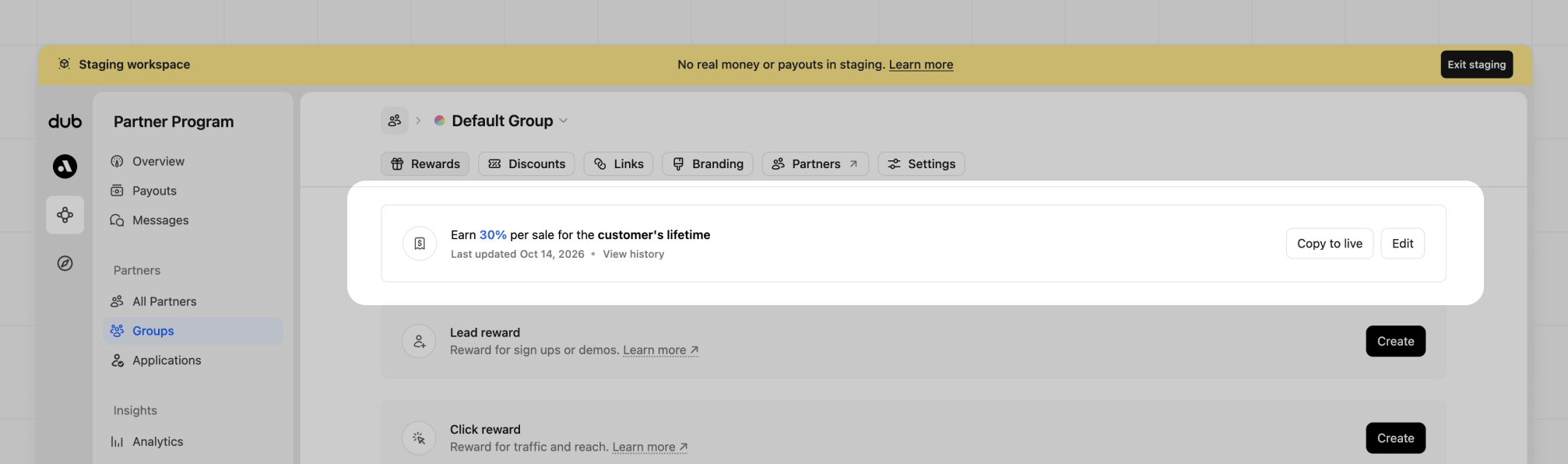
Once you're happy with a reward or discount in staging, open the partner group in your staging workspace and click **Copy to live**.
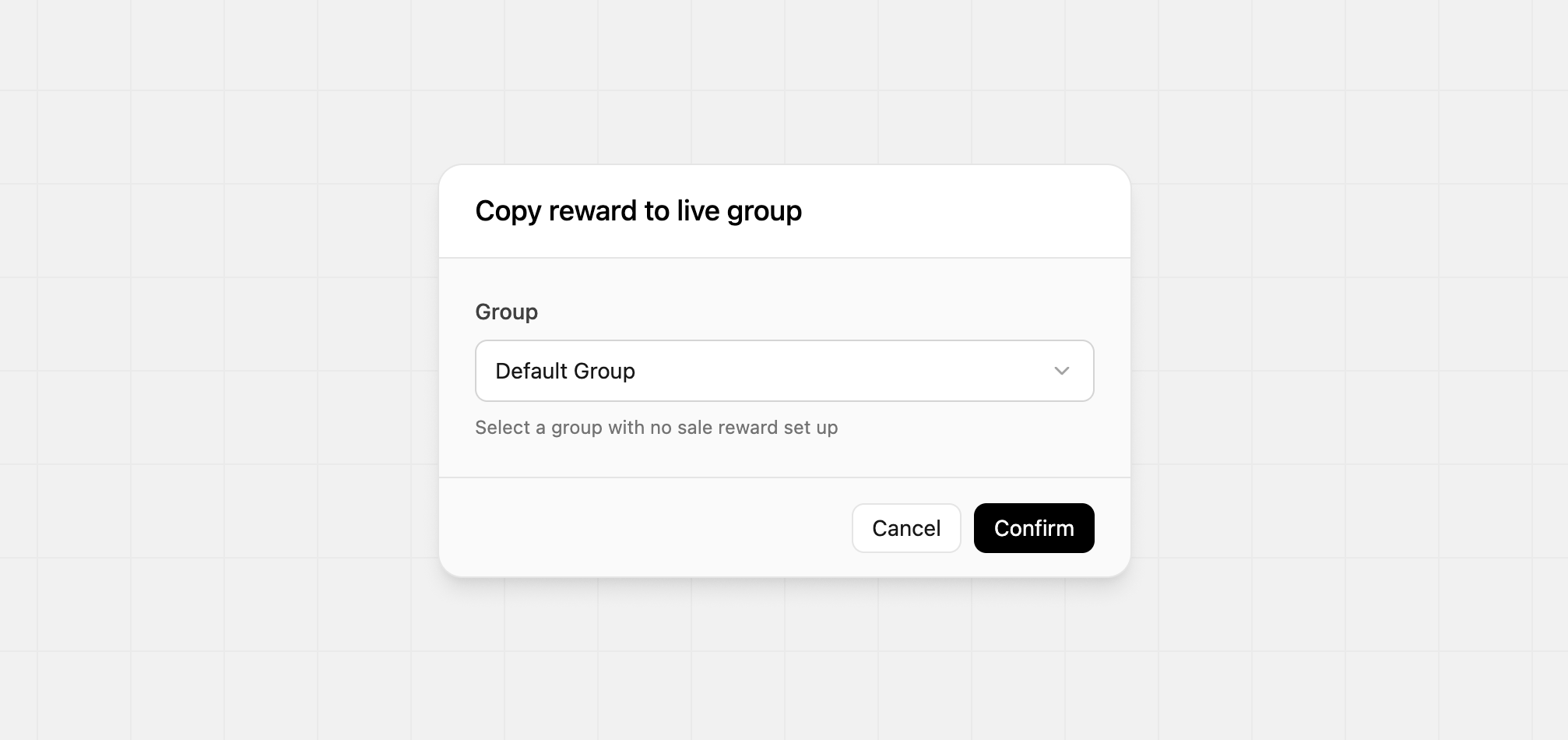
 Then, pick a group in your production program that doesn't already have that type of reward or discount.
 Copying a Stripe discount also creates the matching coupon on your production
workspace's connected Stripe account.
## Go live
When testing looks right, move your application onto production credentials and confirm a real event lands in production.
**Do not use staging credentials in production.** A `dub_test_` API key, or
the publishable key copied from staging, sends events to your staging
workspace. Those events stay out of production analytics, commissions, and
payouts.
Click **Exit staging** in the banner or the workspace menu or from your workspace dropdown menu.
Copying a Stripe discount also creates the matching coupon on your production
workspace's connected Stripe account.
## Go live
When testing looks right, move your application onto production credentials and confirm a real event lands in production.
**Do not use staging credentials in production.** A `dub_test_` API key, or
the publishable key copied from staging, sends events to your staging
workspace. Those events stay out of production analytics, commissions, and
payouts.
Click **Exit staging** in the banner or the workspace menu or from your workspace dropdown menu.
 In your production workspace, go to **Settings** > [**API
Keys**](https://app.dub.co/settings/tokens) and copy a production key. It
starts with `dub_`. Replace every `dub_test_` key in your server environment
with that key.
On your production workspace's [Tracking settings
page](https://app.dub.co/settings/tracking), copy the publishable key and
replace the staging `dub_pk_` value in your client and mobile apps. Both keys
share the `dub_pk_` prefix, so confirm the value came from production.
Connect your live Stripe account, and any Shopify or HubSpot account you use
in production, to your production workspace. Leave Stripe test mode and
development stores on staging.
Click a production short link and complete a signup or purchase with your production keys. Confirm the click, lead, or sale appears in your production workspace's analytics before you treat the integration as live.
## Next steps
Track conversion events from your backend
Track conversion events from the browser
Track deep links and conversions in your iOS app
Track deep links and conversions in your React Native app
Track sales from Stripe payments
Track sales from Shopify orders
Track leads and sales from HubSpot
This documentation is built and hosted on [Mintlify](https://mintlify.com), a developer documentation platform.
In your production workspace, go to **Settings** > [**API
Keys**](https://app.dub.co/settings/tokens) and copy a production key. It
starts with `dub_`. Replace every `dub_test_` key in your server environment
with that key.
On your production workspace's [Tracking settings
page](https://app.dub.co/settings/tracking), copy the publishable key and
replace the staging `dub_pk_` value in your client and mobile apps. Both keys
share the `dub_pk_` prefix, so confirm the value came from production.
Connect your live Stripe account, and any Shopify or HubSpot account you use
in production, to your production workspace. Leave Stripe test mode and
development stores on staging.
Click a production short link and complete a signup or purchase with your production keys. Confirm the click, lead, or sale appears in your production workspace's analytics before you treat the integration as live.
## Next steps
Track conversion events from your backend
Track conversion events from the browser
Track deep links and conversions in your iOS app
Track deep links and conversions in your React Native app
Track sales from Stripe payments
Track sales from Shopify orders
Track leads and sales from HubSpot
This documentation is built and hosted on [Mintlify](https://mintlify.com), a developer documentation platform.