> ## Documentation Index
> Fetch the complete documentation index at: https://dub.co/llms.txt
> Use this file to discover all available pages before exploring further.
# Self-hosting Dub
> An end-to-end guide on how to self-host Dub – the open-source link attribution platform.
 You can self-host Dub on your own servers and cloud infrastructure for greater control over your data and design. This guide will walk you through the entire process of setting up Dub on your own servers.
## Prerequisites
Before you begin, make sure you have the following:
* A [GitHub](https://github.com/) account
* A [Tinybird](https://www.tinybird.co/) account
* An [Upstash](https://upstash.com/) account
* A [PlanetScale](https://planetscale.com/) account
* A [Vercel](https://vercel.com/) account
* Either a [Cloudflare](https://www.cloudflare.com/) or [AWS](https://aws.com) account
You'll also need a custom domain that you will be using for your Dub instance, with an optional custom short domain for your links.
In this guide, we'll use `acme.com` as a placeholder for your custom domain, and `ac.me` as a placeholder for your custom short domain.
## Step 1: Local setup
First, you'll need to clone the Dub repo and install the dependencies.
First, clone the [Dub repo](https://d.to/github) into a public GitHub repository. If you are planning to distribute the code or allow users to interact with the code remotely (e.g., as part of a hosted application), make sure to provide source access (including modifications) as required by the [AGPLv3 license](https://d.to/license).
```bash Terminal theme={null}
git clone https://github.com/dubinc/dub.git
```
Run the following command to install the dependencies:
```bash Terminal theme={null}
pnpm i
```
Delete the `apps/web/vercel.json` file since cron jobs are not required for the self-hosted version:
```bash Terminal theme={null}
rm apps/web/vercel.json
```
Convert the `.env.example` file to `.env`. You can start filling in the first few environment variables:
```bash Terminal theme={null}
# The domain that your app will be hosted on
NEXT_PUBLIC_APP_DOMAIN=acme.com
# The short domain that your app will be using (could be the same as the above)
NEXT_PUBLIC_APP_SHORT_DOMAIN=ac.me
# The ID of the Vercel team that your app will be deployed to: https://vercel.com/docs/accounts/create-a-team#find-your-team-id
TEAM_ID_VERCEL=
# The unique access token for your Vercel account: https://vercel.com/guides/how-do-i-use-a-vercel-api-access-token
AUTH_BEARER_TOKEN=
```
You will fill in the remaining environment variables in the following steps.
## Step 2: Set up Tinybird Clickhouse database
Next, you'll need to set up the [Tinybird](https://tinybird.co) Clickhouse database. This will be used to store time-series click events data.
In your [Tinybird](https://tinybird.co/) account, create a new Workspace.
Copy your `admin` [Auth Token](https://www.tinybird.co/docs/concepts/auth-tokens.html). Paste this token as the `TINYBIRD_API_KEY` environment variable in your `.env` file.
In your newly-cloned Dub repo, navigate to the `packages/tinybird` directory.
Install the Tinybird CLI with `pip install tinybird-cli` (requires Python >= 3.8).
Run `tb login` and paste your `admin` Auth Token.
Run `tb deploy` to publish the datasource and endpoints in the `packages/tinybird` directory. You should see the following output (truncated for brevity):
```bash Terminal theme={null}
$ tb deploy
** Processing ./datasources/click_events.datasource
** Processing ./endpoints/clicks.pipe
...
** Building dependencies
** Running 'click_events'
** 'click_events' created
** Running 'device'
** => Test endpoint at https://api.us-east.tinybird.co/v0/pipes/device.json
** Token device_endpoint_read_8888 not found, creating one
** => Test endpoint with:
** $ curl https://api.us-east.tinybird.co/v0/pipes/device.json?token=p.ey...NWeaoTLM
** 'device' created
...
```
You will then need to update your [Tinybird API base URL](https://www.tinybird.co/docs/api-reference/api-reference.html#regions-and-endpoints) to match the region of your database.
From the previous step, take note of the **Test endpoint** URL. It should look something like this:
```bash Terminal theme={null}
Test endpoint at https://api.us-east.tinybird.co/v0/pipes/device.json
```
Copy the base URL and paste it as the `TINYBIRD_API_URL` environment variable in your `.env` file.
```bash Terminal theme={null}
TINYBIRD_API_URL=https://api.us-east.tinybird.co
```
## Step 3: Set up Upstash Redis database
Next, you'll need to set up the [Upstash](https://upstash.com) Redis database. This will be used to cache link metadata and serve link redirects.
In your [Upstash account](https://console.upstash.com/), create a new database.
For better performance & read times, we recommend setting up a global database with several read regions.
You can self-host Dub on your own servers and cloud infrastructure for greater control over your data and design. This guide will walk you through the entire process of setting up Dub on your own servers.
## Prerequisites
Before you begin, make sure you have the following:
* A [GitHub](https://github.com/) account
* A [Tinybird](https://www.tinybird.co/) account
* An [Upstash](https://upstash.com/) account
* A [PlanetScale](https://planetscale.com/) account
* A [Vercel](https://vercel.com/) account
* Either a [Cloudflare](https://www.cloudflare.com/) or [AWS](https://aws.com) account
You'll also need a custom domain that you will be using for your Dub instance, with an optional custom short domain for your links.
In this guide, we'll use `acme.com` as a placeholder for your custom domain, and `ac.me` as a placeholder for your custom short domain.
## Step 1: Local setup
First, you'll need to clone the Dub repo and install the dependencies.
First, clone the [Dub repo](https://d.to/github) into a public GitHub repository. If you are planning to distribute the code or allow users to interact with the code remotely (e.g., as part of a hosted application), make sure to provide source access (including modifications) as required by the [AGPLv3 license](https://d.to/license).
```bash Terminal theme={null}
git clone https://github.com/dubinc/dub.git
```
Run the following command to install the dependencies:
```bash Terminal theme={null}
pnpm i
```
Delete the `apps/web/vercel.json` file since cron jobs are not required for the self-hosted version:
```bash Terminal theme={null}
rm apps/web/vercel.json
```
Convert the `.env.example` file to `.env`. You can start filling in the first few environment variables:
```bash Terminal theme={null}
# The domain that your app will be hosted on
NEXT_PUBLIC_APP_DOMAIN=acme.com
# The short domain that your app will be using (could be the same as the above)
NEXT_PUBLIC_APP_SHORT_DOMAIN=ac.me
# The ID of the Vercel team that your app will be deployed to: https://vercel.com/docs/accounts/create-a-team#find-your-team-id
TEAM_ID_VERCEL=
# The unique access token for your Vercel account: https://vercel.com/guides/how-do-i-use-a-vercel-api-access-token
AUTH_BEARER_TOKEN=
```
You will fill in the remaining environment variables in the following steps.
## Step 2: Set up Tinybird Clickhouse database
Next, you'll need to set up the [Tinybird](https://tinybird.co) Clickhouse database. This will be used to store time-series click events data.
In your [Tinybird](https://tinybird.co/) account, create a new Workspace.
Copy your `admin` [Auth Token](https://www.tinybird.co/docs/concepts/auth-tokens.html). Paste this token as the `TINYBIRD_API_KEY` environment variable in your `.env` file.
In your newly-cloned Dub repo, navigate to the `packages/tinybird` directory.
Install the Tinybird CLI with `pip install tinybird-cli` (requires Python >= 3.8).
Run `tb login` and paste your `admin` Auth Token.
Run `tb deploy` to publish the datasource and endpoints in the `packages/tinybird` directory. You should see the following output (truncated for brevity):
```bash Terminal theme={null}
$ tb deploy
** Processing ./datasources/click_events.datasource
** Processing ./endpoints/clicks.pipe
...
** Building dependencies
** Running 'click_events'
** 'click_events' created
** Running 'device'
** => Test endpoint at https://api.us-east.tinybird.co/v0/pipes/device.json
** Token device_endpoint_read_8888 not found, creating one
** => Test endpoint with:
** $ curl https://api.us-east.tinybird.co/v0/pipes/device.json?token=p.ey...NWeaoTLM
** 'device' created
...
```
You will then need to update your [Tinybird API base URL](https://www.tinybird.co/docs/api-reference/api-reference.html#regions-and-endpoints) to match the region of your database.
From the previous step, take note of the **Test endpoint** URL. It should look something like this:
```bash Terminal theme={null}
Test endpoint at https://api.us-east.tinybird.co/v0/pipes/device.json
```
Copy the base URL and paste it as the `TINYBIRD_API_URL` environment variable in your `.env` file.
```bash Terminal theme={null}
TINYBIRD_API_URL=https://api.us-east.tinybird.co
```
## Step 3: Set up Upstash Redis database
Next, you'll need to set up the [Upstash](https://upstash.com) Redis database. This will be used to cache link metadata and serve link redirects.
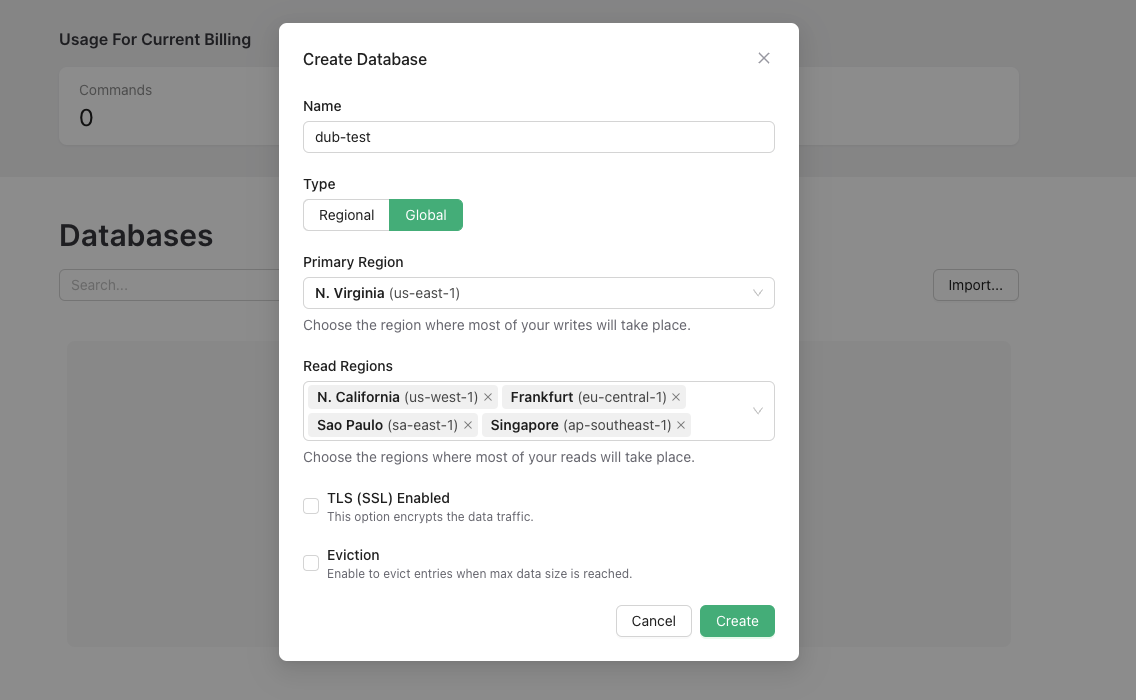
In your [Upstash account](https://console.upstash.com/), create a new database.
For better performance & read times, we recommend setting up a global database with several read regions.
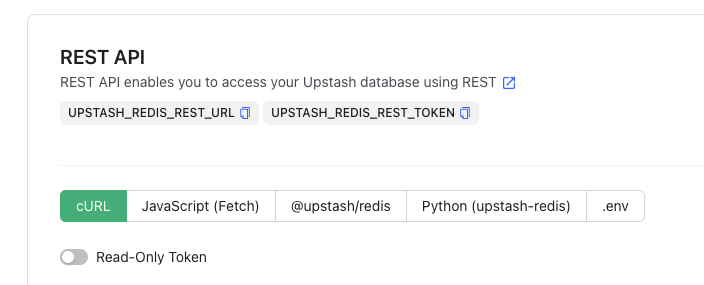
 Once your database is created, copy the `UPSTASH_REDIS_REST_URL` and `UPSTASH_REDIS_REST_TOKEN` from the **REST API** section into your `.env` file.
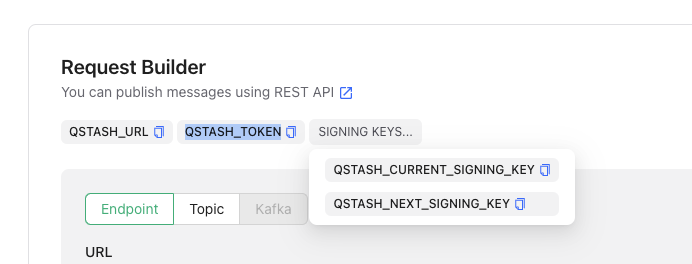
 Navigate to the [QStash tab](https://console.upstash.com/qstash) and copy the `QSTASH_TOKEN`, `QSTASH_CURRENT_SIGNING_KEY`, and `QSTASH_NEXT_SIGNING_KEY` from the **Request Builder** section into your `.env` file.
 ## Step 4: Set up PlanetScale MySQL database
Next, you'll need to set up a [PlanetScale](https://planetscale.com/)-compatible MySQL database. This will be used to store user data and link metadata.
PlanetScale recently [removed their free
tier](https://planetscale.com/blog/planetscale-forever), so you'll need to pay
for this option. A cheaper alternative is to use a [MySQL database on
Railway](https://railway.app/template/mysql) (\$5/month).
For [local development](/docs/local-development), we recommend using a [local MySQL database
with PlanetScale simulator](/docs/local-development#option-1-local-mysql-database-with-planetscale-simulator-recommended) (100% free).
In your [PlanetScale account](https://app.planetscale.com/), create a new database.
Once your database is created, you'll be prompted to select your language or Framework. Select **Prisma**.
## Step 4: Set up PlanetScale MySQL database
Next, you'll need to set up a [PlanetScale](https://planetscale.com/)-compatible MySQL database. This will be used to store user data and link metadata.
PlanetScale recently [removed their free
tier](https://planetscale.com/blog/planetscale-forever), so you'll need to pay
for this option. A cheaper alternative is to use a [MySQL database on
Railway](https://railway.app/template/mysql) (\$5/month).
For [local development](/docs/local-development), we recommend using a [local MySQL database
with PlanetScale simulator](/docs/local-development#option-1-local-mysql-database-with-planetscale-simulator-recommended) (100% free).
In your [PlanetScale account](https://app.planetscale.com/), create a new database.
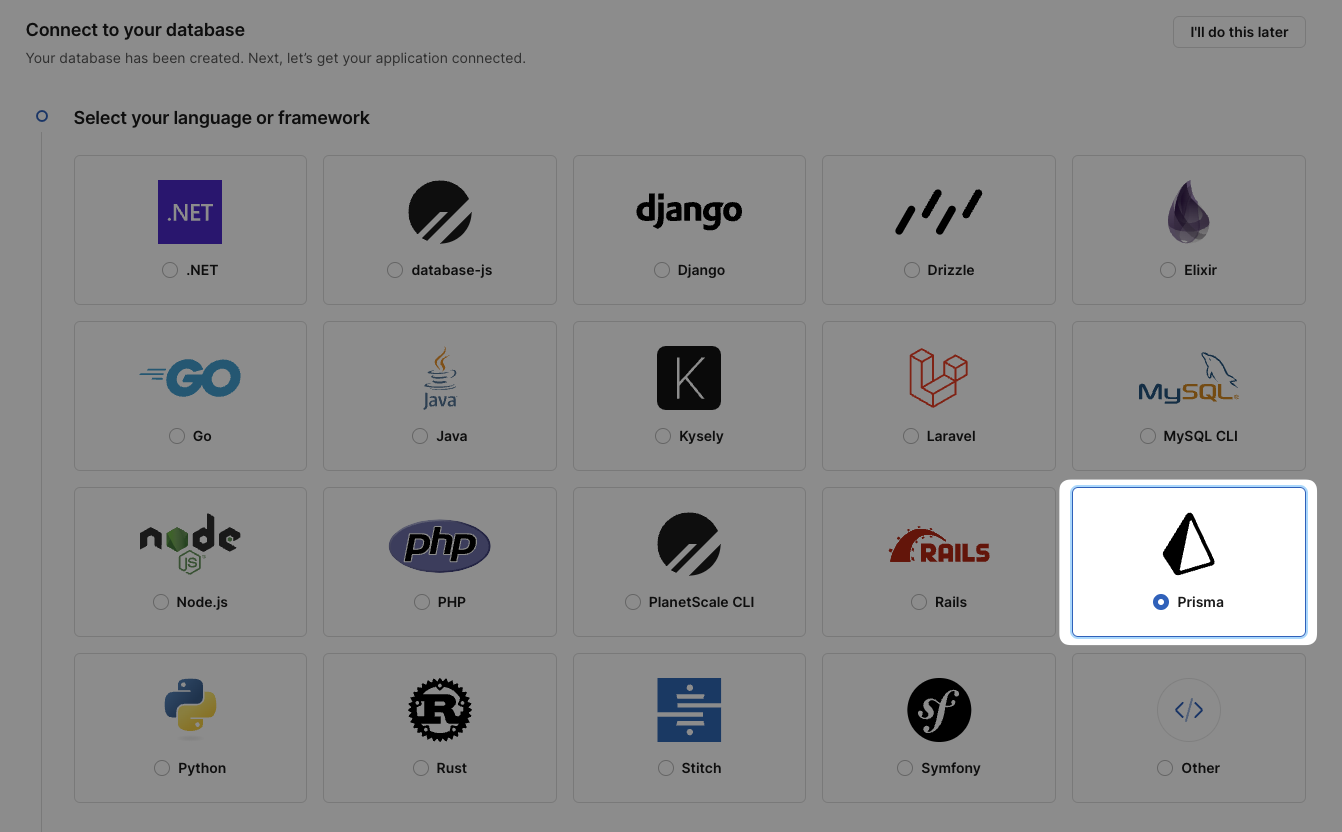
Once your database is created, you'll be prompted to select your language or Framework. Select **Prisma**.
 Then, you'll have to create a new password for your database. Once the password is created, scroll down to the **Add credentials to .env** section and copy the `DATABASE_URL` into your `.env` file.
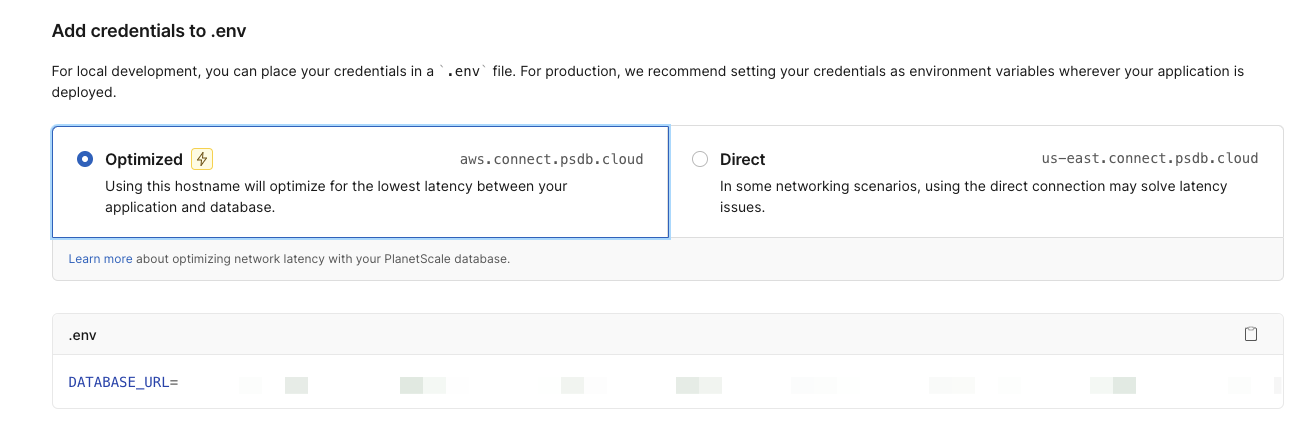 In your Dub codebase, navigate to `apps/web/prisma/schema.prisma` and replace all the columns in the `DefaultDomains` model to the normalized version of your custom short domain (removing the `.` character).
For example, if your custom short domain is `ac.me`, your `DefaultDomains` model should look like this:
```prisma apps/web/prisma/schema.prisma theme={null}
model DefaultDomains {
id String @id @default(cuid())
acme Boolean @default(true)
projectId String @unique
project Project @relation(fields: [projectId], references: [id], onDelete: Cascade)
}
```
In the terminal, navigate to the `apps/web` directory and run the following command to generate the Prisma client:
```bash Terminal theme={null}
pnpm run prisma:generate
```
Then, create the database tables with the following command:
```bash Terminal theme={null}
pnpm run prisma:push
```
## Step 5: Set up GitHub OAuth
Next, [create a new GitHub App](https://github.com/settings/applications/new). This will allow you to sign in to Dub with your GitHub account.
Don't forget to set the following Callback URLs:
* `https://app.acme.com/api/auth/callback/github`
* `http://localhost:8888/api/auth/callback/github` for local development.
Optional: Set the "Email addresses" account permission to **read-only** in
order to access private email addresses on GitHub.
Once your GitHub App is created, copy the `Client ID` and `Client Secret` into your `.env` file as the `GITHUB_CLIENT_ID` and `GITHUB_CLIENT_SECRET` environment variables.
## Step 6: Set up Cloudflare R2
Dub stores user-generated assets in either S3 or S3-compatible services like [Cloudflare R2](https://cloudflare.com/r2). These include:
* Project logos
* User avatars
* [Custom Social Media Cards](/help/article/custom-link-previews) images
We recommend using [Cloudflare R2](https://cloudflare.com/r2) for self-hosting Dub, as it's a more cost-effective solution compared to AWS S3. Here's how you can set it up:
You'll need to subscribe to the R2 service if you haven't already.
In your [Cloudflare account](https://dash.cloudflare.com/), create a new R2 bucket. We recommend giving your bucket a descriptive name (e.g. `dubassets`) and leaving the remaining settings as is.
In your Dub codebase, navigate to `apps/web/prisma/schema.prisma` and replace all the columns in the `DefaultDomains` model to the normalized version of your custom short domain (removing the `.` character).
For example, if your custom short domain is `ac.me`, your `DefaultDomains` model should look like this:
```prisma apps/web/prisma/schema.prisma theme={null}
model DefaultDomains {
id String @id @default(cuid())
acme Boolean @default(true)
projectId String @unique
project Project @relation(fields: [projectId], references: [id], onDelete: Cascade)
}
```
In the terminal, navigate to the `apps/web` directory and run the following command to generate the Prisma client:
```bash Terminal theme={null}
pnpm run prisma:generate
```
Then, create the database tables with the following command:
```bash Terminal theme={null}
pnpm run prisma:push
```
## Step 5: Set up GitHub OAuth
Next, [create a new GitHub App](https://github.com/settings/applications/new). This will allow you to sign in to Dub with your GitHub account.
Don't forget to set the following Callback URLs:
* `https://app.acme.com/api/auth/callback/github`
* `http://localhost:8888/api/auth/callback/github` for local development.
Optional: Set the "Email addresses" account permission to **read-only** in
order to access private email addresses on GitHub.
Once your GitHub App is created, copy the `Client ID` and `Client Secret` into your `.env` file as the `GITHUB_CLIENT_ID` and `GITHUB_CLIENT_SECRET` environment variables.
## Step 6: Set up Cloudflare R2
Dub stores user-generated assets in either S3 or S3-compatible services like [Cloudflare R2](https://cloudflare.com/r2). These include:
* Project logos
* User avatars
* [Custom Social Media Cards](/help/article/custom-link-previews) images
We recommend using [Cloudflare R2](https://cloudflare.com/r2) for self-hosting Dub, as it's a more cost-effective solution compared to AWS S3. Here's how you can set it up:
You'll need to subscribe to the R2 service if you haven't already.
In your [Cloudflare account](https://dash.cloudflare.com/), create a new R2 bucket. We recommend giving your bucket a descriptive name (e.g. `dubassets`) and leaving the remaining settings as is.
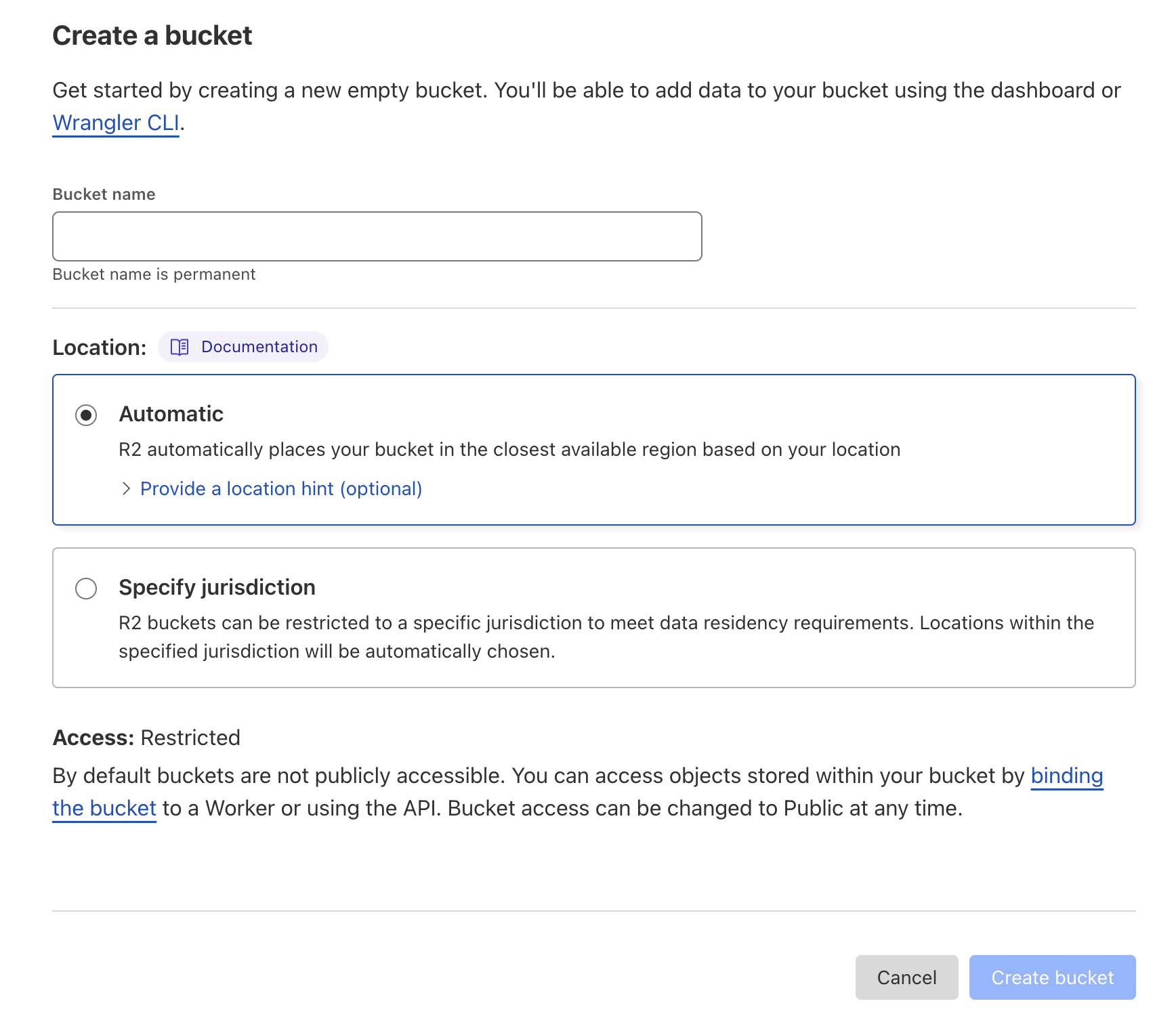 In your bucket settings, copy the **S3 API** value – you'll need it in Step 3.
From the R2 main page, click **Manage R2 API Tokens** on the right-hand column.
In your bucket settings, copy the **S3 API** value – you'll need it in Step 3.
From the R2 main page, click **Manage R2 API Tokens** on the right-hand column.
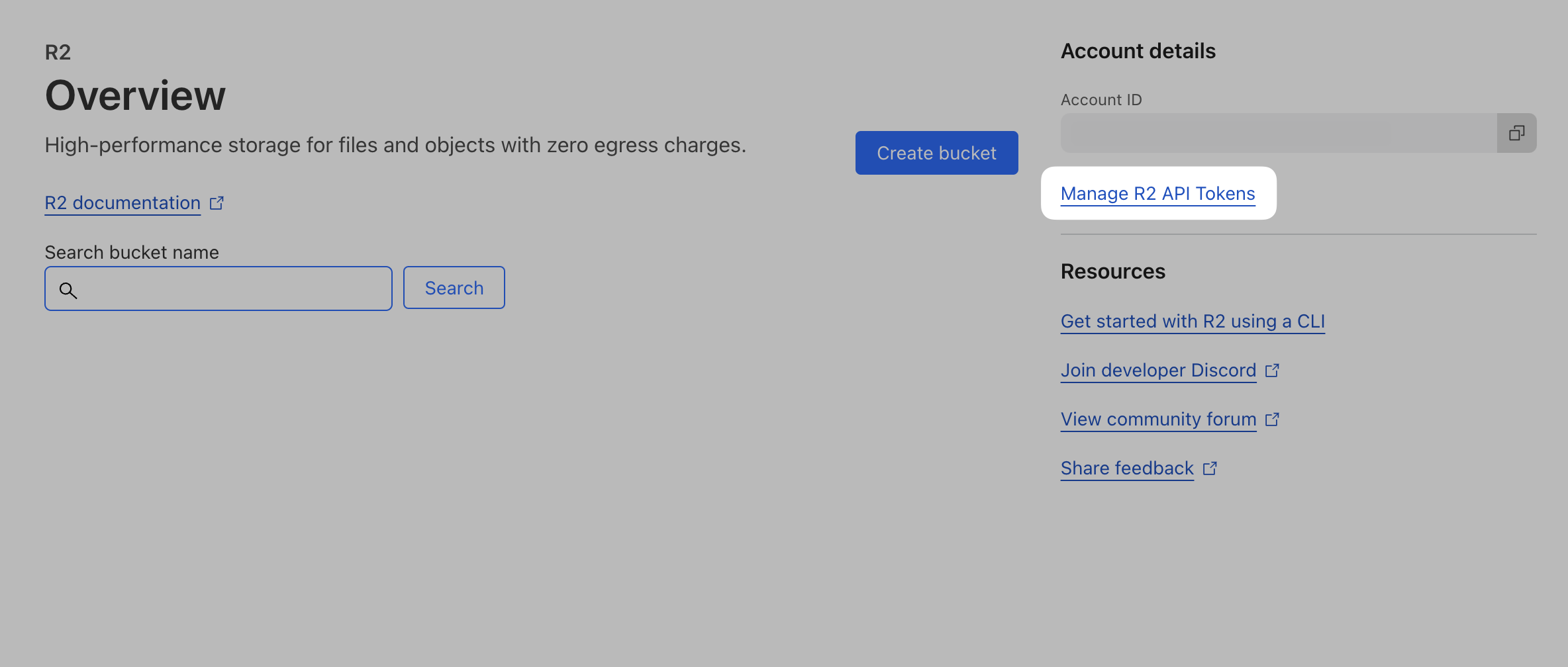 Then, click **Create API Token**.
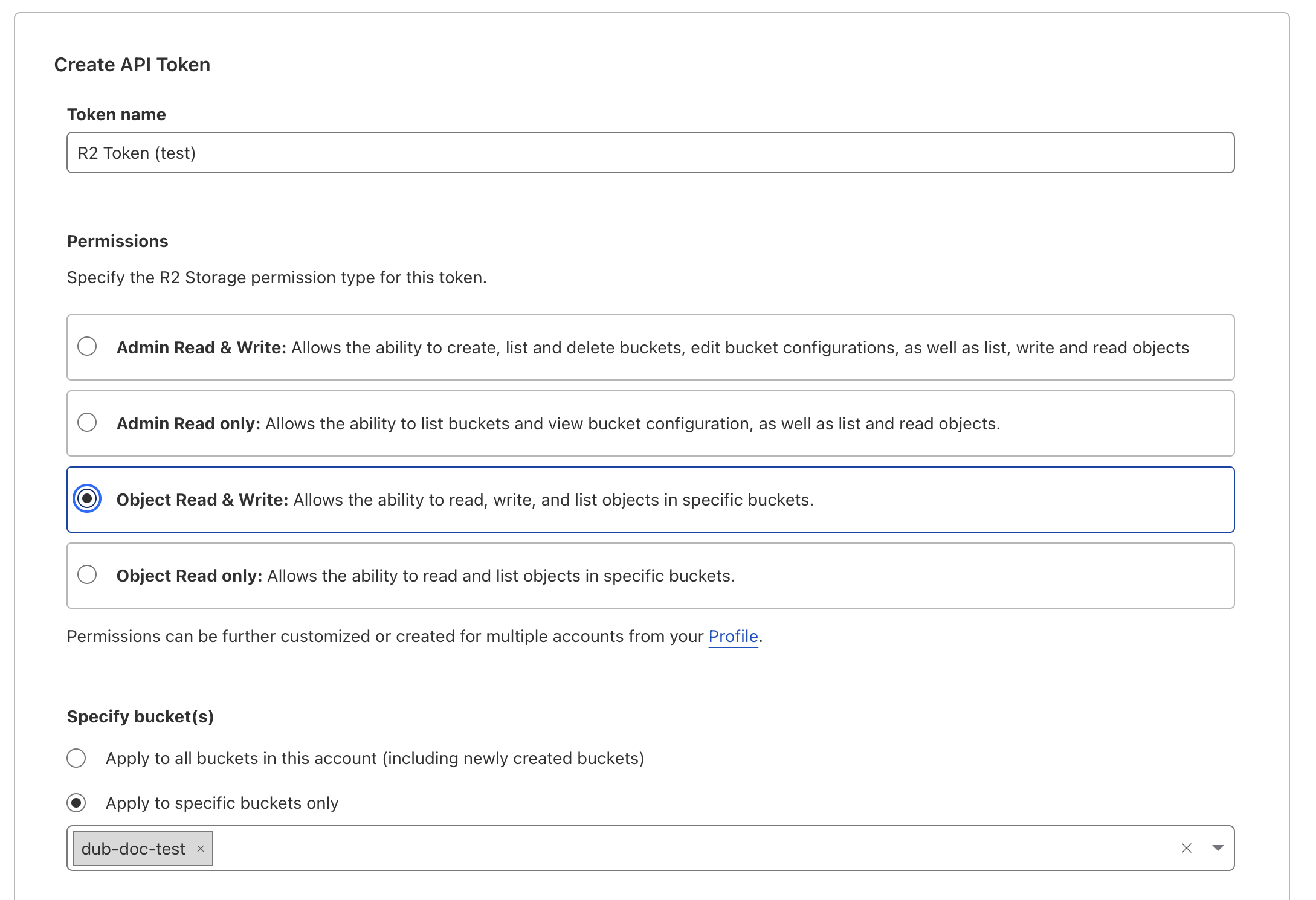 Make sure to name your API token something relevant to the service that will be using the token.
Give it "Object Read & Write" permissions, and we recommend only applying ito to a single bucket.
You can leave the remaining settings (TTL, Client IP Address Filtering) as is, and click **Create API Token**.
After you create you token, copy the `Access Key ID` and `Secret Access Key` values – you'll need them in the next step.
Once you have your credentials, set them in your `.env` file:
```TypeScript .env theme={null}
STORAGE_ACCESS_KEY_ID= // this is the Access Key ID value from Step 2
STORAGE_SECRET_ACCESS_KEY= // this is the Secret Access Key value from Step 2
STORAGE_ENDPOINT= // this is the S3 API value from Step 1
```
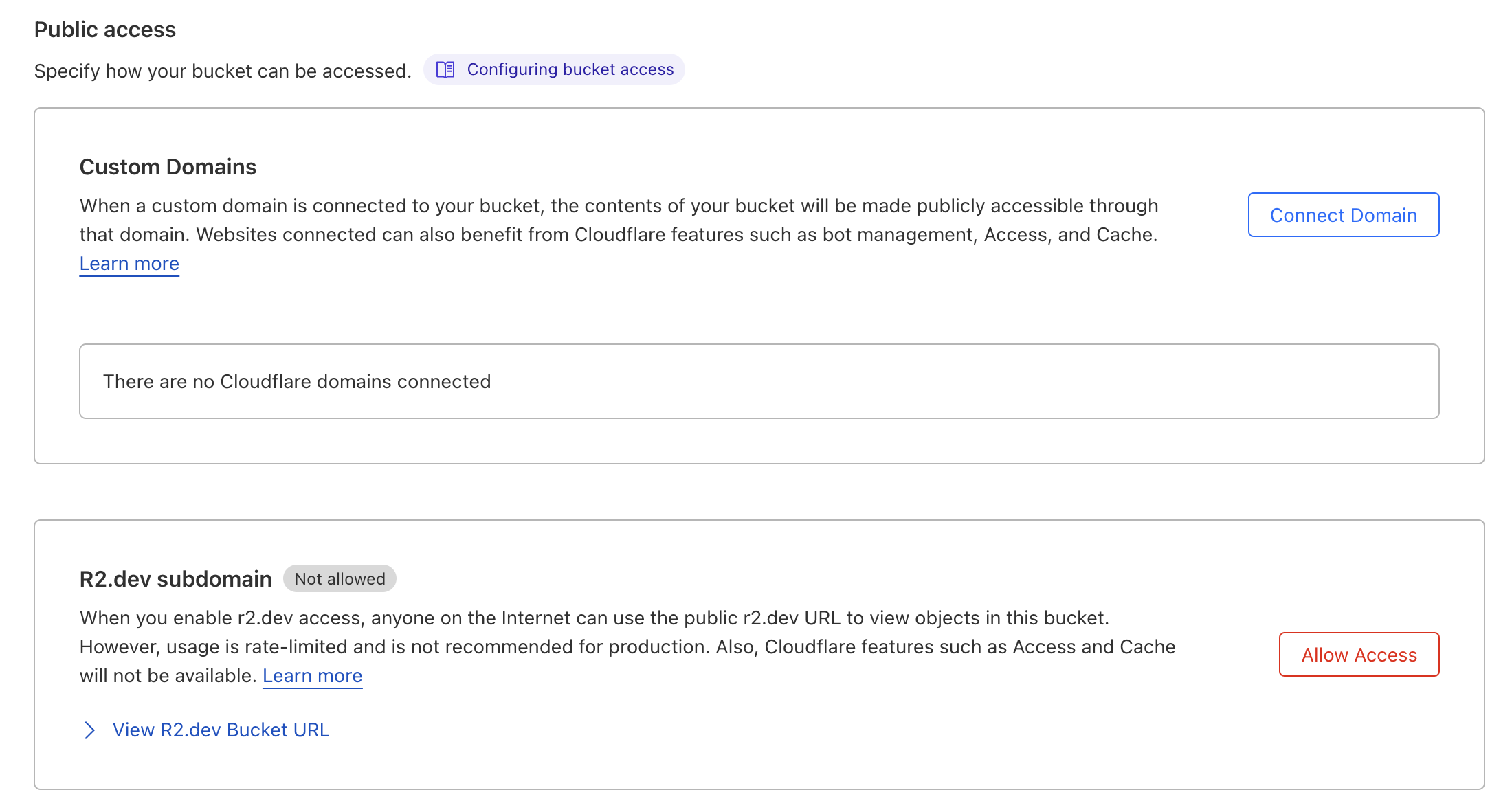
In order for your images to be publically accessible in R2 you need to setup a domain. You can either use your own domain or an R2.dev subdomain.
To use your own domain, you'll need to create a CNAME record in your DNS settings that points to your R2 bucket.
In you plan to use an R2.dev subdomain, make sure you "Allow Access".
Then set the `STORAGE_BASE_URL` in your `.env` file to the domain you chose.
```bash theme={null}
STORAGE_BASE_URL={URL your assets as available at} # https://static.example.com
```
Make sure to name your API token something relevant to the service that will be using the token.
Give it "Object Read & Write" permissions, and we recommend only applying ito to a single bucket.
You can leave the remaining settings (TTL, Client IP Address Filtering) as is, and click **Create API Token**.
After you create you token, copy the `Access Key ID` and `Secret Access Key` values – you'll need them in the next step.
Once you have your credentials, set them in your `.env` file:
```TypeScript .env theme={null}
STORAGE_ACCESS_KEY_ID= // this is the Access Key ID value from Step 2
STORAGE_SECRET_ACCESS_KEY= // this is the Secret Access Key value from Step 2
STORAGE_ENDPOINT= // this is the S3 API value from Step 1
```
In order for your images to be publically accessible in R2 you need to setup a domain. You can either use your own domain or an R2.dev subdomain.
To use your own domain, you'll need to create a CNAME record in your DNS settings that points to your R2 bucket.
In you plan to use an R2.dev subdomain, make sure you "Allow Access".
Then set the `STORAGE_BASE_URL` in your `.env` file to the domain you chose.
```bash theme={null}
STORAGE_BASE_URL={URL your assets as available at} # https://static.example.com
```
 ## Step 7: Set up Resend (optional)
Note that if you want to use magic link sign-in, this is a required step.
Next, you'll need to set up Resend for transactional emails (e.g. magic link emails):
1. Sign up for Resend and [create your API key here](https://resend.com/api-keys).
2. Copy the API key into your `.env` file as the `RESEND_API_KEY` environment variable.
3. You'll then need to set up and verify your domain by [following this guide here](https://resend.com/docs/dashboard/domains/introduction).
## Step 8: Set up Unsplash (optional)
Dub uses Unsplash's API for the [Custom Social Media Cards](/help/article/custom-link-previews) feature. You'll need to set up an Unsplash application to get an access key.
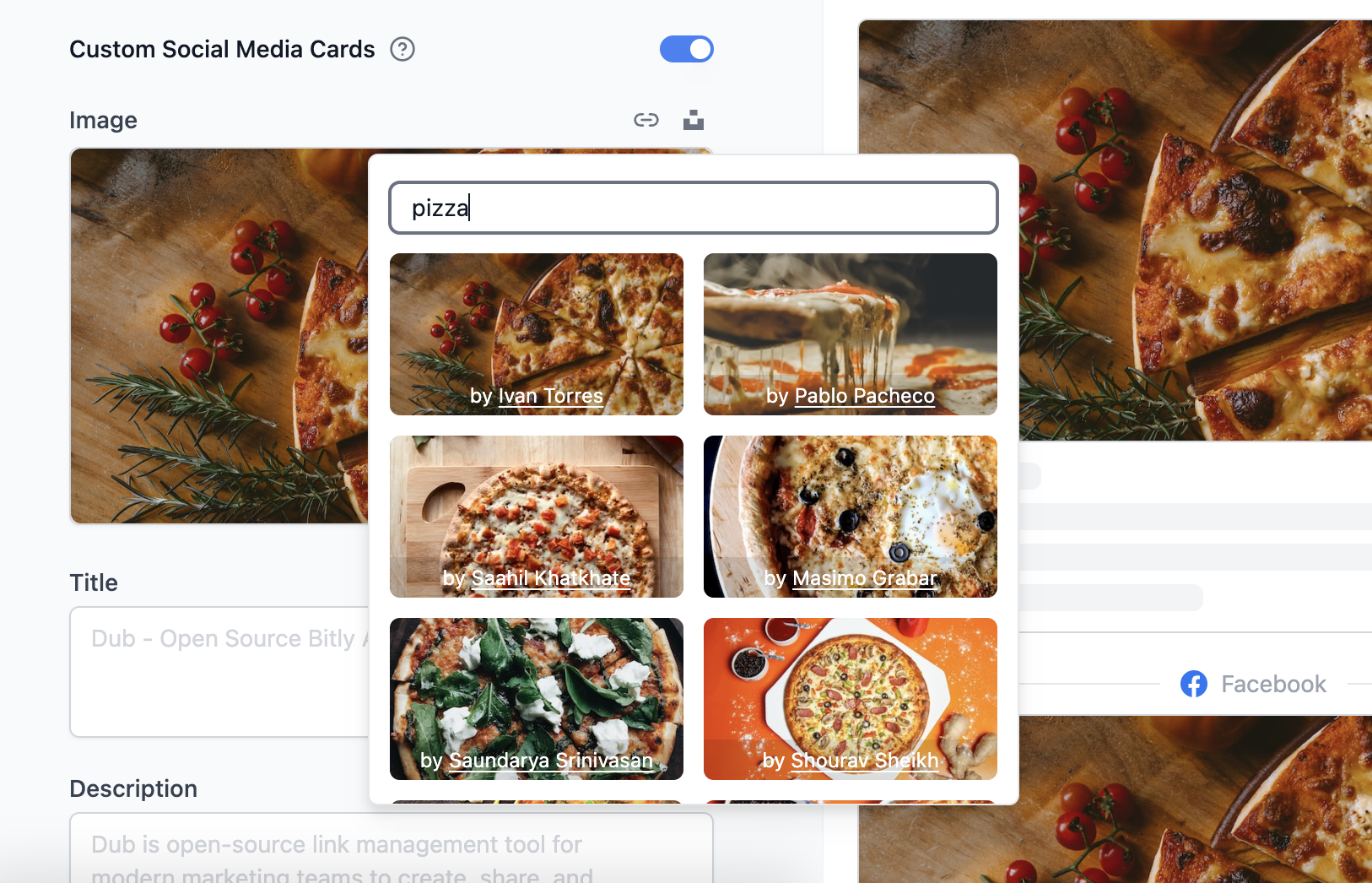
Check out Unsplash's [official documentation](https://unsplash.com/documentation#creating-a-developer-account) to learn how you can set up the `UNSPLASH_ACCESS_KEY` env var.
## Step 9: Deploy to Vercel
Once you've set up all of the above services, you can now deploy your app to Vercel.
If you haven't already, push up your cloned repository to GitHub by running the following commands:
```bash Terminal theme={null}
git add .
git commit -m "Initial commit"
git push origin main
```
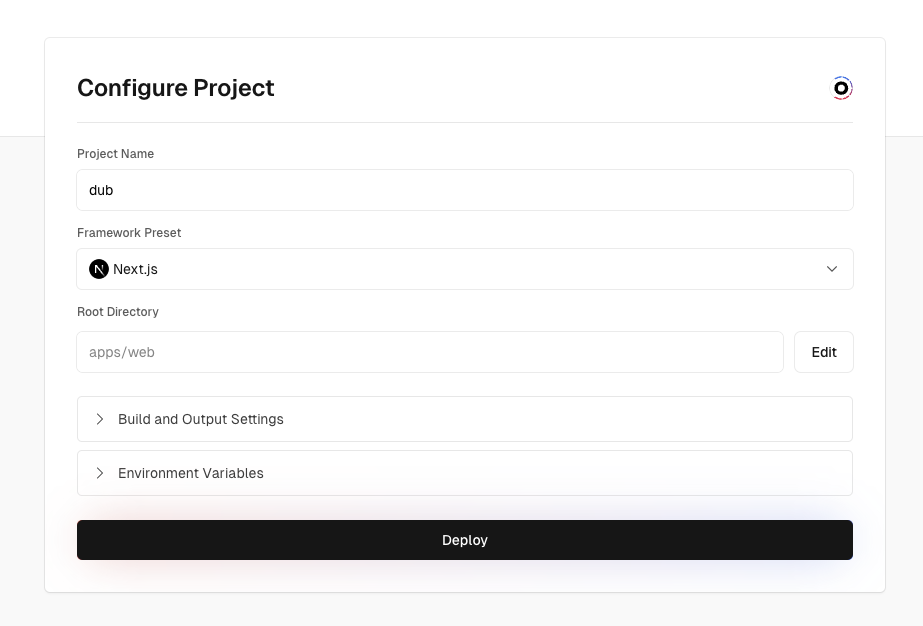
In your [Vercel account](https://vercel.com/), create a new project. Then, select your GitHub repository and click **Import**.
Make sure that your **Framework Preset** is set to **Next.js** and the **Root Directory** is set to `apps/web`.
## Step 7: Set up Resend (optional)
Note that if you want to use magic link sign-in, this is a required step.
Next, you'll need to set up Resend for transactional emails (e.g. magic link emails):
1. Sign up for Resend and [create your API key here](https://resend.com/api-keys).
2. Copy the API key into your `.env` file as the `RESEND_API_KEY` environment variable.
3. You'll then need to set up and verify your domain by [following this guide here](https://resend.com/docs/dashboard/domains/introduction).
## Step 8: Set up Unsplash (optional)
Dub uses Unsplash's API for the [Custom Social Media Cards](/help/article/custom-link-previews) feature. You'll need to set up an Unsplash application to get an access key.

Check out Unsplash's [official documentation](https://unsplash.com/documentation#creating-a-developer-account) to learn how you can set up the `UNSPLASH_ACCESS_KEY` env var.
## Step 9: Deploy to Vercel
Once you've set up all of the above services, you can now deploy your app to Vercel.
If you haven't already, push up your cloned repository to GitHub by running the following commands:
```bash Terminal theme={null}
git add .
git commit -m "Initial commit"
git push origin main
```
In your [Vercel account](https://vercel.com/), create a new project. Then, select your GitHub repository and click **Import**.
Make sure that your **Framework Preset** is set to **Next.js** and the **Root Directory** is set to `apps/web`.
 In the **Environment Variables** section, add all of the environment variables from your `.env` file by copying all of them and pasting it into the first input field. A few notes:
* Remove the `PROJECT_ID_VERCEL` environment variable for now since we will only get the project ID after deploying the project.
* Replace the `NEXTAUTH_URL` environment variable with the app domain that you will be using (e.g. `https://app.acme.com`).
Click on **Deploy** to deploy your project.
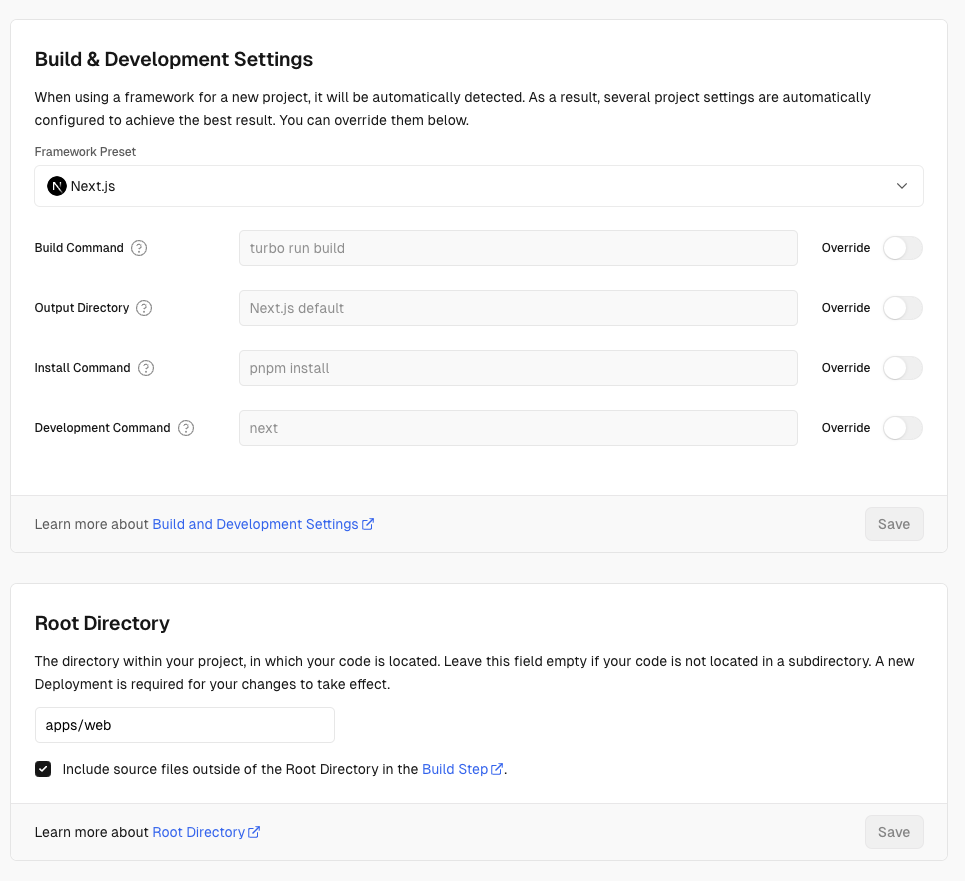
If you get a `No Output Directory called "public" was found after the build
completed` error, make sure that your [Vercel deployment
settings](https://vercel.com/docs/deployments/configure-a-build) to make sure that they match the following:
In the **Environment Variables** section, add all of the environment variables from your `.env` file by copying all of them and pasting it into the first input field. A few notes:
* Remove the `PROJECT_ID_VERCEL` environment variable for now since we will only get the project ID after deploying the project.
* Replace the `NEXTAUTH_URL` environment variable with the app domain that you will be using (e.g. `https://app.acme.com`).
Click on **Deploy** to deploy your project.
If you get a `No Output Directory called "public" was found after the build
completed` error, make sure that your [Vercel deployment
settings](https://vercel.com/docs/deployments/configure-a-build) to make sure that they match the following:
 Once the project deploys, retrieve your [Vercel project ID](https://vercel.com/docs/projects/overview#project-id) and add it as the `PROJECT_ID_VERCEL` environment variable – both in your `.env` file and in your newly created Vercel project's settings (under **Settings > Environment Variables**)
Add both the `NEXT_PUBLIC_APP_DOMAIN` and `NEXT_PUBLIC_APP_SHORT_DOMAIN` as domains in your Vercel project's settings (under **Settings** > **Domains**). You can follow this guide to learn [how to set up a custom domain on Vercel](https://vercel.com/docs/projects/domains/add-a-domain).
Go back to the **Deployments** page and redeploy your project.
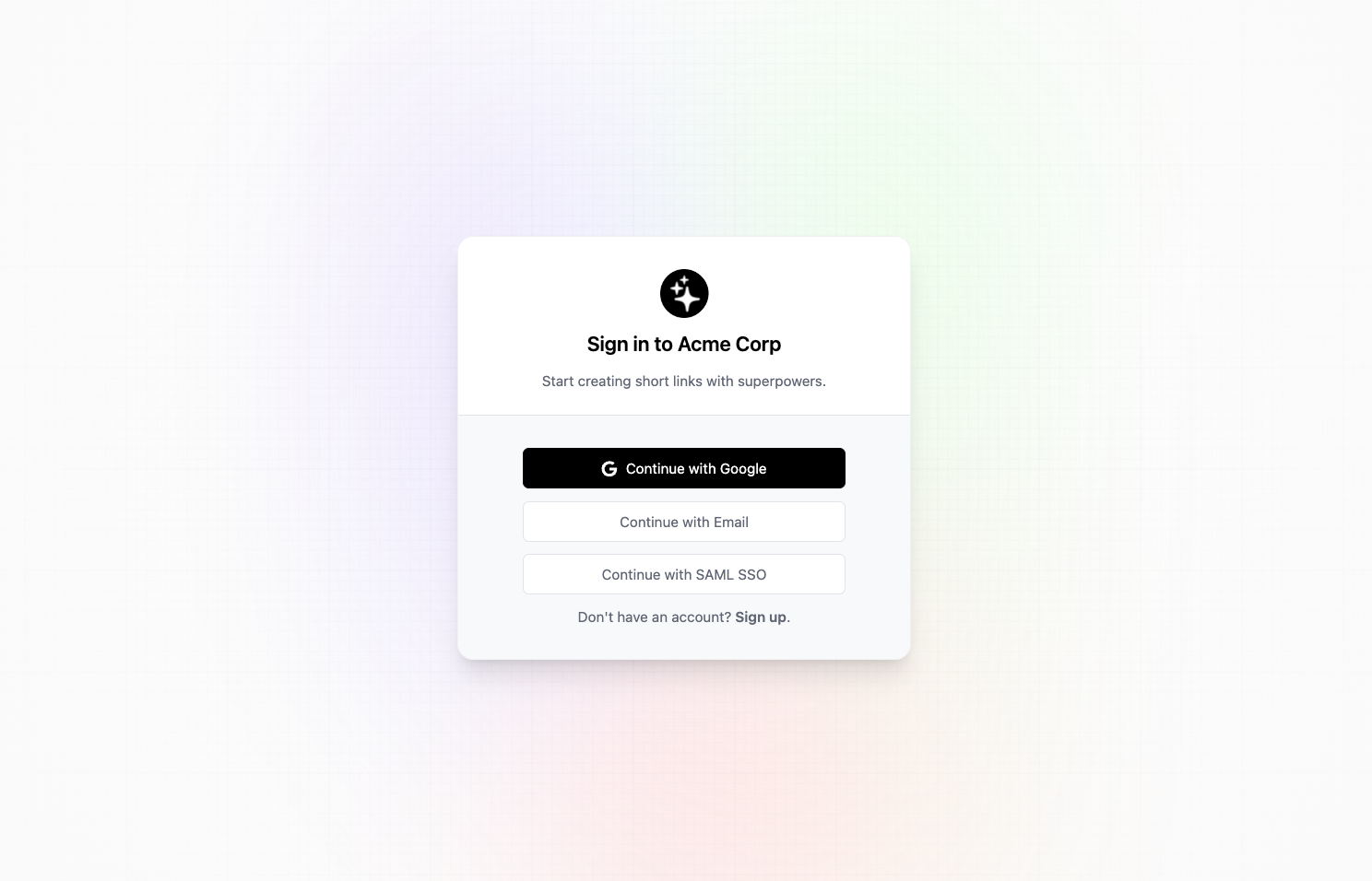
Once the deployment is complete, you should be able to visit your app domain (e.g. `https://app.acme.com`) and see the following login page:
Once the project deploys, retrieve your [Vercel project ID](https://vercel.com/docs/projects/overview#project-id) and add it as the `PROJECT_ID_VERCEL` environment variable – both in your `.env` file and in your newly created Vercel project's settings (under **Settings > Environment Variables**)
Add both the `NEXT_PUBLIC_APP_DOMAIN` and `NEXT_PUBLIC_APP_SHORT_DOMAIN` as domains in your Vercel project's settings (under **Settings** > **Domains**). You can follow this guide to learn [how to set up a custom domain on Vercel](https://vercel.com/docs/projects/domains/add-a-domain).
Go back to the **Deployments** page and redeploy your project.
Once the deployment is complete, you should be able to visit your app domain (e.g. `https://app.acme.com`) and see the following login page:
 ## Caveats
This guide is meant to be a starting point for self-hosting Dub. It currently depends on the following services to work:
* [Tinybird](https://www.tinybird.co/) for the analytics database
* [Upstash](https://upstash.com/) for the Redis database
* [PlanetScale](https://planetscale.com/) for the MySQL database
* [Vercel](https://vercel.com/) for hosting & [Edge Middleware](https://vercel.com/docs/functions/edge-middleware)
In the future, we plan to make it easier to self-host Dub by making these dependencies optional by swapping them out for native databases (e.g. mysql, redis, clickhouse, [GeoLite2](https://github.com/GitSquared/node-geolite2-redist) etc.)
Also, Docker is currently not supported, but we have a few [open](https://github.com/dubinc/dub/issues/25) [issues](https://github.com/dubinc/dub/issues/378) and [PRs](https://github.com/dubinc/dub/pull/391) for it.
## Caveats
This guide is meant to be a starting point for self-hosting Dub. It currently depends on the following services to work:
* [Tinybird](https://www.tinybird.co/) for the analytics database
* [Upstash](https://upstash.com/) for the Redis database
* [PlanetScale](https://planetscale.com/) for the MySQL database
* [Vercel](https://vercel.com/) for hosting & [Edge Middleware](https://vercel.com/docs/functions/edge-middleware)
In the future, we plan to make it easier to self-host Dub by making these dependencies optional by swapping them out for native databases (e.g. mysql, redis, clickhouse, [GeoLite2](https://github.com/GitSquared/node-geolite2-redist) etc.)
Also, Docker is currently not supported, but we have a few [open](https://github.com/dubinc/dub/issues/25) [issues](https://github.com/dubinc/dub/issues/378) and [PRs](https://github.com/dubinc/dub/pull/391) for it.