> ## Documentation Index
> Fetch the complete documentation index at: https://dub.co/llms.txt
> Use this file to discover all available pages before exploring further.
# Client-side conversion tracking
> Learn how to use the Dub Analytics script to track conversion events on the client-side
Dub Analytics is a client-side script for [tracking conversion events](/docs/concepts/attribution) with Dub.
By default, the script handles the detection of the `dub_id` query parameter and storing it as a first-party cookie:
 Then, when a conversion event occurs (e.g. a user signs up for an account), you can check for the `dub_id` cookie and attribute the conversion to the original click by [tracking a lead event](/docs/quickstart/server#tracking-lead-events).
 Finally, when the user completes a purchase (e.g. subscribing to a plan, purchasing a product, etc.), you can [track a sale event](/docs/quickstart/server#tracking-sale-events). Under the hood, Dub will automatically attribute the sale to the original link click.
 ## Quickstart
First, you'll need to enable conversion tracking for your Dub links to be able to start tracking conversions:
If you're using [Dub Partners](https://dub.co/partners), you can skip this
step since partner links will have conversion tracking enabled by default.
To enable conversion tracking for all future links in a workspace, you can do the following:
To enable conversion tracking for all future links in a workspace, you can do the following:
1. Navigate to your [workspace's Tracking settings page](https://app.dub.co/settings/tracking).
2. Toggle the **Workspace-level Conversion Tracking** switch to enable conversion tracking for the workspace.
## Quickstart
First, you'll need to enable conversion tracking for your Dub links to be able to start tracking conversions:
If you're using [Dub Partners](https://dub.co/partners), you can skip this
step since partner links will have conversion tracking enabled by default.
To enable conversion tracking for all future links in a workspace, you can do the following:
To enable conversion tracking for all future links in a workspace, you can do the following:
1. Navigate to your [workspace's Tracking settings page](https://app.dub.co/settings/tracking).
2. Toggle the **Workspace-level Conversion Tracking** switch to enable conversion tracking for the workspace.
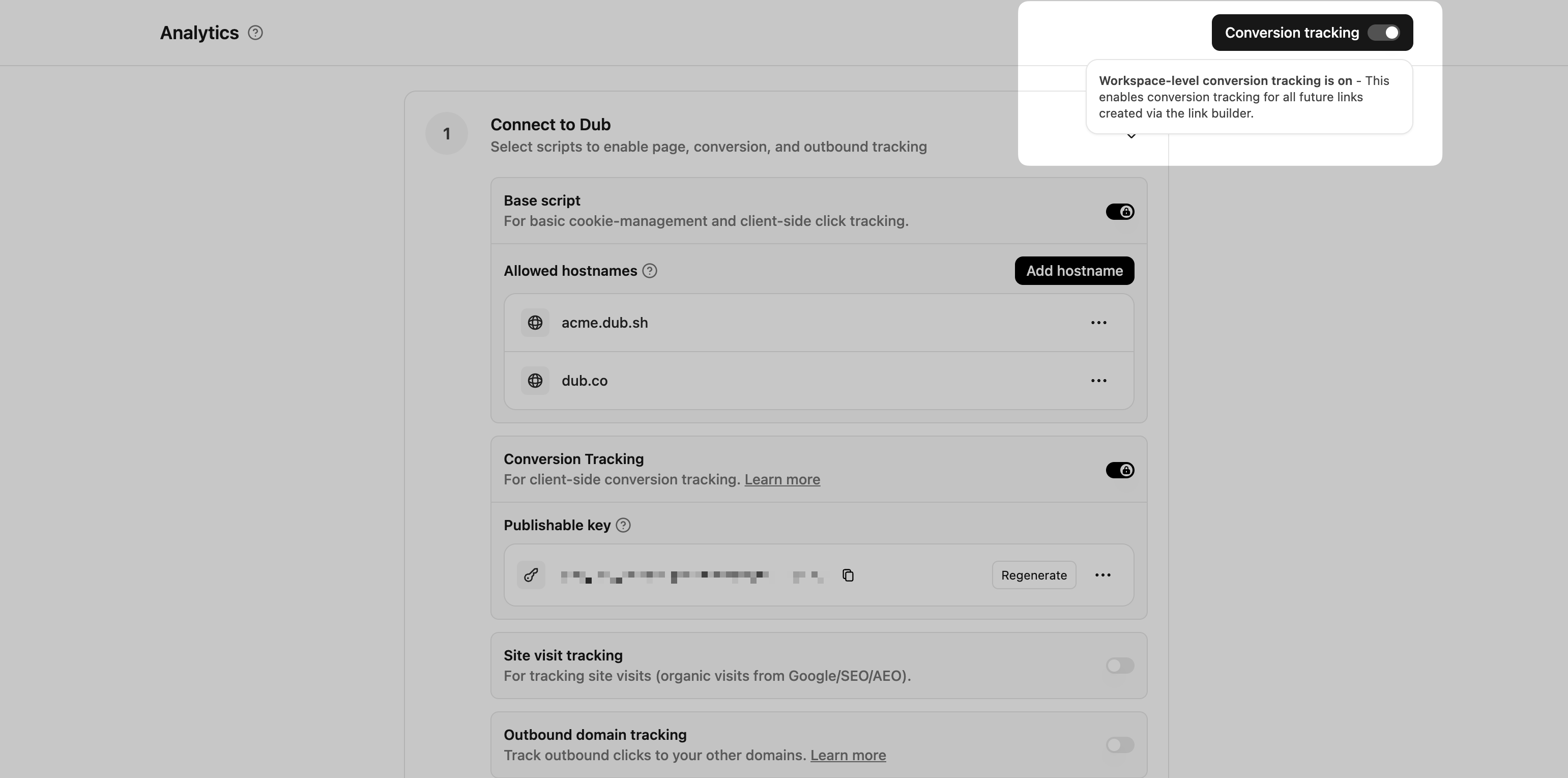 This option will enable conversion tracking in the [Dub Link Builder](/help/article/dub-link-builder) for all future links.
If you don't want to enable conversion tracking for all your links in a workspace, you can also opt to enable it on a link-level.
To enable conversion tracking for a specific link, open the [Dub Link Builder](/help/article/dub-link-builder) for a link and toggle the **Conversion Tracking** switch.
This option will enable conversion tracking in the [Dub Link Builder](/help/article/dub-link-builder) for all future links.
If you don't want to enable conversion tracking for all your links in a workspace, you can also opt to enable it on a link-level.
To enable conversion tracking for a specific link, open the [Dub Link Builder](/help/article/dub-link-builder) for a link and toggle the **Conversion Tracking** switch.
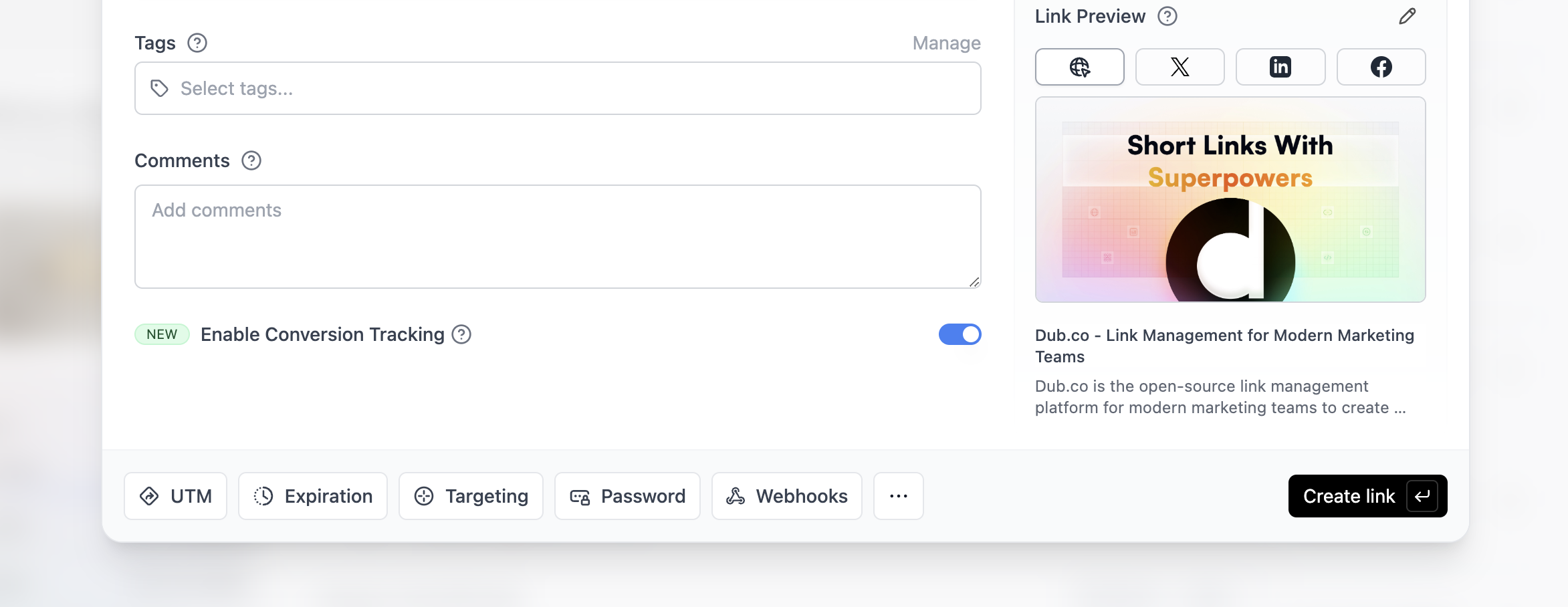 You can also use the `C` keyboard shortcut when inside the link builder to
quickly enable conversion tracking for a given link.
Alternatively, you can also enable conversion tracking programmatically via the [Dub API](/docs/api-reference/introduction). All you need to do is pass `trackConversion: true` when creating or updating a link:
```javascript Node.js theme={null}
const link = await dub.links.create({
url: "https://dub.co",
trackConversion: true,
});
```
```python Python theme={null}
link = d.links.create(url="https://dub.co", track_conversion=True)
```
```go Go theme={null}
link, err := d.Links.Create(ctx, &dub.CreateLinkRequest{
URL: "https://dub.co",
TrackConversion: true,
})
```
```ruby Ruby theme={null}
s.links.create_many(
::OpenApiSDK::Operations::CreateLinkRequest.new(
url: "https://dub.co",
track_conversion: true,
)
)
```
***
Then, you'll need to install the Dub Analytics script and set up the necessary configuration for client-side conversion tracking:
Then, you'll need to allowlist your site's domain to allow the client-side conversion events to be ingested by Dub.
To do that, navigate to your [workspace's Tracking settings page](https://app.dub.co/settings/tracking) and add your site's domain to the **Allowed Hostnames** list.
This provides an additional layer of security by ensuring only authorized domains can track conversions using your publishable key.
You can also use the `C` keyboard shortcut when inside the link builder to
quickly enable conversion tracking for a given link.
Alternatively, you can also enable conversion tracking programmatically via the [Dub API](/docs/api-reference/introduction). All you need to do is pass `trackConversion: true` when creating or updating a link:
```javascript Node.js theme={null}
const link = await dub.links.create({
url: "https://dub.co",
trackConversion: true,
});
```
```python Python theme={null}
link = d.links.create(url="https://dub.co", track_conversion=True)
```
```go Go theme={null}
link, err := d.Links.Create(ctx, &dub.CreateLinkRequest{
URL: "https://dub.co",
TrackConversion: true,
})
```
```ruby Ruby theme={null}
s.links.create_many(
::OpenApiSDK::Operations::CreateLinkRequest.new(
url: "https://dub.co",
track_conversion: true,
)
)
```
***
Then, you'll need to install the Dub Analytics script and set up the necessary configuration for client-side conversion tracking:
Then, you'll need to allowlist your site's domain to allow the client-side conversion events to be ingested by Dub.
To do that, navigate to your [workspace's Tracking settings page](https://app.dub.co/settings/tracking) and add your site's domain to the **Allowed Hostnames** list.
This provides an additional layer of security by ensuring only authorized domains can track conversions using your publishable key.
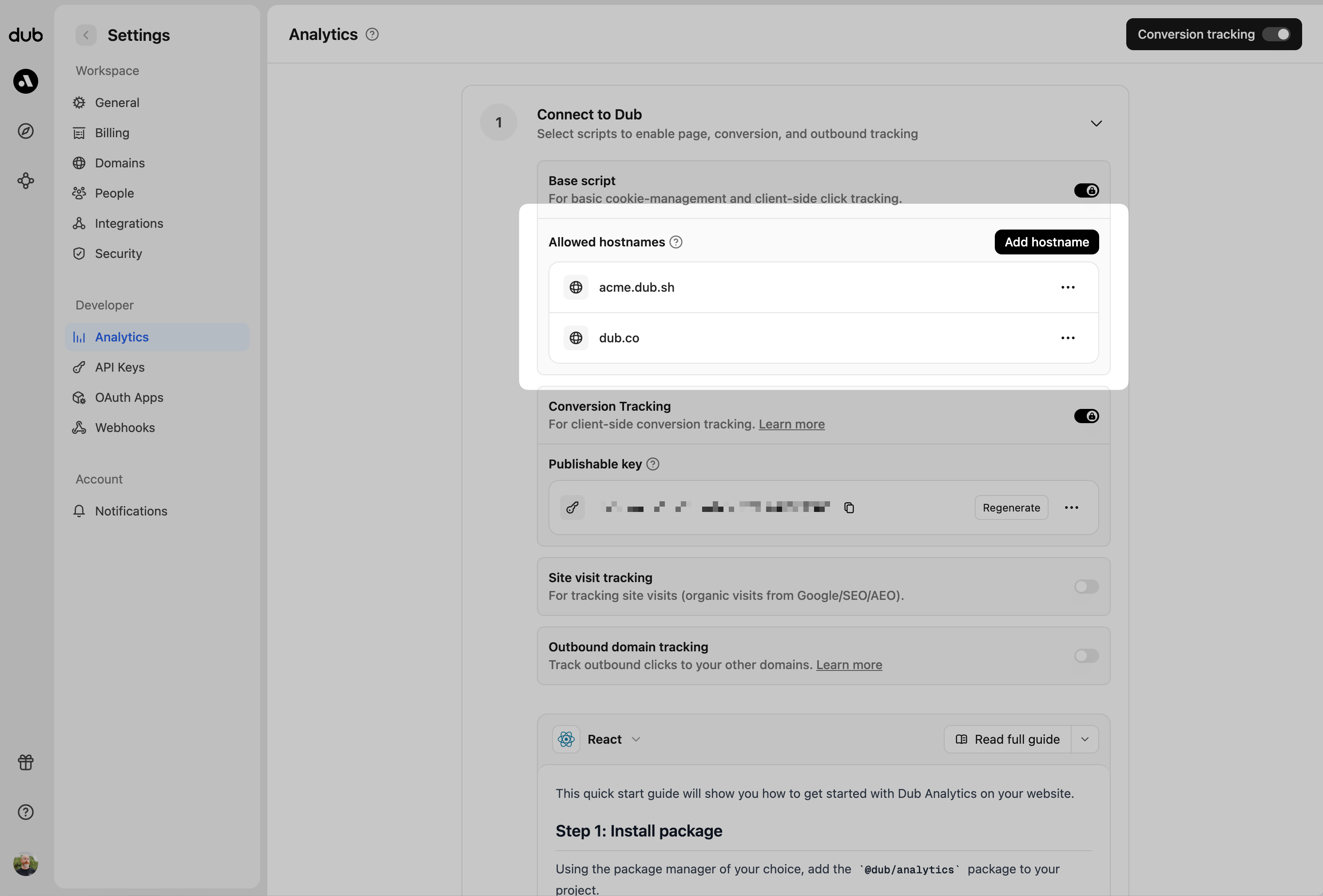 You can group your hostnames when adding them to the allow list:
* `example.com`: Tracks traffic **only** from `example.com`.
* `*.example.com`: Tracks traffic from **all subdomains** of `example.com`, but **not** from `example.com` itself.
When testing things out locally, you can add `localhost` to the **Allowed
Hostnames** list temporarily. This will allow local events to be ingested by
Dub. Don't forget to remove it once you're ready to go live!
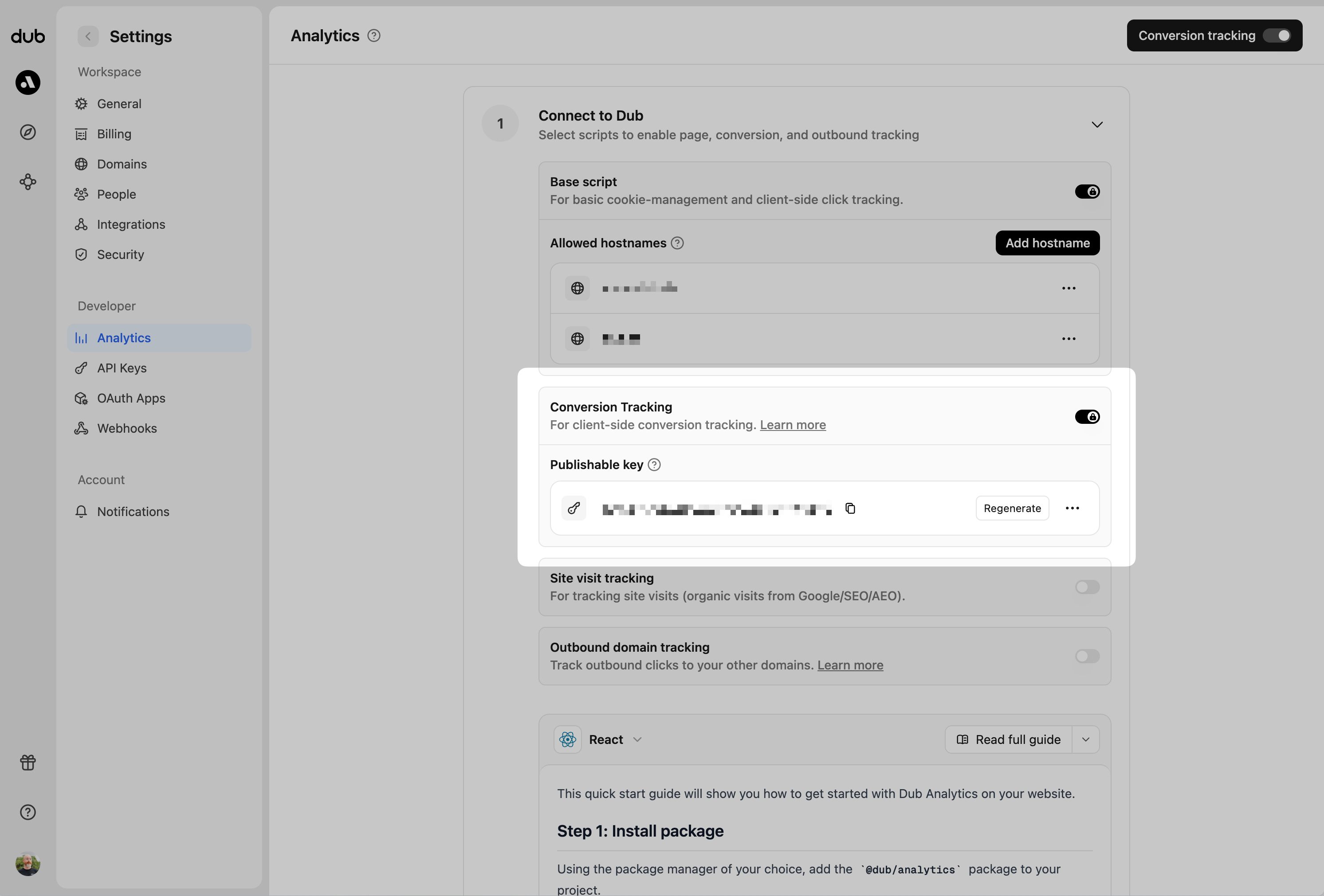
Before you can track conversions on the client-side, you need to generate a [publishable key](/docs/api-reference/authentication#publishable-keys) from your Dub workspace.
To do that, navigate to your [workspace's Tracking settings page](https://app.dub.co/settings/tracking) and generate a new publishable key under the **Publishable Key** section.
You can group your hostnames when adding them to the allow list:
* `example.com`: Tracks traffic **only** from `example.com`.
* `*.example.com`: Tracks traffic from **all subdomains** of `example.com`, but **not** from `example.com` itself.
When testing things out locally, you can add `localhost` to the **Allowed
Hostnames** list temporarily. This will allow local events to be ingested by
Dub. Don't forget to remove it once you're ready to go live!
Before you can track conversions on the client-side, you need to generate a [publishable key](/docs/api-reference/authentication#publishable-keys) from your Dub workspace.
To do that, navigate to your [workspace's Tracking settings page](https://app.dub.co/settings/tracking) and generate a new publishable key under the **Publishable Key** section.
 Next, install the Dub Analytics script on your website/web application.
You can install the Dub Analytics script in several different ways:
}
href="/docs/sdks/client-side/installation-guides/framer"
horizontal
/>
You must configure the **publishable key** you generated in step 1 when
installing the analytics script. Without this key, client-side conversion
tracking will not work.
```html HTML theme={null}
```
```typescript React/Next.js theme={null}
import { Analytics as DubAnalytics } from '@dub/analytics/react';
export default function RootLayout({
children,
}) {
return (
{children}
);
}
```
## Client-side lead tracking
Once the analytics script is installed, you can start tracking lead events in your application on the client-side.
### Track leads from URL query parameters (recommended)
If you redirect users to a thank-you page after a successful action, you can track leads by reading query parameters from the URL.
```html HTML theme={null}
Thank You
Next, install the Dub Analytics script on your website/web application.
You can install the Dub Analytics script in several different ways:
}
href="/docs/sdks/client-side/installation-guides/framer"
horizontal
/>
You must configure the **publishable key** you generated in step 1 when
installing the analytics script. Without this key, client-side conversion
tracking will not work.
```html HTML theme={null}
```
```typescript React/Next.js theme={null}
import { Analytics as DubAnalytics } from '@dub/analytics/react';
export default function RootLayout({
children,
}) {
return (
{children}
);
}
```
## Client-side lead tracking
Once the analytics script is installed, you can start tracking lead events in your application on the client-side.
### Track leads from URL query parameters (recommended)
If you redirect users to a thank-you page after a successful action, you can track leads by reading query parameters from the URL.
```html HTML theme={null}
Thank You
Thank you for signing up!
```
```typescript React/Next.js theme={null}
import { useAnalytics } from "@dub/analytics/react";
import { useEffect } from "react";
export function ThankYouPage() {
const { trackLead } = useAnalytics();
useEffect(() => {
// Get query parameters from URL
const params = new URLSearchParams(window.location.search);
const email = params.get("email");
const name = params.get("name");
if (email) {
// Track the lead event
trackLead({
eventName: "Sign Up",
customerExternalId: email, // can also be customer email
customerName: name || undefined,
customerEmail: email,
});
}
}, [trackLead]);
return Thank you for signing up!
;
}
```
### Track leads from form submissions
You can also track leads directly when users submit a form on your website.
```html HTML theme={null}
Sign Up
```
```typescript React/Next.js theme={null}
import { useAnalytics } from "@dub/analytics/react";
import { useState } from "react";
export function SignUpForm() {
const { trackLead } = useAnalytics();
const [name, setName] = useState("");
const [email, setEmail] = useState("");
const handleSubmit = (e: React.FormEvent) => {
e.preventDefault();
// Track the lead event
trackLead({
eventName: "Sign Up",
customerExternalId: email,
customerName: name,
customerEmail: email,
});
};
return (
);
}
```
Here are the properties you can include when sending a lead event:
| Property | Required | Description |
| :------------------- | :------- | :------------------------------------------------------------------------------------------------------------------------------------------------------------------------------------------------------------------------------------------------------------------------------------------------------------------------------------------------------------------------------------- |
| `clickId` | **Yes** | The unique ID of the click that the lead conversion event is attributed to. You can read this value from `dub_id` cookie. If an empty string is provided (i.e. if you're using [tracking a deferred lead event](/docs/conversions/leads/deferred)), Dub will try to find an existing customer with the provided `customerExternalId` and use the `clickId` from the customer if found. |
| `eventName` | **Yes** | The name of the lead event to track. Can also be used as a unique identifier to associate a given lead event for a customer for a subsequent sale event (via the `leadEventName` prop in `/track/sale`). |
| `customerExternalId` | **Yes** | The unique ID of the customer in your system. Will be used to identify and attribute all future events to this customer. |
| `customerName` | No | The name of the customer. If not passed, a random name will be generated (e.g. "Big Red Caribou"). |
| `customerEmail` | No | The email address of the customer. |
| `customerAvatar` | No | The avatar URL of the customer. |
| `mode` | No | The mode to use for tracking the lead event. `async` will not block the request; `wait` will block the request until the lead event is fully recorded in Dub; `deferred` will defer the lead event creation to a subsequent request. |
| `metadata` | No | Additional metadata to be stored with the lead event. Max 10,000 characters. |
**When to track leads**
You should track lead events after successful user actions such as:
* User registration or account creation
* Newsletter subscription
* Contact form submission
* Demo request or trial signup
* Download of gated content
Ensure the event is triggered **only after the backend confirms the action was completed successfully**. This guarantees accurate lead data and prevents false or incomplete entries.
## Client-side sale tracking
Once the analytics script is installed, you can start tracking sale events in your application on the client-side.
### Track sales from URL query parameters (recommended)
If you redirect users to a confirmation page after a successful purchase, you can track sales by reading query parameters from the URL.
```html HTML theme={null}
Order Confirmation
Thank you for your purchase!
```
```typescript React/Next.js theme={null}
import { useAnalytics } from "@dub/analytics/react";
import { useEffect } from "react";
export function OrderConfirmationPage() {
const { trackSale } = useAnalytics();
useEffect(() => {
// Get query parameters from URL
const params = new URLSearchParams(window.location.search);
const customerId = params.get("customer_id");
const amount = params.get("amount");
const invoiceId = params.get("invoice_id");
if (customerId && amount) {
// Track the sale event
trackSale({
eventName: "Purchase",
customerExternalId: customerId, // can also be customer email
amount: parseInt(amount), // Amount in cents
invoiceId: invoiceId || undefined,
// Additional props for direct sale tracking (without prior lead event):
// clickId: "cm3w...", // Read from dub_id cookie
// customerName: "John Doe",
// customerEmail: "john@example.com",
// customerAvatar: "https://example.com/avatar.jpg",
});
}
}, [trackSale]);
return Thank you for your purchase!
;
}
```
### Track sales from form submissions
You can also track sales directly when users complete a checkout form on your website.
```html HTML theme={null}
Checkout
```
```typescript React/Next.js theme={null}
import { useAnalytics } from "@dub/analytics/react";
import { useState } from "react";
export function CheckoutForm() {
const { trackSale } = useAnalytics();
// …
}
const handleSubmit = (e: React.FormEvent) => {
e.preventDefault();
// Track the sale event
trackSale({
eventName: "Purchase",
customerExternalId: "cus_RBfbD57H", // can also be customer email
amount: 5000, // $50.00
invoiceId: "in_1MtHbELkdIwH",
// For direct sale tracking (without prior lead event):
// clickId: "cm3w...", // Read from dub_id cookie
// customerName: "John Doe",
// customerEmail: "john@example.com",
// customerAvatar: "https://example.com/avatar.jpg",
});
};
return (
);
}
```
Here are the properties you can include when sending a sale event:
| Property | Required | Description |
| :------------------- | :------- | :--------------------------------------------------------------------------------------------------------------------------------------------------------- |
| `customerExternalId` | **Yes** | The unique ID of the customer in your system. Will be used to identify and attribute all future events to this customer. |
| `amount` | **Yes** | The amount of the sale in cents. |
| `paymentProcessor` | No | The payment processor that processed the sale (e.g. [Stripe](/docs/integrations/stripe), [Shopify](/docs/integrations/stripe)). Defaults to "custom". |
| `eventName` | No | The name of the event. Defaults to "Purchase". |
| `invoiceId` | No | The invoice ID of the sale. Can be used as a idempotency key – only one sale event can be recorded for a given invoice ID. |
| `currency` | No | The currency of the sale. Defaults to "usd". |
| `metadata` | No | An object containing additional information about the sale. |
| `clickId` | No | **\[For direct sale tracking]**: The unique ID of the click that the sale conversion event is attributed to. You can read this value from `dub_id` cookie. |
| `customerName` | No | **\[For direct sale tracking]**: The name of the customer. If not passed, a random name will be generated. |
| `customerEmail` | No | **\[For direct sale tracking]**: The email address of the customer. |
| `customerAvatar` | No | **\[For direct sale tracking]**: The avatar URL of the customer. |
**When to track sale**
Track sale events only after a user successfully completes a purchase or payment-related action, such as:
* Completing a checkout or order
* Subscription payment
* Invoice payment
* Any paid trial or demo conversion
Ensure the event is triggered **only after the backend confirms the payment was successful**. This guarantees accurate sale data and prevents false or incomplete entries.