> ## Documentation Index
> Fetch the complete documentation index at: https://dub.co/llms.txt
> Use this file to discover all available pages before exploring further.
# Introduction
> Use postbacks to get real-time notifications on events happening across your Dub partner account.
Postbacks are currently in **private beta** and are only available for select
partners. [Contact us](https://dub.co/contact/support) to get access.
Postbacks allow you to listen to real-time events happening across your Dub partner account. With postbacks, you can build custom integrations with Dub, such as:
* Syncing leads to your CRM when someone signs up through your referral link
* Updating your internal dashboards when commissions are created
* Building custom attribution tools that react to lead, sale, and commission events in real time
In this guide, we'll show you how to configure postbacks for your partner account and a list of available events you can listen to.
## Creating a postback
To create a postback for your partner account, you'll need to follow these steps:
Navigate to the [**Postbacks** page](https://partners.dub.co/profile/postbacks) in your Dub partner profile.
Click on **Add Postback** to create a new postback.
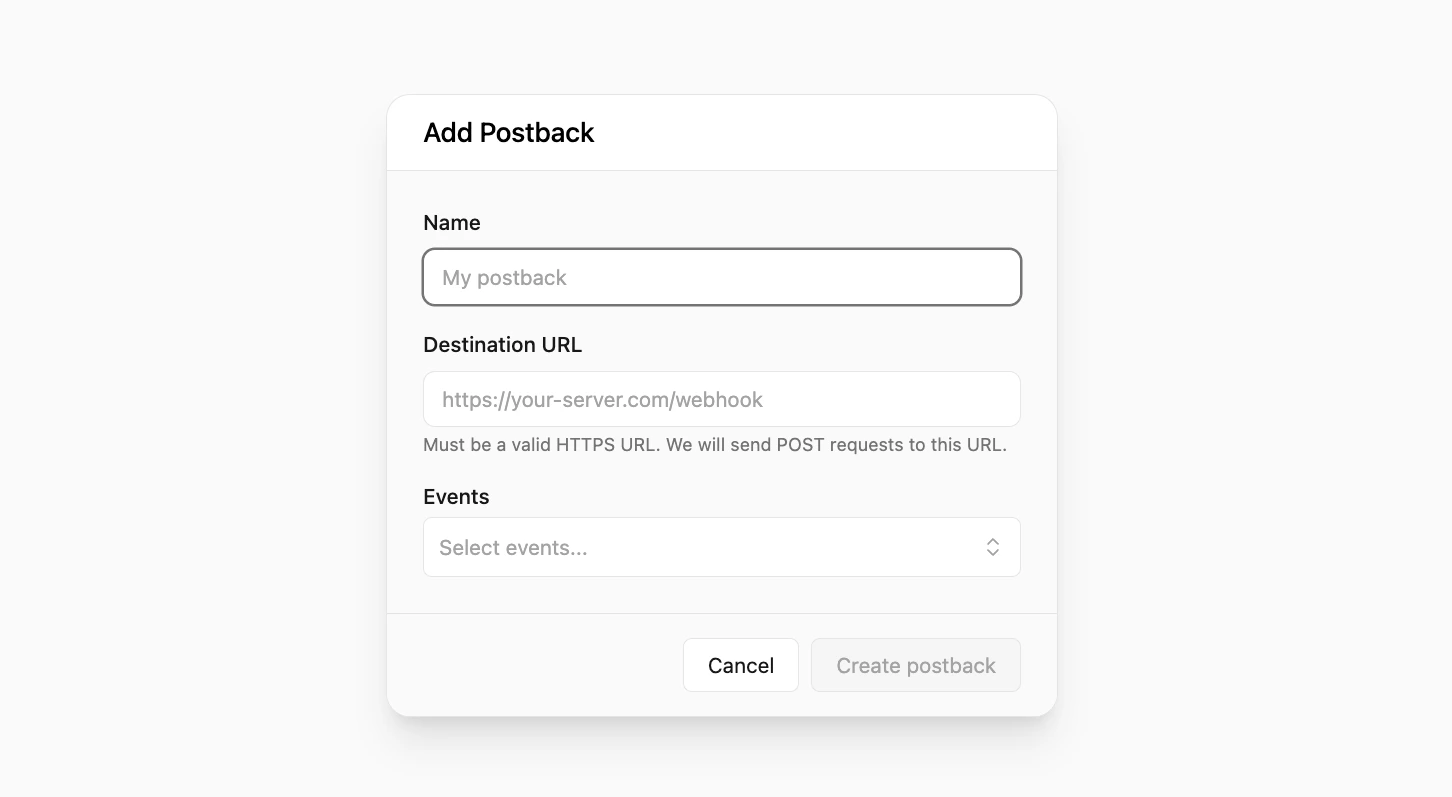 Fill in the required fields in the postback creation form:
1. **Name**: Give your postback a name that helps you identify it.
2. **URL**: Enter the URL of the endpoint where you want to send the postback. We recommend using [webhook.site](https://webhook.site/) to test your postback.
3. **Triggers**: Select the events you want to listen to. You can select multiple events. Refer to the [Event Types](/docs/postbacks/event-types) section to see the list of available events.
Finally, click on **Create postback** to create the postback. After creation, you'll see your signing secret — make sure to copy and store it securely.
## Viewing postback event logs
We also provide you with a postback event logs page where you can view all the postback events that have been sent to your endpoint in real-time.
To view the postback event logs, select the postback from the [**Postbacks** page](https://partners.dub.co/profile/postbacks) and click on the postback to open its details page.
Here, you'll see a list of all the postback events that have been sent to your endpoint:
Fill in the required fields in the postback creation form:
1. **Name**: Give your postback a name that helps you identify it.
2. **URL**: Enter the URL of the endpoint where you want to send the postback. We recommend using [webhook.site](https://webhook.site/) to test your postback.
3. **Triggers**: Select the events you want to listen to. You can select multiple events. Refer to the [Event Types](/docs/postbacks/event-types) section to see the list of available events.
Finally, click on **Create postback** to create the postback. After creation, you'll see your signing secret — make sure to copy and store it securely.
## Viewing postback event logs
We also provide you with a postback event logs page where you can view all the postback events that have been sent to your endpoint in real-time.
To view the postback event logs, select the postback from the [**Postbacks** page](https://partners.dub.co/profile/postbacks) and click on the postback to open its details page.
Here, you'll see a list of all the postback events that have been sent to your endpoint:
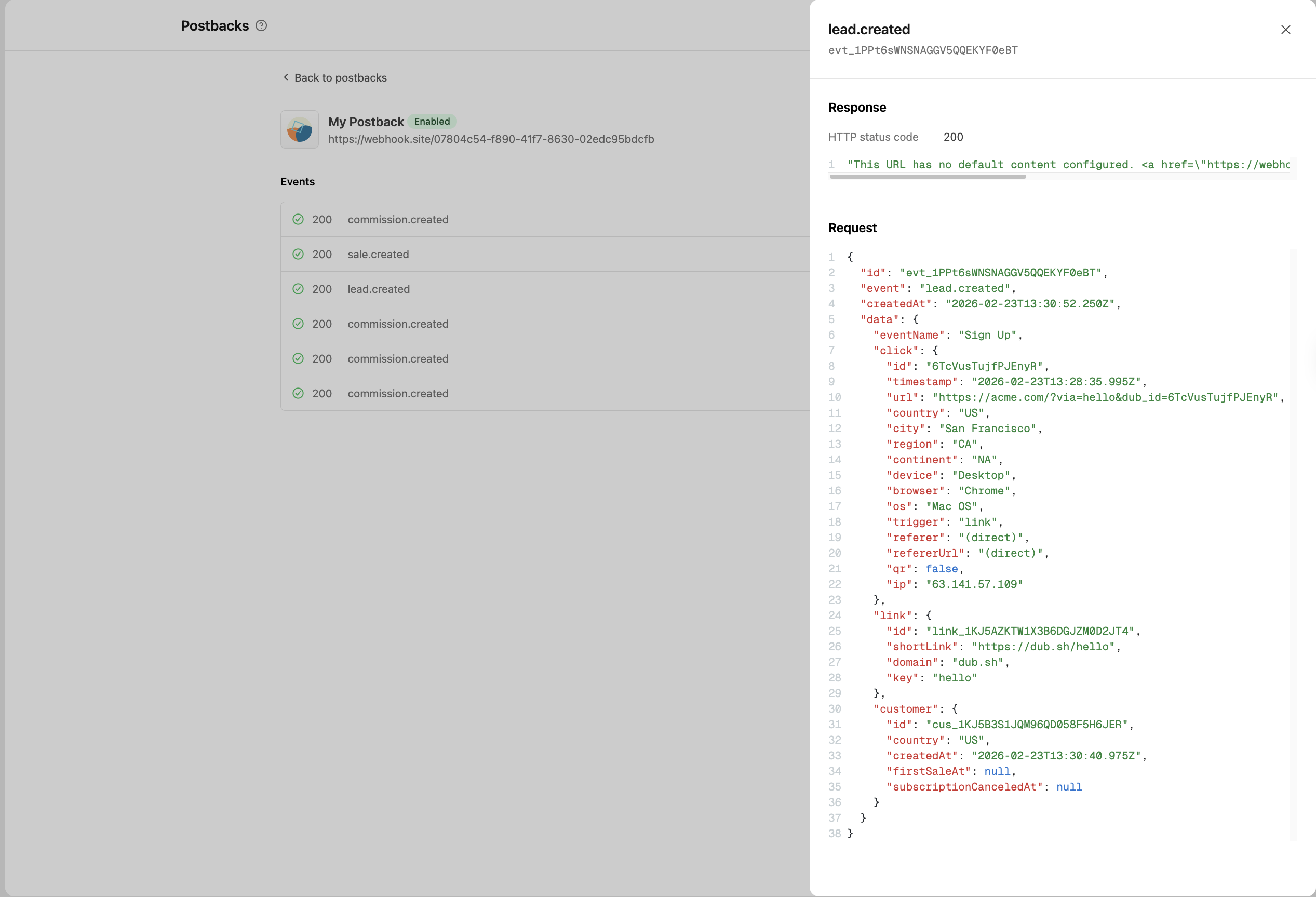 You can also select a specific event, which will open up a sheet with more details about the event.
## Sending test events
You can send test events to your postback URL to ensure that it's working correctly. To do this:
Navigate to the [**Postbacks** page](https://partners.dub.co/profile/postbacks) and select the postback you want to test.
Click on the postback to open the postback details page.
Select the `⋮` icon on the top right of the page, and click on **Send test event**.
This will open up a modal where you can select the event you want to send.
You can also select a specific event, which will open up a sheet with more details about the event.
## Sending test events
You can send test events to your postback URL to ensure that it's working correctly. To do this:
Navigate to the [**Postbacks** page](https://partners.dub.co/profile/postbacks) and select the postback you want to test.
Click on the postback to open the postback details page.
Select the `⋮` icon on the top right of the page, and click on **Send test event**.
This will open up a modal where you can select the event you want to send.
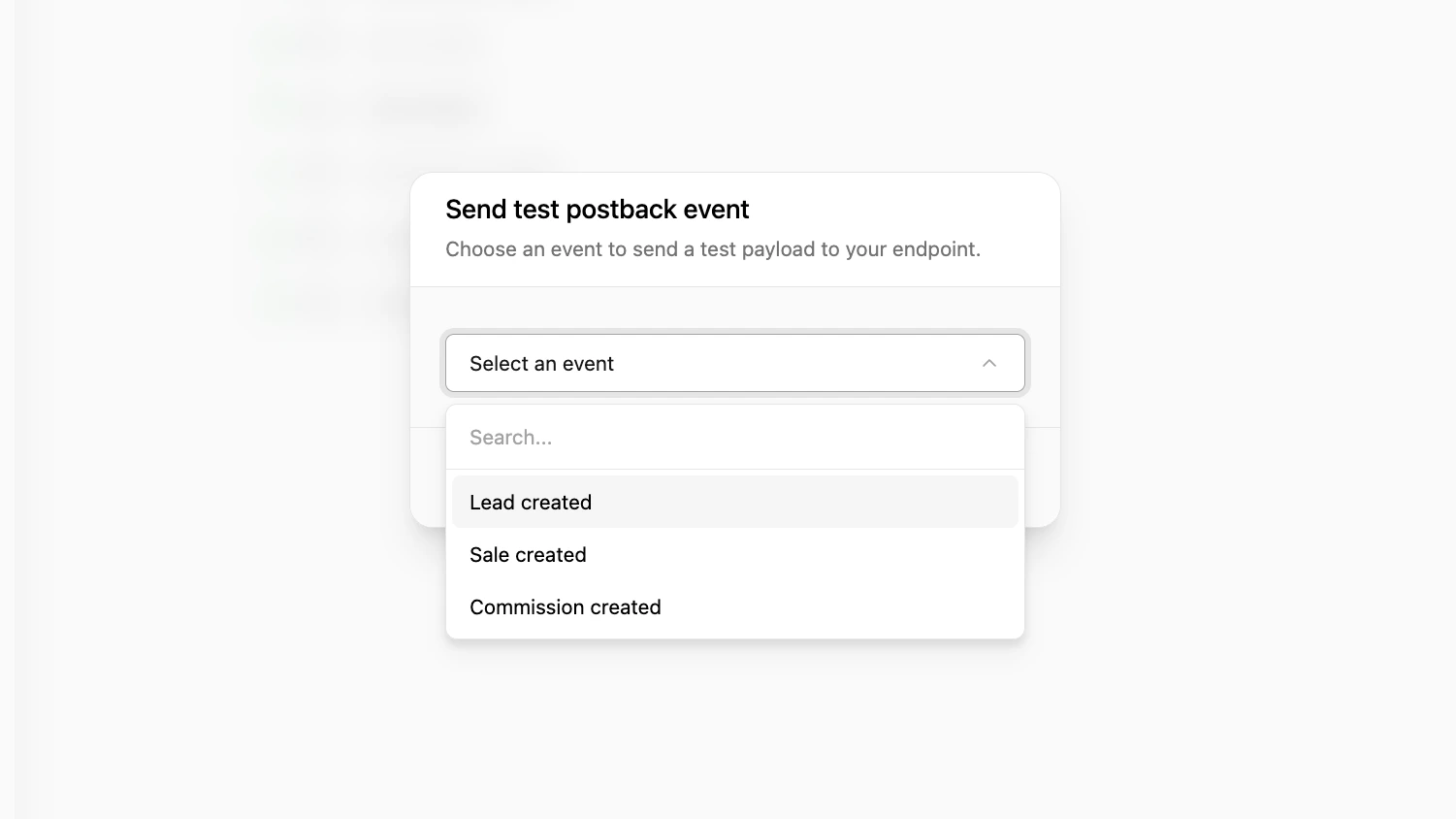 Select the event you want to send, and click on **Send test postback**.
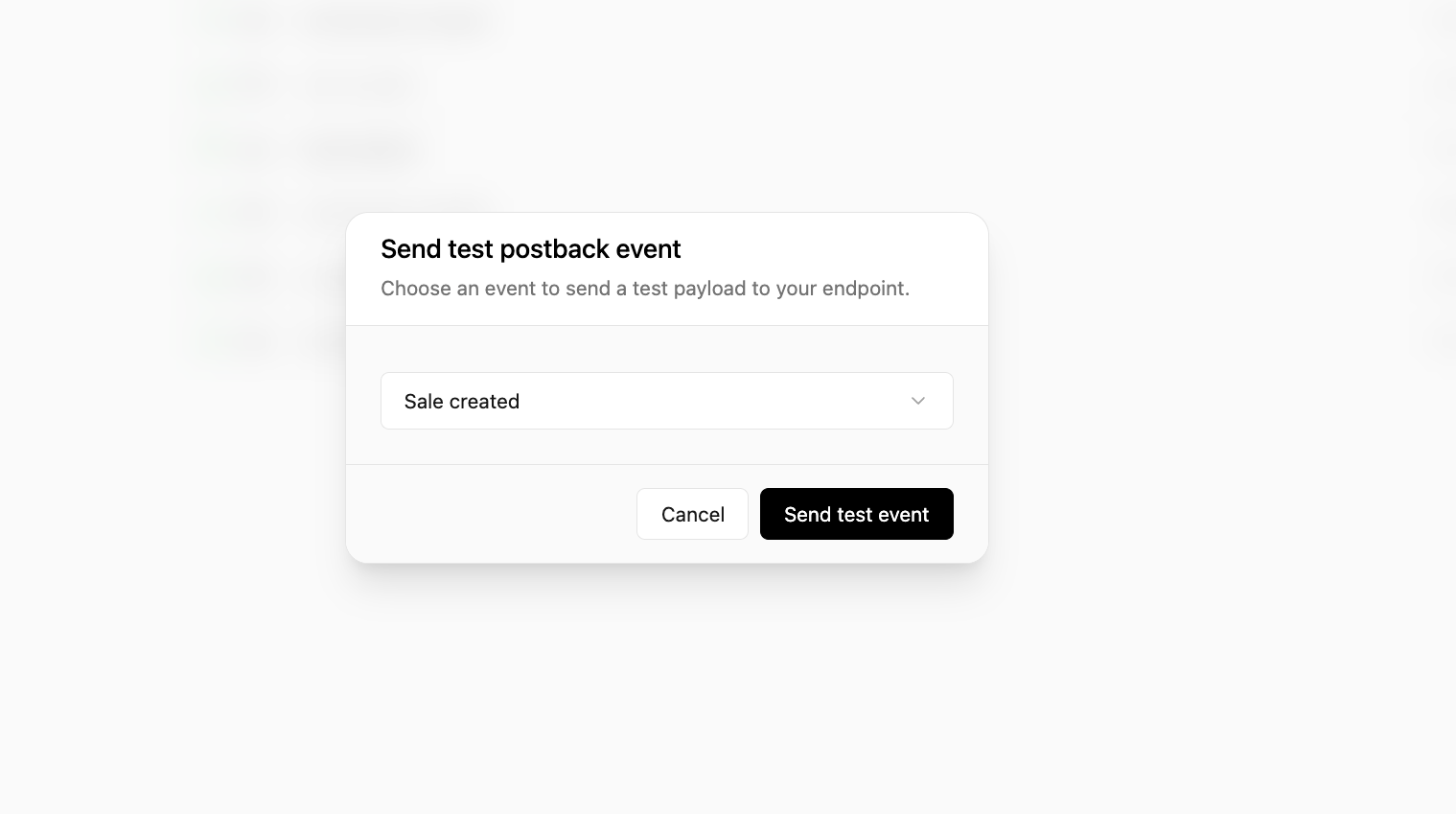 You'll see a success message and receive the postback event in the endpoint you specified.
## Secret rotation
If you need to rotate your postback signing secret (for example, after a suspected compromise), select the `⋮` icon on the postback details page and click on **Rotate secret**. A new secret will be generated.
## Retry Behaviour
If your postback endpoint does not respond with a success status code (2XX), we retry the request to ensure every message will be delivered. You can see all the retry attempts in your postback event logs.
Postbacks are retried until they are successfully delivered – with an exponential backoff to avoid overwhelming your postback endpoint (also known as the "[thundering herd problem](https://en.wikipedia.org/wiki/Thundering_herd_problem)"). The delay is capped at 24 hours from the 5th retry attempt onwards.
| Retry attempt | Delay |
| ------------- | -------- |
| 1st | 12s |
| 2nd | 2m 28s |
| 3rd | 30m 8s |
| 4th | 6h 7m 6s |
| 5th | 24h |
| 6th | 24h |
| ... | ... |
You'll see a success message and receive the postback event in the endpoint you specified.
## Secret rotation
If you need to rotate your postback signing secret (for example, after a suspected compromise), select the `⋮` icon on the postback details page and click on **Rotate secret**. A new secret will be generated.
## Retry Behaviour
If your postback endpoint does not respond with a success status code (2XX), we retry the request to ensure every message will be delivered. You can see all the retry attempts in your postback event logs.
Postbacks are retried until they are successfully delivered – with an exponential backoff to avoid overwhelming your postback endpoint (also known as the "[thundering herd problem](https://en.wikipedia.org/wiki/Thundering_herd_problem)"). The delay is capped at 24 hours from the 5th retry attempt onwards.
| Retry attempt | Delay |
| ------------- | -------- |
| 1st | 12s |
| 2nd | 2m 28s |
| 3rd | 30m 8s |
| 4th | 6h 7m 6s |
| 5th | 24h |
| 6th | 24h |
| ... | ... |