> ## Documentation Index
> Fetch the complete documentation index at: https://dub.co/llms.txt
> Use this file to discover all available pages before exploring further.
# Local development
> A guide on how to run Dub's codebase locally.
## Introduction
Dub's codebase is set up in a monorepo (via [Turborepo](https://turbo.build/repo)) and is fully [open-source on GitHub](https://github.com/dubinc/dub).
Here's the monorepo structure:
```
apps
├── web
packages
├── cli
├── email
├── embeds
├── prisma
├── stripe-app
├── tailwind-config
├── tinybird
├── tsconfig
├── ui
├── utils
```
The `apps` directory contains the code for:
* `web`: The entirety of Dub's application ([app.dub.co](https://app.dub.co)) + our link redirect infrastructure.
The `packages` directory contains the code for:
* `cli`: A CLI for easily shortening URLs with the Dub API.
* `email`: Dub's email application with function to send emails and templates.
* `embeds`: A package used embed Dub's referral dashboard.
* `prisma`: Prisma Configuration for Dub's web-app.
* `stripe-app`: The Stripe app for dub conversions.
* `tailwind-config`: The Tailwind CSS configuration for Dub's web app.
* `tinybird`: Dub's Tinybird configuration.
* `tsconfig`: The TypeScript configuration for Dub's web app.
* `ui`: Dub's UI component library.
* `utils`: A collection of utility functions and constants used across Dub's codebase.
## How `app.dub.co` works
Dub's web app is built with [Next.js](https://nextjs.org) and [TailwindCSS](https://tailwindcss.com).
It also utilizes code from the `packages` directory, specifically the `@dub/ui` and `@dub/utils` packages.
All of the code for the web app is located in here: [`main`/apps/web/app/app.dub.co](https://github.com/dubinc/dub/tree/main/apps/web/app/app.dub.co). This is using the Next.js [route group pattern](https://nextjs.org/docs/app/building-your-application/routing/route-groups).
There's also the API server, which is located in here: [`main`/apps/web/app/api](https://github.com/dubinc/dub/tree/main/apps/web/app/api)
When you run `pnpm dev` to start the development server, the app will be available at [http://localhost:8888](http://localhost:8888). The reason we use `localhost:8888` and not `app.localhost:8888` is because Google OAuth doesn't allow you to use localhost subdomains.
## How link redirects work on Dub
Link redirects on Dub are powered by [Next.js Middleware](https://nextjs.org/docs/app/building-your-application/routing/middleware).
To handle high traffic, we use Redis to cache every link's metadata when it's first created. This allows us to serve redirects without hitting our MySQL database.
Here's the code that powers link redirects: [`main`/apps/web/lib/middleware/link.ts](https://github.com/dubinc/dub/blob/main/apps/web/lib/middleware/link.ts)
## Running Dub locally
To run Dub locally, you'll need to set up the following:
* A [Tinybird](https://www.tinybird.co/) account
* An [Upstash](https://upstash.com/) account
* A [PlanetScale](https://planetscale.com/)-compatible MySQL database
Watch this video from our friends at Tinybird to learn how to set up Dub locally:
## Step 1: Local setup
First, you'll need to clone the Dub repo and install the dependencies.
First, clone the [Dub repo](https://d.to/github) into a public GitHub repository.
```bash Terminal theme={null}
git clone https://github.com/dubinc/dub.git
```
Run the following command to install the dependencies:
```bash Terminal theme={null}
pnpm i
```
Execute the command below to compile all internal packages:
```bash Terminal theme={null}
pnpm -r --filter "./packages/**" build
```
Copy the `.env.example` file from `./apps/web` to `.env` by executing the following command from `apps/web`:
```bash Terminal theme={null}
cp .env.example .env
```
You'll be updating this `.env` file with your own values as you progress through the setup.
## Step 2: Set up Tinybird Clickhouse database
Next, you'll need to set up the [Tinybird](https://tinybird.co) Clickhouse database. This will be used to store time-series click events data.
In your [Tinybird](https://tinybird.co/) account, create a new Workspace. For this guide, we will use the `us-east-1` region.
Copy your `admin` [Auth Token](https://www.tinybird.co/docs/concepts/auth-tokens.html). Paste this token as the `TINYBIRD_API_KEY` environment variable in your `.env` file.
Alternatively, you can set up a [local Tinybird container](https://www.tinybird.co/docs/cli/local-container) for local development.
In your newly-cloned Dub repo, navigate to the `packages/tinybird` directory.
If you have `brew`, install `pipx` by running `brew install pipx`. If not, you can check [installation guide](https://pipx.pypa.io/stable/installation/) for other options. After that, install the Tinybird CLI with `pipx install tinybird-cli` (requires Python >= 3.8).
Run `tb auth --interactive` and paste your `admin` Auth Token.
Run `tb deploy` to publish the datasource and endpoints in the `packages/tinybird` directory. You should see the following output (truncated for brevity):
```bash Terminal theme={null}
$ tb deploy
** Processing ./datasources/click_events.datasource
** Processing ./endpoints/clicks.pipe
...
** Building dependencies
** Running 'click_events'
** 'click_events' created
** Running 'device'
** => Test endpoint at https://api.us-east.tinybird.co/v0/pipes/device.json
** Token device_endpoint_read_8888 not found, creating one
** => Test endpoint with:
** $ curl https://api.us-east.tinybird.co/v0/pipes/device.json?token=p.ey...NWeaoTLM
** 'device' created
...
```
You will then need to update your [Tinybird API base URL](https://www.tinybird.co/docs/api-reference/api-reference.html#regions-and-endpoints) to match the region of your database.
From the previous step, take note of the **Test endpoint** URL. It should look something like this:
```bash Terminal theme={null}
Test endpoint at https://api.us-east.tinybird.co/v0/pipes/device.json
```
Copy the base URL and paste it as the `TINYBIRD_API_URL` environment variable in your `.env` file.
```bash Terminal theme={null}
TINYBIRD_API_URL=https://api.us-east.tinybird.co
```
## Step 3: Set up Upstash Redis database
Next, you'll need to set up the [Upstash](https://upstash.com) Redis database. This will be used to cache link metadata and serve link redirects.
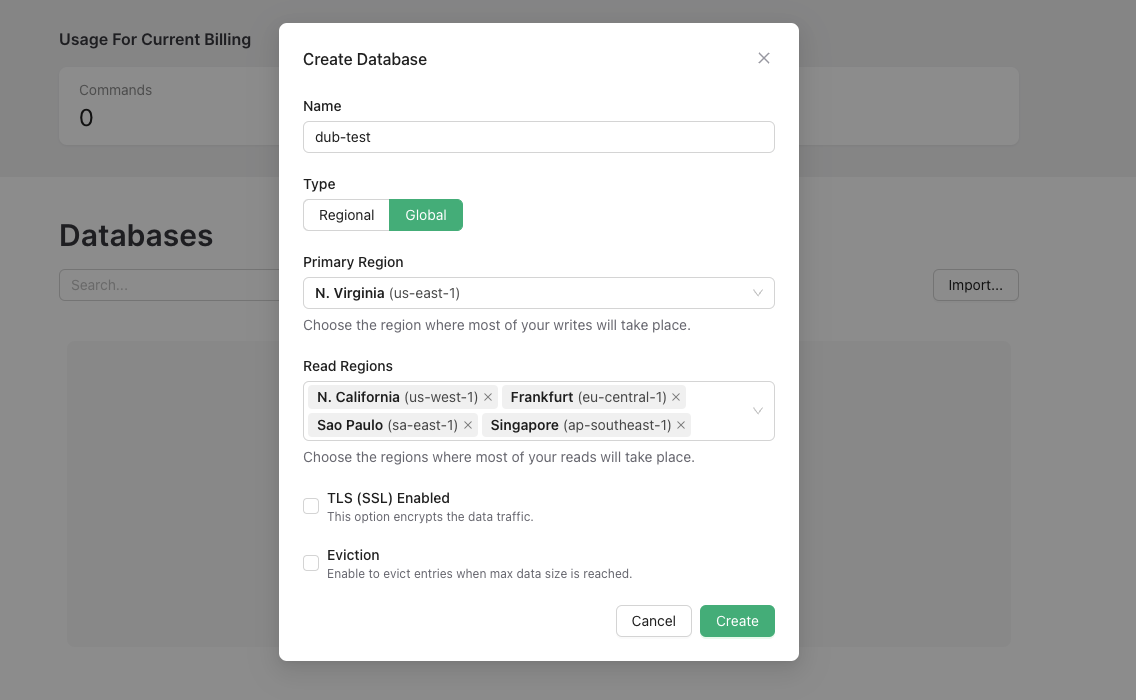
In your [Upstash account](https://console.upstash.com/), create a new database.
For better performance & read times, we recommend setting up a global database with several read regions.
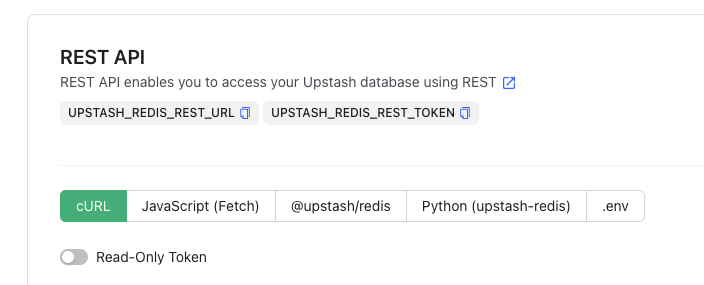
Once your database is created, copy the `UPSTASH_REDIS_REST_URL` and `UPSTASH_REDIS_REST_TOKEN` from the **REST API** section into your `.env` file.
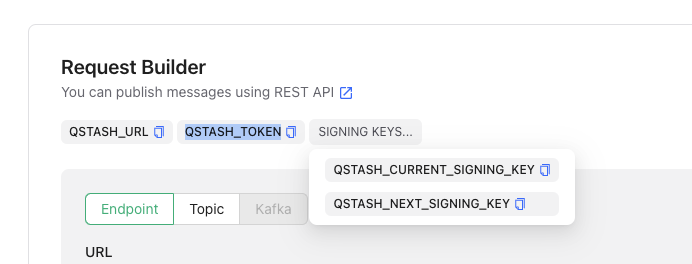
Navigate to the [QStash tab](https://console.upstash.com/qstash) and copy the `QSTASH_TOKEN`, `QSTASH_CURRENT_SIGNING_KEY`, and `QSTASH_NEXT_SIGNING_KEY` from the **Request Builder** section into your `.env` file.
If you're planning to run Qstash-powered background jobs locally, you'll need to set up an Ngrok tunnel to expose your local server to the internet.
Follow [these steps](https://ngrok.com/docs/getting-started/) to setup `ngrok`, and then run the following command to start an Ngrok tunnel at port `8888`:
```bash Terminal theme={null}
ngrok http 8888
```
Copy the `https` URL and paste it as the `NEXT_PUBLIC_NGROK_URL` environment variable in your `.env` file.
## Step 4: Set up PlanetScale MySQL database
Next, you'll need to set up a [PlanetScale](https://planetscale.com/)-compatible MySQL database. This will be used to store user data and link metadata. There are two options:
### Option 1: Local MySQL database with PlanetScale simulator (recommended)
You can use a local MySQL database with a PlanetScale simulator. This is the recommended option for local development since it's 100% free.
Prerequisites:
* [Docker](https://www.docker.com/products/docker-desktop)
* [Docker Compose](https://docs.docker.com/compose/install/)
In the terminal, navigate to the `apps/web` directory and run the following command to start the Docker Compose stack:
```bash Terminal theme={null}
docker compose up
```
This will start two containers: one for the MySQL database and another for the PlanetScale simulator.
Ensure the following credentials are added to your `.env` file:
```
DATABASE_URL="mysql://root:@localhost:3306/planetscale"
PLANETSCALE_DATABASE_URL="http://root:unused@localhost:3900/planetscale"
```
Here, we are using the open-source [PlanetScale simulator](https://github.com/mattrobenolt/ps-http-sim) so the application can continue to use the `@planetscale/database` SDK.
While we're using two different values in local development, in production or staging environments, you'll only need the `DATABASE_URL` value.
In the terminal, navigate to the `apps/web` directory and run the following command to generate the Prisma client:
```bash Terminal theme={null}
pnpm run prisma:generate
```
Then, create the database tables with the following command:
```bash Terminal theme={null}
pnpm run prisma:push
```
The docker-compose setup includes Mailhog, which acts as a mock SMTP server
and shows received emails in a web UI. You can access the Mailhog web
interface at [http://localhost:8025](http://localhost:8025). This is useful
for testing email functionality without sending real emails during local
development.
### Option 2: PlanetScale hosted database
PlanetScale recently [removed their free
tier](https://planetscale.com/blog/planetscale-forever), so you'll need to pay
for this option. A cheaper alternative is to use a [MySQL database on
Railway](https://railway.app/template/mysql) (\$5/month).
In your [PlanetScale account](https://app.planetscale.com/), create a new database.
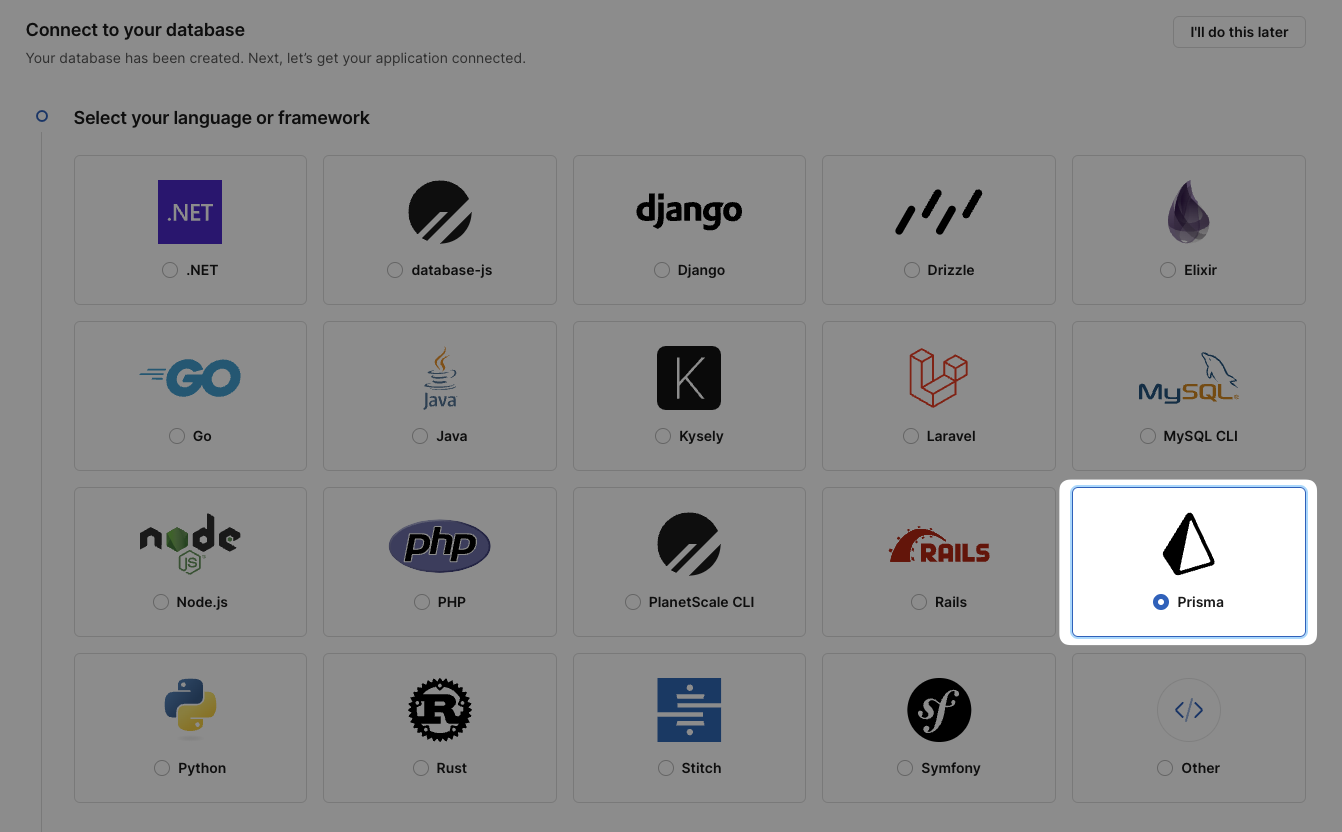
Once your database is created, you'll be prompted to select your language or Framework. Select **Prisma**.
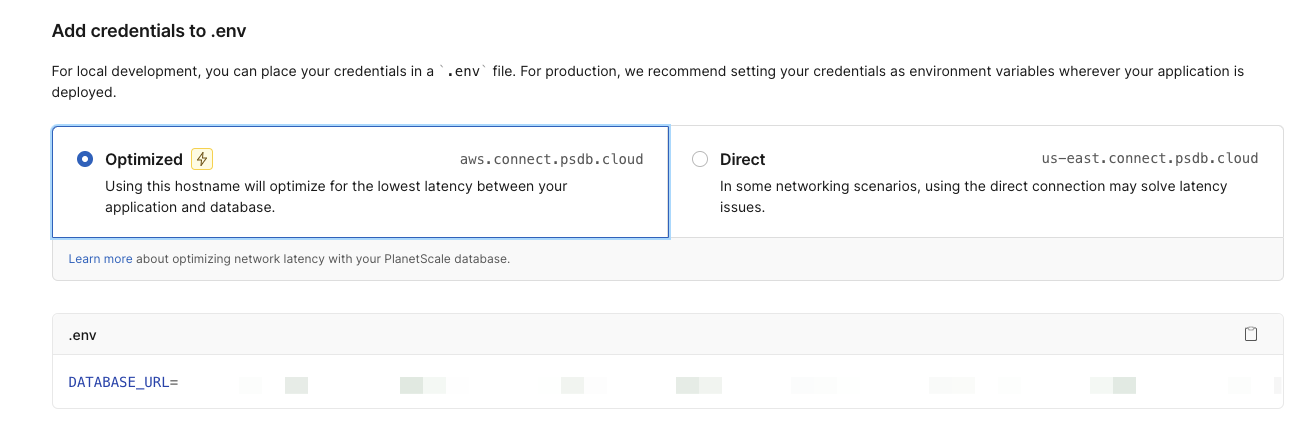
Then, you'll have to create a new password for your database. Once the password is created, scroll down to the **Add credentials to .env** section and copy the `DATABASE_URL` into your `.env` file.
In the terminal, navigate to the `apps/web` directory and run the following command to generate the Prisma client:
```bash Terminal theme={null}
pnpm run prisma:generate
```
Then, create the database tables with the following command:
```bash Terminal theme={null}
pnpm run prisma:push
```
## Step 5: Set up Mailhog
To view emails sent from your application during local development, you'll need to set up [Mailhog](https://github.com/mailhog/MailHog).
If you've already run `docker compose up` as part of the database setup, you
can skip this step. Mailhog is included in the Docker Compose configuration
and should already be running.
Run the following command to pull the Mailhog Docker image:
```bash Terminal theme={null}
docker pull mailhog/mailhog
```
Start the Mailhog container with the following command:
```bash Terminal theme={null}
docker run -d -p 8025:8025 -p 1025:1025 mailhog/mailhog
```
This will run Mailhog in the background, and the web interface will be available at [http://localhost:8025](http://localhost:8025).
## Step 6: Set NextAuth secret
Generate a secret by visiting [https://generate-secret.vercel.app/32](https://generate-secret.vercel.app/32). Set the value of `NEXTAUTH_SECRET` in `.env` to this value.
## Step 7: Seed the database (optional)
You can seed the database with sample data for testing and development purposes. This creates a workspace with test users, domains, folders, partners, and other resources.
Navigate to the `apps/web` directory and run the following command:
```bash Terminal theme={null}
pnpm run script dev/seed
```
This will add sample data without deleting any existing data.
If you want to start fresh by deleting all existing data before seeding:
```bash Terminal theme={null}
pnpm run script dev/seed --truncate
```
When using `--truncate`, the script will ask for confirmation before deleting any data.
## Step 8: Start the development server
Finally, you can start the development server. This will build the packages + start the app servers.
```bash Terminal theme={null}
pnpm dev
```
The web app (`apps/web`) will be available at [localhost:8888](http://localhost:8888). Additionally, you may access Prisma Studio to manage your MySQL database at [localhost:5555](http://localhost:5555).
### Logging into the application
After seeding the database and starting the development server, you can log in to the application using one of the test users created during the seed process.
Navigate to [http://localhost:5555](http://localhost:5555) (Prisma Studio) and open the **Users** table. You'll find several test users, including `owner@dub-internal-test.com`.
Go to [http://localhost:8888/login](http://localhost:8888/login) and use the email login method with one of the test user emails.
Check your **terminal** where the development server is running. After submitting the login form, you'll see a log message in the following format:
```
Login link: http://localhost:8888/api/auth/callback/email?callbackUrl=...
```
Copy the login link from the console and paste it into your browser's address bar. You'll be automatically logged in.
### Testing your shortlinks locally
Use the following url structure to ensure event tracking is working, and to populate analytics data, replacing `` with the shortlink key you've created.
```
http://dub.localhost:8888/
```
## Troubleshooting
### 500 error on `/api/workspaces/[idOrSlug]` route
If you're receiving a 500 error when accessing workspace-related pages, it may be due to missing Stripe API keys. Check your application logs for Stripe-related errors.
For **local development only**, you can add mock Stripe keys to your `apps/web/.env` file:
```bash .env theme={null}
NEXT_PUBLIC_STRIPE_PUBLISHABLE_KEY=123
STRIPE_SECRET_KEY=123
STRIPE_WEBHOOK_SECRET=123
# Stripe App webhook events
STRIPE_APP_WEBHOOK_SECRET=123
```
These mock keys are for local development only and should never be used in production environments.
## Running E2E tests locally
To run end-to-end tests locally, you'll need to configure additional environment variables and generate an API token.
Add the following environment variables to your `apps/web/.env` file:
```bash .env theme={null}
# E2E testing
CI=true
E2E_BASE_URL=http://localhost:8888
E2E_TOKEN=your_token_here
E2E_TOKEN_MEMBER=your_token_here
E2E_TOKEN_OLD=your_token_here
E2E_PUBLISHABLE_KEY=your_token_here
```
1. Start your development server and log in to the application
2. Navigate to [http://localhost:8888/acme/settings/tokens](http://localhost:8888/acme/settings/tokens)
3. Generate a new API token with full access permissions
4. Replace all instances of `your_token_here` in your `.env` file with the generated token
The `CI=true` variable is used because some tests are designed to run in CI environments. Setting this to `true` allows you to run these tests locally for development and debugging purposes.
 Navigate to the [QStash tab](https://console.upstash.com/qstash) and copy the `QSTASH_TOKEN`, `QSTASH_CURRENT_SIGNING_KEY`, and `QSTASH_NEXT_SIGNING_KEY` from the **Request Builder** section into your `.env` file.
 ## Introduction
Dub's codebase is set up in a monorepo (via [Turborepo](https://turbo.build/repo)) and is fully [open-source on GitHub](https://github.com/dubinc/dub).
Here's the monorepo structure:
```
apps
├── web
packages
├── cli
├── email
├── embeds
├── prisma
├── stripe-app
├── tailwind-config
├── tinybird
├── tsconfig
├── ui
├── utils
```
The `apps` directory contains the code for:
* `web`: The entirety of Dub's application ([app.dub.co](https://app.dub.co)) + our link redirect infrastructure.
The `packages` directory contains the code for:
* `cli`: A CLI for easily shortening URLs with the Dub API.
* `email`: Dub's email application with function to send emails and templates.
* `embeds`: A package used embed Dub's referral dashboard.
* `prisma`: Prisma Configuration for Dub's web-app.
* `stripe-app`: The Stripe app for dub conversions.
* `tailwind-config`: The Tailwind CSS configuration for Dub's web app.
* `tinybird`: Dub's Tinybird configuration.
* `tsconfig`: The TypeScript configuration for Dub's web app.
* `ui`: Dub's UI component library.
* `utils`: A collection of utility functions and constants used across Dub's codebase.
## How `app.dub.co` works
Dub's web app is built with [Next.js](https://nextjs.org) and [TailwindCSS](https://tailwindcss.com).
It also utilizes code from the `packages` directory, specifically the `@dub/ui` and `@dub/utils` packages.
All of the code for the web app is located in here: [`main`/apps/web/app/app.dub.co](https://github.com/dubinc/dub/tree/main/apps/web/app/app.dub.co). This is using the Next.js [route group pattern](https://nextjs.org/docs/app/building-your-application/routing/route-groups).
There's also the API server, which is located in here: [`main`/apps/web/app/api](https://github.com/dubinc/dub/tree/main/apps/web/app/api)
When you run `pnpm dev` to start the development server, the app will be available at [http://localhost:8888](http://localhost:8888). The reason we use `localhost:8888` and not `app.localhost:8888` is because Google OAuth doesn't allow you to use localhost subdomains.
## How link redirects work on Dub
Link redirects on Dub are powered by [Next.js Middleware](https://nextjs.org/docs/app/building-your-application/routing/middleware).
To handle high traffic, we use Redis to cache every link's metadata when it's first created. This allows us to serve redirects without hitting our MySQL database.
Here's the code that powers link redirects: [`main`/apps/web/lib/middleware/link.ts](https://github.com/dubinc/dub/blob/main/apps/web/lib/middleware/link.ts)
## Running Dub locally
To run Dub locally, you'll need to set up the following:
* A [Tinybird](https://www.tinybird.co/) account
* An [Upstash](https://upstash.com/) account
* A [PlanetScale](https://planetscale.com/)-compatible MySQL database
Watch this video from our friends at Tinybird to learn how to set up Dub locally:
## Step 1: Local setup
First, you'll need to clone the Dub repo and install the dependencies.
## Introduction
Dub's codebase is set up in a monorepo (via [Turborepo](https://turbo.build/repo)) and is fully [open-source on GitHub](https://github.com/dubinc/dub).
Here's the monorepo structure:
```
apps
├── web
packages
├── cli
├── email
├── embeds
├── prisma
├── stripe-app
├── tailwind-config
├── tinybird
├── tsconfig
├── ui
├── utils
```
The `apps` directory contains the code for:
* `web`: The entirety of Dub's application ([app.dub.co](https://app.dub.co)) + our link redirect infrastructure.
The `packages` directory contains the code for:
* `cli`: A CLI for easily shortening URLs with the Dub API.
* `email`: Dub's email application with function to send emails and templates.
* `embeds`: A package used embed Dub's referral dashboard.
* `prisma`: Prisma Configuration for Dub's web-app.
* `stripe-app`: The Stripe app for dub conversions.
* `tailwind-config`: The Tailwind CSS configuration for Dub's web app.
* `tinybird`: Dub's Tinybird configuration.
* `tsconfig`: The TypeScript configuration for Dub's web app.
* `ui`: Dub's UI component library.
* `utils`: A collection of utility functions and constants used across Dub's codebase.
## How `app.dub.co` works
Dub's web app is built with [Next.js](https://nextjs.org) and [TailwindCSS](https://tailwindcss.com).
It also utilizes code from the `packages` directory, specifically the `@dub/ui` and `@dub/utils` packages.
All of the code for the web app is located in here: [`main`/apps/web/app/app.dub.co](https://github.com/dubinc/dub/tree/main/apps/web/app/app.dub.co). This is using the Next.js [route group pattern](https://nextjs.org/docs/app/building-your-application/routing/route-groups).
There's also the API server, which is located in here: [`main`/apps/web/app/api](https://github.com/dubinc/dub/tree/main/apps/web/app/api)
When you run `pnpm dev` to start the development server, the app will be available at [http://localhost:8888](http://localhost:8888). The reason we use `localhost:8888` and not `app.localhost:8888` is because Google OAuth doesn't allow you to use localhost subdomains.
## How link redirects work on Dub
Link redirects on Dub are powered by [Next.js Middleware](https://nextjs.org/docs/app/building-your-application/routing/middleware).
To handle high traffic, we use Redis to cache every link's metadata when it's first created. This allows us to serve redirects without hitting our MySQL database.
Here's the code that powers link redirects: [`main`/apps/web/lib/middleware/link.ts](https://github.com/dubinc/dub/blob/main/apps/web/lib/middleware/link.ts)
## Running Dub locally
To run Dub locally, you'll need to set up the following:
* A [Tinybird](https://www.tinybird.co/) account
* An [Upstash](https://upstash.com/) account
* A [PlanetScale](https://planetscale.com/)-compatible MySQL database
Watch this video from our friends at Tinybird to learn how to set up Dub locally:
## Step 1: Local setup
First, you'll need to clone the Dub repo and install the dependencies.