> ## Documentation Index
> Fetch the complete documentation index at: https://dub.co/llms.txt
> Use this file to discover all available pages before exploring further.
# Stripe
> Learn how to track sale conversion events with Stripe and Dub
This feature is only available on [Business plans and
above](https://dub.co/pricing/partners).
Dub's best-in-class [Stripe integration](https://dub.co/integrations/stripe) listens to payment events on Stripe and tracks them as sales on Dub.
 Here are the events that Dub listens to:
* Recurring subscriptions
* One-time payments
* [Free trials](#tracking-free-trials)
* Refunds (for [voiding partner commissions](/help/article/partner-commissions#commission-statuses))
* Cancellations/churn
* Usage expansion
In this guide, we'll learn how to install and set up the Dub Stripe integration for tracking sale conversion events.
## Installing the Dub Stripe integration
Navigate to the [Dub Stripe Integration](https://d.to/stripe/app) on the Stripe App Marketplace.
Here are the events that Dub listens to:
* Recurring subscriptions
* One-time payments
* [Free trials](#tracking-free-trials)
* Refunds (for [voiding partner commissions](/help/article/partner-commissions#commission-statuses))
* Cancellations/churn
* Usage expansion
In this guide, we'll learn how to install and set up the Dub Stripe integration for tracking sale conversion events.
## Installing the Dub Stripe integration
Navigate to the [Dub Stripe Integration](https://d.to/stripe/app) on the Stripe App Marketplace.
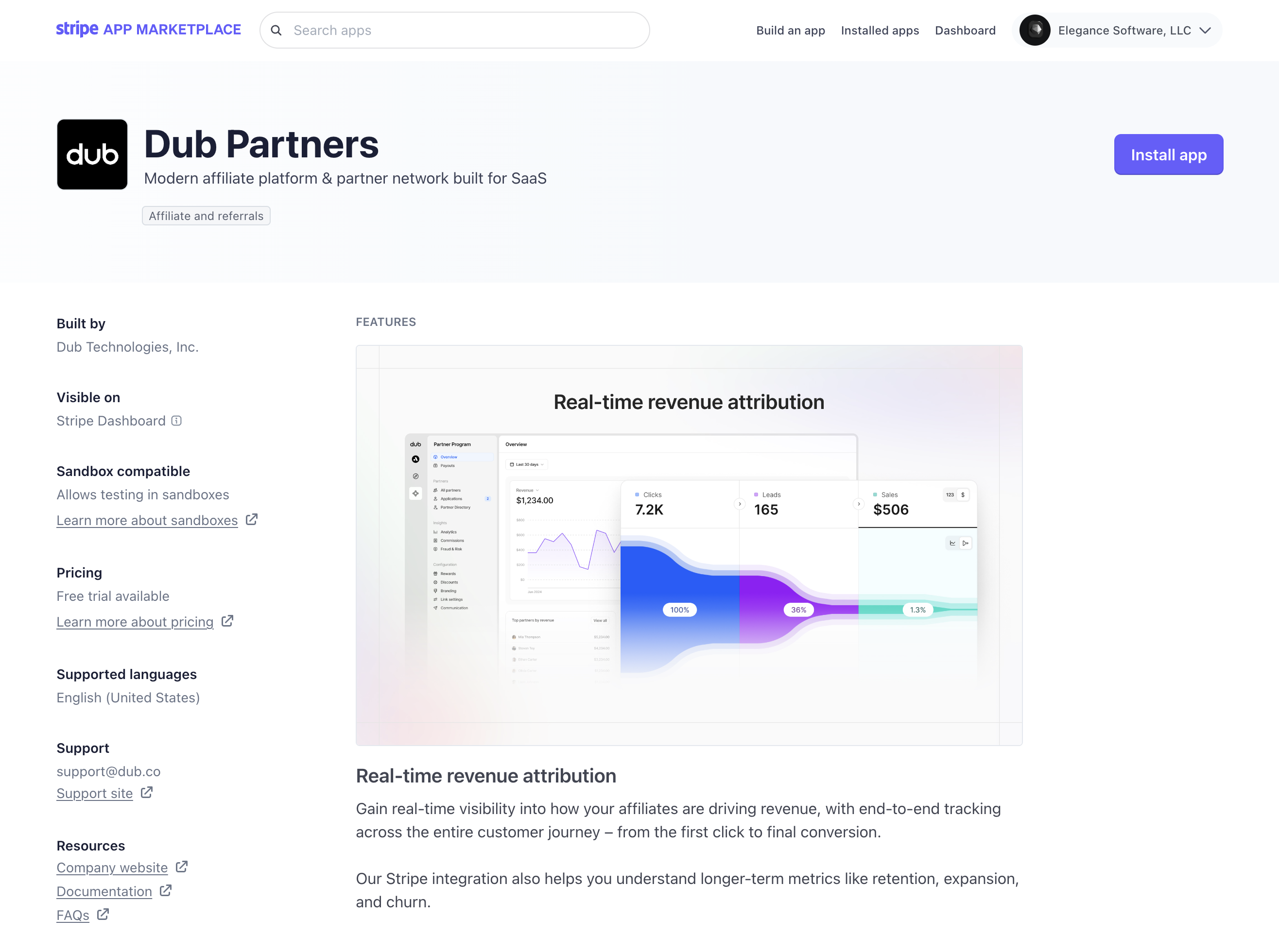 On the top right, click on **Install app** to install the Dub app on your Stripe account.
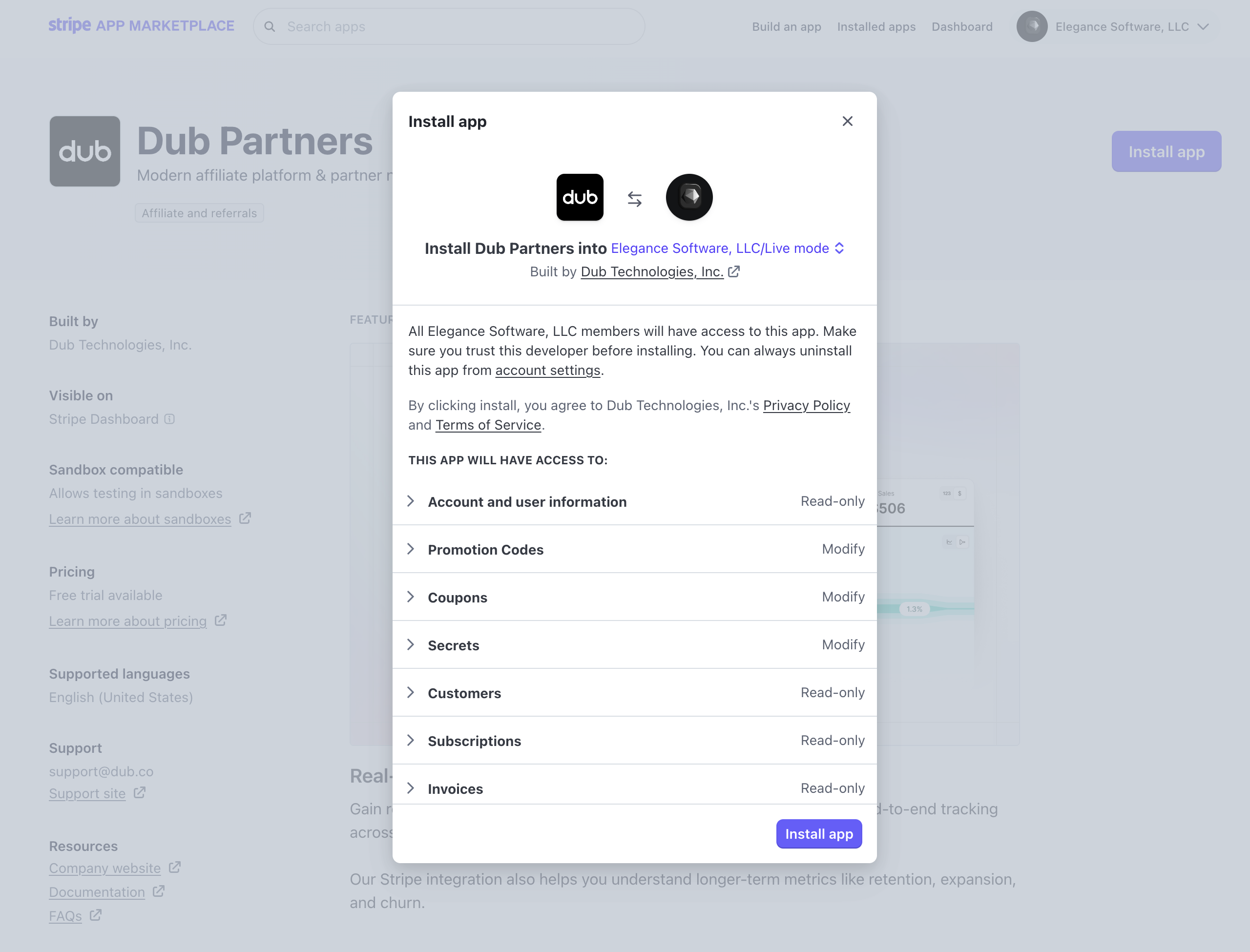 Alternatively, you can also install the Stripe app in a [Stripe
sandbox](https://docs.stripe.com/sandboxes) first to test your end-to-end flow
without involving real money.
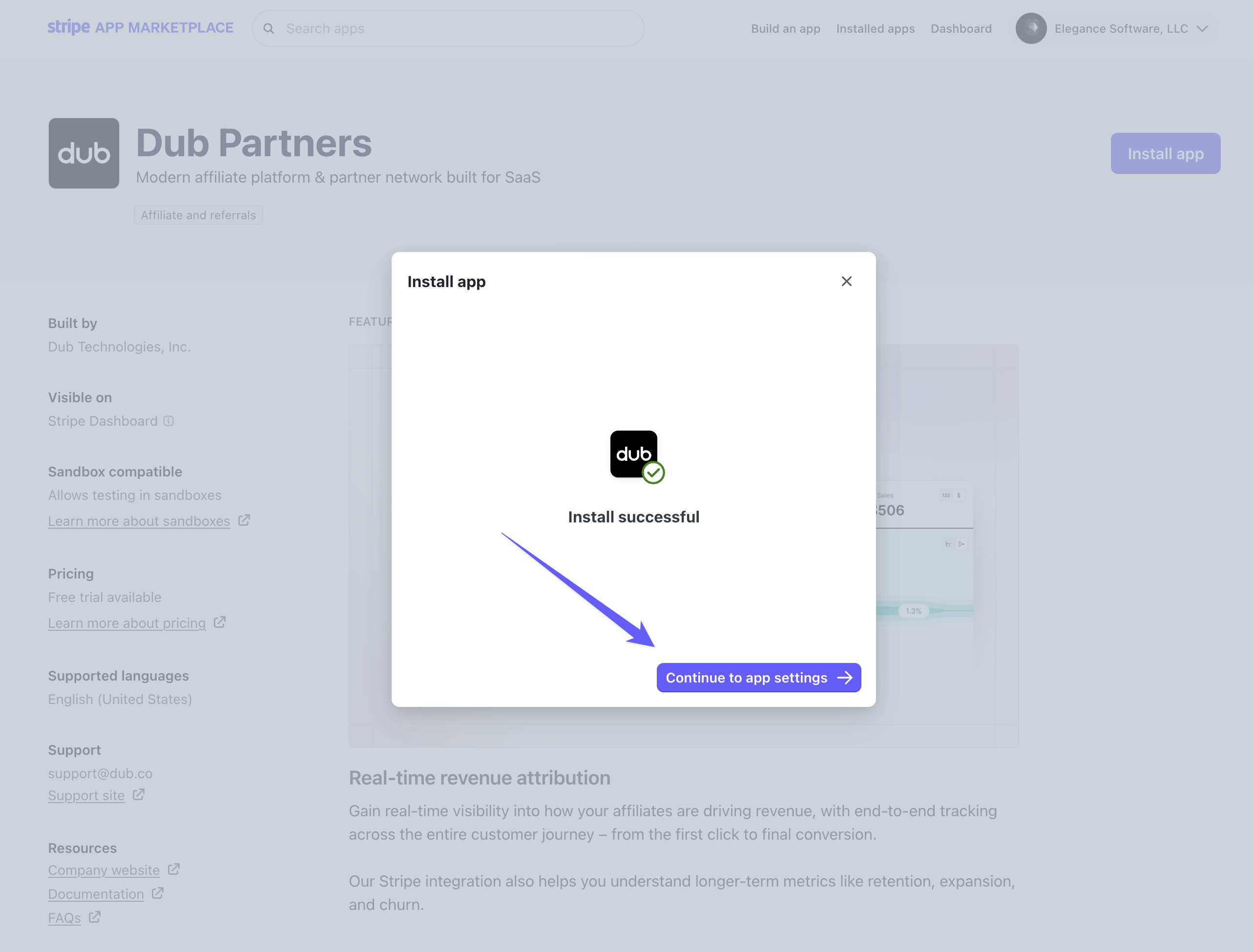
Once the app is installed, click on **Continue to app settings** to finish the installation.
Alternatively, you can also install the Stripe app in a [Stripe
sandbox](https://docs.stripe.com/sandboxes) first to test your end-to-end flow
without involving real money.
Once the app is installed, click on **Continue to app settings** to finish the installation.
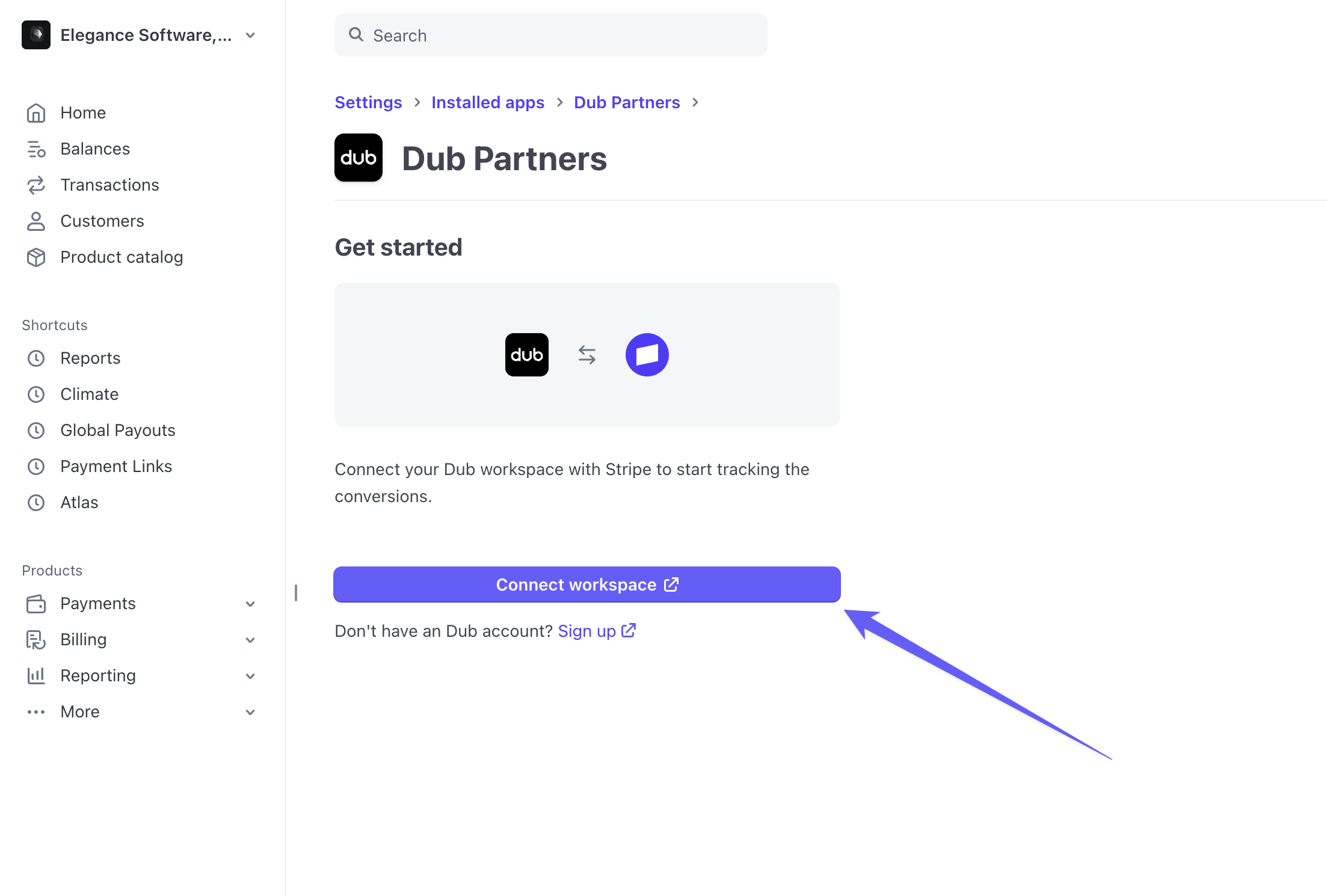
 In the app settings page, click on **Connect workspace** to connect your Stripe account with your Dub workspace.
 This will redirect you to the [Dub OAuth flow](/docs/integrations/quickstart), where you can select the Dub workspace you want to connect to your Stripe account.
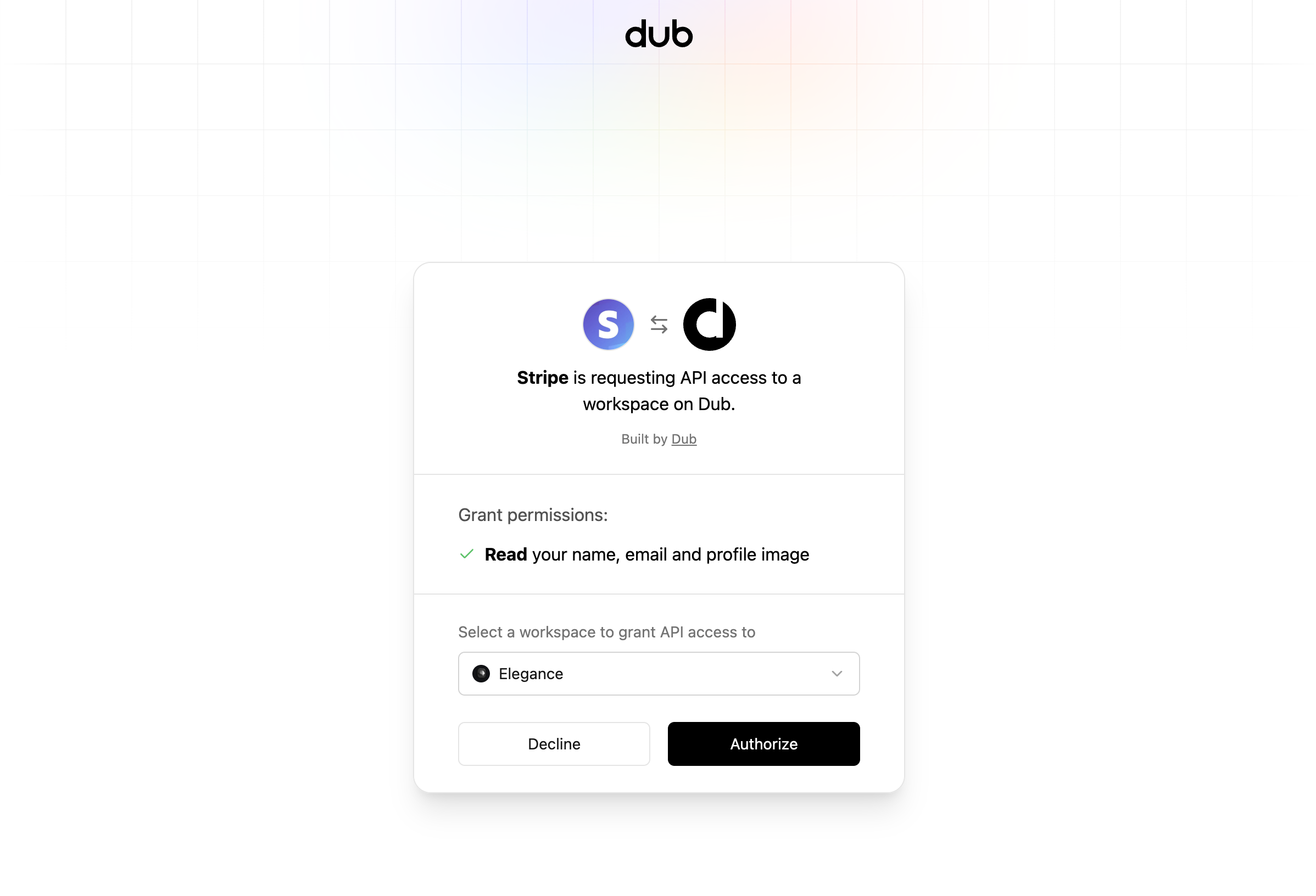 Once you click on **Authorize**, you will be redirected back to the Dub app settings page on Stripe, where you should see that the integration is now installed.
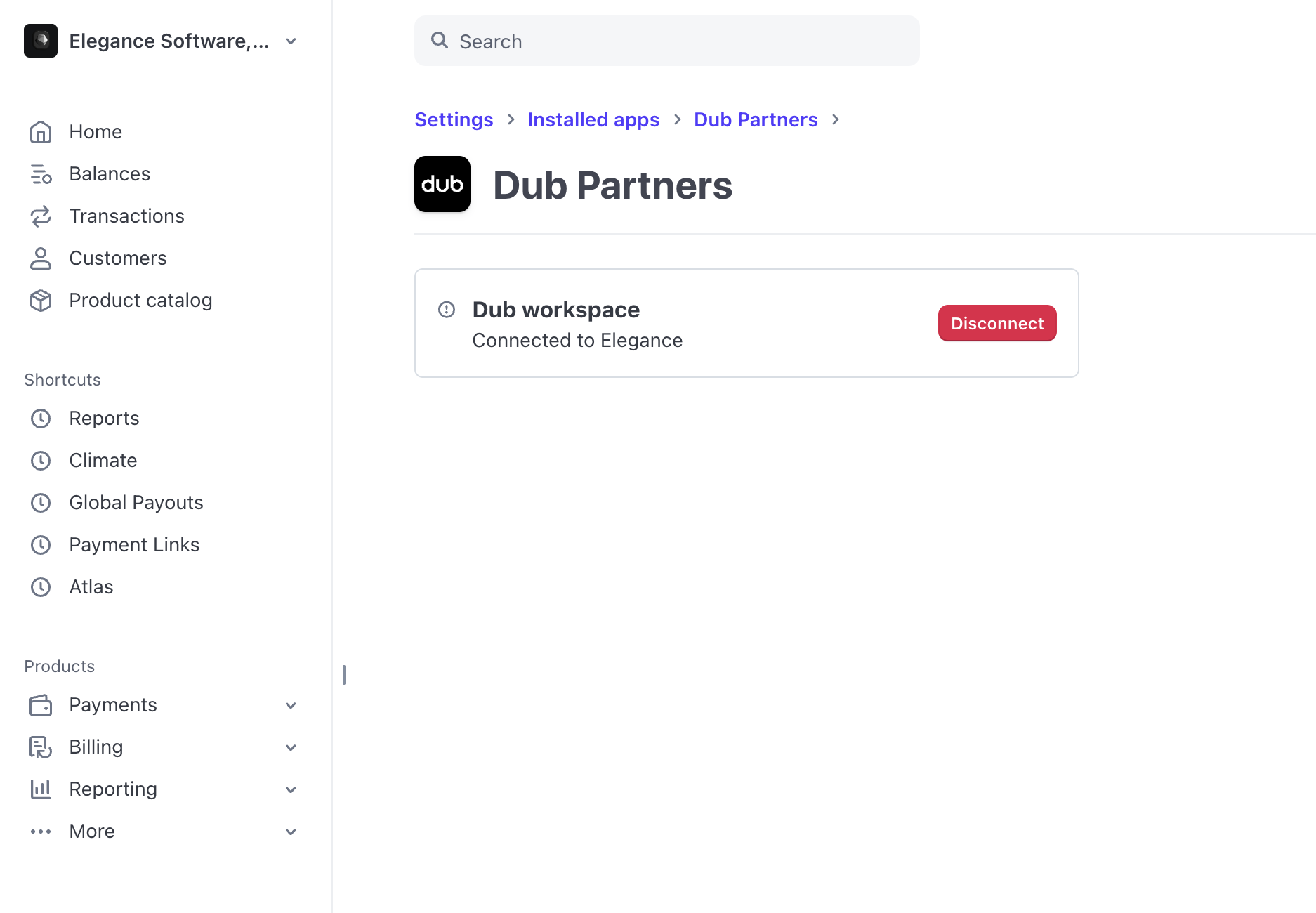 Once the integration is installed, Dub will automatically listen to the following events on Stripe and track them as sales on Dub:
* `customer.created`: When a new customer is created
* `customer.updated`: When a customer is updated
* `checkout.session.completed`: When a customer completes a checkout session
* `invoice.paid`: When an invoice is paid (for tracking recurring subscriptions)
* `charge.refunded`: When a charge is refunded (for [voiding partner commissions](/help/article/partner-commissions#commission-statuses))
## Tracking sales with the Dub Stripe integration
Depending on your setup, there are a few ways you can track sales with the Dub Stripe integration.
* [Option 1: Using Stripe Payment Links](#option-1-using-stripe-payment-links)
* [Option 2: Using Stripe Checkout (recommended)](#option-2-using-stripe-checkout-recommended)
* [Option 3: Using Stripe Customers](#option-3-using-stripe-customers)
### Option 1: Using Stripe Payment Links
For this option to work, you need to [install the Dub Stripe
integration](#installing-the-dub-stripe-integration) and [enable conversion
tracking for your
links](/docs/quickstart/server#step-1-enable-conversion-tracking-for-your-links)
first.
When using Stripe Payment Links, lead and sale events are tracked but lead
webhooks and [lead
rewards](/help/article/partner-rewards#configuring-reward-types) will not be
generated. [Sale
rewards](/help/article/partner-rewards#configuring-reward-types) (both
recurring and one time rewards) will still be generated as usual.
If you're using [Stripe Payment Links](https://docs.stripe.com/payment-links), simply add a `?dub_client_reference_id=1` query parameter to your Stripe Payment Link when shortening it on Dub.
Then, when a user clicks on the shortened link, Dub will automatically append the unique click ID as the `client_reference_id` [query parameter](https://docs.stripe.com/payment-links/url-parameters) to the payment link.
Once the integration is installed, Dub will automatically listen to the following events on Stripe and track them as sales on Dub:
* `customer.created`: When a new customer is created
* `customer.updated`: When a customer is updated
* `checkout.session.completed`: When a customer completes a checkout session
* `invoice.paid`: When an invoice is paid (for tracking recurring subscriptions)
* `charge.refunded`: When a charge is refunded (for [voiding partner commissions](/help/article/partner-commissions#commission-statuses))
## Tracking sales with the Dub Stripe integration
Depending on your setup, there are a few ways you can track sales with the Dub Stripe integration.
* [Option 1: Using Stripe Payment Links](#option-1-using-stripe-payment-links)
* [Option 2: Using Stripe Checkout (recommended)](#option-2-using-stripe-checkout-recommended)
* [Option 3: Using Stripe Customers](#option-3-using-stripe-customers)
### Option 1: Using Stripe Payment Links
For this option to work, you need to [install the Dub Stripe
integration](#installing-the-dub-stripe-integration) and [enable conversion
tracking for your
links](/docs/quickstart/server#step-1-enable-conversion-tracking-for-your-links)
first.
When using Stripe Payment Links, lead and sale events are tracked but lead
webhooks and [lead
rewards](/help/article/partner-rewards#configuring-reward-types) will not be
generated. [Sale
rewards](/help/article/partner-rewards#configuring-reward-types) (both
recurring and one time rewards) will still be generated as usual.
If you're using [Stripe Payment Links](https://docs.stripe.com/payment-links), simply add a `?dub_client_reference_id=1` query parameter to your Stripe Payment Link when shortening it on Dub.
Then, when a user clicks on the shortened link, Dub will automatically append the unique click ID as the `client_reference_id` [query parameter](https://docs.stripe.com/payment-links/url-parameters) to the payment link.
 Finally, when the user completes the checkout flow, Dub will automatically [track the sale event](/docs/api-reference/track/sale) and [update the customer's `customerExternalId`](/docs/api-reference/customers/update) with their Stripe customer ID for future reference.
Alternatively, if you have a marketing site that you're redirecting your users to first, you can do this instead:
1. [Install the Dub Analytics script](/docs/sdks/client-side/introduction), which automatically detects the `dub_id` in the URL and stores it as a first-party cookie on your site.
2. Then, retrieve and append the `dub_id` value as the `client_reference_id` parameter to the payment links on your pricing page / CTA button (prefixed with `dub_id_`).
```
https://buy.stripe.com/xxxxxx?client_reference_id=dub_id_xxxxxxxxxxxxxx
```
If you're using [Stripe Pricing Tables](https://docs.stripe.com/payments/checkout/pricing-table) – you'd want to pass the Dub click ID as a [`client-reference-id` attribute](https://docs.stripe.com/payments/checkout/pricing-table#handle-fulfillment-with-the-stripe-api) instead:
```html HTML theme={null}
Finally, when the user completes the checkout flow, Dub will automatically [track the sale event](/docs/api-reference/track/sale) and [update the customer's `customerExternalId`](/docs/api-reference/customers/update) with their Stripe customer ID for future reference.
Alternatively, if you have a marketing site that you're redirecting your users to first, you can do this instead:
1. [Install the Dub Analytics script](/docs/sdks/client-side/introduction), which automatically detects the `dub_id` in the URL and stores it as a first-party cookie on your site.
2. Then, retrieve and append the `dub_id` value as the `client_reference_id` parameter to the payment links on your pricing page / CTA button (prefixed with `dub_id_`).
```
https://buy.stripe.com/xxxxxx?client_reference_id=dub_id_xxxxxxxxxxxxxx
```
If you're using [Stripe Pricing Tables](https://docs.stripe.com/payments/checkout/pricing-table) – you'd want to pass the Dub click ID as a [`client-reference-id` attribute](https://docs.stripe.com/payments/checkout/pricing-table#handle-fulfillment-with-the-stripe-api) instead:
```html HTML theme={null}
We offer plans that help any business!
```
```jsx React theme={null}
import * as React from "react";
function PricingPage() {
// Paste the stripe-pricing-table snippet in your React component
return (
);
}
export default PricingPage;
```
If you're using Stripe's [Checkout Sessions API](https://docs.stripe.com/api/checkout/sessions/object) for a recurring subscription service, you might want to check out our [Stripe Checkout option](#option-2-using-stripe-checkout-recommended) instead.
If your setup doesn't involve a lead/signup event and goes straight to the Stripe checkout flow (e.g. for one-time purchases), you can simply pass the Dub click ID (prefixed with `dub_id_`) as the [`client_reference_id` parameter](https://docs.stripe.com/api/checkout/sessions/object#checkout_session_object-client_reference_id) to enable conversion tracking with Dub.
```javascript Node.js theme={null}
const session = await stripe.checkout.sessions.create({
success_url: "https://example.com/success",
line_items: [
{
price: "price_xxxxxxxxxxxxxxxx",
quantity: 2,
},
],
mode: "payment",
client_reference_id: "dub_id_xxxxxxxxxxxxxx",
});
```
```python Python theme={null}
stripe.checkout.Session.create(
success_url="https://example.com/success",
line_items=[{"price": "price_xxxxxxxxxxxxxxxx", "quantity": 2}],
mode="payment",
client_reference_id="dub_id_xxxxxxxxxxxxxx",
)
```
```go Go theme={null}
params := &stripe.CheckoutSessionParams{
SuccessURL: stripe.String("https://example.com/success"),
LineItems: []*stripe.CheckoutSessionLineItemParams{
&stripe.CheckoutSessionLineItemParams{
Price: stripe.String("price_xxxxxxxxxxxxxxxx"),
Quantity: stripe.Int64(2),
},
},
Mode: stripe.String(string(stripe.CheckoutSessionModePayment)),
ClientReferenceID: stripe.String("dub_id_xxxxxxxxxxxxxx"),
};
result, err := session.New(params);
```
```php PHP theme={null}
$stripe->checkout->sessions->create([
'success_url' => 'https://example.com/success',
'line_items' => [
[
'price' => 'price_xxxxxxxxxxxxxxxx',
'quantity' => 2,
],
],
'mode' => 'payment',
'client_reference_id' => "dub_id_xxxxxxxxxxxxxx",
]);
```
```ruby Ruby theme={null}
Stripe::Checkout::Session.create({
success_url: 'https://example.com/success',
line_items: [
{
price: 'price_xxxxxxxxxxxxxxxx',
quantity: 2,
},
],
mode: 'payment',
client_reference_id: "dub_id_xxxxxxxxxxxxxx",
})
```
### Option 2: Using Stripe Checkout (recommended)
If you have a custom checkout flow that uses Stripe's `checkout.sessions.create` API, you'd want to associate the [Stripe customer object](https://docs.stripe.com/api/customers/object) with the user's unique ID in your database (which we tracked in the [lead conversion tracking step](/docs/quickstart/server#tracking-lead-events)).
This will allow Dub to automatically listen for purchase events from Stripe and associate them with the original click event (and by extension, the link that the user came from).
Remember in the [lead conversion tracking guide](/docs/quickstart/server#tracking-lead-events), we passed the user's unique user ID along with the click event ID in the `dub.track.lead` call?
```javascript Node.js theme={null}
await dub.track.lead({
clickId,
eventName: "Sign Up",
customerExternalId: user.id, // the unique user ID of the customer in your database
customerName: user.name,
customerEmail: user.email,
customerAvatar: user.image,
});
```
Under the hood, Dub records the user as a customer and associates them with the click event that they came from.
Then, when the user makes a purchase, Dub will automatically associate the checkout session details (invoice amount, currency, etc.) with the customer – and by extension, the original click event.
First, you'll need to complete the following prerequisites:
1. [Install the Dub Stripe integration](#installing-the-dub-stripe-integration)
2. [Install the Dub Analytics script](/docs/sdks/client-side/introduction)
3. [Install the Dub server-side SDK](/docs/sdks/overview#server-side-sdks)
Then, when you [create a checkout session](https://docs.stripe.com/api/checkout/sessions/create), pass your customer's unique user ID in your database as the `dubCustomerExternalId` value in the `metadata` field.
```javascript Node.js theme={null}
import { stripe } from "@/lib/stripe";
const user = {
id: "user_123",
email: "user@example.com",
teamId: "team_xxxxxxxxx",
};
const priceId = "price_xxxxxxxxx";
const stripeSession = await stripe.checkout.sessions.create({
customer_email: user.email,
success_url: "https://app.domain.com/success",
line_items: [{ price: priceId, quantity: 1 }],
mode: "subscription",
client_reference_id: user.teamId,
metadata: {
dubCustomerExternalId: user.id, // the unique user ID of the customer in your database
},
});
```
This way, when the customer completes their checkout session, Dub will automatically associate the checkout session details (invoice amount, currency, etc.) with the customer – and by extension, the original click event.
If you're using [guest checkout](https://docs.stripe.com/payments/checkout/guest-customers) (e.g. with `mode: "payment"`), the `customer` field in the `checkout.session.completed` webhook event will be `null`, and sales won't be tracked on Dub.
To fix this, set `customer_creation` to `always` when [creating your checkout session](https://docs.stripe.com/api/checkout/sessions/create#create_checkout_session-customer_creation):
```javascript Node.js theme={null}
const stripeSession = await stripe.checkout.sessions.create({
// ... other options
customer_creation: "always", // ensures a Stripe customer is created
});
```
### Option 3: Using Stripe Customers
Alternatively, if you don't use Stripe's [checkout session creation flow](#option-2-using-stripe-checkout-recommended), you can also pass the user ID and the click event ID (`dub_id`) in the [Stripe customer creation flow](https://docs.stripe.com/api/customers/create).
First, you'll need to complete the following prerequisites:
1. [Install the Dub Stripe integration](#installing-the-dub-stripe-integration)
2. [Enable conversion tracking for your links](/docs/quickstart/server#step-1-enable-conversion-tracking-for-your-links)
3. [Install the Dub Analytics script](/docs/sdks/client-side/introduction)
Then, when you [create a Stripe customer](https://docs.stripe.com/api/customers/create), pass the user's unique user ID in your database as the `dubCustomerExternalId` value in the `metadata` field.
```javascript Node.js theme={null}
import { stripe } from "@/lib/stripe";
const user = {
id: "user_123",
email: "user@example.com",
teamId: "team_xxxxxxxxx",
};
const dub_id = req.headers.get("dub_id");
await stripe.customers.create({
email: user.email,
name: user.name,
metadata: {
dubCustomerExternalId: user.id,
dubClickId: dub_id,
},
});
```
Alternatively, you can also pass the `dubCustomerExternalId` and `dubClickId` values in the `metadata` field of the [Stripe customer update flow](https://docs.stripe.com/api/customers/update):
```javascript Node.js theme={null}
import { stripe } from "@/lib/stripe";
const user = {
id: "user_123",
email: "user@example.com",
teamId: "team_xxxxxxxxx",
};
const dub_id = req.headers.get("dub_id");
await stripe.customers.update(user.id, {
metadata: {
dubCustomerExternalId: user.id,
dubClickId: dub_id,
},
});
```
This way, when the customer makes a purchase, Dub will automatically associate the purchase details (invoice amount, currency, etc.) with the original click event.
When using Stripe Customers, lead and sale events are tracked but [lead
rewards](/help/article/partner-rewards#configuring-reward-types) will not be
generated. [Sale
rewards](/help/article/partner-rewards#configuring-reward-types) (both
recurring and one-time rewards) will still be generated as usual.
## Tracking free trials
Dub supports tracking [subscription free trials](https://docs.stripe.com/billing/subscriptions/trials) as lead events on Dub. This is useful for products with free trials since you might want to track trial activations as part of your attribution flow.
To enable free trial tracking, go to your Stripe integration settings and enable the **Track Free Trials** option:
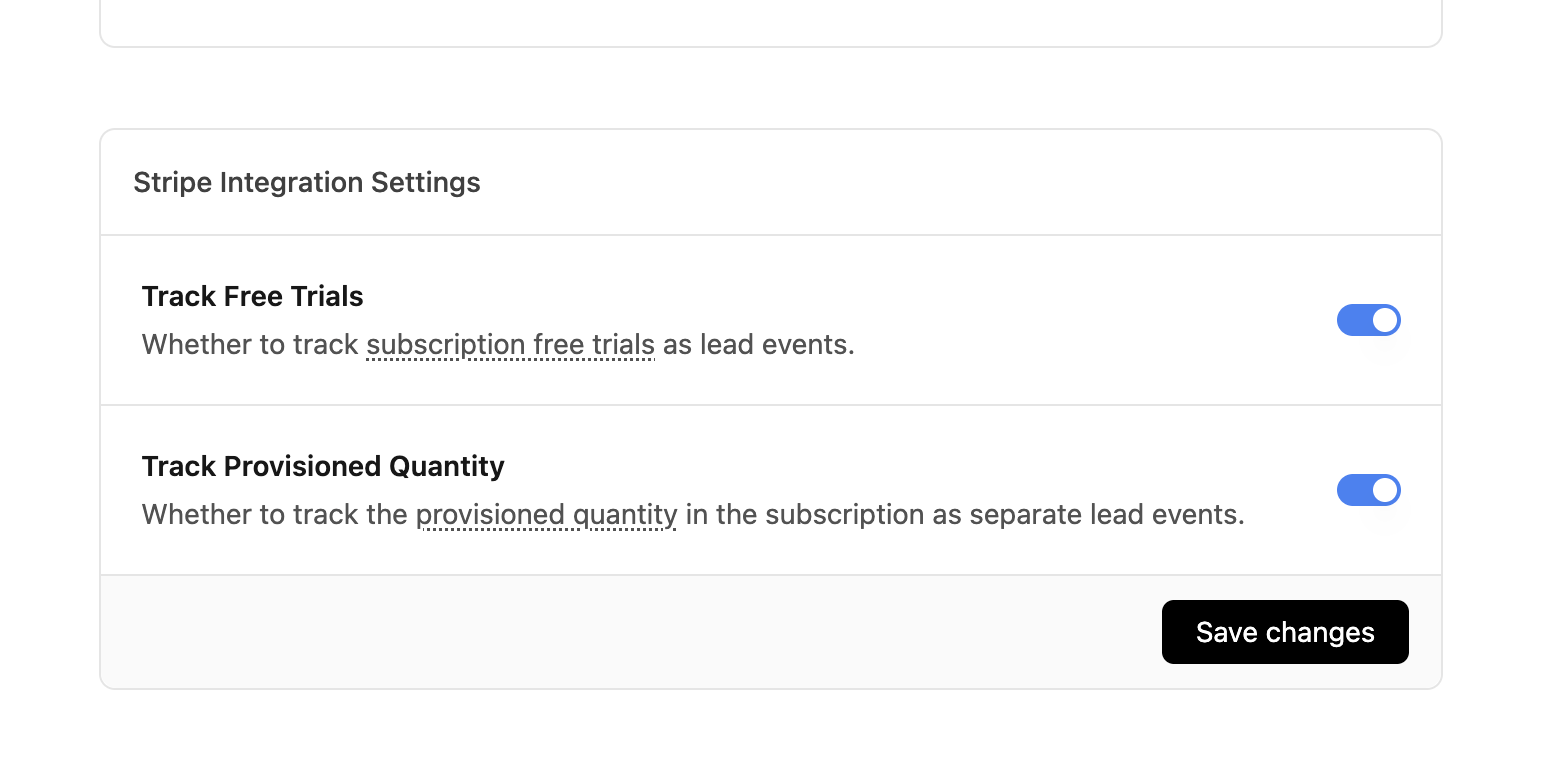 Optionally, you can also configure the integration to track the [provisioned quantity](https://docs.stripe.com/billing/subscriptions/quantities) in the subscription as separate lead events.
This is useful if you have a [lead-based reward](/help/article/partner-rewards#configuring-reward-types) for your [partner program](https://dub.co/partners) and want to reward partners for each unit of the subscription that their customers purchase (e.g. \$50 per lead/provisioned seat).
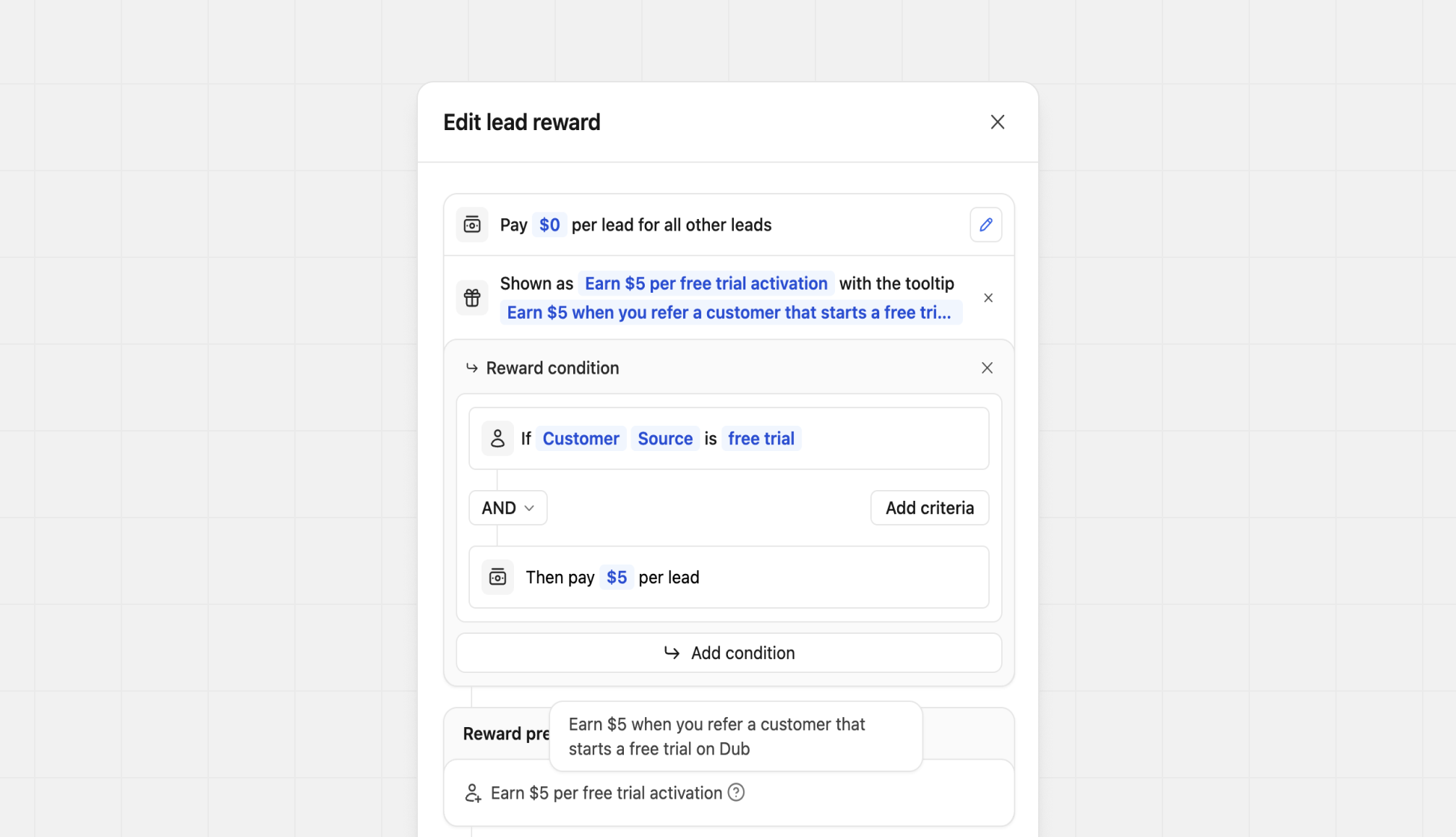
To differentiate between [manually tracked lead events](/docs/quickstart/server#tracking-lead-events) and free trial lead events for lead reward types, use the `Customer` `Source` [reward condition](/help/article/partner-rewards#adding-reward-conditions) to filter for `free trial` lead events:
Optionally, you can also configure the integration to track the [provisioned quantity](https://docs.stripe.com/billing/subscriptions/quantities) in the subscription as separate lead events.
This is useful if you have a [lead-based reward](/help/article/partner-rewards#configuring-reward-types) for your [partner program](https://dub.co/partners) and want to reward partners for each unit of the subscription that their customers purchase (e.g. \$50 per lead/provisioned seat).
To differentiate between [manually tracked lead events](/docs/quickstart/server#tracking-lead-events) and free trial lead events for lead reward types, use the `Customer` `Source` [reward condition](/help/article/partner-rewards#adding-reward-conditions) to filter for `free trial` lead events:
 ## Tax handling
When tracking sale conversions from Stripe, Dub automatically excludes taxes from the final sale amount to ensure accurate revenue reporting.
For **checkout sessions**, Dub calculates the sale amount by subtracting the tax amount from the total:
```javascript theme={null}
// Sale amount calculation for checkout sessions
saleAmount = amount_total - total_details.amount_tax;
```
For **invoices**, Dub uses the `total_excluding_tax` field when available:
```javascript theme={null}
// Sale amount calculation for invoices
saleAmount = total_excluding_tax ?? amount_paid;
```
This ensures that the sale amounts recorded in Dub reflect the actual revenue before taxes, providing more accurate metrics for:
* Revenue tracking and reporting
* Partner commission calculations
* Analytics and conversion metrics
Tax amounts are automatically excluded from all sale events tracked through
the Stripe integration, including one-time purchases, subscriptions, and
recurring invoices.
## Currency conversion support
If you're using [Stripe's Adaptive Pricing](https://docs.stripe.com/payments/checkout/adaptive-pricing) feature, Dub will record the sale amount using the currency of your Stripe account:
```json checkout.session.completed theme={null}
// Stripe checkout.session.completed event payload
{
"id": "{{EVENT_ID}}",
"object": "event",
"type": "checkout.session.completed",
"data": {
"object": {
"id": "{{SESSION_ID}}",
"object": "checkout.session",
"currency": "cad",
"amount_subtotal": 2055,
"amount_total": 2055,
"currency_conversion": {
"amount_subtotal": 1500,
"amount_total": 1500, // this is the amount that Dub will record
"source_currency": "usd", // the currency of your Stripe account
"fx_rate": "1.37"
}
}
}
}
```
If you're not using Stripe Adaptive Pricing, Dub will record the sale amount in the default currency of your Dub workspace. This means that if you pass a different currency, it will be automatically converted to USD for reporting consistency – using the latest foreign exchange rates.
```json checkout.session.completed theme={null}
// Stripe checkout.session.completed event payload
{
"id": "{{EVENT_ID}}",
"object": "event",
"type": "checkout.session.completed",
"data": {
"object": {
"id": "{{SESSION_ID}}",
"object": "checkout.session",
"currency": "cad",
"amount_subtotal": 2055,
"amount_total": 2055 // this will be converted from CAD to USD
}
}
}
```
The default currency for all Dub workspaces is currently set to `USD`. We will
add the ability to customize that in the future.
## Multiple line items per invoice
When a Stripe invoice or checkout session contains multiple line items (e.g. a base subscription plus an add-on, or several products purchased in a single transaction), Dub processes each line item individually to calculate the correct commission amount.
For each line item, Dub:
1. Resolves the Stripe product ID for that line item.
2. Matches it against any [product-specific reward modifiers](/help/article/partner-rewards#product-spotlight) configured for the partner's group.
3. Calculates the commission for that line item using the matching reward rate (falling back to the default reward if no modifier matches).
The final commission recorded for the invoice is the sum of the per-line-item commissions.
For example, if a partner has a `40%` reward for `prod_gold` and a `10%`
reward for everything else, an invoice with `$100` of `prod_gold` and `$50` of
`prod_addon` will generate a commission of `($100 × 40%) + ($50 × 10%) = $45`.
The total `saleAmount` recorded on Dub still reflects the full invoice total (after [tax exclusion](#tax-handling) and [currency conversion](#currency-conversion-support)), so your revenue analytics remain accurate.
## View conversion results
And that's it – you're all set! You can now sit back, relax, and watch your conversion revenue grow. We provide 3 different views to help you understand your conversions:
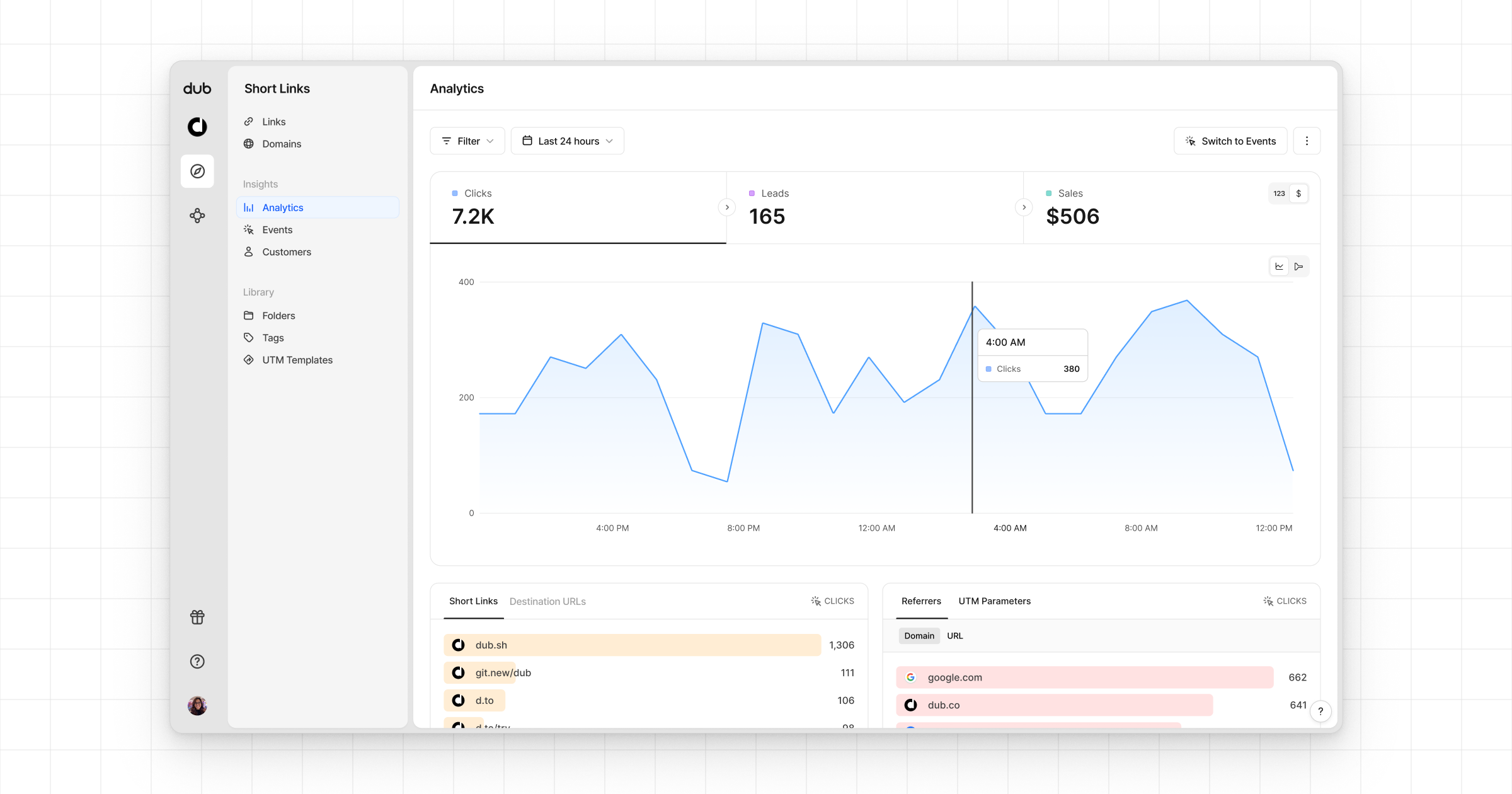
* **Time-series**: A [time-series view](https://app.dub.co/dub/analytics?view=timeseries) of the number clicks, leads and sales.
## Tax handling
When tracking sale conversions from Stripe, Dub automatically excludes taxes from the final sale amount to ensure accurate revenue reporting.
For **checkout sessions**, Dub calculates the sale amount by subtracting the tax amount from the total:
```javascript theme={null}
// Sale amount calculation for checkout sessions
saleAmount = amount_total - total_details.amount_tax;
```
For **invoices**, Dub uses the `total_excluding_tax` field when available:
```javascript theme={null}
// Sale amount calculation for invoices
saleAmount = total_excluding_tax ?? amount_paid;
```
This ensures that the sale amounts recorded in Dub reflect the actual revenue before taxes, providing more accurate metrics for:
* Revenue tracking and reporting
* Partner commission calculations
* Analytics and conversion metrics
Tax amounts are automatically excluded from all sale events tracked through
the Stripe integration, including one-time purchases, subscriptions, and
recurring invoices.
## Currency conversion support
If you're using [Stripe's Adaptive Pricing](https://docs.stripe.com/payments/checkout/adaptive-pricing) feature, Dub will record the sale amount using the currency of your Stripe account:
```json checkout.session.completed theme={null}
// Stripe checkout.session.completed event payload
{
"id": "{{EVENT_ID}}",
"object": "event",
"type": "checkout.session.completed",
"data": {
"object": {
"id": "{{SESSION_ID}}",
"object": "checkout.session",
"currency": "cad",
"amount_subtotal": 2055,
"amount_total": 2055,
"currency_conversion": {
"amount_subtotal": 1500,
"amount_total": 1500, // this is the amount that Dub will record
"source_currency": "usd", // the currency of your Stripe account
"fx_rate": "1.37"
}
}
}
}
```
If you're not using Stripe Adaptive Pricing, Dub will record the sale amount in the default currency of your Dub workspace. This means that if you pass a different currency, it will be automatically converted to USD for reporting consistency – using the latest foreign exchange rates.
```json checkout.session.completed theme={null}
// Stripe checkout.session.completed event payload
{
"id": "{{EVENT_ID}}",
"object": "event",
"type": "checkout.session.completed",
"data": {
"object": {
"id": "{{SESSION_ID}}",
"object": "checkout.session",
"currency": "cad",
"amount_subtotal": 2055,
"amount_total": 2055 // this will be converted from CAD to USD
}
}
}
```
The default currency for all Dub workspaces is currently set to `USD`. We will
add the ability to customize that in the future.
## Multiple line items per invoice
When a Stripe invoice or checkout session contains multiple line items (e.g. a base subscription plus an add-on, or several products purchased in a single transaction), Dub processes each line item individually to calculate the correct commission amount.
For each line item, Dub:
1. Resolves the Stripe product ID for that line item.
2. Matches it against any [product-specific reward modifiers](/help/article/partner-rewards#product-spotlight) configured for the partner's group.
3. Calculates the commission for that line item using the matching reward rate (falling back to the default reward if no modifier matches).
The final commission recorded for the invoice is the sum of the per-line-item commissions.
For example, if a partner has a `40%` reward for `prod_gold` and a `10%`
reward for everything else, an invoice with `$100` of `prod_gold` and `$50` of
`prod_addon` will generate a commission of `($100 × 40%) + ($50 × 10%) = $45`.
The total `saleAmount` recorded on Dub still reflects the full invoice total (after [tax exclusion](#tax-handling) and [currency conversion](#currency-conversion-support)), so your revenue analytics remain accurate.
## View conversion results
And that's it – you're all set! You can now sit back, relax, and watch your conversion revenue grow. We provide 3 different views to help you understand your conversions:
* **Time-series**: A [time-series view](https://app.dub.co/dub/analytics?view=timeseries) of the number clicks, leads and sales.
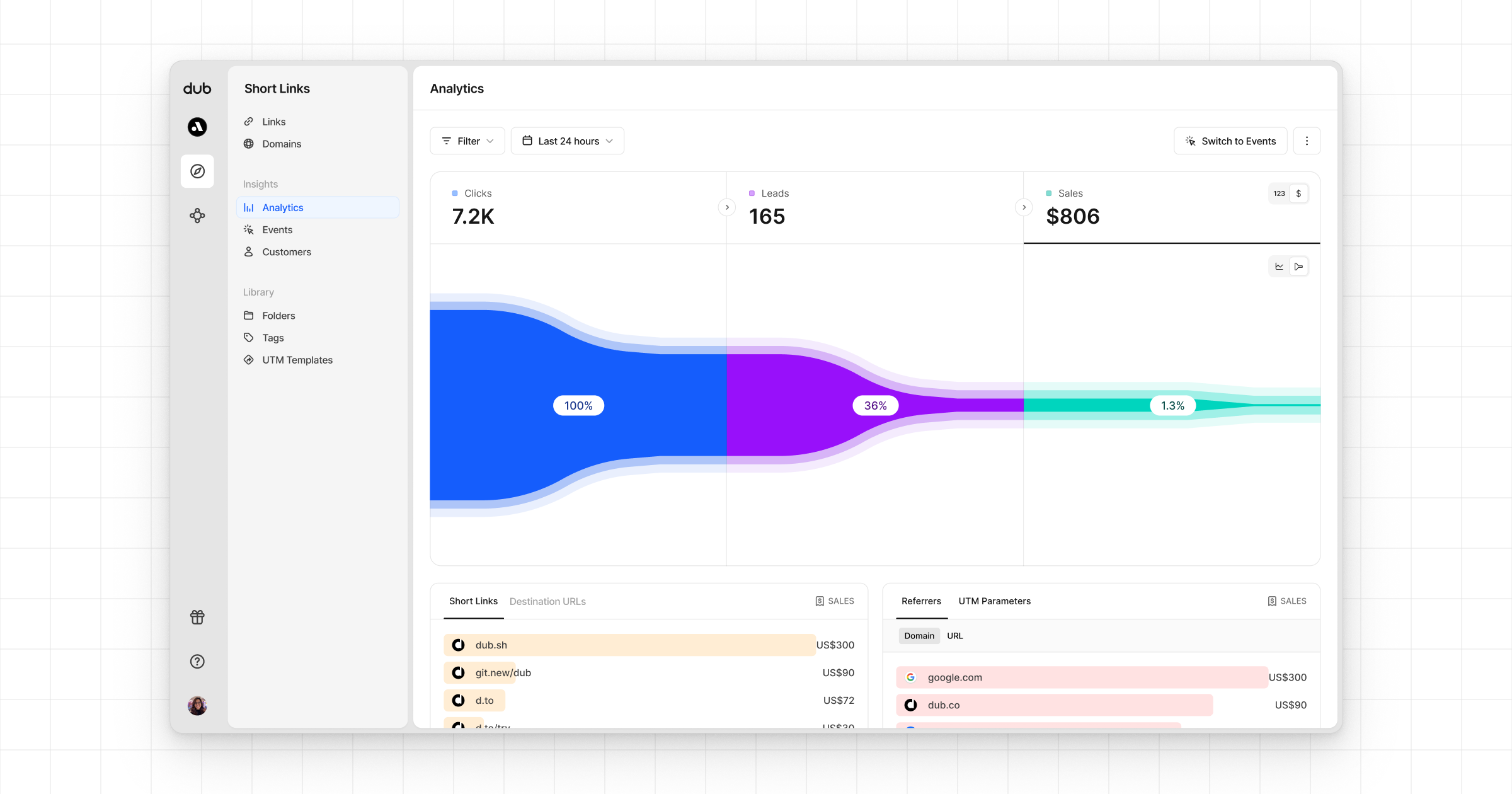
 * **Funnel chart**: A [funnel chart view](http://app.dub.co/analytics?view=funnel) visualizing the conversion & dropoff rates across the different steps in the conversion funnel (clicks → leads → sales).
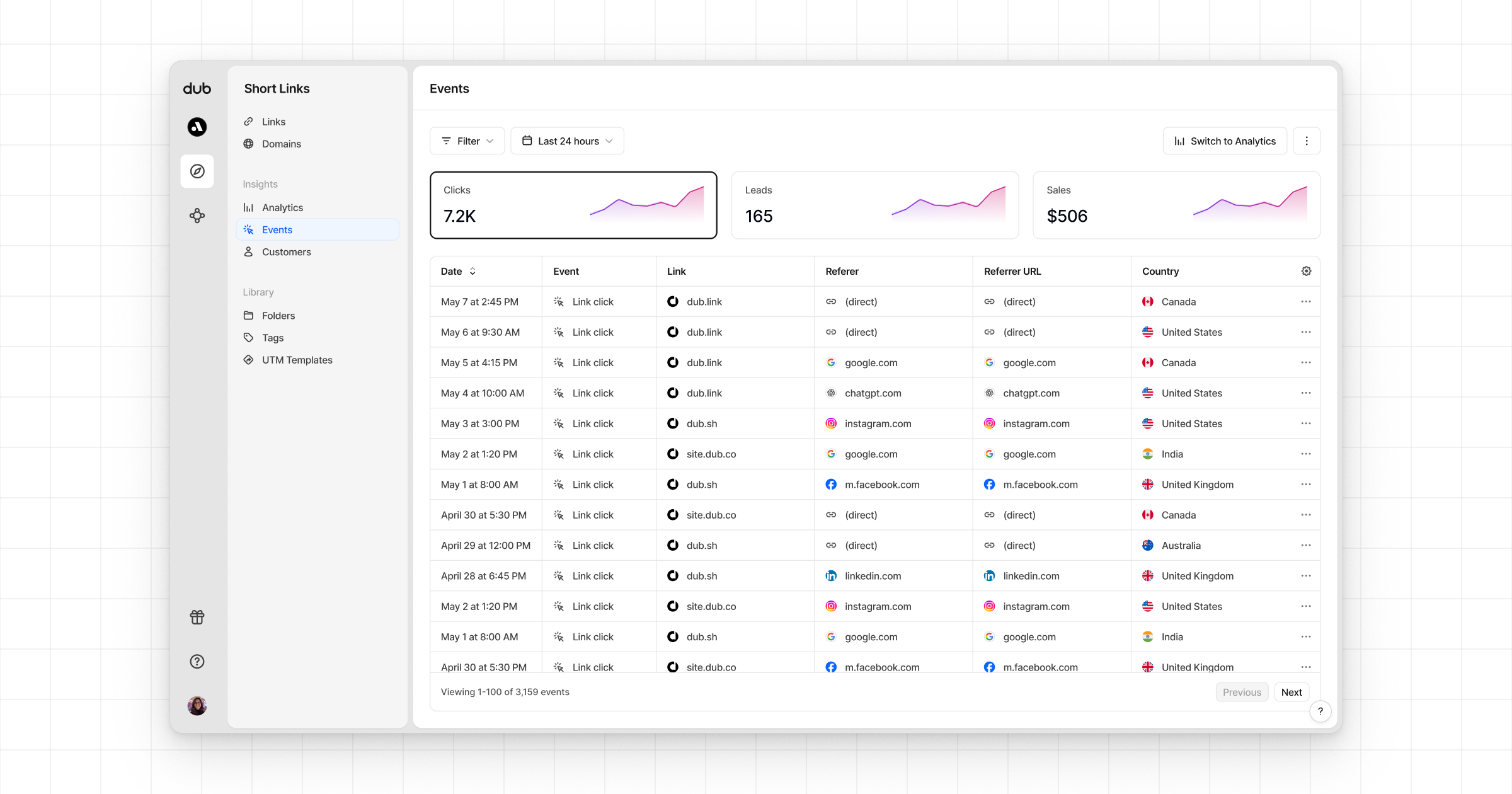
 * **Real-time events stream**: A [real-time events stream](https://app.dub.co/events) of every single conversion event that occurs across all your links in your workspace.
 ## Example apps
See the full example on GitHub.
## Example apps
See the full example on GitHub.