> ## Documentation Index
> Fetch the complete documentation index at: https://dub.co/llms.txt
> Use this file to discover all available pages before exploring further.
# Segment
> Learn how to track sale conversion events with Segment and Dub
This feature is only available on [Business plans and
above](https://dub.co/pricing/partners).
Dub's [Segment integration](https://dub.co/integrations/segment) provides a bi-directional sync between your Segment workspace and Dub. There are 2 parts to the integration:
* [Dub (Actions) Destination](https://www.twilio.com/docs/segment/connections/destinations/catalog/actions-dub) – Tracking conversion events on Dub directly from Segment
* [Dub Source](https://www.twilio.com/docs/segment/connections/sources/catalog/cloud-apps/dub) – Sending customer events from Dub to Segment
In this guide, we will be focusing on using the [Dub (Actions) Destination](https://www.twilio.com/docs/segment/connections/destinations/catalog/actions-dub) to track conversion events directly from Segment.
## Prerequisites
First, you'll need to enable conversion tracking for your Dub links to be able to start tracking conversions:
If you're using [Dub Partners](https://dub.co/partners), you can skip this
step since partner links will have conversion tracking enabled by default.
To enable conversion tracking for all future links in a workspace, you can do the following:
To enable conversion tracking for all future links in a workspace, you can do the following:
1. Navigate to your [workspace's Tracking settings page](https://app.dub.co/settings/tracking).
2. Toggle the **Workspace-level Conversion Tracking** switch to enable conversion tracking for the workspace.
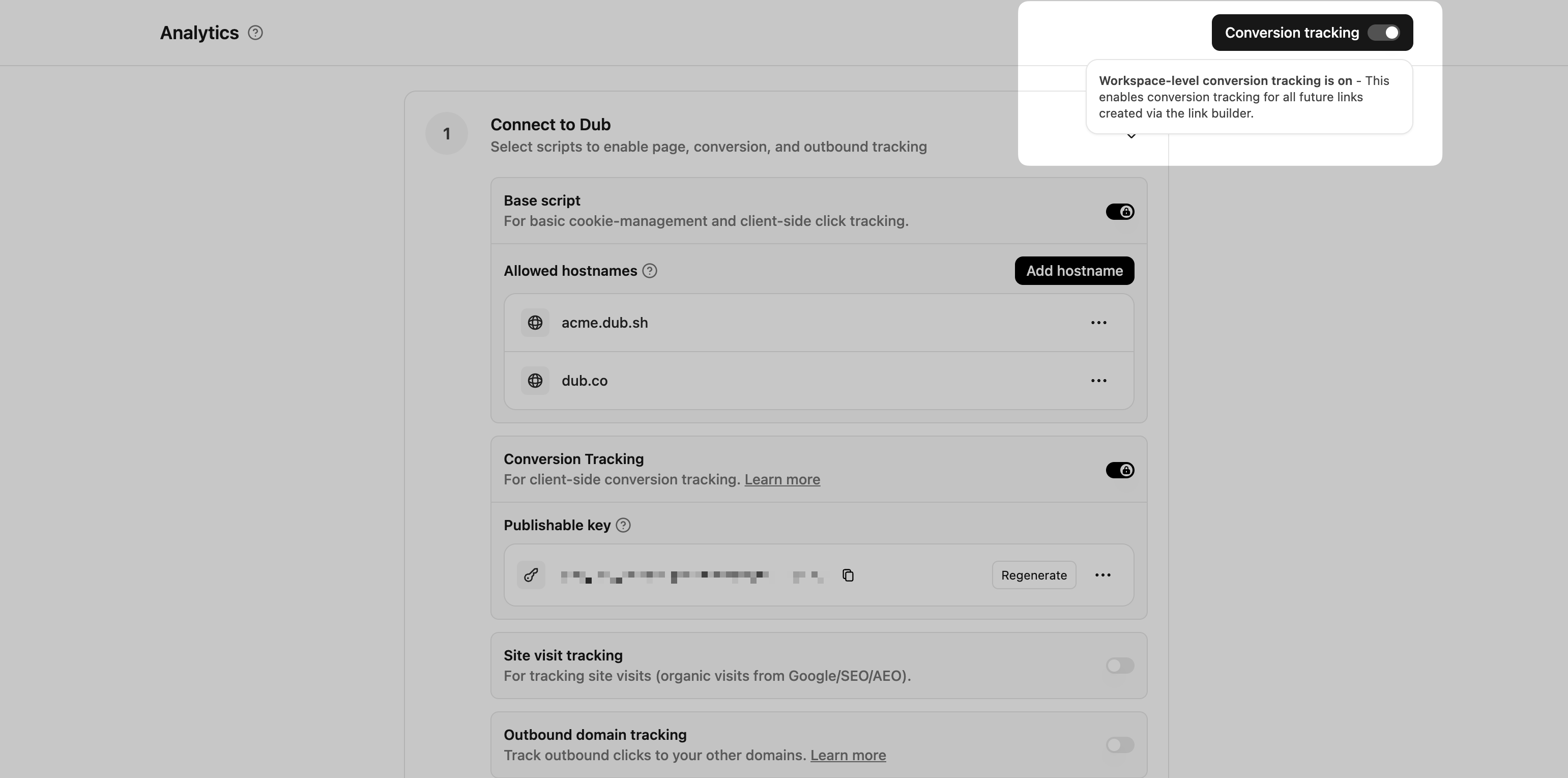 This option will enable conversion tracking in the [Dub Link Builder](/help/article/dub-link-builder) for all future links.
If you don't want to enable conversion tracking for all your links in a workspace, you can also opt to enable it on a link-level.
To enable conversion tracking for a specific link, open the [Dub Link Builder](/help/article/dub-link-builder) for a link and toggle the **Conversion Tracking** switch.
This option will enable conversion tracking in the [Dub Link Builder](/help/article/dub-link-builder) for all future links.
If you don't want to enable conversion tracking for all your links in a workspace, you can also opt to enable it on a link-level.
To enable conversion tracking for a specific link, open the [Dub Link Builder](/help/article/dub-link-builder) for a link and toggle the **Conversion Tracking** switch.
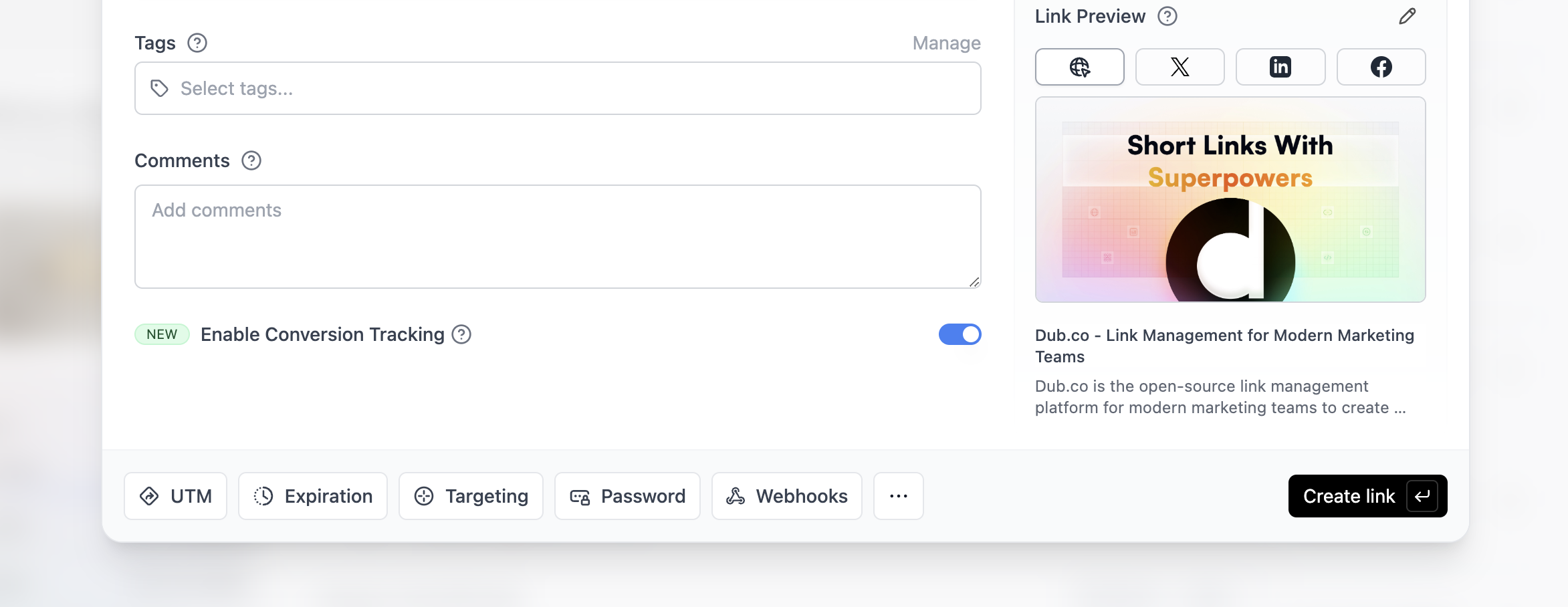 You can also use the `C` keyboard shortcut when inside the link builder to
quickly enable conversion tracking for a given link.
Alternatively, you can also enable conversion tracking programmatically via the [Dub API](/docs/api-reference/introduction). All you need to do is pass `trackConversion: true` when creating or updating a link:
```javascript Node.js theme={null}
const link = await dub.links.create({
url: "https://dub.co",
trackConversion: true,
});
```
```python Python theme={null}
link = d.links.create(url="https://dub.co", track_conversion=True)
```
```go Go theme={null}
link, err := d.Links.Create(ctx, &dub.CreateLinkRequest{
URL: "https://dub.co",
TrackConversion: true,
})
```
```ruby Ruby theme={null}
s.links.create_many(
::OpenApiSDK::Operations::CreateLinkRequest.new(
url: "https://dub.co",
track_conversion: true,
)
)
```
Then, you'd want to install the Dub Analytics script to your website to track conversion events.
You can install the Dub Analytics script in several different ways:
}
href="/docs/sdks/client-side/installation-guides/framer"
horizontal
/>
You can **verify the installation** with the following tests:
1. Open the browser console and type in `_dubAnalytics` – if the script is installed correctly, you should see the `_dubAnalytics` object in the console.
2. Add the `?dub_id=test` query parameter to your website URL and make sure that the `dub_id` cookie is being set in your browser.
If both of these checks pass, the script is installed correctly. Otherwise, please make sure:
* The analytics script was added to the `` section of the page
* If you're using a content delivery network (CDN), make sure to purge any cached content
## Configure Segment Action
Next, configure [Segment Dub (Actions)](https://app.segment.com/goto-my-workspace/destinations/catalog/actions-dub) to track sales conversion events.
Head to [Segment Dub (Actions)](https://app.segment.com/goto-my-workspace/destinations/catalog/actions-dub) and add the destination to your Segment workspace.
You can also use the `C` keyboard shortcut when inside the link builder to
quickly enable conversion tracking for a given link.
Alternatively, you can also enable conversion tracking programmatically via the [Dub API](/docs/api-reference/introduction). All you need to do is pass `trackConversion: true` when creating or updating a link:
```javascript Node.js theme={null}
const link = await dub.links.create({
url: "https://dub.co",
trackConversion: true,
});
```
```python Python theme={null}
link = d.links.create(url="https://dub.co", track_conversion=True)
```
```go Go theme={null}
link, err := d.Links.Create(ctx, &dub.CreateLinkRequest{
URL: "https://dub.co",
TrackConversion: true,
})
```
```ruby Ruby theme={null}
s.links.create_many(
::OpenApiSDK::Operations::CreateLinkRequest.new(
url: "https://dub.co",
track_conversion: true,
)
)
```
Then, you'd want to install the Dub Analytics script to your website to track conversion events.
You can install the Dub Analytics script in several different ways:
}
href="/docs/sdks/client-side/installation-guides/framer"
horizontal
/>
You can **verify the installation** with the following tests:
1. Open the browser console and type in `_dubAnalytics` – if the script is installed correctly, you should see the `_dubAnalytics` object in the console.
2. Add the `?dub_id=test` query parameter to your website URL and make sure that the `dub_id` cookie is being set in your browser.
If both of these checks pass, the script is installed correctly. Otherwise, please make sure:
* The analytics script was added to the `` section of the page
* If you're using a content delivery network (CDN), make sure to purge any cached content
## Configure Segment Action
Next, configure [Segment Dub (Actions)](https://app.segment.com/goto-my-workspace/destinations/catalog/actions-dub) to track sales conversion events.
Head to [Segment Dub (Actions)](https://app.segment.com/goto-my-workspace/destinations/catalog/actions-dub) and add the destination to your Segment workspace.
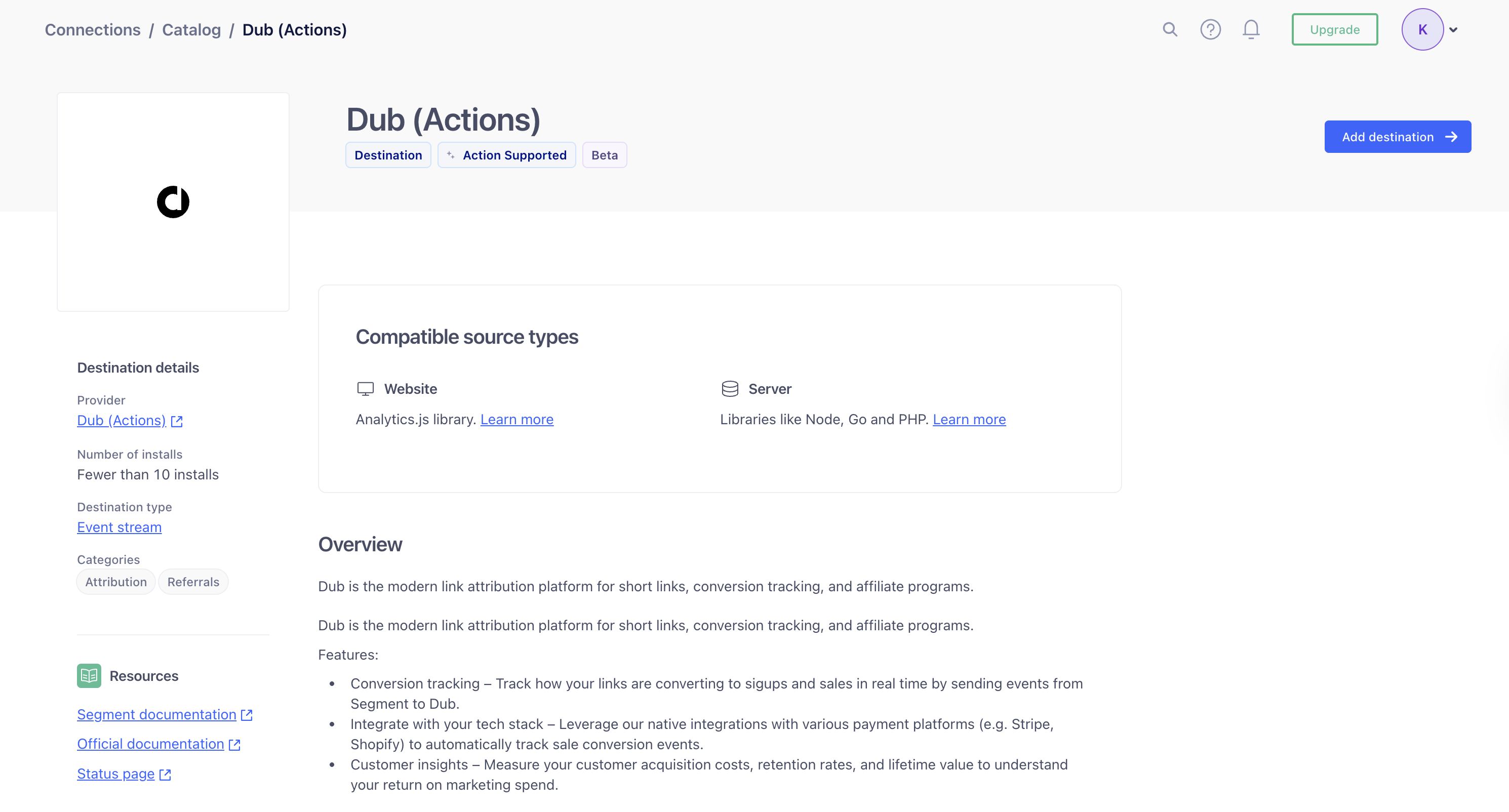 In the Dub (Actions) destination settings, fill out the following fields:
* **Name:** Enter a name to help you identify this destination in Segment.
* **API Key:** Enter your [Dub API key](/docs/api-reference/authentication#api-keys). You can find this in the [Dub Dashboard](https://app.dub.co/settings/tokens).
* **Enable Destination:** Toggle this on to allow Segment to send data to Dub.
Once completed, click **Save Changes**.
In the Dub (Actions) destination settings, fill out the following fields:
* **Name:** Enter a name to help you identify this destination in Segment.
* **API Key:** Enter your [Dub API key](/docs/api-reference/authentication#api-keys). You can find this in the [Dub Dashboard](https://app.dub.co/settings/tokens).
* **Enable Destination:** Toggle this on to allow Segment to send data to Dub.
Once completed, click **Save Changes**.
 Next, depending on the event you want to track, choose the corresponding action from the list of available actions:
| Event to track | Default event name | Example |
| -------------- | ------------------ | ------------------------------ |
| Lead | Sign Up | A user signs up for an account |
| Sale | Order Completed | A user purchases a product |
Next, depending on the event you want to track, choose the corresponding action from the list of available actions:
| Event to track | Default event name | Example |
| -------------- | ------------------ | ------------------------------ |
| Lead | Sign Up | A user signs up for an account |
| Sale | Order Completed | A user purchases a product |
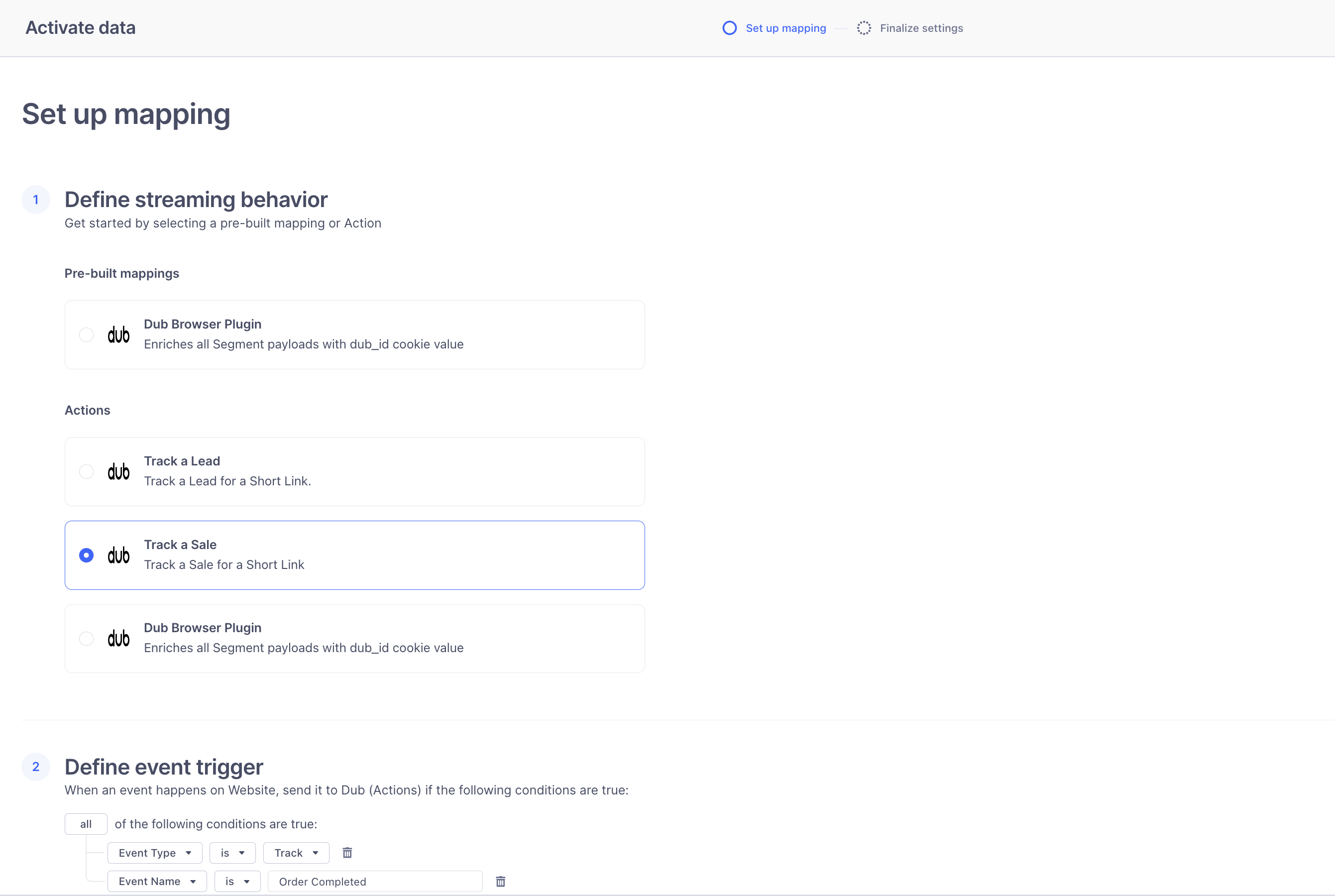 Below the selected action, you’ll see the mapping for that action.
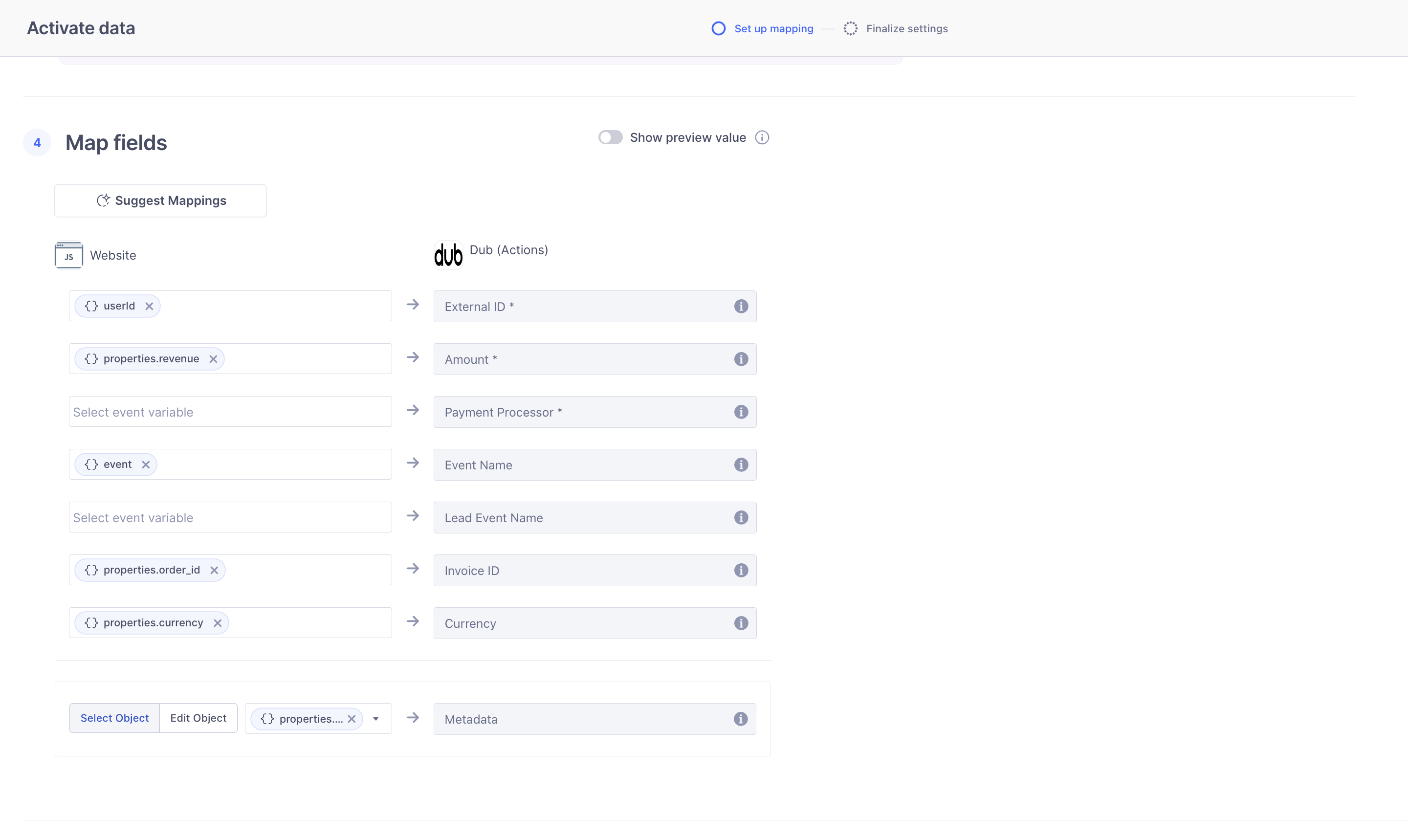 You can customize the trigger and mapping to fit the specific needs of your application.
Finally, click **Next** and then **Save and enable** to add the mapping to the destination.
On the server side, you’ll use the `@segment/analytics-node` SDK to send conversion events to Segment.
Make sure to include relevant properties in the payload:
```tsx Track a lead theme={null}
import { Analytics } from "@segment/analytics-node";
const segment = new Analytics({
writeKey: "",
});
const cookieStore = await cookies();
const clickId = cookieStore.get("dub_id")?.value;
segment.track({
userId: id,
event: "Sign Up",
context: {
traits: {
name,
email,
avatar,
clickId,
},
},
integrations: {
All: true,
},
});
```
```tsx Track a sale theme={null}
import { Analytics } from "@segment/analytics-node";
const segment = new Analytics({
writeKey: "",
});
segment.track({
userId: id,
event: "Order Completed",
properties: {
payment_processor: "stripe",
order_id: "ORD_123",
currency: "USD",
revenue: 1000,
},
integrations: {
All: true,
},
});
```
Once the event is tracked, Segment will forward the conversion data to Dub based on the mappings you’ve configured.
## Supported attributes
Here are the properties you can include when sending a lead event:
| Property | Required | Description |
| :------------------- | :------- | :------------------------------------------------------------------------------------------------------------------------------------------------------------------------------------------------------------------------------------------------------------------------------------------------------------------------------------------------------------------------------------- |
| `clickId` | **Yes** | The unique ID of the click that the lead conversion event is attributed to. You can read this value from `dub_id` cookie. If an empty string is provided (i.e. if you're using [tracking a deferred lead event](/docs/conversions/leads/deferred)), Dub will try to find an existing customer with the provided `customerExternalId` and use the `clickId` from the customer if found. |
| `eventName` | **Yes** | The name of the lead event to track. Can also be used as a unique identifier to associate a given lead event for a customer for a subsequent sale event (via the `leadEventName` prop in `/track/sale`). |
| `customerExternalId` | **Yes** | The unique ID of the customer in your system. Will be used to identify and attribute all future events to this customer. |
| `customerName` | No | The name of the customer. If not passed, a random name will be generated (e.g. "Big Red Caribou"). |
| `customerEmail` | No | The email address of the customer. |
| `customerAvatar` | No | The avatar URL of the customer. |
| `mode` | No | The mode to use for tracking the lead event. `async` will not block the request; `wait` will block the request until the lead event is fully recorded in Dub; `deferred` will defer the lead event creation to a subsequent request. |
| `metadata` | No | Additional metadata to be stored with the lead event. Max 10,000 characters. |
Here are the properties you can include when sending a sale event:
| Property | Required | Description |
| :------------------- | :------- | :--------------------------------------------------------------------------------------------------------------------------------------------------------- |
| `customerExternalId` | **Yes** | The unique ID of the customer in your system. Will be used to identify and attribute all future events to this customer. |
| `amount` | **Yes** | The amount of the sale in cents. |
| `paymentProcessor` | No | The payment processor that processed the sale (e.g. [Stripe](/docs/integrations/stripe), [Shopify](/docs/integrations/stripe)). Defaults to "custom". |
| `eventName` | No | The name of the event. Defaults to "Purchase". |
| `invoiceId` | No | The invoice ID of the sale. Can be used as a idempotency key – only one sale event can be recorded for a given invoice ID. |
| `currency` | No | The currency of the sale. Defaults to "usd". |
| `metadata` | No | An object containing additional information about the sale. |
| `clickId` | No | **\[For direct sale tracking]**: The unique ID of the click that the sale conversion event is attributed to. You can read this value from `dub_id` cookie. |
| `customerName` | No | **\[For direct sale tracking]**: The name of the customer. If not passed, a random name will be generated. |
| `customerEmail` | No | **\[For direct sale tracking]**: The email address of the customer. |
| `customerAvatar` | No | **\[For direct sale tracking]**: The avatar URL of the customer. |
## View conversion results
And that's it – you're all set! You can now sit back, relax, and watch your conversion revenue grow. We provide 3 different views to help you understand your conversions:
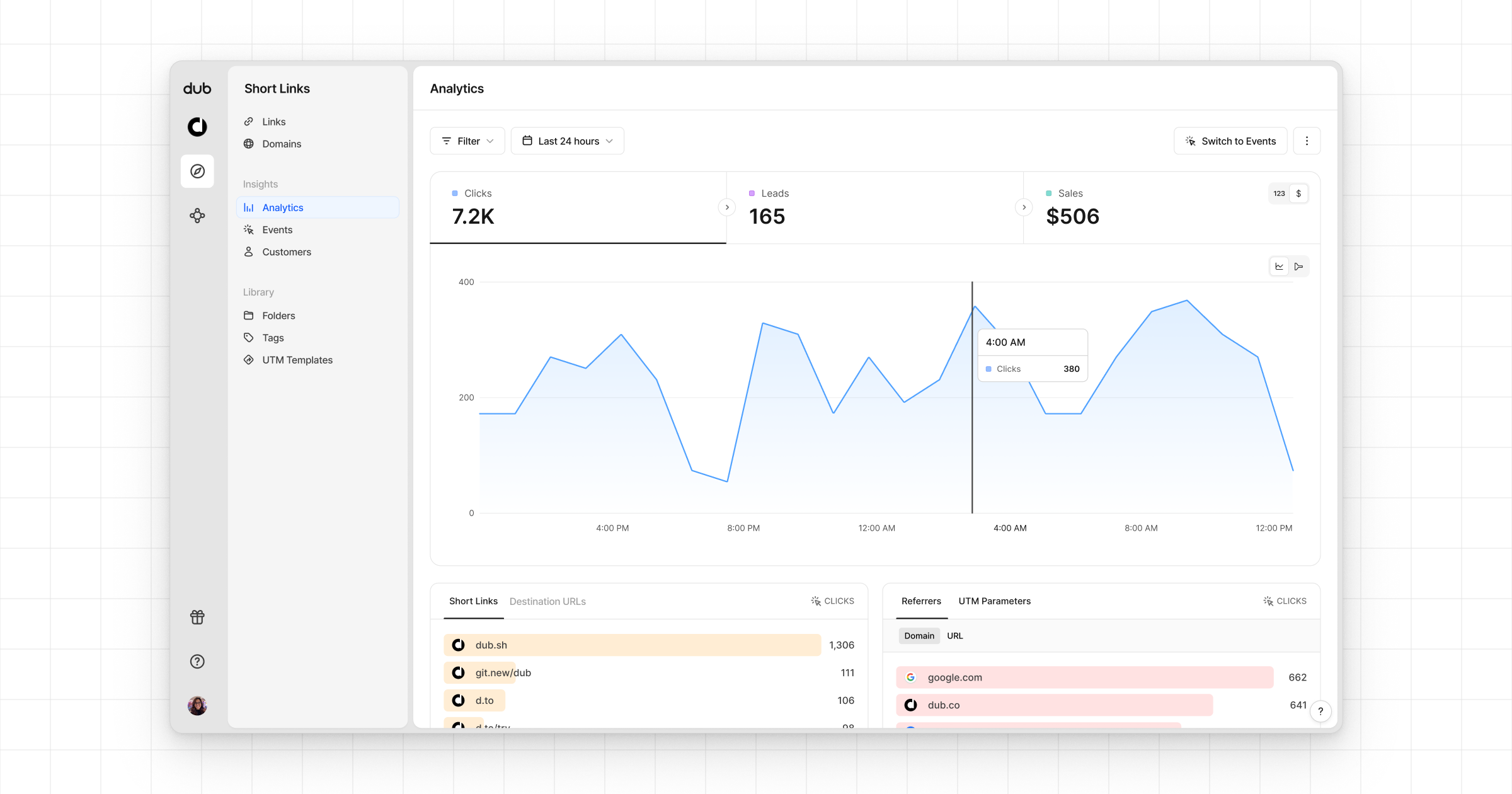
* **Time-series**: A [time-series view](https://app.dub.co/dub/analytics?view=timeseries) of the number clicks, leads and sales.
You can customize the trigger and mapping to fit the specific needs of your application.
Finally, click **Next** and then **Save and enable** to add the mapping to the destination.
On the server side, you’ll use the `@segment/analytics-node` SDK to send conversion events to Segment.
Make sure to include relevant properties in the payload:
```tsx Track a lead theme={null}
import { Analytics } from "@segment/analytics-node";
const segment = new Analytics({
writeKey: "",
});
const cookieStore = await cookies();
const clickId = cookieStore.get("dub_id")?.value;
segment.track({
userId: id,
event: "Sign Up",
context: {
traits: {
name,
email,
avatar,
clickId,
},
},
integrations: {
All: true,
},
});
```
```tsx Track a sale theme={null}
import { Analytics } from "@segment/analytics-node";
const segment = new Analytics({
writeKey: "",
});
segment.track({
userId: id,
event: "Order Completed",
properties: {
payment_processor: "stripe",
order_id: "ORD_123",
currency: "USD",
revenue: 1000,
},
integrations: {
All: true,
},
});
```
Once the event is tracked, Segment will forward the conversion data to Dub based on the mappings you’ve configured.
## Supported attributes
Here are the properties you can include when sending a lead event:
| Property | Required | Description |
| :------------------- | :------- | :------------------------------------------------------------------------------------------------------------------------------------------------------------------------------------------------------------------------------------------------------------------------------------------------------------------------------------------------------------------------------------- |
| `clickId` | **Yes** | The unique ID of the click that the lead conversion event is attributed to. You can read this value from `dub_id` cookie. If an empty string is provided (i.e. if you're using [tracking a deferred lead event](/docs/conversions/leads/deferred)), Dub will try to find an existing customer with the provided `customerExternalId` and use the `clickId` from the customer if found. |
| `eventName` | **Yes** | The name of the lead event to track. Can also be used as a unique identifier to associate a given lead event for a customer for a subsequent sale event (via the `leadEventName` prop in `/track/sale`). |
| `customerExternalId` | **Yes** | The unique ID of the customer in your system. Will be used to identify and attribute all future events to this customer. |
| `customerName` | No | The name of the customer. If not passed, a random name will be generated (e.g. "Big Red Caribou"). |
| `customerEmail` | No | The email address of the customer. |
| `customerAvatar` | No | The avatar URL of the customer. |
| `mode` | No | The mode to use for tracking the lead event. `async` will not block the request; `wait` will block the request until the lead event is fully recorded in Dub; `deferred` will defer the lead event creation to a subsequent request. |
| `metadata` | No | Additional metadata to be stored with the lead event. Max 10,000 characters. |
Here are the properties you can include when sending a sale event:
| Property | Required | Description |
| :------------------- | :------- | :--------------------------------------------------------------------------------------------------------------------------------------------------------- |
| `customerExternalId` | **Yes** | The unique ID of the customer in your system. Will be used to identify and attribute all future events to this customer. |
| `amount` | **Yes** | The amount of the sale in cents. |
| `paymentProcessor` | No | The payment processor that processed the sale (e.g. [Stripe](/docs/integrations/stripe), [Shopify](/docs/integrations/stripe)). Defaults to "custom". |
| `eventName` | No | The name of the event. Defaults to "Purchase". |
| `invoiceId` | No | The invoice ID of the sale. Can be used as a idempotency key – only one sale event can be recorded for a given invoice ID. |
| `currency` | No | The currency of the sale. Defaults to "usd". |
| `metadata` | No | An object containing additional information about the sale. |
| `clickId` | No | **\[For direct sale tracking]**: The unique ID of the click that the sale conversion event is attributed to. You can read this value from `dub_id` cookie. |
| `customerName` | No | **\[For direct sale tracking]**: The name of the customer. If not passed, a random name will be generated. |
| `customerEmail` | No | **\[For direct sale tracking]**: The email address of the customer. |
| `customerAvatar` | No | **\[For direct sale tracking]**: The avatar URL of the customer. |
## View conversion results
And that's it – you're all set! You can now sit back, relax, and watch your conversion revenue grow. We provide 3 different views to help you understand your conversions:
* **Time-series**: A [time-series view](https://app.dub.co/dub/analytics?view=timeseries) of the number clicks, leads and sales.
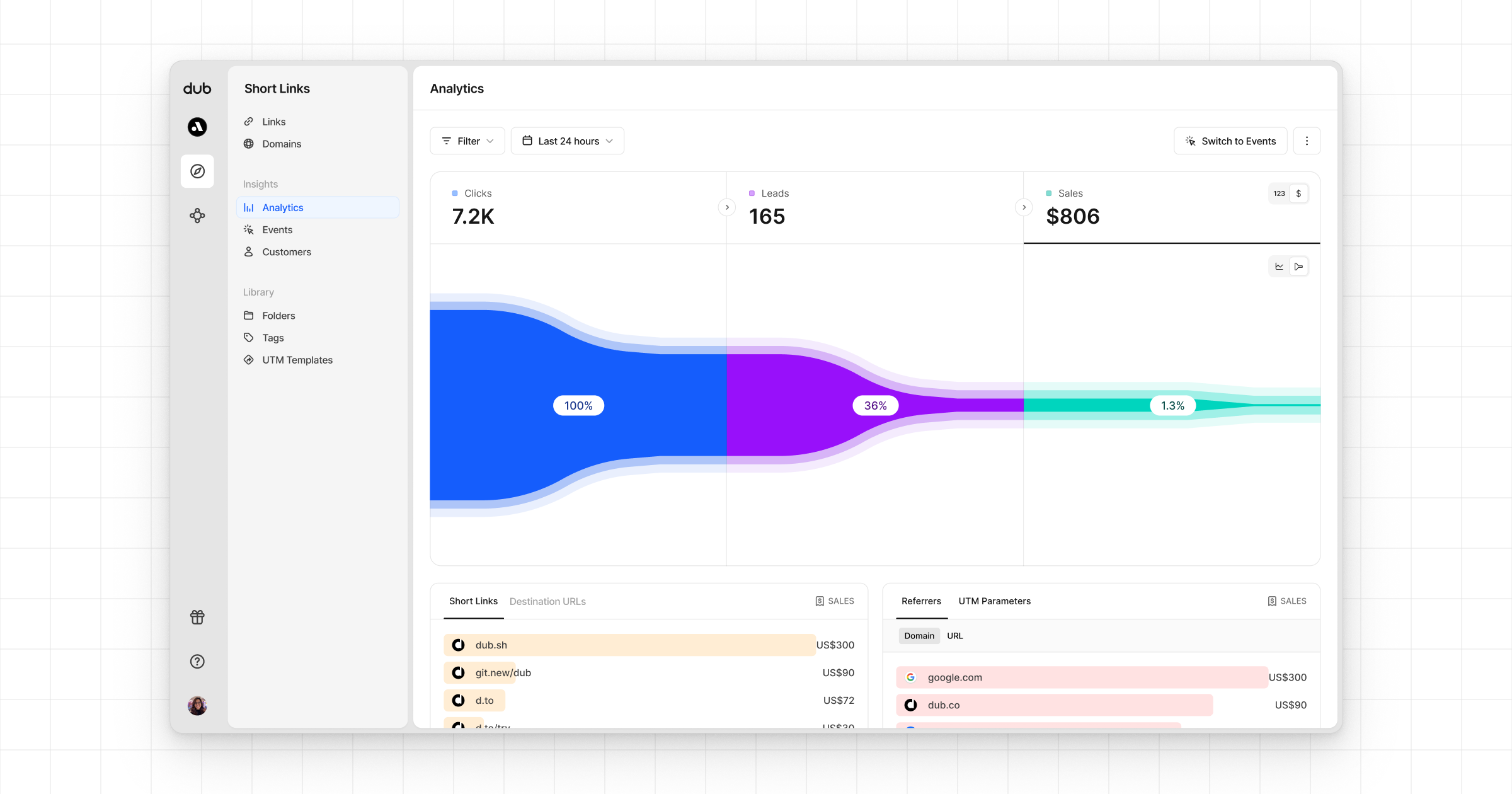
 * **Funnel chart**: A [funnel chart view](http://app.dub.co/analytics?view=funnel) visualizing the conversion & dropoff rates across the different steps in the conversion funnel (clicks → leads → sales).
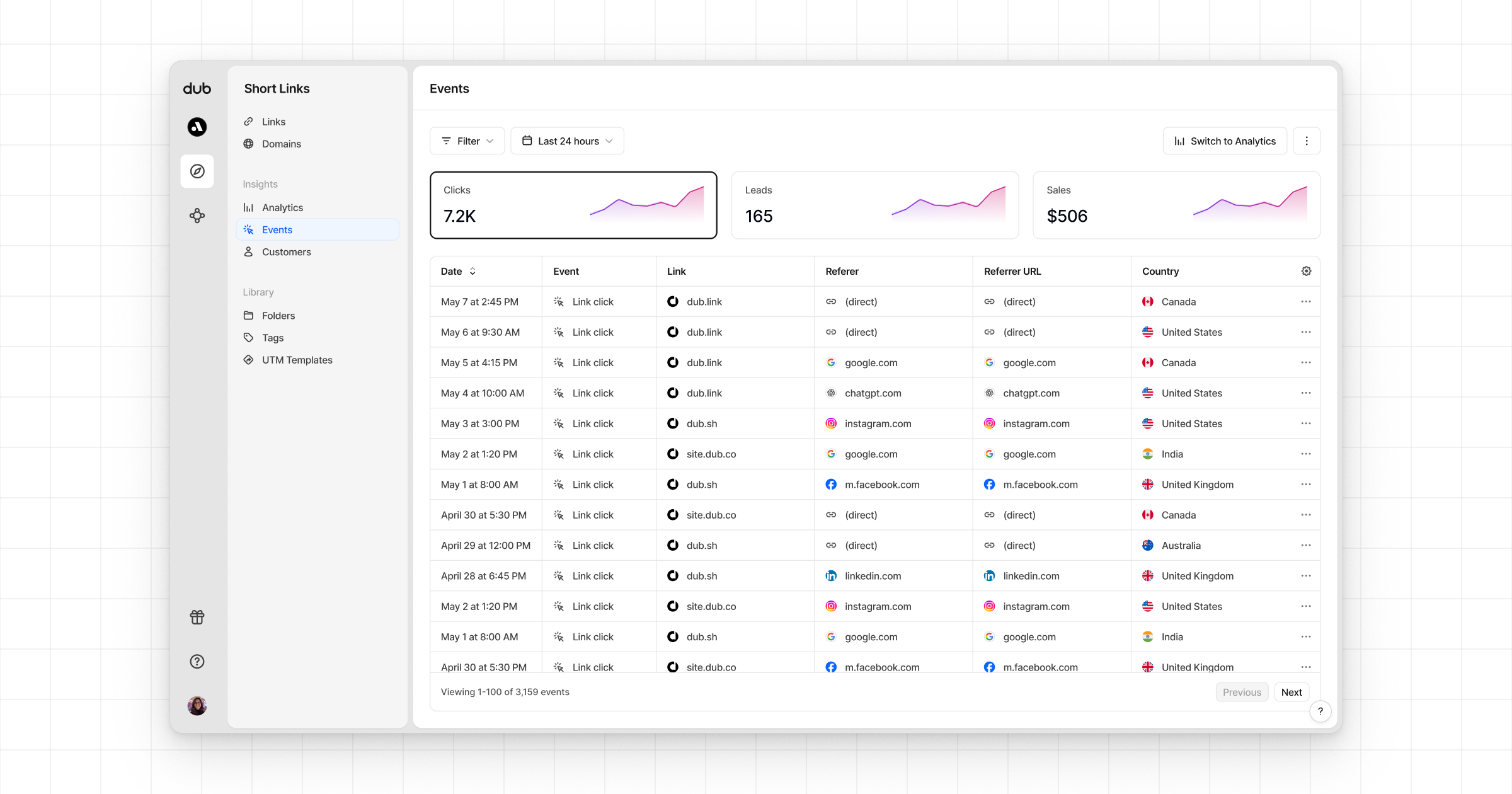
 * **Real-time events stream**: A [real-time events stream](https://app.dub.co/events) of every single conversion event that occurs across all your links in your workspace.
 ## Example apps
Next.js app using Segment to track sales.
## Example apps
Next.js app using Segment to track sales.