> ## Documentation Index
> Fetch the complete documentation index at: https://dub.co/llms.txt
> Use this file to discover all available pages before exploring further.
# HubSpot
> Learn how to track lead conversion events with HubSpot and Dub
This feature is only available on [Advanced plans and
above](https://dub.co/pricing).
Dub's [HubSpot integration](https://dub.co/integrations/hubspot) allows you to track conversion events directly from HubSpot.
This is useful for B2B SaaS companies that use HubSpot as their CRM and want to track meeting bookings and deal creation/closed-won events as lead and sale conversion events on Dub.
## Prerequisites
First, you'll need to enable conversion tracking for your Dub links to be able to start tracking conversions:
If you're using [Dub Partners](https://dub.co/partners), you can skip this
step since partner links will have conversion tracking enabled by default.
To enable conversion tracking for all future links in a workspace, you can do the following:
To enable conversion tracking for all future links in a workspace, you can do the following:
1. Navigate to your [workspace's Tracking settings page](https://app.dub.co/settings/tracking).
2. Toggle the **Workspace-level Conversion Tracking** switch to enable conversion tracking for the workspace.
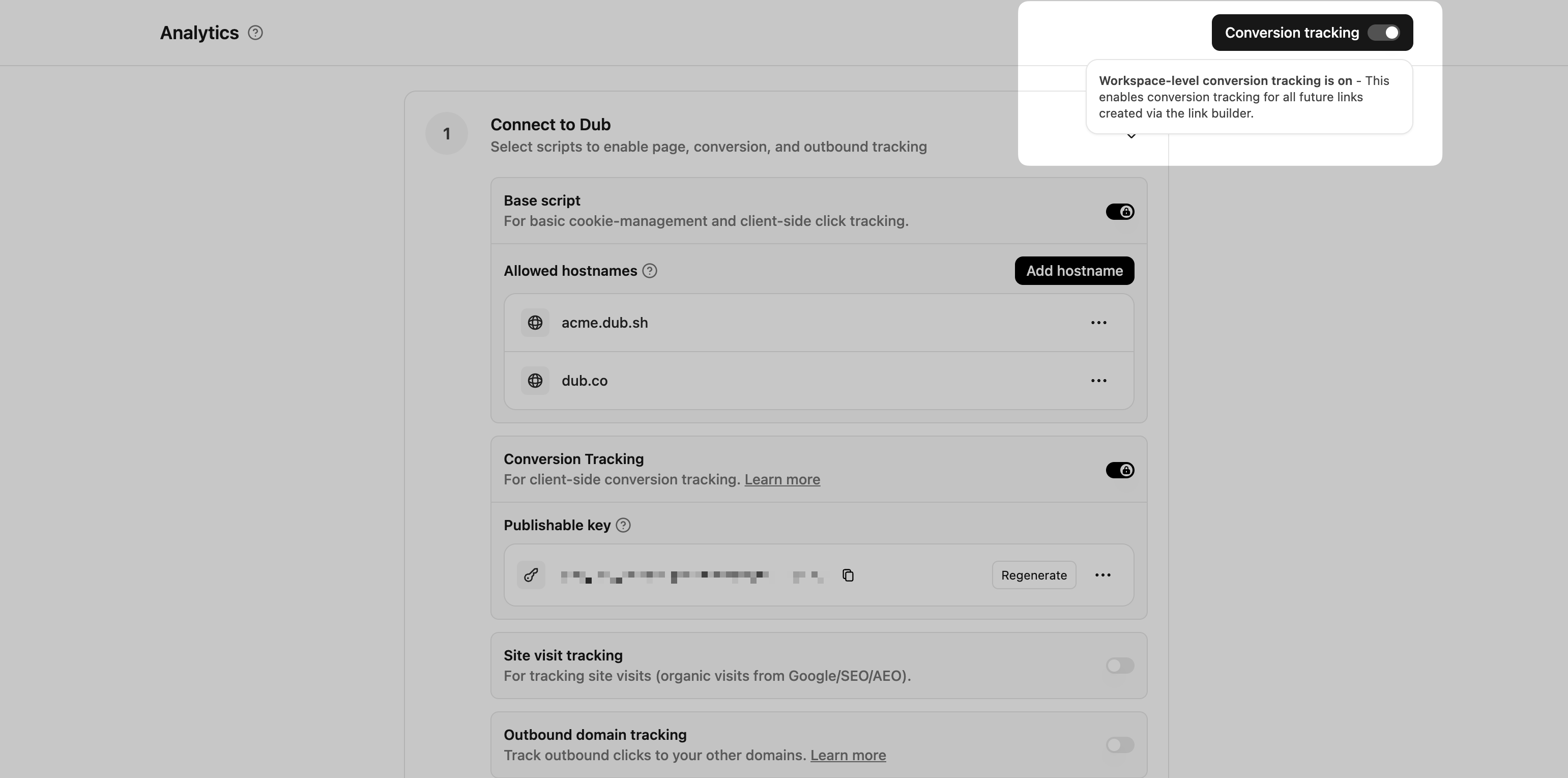 This option will enable conversion tracking in the [Dub Link Builder](/help/article/dub-link-builder) for all future links.
If you don't want to enable conversion tracking for all your links in a workspace, you can also opt to enable it on a link-level.
To enable conversion tracking for a specific link, open the [Dub Link Builder](/help/article/dub-link-builder) for a link and toggle the **Conversion Tracking** switch.
This option will enable conversion tracking in the [Dub Link Builder](/help/article/dub-link-builder) for all future links.
If you don't want to enable conversion tracking for all your links in a workspace, you can also opt to enable it on a link-level.
To enable conversion tracking for a specific link, open the [Dub Link Builder](/help/article/dub-link-builder) for a link and toggle the **Conversion Tracking** switch.
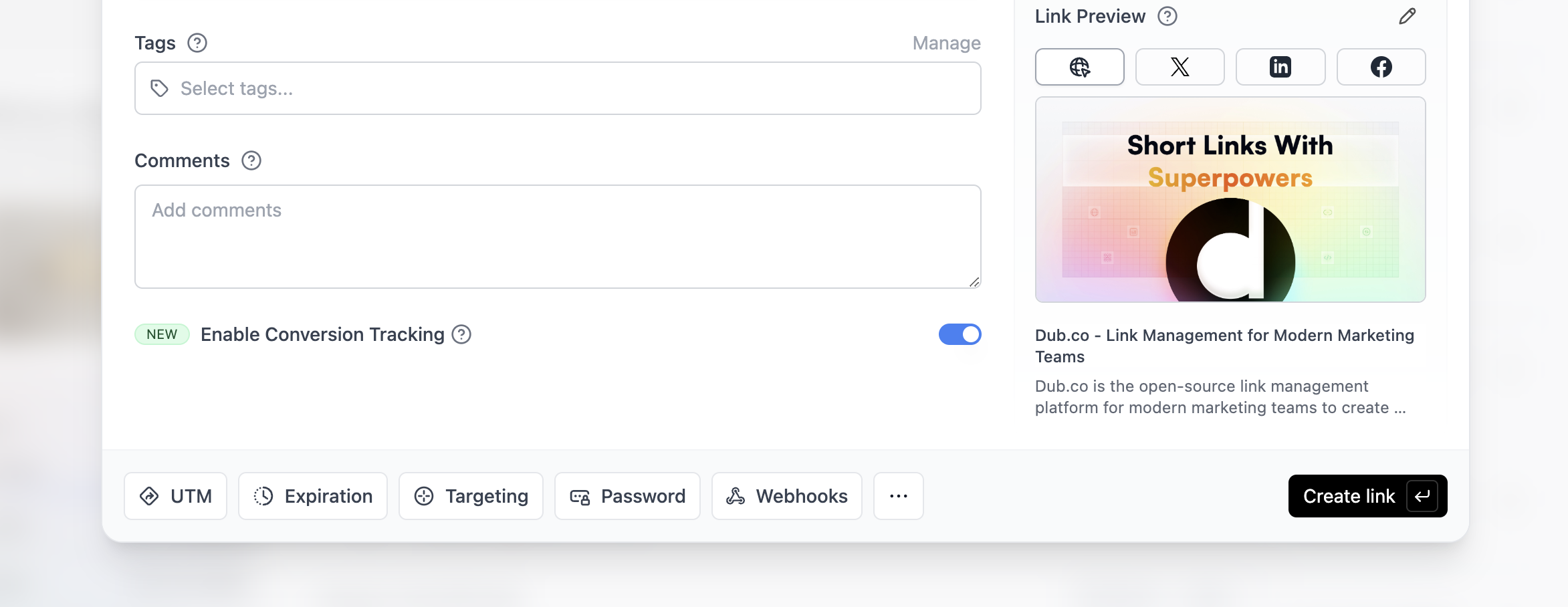 You can also use the `C` keyboard shortcut when inside the link builder to
quickly enable conversion tracking for a given link.
Alternatively, you can also enable conversion tracking programmatically via the [Dub API](/docs/api-reference/introduction). All you need to do is pass `trackConversion: true` when creating or updating a link:
```javascript Node.js theme={null}
const link = await dub.links.create({
url: "https://dub.co",
trackConversion: true,
});
```
```python Python theme={null}
link = d.links.create(url="https://dub.co", track_conversion=True)
```
```go Go theme={null}
link, err := d.Links.Create(ctx, &dub.CreateLinkRequest{
URL: "https://dub.co",
TrackConversion: true,
})
```
```ruby Ruby theme={null}
s.links.create_many(
::OpenApiSDK::Operations::CreateLinkRequest.new(
url: "https://dub.co",
track_conversion: true,
)
)
```
Then, you'd want to install the Dub Analytics script to your website to track conversion events.
You can install the Dub Analytics script in several different ways:
}
href="/docs/sdks/client-side/installation-guides/framer"
horizontal
/>
You can **verify the installation** with the following tests:
1. Open the browser console and type in `_dubAnalytics` – if the script is installed correctly, you should see the `_dubAnalytics` object in the console.
2. Add the `?dub_id=test` query parameter to your website URL and make sure that the `dub_id` cookie is being set in your browser.
If both of these checks pass, the script is installed correctly. Otherwise, please make sure:
* The analytics script was added to the `` section of the page
* If you're using a content delivery network (CDN), make sure to purge any cached content
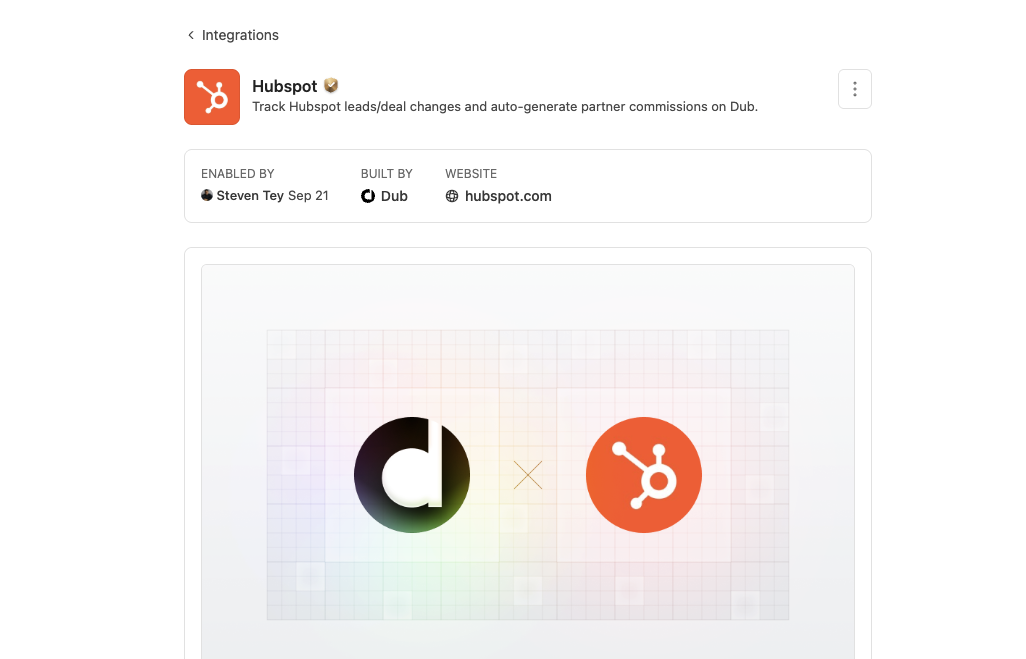
Finally, install the [HubSpot Dub Integration](https://app.dub.co/integrations/hubspot) to your workspace.
You can also use the `C` keyboard shortcut when inside the link builder to
quickly enable conversion tracking for a given link.
Alternatively, you can also enable conversion tracking programmatically via the [Dub API](/docs/api-reference/introduction). All you need to do is pass `trackConversion: true` when creating or updating a link:
```javascript Node.js theme={null}
const link = await dub.links.create({
url: "https://dub.co",
trackConversion: true,
});
```
```python Python theme={null}
link = d.links.create(url="https://dub.co", track_conversion=True)
```
```go Go theme={null}
link, err := d.Links.Create(ctx, &dub.CreateLinkRequest{
URL: "https://dub.co",
TrackConversion: true,
})
```
```ruby Ruby theme={null}
s.links.create_many(
::OpenApiSDK::Operations::CreateLinkRequest.new(
url: "https://dub.co",
track_conversion: true,
)
)
```
Then, you'd want to install the Dub Analytics script to your website to track conversion events.
You can install the Dub Analytics script in several different ways:
}
href="/docs/sdks/client-side/installation-guides/framer"
horizontal
/>
You can **verify the installation** with the following tests:
1. Open the browser console and type in `_dubAnalytics` – if the script is installed correctly, you should see the `_dubAnalytics` object in the console.
2. Add the `?dub_id=test` query parameter to your website URL and make sure that the `dub_id` cookie is being set in your browser.
If both of these checks pass, the script is installed correctly. Otherwise, please make sure:
* The analytics script was added to the `` section of the page
* If you're using a content delivery network (CDN), make sure to purge any cached content
Finally, install the [HubSpot Dub Integration](https://app.dub.co/integrations/hubspot) to your workspace.
 ### Integration Setup
During the installation, Dub will create 3 properties to your contact object on HubSpot:
* **Dub Id** - Unique identifier that Dub uses to track clicks
* **Dub Link** - The short link that the contact clicked to reach your site
* **Dub Partner Email** - Email address of the partner associated with the short link
### Integration Setup
During the installation, Dub will create 3 properties to your contact object on HubSpot:
* **Dub Id** - Unique identifier that Dub uses to track clicks
* **Dub Link** - The short link that the contact clicked to reach your site
* **Dub Partner Email** - Email address of the partner associated with the short link
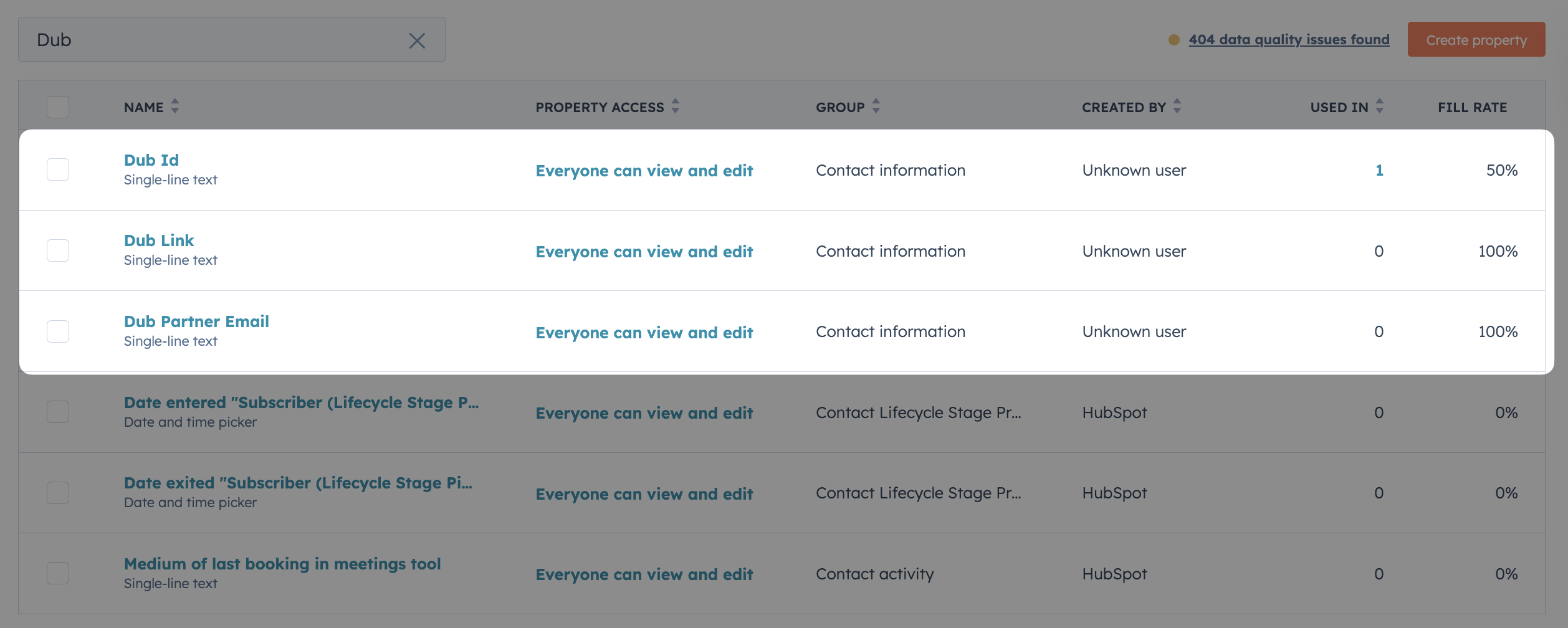 If you can't see these properties in your HubSpot contact object after
installation, something might've gone wrong with the integration setup. Please
[contact us](https://dub.co/contact/support) for assistance.
### Set Your Closed Won Deal Stage ID
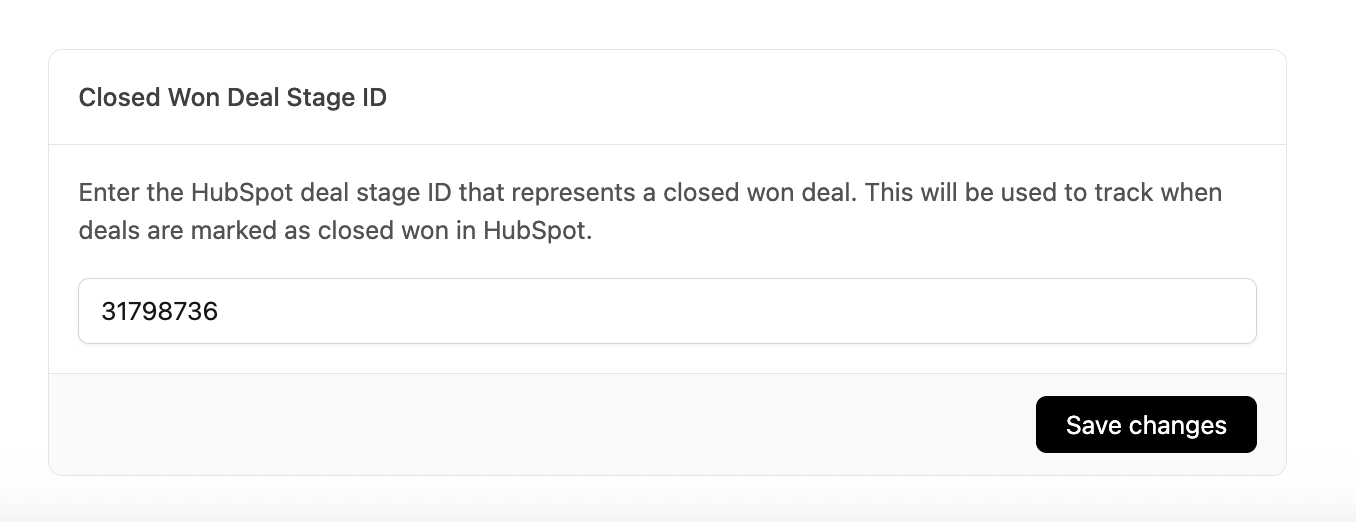
You can define which HubSpot deal stage should be treated as **Closed Won** for automatic sales tracking in Dub.
If you've customized your pipeline (i.e. changed or added deal stages in HubSpot), enter the stage ID corresponding to your custom **Closed Won** stage in the [HubSpot Integration Settings](https://app.dub.co/settings/integrations/hubspot).
Once set, any HubSpot deal marked as **Closed Won** will automatically be tracked in Dub as a sale conversion event, including its deal value.
If you can't see these properties in your HubSpot contact object after
installation, something might've gone wrong with the integration setup. Please
[contact us](https://dub.co/contact/support) for assistance.
### Set Your Closed Won Deal Stage ID
You can define which HubSpot deal stage should be treated as **Closed Won** for automatic sales tracking in Dub.
If you've customized your pipeline (i.e. changed or added deal stages in HubSpot), enter the stage ID corresponding to your custom **Closed Won** stage in the [HubSpot Integration Settings](https://app.dub.co/settings/integrations/hubspot).
Once set, any HubSpot deal marked as **Closed Won** will automatically be tracked in Dub as a sale conversion event, including its deal value.
 ## Option 1: Using HubSpot Forms
[HubSpot Forms](https://www.hubspot.com/products/marketing/forms) help you capture lead information and track conversions. By integrating with Dub, you can attribute each form submission back to the specific Dub link that drove the conversion.
To make attribution work, you need to capture the `dub_id` cookie in your HubSpot form. This ensures each lead is tied back to the exact Dub link they came from.
Here's how you can set it up:
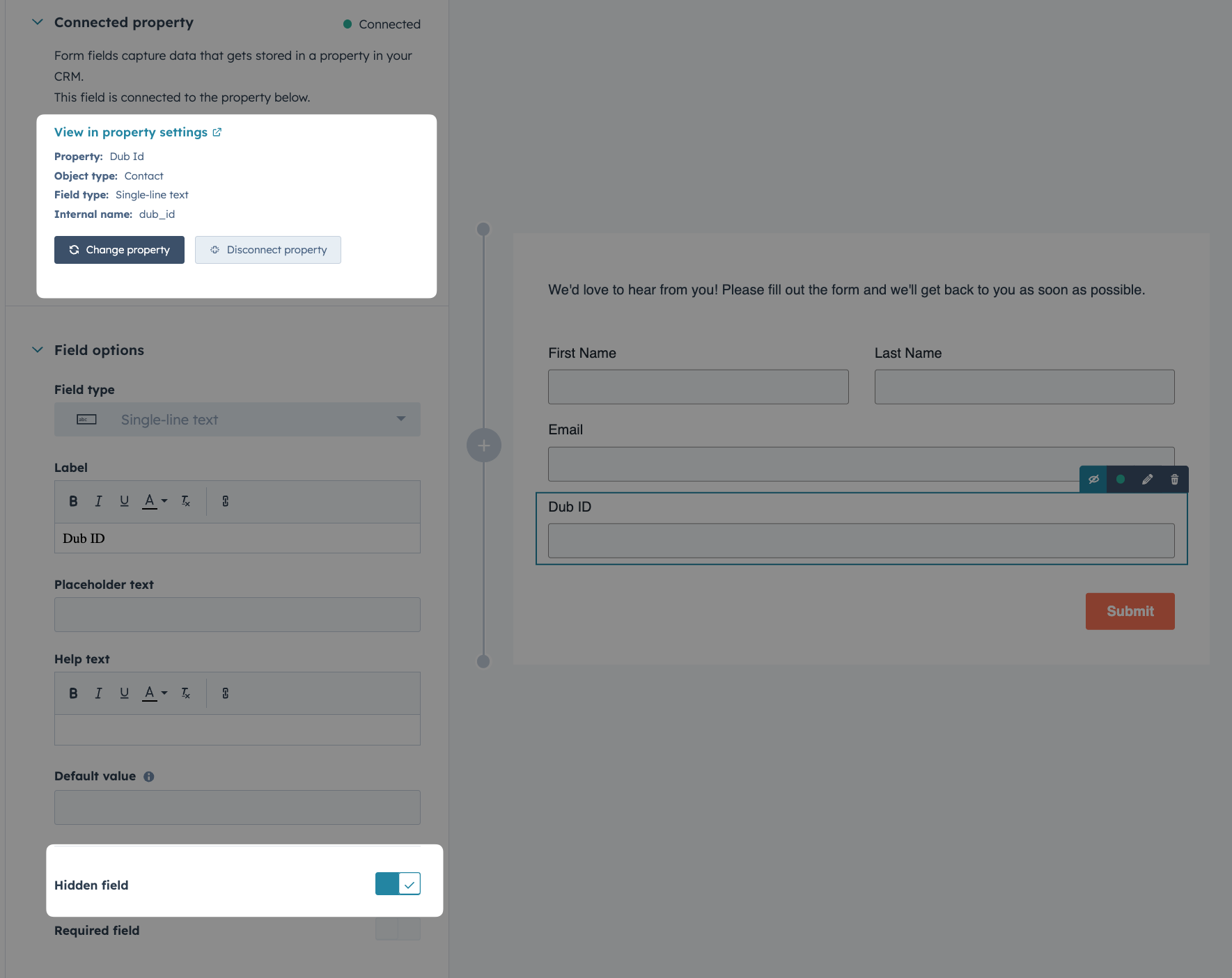
In the HubSpot form builder, add a hidden field and map it to the **Dub Id** contact property.
This makes sure the value captured by your script is stored on the contact record. Without mapping to a property, HubSpot won’t persist the `dub_id` value.
## Option 1: Using HubSpot Forms
[HubSpot Forms](https://www.hubspot.com/products/marketing/forms) help you capture lead information and track conversions. By integrating with Dub, you can attribute each form submission back to the specific Dub link that drove the conversion.
To make attribution work, you need to capture the `dub_id` cookie in your HubSpot form. This ensures each lead is tied back to the exact Dub link they came from.
Here's how you can set it up:
In the HubSpot form builder, add a hidden field and map it to the **Dub Id** contact property.
This makes sure the value captured by your script is stored on the contact record. Without mapping to a property, HubSpot won’t persist the `dub_id` value.
 Finally, add the following snippet to your site. The script reads the `dub_id` cookie and, if found, automatically fills the hidden Dub Id form field with its value.
```html HTML expandable theme={null}
```
When a prospect submits the form, the `dub_id` is captured and passed to HubSpot, ensuring the lead is attributed back to the original Dub link.
## Option 2: Using HubSpot Meeting Scheduler
[HubSpot's Meeting Scheduler](https://www.hubspot.com/products/sales/schedule-meeting) lets prospects book time directly with you or your team.
Since HubSpot doesn't let you add a hidden field to the scheduling form, you should handle initial lead tracking through [deferred lead tracking](/docs/conversions/leads/deferred) on the client side.
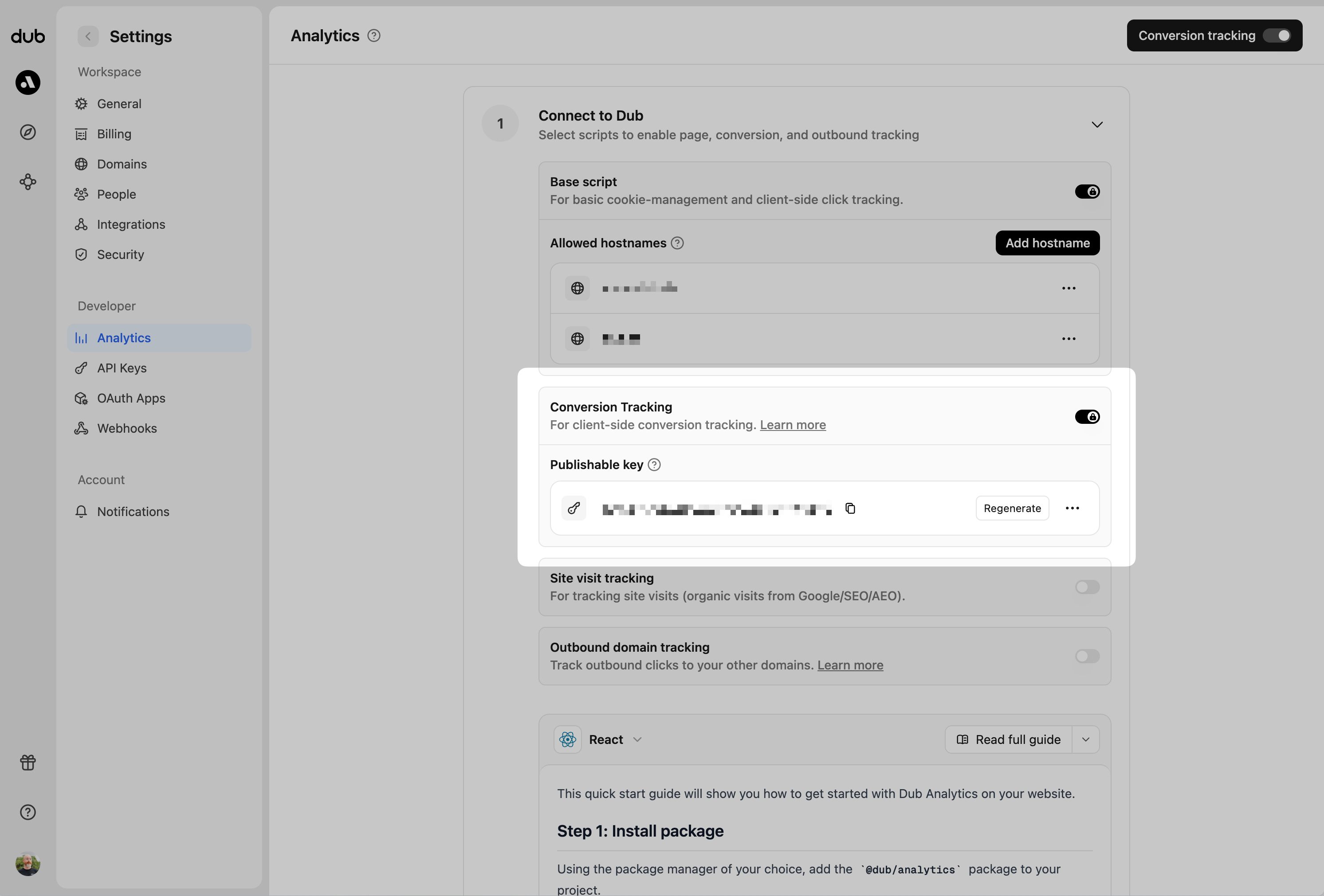
Before you can track conversions on the client-side, you need to generate a publishable key from your Dub workspace.
To do that, navigate to your [workspace's Tracking settings page](https://app.dub.co/settings/tracking) and generate a new publishable key under the **Publishable Key** section.
Finally, add the following snippet to your site. The script reads the `dub_id` cookie and, if found, automatically fills the hidden Dub Id form field with its value.
```html HTML expandable theme={null}
```
When a prospect submits the form, the `dub_id` is captured and passed to HubSpot, ensuring the lead is attributed back to the original Dub link.
## Option 2: Using HubSpot Meeting Scheduler
[HubSpot's Meeting Scheduler](https://www.hubspot.com/products/sales/schedule-meeting) lets prospects book time directly with you or your team.
Since HubSpot doesn't let you add a hidden field to the scheduling form, you should handle initial lead tracking through [deferred lead tracking](/docs/conversions/leads/deferred) on the client side.
Before you can track conversions on the client-side, you need to generate a publishable key from your Dub workspace.
To do that, navigate to your [workspace's Tracking settings page](https://app.dub.co/settings/tracking) and generate a new publishable key under the **Publishable Key** section.
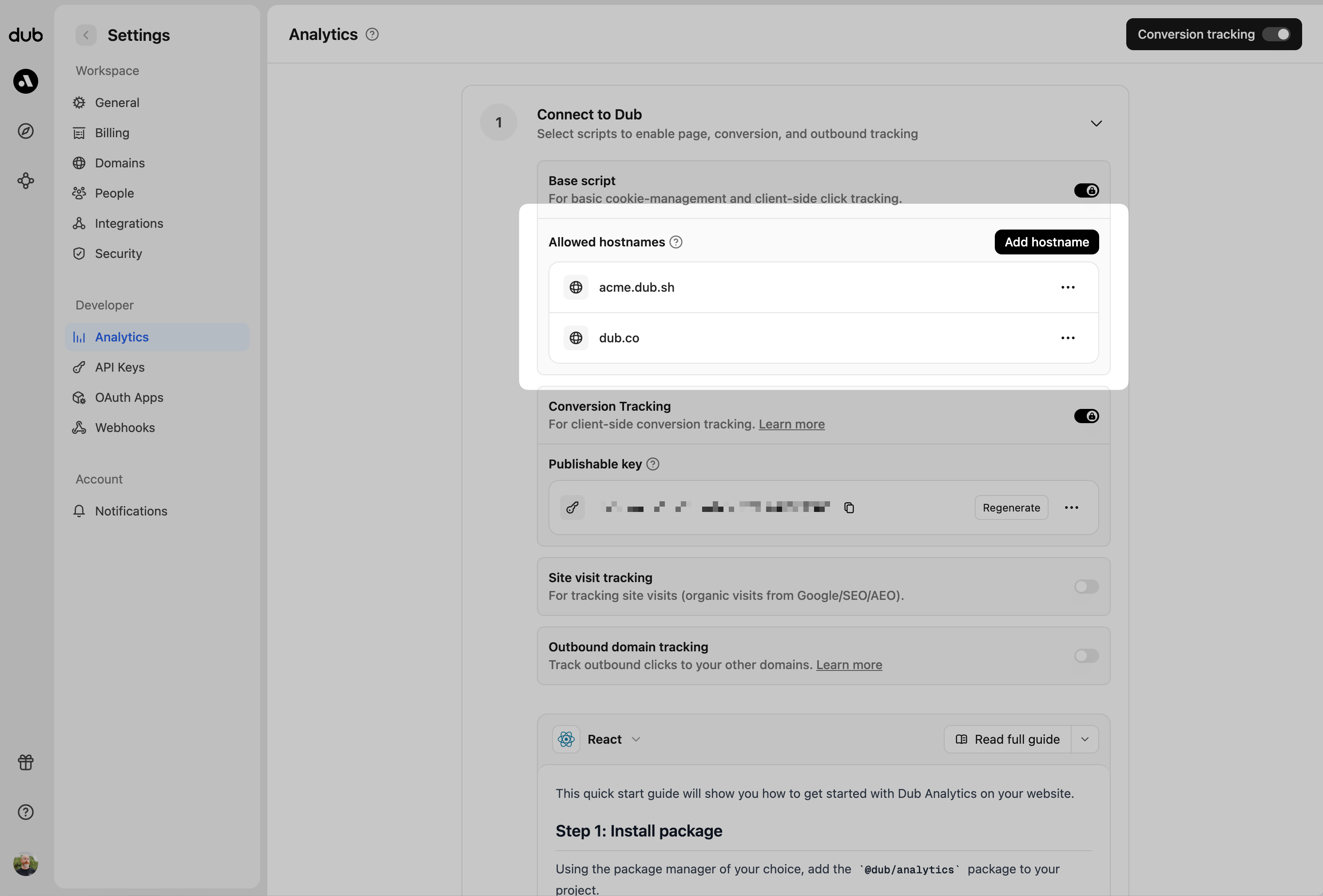
 Then, you'll need to allowlist your site's domain to allow the client-side conversion events to be ingested by Dub.
To do that, navigate to your [workspace's Tracking settings page](https://app.dub.co/settings/tracking) and add your site's domain to the **Allowed Hostnames** list.
This provides an additional layer of security by ensuring only authorized domains can track conversions using your publishable key.
Then, you'll need to allowlist your site's domain to allow the client-side conversion events to be ingested by Dub.
To do that, navigate to your [workspace's Tracking settings page](https://app.dub.co/settings/tracking) and add your site's domain to the **Allowed Hostnames** list.
This provides an additional layer of security by ensuring only authorized domains can track conversions using your publishable key.
 You can group your hostnames when adding them to the allow list:
* `example.com`: Tracks traffic **only** from `example.com`.
* `*.example.com`: Tracks traffic from **all subdomains** of `example.com`, but **not** from `example.com` itself.
When testing things out locally, you can add `localhost` to the **Allowed
Hostnames** list temporarily. This will allow local events to be ingested by
Dub. Don't forget to remove it once you're ready to go live!
Use the following code to track lead conversions when meetings are booked through the HubSpot scheduler.
The script listens for booking events from HubSpot, extracts the customer's details (name and email), and then calls `dubAnalytics.trackLead()` with [deferred lead tracking](/docs/conversions/leads/deferred).
This way, the lead is only tracked after the meeting is confirmed, ensuring accurate attribution.
```html HTML expandable theme={null}
```
## Tracking conversion events
After a prospect attends your demo call, you'll typically create a deal in HubSpot to track the sales opportunity.
Dub's HubSpot integration automatically sets up webhooks to track both deal creation and deal closure events, providing complete visibility into your sales funnel.
### When a deal is created (lead event)
When you create a deal in HubSpot for a contact who came through your Dub links, the integration automatically tracks this as a [lead event](/docs/quickstart/server#tracking-lead-events) in Dub.
### When a deal is closed (sale event)
When a deal moves to a **Closed Won** status in HubSpot, the integration automatically [tracks a sale event](/docs/quickstart/server#tracking-sale-events) in Dub using the deal amount as the sale value.
If a deal is not being tracked as a sale in Dub, make sure you've set the correct Closed Won Deal Stage ID in your [HubSpot Integration Settings](#set-your-closed-won-deal-stage-id).
## Example apps
See the full example on GitHub.
You can group your hostnames when adding them to the allow list:
* `example.com`: Tracks traffic **only** from `example.com`.
* `*.example.com`: Tracks traffic from **all subdomains** of `example.com`, but **not** from `example.com` itself.
When testing things out locally, you can add `localhost` to the **Allowed
Hostnames** list temporarily. This will allow local events to be ingested by
Dub. Don't forget to remove it once you're ready to go live!
Use the following code to track lead conversions when meetings are booked through the HubSpot scheduler.
The script listens for booking events from HubSpot, extracts the customer's details (name and email), and then calls `dubAnalytics.trackLead()` with [deferred lead tracking](/docs/conversions/leads/deferred).
This way, the lead is only tracked after the meeting is confirmed, ensuring accurate attribution.
```html HTML expandable theme={null}
```
## Tracking conversion events
After a prospect attends your demo call, you'll typically create a deal in HubSpot to track the sales opportunity.
Dub's HubSpot integration automatically sets up webhooks to track both deal creation and deal closure events, providing complete visibility into your sales funnel.
### When a deal is created (lead event)
When you create a deal in HubSpot for a contact who came through your Dub links, the integration automatically tracks this as a [lead event](/docs/quickstart/server#tracking-lead-events) in Dub.
### When a deal is closed (sale event)
When a deal moves to a **Closed Won** status in HubSpot, the integration automatically [tracks a sale event](/docs/quickstart/server#tracking-sale-events) in Dub using the deal amount as the sale value.
If a deal is not being tracked as a sale in Dub, make sure you've set the correct Closed Won Deal Stage ID in your [HubSpot Integration Settings](#set-your-closed-won-deal-stage-id).
## Example apps
See the full example on GitHub.