> ## Documentation Index
> Fetch the complete documentation index at: https://dub.co/llms.txt
> Use this file to discover all available pages before exploring further.
# Google Tag Manager
> Learn how to track sales conversion events with Google Tag Manager and Dub
This feature is only available on [Business plans and
above](https://dub.co/pricing/partners).
Dub's [Google Tag Manager integration](https://dub.co/integrations/google-tag-manager) allows you to track conversion events directly from Google Tag Manager.
## Prerequisites
First, you'll need to enable conversion tracking for your Dub links to be able to start tracking conversions:
If you're using [Dub Partners](https://dub.co/partners), you can skip this
step since partner links will have conversion tracking enabled by default.
To enable conversion tracking for all future links in a workspace, you can do the following:
To enable conversion tracking for all future links in a workspace, you can do the following:
1. Navigate to your [workspace's Tracking settings page](https://app.dub.co/settings/tracking).
2. Toggle the **Workspace-level Conversion Tracking** switch to enable conversion tracking for the workspace.
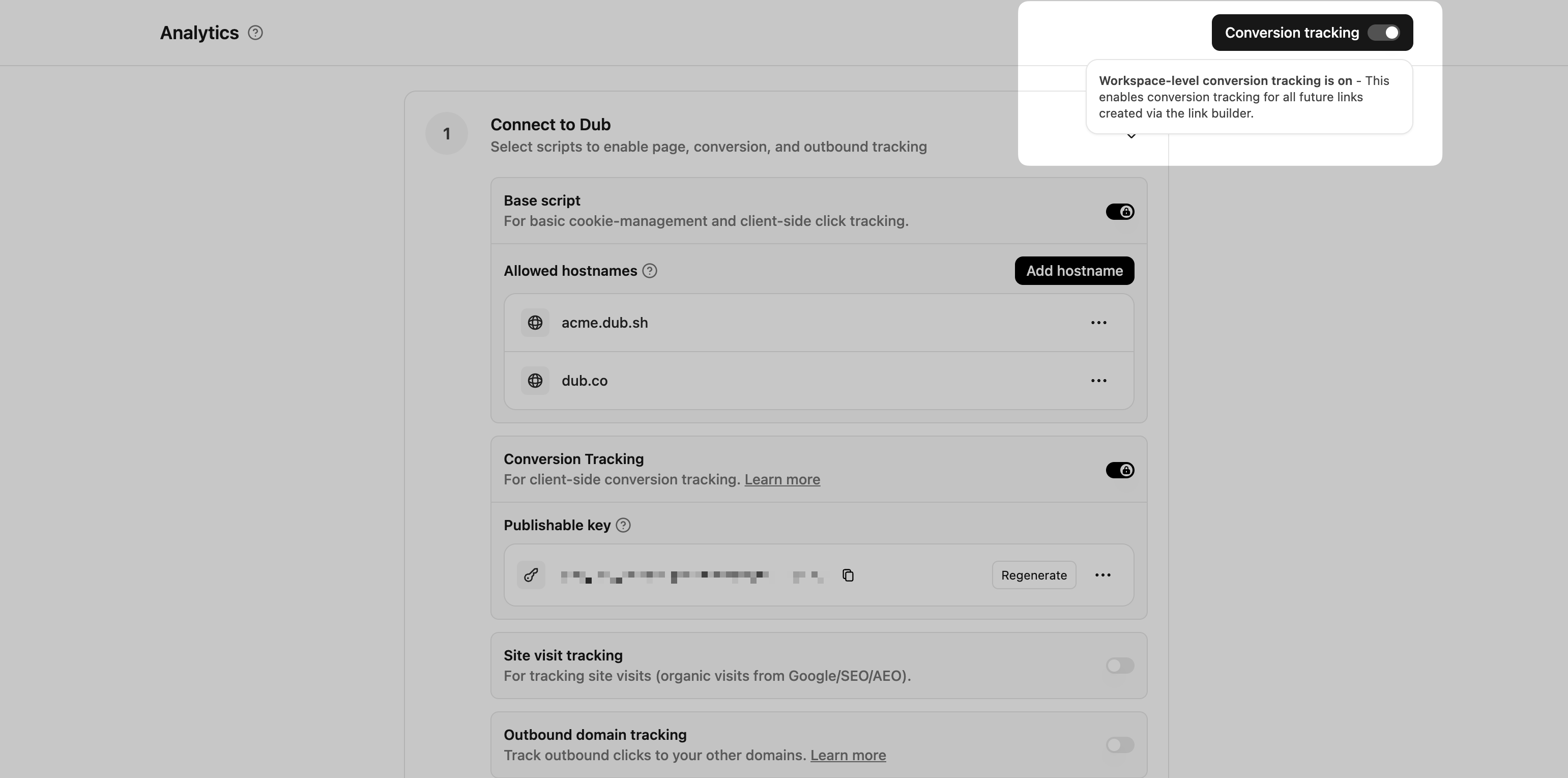 This option will enable conversion tracking in the [Dub Link Builder](/help/article/dub-link-builder) for all future links.
If you don't want to enable conversion tracking for all your links in a workspace, you can also opt to enable it on a link-level.
To enable conversion tracking for a specific link, open the [Dub Link Builder](/help/article/dub-link-builder) for a link and toggle the **Conversion Tracking** switch.
This option will enable conversion tracking in the [Dub Link Builder](/help/article/dub-link-builder) for all future links.
If you don't want to enable conversion tracking for all your links in a workspace, you can also opt to enable it on a link-level.
To enable conversion tracking for a specific link, open the [Dub Link Builder](/help/article/dub-link-builder) for a link and toggle the **Conversion Tracking** switch.
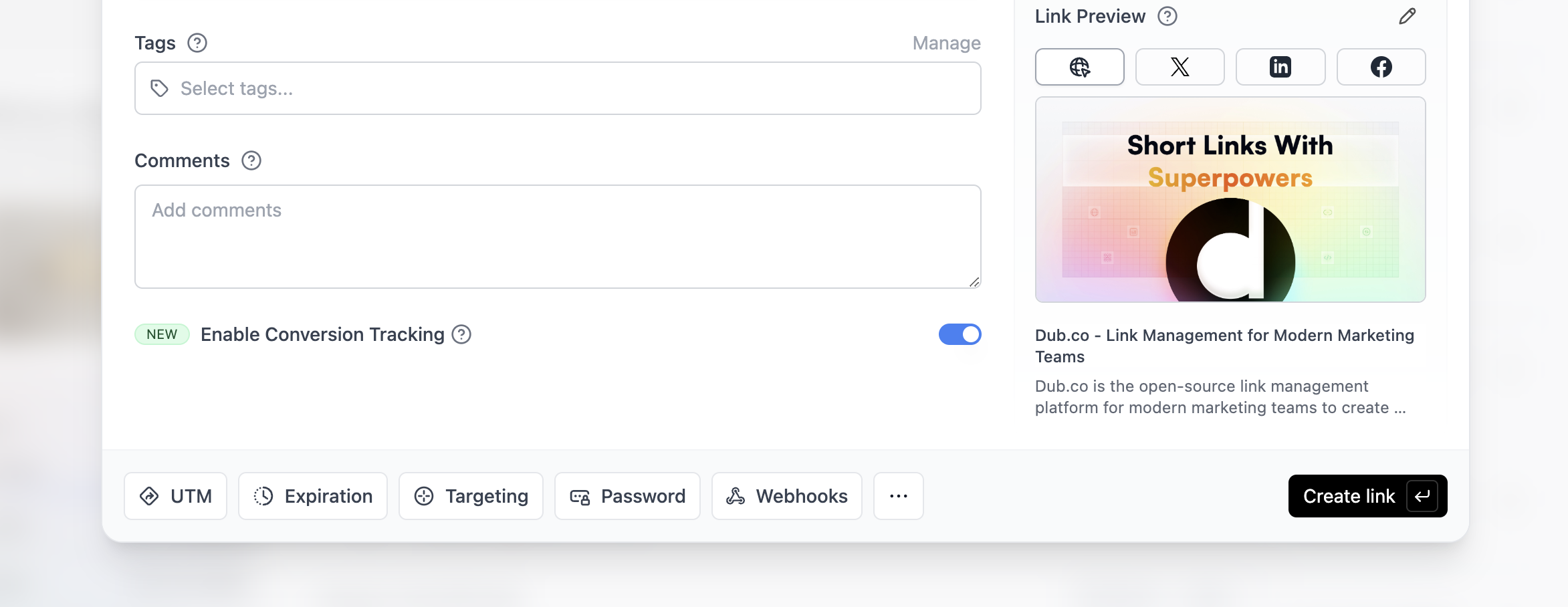 You can also use the `C` keyboard shortcut when inside the link builder to
quickly enable conversion tracking for a given link.
Alternatively, you can also enable conversion tracking programmatically via the [Dub API](/docs/api-reference/introduction). All you need to do is pass `trackConversion: true` when creating or updating a link:
```javascript Node.js theme={null}
const link = await dub.links.create({
url: "https://dub.co",
trackConversion: true,
});
```
```python Python theme={null}
link = d.links.create(url="https://dub.co", track_conversion=True)
```
```go Go theme={null}
link, err := d.Links.Create(ctx, &dub.CreateLinkRequest{
URL: "https://dub.co",
TrackConversion: true,
})
```
```ruby Ruby theme={null}
s.links.create_many(
::OpenApiSDK::Operations::CreateLinkRequest.new(
url: "https://dub.co",
track_conversion: true,
)
)
```
## Install Dub via Google Tag Manager
There are 2 steps to install the Dub Analytics script via Google Tag Manager:
1. [Add Dub Analytics script to GTM](#step-1-add-dub-analytics-script-to-gtm)
2. [Create User-Defined Variable for dub\_id Cookie](#step-2-create-user-defined-variable-for-dub_id-cookie)
### Step 1: Add Dub Analytics script to GTM
First, you'll need to add the Dub Analytics script to your website using Google Tag Manager.
In your GTM workspace, navigate to the **Tags** section and click **New** to create a new tag.
You can also use the `C` keyboard shortcut when inside the link builder to
quickly enable conversion tracking for a given link.
Alternatively, you can also enable conversion tracking programmatically via the [Dub API](/docs/api-reference/introduction). All you need to do is pass `trackConversion: true` when creating or updating a link:
```javascript Node.js theme={null}
const link = await dub.links.create({
url: "https://dub.co",
trackConversion: true,
});
```
```python Python theme={null}
link = d.links.create(url="https://dub.co", track_conversion=True)
```
```go Go theme={null}
link, err := d.Links.Create(ctx, &dub.CreateLinkRequest{
URL: "https://dub.co",
TrackConversion: true,
})
```
```ruby Ruby theme={null}
s.links.create_many(
::OpenApiSDK::Operations::CreateLinkRequest.new(
url: "https://dub.co",
track_conversion: true,
)
)
```
## Install Dub via Google Tag Manager
There are 2 steps to install the Dub Analytics script via Google Tag Manager:
1. [Add Dub Analytics script to GTM](#step-1-add-dub-analytics-script-to-gtm)
2. [Create User-Defined Variable for dub\_id Cookie](#step-2-create-user-defined-variable-for-dub_id-cookie)
### Step 1: Add Dub Analytics script to GTM
First, you'll need to add the Dub Analytics script to your website using Google Tag Manager.
In your GTM workspace, navigate to the **Tags** section and click **New** to create a new tag.
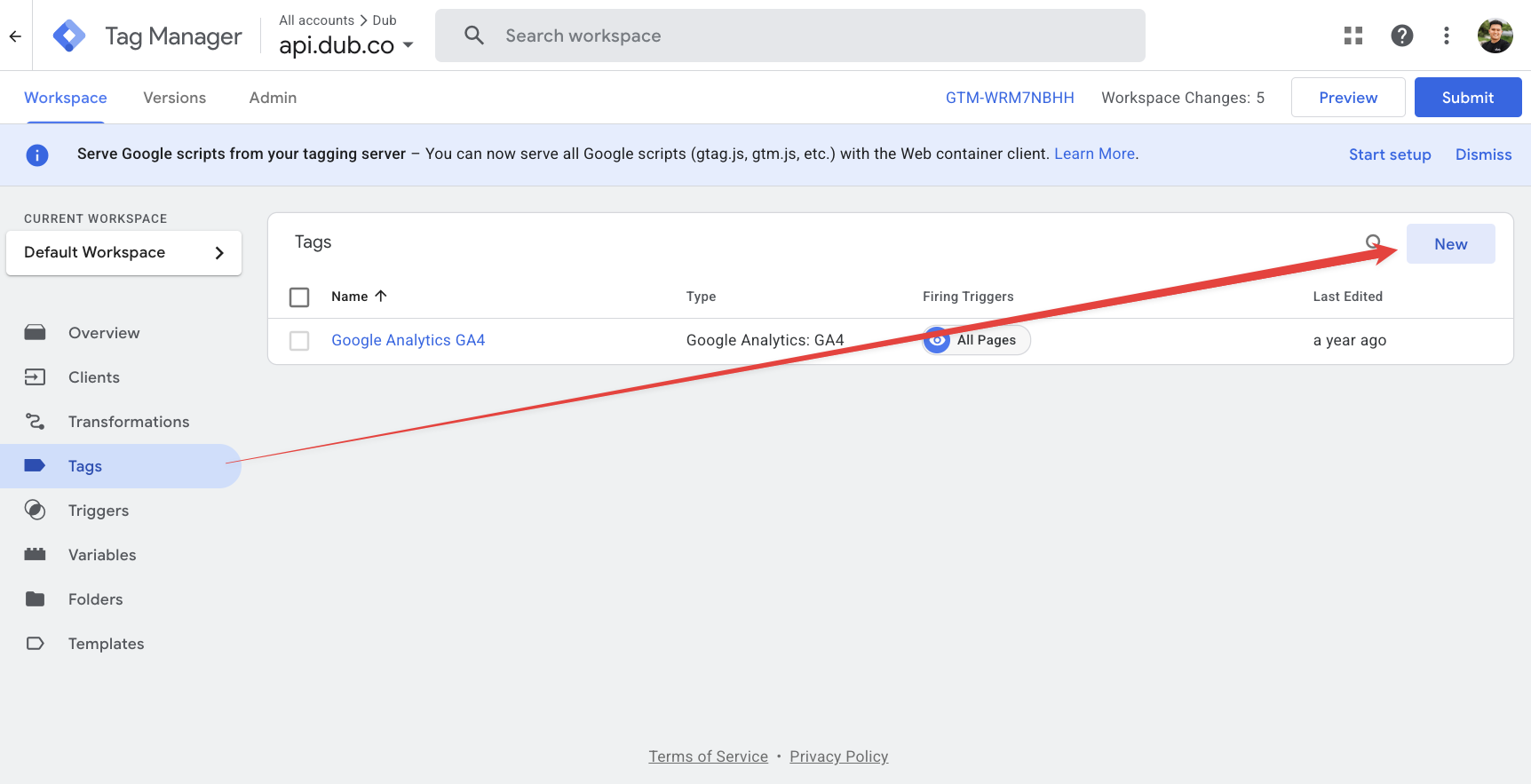 Select **Custom HTML** as the tag type and add the following code:
```html theme={null}
```
Make sure to replace `dub_pk_xxxxxxxx` with your actual [publishable
key](/docs/api-reference/authentication#publishable-keys) from your Dub
workspace (under the [Analytics settings
page](https://app.dub.co/settings/analytics))
Configure the tag to fire on **All Pages** by setting the trigger to **All Pages - Page View**.
Name this tag "Dub Analytics script" and save it.
### Step 2: Create User-Defined Variable for dub\_id Cookie
To read the `dub_id` cookie that Dub Analytics script sets, you'll need to create a User-Defined Variable in Google Tag Manager.
In your GTM workspace, navigate to the **Variables** section and click **New** to create a new variable.
Select **Custom HTML** as the tag type and add the following code:
```html theme={null}
```
Make sure to replace `dub_pk_xxxxxxxx` with your actual [publishable
key](/docs/api-reference/authentication#publishable-keys) from your Dub
workspace (under the [Analytics settings
page](https://app.dub.co/settings/analytics))
Configure the tag to fire on **All Pages** by setting the trigger to **All Pages - Page View**.
Name this tag "Dub Analytics script" and save it.
### Step 2: Create User-Defined Variable for dub\_id Cookie
To read the `dub_id` cookie that Dub Analytics script sets, you'll need to create a User-Defined Variable in Google Tag Manager.
In your GTM workspace, navigate to the **Variables** section and click **New** to create a new variable.
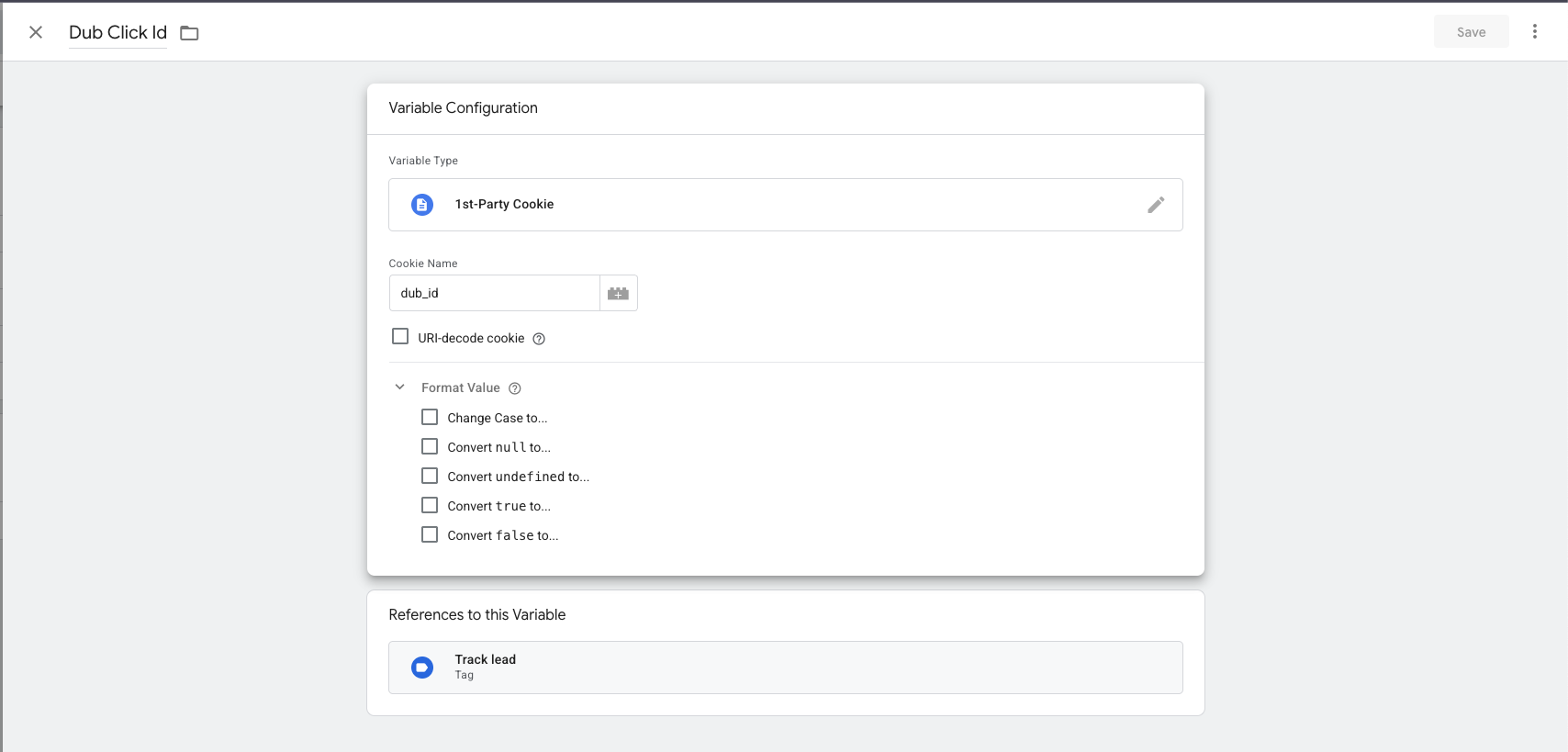 Configure the variable with the following settings:
* **Variable Type**: Select **1st Party Cookie**
* **Cookie Name**: Enter `dub_id`
* **Variable Name**: Name it "Dub ID Cookie"
Click **Save** to create the variable.
This variable will automatically read the `dub_id` cookie value set by the Dub
Analytics script. You can use this variable in your tags to pass the Dub ID
when tracking conversion events.
## Tracking lead events
There are two ways to track lead events with Google Tag Manager:
* [Thank You Page Tracking (Recommended)](#option-1-thank-you-page-tracking-recommended)
* [Form Submission Tracking](#option-2-form-submission-tracking)
### Option 1: Thank You Page Tracking (Recommended)
This method tracks leads when users land on a thank-you or success page after completing a form. This approach is more reliable as it's less likely to be blocked by ad blockers and provides better data accuracy.
Create a **Custom HTML** tag with the following code:
```html theme={null}
```
**Important**: Make sure to pass along the `email` and `name` query parameters
to the thank-you page so that the lead event can be attributed to the correct
customer.
Configure this tag to fire on specific pages by creating a **Page View** trigger with conditions:
* Trigger Type: **Page View**
* This trigger fires on: **Some Page Views**
* Add conditions like:
* **Page URL** contains `/thank-you`
* Or **Page Path** equals `/success`
* Or whatever URL pattern matches your thank-you pages
Name this tag "Dub Lead Tracking - Thank You Page" and save it.
### Option 2: Form Submission Tracking
This method tracks leads immediately when users submit forms on your website. Note that this approach may be less reliable due to ad blockers and timing issues.
Create a **Custom HTML** tag with the following code:
```html theme={null}
```
**Important**: You'll need to customize the DOM selectors
(`getElementById('name')`, `getElementById('email')`) to match your actual
form field IDs or use different methods to capture the form data based on your
website's structure.
Configure this tag to fire on **Form Submission** by creating a new trigger:
* Trigger Type: **Form Submission**
* This trigger fires on: **Some Forms** (or **All Forms** if you want to track all form submissions)
* Add conditions to specify which forms should trigger lead tracking
Name this tag "Dub Lead Tracking - Form Submission" and save it.
## Tracking sales events
There are two ways to track sales events with Google Tag Manager:
* [Order Confirmation Page Tracking (Recommended)](#option-1-order-confirmation-page-tracking-recommended)
* [Checkout Form Submission Tracking](#option-2-checkout-form-submission-tracking)
### Option 1: Order Confirmation Page Tracking (Recommended)
This method tracks sales when users land on an order confirmation or success page after completing a purchase. This approach is more reliable as it's less likely to be blocked by ad blockers and provides better data accuracy.
Create a **Custom HTML** tag with the following code:
```html theme={null}
```
Configure this tag to fire on specific pages by creating a **Page View** trigger with conditions:
* Trigger Type: **Page View**
* This trigger fires on: **Some Page Views**
* Add conditions like:
* **Page URL** contains `/order-confirmation`
* Or **Page Path** equals `/checkout/success`
* Or whatever URL pattern matches your order confirmation pages
Name this tag "Dub Sales Tracking - Order Confirmation" and save it.
### Option 2: Checkout Form Submission Tracking
This method tracks sales immediately when users complete checkout forms on your website. Note that this approach may be less reliable due to ad blockers and timing issues.
Create a **Custom HTML** tag with the following code:
```html theme={null}
```
**Important**: You'll need to customize the DOM selectors
(`getElementById('customer_id')`, `getElementById('amount')`, etc.) to match
your actual checkout form field IDs or use different methods to capture the
form data based on your website's structure.
Configure this tag to fire on **Form Submission** by creating a new trigger:
* Trigger Type: **Form Submission**
* This trigger fires on: **Some Forms** (or **All Forms** if you want to track all form submissions)
* Add conditions to specify which forms should trigger sales tracking (e.g., checkout forms)
Name this tag "Dub Sales Tracking - Checkout Form" and save it.
Here are the properties you can include when sending a sale event:
| Property | Required | Description |
| :------------------- | :------- | :--------------------------------------------------------------------------------------------------------------------------------------------------------- |
| `customerExternalId` | **Yes** | The unique ID of the customer in your system. Will be used to identify and attribute all future events to this customer. |
| `amount` | **Yes** | The amount of the sale in cents. |
| `paymentProcessor` | No | The payment processor that processed the sale (e.g. [Stripe](/docs/integrations/stripe), [Shopify](/docs/integrations/stripe)). Defaults to "custom". |
| `eventName` | No | The name of the event. Defaults to "Purchase". |
| `invoiceId` | No | The invoice ID of the sale. Can be used as a idempotency key – only one sale event can be recorded for a given invoice ID. |
| `currency` | No | The currency of the sale. Defaults to "usd". |
| `metadata` | No | An object containing additional information about the sale. |
| `clickId` | No | **\[For direct sale tracking]**: The unique ID of the click that the sale conversion event is attributed to. You can read this value from `dub_id` cookie. |
| `customerName` | No | **\[For direct sale tracking]**: The name of the customer. If not passed, a random name will be generated. |
| `customerEmail` | No | **\[For direct sale tracking]**: The email address of the customer. |
| `customerAvatar` | No | **\[For direct sale tracking]**: The avatar URL of the customer. |
## Testing your setup
To test your GTM setup, you can use the **Preview** mode in Google Tag Manager:
1. **Enable Preview Mode**: In your GTM workspace, click the **Preview** button in the top right corner
2. **Enter your website URL** and click **Connect**
3. **Test your chosen tracking method**:
* **For Option 1 (Order Confirmation)**: Navigate to your order confirmation page with query parameters (e.g., `?customer_id=123&amount=1000&invoice_id=inv_456`)
* **For Option 2 (Form Submission)**: Navigate to a checkout page and complete a test purchase form
4. **Check the GTM debugger** to see if your tags are firing correctly
### Verify conversion tracking
You can also verify that conversion events are being tracked by:
1. **Checking your browser's developer console** for any JavaScript errors
2. **Using the Network tab** to see if requests are being sent to Dub's analytics endpoint
3. **Viewing your Dub dashboard** to confirm that sale events are appearing in your analytics
### Common troubleshooting tips
* **Tag not firing**: Check that your triggers are configured correctly and that the conditions match your page structure
* **Form data not captured** (Option 2): Verify that your DOM selectors match your actual checkout form field IDs or names
* **Query parameters missing** (Option 1): Ensure your checkout process redirects to the confirmation page with the required query parameters
* **Amount formatting**: Ensure amounts are in cents (e.g., \$10.00 = 1000 cents)
* **Multiple events**: Make sure your tags aren't firing multiple times by checking trigger conditions
* **Duplicate tracking**: Verify you've only implemented one tracking method (Option 1 OR Option 2, not both)
* **Missing publishable key**: Ensure you've replaced the placeholder with your actual publishable key
**Client-Side Tracking Limitations**:
* **Ad blockers** – Users with ad blockers may prevent tracking scripts from loading
* **JavaScript disabled** – Events won't be tracked if users have JavaScript disabled
* **Network issues** – Failed network requests won't retry automatically
* **Privacy concerns** – Some users may block client-side tracking for privacy reasons
For more accurate conversion tracking, consider using [server-side conversion tracking](/docs/quickstart/server)
## View conversion results
And that's it – you're all set! You can now sit back, relax, and watch your conversion revenue grow. We provide 3 different views to help you understand your conversions:
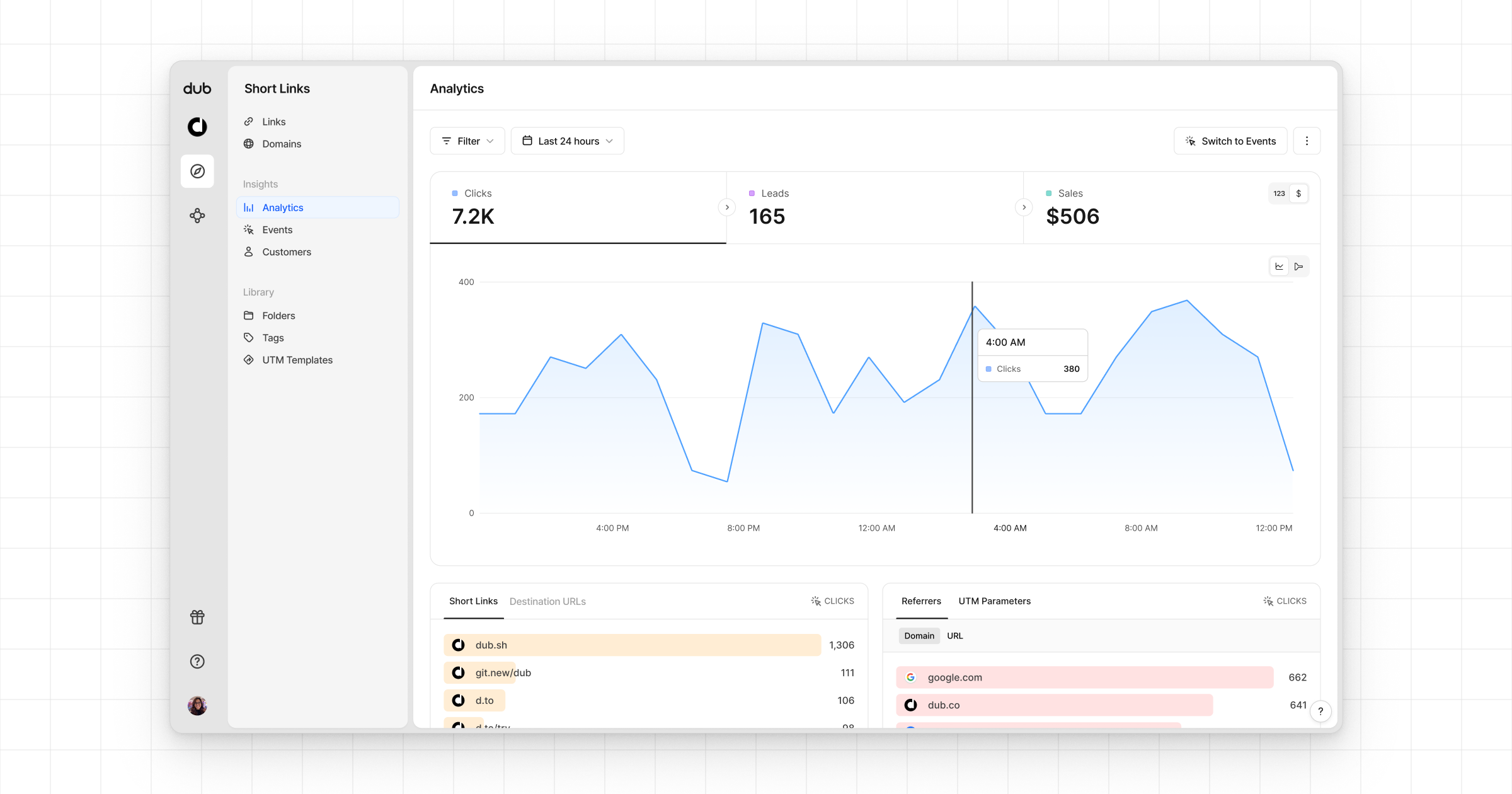
* **Time-series**: A [time-series view](https://app.dub.co/dub/analytics?view=timeseries) of the number clicks, leads and sales.
Configure the variable with the following settings:
* **Variable Type**: Select **1st Party Cookie**
* **Cookie Name**: Enter `dub_id`
* **Variable Name**: Name it "Dub ID Cookie"
Click **Save** to create the variable.
This variable will automatically read the `dub_id` cookie value set by the Dub
Analytics script. You can use this variable in your tags to pass the Dub ID
when tracking conversion events.
## Tracking lead events
There are two ways to track lead events with Google Tag Manager:
* [Thank You Page Tracking (Recommended)](#option-1-thank-you-page-tracking-recommended)
* [Form Submission Tracking](#option-2-form-submission-tracking)
### Option 1: Thank You Page Tracking (Recommended)
This method tracks leads when users land on a thank-you or success page after completing a form. This approach is more reliable as it's less likely to be blocked by ad blockers and provides better data accuracy.
Create a **Custom HTML** tag with the following code:
```html theme={null}
```
**Important**: Make sure to pass along the `email` and `name` query parameters
to the thank-you page so that the lead event can be attributed to the correct
customer.
Configure this tag to fire on specific pages by creating a **Page View** trigger with conditions:
* Trigger Type: **Page View**
* This trigger fires on: **Some Page Views**
* Add conditions like:
* **Page URL** contains `/thank-you`
* Or **Page Path** equals `/success`
* Or whatever URL pattern matches your thank-you pages
Name this tag "Dub Lead Tracking - Thank You Page" and save it.
### Option 2: Form Submission Tracking
This method tracks leads immediately when users submit forms on your website. Note that this approach may be less reliable due to ad blockers and timing issues.
Create a **Custom HTML** tag with the following code:
```html theme={null}
```
**Important**: You'll need to customize the DOM selectors
(`getElementById('name')`, `getElementById('email')`) to match your actual
form field IDs or use different methods to capture the form data based on your
website's structure.
Configure this tag to fire on **Form Submission** by creating a new trigger:
* Trigger Type: **Form Submission**
* This trigger fires on: **Some Forms** (or **All Forms** if you want to track all form submissions)
* Add conditions to specify which forms should trigger lead tracking
Name this tag "Dub Lead Tracking - Form Submission" and save it.
## Tracking sales events
There are two ways to track sales events with Google Tag Manager:
* [Order Confirmation Page Tracking (Recommended)](#option-1-order-confirmation-page-tracking-recommended)
* [Checkout Form Submission Tracking](#option-2-checkout-form-submission-tracking)
### Option 1: Order Confirmation Page Tracking (Recommended)
This method tracks sales when users land on an order confirmation or success page after completing a purchase. This approach is more reliable as it's less likely to be blocked by ad blockers and provides better data accuracy.
Create a **Custom HTML** tag with the following code:
```html theme={null}
```
Configure this tag to fire on specific pages by creating a **Page View** trigger with conditions:
* Trigger Type: **Page View**
* This trigger fires on: **Some Page Views**
* Add conditions like:
* **Page URL** contains `/order-confirmation`
* Or **Page Path** equals `/checkout/success`
* Or whatever URL pattern matches your order confirmation pages
Name this tag "Dub Sales Tracking - Order Confirmation" and save it.
### Option 2: Checkout Form Submission Tracking
This method tracks sales immediately when users complete checkout forms on your website. Note that this approach may be less reliable due to ad blockers and timing issues.
Create a **Custom HTML** tag with the following code:
```html theme={null}
```
**Important**: You'll need to customize the DOM selectors
(`getElementById('customer_id')`, `getElementById('amount')`, etc.) to match
your actual checkout form field IDs or use different methods to capture the
form data based on your website's structure.
Configure this tag to fire on **Form Submission** by creating a new trigger:
* Trigger Type: **Form Submission**
* This trigger fires on: **Some Forms** (or **All Forms** if you want to track all form submissions)
* Add conditions to specify which forms should trigger sales tracking (e.g., checkout forms)
Name this tag "Dub Sales Tracking - Checkout Form" and save it.
Here are the properties you can include when sending a sale event:
| Property | Required | Description |
| :------------------- | :------- | :--------------------------------------------------------------------------------------------------------------------------------------------------------- |
| `customerExternalId` | **Yes** | The unique ID of the customer in your system. Will be used to identify and attribute all future events to this customer. |
| `amount` | **Yes** | The amount of the sale in cents. |
| `paymentProcessor` | No | The payment processor that processed the sale (e.g. [Stripe](/docs/integrations/stripe), [Shopify](/docs/integrations/stripe)). Defaults to "custom". |
| `eventName` | No | The name of the event. Defaults to "Purchase". |
| `invoiceId` | No | The invoice ID of the sale. Can be used as a idempotency key – only one sale event can be recorded for a given invoice ID. |
| `currency` | No | The currency of the sale. Defaults to "usd". |
| `metadata` | No | An object containing additional information about the sale. |
| `clickId` | No | **\[For direct sale tracking]**: The unique ID of the click that the sale conversion event is attributed to. You can read this value from `dub_id` cookie. |
| `customerName` | No | **\[For direct sale tracking]**: The name of the customer. If not passed, a random name will be generated. |
| `customerEmail` | No | **\[For direct sale tracking]**: The email address of the customer. |
| `customerAvatar` | No | **\[For direct sale tracking]**: The avatar URL of the customer. |
## Testing your setup
To test your GTM setup, you can use the **Preview** mode in Google Tag Manager:
1. **Enable Preview Mode**: In your GTM workspace, click the **Preview** button in the top right corner
2. **Enter your website URL** and click **Connect**
3. **Test your chosen tracking method**:
* **For Option 1 (Order Confirmation)**: Navigate to your order confirmation page with query parameters (e.g., `?customer_id=123&amount=1000&invoice_id=inv_456`)
* **For Option 2 (Form Submission)**: Navigate to a checkout page and complete a test purchase form
4. **Check the GTM debugger** to see if your tags are firing correctly
### Verify conversion tracking
You can also verify that conversion events are being tracked by:
1. **Checking your browser's developer console** for any JavaScript errors
2. **Using the Network tab** to see if requests are being sent to Dub's analytics endpoint
3. **Viewing your Dub dashboard** to confirm that sale events are appearing in your analytics
### Common troubleshooting tips
* **Tag not firing**: Check that your triggers are configured correctly and that the conditions match your page structure
* **Form data not captured** (Option 2): Verify that your DOM selectors match your actual checkout form field IDs or names
* **Query parameters missing** (Option 1): Ensure your checkout process redirects to the confirmation page with the required query parameters
* **Amount formatting**: Ensure amounts are in cents (e.g., \$10.00 = 1000 cents)
* **Multiple events**: Make sure your tags aren't firing multiple times by checking trigger conditions
* **Duplicate tracking**: Verify you've only implemented one tracking method (Option 1 OR Option 2, not both)
* **Missing publishable key**: Ensure you've replaced the placeholder with your actual publishable key
**Client-Side Tracking Limitations**:
* **Ad blockers** – Users with ad blockers may prevent tracking scripts from loading
* **JavaScript disabled** – Events won't be tracked if users have JavaScript disabled
* **Network issues** – Failed network requests won't retry automatically
* **Privacy concerns** – Some users may block client-side tracking for privacy reasons
For more accurate conversion tracking, consider using [server-side conversion tracking](/docs/quickstart/server)
## View conversion results
And that's it – you're all set! You can now sit back, relax, and watch your conversion revenue grow. We provide 3 different views to help you understand your conversions:
* **Time-series**: A [time-series view](https://app.dub.co/dub/analytics?view=timeseries) of the number clicks, leads and sales.
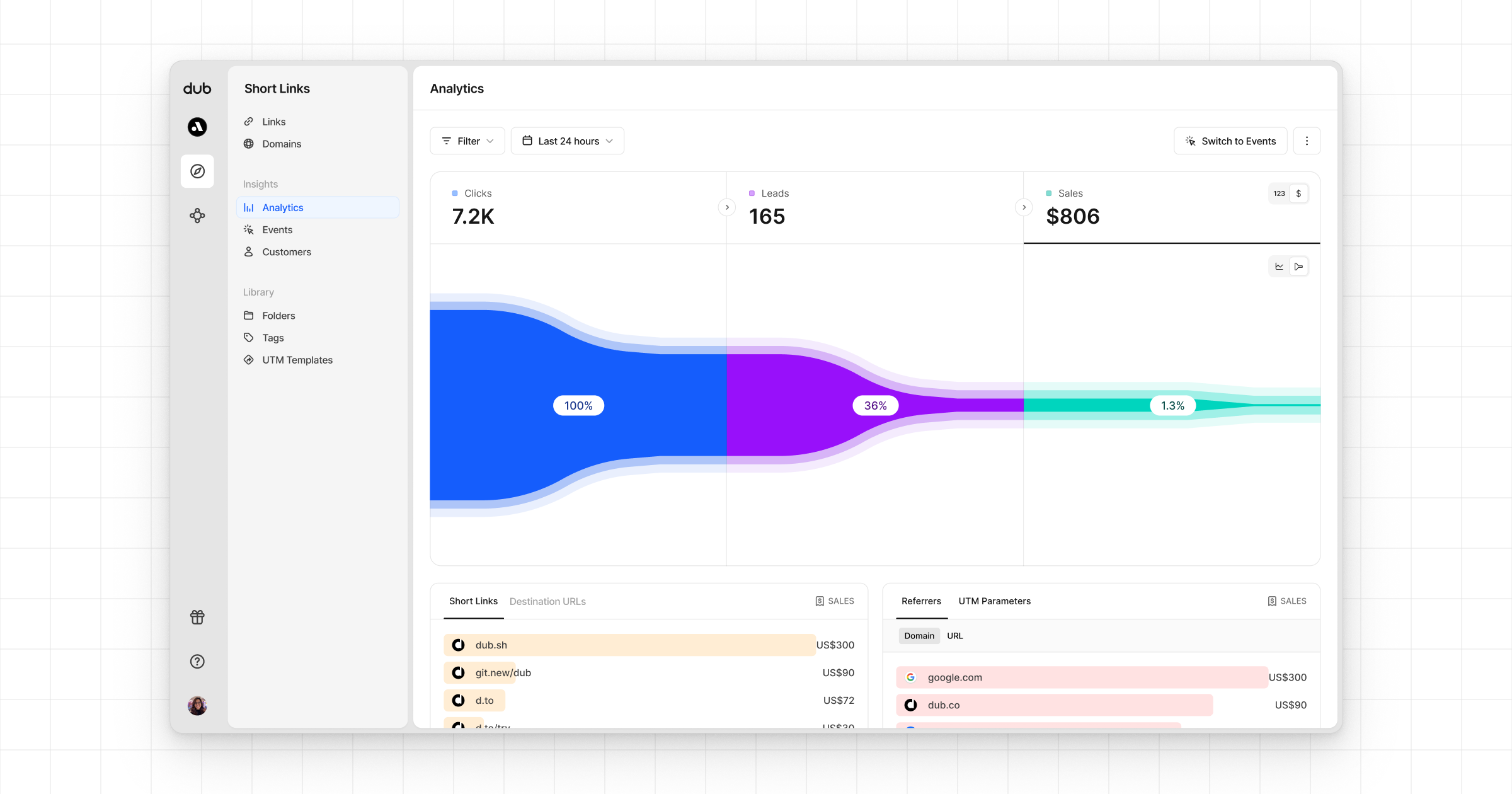
 * **Funnel chart**: A [funnel chart view](http://app.dub.co/analytics?view=funnel) visualizing the conversion & dropoff rates across the different steps in the conversion funnel (clicks → leads → sales).
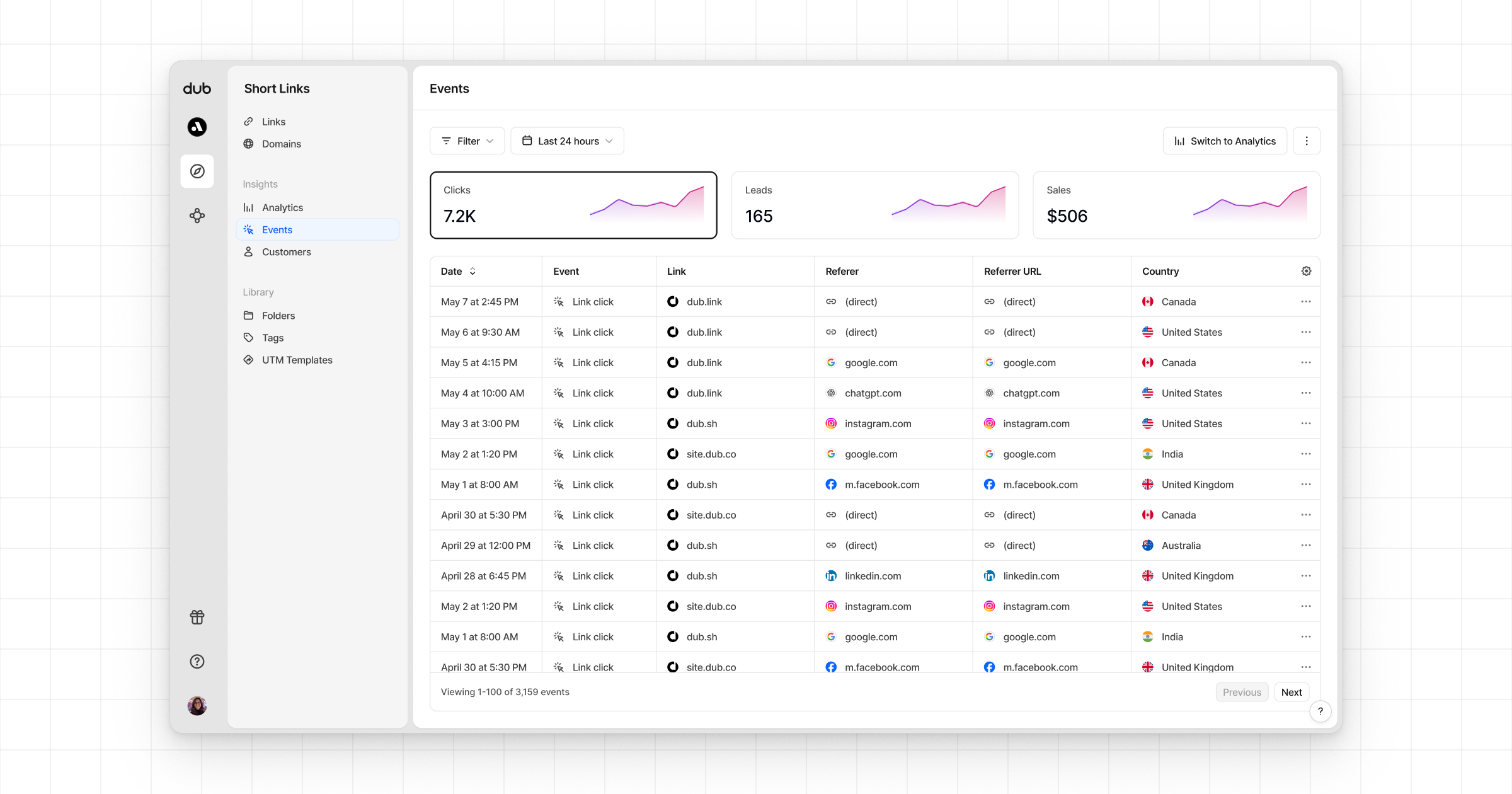
 * **Real-time events stream**: A [real-time events stream](https://app.dub.co/events) of every single conversion event that occurs across all your links in your workspace.
 ## Example apps
See the full example on GitHub.
## Example apps
See the full example on GitHub.