> ## Documentation Index
> Fetch the complete documentation index at: https://dub.co/llms.txt
> Use this file to discover all available pages before exploring further.
# Clerk
> Learn how to track lead conversion events with Clerk and Dub
This feature is only available on [Business plans and
above](https://dub.co/pricing/partners).
When it comes to [conversion tracking](/docs/concepts/attribution), a `lead` event happens when a user performs an action that indicates interest in your product or service. This could be anything from:
* Signing up for an account
* Booking a demo meeting
* Joining a mailing list
 In this guide, we will be focusing on tracking new user sign-ups for a SaaS application that uses Clerk for user authentication.
## Prerequisites
First, you'll need to enable conversion tracking for your Dub links to be able to start tracking conversions:
If you're using [Dub Partners](https://dub.co/partners), you can skip this
step since partner links will have conversion tracking enabled by default.
To enable conversion tracking for all future links in a workspace, you can do the following:
To enable conversion tracking for all future links in a workspace, you can do the following:
1. Navigate to your [workspace's Tracking settings page](https://app.dub.co/settings/tracking).
2. Toggle the **Workspace-level Conversion Tracking** switch to enable conversion tracking for the workspace.
In this guide, we will be focusing on tracking new user sign-ups for a SaaS application that uses Clerk for user authentication.
## Prerequisites
First, you'll need to enable conversion tracking for your Dub links to be able to start tracking conversions:
If you're using [Dub Partners](https://dub.co/partners), you can skip this
step since partner links will have conversion tracking enabled by default.
To enable conversion tracking for all future links in a workspace, you can do the following:
To enable conversion tracking for all future links in a workspace, you can do the following:
1. Navigate to your [workspace's Tracking settings page](https://app.dub.co/settings/tracking).
2. Toggle the **Workspace-level Conversion Tracking** switch to enable conversion tracking for the workspace.
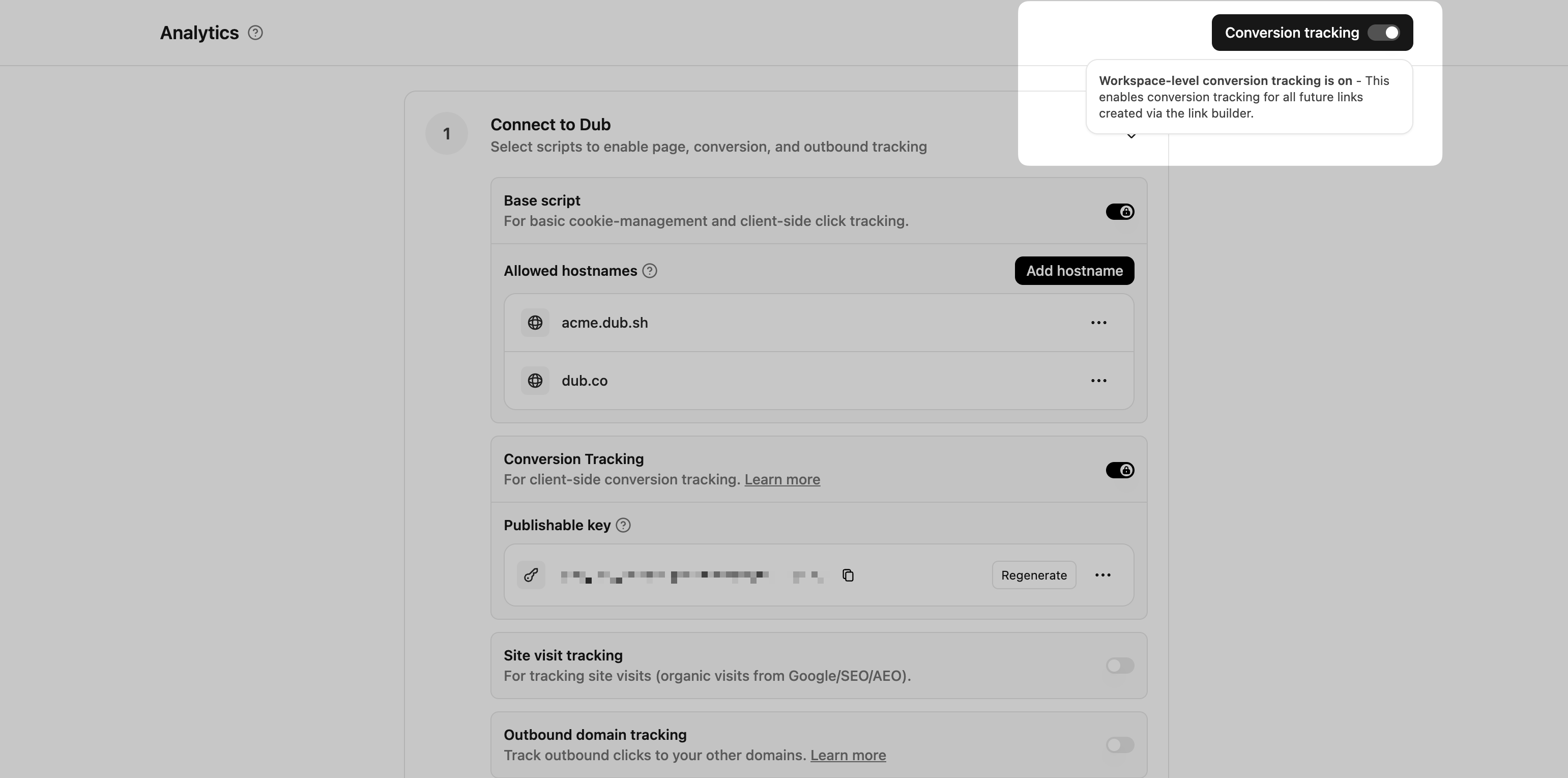 This option will enable conversion tracking in the [Dub Link Builder](/help/article/dub-link-builder) for all future links.
If you don't want to enable conversion tracking for all your links in a workspace, you can also opt to enable it on a link-level.
To enable conversion tracking for a specific link, open the [Dub Link Builder](/help/article/dub-link-builder) for a link and toggle the **Conversion Tracking** switch.
This option will enable conversion tracking in the [Dub Link Builder](/help/article/dub-link-builder) for all future links.
If you don't want to enable conversion tracking for all your links in a workspace, you can also opt to enable it on a link-level.
To enable conversion tracking for a specific link, open the [Dub Link Builder](/help/article/dub-link-builder) for a link and toggle the **Conversion Tracking** switch.
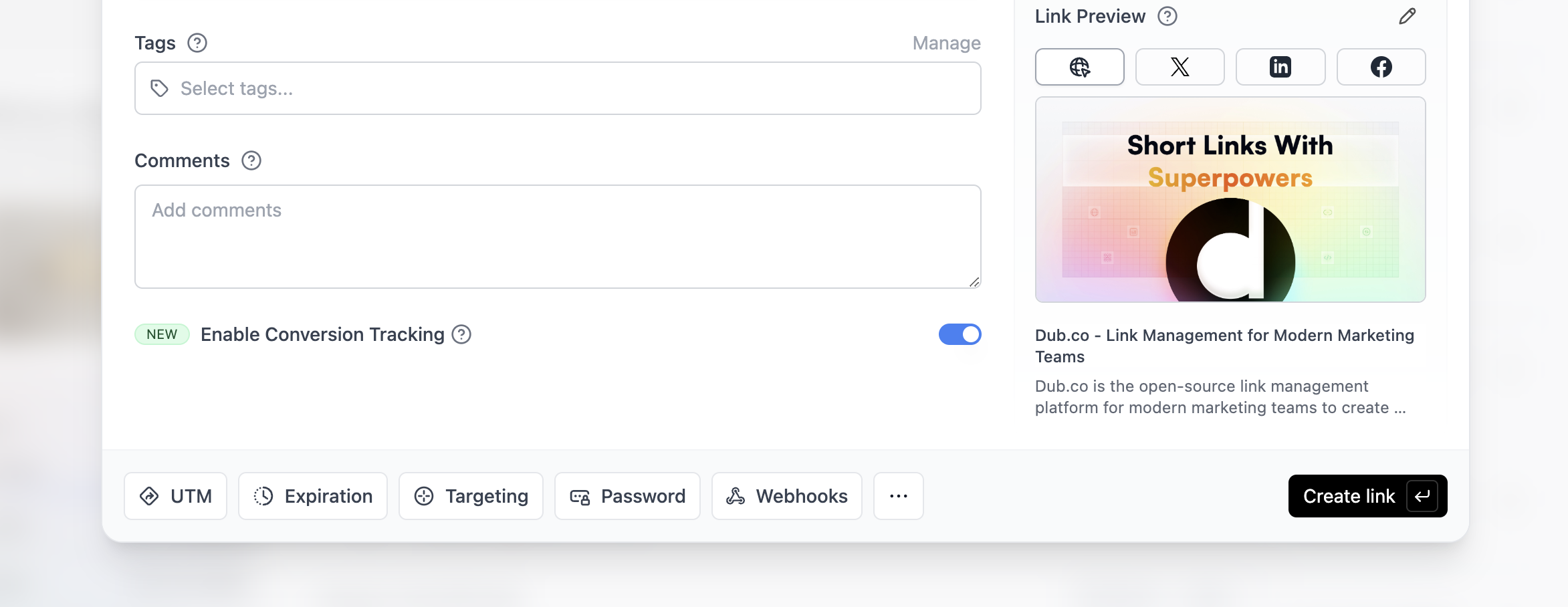 You can also use the `C` keyboard shortcut when inside the link builder to
quickly enable conversion tracking for a given link.
Alternatively, you can also enable conversion tracking programmatically via the [Dub API](/docs/api-reference/introduction). All you need to do is pass `trackConversion: true` when creating or updating a link:
```javascript Node.js theme={null}
const link = await dub.links.create({
url: "https://dub.co",
trackConversion: true,
});
```
```python Python theme={null}
link = d.links.create(url="https://dub.co", track_conversion=True)
```
```go Go theme={null}
link, err := d.Links.Create(ctx, &dub.CreateLinkRequest{
URL: "https://dub.co",
TrackConversion: true,
})
```
```ruby Ruby theme={null}
s.links.create_many(
::OpenApiSDK::Operations::CreateLinkRequest.new(
url: "https://dub.co",
track_conversion: true,
)
)
```
Then, you'd want to install the Dub Analytics script to your website to track conversion events.
You can install the Dub Analytics script in several different ways:
}
href="/docs/sdks/client-side/installation-guides/framer"
horizontal
/>
You can **verify the installation** with the following tests:
1. Open the browser console and type in `_dubAnalytics` – if the script is installed correctly, you should see the `_dubAnalytics` object in the console.
2. Add the `?dub_id=test` query parameter to your website URL and make sure that the `dub_id` cookie is being set in your browser.
If both of these checks pass, the script is installed correctly. Otherwise, please make sure:
* The analytics script was added to the `` section of the page
* If you're using a content delivery network (CDN), make sure to purge any cached content
## Configure Clerk
Next, configure Clerk to track lead conversion events when a new user signs up. Here's a quick video showing how to do this:
Here's a quick summary of the steps:
Add the following environment variables to your app:
```bash theme={null}
# get it here: https://dashboard.clerk.com/apps/new
NEXT_PUBLIC_CLERK_PUBLISHABLE_KEY=your_publishable_key
CLERK_SECRET_KEY=your_secret_key
# get it here: https://d.to/tokens
DUB_API_KEY=your_api_key
```
Add the following JSON as a [custom claim](https://clerk.com/docs/references/nextjs/add-onboarding-flow#add-custom-claims-to-your-session-token) to your Clerk session token:
```json Clerk Session Token theme={null}
{
"metadata": "{{user.public_metadata}}"
}
```
Extend the [`@dub/analytics` package](/docs/sdks/client-side/introduction) to include a `trackLead` server action.
```tsx components/dub-analytics.tsx theme={null}
"use client";
import { trackLead } from "@/actions/track-lead";
import { useUser } from "@clerk/nextjs";
import { Analytics, AnalyticsProps } from "@dub/analytics/react";
import { useEffect } from "react";
export function DubAnalytics(props: AnalyticsProps) {
const { user } = useUser();
useEffect(() => {
if (!user || user.publicMetadata.dubClickId) return;
// if the user is loaded but hasn't been persisted to Dub yet, track the lead event
trackLead({
id: user.id,
name: user.fullName!,
email: user.primaryEmailAddress?.emailAddress,
avatar: user.imageUrl,
}).then(async (res) => {
if (res.ok) await user.reload();
else console.error(res.error);
});
// you can also use an API route instead of a server action
/*
fetch("/api/track-lead", {
method: "POST",
body: JSON.stringify({
id: user.id,
name: user.fullName,
email: user.primaryEmailAddress?.emailAddress,
avatar: user.imageUrl,
}),
}).then(res => {
if (res.ok) await user.reload();
else console.error(res.statusText);
});
*/
}, [user]);
return ;
}
```
Then, add the `DubAnalytics` component to your app's root layout component:
```tsx app/layout.tsx theme={null}
import { DubAnalytics } from "@/components/dub-analytics";
export default function RootLayout({ children }: { children: React.ReactNode }) {
return (
{children}
);
}
```
On the server side, implement the `trackLead` server action. Alternatively, you can also create an API route instead:
```tsx /actions/track-lead.ts theme={null}
// This is a server action
"use server";
import { dub } from "@/lib/dub";
import { clerkClient } from "@clerk/nextjs/server";
import { cookies } from "next/headers";
export async function trackLead({
id,
name,
email,
avatar,
}: {
id: string;
name?: string | null;
email?: string | null;
avatar?: string | null;
}) {
try {
const cookieStore = await cookies();
const dubId = cookieStore.get("dub_id")?.value;
if (dubId) {
// Send lead event to Dub
await dub.track.lead({
clickId: dubId,
eventName: "Sign Up",
customerExternalId: id,
customerName: name,
customerEmail: email,
customerAvatar: avatar,
});
// Delete the dub_id cookie
cookieStore.set("dub_id", "", {
expires: new Date(0),
});
}
const clerk = await clerkClient();
await clerk.users.updateUser(id, {
publicMetadata: {
dubClickId: dubId || "n/a",
},
});
return { ok: true };
} catch (error) {
console.error("Error in trackLead:", error);
return { ok: false, error: (error as Error).message };
}
}
```
```tsx /api/track-lead/route.ts theme={null}
// This is an API route
import { NextRequest, NextResponse } from "next/server";
export async function POST(req: NextRequest) {
// read dub_id from the request cookies
const dubId = req.cookies.get("dub_id")?.value;
if (dubId) {
// Send lead event to Dub
await dub.track.lead({
clickId: dubId,
eventName: "Sign Up",
customerExternalId: id,
customerName: name,
customerEmail: email,
customerAvatar: avatar,
});
}
const clerk = await clerkClient();
await clerk.users.updateUser(id, {
publicMetadata: {
dubClickId: dubId || "n/a",
},
});
const res = NextResponse.json({ ok: true });
// Delete the dub_id cookie
res.cookies.set("dub_id", "", {
expires: new Date(0),
});
return res;
}
```
Here are the properties you can include when sending a lead event:
| Property | Required | Description |
| :------------------- | :------- | :------------------------------------------------------------------------------------------------------------------------------------------------------------------------------------------------------------------------------------------------------------------------------------------------------------------------------------------------------------------------------------- |
| `clickId` | **Yes** | The unique ID of the click that the lead conversion event is attributed to. You can read this value from `dub_id` cookie. If an empty string is provided (i.e. if you're using [tracking a deferred lead event](/docs/conversions/leads/deferred)), Dub will try to find an existing customer with the provided `customerExternalId` and use the `clickId` from the customer if found. |
| `eventName` | **Yes** | The name of the lead event to track. Can also be used as a unique identifier to associate a given lead event for a customer for a subsequent sale event (via the `leadEventName` prop in `/track/sale`). |
| `customerExternalId` | **Yes** | The unique ID of the customer in your system. Will be used to identify and attribute all future events to this customer. |
| `customerName` | No | The name of the customer. If not passed, a random name will be generated (e.g. "Big Red Caribou"). |
| `customerEmail` | No | The email address of the customer. |
| `customerAvatar` | No | The avatar URL of the customer. |
| `mode` | No | The mode to use for tracking the lead event. `async` will not block the request; `wait` will block the request until the lead event is fully recorded in Dub; `deferred` will defer the lead event creation to a subsequent request. |
| `metadata` | No | Additional metadata to be stored with the lead event. Max 10,000 characters. |
## Example App
To learn more about how to track leads with Clerk, check out the following example app:
See how to track new user sign-ups with Clerk and the Dub SDK.
## View your conversions
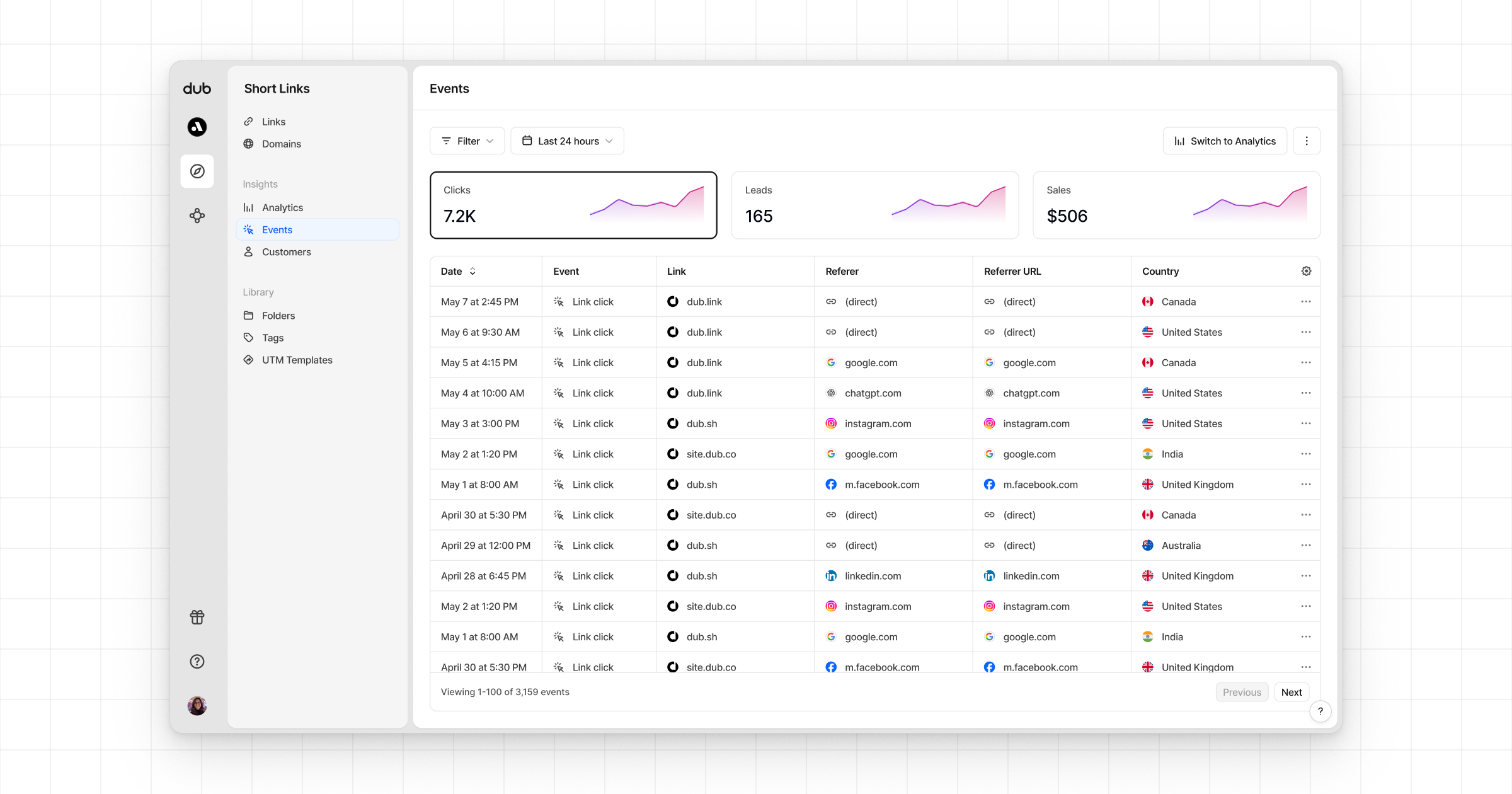
Once you've completed the setup, all your tracked conversions will show up in [Dub Analytics](https://dub.co/analytics). We provide 3 different views to help you understand your conversions:
* **Time-series**: A [time-series view](https://app.dub.co/dub/analytics?view=timeseries) of the number clicks, leads and sales.
You can also use the `C` keyboard shortcut when inside the link builder to
quickly enable conversion tracking for a given link.
Alternatively, you can also enable conversion tracking programmatically via the [Dub API](/docs/api-reference/introduction). All you need to do is pass `trackConversion: true` when creating or updating a link:
```javascript Node.js theme={null}
const link = await dub.links.create({
url: "https://dub.co",
trackConversion: true,
});
```
```python Python theme={null}
link = d.links.create(url="https://dub.co", track_conversion=True)
```
```go Go theme={null}
link, err := d.Links.Create(ctx, &dub.CreateLinkRequest{
URL: "https://dub.co",
TrackConversion: true,
})
```
```ruby Ruby theme={null}
s.links.create_many(
::OpenApiSDK::Operations::CreateLinkRequest.new(
url: "https://dub.co",
track_conversion: true,
)
)
```
Then, you'd want to install the Dub Analytics script to your website to track conversion events.
You can install the Dub Analytics script in several different ways:
}
href="/docs/sdks/client-side/installation-guides/framer"
horizontal
/>
You can **verify the installation** with the following tests:
1. Open the browser console and type in `_dubAnalytics` – if the script is installed correctly, you should see the `_dubAnalytics` object in the console.
2. Add the `?dub_id=test` query parameter to your website URL and make sure that the `dub_id` cookie is being set in your browser.
If both of these checks pass, the script is installed correctly. Otherwise, please make sure:
* The analytics script was added to the `` section of the page
* If you're using a content delivery network (CDN), make sure to purge any cached content
## Configure Clerk
Next, configure Clerk to track lead conversion events when a new user signs up. Here's a quick video showing how to do this:
Here's a quick summary of the steps:
Add the following environment variables to your app:
```bash theme={null}
# get it here: https://dashboard.clerk.com/apps/new
NEXT_PUBLIC_CLERK_PUBLISHABLE_KEY=your_publishable_key
CLERK_SECRET_KEY=your_secret_key
# get it here: https://d.to/tokens
DUB_API_KEY=your_api_key
```
Add the following JSON as a [custom claim](https://clerk.com/docs/references/nextjs/add-onboarding-flow#add-custom-claims-to-your-session-token) to your Clerk session token:
```json Clerk Session Token theme={null}
{
"metadata": "{{user.public_metadata}}"
}
```
Extend the [`@dub/analytics` package](/docs/sdks/client-side/introduction) to include a `trackLead` server action.
```tsx components/dub-analytics.tsx theme={null}
"use client";
import { trackLead } from "@/actions/track-lead";
import { useUser } from "@clerk/nextjs";
import { Analytics, AnalyticsProps } from "@dub/analytics/react";
import { useEffect } from "react";
export function DubAnalytics(props: AnalyticsProps) {
const { user } = useUser();
useEffect(() => {
if (!user || user.publicMetadata.dubClickId) return;
// if the user is loaded but hasn't been persisted to Dub yet, track the lead event
trackLead({
id: user.id,
name: user.fullName!,
email: user.primaryEmailAddress?.emailAddress,
avatar: user.imageUrl,
}).then(async (res) => {
if (res.ok) await user.reload();
else console.error(res.error);
});
// you can also use an API route instead of a server action
/*
fetch("/api/track-lead", {
method: "POST",
body: JSON.stringify({
id: user.id,
name: user.fullName,
email: user.primaryEmailAddress?.emailAddress,
avatar: user.imageUrl,
}),
}).then(res => {
if (res.ok) await user.reload();
else console.error(res.statusText);
});
*/
}, [user]);
return ;
}
```
Then, add the `DubAnalytics` component to your app's root layout component:
```tsx app/layout.tsx theme={null}
import { DubAnalytics } from "@/components/dub-analytics";
export default function RootLayout({ children }: { children: React.ReactNode }) {
return (
{children}
);
}
```
On the server side, implement the `trackLead` server action. Alternatively, you can also create an API route instead:
```tsx /actions/track-lead.ts theme={null}
// This is a server action
"use server";
import { dub } from "@/lib/dub";
import { clerkClient } from "@clerk/nextjs/server";
import { cookies } from "next/headers";
export async function trackLead({
id,
name,
email,
avatar,
}: {
id: string;
name?: string | null;
email?: string | null;
avatar?: string | null;
}) {
try {
const cookieStore = await cookies();
const dubId = cookieStore.get("dub_id")?.value;
if (dubId) {
// Send lead event to Dub
await dub.track.lead({
clickId: dubId,
eventName: "Sign Up",
customerExternalId: id,
customerName: name,
customerEmail: email,
customerAvatar: avatar,
});
// Delete the dub_id cookie
cookieStore.set("dub_id", "", {
expires: new Date(0),
});
}
const clerk = await clerkClient();
await clerk.users.updateUser(id, {
publicMetadata: {
dubClickId: dubId || "n/a",
},
});
return { ok: true };
} catch (error) {
console.error("Error in trackLead:", error);
return { ok: false, error: (error as Error).message };
}
}
```
```tsx /api/track-lead/route.ts theme={null}
// This is an API route
import { NextRequest, NextResponse } from "next/server";
export async function POST(req: NextRequest) {
// read dub_id from the request cookies
const dubId = req.cookies.get("dub_id")?.value;
if (dubId) {
// Send lead event to Dub
await dub.track.lead({
clickId: dubId,
eventName: "Sign Up",
customerExternalId: id,
customerName: name,
customerEmail: email,
customerAvatar: avatar,
});
}
const clerk = await clerkClient();
await clerk.users.updateUser(id, {
publicMetadata: {
dubClickId: dubId || "n/a",
},
});
const res = NextResponse.json({ ok: true });
// Delete the dub_id cookie
res.cookies.set("dub_id", "", {
expires: new Date(0),
});
return res;
}
```
Here are the properties you can include when sending a lead event:
| Property | Required | Description |
| :------------------- | :------- | :------------------------------------------------------------------------------------------------------------------------------------------------------------------------------------------------------------------------------------------------------------------------------------------------------------------------------------------------------------------------------------- |
| `clickId` | **Yes** | The unique ID of the click that the lead conversion event is attributed to. You can read this value from `dub_id` cookie. If an empty string is provided (i.e. if you're using [tracking a deferred lead event](/docs/conversions/leads/deferred)), Dub will try to find an existing customer with the provided `customerExternalId` and use the `clickId` from the customer if found. |
| `eventName` | **Yes** | The name of the lead event to track. Can also be used as a unique identifier to associate a given lead event for a customer for a subsequent sale event (via the `leadEventName` prop in `/track/sale`). |
| `customerExternalId` | **Yes** | The unique ID of the customer in your system. Will be used to identify and attribute all future events to this customer. |
| `customerName` | No | The name of the customer. If not passed, a random name will be generated (e.g. "Big Red Caribou"). |
| `customerEmail` | No | The email address of the customer. |
| `customerAvatar` | No | The avatar URL of the customer. |
| `mode` | No | The mode to use for tracking the lead event. `async` will not block the request; `wait` will block the request until the lead event is fully recorded in Dub; `deferred` will defer the lead event creation to a subsequent request. |
| `metadata` | No | Additional metadata to be stored with the lead event. Max 10,000 characters. |
## Example App
To learn more about how to track leads with Clerk, check out the following example app:
See how to track new user sign-ups with Clerk and the Dub SDK.
## View your conversions
Once you've completed the setup, all your tracked conversions will show up in [Dub Analytics](https://dub.co/analytics). We provide 3 different views to help you understand your conversions:
* **Time-series**: A [time-series view](https://app.dub.co/dub/analytics?view=timeseries) of the number clicks, leads and sales.
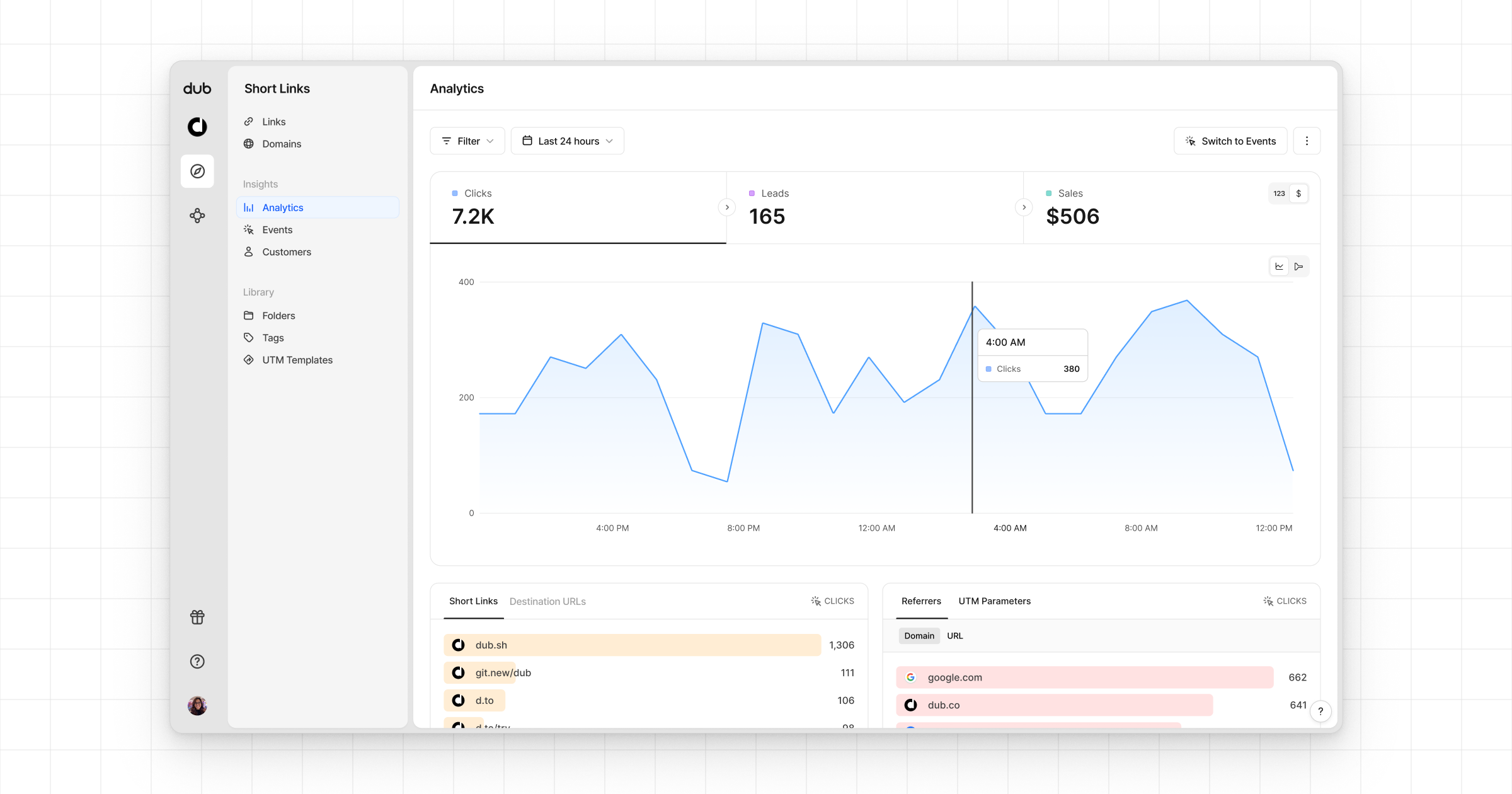 * **Funnel chart**: A [funnel chart view](http://app.dub.co/analytics?view=funnel) visualizing the conversion & dropoff rates across the different steps in the conversion funnel (clicks → leads → sales).
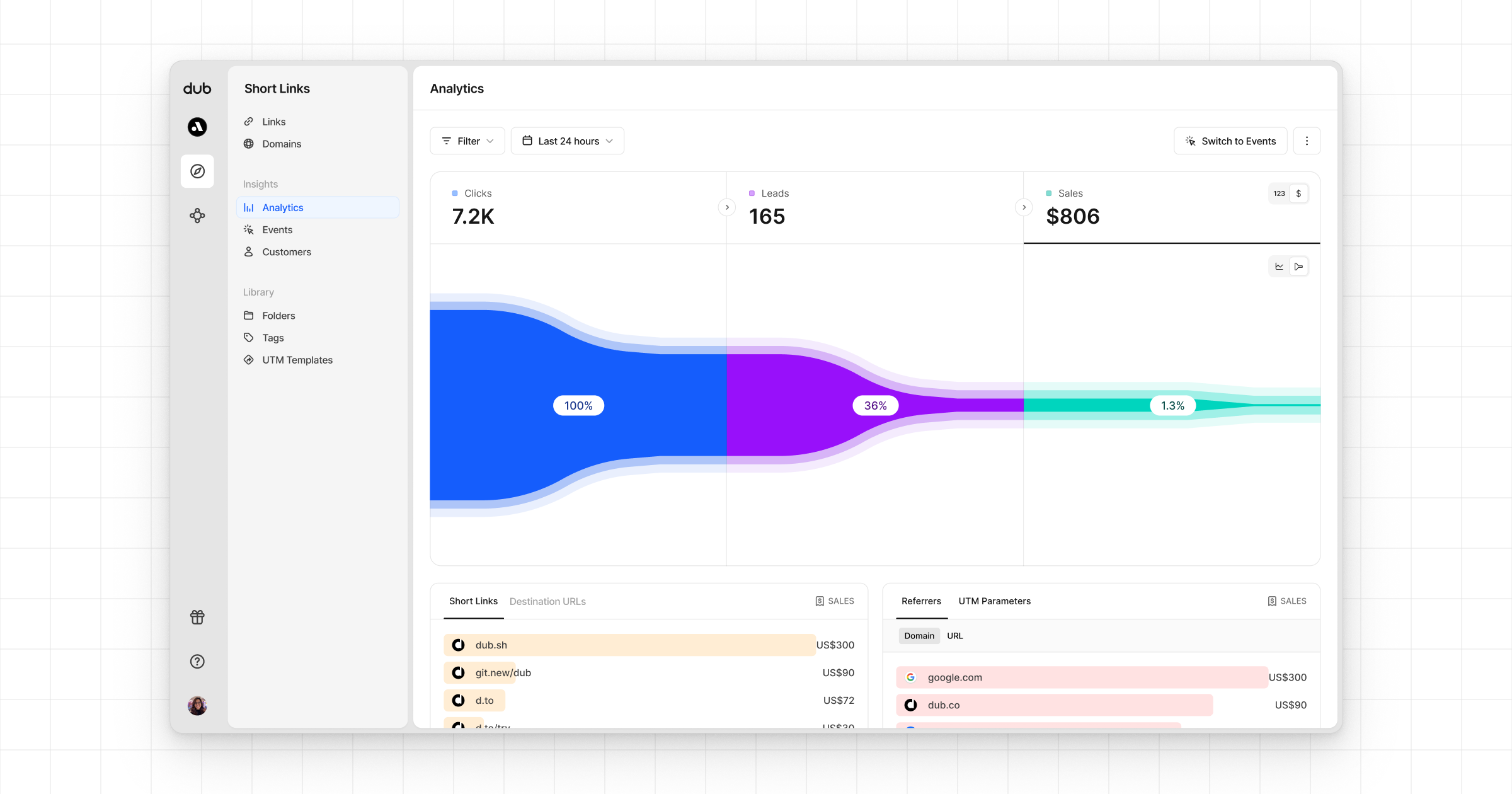 * **Real-time events stream**: A [real-time events stream](https://app.dub.co/events) of every single conversion event that occurs across all your links in your workspace.