> ## Documentation Index
> Fetch the complete documentation index at: https://dub.co/llms.txt
> Use this file to discover all available pages before exploring further.
# Appwrite
> Learn how to track lead conversion events with Appwrite and Dub
This feature is only available on [Business plans and
above](https://dub.co/pricing/partners).
When it comes to [conversion tracking](/docs/concepts/attribution), a `lead` event happens when a user performs an action that indicates interest in your product or service. This could be anything from:
* Signing up for an account
* Booking a demo meeting
* Joining a mailing list
 In this guide, we will be focusing on tracking new user sign-ups for a SaaS application that uses Appwrite for user authentication.
## Prerequisites
First, you'll need to enable conversion tracking for your Dub links to be able to start tracking conversions:
If you're using [Dub Partners](https://dub.co/partners), you can skip this
step since partner links will have conversion tracking enabled by default.
To enable conversion tracking for all future links in a workspace, you can do the following:
To enable conversion tracking for all future links in a workspace, you can do the following:
1. Navigate to your [workspace's Tracking settings page](https://app.dub.co/settings/tracking).
2. Toggle the **Workspace-level Conversion Tracking** switch to enable conversion tracking for the workspace.
In this guide, we will be focusing on tracking new user sign-ups for a SaaS application that uses Appwrite for user authentication.
## Prerequisites
First, you'll need to enable conversion tracking for your Dub links to be able to start tracking conversions:
If you're using [Dub Partners](https://dub.co/partners), you can skip this
step since partner links will have conversion tracking enabled by default.
To enable conversion tracking for all future links in a workspace, you can do the following:
To enable conversion tracking for all future links in a workspace, you can do the following:
1. Navigate to your [workspace's Tracking settings page](https://app.dub.co/settings/tracking).
2. Toggle the **Workspace-level Conversion Tracking** switch to enable conversion tracking for the workspace.
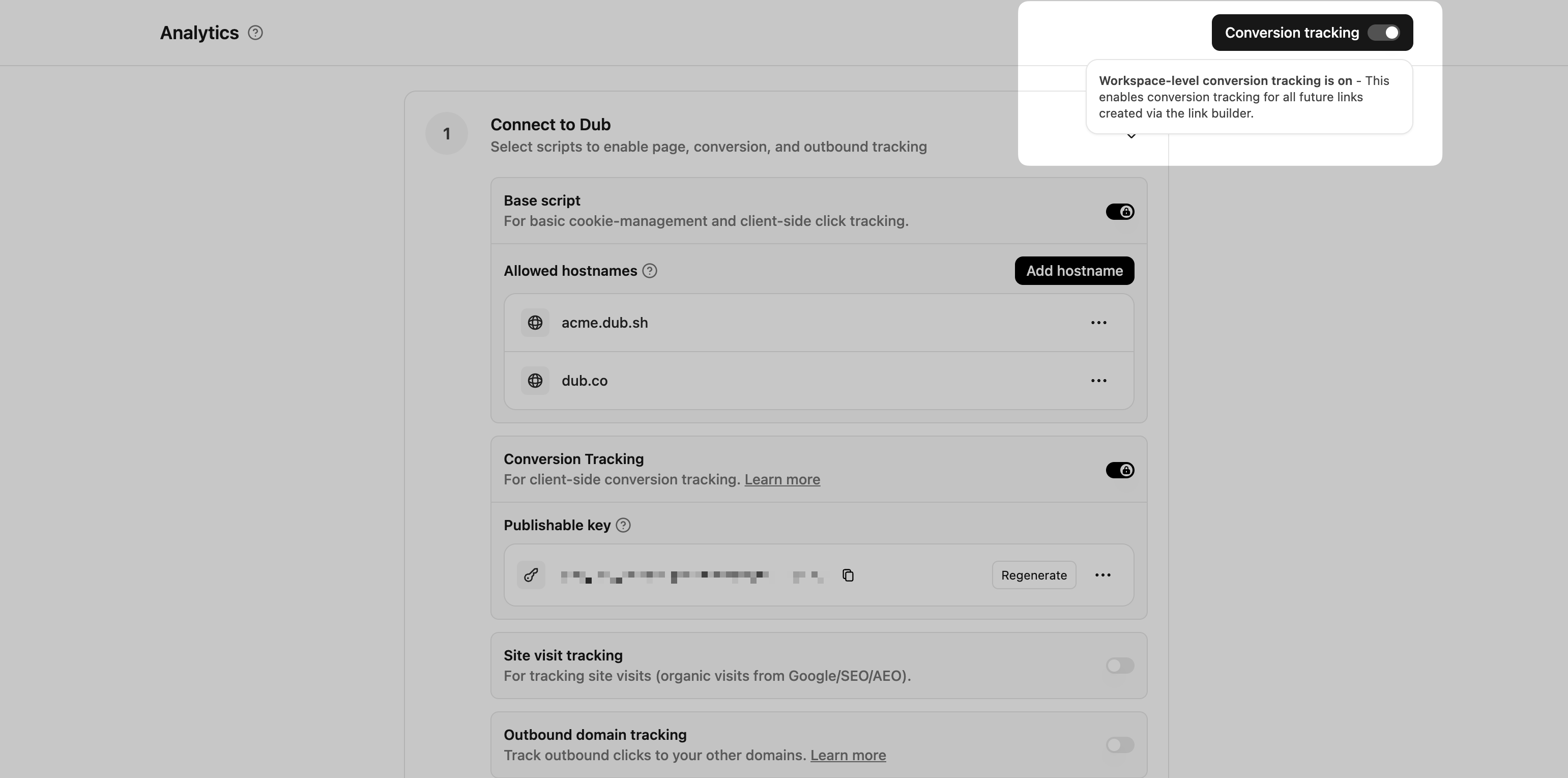 This option will enable conversion tracking in the [Dub Link Builder](/help/article/dub-link-builder) for all future links.
If you don't want to enable conversion tracking for all your links in a workspace, you can also opt to enable it on a link-level.
To enable conversion tracking for a specific link, open the [Dub Link Builder](/help/article/dub-link-builder) for a link and toggle the **Conversion Tracking** switch.
This option will enable conversion tracking in the [Dub Link Builder](/help/article/dub-link-builder) for all future links.
If you don't want to enable conversion tracking for all your links in a workspace, you can also opt to enable it on a link-level.
To enable conversion tracking for a specific link, open the [Dub Link Builder](/help/article/dub-link-builder) for a link and toggle the **Conversion Tracking** switch.
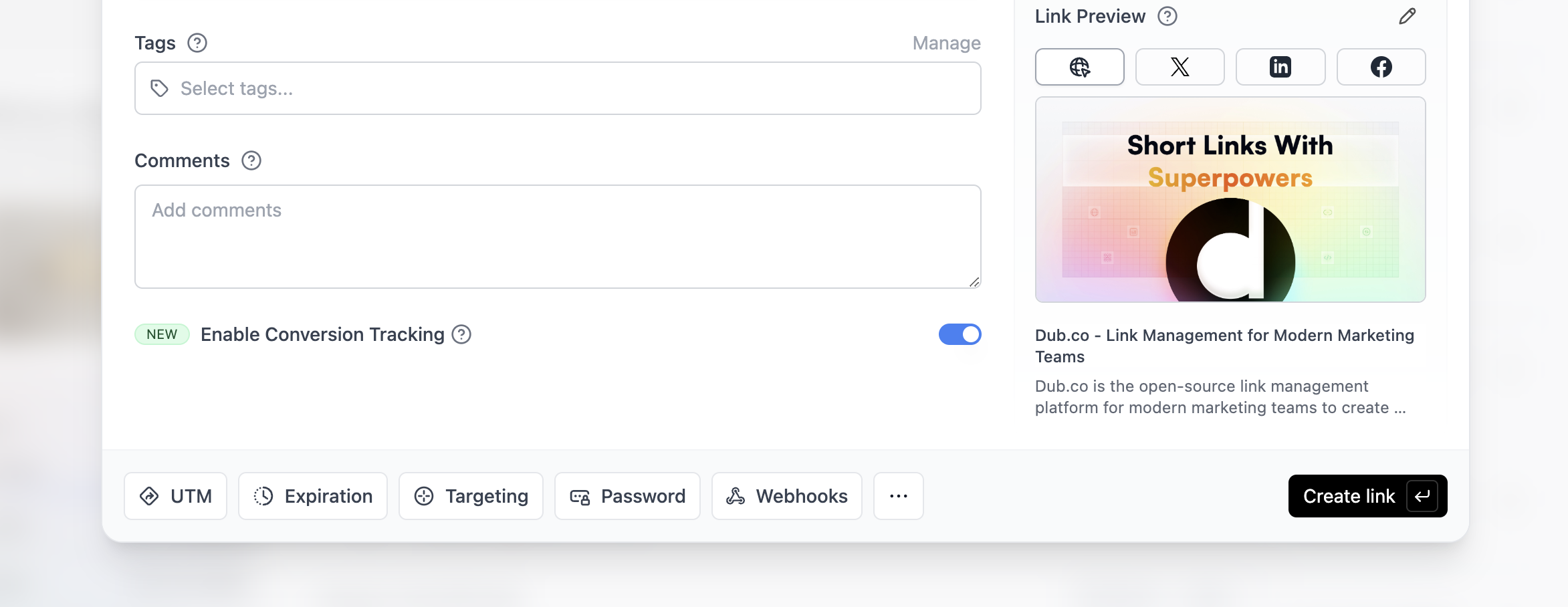 You can also use the `C` keyboard shortcut when inside the link builder to
quickly enable conversion tracking for a given link.
Alternatively, you can also enable conversion tracking programmatically via the [Dub API](/docs/api-reference/introduction). All you need to do is pass `trackConversion: true` when creating or updating a link:
```javascript Node.js theme={null}
const link = await dub.links.create({
url: "https://dub.co",
trackConversion: true,
});
```
```python Python theme={null}
link = d.links.create(url="https://dub.co", track_conversion=True)
```
```go Go theme={null}
link, err := d.Links.Create(ctx, &dub.CreateLinkRequest{
URL: "https://dub.co",
TrackConversion: true,
})
```
```ruby Ruby theme={null}
s.links.create_many(
::OpenApiSDK::Operations::CreateLinkRequest.new(
url: "https://dub.co",
track_conversion: true,
)
)
```
Then, you'd want to install the Dub Analytics script to your website to track conversion events.
You can install the Dub Analytics script in several different ways:
}
href="/docs/sdks/client-side/installation-guides/framer"
horizontal
/>
You can **verify the installation** with the following tests:
1. Open the browser console and type in `_dubAnalytics` – if the script is installed correctly, you should see the `_dubAnalytics` object in the console.
2. Add the `?dub_id=test` query parameter to your website URL and make sure that the `dub_id` cookie is being set in your browser.
If both of these checks pass, the script is installed correctly. Otherwise, please make sure:
* The analytics script was added to the `` section of the page
* If you're using a content delivery network (CDN), make sure to purge any cached content
## Configure Appwrite
Next, configure Appwrite to track lead conversion events during the sign up process.
Head to [Appwrite Cloud](https://apwr.dev/appwrite-dub) and create a new project.
You can also use the `C` keyboard shortcut when inside the link builder to
quickly enable conversion tracking for a given link.
Alternatively, you can also enable conversion tracking programmatically via the [Dub API](/docs/api-reference/introduction). All you need to do is pass `trackConversion: true` when creating or updating a link:
```javascript Node.js theme={null}
const link = await dub.links.create({
url: "https://dub.co",
trackConversion: true,
});
```
```python Python theme={null}
link = d.links.create(url="https://dub.co", track_conversion=True)
```
```go Go theme={null}
link, err := d.Links.Create(ctx, &dub.CreateLinkRequest{
URL: "https://dub.co",
TrackConversion: true,
})
```
```ruby Ruby theme={null}
s.links.create_many(
::OpenApiSDK::Operations::CreateLinkRequest.new(
url: "https://dub.co",
track_conversion: true,
)
)
```
Then, you'd want to install the Dub Analytics script to your website to track conversion events.
You can install the Dub Analytics script in several different ways:
}
href="/docs/sdks/client-side/installation-guides/framer"
horizontal
/>
You can **verify the installation** with the following tests:
1. Open the browser console and type in `_dubAnalytics` – if the script is installed correctly, you should see the `_dubAnalytics` object in the console.
2. Add the `?dub_id=test` query parameter to your website URL and make sure that the `dub_id` cookie is being set in your browser.
If both of these checks pass, the script is installed correctly. Otherwise, please make sure:
* The analytics script was added to the `` section of the page
* If you're using a content delivery network (CDN), make sure to purge any cached content
## Configure Appwrite
Next, configure Appwrite to track lead conversion events during the sign up process.
Head to [Appwrite Cloud](https://apwr.dev/appwrite-dub) and create a new project.
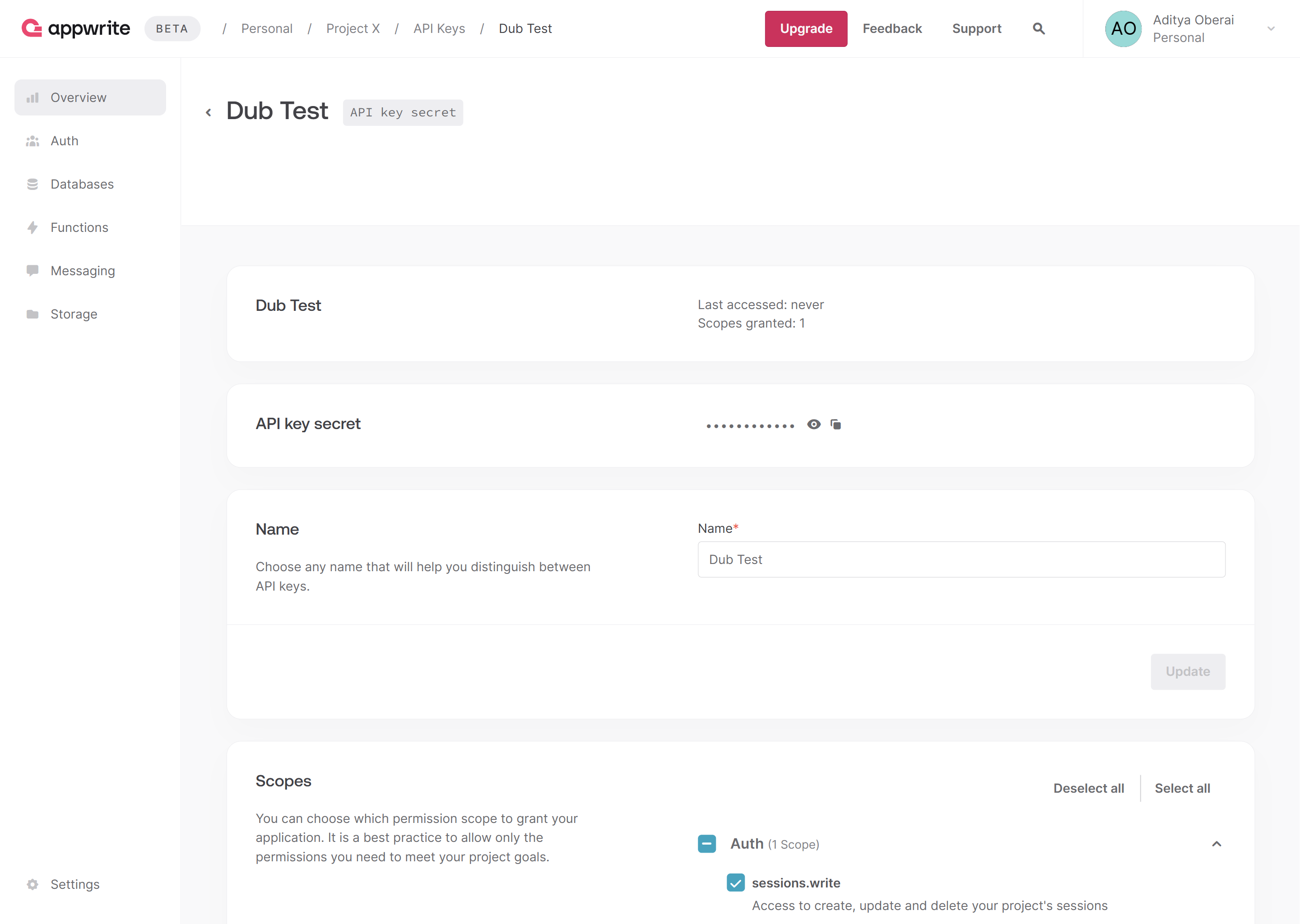
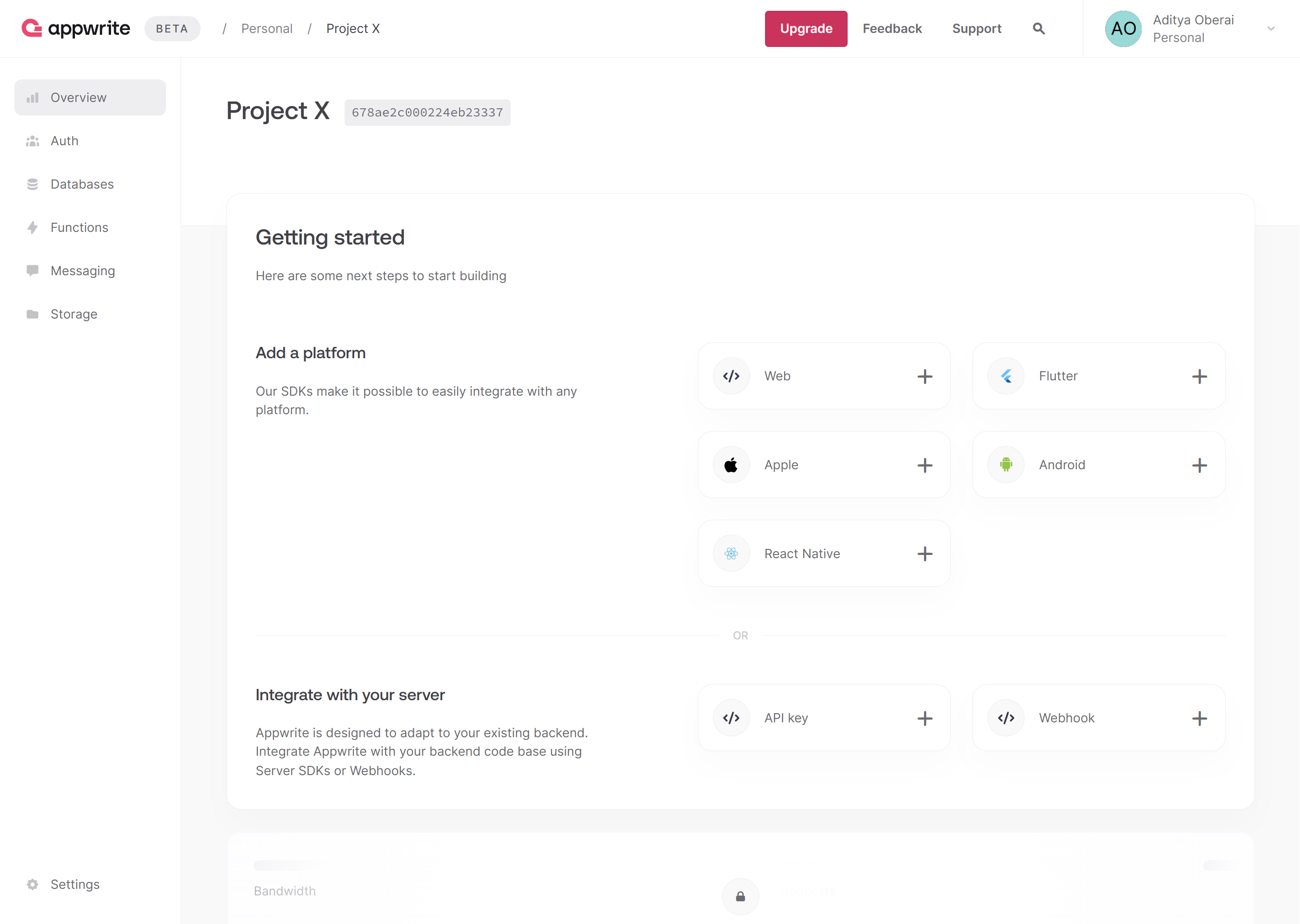 Create a new API key with the `sessions.write` scope enabled and save the API key for later use. You can also copy your project ID and endpoint from the project's Settings page.
 Then, in your Next.js app, install the Appwrite Node.js SDK.
```bash theme={null}
npm i node-appwrite
```
Add the following environment variables to your app.
```bash theme={null}
NEXT_PUBLIC_APPWRITE_ENDPOINT=https://cloud.appwrite.io/v1
NEXT_PUBLIC_APPWRITE_PROJECT=
NEXT_APPWRITE_KEY=
NEXT_DUB_API_KEY=
```
Add the `DubAnalytics` component from the `@dub/analytics` package to your app’s root layout.
```tsx src/app/layout.tsx theme={null}
import type { Metadata } from 'next';
import { Analytics as DubAnalytics } from '@dub/analytics/react';
export const metadata: Metadata = {
title: 'Appwrite Dub Leads Example',
description: 'Appwrite Dub Leads Tracking example app with Next.js'
};
export default function RootLayout({
children
}: Readonly<{
children: React.ReactNode;
}>) {
return (
{children}
);
}
```
Create the Appwrite Session and Admin client (necessary for SSR apps, as explained in the [Appwrite docs](https://appwrite.io/docs/products/auth/server-side-rendering)). Additionally, create a function to verify user login.
```ts src/lib/server/appwrite.ts theme={null}
'use server';
import { Client, Account } from 'node-appwrite';
import { cookies } from 'next/headers';
export async function createSessionClient() {
const client = new Client()
.setEndpoint(process.env.NEXT_PUBLIC_APPWRITE_ENDPOINT as string)
.setProject(process.env.NEXT_PUBLIC_APPWRITE_PROJECT as string);
const session = (await cookies()).get('my-custom-session');
if (!session || !session.value) {
throw new Error('No session');
}
client.setSession(session.value);
return {
get account() {
return new Account(client);
}
};
}
export async function createAdminClient() {
const client = new Client()
.setEndpoint(process.env.NEXT_PUBLIC_APPWRITE_ENDPOINT as string)
.setProject(process.env.NEXT_PUBLIC_APPWRITE_PROJECT as string)
.setKey(process.env.NEXT_APPWRITE_KEY as string);
return {
get account() {
return new Account(client);
}
};
}
```
Create the Dub client and send leads to Dub using the `dub.track.lead()` function.
```ts src/lib/server/dub.ts theme={null}
import type { Models } from 'node-appwrite';
import { Dub } from 'dub';
const dub = new Dub({
token: process.env.NEXT_DUB_API_KEY
});
export function addDubLead(user: Models.User, dub_id: string) {
dub.track.lead({
clickId: dub_id,
eventName: 'Sign Up',
customerExternalId: user.$id,
customerName: user.name,
customerEmail: user.email
});
}
```
In the `/auth` page, use the Appwrite Admin client to allow users to sign up. Post sign up, check if the `dub_id` cookie is present, send a lead event to Dub if found, and delete the `dub_id` cookie.
```tsx src/app/auth/page.tsx theme={null}
import { ID } from 'node-appwrite';
import { createAdminClient, getLoggedInUser } from '@/lib/server/appwrite';
import { cookies } from 'next/headers';
import { redirect } from 'next/navigation';
import { addDubLead } from '@/lib/server/dub';
async function signUpWithEmail(formData: any) {
'use server';
// Get sign up info from form
const email = formData.get('email');
const password = formData.get('password');
const name = formData.get('name');
// Create account and session using Appwrite
const { account } = await createAdminClient();
const user = await account.create(ID.unique(), email, password, name);
const session = await account.createEmailPasswordSession(email, password);
(await cookies()).set('my-custom-session', session.secret, {
path: '/',
httpOnly: true,
sameSite: 'strict',
secure: true
});
// Check if Dub ID is present in cookies and track lead if found
const dub_id = (await cookies()).get('dub_id')?.value;
if (dub_id) {
addDubLead(user, dub_id);
(await cookies()).delete('dub_id');
}
// Redirect to success page
redirect('/auth/success');
}
export default async function SignUpPage() {
// Verify active user session and redirect to success page if found
const user = await getLoggedInUser();
if (user) redirect('/auth/success');
return (
<>
);
}
```
Here are the properties you can include when sending a lead event:
| Property | Required | Description |
| :------------------- | :------- | :------------------------------------------------------------------------------------------------------------------------------------------------------------------------------------------------------------------------------------------------------------------------------------------------------------------------------------------------------------------------------------- |
| `clickId` | **Yes** | The unique ID of the click that the lead conversion event is attributed to. You can read this value from `dub_id` cookie. If an empty string is provided (i.e. if you're using [tracking a deferred lead event](/docs/conversions/leads/deferred)), Dub will try to find an existing customer with the provided `customerExternalId` and use the `clickId` from the customer if found. |
| `eventName` | **Yes** | The name of the lead event to track. Can also be used as a unique identifier to associate a given lead event for a customer for a subsequent sale event (via the `leadEventName` prop in `/track/sale`). |
| `customerExternalId` | **Yes** | The unique ID of the customer in your system. Will be used to identify and attribute all future events to this customer. |
| `customerName` | No | The name of the customer. If not passed, a random name will be generated (e.g. "Big Red Caribou"). |
| `customerEmail` | No | The email address of the customer. |
| `customerAvatar` | No | The avatar URL of the customer. |
| `mode` | No | The mode to use for tracking the lead event. `async` will not block the request; `wait` will block the request until the lead event is fully recorded in Dub; `deferred` will defer the lead event creation to a subsequent request. |
| `metadata` | No | Additional metadata to be stored with the lead event. Max 10,000 characters. |
## Example App
To learn more about how to track leads with Appwrite, check out the following example app:
See how to track new user sign-ups with Appwrite and the Dub SDK.
## View your conversions
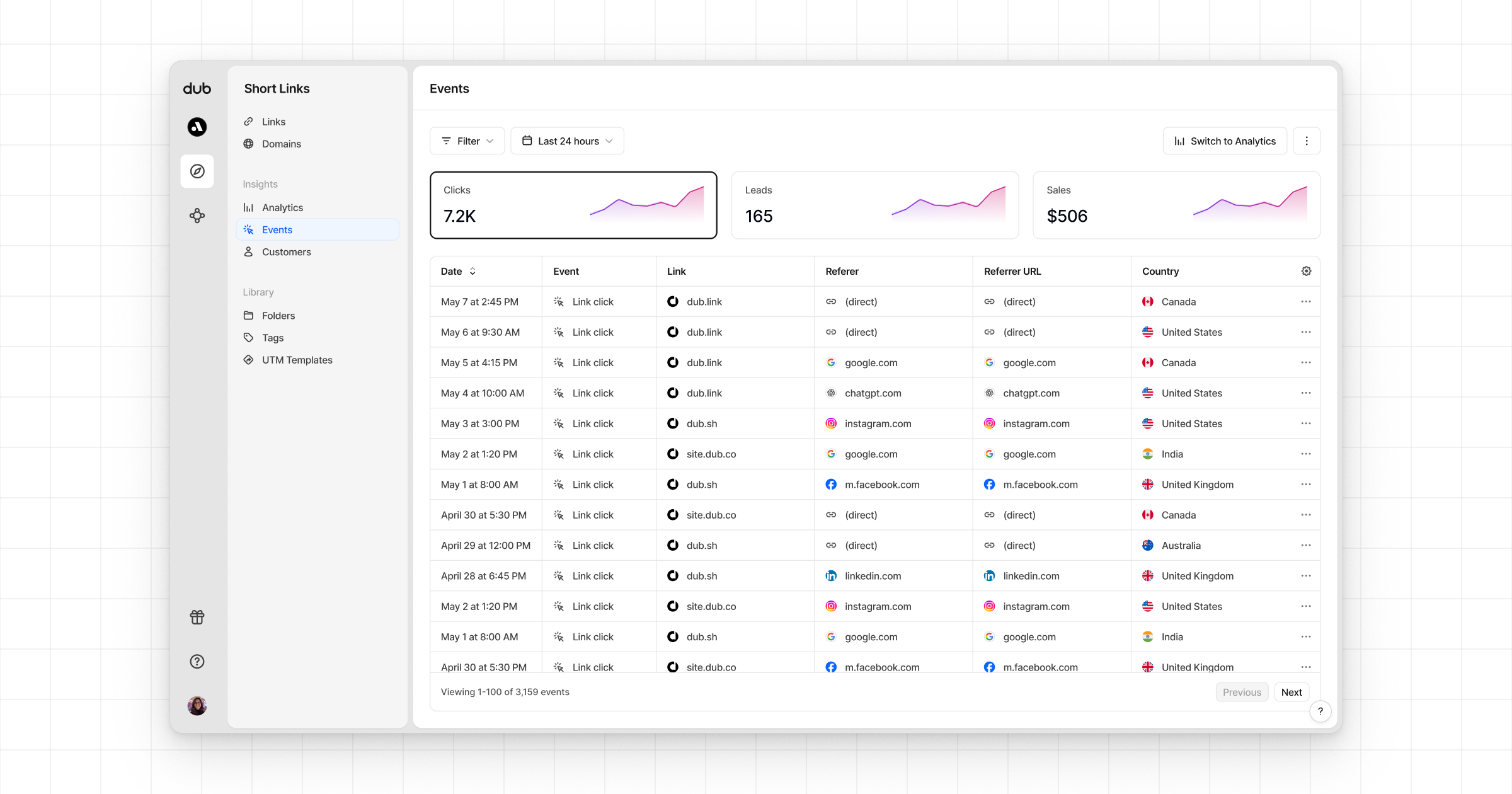
Once you've completed the setup, all your tracked conversions will show up in [Dub Analytics](https://dub.co/analytics). We provide 3 different views to help you understand your conversions:
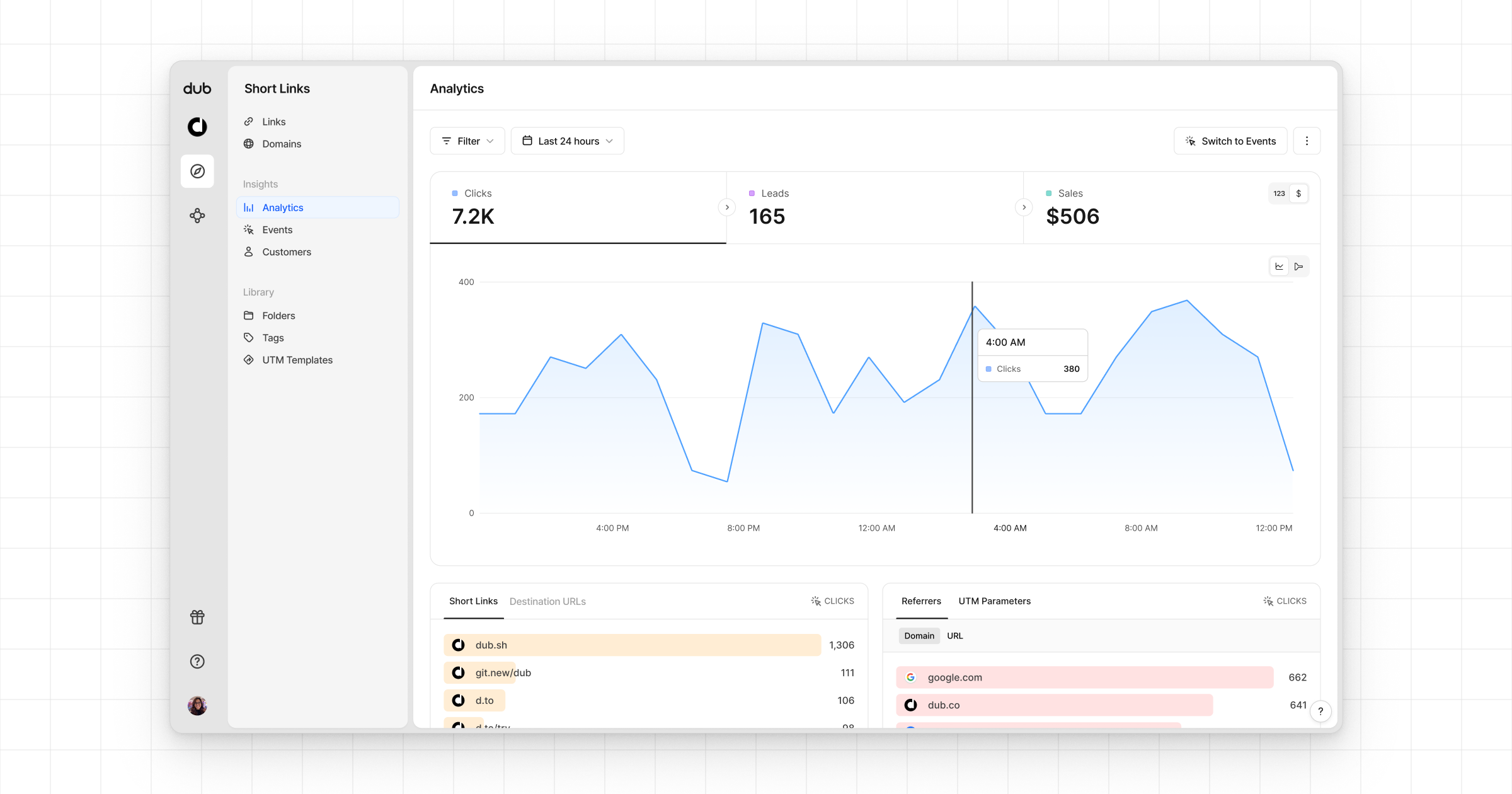
* **Time-series**: A [time-series view](https://app.dub.co/dub/analytics?view=timeseries) of the number clicks, leads and sales.
Then, in your Next.js app, install the Appwrite Node.js SDK.
```bash theme={null}
npm i node-appwrite
```
Add the following environment variables to your app.
```bash theme={null}
NEXT_PUBLIC_APPWRITE_ENDPOINT=https://cloud.appwrite.io/v1
NEXT_PUBLIC_APPWRITE_PROJECT=
NEXT_APPWRITE_KEY=
NEXT_DUB_API_KEY=
```
Add the `DubAnalytics` component from the `@dub/analytics` package to your app’s root layout.
```tsx src/app/layout.tsx theme={null}
import type { Metadata } from 'next';
import { Analytics as DubAnalytics } from '@dub/analytics/react';
export const metadata: Metadata = {
title: 'Appwrite Dub Leads Example',
description: 'Appwrite Dub Leads Tracking example app with Next.js'
};
export default function RootLayout({
children
}: Readonly<{
children: React.ReactNode;
}>) {
return (
{children}
);
}
```
Create the Appwrite Session and Admin client (necessary for SSR apps, as explained in the [Appwrite docs](https://appwrite.io/docs/products/auth/server-side-rendering)). Additionally, create a function to verify user login.
```ts src/lib/server/appwrite.ts theme={null}
'use server';
import { Client, Account } from 'node-appwrite';
import { cookies } from 'next/headers';
export async function createSessionClient() {
const client = new Client()
.setEndpoint(process.env.NEXT_PUBLIC_APPWRITE_ENDPOINT as string)
.setProject(process.env.NEXT_PUBLIC_APPWRITE_PROJECT as string);
const session = (await cookies()).get('my-custom-session');
if (!session || !session.value) {
throw new Error('No session');
}
client.setSession(session.value);
return {
get account() {
return new Account(client);
}
};
}
export async function createAdminClient() {
const client = new Client()
.setEndpoint(process.env.NEXT_PUBLIC_APPWRITE_ENDPOINT as string)
.setProject(process.env.NEXT_PUBLIC_APPWRITE_PROJECT as string)
.setKey(process.env.NEXT_APPWRITE_KEY as string);
return {
get account() {
return new Account(client);
}
};
}
```
Create the Dub client and send leads to Dub using the `dub.track.lead()` function.
```ts src/lib/server/dub.ts theme={null}
import type { Models } from 'node-appwrite';
import { Dub } from 'dub';
const dub = new Dub({
token: process.env.NEXT_DUB_API_KEY
});
export function addDubLead(user: Models.User, dub_id: string) {
dub.track.lead({
clickId: dub_id,
eventName: 'Sign Up',
customerExternalId: user.$id,
customerName: user.name,
customerEmail: user.email
});
}
```
In the `/auth` page, use the Appwrite Admin client to allow users to sign up. Post sign up, check if the `dub_id` cookie is present, send a lead event to Dub if found, and delete the `dub_id` cookie.
```tsx src/app/auth/page.tsx theme={null}
import { ID } from 'node-appwrite';
import { createAdminClient, getLoggedInUser } from '@/lib/server/appwrite';
import { cookies } from 'next/headers';
import { redirect } from 'next/navigation';
import { addDubLead } from '@/lib/server/dub';
async function signUpWithEmail(formData: any) {
'use server';
// Get sign up info from form
const email = formData.get('email');
const password = formData.get('password');
const name = formData.get('name');
// Create account and session using Appwrite
const { account } = await createAdminClient();
const user = await account.create(ID.unique(), email, password, name);
const session = await account.createEmailPasswordSession(email, password);
(await cookies()).set('my-custom-session', session.secret, {
path: '/',
httpOnly: true,
sameSite: 'strict',
secure: true
});
// Check if Dub ID is present in cookies and track lead if found
const dub_id = (await cookies()).get('dub_id')?.value;
if (dub_id) {
addDubLead(user, dub_id);
(await cookies()).delete('dub_id');
}
// Redirect to success page
redirect('/auth/success');
}
export default async function SignUpPage() {
// Verify active user session and redirect to success page if found
const user = await getLoggedInUser();
if (user) redirect('/auth/success');
return (
<>
);
}
```
Here are the properties you can include when sending a lead event:
| Property | Required | Description |
| :------------------- | :------- | :------------------------------------------------------------------------------------------------------------------------------------------------------------------------------------------------------------------------------------------------------------------------------------------------------------------------------------------------------------------------------------- |
| `clickId` | **Yes** | The unique ID of the click that the lead conversion event is attributed to. You can read this value from `dub_id` cookie. If an empty string is provided (i.e. if you're using [tracking a deferred lead event](/docs/conversions/leads/deferred)), Dub will try to find an existing customer with the provided `customerExternalId` and use the `clickId` from the customer if found. |
| `eventName` | **Yes** | The name of the lead event to track. Can also be used as a unique identifier to associate a given lead event for a customer for a subsequent sale event (via the `leadEventName` prop in `/track/sale`). |
| `customerExternalId` | **Yes** | The unique ID of the customer in your system. Will be used to identify and attribute all future events to this customer. |
| `customerName` | No | The name of the customer. If not passed, a random name will be generated (e.g. "Big Red Caribou"). |
| `customerEmail` | No | The email address of the customer. |
| `customerAvatar` | No | The avatar URL of the customer. |
| `mode` | No | The mode to use for tracking the lead event. `async` will not block the request; `wait` will block the request until the lead event is fully recorded in Dub; `deferred` will defer the lead event creation to a subsequent request. |
| `metadata` | No | Additional metadata to be stored with the lead event. Max 10,000 characters. |
## Example App
To learn more about how to track leads with Appwrite, check out the following example app:
See how to track new user sign-ups with Appwrite and the Dub SDK.
## View your conversions
Once you've completed the setup, all your tracked conversions will show up in [Dub Analytics](https://dub.co/analytics). We provide 3 different views to help you understand your conversions:
* **Time-series**: A [time-series view](https://app.dub.co/dub/analytics?view=timeseries) of the number clicks, leads and sales.
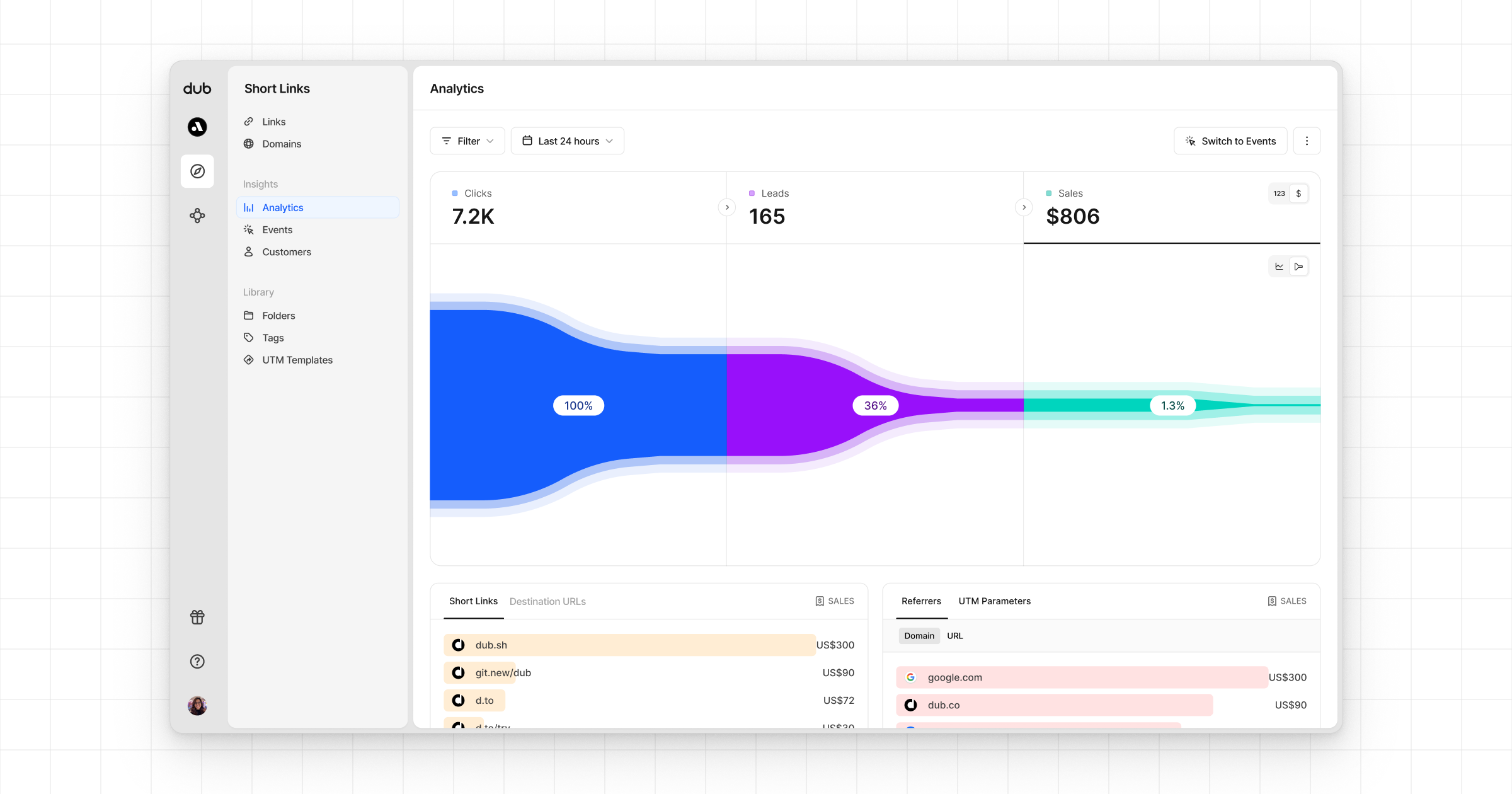
 * **Funnel chart**: A [funnel chart view](http://app.dub.co/analytics?view=funnel) visualizing the conversion & dropoff rates across the different steps in the conversion funnel (clicks → leads → sales).
 * **Real-time events stream**: A [real-time events stream](https://app.dub.co/events) of every single conversion event that occurs across all your links in your workspace.