> ## Documentation Index
> Fetch the complete documentation index at: https://dub.co/llms.txt
> Use this file to discover all available pages before exploring further.
# Deep link attribution
> Learn how to use deep link attribution to track conversions events with Dub.
Deep link attribution requires a [Business
plan](https://dub.co/pricing/partners) subscription or higher.
Dub's powerful [attribution platform](/docs/concepts/attribution) lets you understand how well your deep links are translating to actual users and revenue dollars inside your app.
 This feature is currently only available for iOS (Swift) and React Native.
Android (Kotlin) support is coming soon. If you'd like early access, please
[contact us](https://dub.co/contact/support).
## Prerequisites
First, you'll need to enable conversion tracking for your Dub links to be able to start tracking conversions:
If you're using [Dub Partners](https://dub.co/partners), you can skip this
step since partner links will have conversion tracking enabled by default.
To enable conversion tracking for all future links in a workspace, you can do the following:
To enable conversion tracking for all future links in a workspace, you can do the following:
1. Navigate to your [workspace's Tracking settings page](https://app.dub.co/settings/tracking).
2. Toggle the **Workspace-level Conversion Tracking** switch to enable conversion tracking for the workspace.
This feature is currently only available for iOS (Swift) and React Native.
Android (Kotlin) support is coming soon. If you'd like early access, please
[contact us](https://dub.co/contact/support).
## Prerequisites
First, you'll need to enable conversion tracking for your Dub links to be able to start tracking conversions:
If you're using [Dub Partners](https://dub.co/partners), you can skip this
step since partner links will have conversion tracking enabled by default.
To enable conversion tracking for all future links in a workspace, you can do the following:
To enable conversion tracking for all future links in a workspace, you can do the following:
1. Navigate to your [workspace's Tracking settings page](https://app.dub.co/settings/tracking).
2. Toggle the **Workspace-level Conversion Tracking** switch to enable conversion tracking for the workspace.
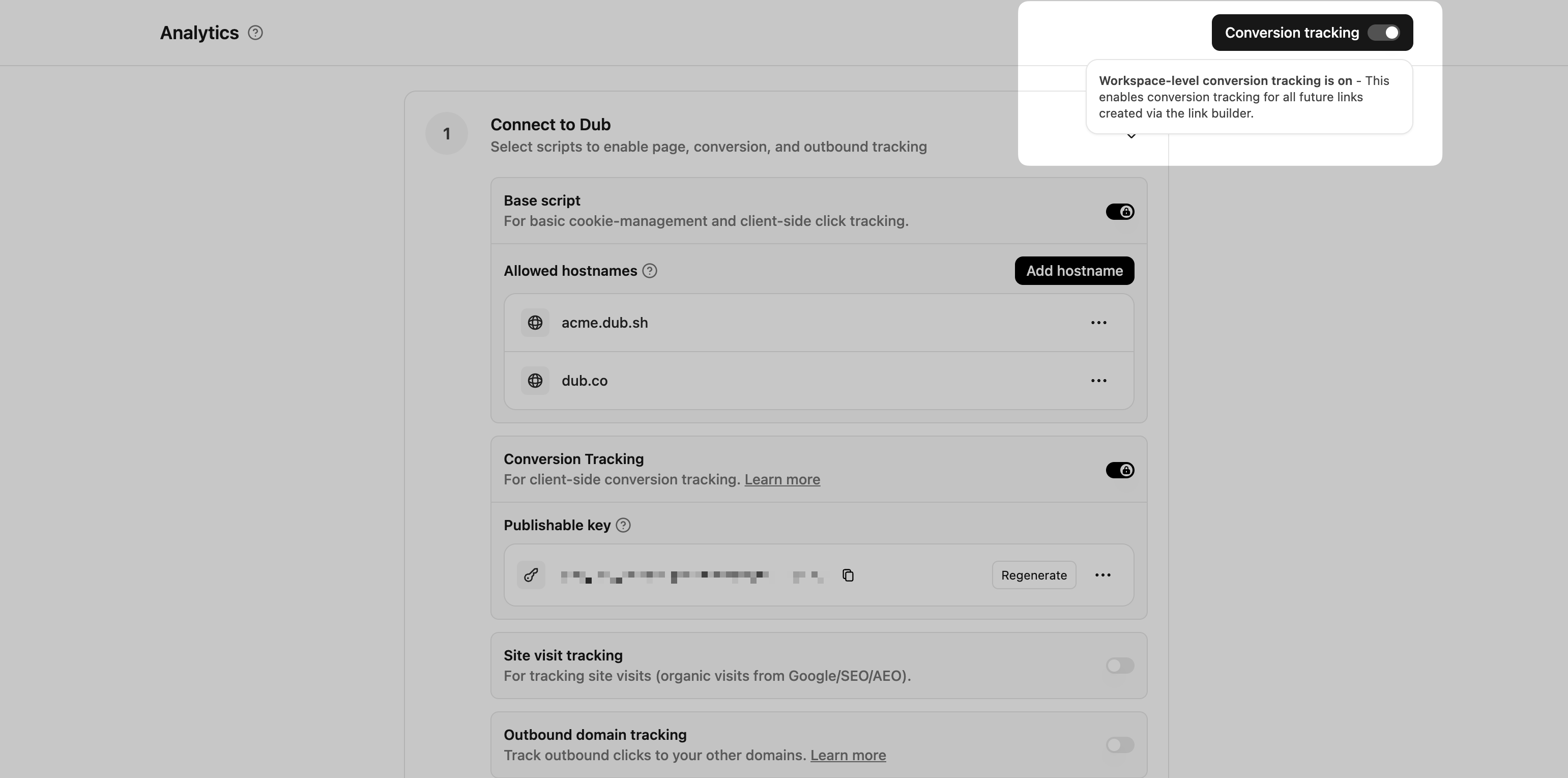 This option will enable conversion tracking in the [Dub Link Builder](/help/article/dub-link-builder) for all future links.
If you don't want to enable conversion tracking for all your links in a workspace, you can also opt to enable it on a link-level.
To enable conversion tracking for a specific link, open the [Dub Link Builder](/help/article/dub-link-builder) for a link and toggle the **Conversion Tracking** switch.
This option will enable conversion tracking in the [Dub Link Builder](/help/article/dub-link-builder) for all future links.
If you don't want to enable conversion tracking for all your links in a workspace, you can also opt to enable it on a link-level.
To enable conversion tracking for a specific link, open the [Dub Link Builder](/help/article/dub-link-builder) for a link and toggle the **Conversion Tracking** switch.
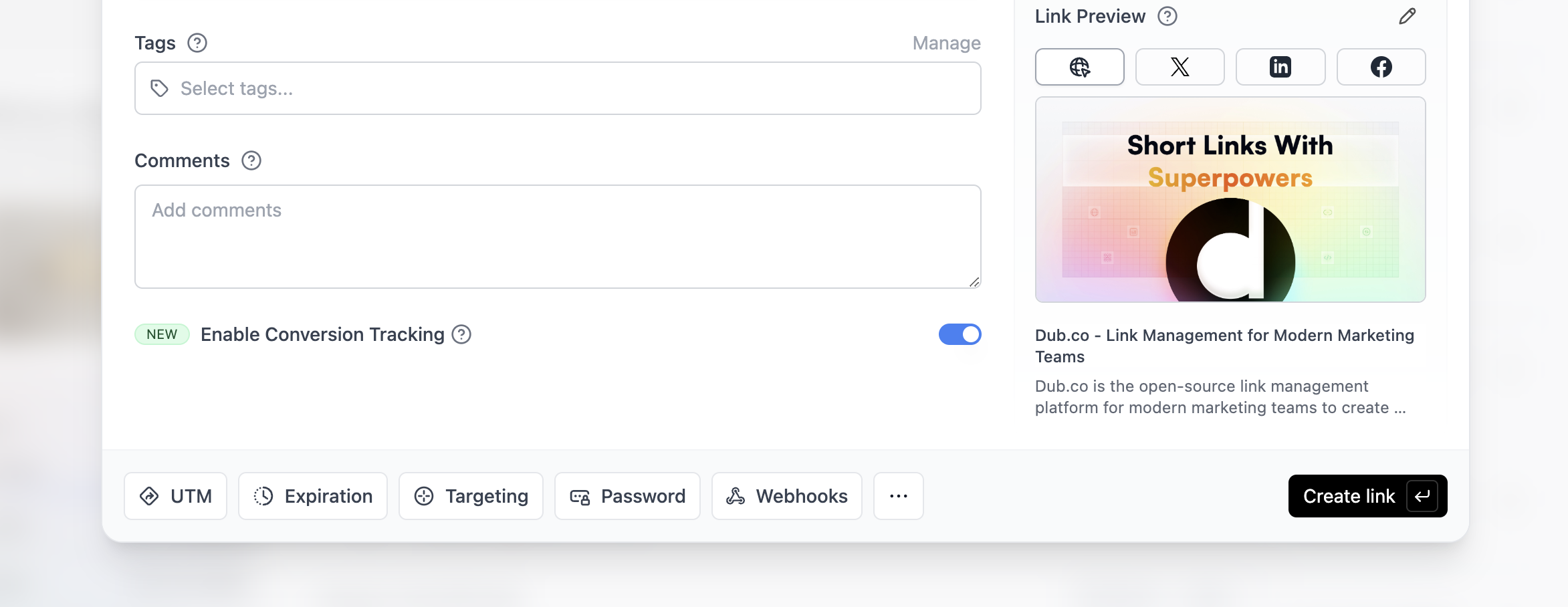 You can also use the `C` keyboard shortcut when inside the link builder to
quickly enable conversion tracking for a given link.
Alternatively, you can also enable conversion tracking programmatically via the [Dub API](/docs/api-reference/introduction). All you need to do is pass `trackConversion: true` when creating or updating a link:
```javascript Node.js theme={null}
const link = await dub.links.create({
url: "https://dub.co",
trackConversion: true,
});
```
```python Python theme={null}
link = d.links.create(url="https://dub.co", track_conversion=True)
```
```go Go theme={null}
link, err := d.Links.Create(ctx, &dub.CreateLinkRequest{
URL: "https://dub.co",
TrackConversion: true,
})
```
```ruby Ruby theme={null}
s.links.create_many(
::OpenApiSDK::Operations::CreateLinkRequest.new(
url: "https://dub.co",
track_conversion: true,
)
)
```
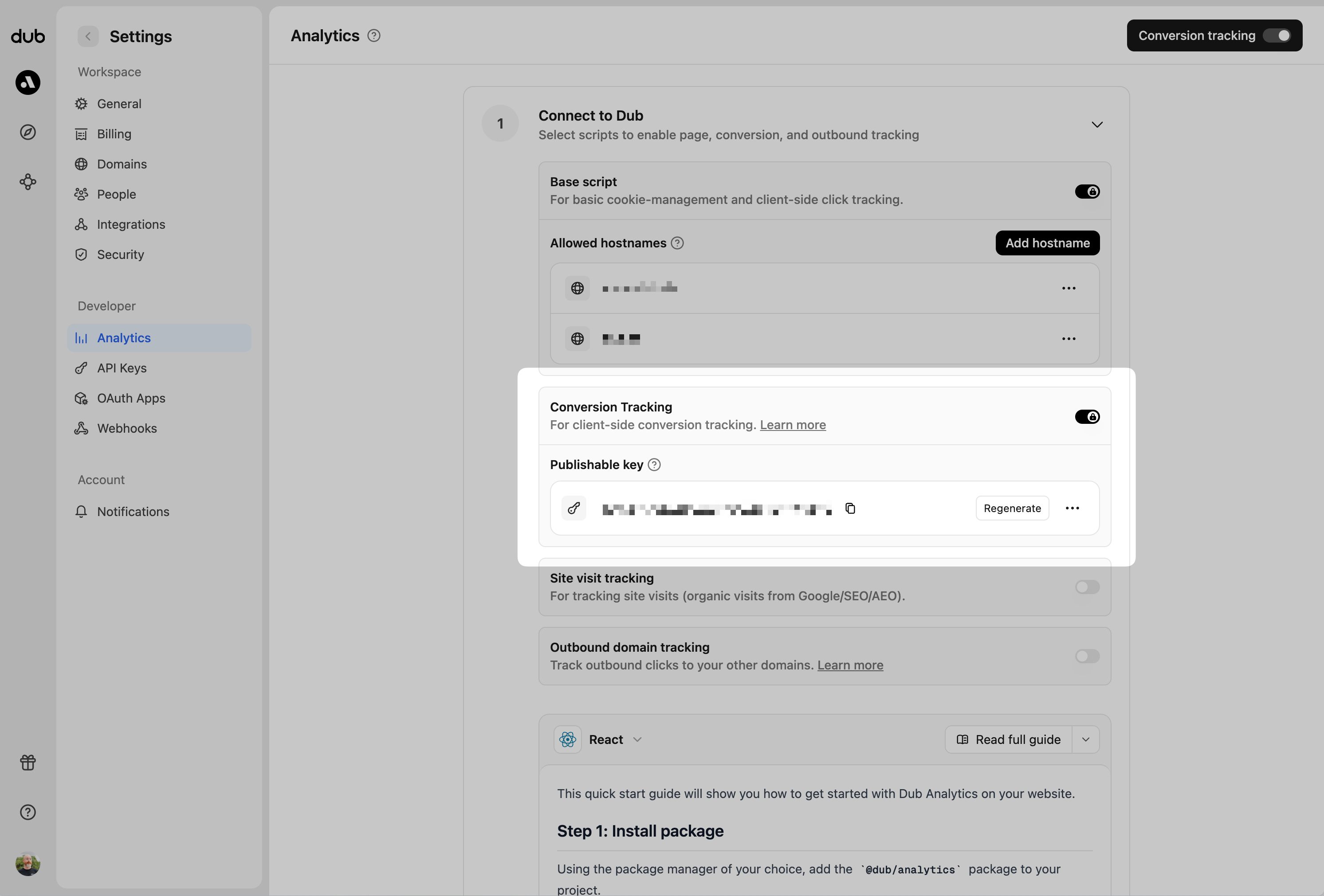
Then, you'll need generate a [publishable key](/docs/api-reference/authentication#publishable-keys) from your Dub workspace to track conversions on the client-side.
To do that, navigate to your [workspace's Tracking settings page](https://app.dub.co/settings/tracking) and generate a new publishable key under the **Publishable Key** section.
You can also use the `C` keyboard shortcut when inside the link builder to
quickly enable conversion tracking for a given link.
Alternatively, you can also enable conversion tracking programmatically via the [Dub API](/docs/api-reference/introduction). All you need to do is pass `trackConversion: true` when creating or updating a link:
```javascript Node.js theme={null}
const link = await dub.links.create({
url: "https://dub.co",
trackConversion: true,
});
```
```python Python theme={null}
link = d.links.create(url="https://dub.co", track_conversion=True)
```
```go Go theme={null}
link, err := d.Links.Create(ctx, &dub.CreateLinkRequest{
URL: "https://dub.co",
TrackConversion: true,
})
```
```ruby Ruby theme={null}
s.links.create_many(
::OpenApiSDK::Operations::CreateLinkRequest.new(
url: "https://dub.co",
track_conversion: true,
)
)
```
Then, you'll need generate a [publishable key](/docs/api-reference/authentication#publishable-keys) from your Dub workspace to track conversions on the client-side.
To do that, navigate to your [workspace's Tracking settings page](https://app.dub.co/settings/tracking) and generate a new publishable key under the **Publishable Key** section.
 Once these are set up, we can start tracking conversion events for your deep links.
## Step 1: Install the client-side Mobile SDK
Install the [Dub React Native SDK](/docs/sdks/client-side-mobile/installation-guides/react-native) and initialize it with your publishable key and short link domain.
```sh theme={null}
# With npm
npm install @dub/react-native
# With yarn
yarn add @dub/react-native
# With pnpm
pnpm add @dub/react-native
```
You must call `init` on your `dub` instance with your publishable key and domain prior to being able to use the `dub` instance. We provide two ways to initialize the SDK:
**Option 1**: Use the `DubProvider` to wrap your app
```typescript theme={null}
import { DubProvider } from "@dub/react-native";
export default function App() {
return (
// Your app content...
);
}
```
**Option 2**: Manually initialize the Dub SDK
```typescript theme={null}
import dub from "@dub/react-native";
export default function App() {
useEffect(() => {
dub.init({
publishableKey: "",
domain: "",
});
}, []);
// Return your app...
}
```
Install the [Dub iOS SDK](/docs/sdks/client-side-mobile/installation-guides/swift) and initialize it with your publishable key and short link domain.
Before installing, ensure your environment meets these minimum requirements:
**Build Tools:**
* Xcode 16+
* Swift 4.0+
**Platforms:**
* iOS 16.0+
* macOS 10.13 (Ventura)+
The Dub iOS SDK can be installed using the [Swift Package Manager](https://docs.swift.org/swiftpm/documentation/packagemanagerdocs/).
In Xcode, select **File** > **Add Package Dependencies** and add `https://github.com/dubinc/dub-ios` as the repository URL. Select the latest version of the SDK from the [release page](https://github.com/dubinc/dub-ios/releases).
You must call `Dub.setup` with your publishable key and domain prior to being able to use the `dub` instance.
```swift iOS (SwiftUI) theme={null}
import SwiftUI
import Dub
@main
struct DubApp: App {
// Step 1: Obtain your Dub domain and publishable key
private let dubPublishableKey = ""
private let dubDomain = ""
init() {
// Step 2: Initialize the Dub SDK by calling `setup`
Dub.setup(publishableKey: dubPublishableKey, domain: dubDomain)
}
var body: some Scene {
WindowGroup {
ContentView()
// Step 3: Expose the `dub` instance as a SwiftUI environment value
.environment(\.dub, Dub.shared)
}
}
}
```
```swift iOS (UIKit) theme={null}
import UIKit
import Dub
@main
class AppDelegate: UIResponder, UIApplicationDelegate {
var window: UIWindow?
// Step 1: Obtain your Dub domain and publishable key
private let dubPublishableKey = ""
private let dubDomain = ""
func application(_ application: UIApplication, didFinishLaunchingWithOptions launchOptions: [UIApplication.LaunchOptionsKey: Any]?) -> Bool {
// Step 2: Initialize the Dub SDK by calling `setup`
Dub.setup(publishableKey: dubPublishableKey, domain: dubDomain)
return true
}
}
```
## Step 2: Track deep link open events
Once the SDK has been initialized, you can start tracking deep link and deferred deep link events.
Call `trackOpen` on the `dub` instance to track deep link and deferred deep link open events. The `trackOpen` function should be called once without a `deepLink` parameter on first launch, and then again with the `deepLink` parameter whenever the app is opened from a deep link.
```typescript React Native expandable theme={null}
import { useState, useEffect, useRef } from "react";
import { Linking } from "react-native";
import AsyncStorage from "@react-native-async-storage/async-storage";
import dub from "@dub/react-native";
export default function App() {
useEffect(() => {
dub.init({
publishableKey: "",
domain: "",
});
// Check if this is first launch
const isFirstLaunch = await AsyncStorage.getItem("is_first_launch");
if (isFirstLaunch === null) {
await handleFirstLaunch();
await AsyncStorage.setItem("is_first_launch", "false");
} else {
// Handle initial deep link url (Android only)
const url = await Linking.getInitialURL();
if (url) {
await handleDeepLink(url);
}
}
const linkingListener = Linking.addEventListener("url", (event) => {
handleDeepLink(event.url);
});
return () => {
linkingListener.remove();
};
}, []);
const handleFirstLaunch = async (
deepLinkUrl?: string | null | undefined,
): Promise => {
try {
const response = await dub.trackOpen(deepLinkUrl);
const destinationURL = response.link?.url;
// Navigate to the destination URL
} catch (error) {
// Handle error
}
};
// Return your app...
}
```
```swift iOS (SwiftUI) expandable theme={null}
// ContentView.swift
import SwiftUI
import Dub
struct ContentView: View {
@Environment(\.dub) var dub: Dub
@AppStorage("is_first_launch") private var isFirstLaunch = true
var body: some View {
NavigationStack {
VStack {
// Your app content
}
.onOpenURL { url in
trackOpen(deepLink: url)
}
.onAppear {
if isFirstLaunch {
trackOpen()
isFirstLaunch = false
}
}
}
}
private func trackOpen(deepLink: URL? = nil) {
Task {
do {
let response = try await dub.trackOpen(deepLink: deepLink)
// Obtain the destination URL from the response
guard let url = response.link?.url else {
return
}
// Navigate to the destination URL
} catch let error as DubError {
print(error.localizedDescription)
}
}
}
}
```
```swift iOS (UIKit) expandable theme={null}
import UIKit
import Dub
@main
class AppDelegate: UIResponder, UIApplicationDelegate {
var window: UIWindow?
private let dubPublishableKey = ""
private let dubDomain = ""
private var isFirstLaunch: Bool {
get {
UserDefaults.standard.object(forKey: "is_first_launch") as? Bool ?? true
}
set {
UserDefaults.standard.set(newValue, forKey: "is_first_launch")
}
}
func application(_ application: UIApplication, didFinishLaunchingWithOptions launchOptions: [UIApplication.LaunchOptionsKey: Any]?) -> Bool {
Dub.setup(publishableKey: dubPublishableKey, domain: dubDomain)
// Track first launch
if isFirstLaunch {
trackOpen()
isFirstLaunch = false
}
// Override point for customization after application launch.
return true
}
func application(_ app: UIApplication, open url: URL, options: [UIApplication.OpenURLOptionsKey : Any] = [:]) -> Bool {
handleDeepLink(url: url)
return true
}
func handleDeepLink(url: URL) {
trackOpen(deepLink: url)
}
private func trackOpen(deepLink: URL? = nil) {
// Call the tracking endpoint with the full deep link URL
Task {
do {
let response = try await Dub.shared.trackOpen(deepLink: deepLink)
print(response)
// Navigate to final link via link.url
guard let destinationUrl = response.link?.url else {
return
}
// Navigate to the destination URL
} catch let error as DubError {
print(error.localizedDescription)
}
}
}
}
```
If the deep link was successfully resolved and correlated to the original click, the `response` object will contain the destination URL, which you can use to navigate the user to the appropriate screen.
It will also contain the `clickId`, which the `dub` instance will persist internally.
## Step 3: Track conversion events
You may track conversion events directly in your app with the `trackLead` and `trackSale` methods.
```typescript React Native expandable theme={null}
import dub from "@dub/react-native";
function trackLead(user: User) {
try {
await dub.trackLead({
eventName: "User Sign Up",
customerExternalId: user.id,
customerName: user.name,
customerEmail: user.email,
});
} catch (error) {
// Handle sale tracking error
}
}
function trackSale(user: User, product: Product) {
try {
await dub.trackSale({
customerExternalId: user.id,
amount: product.price.amount,
currency: "usd",
eventName: "Purchase",
});
} catch (error) {
// Handle sale tracking error
}
}
```
```swift iOS (SwiftUI) expandable theme={null}
// ContentView.swift
import SwiftUI
import Dub
struct ContentView: View {
@Environment(\.dub) var dub: Dub
var body: some View {
// ... your app content ...
}
private func trackLead(customerExternalId: String, name: String, email: String) {
Task {
do {
let response = try await dub.trackLead(
eventName: "Sign Up",
customerExternalId: customerExternalId,
customerName: name,
customerEmail: email
)
print(response)
} catch let error as DubError {
print(error.localizedDescription)
}
}
}
private func trackSale(
customerExternalId: String,
amount: Int,
currency: String = "usd",
eventName: String? = "Purchase",
customerName: String? = nil,
customerEmail: String? = nil,
customerAvatar: String? = nil
) {
Task {
do {
let response = try await dub.trackSale(
customerExternalId: customerExternalId,
amount: amount,
currency: currency,
eventName: eventName,
customerName: customerName,
customerEmail: customerEmail,
customerAvatar: customerAvatar
)
print(response)
} catch let error as DubError {
print(error.localizedDescription)
}
}
}
}
```
```swift iOS (UIKit) expandable theme={null}
// ViewController.swift
import UIKit
import Dub
class ViewController: UIViewController {
// View controller lifecycle
private func trackLead(customerExternalId: String, name: String, email: String) {
Task {
do {
let response = try await dub.trackLead(customerExternalId: customerExternalId, name: name, email: email)
} catch let error as DubError {
print(error.localizedDescription)
}
}
}
private func trackSale(customerExternalId: String, amount: Int, currency: String = "usd", eventName: String? = "Purchase", customerName: String? = nil, customerEmail: String? = nil, customerAvatar: String? = nil) {
Task {
do {
let response = try await dub.trackSale(customerExternalId: customerExternalId, amount: amount, currency: currency, eventName: eventName, customerName: customerName, customerEmail: customerEmail, customerAvatar: customerAvatar)
} catch let error as DubError {
print(error.localizedDescription)
}
}
}
}
```
Alternatively, you can [track conversion events server-side](/docs/quickstart/server) by sending the `clickId` resolved from the deep link to your backend and then calling off to either:
* [`POST /track/lead`](/docs/api-reference/track/lead)
* [`POST /track/sale`](/docs/api-reference/track/sale)
## Step 4: View your conversions
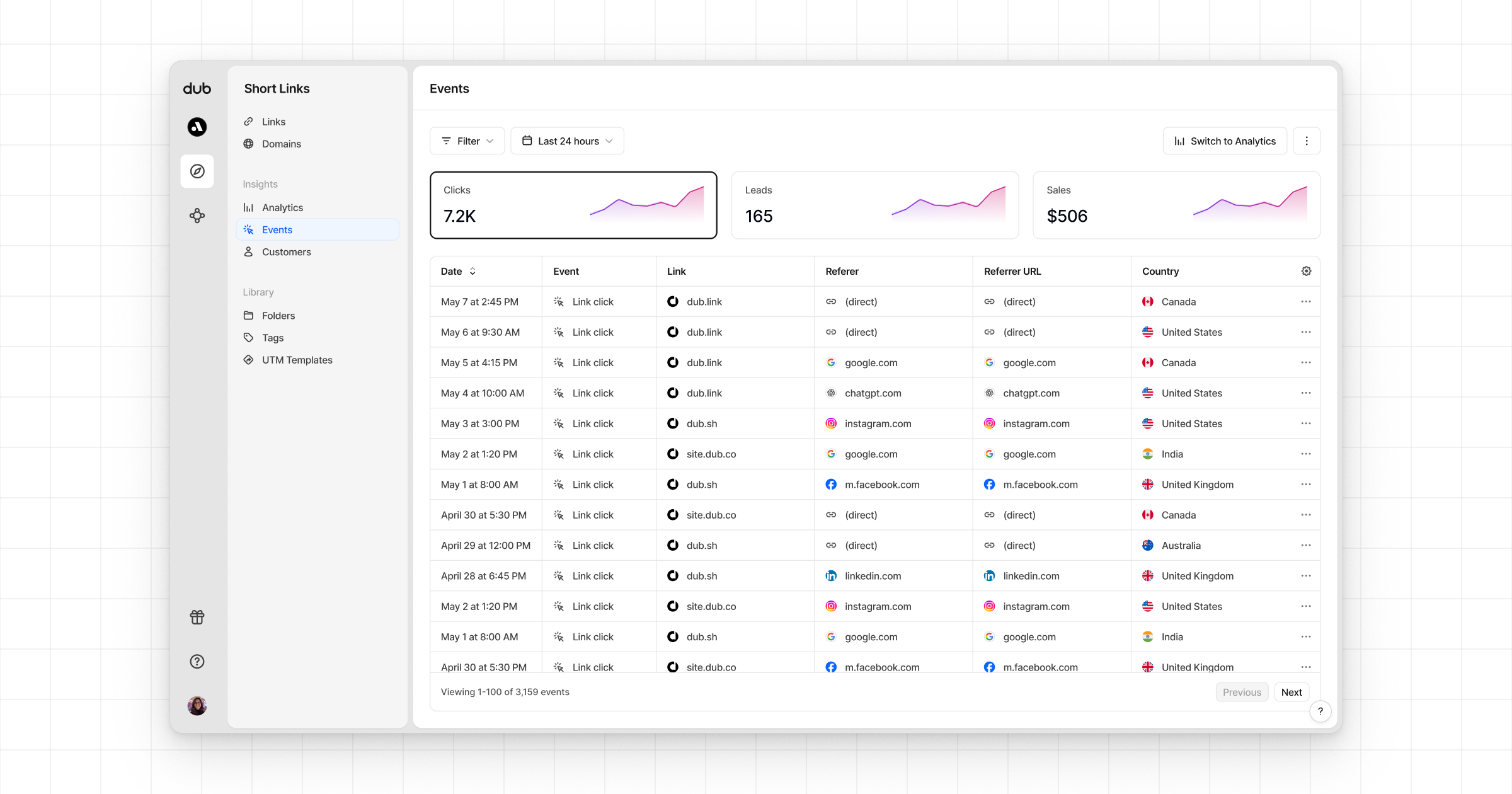
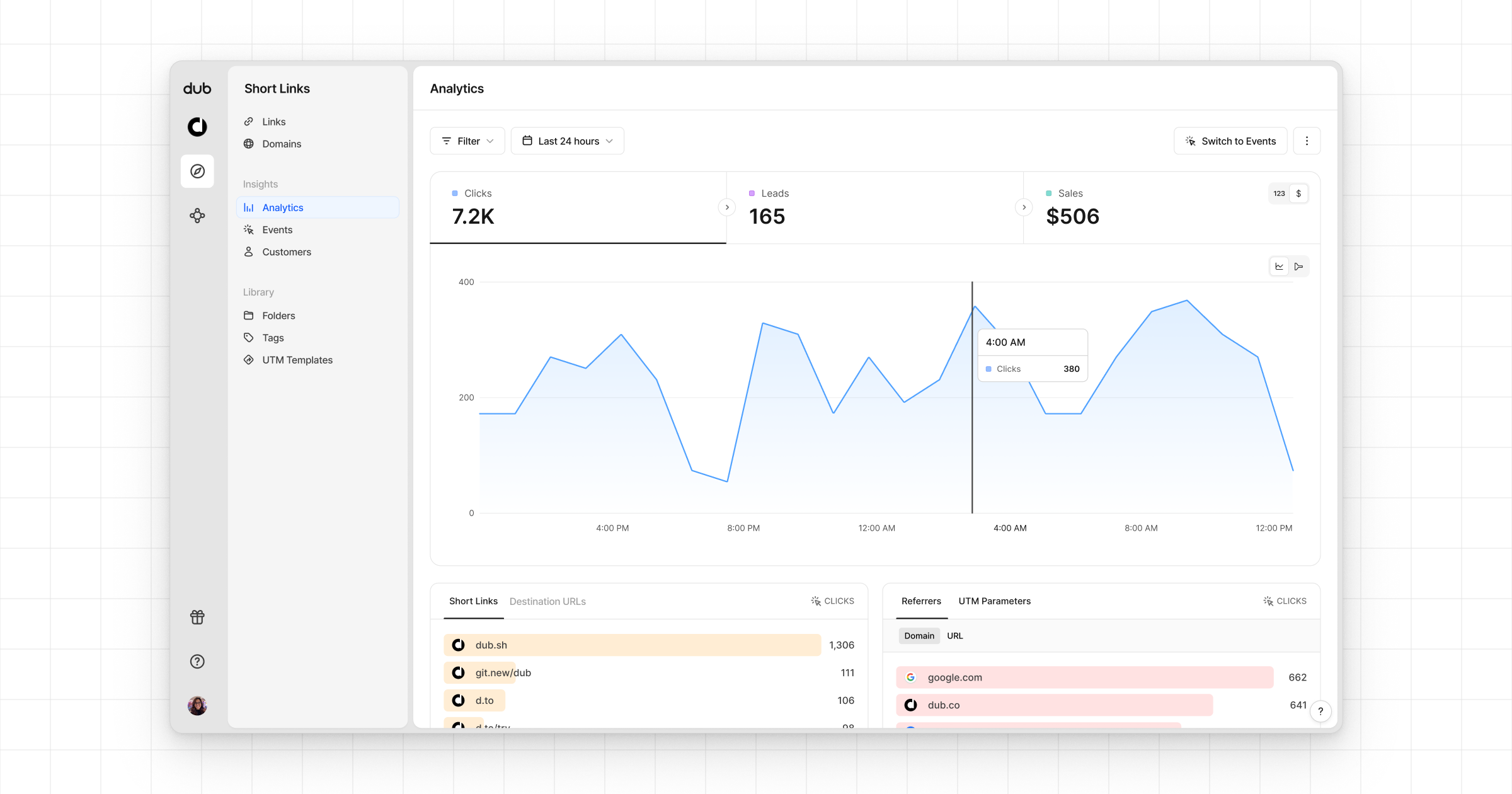
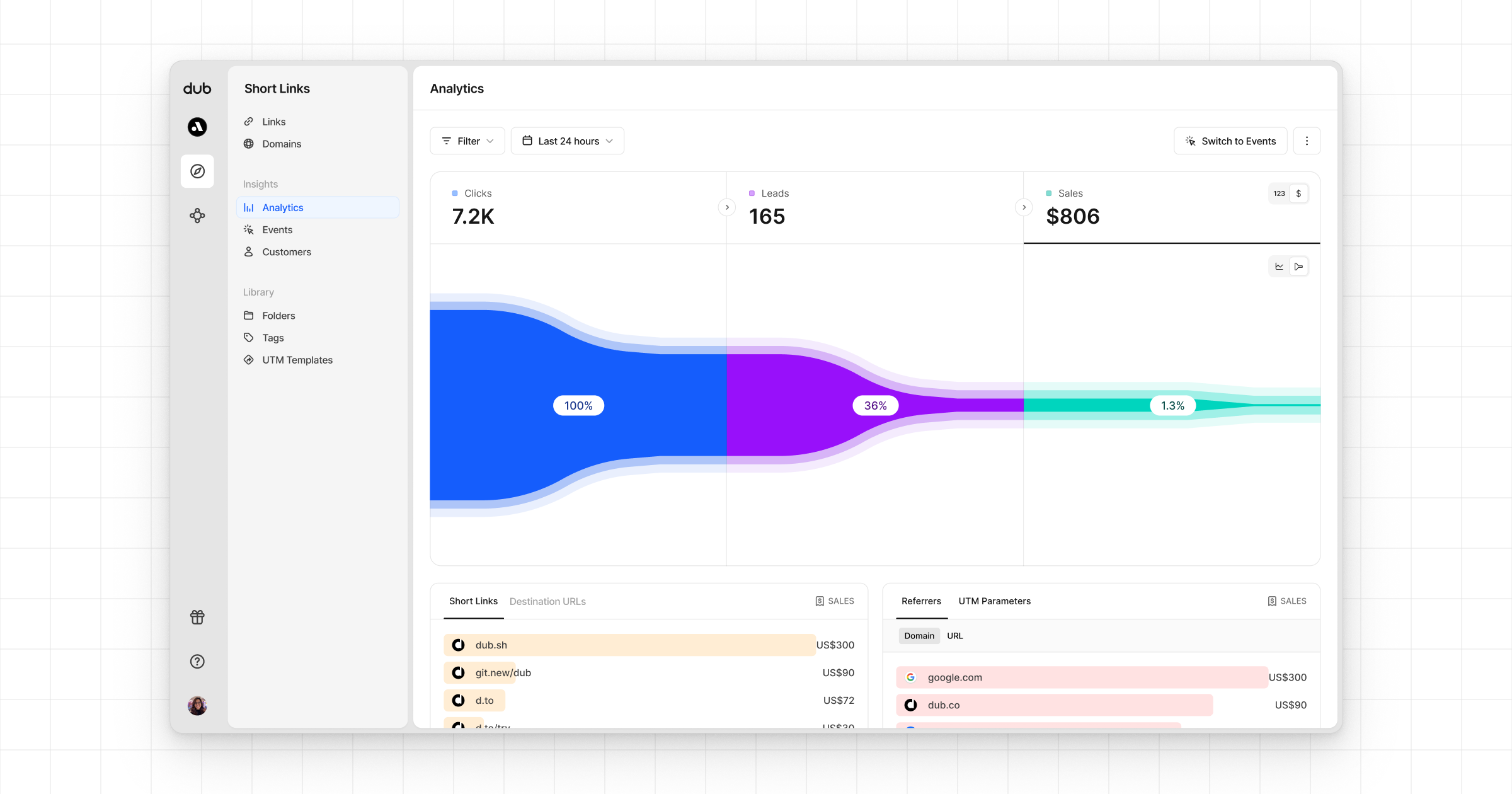
Once you've enabled conversion tracking for your links, all your tracked conversions will show up on your [Analytics dashboard](https://app.dub.co/analytics). We provide 3 different views to help you understand your conversions:
* **Time-series**: A [time-series view](https://app.dub.co/dub/analytics?view=timeseries) of the number clicks, leads and sales.
Once these are set up, we can start tracking conversion events for your deep links.
## Step 1: Install the client-side Mobile SDK
Install the [Dub React Native SDK](/docs/sdks/client-side-mobile/installation-guides/react-native) and initialize it with your publishable key and short link domain.
```sh theme={null}
# With npm
npm install @dub/react-native
# With yarn
yarn add @dub/react-native
# With pnpm
pnpm add @dub/react-native
```
You must call `init` on your `dub` instance with your publishable key and domain prior to being able to use the `dub` instance. We provide two ways to initialize the SDK:
**Option 1**: Use the `DubProvider` to wrap your app
```typescript theme={null}
import { DubProvider } from "@dub/react-native";
export default function App() {
return (
// Your app content...
);
}
```
**Option 2**: Manually initialize the Dub SDK
```typescript theme={null}
import dub from "@dub/react-native";
export default function App() {
useEffect(() => {
dub.init({
publishableKey: "",
domain: "",
});
}, []);
// Return your app...
}
```
Install the [Dub iOS SDK](/docs/sdks/client-side-mobile/installation-guides/swift) and initialize it with your publishable key and short link domain.
Before installing, ensure your environment meets these minimum requirements:
**Build Tools:**
* Xcode 16+
* Swift 4.0+
**Platforms:**
* iOS 16.0+
* macOS 10.13 (Ventura)+
The Dub iOS SDK can be installed using the [Swift Package Manager](https://docs.swift.org/swiftpm/documentation/packagemanagerdocs/).
In Xcode, select **File** > **Add Package Dependencies** and add `https://github.com/dubinc/dub-ios` as the repository URL. Select the latest version of the SDK from the [release page](https://github.com/dubinc/dub-ios/releases).
You must call `Dub.setup` with your publishable key and domain prior to being able to use the `dub` instance.
```swift iOS (SwiftUI) theme={null}
import SwiftUI
import Dub
@main
struct DubApp: App {
// Step 1: Obtain your Dub domain and publishable key
private let dubPublishableKey = ""
private let dubDomain = ""
init() {
// Step 2: Initialize the Dub SDK by calling `setup`
Dub.setup(publishableKey: dubPublishableKey, domain: dubDomain)
}
var body: some Scene {
WindowGroup {
ContentView()
// Step 3: Expose the `dub` instance as a SwiftUI environment value
.environment(\.dub, Dub.shared)
}
}
}
```
```swift iOS (UIKit) theme={null}
import UIKit
import Dub
@main
class AppDelegate: UIResponder, UIApplicationDelegate {
var window: UIWindow?
// Step 1: Obtain your Dub domain and publishable key
private let dubPublishableKey = ""
private let dubDomain = ""
func application(_ application: UIApplication, didFinishLaunchingWithOptions launchOptions: [UIApplication.LaunchOptionsKey: Any]?) -> Bool {
// Step 2: Initialize the Dub SDK by calling `setup`
Dub.setup(publishableKey: dubPublishableKey, domain: dubDomain)
return true
}
}
```
## Step 2: Track deep link open events
Once the SDK has been initialized, you can start tracking deep link and deferred deep link events.
Call `trackOpen` on the `dub` instance to track deep link and deferred deep link open events. The `trackOpen` function should be called once without a `deepLink` parameter on first launch, and then again with the `deepLink` parameter whenever the app is opened from a deep link.
```typescript React Native expandable theme={null}
import { useState, useEffect, useRef } from "react";
import { Linking } from "react-native";
import AsyncStorage from "@react-native-async-storage/async-storage";
import dub from "@dub/react-native";
export default function App() {
useEffect(() => {
dub.init({
publishableKey: "",
domain: "",
});
// Check if this is first launch
const isFirstLaunch = await AsyncStorage.getItem("is_first_launch");
if (isFirstLaunch === null) {
await handleFirstLaunch();
await AsyncStorage.setItem("is_first_launch", "false");
} else {
// Handle initial deep link url (Android only)
const url = await Linking.getInitialURL();
if (url) {
await handleDeepLink(url);
}
}
const linkingListener = Linking.addEventListener("url", (event) => {
handleDeepLink(event.url);
});
return () => {
linkingListener.remove();
};
}, []);
const handleFirstLaunch = async (
deepLinkUrl?: string | null | undefined,
): Promise => {
try {
const response = await dub.trackOpen(deepLinkUrl);
const destinationURL = response.link?.url;
// Navigate to the destination URL
} catch (error) {
// Handle error
}
};
// Return your app...
}
```
```swift iOS (SwiftUI) expandable theme={null}
// ContentView.swift
import SwiftUI
import Dub
struct ContentView: View {
@Environment(\.dub) var dub: Dub
@AppStorage("is_first_launch") private var isFirstLaunch = true
var body: some View {
NavigationStack {
VStack {
// Your app content
}
.onOpenURL { url in
trackOpen(deepLink: url)
}
.onAppear {
if isFirstLaunch {
trackOpen()
isFirstLaunch = false
}
}
}
}
private func trackOpen(deepLink: URL? = nil) {
Task {
do {
let response = try await dub.trackOpen(deepLink: deepLink)
// Obtain the destination URL from the response
guard let url = response.link?.url else {
return
}
// Navigate to the destination URL
} catch let error as DubError {
print(error.localizedDescription)
}
}
}
}
```
```swift iOS (UIKit) expandable theme={null}
import UIKit
import Dub
@main
class AppDelegate: UIResponder, UIApplicationDelegate {
var window: UIWindow?
private let dubPublishableKey = ""
private let dubDomain = ""
private var isFirstLaunch: Bool {
get {
UserDefaults.standard.object(forKey: "is_first_launch") as? Bool ?? true
}
set {
UserDefaults.standard.set(newValue, forKey: "is_first_launch")
}
}
func application(_ application: UIApplication, didFinishLaunchingWithOptions launchOptions: [UIApplication.LaunchOptionsKey: Any]?) -> Bool {
Dub.setup(publishableKey: dubPublishableKey, domain: dubDomain)
// Track first launch
if isFirstLaunch {
trackOpen()
isFirstLaunch = false
}
// Override point for customization after application launch.
return true
}
func application(_ app: UIApplication, open url: URL, options: [UIApplication.OpenURLOptionsKey : Any] = [:]) -> Bool {
handleDeepLink(url: url)
return true
}
func handleDeepLink(url: URL) {
trackOpen(deepLink: url)
}
private func trackOpen(deepLink: URL? = nil) {
// Call the tracking endpoint with the full deep link URL
Task {
do {
let response = try await Dub.shared.trackOpen(deepLink: deepLink)
print(response)
// Navigate to final link via link.url
guard let destinationUrl = response.link?.url else {
return
}
// Navigate to the destination URL
} catch let error as DubError {
print(error.localizedDescription)
}
}
}
}
```
If the deep link was successfully resolved and correlated to the original click, the `response` object will contain the destination URL, which you can use to navigate the user to the appropriate screen.
It will also contain the `clickId`, which the `dub` instance will persist internally.
## Step 3: Track conversion events
You may track conversion events directly in your app with the `trackLead` and `trackSale` methods.
```typescript React Native expandable theme={null}
import dub from "@dub/react-native";
function trackLead(user: User) {
try {
await dub.trackLead({
eventName: "User Sign Up",
customerExternalId: user.id,
customerName: user.name,
customerEmail: user.email,
});
} catch (error) {
// Handle sale tracking error
}
}
function trackSale(user: User, product: Product) {
try {
await dub.trackSale({
customerExternalId: user.id,
amount: product.price.amount,
currency: "usd",
eventName: "Purchase",
});
} catch (error) {
// Handle sale tracking error
}
}
```
```swift iOS (SwiftUI) expandable theme={null}
// ContentView.swift
import SwiftUI
import Dub
struct ContentView: View {
@Environment(\.dub) var dub: Dub
var body: some View {
// ... your app content ...
}
private func trackLead(customerExternalId: String, name: String, email: String) {
Task {
do {
let response = try await dub.trackLead(
eventName: "Sign Up",
customerExternalId: customerExternalId,
customerName: name,
customerEmail: email
)
print(response)
} catch let error as DubError {
print(error.localizedDescription)
}
}
}
private func trackSale(
customerExternalId: String,
amount: Int,
currency: String = "usd",
eventName: String? = "Purchase",
customerName: String? = nil,
customerEmail: String? = nil,
customerAvatar: String? = nil
) {
Task {
do {
let response = try await dub.trackSale(
customerExternalId: customerExternalId,
amount: amount,
currency: currency,
eventName: eventName,
customerName: customerName,
customerEmail: customerEmail,
customerAvatar: customerAvatar
)
print(response)
} catch let error as DubError {
print(error.localizedDescription)
}
}
}
}
```
```swift iOS (UIKit) expandable theme={null}
// ViewController.swift
import UIKit
import Dub
class ViewController: UIViewController {
// View controller lifecycle
private func trackLead(customerExternalId: String, name: String, email: String) {
Task {
do {
let response = try await dub.trackLead(customerExternalId: customerExternalId, name: name, email: email)
} catch let error as DubError {
print(error.localizedDescription)
}
}
}
private func trackSale(customerExternalId: String, amount: Int, currency: String = "usd", eventName: String? = "Purchase", customerName: String? = nil, customerEmail: String? = nil, customerAvatar: String? = nil) {
Task {
do {
let response = try await dub.trackSale(customerExternalId: customerExternalId, amount: amount, currency: currency, eventName: eventName, customerName: customerName, customerEmail: customerEmail, customerAvatar: customerAvatar)
} catch let error as DubError {
print(error.localizedDescription)
}
}
}
}
```
Alternatively, you can [track conversion events server-side](/docs/quickstart/server) by sending the `clickId` resolved from the deep link to your backend and then calling off to either:
* [`POST /track/lead`](/docs/api-reference/track/lead)
* [`POST /track/sale`](/docs/api-reference/track/sale)
## Step 4: View your conversions
Once you've enabled conversion tracking for your links, all your tracked conversions will show up on your [Analytics dashboard](https://app.dub.co/analytics). We provide 3 different views to help you understand your conversions:
* **Time-series**: A [time-series view](https://app.dub.co/dub/analytics?view=timeseries) of the number clicks, leads and sales.
 * **Funnel chart**: A [funnel chart view](http://app.dub.co/analytics?view=funnel) visualizing the conversion & dropoff rates across the different steps in the conversion funnel (clicks → leads → sales).
 * **Real-time events stream**: A [real-time events stream](https://app.dub.co/events) of every single conversion event that occurs across all your links in your workspace.