> ## Documentation Index
> Fetch the complete documentation index at: https://dub.co/llms.txt
> Use this file to discover all available pages before exploring further.
# API Authentication
## Introduction
Dub uses two distinct types of authentication keys depending on where your code runs. Choose the right one for your use case:
| Key type | Use case | Where to use |
| :---------------------------------------- | :------------------------------ | :---------------------------------------------------- |
| [**API keys**](#api-keys) | Server-to-server (REST APIs) | Back-end only; store securely, never expose to client |
| [**Publishable keys**](#publishable-keys) | Client-side conversion tracking | Safe to include in frontend code |
## API keys
API keys on Dub allow you to access your workspace programmatically. This is useful for integrating Dub into your application or with other tools and services.
Each API key is tied to a specific workspace – meaning you can use it to access that workspace's resources without having to worry about "leaking" access to other workspaces.
API keys on Dub follow the format:
```bash .env theme={null}
DUB_API_KEY=dub_xxxxxxxx
```
By default, you can use this key to perform any API request without restriction, so it must be stored securely in your app's server-side code (such as in an environment variable or credential management system). Don’t expose this key on a website.
### Create an API key
You can create an API key by following these steps:
Go to **Settings** > [**API Keys**](https://app.dub.co/settings/tokens) in your workspace.
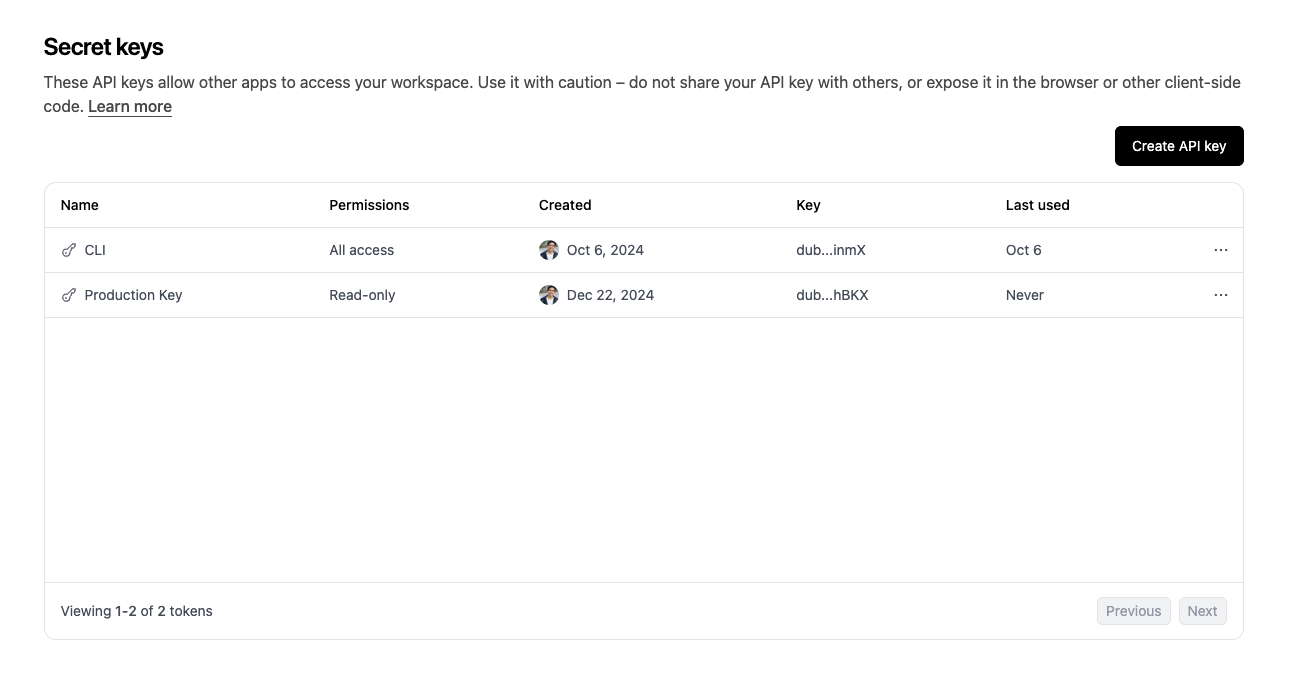 Click on the "Create" button and select permissions you want to grant to
the API key.
Select between "You" and "Machine" to associate the API key with your account or a [machine user](#machine-users).
* **You**: This API key is tied to your user and can make requests against the selected workspace.
* **Machine**: A machine user will be added to your workspace, and an API key associated with that machine user will be created.
Click on the "Create" button and select permissions you want to grant to
the API key.
Select between "You" and "Machine" to associate the API key with your account or a [machine user](#machine-users).
* **You**: This API key is tied to your user and can make requests against the selected workspace.
* **Machine**: A machine user will be added to your workspace, and an API key associated with that machine user will be created.
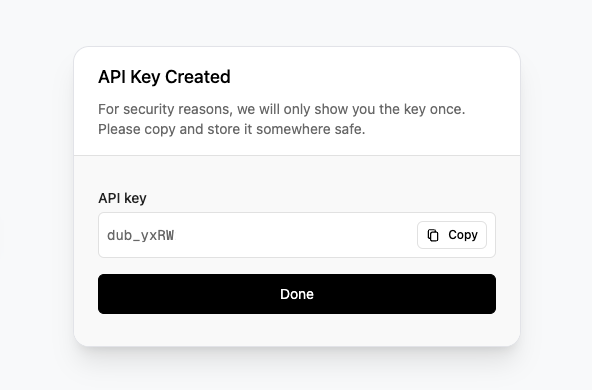
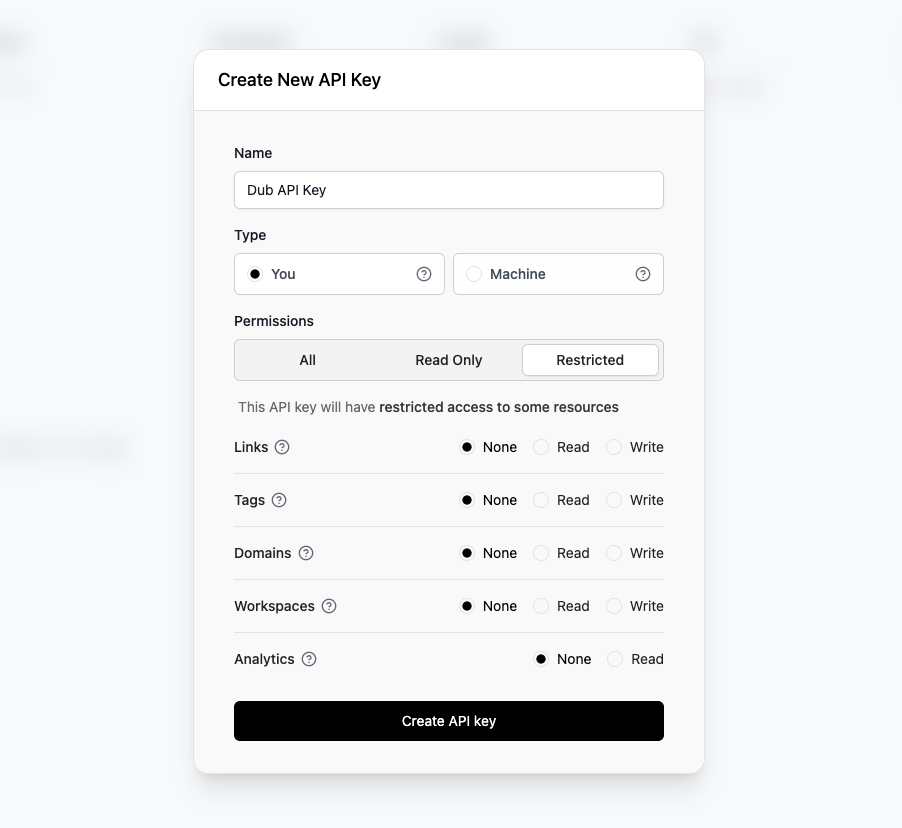 Click on the **Create API Key** button to create the key. Make sure to copy your API key and store it in a safe place. You won't be able to see it again.
 Now that you have your API key, you can use it to access your workspace's resources programmatically via SDKs or within any API request as a bearer token.
```
Authorization: Bearer dub_xxxx
```
We recommend creating API keys with the least privilege necessary to perform
the required tasks. This helps to reduce the risk of unauthorized access to
your workspace.
### API key permissions
When creating a secret key, you can select the permissions it has, which will give the key access to certain (or all) resources on Dub. Here are the different permission options:
| Permission | Description |
| :------------------ | :---------------------------------------------------------------------------------------------------------------------------------------------------------------------------------------------------------------------------------------------------------- |
| **All permissions** | This API key will have full access to all resources. |
| **Read only** | This API key will have read-only access to all resources. |
| **Restricted** | This API key will have restricted access to some resources:
Now that you have your API key, you can use it to access your workspace's resources programmatically via SDKs or within any API request as a bearer token.
```
Authorization: Bearer dub_xxxx
```
We recommend creating API keys with the least privilege necessary to perform
the required tasks. This helps to reduce the risk of unauthorized access to
your workspace.
### API key permissions
When creating a secret key, you can select the permissions it has, which will give the key access to certain (or all) resources on Dub. Here are the different permission options:
| Permission | Description |
| :------------------ | :---------------------------------------------------------------------------------------------------------------------------------------------------------------------------------------------------------------------------------------------------------- |
| **All permissions** | This API key will have full access to all resources. |
| **Read only** | This API key will have read-only access to all resources. |
| **Restricted** | This API key will have restricted access to some resources: - [Links](/docs/data-model#links)
- [Analytics](/docs/api-reference/analytics/retrieve)
- [Domains](/docs/data-model#domains)
- [Tags](/docs/data-model#tags)
|
Depending on your use case, you might want to use one of these 3 options to limit the scope of the API key and improve security. When making API calls, if your API key has insufficient permissions, the error should tell you which permissions you need.
### Machine users
On Dub, you can create API keys that are associated with a "Machine user". This is particularly helpful when you don't want to associate the API key with a particular user in your workspace, to avoid security risks in involving turnover or changes in project ownership.
Machine users share the same permissions as the [owner
role](/help/article/workspace-roles#owner-role) in a workspace. Make sure to
only create machine users for trusted applications.
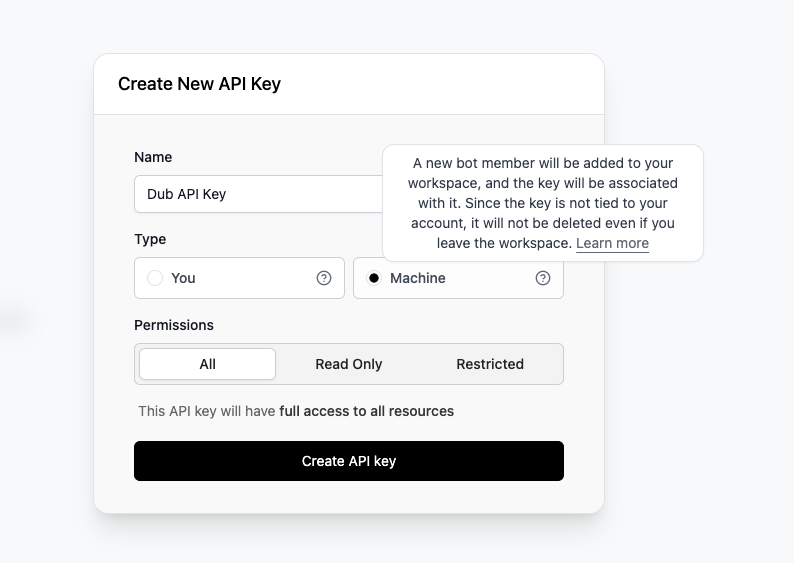 These machine users will show up on your workspace's **People** tab, but will not contribute to your workspace's user count.
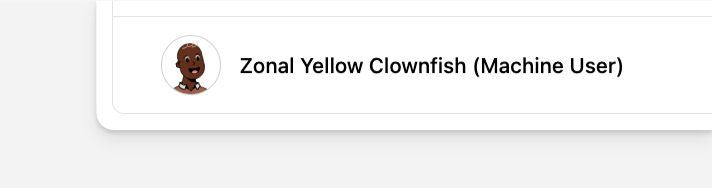 If you delete an API key associated with a machine user, the machine user will
be deleted. Vice versa, if you delete a machine user, their corresponding API
key will be deleted as well.
## Publishable keys
Publishable keys on Dub allow you to safely embed authentication in client-side applications.
These keys are specifically designed to be used with [Dub's client-side SDKs](/docs/sdks/client-side/introduction) for features like [conversion tracking](/docs/sdks/client-side/features/conversion-tracking).
Unlike [API keys](#api-keys) which must be kept secret, publishable keys can be safely exposed in your frontend code since they have limited capabilities.
Publishable keys on Dub follow the format:
```bash .env theme={null}
DUB_PUBLISHABLE_KEY=dub_pk_xxxxxxxxxxxxxxxxxxxxxxxx
```
### Create a publishable key
You can create a publishable key by following these steps:
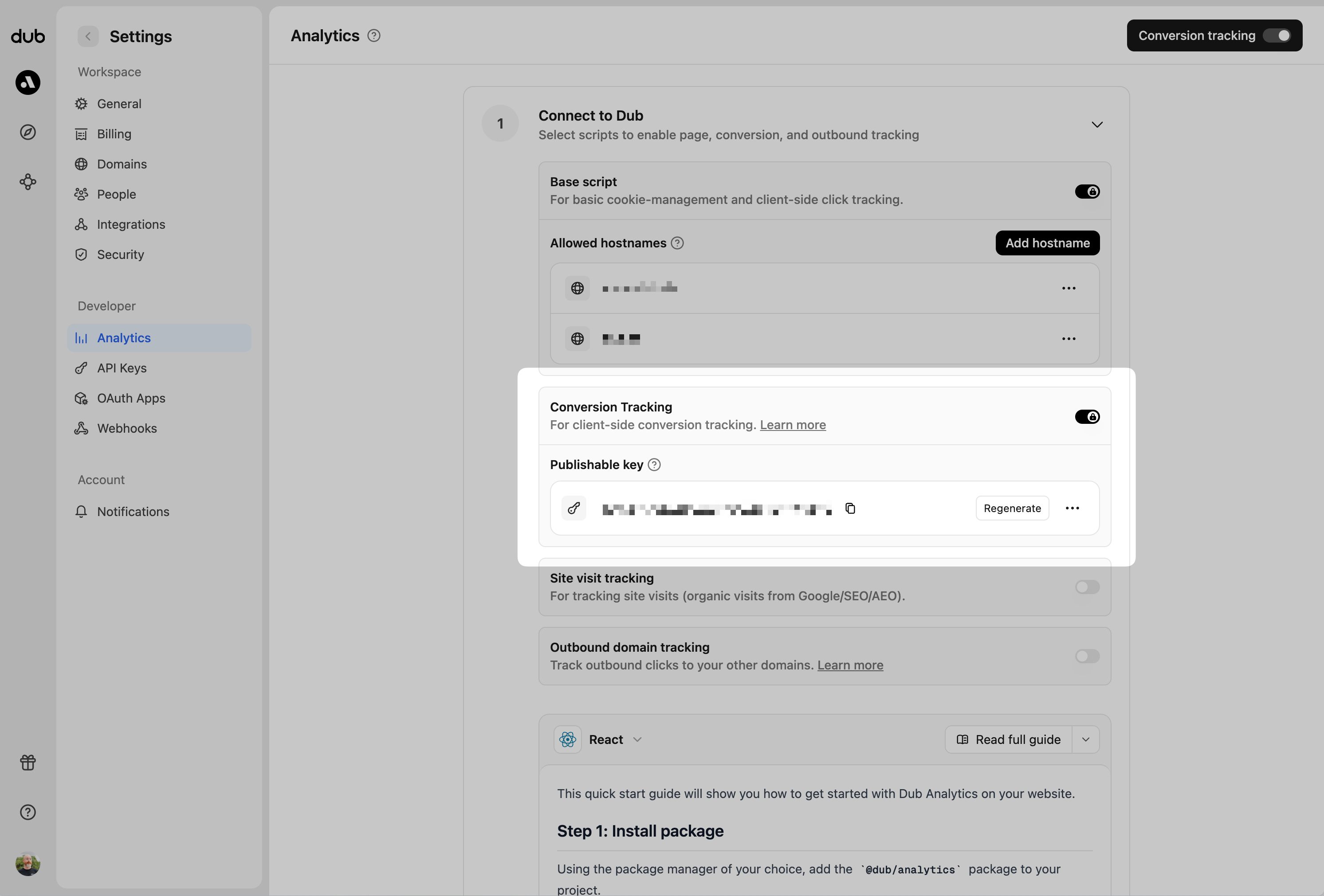
Before you can track conversions on the client-side, you need to generate a [publishable key](/docs/api-reference/authentication#publishable-keys) from your Dub workspace.
To do that, navigate to your [workspace's Tracking settings page](https://app.dub.co/settings/tracking) and generate a new publishable key under the **Publishable Key** section.
If you delete an API key associated with a machine user, the machine user will
be deleted. Vice versa, if you delete a machine user, their corresponding API
key will be deleted as well.
## Publishable keys
Publishable keys on Dub allow you to safely embed authentication in client-side applications.
These keys are specifically designed to be used with [Dub's client-side SDKs](/docs/sdks/client-side/introduction) for features like [conversion tracking](/docs/sdks/client-side/features/conversion-tracking).
Unlike [API keys](#api-keys) which must be kept secret, publishable keys can be safely exposed in your frontend code since they have limited capabilities.
Publishable keys on Dub follow the format:
```bash .env theme={null}
DUB_PUBLISHABLE_KEY=dub_pk_xxxxxxxxxxxxxxxxxxxxxxxx
```
### Create a publishable key
You can create a publishable key by following these steps:
Before you can track conversions on the client-side, you need to generate a [publishable key](/docs/api-reference/authentication#publishable-keys) from your Dub workspace.
To do that, navigate to your [workspace's Tracking settings page](https://app.dub.co/settings/tracking) and generate a new publishable key under the **Publishable Key** section.
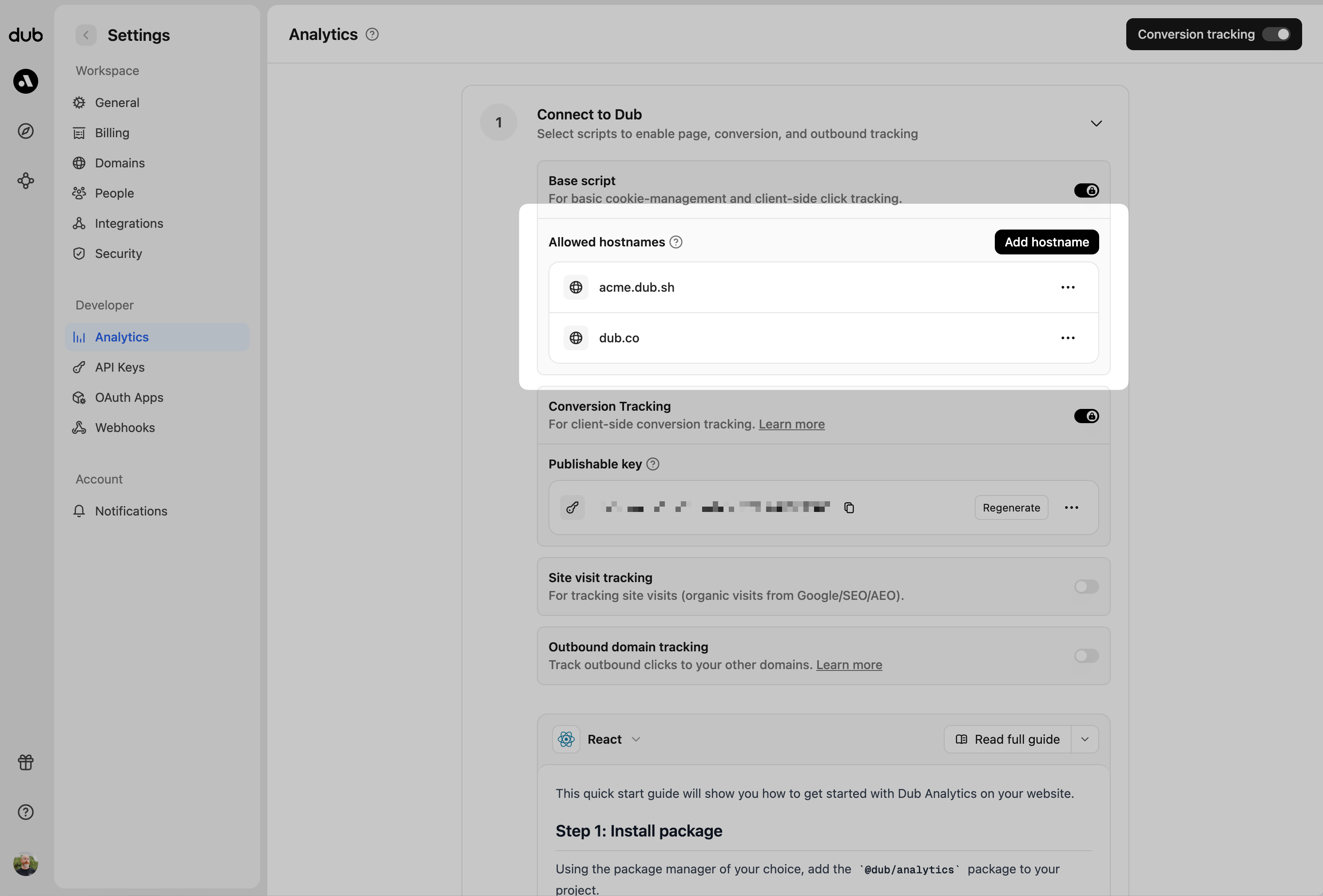
 Then, you'll need to allowlist your site's domain to allow the client-side conversion events to be ingested by Dub.
To do that, navigate to your [workspace's Tracking settings page](https://app.dub.co/settings/tracking) and add your site's domain to the **Allowed Hostnames** list.
This provides an additional layer of security by ensuring only authorized domains can track conversions using your publishable key.
Then, you'll need to allowlist your site's domain to allow the client-side conversion events to be ingested by Dub.
To do that, navigate to your [workspace's Tracking settings page](https://app.dub.co/settings/tracking) and add your site's domain to the **Allowed Hostnames** list.
This provides an additional layer of security by ensuring only authorized domains can track conversions using your publishable key.
 You can group your hostnames when adding them to the allow list:
* `example.com`: Tracks traffic **only** from `example.com`.
* `*.example.com`: Tracks traffic from **all subdomains** of `example.com`, but **not** from `example.com` itself.
When testing things out locally, you can add `localhost` to the **Allowed
Hostnames** list temporarily. This will allow local events to be ingested by
Dub. Don't forget to remove it once you're ready to go live!
You can now use your publishable key to authenticate client-side requests in your application. Usage will depend on the client-side SDK you are using.
You can group your hostnames when adding them to the allow list:
* `example.com`: Tracks traffic **only** from `example.com`.
* `*.example.com`: Tracks traffic from **all subdomains** of `example.com`, but **not** from `example.com` itself.
When testing things out locally, you can add `localhost` to the **Allowed
Hostnames** list temporarily. This will allow local events to be ingested by
Dub. Don't forget to remove it once you're ready to go live!
You can now use your publishable key to authenticate client-side requests in your application. Usage will depend on the client-side SDK you are using.